How to connect Linear to Grok Bot

Connect Grok Bot to Linear MCP. Create a new bug for team mobile, add a comment to issue lin-123, and more using natural language, with authentication handled for you.

Linear logoLinear
Oauth2Api Key

Linear is a modern issue tracking and project planning tool for fast-moving teams. It helps streamline workflows, organize projects, and boost productivity.

32 Tools3 Triggers

Introduction

Grok is xAI's assistant, and its bot builder lets you create a personal agent that holds context, runs skills, and connects to the apps you already use through plugins.

This guide explains how to connect Linear to a Grok bot using Composio Connect, which handles OAuth, token refresh, and reliability so you do not have to. You add Composio as a plugin, authenticate once, then ask your bot to work with Linear in plain language.

Also integrate Linear with

Why use Composio?

Composio exposes 1,000+ apps to your Grok bot through a single connection, so you get:

  • Connect to 1,000+ apps with on-demand tool loading, so you do not fill your context window with unnecessary tool definitions.
  • Use programmatic tool calling through a remote workbench, letting the model write its own code to handle complex tool chaining. This reduces back-and-forth for frequent tool calls.
  • Handle large tool responses outside the model context to keep conversations lean.

Connecting Linear to Grok Bot

Once Grok Bot is set up, you connect Linear entirely from its interface, and the whole flow takes under a minute.

Set up Grok Bot

1. Get access. Grok Bot is included with a paid Cursor plan (Cursor Pro, Pro+, or Ultra) or a Cursor Teams seat. You can also grant usage by linking an individual SuperGrok, SuperGrok Plus, or SuperGrok Heavy subscription to your Cursor account.

2. Download and sign in. Get the Grok Bot desktop app for macOS or Windows from x.ai/bot, then sign in with your Cursor account. An iPhone companion app is also available, and your bots sync across devices.

3. Create a bot. Pick a suggested role or define your own, then give it a short name, one primary job, and a short description of how it should work. Focused bots work best, because a clear role gives the bot more useful context over time.

Connect Linear

1. Open Plugins

Open the Grok bot you want to connect to Linear, then click Plugins in the left sidebar to open the plugin marketplace.

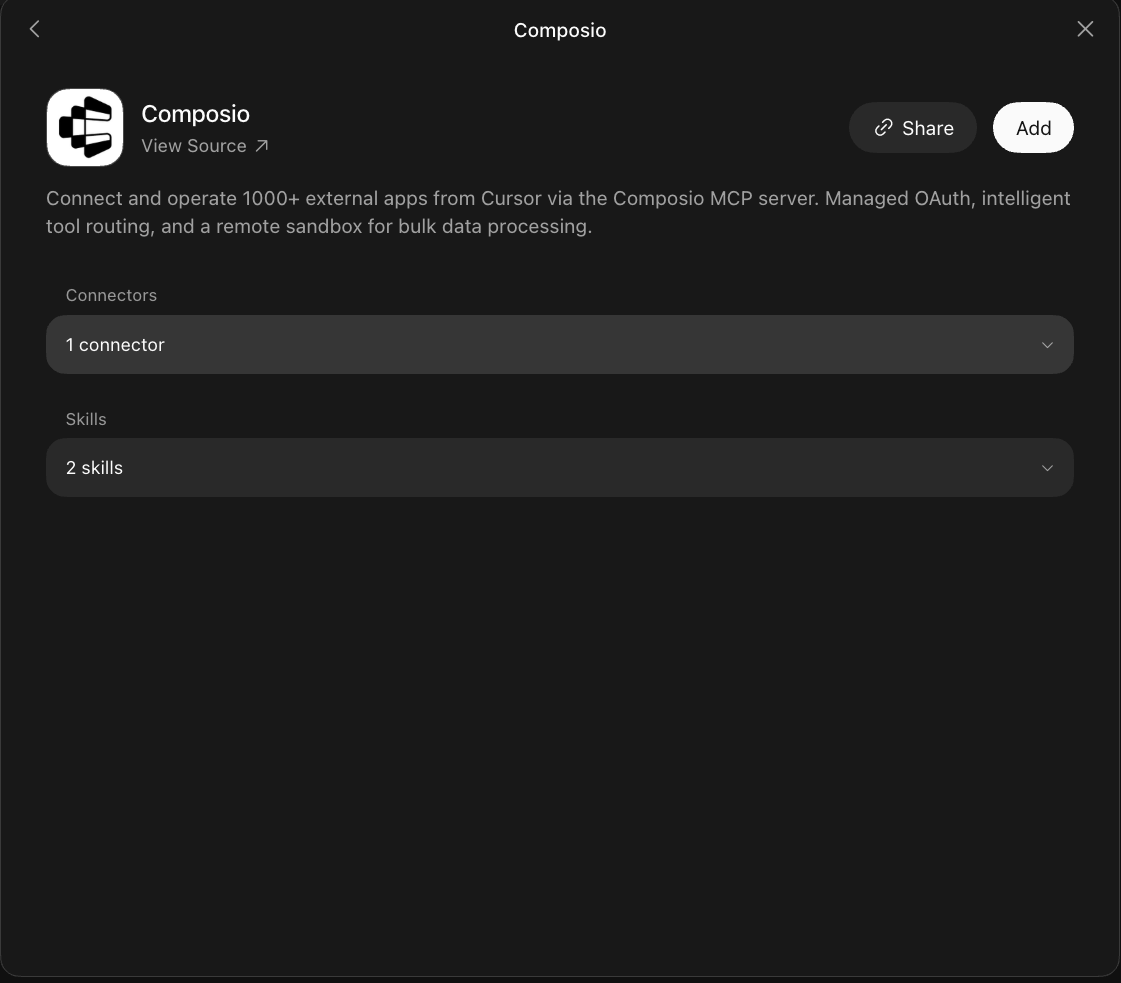
Grok Bot plugin marketplace with the Composio plugin

2. Search for Composio and add it

Type Composio into the Search plugins box and click Add on the Composio result. It then shows under 1 installed at the top of the marketplace.

Grok Bot plugin marketplace showing Composio under 1 installed

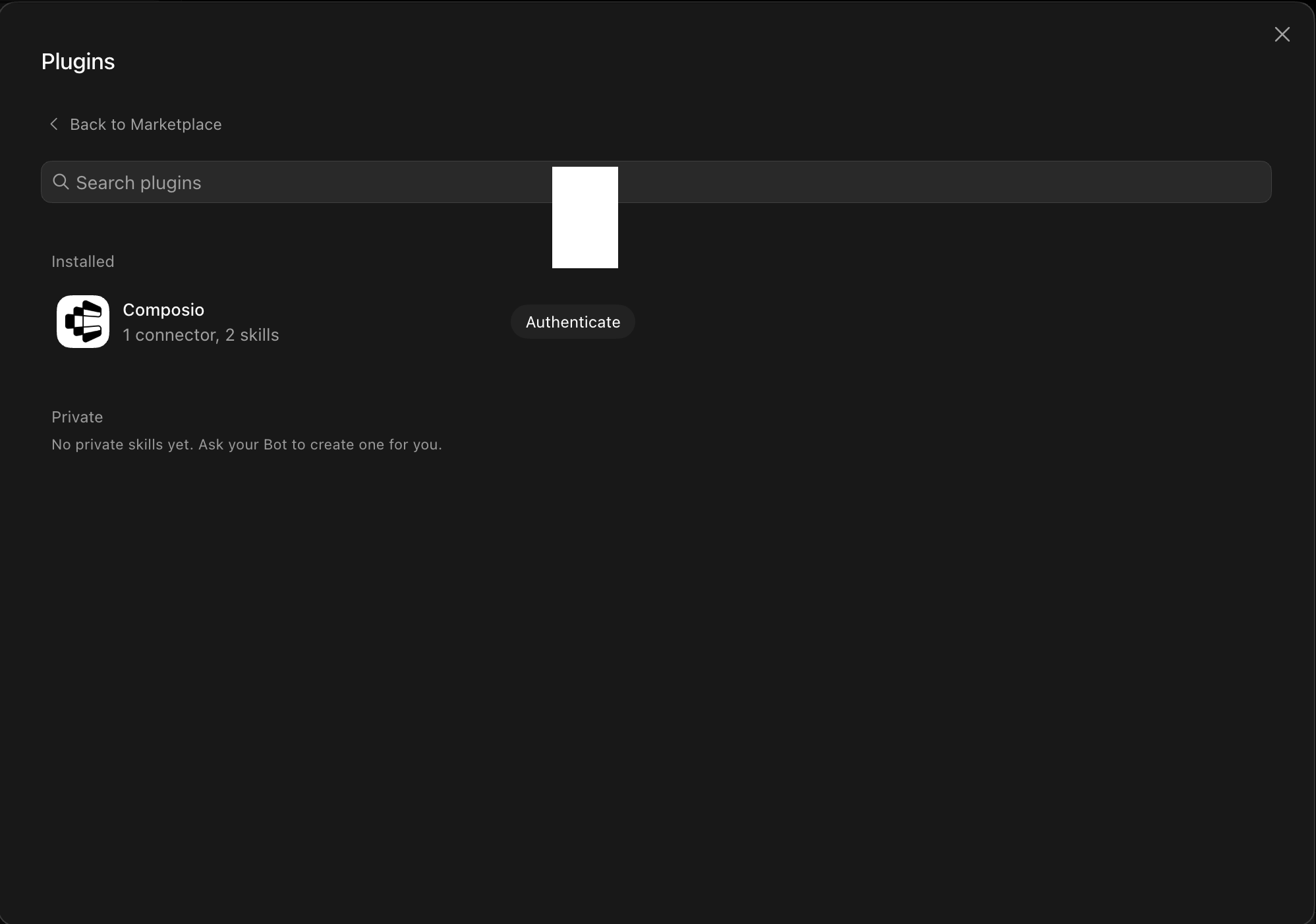
3. Open the installed plugin

Go to the Installed section and click the Composio entry. You'll see its connector and skills listed (for example, 1 connector, 2 skills).

Installed Composio plugin showing the Authenticate button

4. Authenticate

Click Authenticate. You'll be taken to the Composio consent screen. Review the access it requests and click Authorize. Composio handles the OAuth handshake for you, so you never touch API keys or tokens.

Composio authorization screen with Authorize and Deny

5. Connect your Linear account

Back in the chat, ask your bot to connect to Linear or give it any Linear task.

For example, ask it to:

  • "Create a new bug for team Mobile"
  • "Add a comment to issue LIN-123"
  • "List all cycles for the Design team"

It will prompt you to authenticate and authorize access.

That's it. Composio's tools are now available in your Grok bot, and your Linear account is ready to use.

What is Grok Bot?

Grok is xAI's assistant, available as a chat interface and a bot builder for creating personal agents that run skills and connect to external apps.

With Composio Connect, your Grok bot can securely access apps like Linear through MCP without you sharing account credentials directly with the agent.

What is the Linear MCP server, and what's possible with it?

The Linear MCP server is an implementation of the Model Context Protocol that connects your AI agent and assistants like Claude, Cursor, etc directly to your Linear account. It provides structured and secure access to your team's issues, projects, and workflows, so your agent can perform actions like creating issues, posting comments, managing attachments, organizing teams, and automating project tracking on your behalf.

  • Automated issue creation and management: Instantly create new Linear issues, update existing ones, or archive issues to keep your team’s backlog organized and up to date.
  • Commenting and collaboration: Post comments on issues, facilitate team discussions, and keep everyone in the loop without manual effort.
  • Attachment handling: Add or download attachments to and from issues, making it easy to share files or reference important documents right from Linear.
  • Team and cycle insights: Retrieve all teams, fetch cycles (sprints) by team ID, and get default issue parameters to help your agent contextualize and optimize planning activities.
  • Personalized workspace access: Identify the current user, fetch their profile information, and tailor actions or queries to individual team members for smarter automation.

Way Forward

Now that Linear is connected, extend your setup by connecting the other apps you already use every day, so your Grok bot can run true cross-app workflows end to end.

  • Connect Calendar to turn threads into scheduled meetings automatically.
  • Connect Slack or Teams to post summaries, approvals, and alerts where your team works.
  • Connect Notion, Linear, Jira, or Asana to convert requests into tickets, tasks, and docs.
  • Connect Drive, Dropbox, or OneDrive to fetch, file, and share attachments without manual steps.

Start with one workflow you do repeatedly, then keep adding apps as you find new handoffs. With everything behind a single connection, your bot can coordinate multiple tools safely and reliably in one conversation.

TOOLS & TRIGGERS

Supported Tools and Triggers

Every Linear action and event your agent gets out of the box.

Create attachment

Creates a new attachment and associates it with a specific, existing Linear issue.

Add reaction to comment

Tool to add a reaction to an existing Linear comment.

Create a comment

Creates a new comment on a specified Linear issue.

Create linear issue

Creates a new issue in a specified Linear project and team, requiring team_id and title, and allowing optional properties like description, assignee, state, priority, cycle, and due date.

Create issue relation

Create a relationship between two Linear issues using the issueRelationCreate mutation.

Create a label

Creates a new label in Linear for a specified team, used to categorize and organize issues.

Create Project

Creates a new Linear project with specified name and team associations.

Create Project Milestone

Tool to create a project milestone in Linear with a name and optional target date and sort order.

Create Project Update

Tool to create a project status update post for a Linear project.

Delete issue

Archives an existing Linear issue by its ID, which is Linear's standard way of deleting issues; the operation is idempotent.

Download issue attachments

Downloads a specific attachment from a Linear issue; the `file_name` must include the correct file extension.

Get current user

Gets the currently authenticated user's ID, name, email, and other profile information — this is the account behind the API token, which may be a bot or service account rather than a human user.

Get cycles by team ID

Retrieves all cycles for a specified Linear team ID; cycles are time-boxed work periods (like sprints).

Get create issue default params

Fetches a Linear team's default issue estimate and state, useful for pre-filling new issue forms.

Get Linear issue

Retrieves an existing Linear issue's comprehensive details, including id, identifier, title, description, timestamps, state, team, creator, attachments, comments (with user info and timestamps, use issue.

Get Linear project

Retrieves a single Linear project by its unique identifier.

List issue drafts

Tool to list issue drafts.

List issues by team ID

Tool to list all issues for a specific Linear team, scoped by team ID.

Get all cycles

Retrieves all cycles (time-boxed sprint iterations) org-wide from the Linear account; no filters applied.

List Linear issues

Lists non-archived Linear issues; if project_id is not specified, issues from all accessible projects are returned.

Get labels

Retrieves labels from Linear.

List linear projects

Retrieves all projects from the Linear account.

List Linear states

Retrieves all workflow states for a specified team in Linear, representing the stages an issue progresses through in that team's workflow.

Get teams

Retrieves all teams with their members and projects.

List Linear users

Lists all workspace users (not team-scoped) with their IDs, names, emails, and active status.

Remove label from Linear issue

Removes a specified label from an existing Linear issue using their IDs; successful even if the label isn't on the issue.

Remove reaction from comment

Tool to remove a reaction on a comment.

Run Query or Mutation

Execute any GraphQL query or mutation against Linear's API.

Search Linear issues

Search Linear issues using full-text search across identifier, title, and description.

Update issue

Updates an existing Linear issue using its `issue_id`; requires at least one other attribute for modification, and all provided entity IDs (for state, assignee, labels, etc.

Update a comment

Tool to update an existing Linear comment's body text.

Update Project

Tool to update an existing Linear project.

FAQ

Frequently asked questions

With a standalone Linear MCP server, the agents and LLMs can only access a fixed set of Linear tools tied to that server. However, with the Composio Tool Router, agents can dynamically load tools from Linear and many other apps based on the task at hand, all through a single MCP endpoint.

Yes, you can. Grok Bot fully supports MCP integration. You get structured tool calling, message history handling, and model orchestration while Tool Router takes care of discovering and serving the right Linear tools.

Yes, absolutely. You can configure which Linear scopes and actions are allowed when connecting your account to Composio. You can also bring your own OAuth credentials or API configuration so you keep full control over what the agent can do.

All sensitive data such as tokens, keys, and configuration is fully encrypted at rest and in transit. Composio is SOC 2 Type 2 compliant and follows strict security practices so your Linear data and credentials are handled as safely as possible.

Start with Linear.It takes 30 seconds.

Managed auth, hosted MCP servers, and every Linear tool your agent needs.Free to start.

Start building