

How to connect Linear MCP with Cursor

Trusted by
AWS
Glean
Zoom
Airtable

30 min · no commitment · see it on your stack

Linear logo
Cursor logo
divider

How to integrate Linear MCP with Cursor

Cursor is one of the leading AI-powered code editors. It is built to help developers write, understand, and refactor code faster with AI assistance built directly into the editor.

And in this guide, I will explain the easiest and most secure way to connect your Linear account to Cursor via Composio Connect, so it can create a new bug for team Mobile, add a comment to issue LIN-123, list all cycles for the Design team, and more without ever putting your account credentials at risk.
Also integrate Linear with

Why Composio?

  • 1,000+ SaaS toolkits out of the box. Skip the work of building and maintaining integrations, Composio gives you instant access to a vast catalog of pre-built connectors.
  • One MCP server for every app. Connect any of your applications on demand through a single endpoint, rather than juggling a separate server for each app.
  • Smart, context-aware tool loading. Unlike traditional MCP servers that dump every available tool into the LLM context window, Composio searches for and loads only the tools relevant to the task at hand. A remote CLI workbench lets LLMs compose these tools into workflows for complex automation.

Connect Linear to Cursor

Two ways to install — pick whichever you prefer.

1. Install with one click

Click the button below to add Composio to Cursor.

Install in Cursor

2. Or add manually

Add to your Cursor mcp.json

Open .cursor/mcp.json in your project root (or ~/.cursor/mcp.json for global config) and add the following configuration:

bash
{
  "servers": {
    "composio": {
      "type": "http",
      "url": "https://connect.composio.dev/mcp"
    }
  }
}

3. Authorize

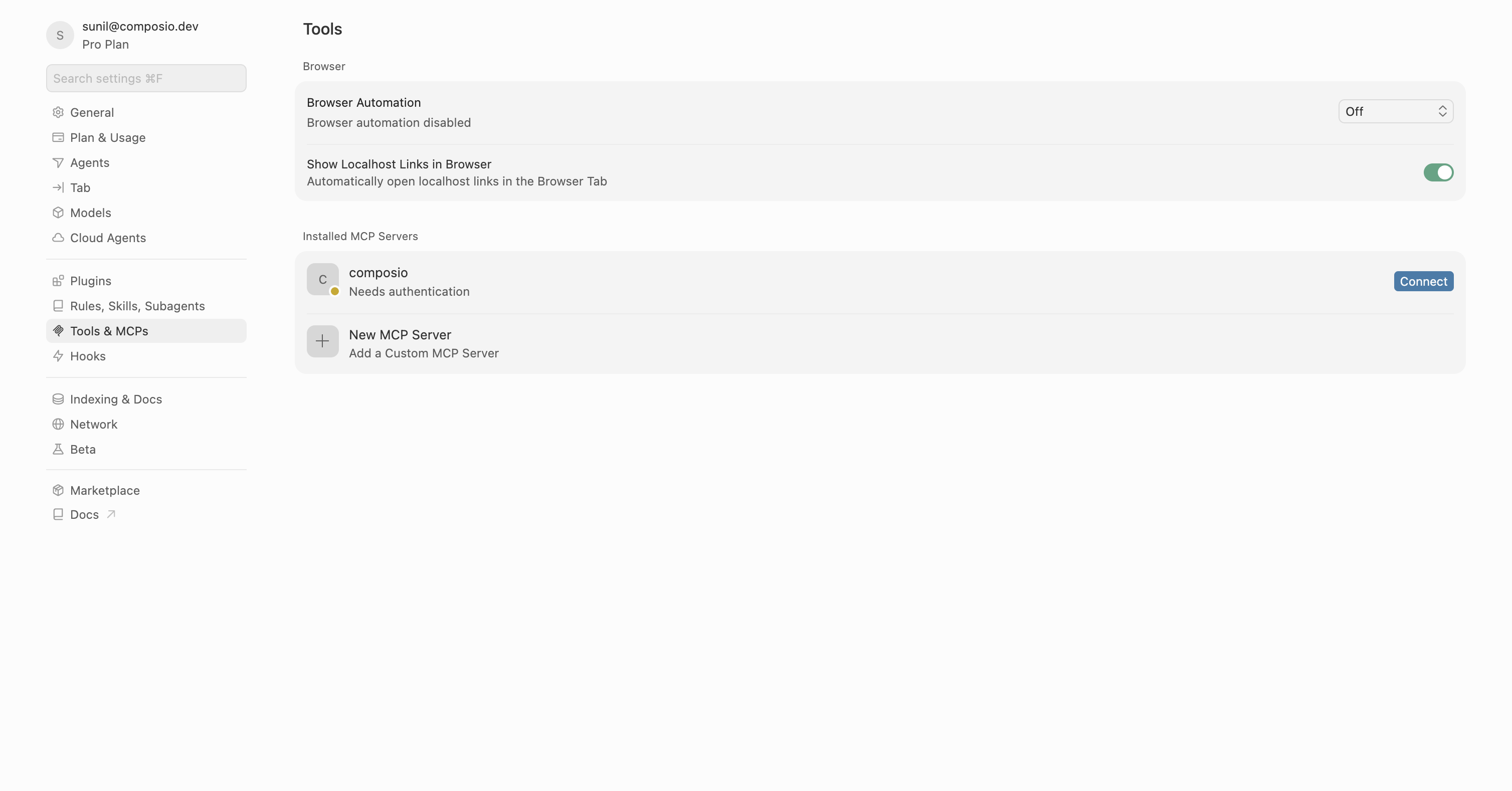
Restart Cursor, then click "Connect" next to Composio in MCP Tools settings.

Cursor MCP Tools settings with Connect button next to Composio

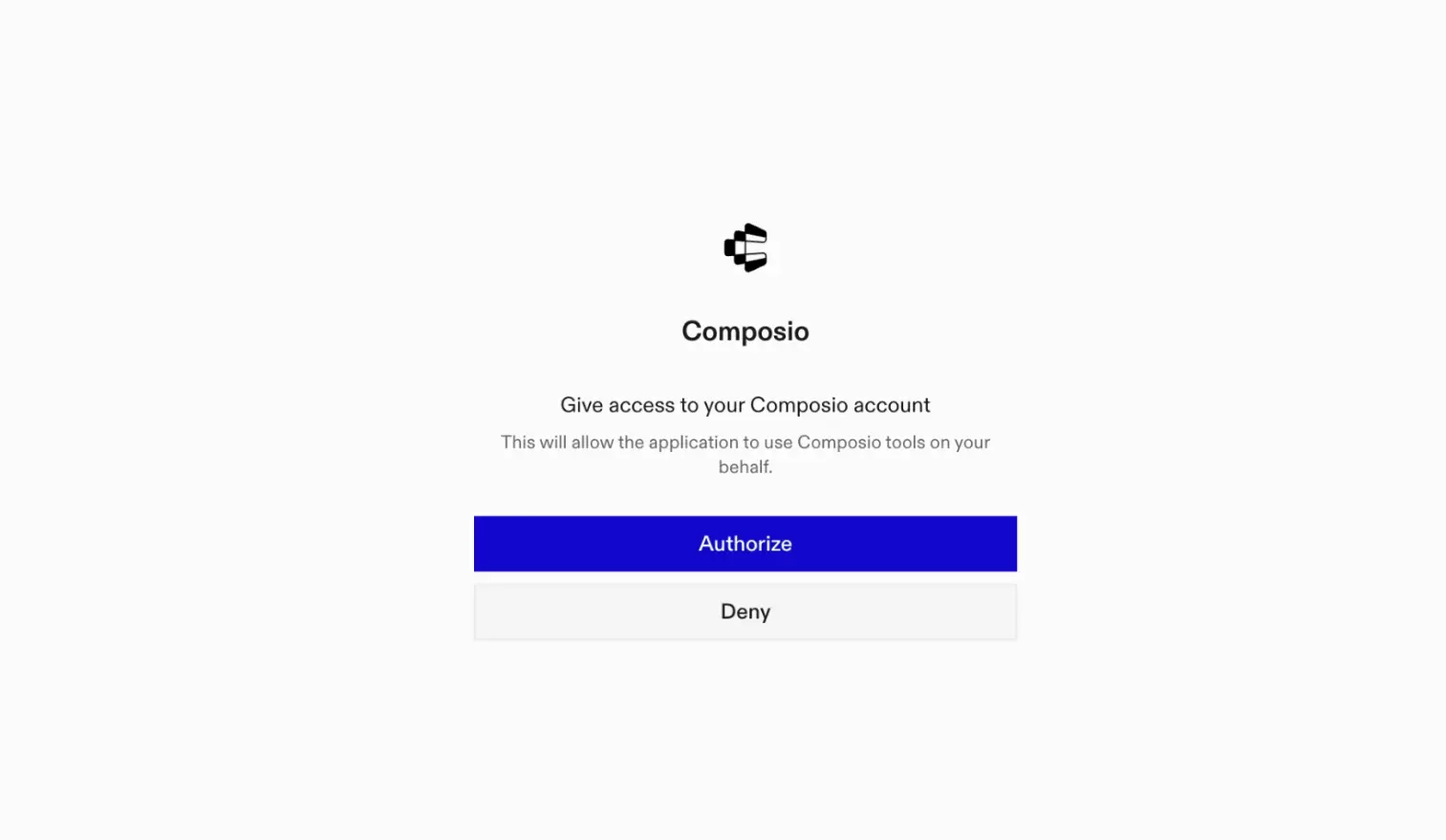
A browser window will open to authorize.

Composio authorization browser window

Connect your Linear account

Back in Cursor, ask the agent to connect to Linear or give it any Linear-related task.

For example, ask it to:

  • "Create a new bug for team Mobile"
  • "Add a comment to issue LIN-123"
  • "List all cycles for the Design team"

It will prompt you to authenticate and authorize access to Linear.

That is it. Composio tools are now available in Cursor, and your Linear account is ready to use.

Supported Tools & Triggers

Tools
Triggers
Create attachmentCreates a new attachment and associates it with a specific, existing Linear issue.
Add reaction to commentTool to add a reaction to an existing Linear comment.
Create a commentCreates a new comment on a specified Linear issue.
Create linear issueCreates a new issue in a specified Linear project and team, requiring team_id and title, and allowing optional properties like description, assignee, state, priority, cycle, and due date.
Create issue relationCreate a relationship between two Linear issues using the issueRelationCreate mutation.
Create a labelCreates a new label in Linear for a specified team, used to categorize and organize issues.
Create ProjectCreates a new Linear project with specified name and team associations.
Create Project MilestoneTool to create a project milestone in Linear with a name and optional target date and sort order.
Create Project UpdateTool to create a project status update post for a Linear project.
Delete issueArchives an existing Linear issue by its ID, which is Linear's standard way of deleting issues; the operation is idempotent.
Download issue attachmentsDownloads a specific attachment from a Linear issue; the `file_name` must include the correct file extension.
Get current userGets the currently authenticated user's ID, name, email, and other profile information — this is the account behind the API token, which may be a bot or service account rather than a human user.
Get cycles by team IDRetrieves all cycles for a specified Linear team ID; cycles are time-boxed work periods (like sprints).
Get create issue default paramsFetches a Linear team's default issue estimate and state, useful for pre-filling new issue forms.
Get Linear issueRetrieves an existing Linear issue's comprehensive details, including id, identifier, title, description, timestamps, state, team, creator, attachments, comments (with user info and timestamps, use issue.
Get Linear projectRetrieves a single Linear project by its unique identifier.
List issue draftsTool to list issue drafts.
List issues by team IDTool to list all issues for a specific Linear team, scoped by team ID.
Get all cyclesRetrieves all cycles (time-boxed sprint iterations) org-wide from the Linear account; no filters applied.
List Linear issuesLists non-archived Linear issues; if project_id is not specified, issues from all accessible projects are returned.
Get labelsRetrieves labels from Linear.
List linear projectsRetrieves all projects from the Linear account.
List Linear statesRetrieves all workflow states for a specified team in Linear, representing the stages an issue progresses through in that team's workflow.
Get teamsRetrieves all teams with their members and projects.
List Linear usersLists all workspace users (not team-scoped) with their IDs, names, emails, and active status.
Remove label from Linear issueRemoves a specified label from an existing Linear issue using their IDs; successful even if the label isn't on the issue.
Remove reaction from commentTool to remove a reaction on a comment.
Run Query or MutationExecute any GraphQL query or mutation against Linear's API.
Search Linear issuesSearch Linear issues using full-text search across identifier, title, and description.
Update issueUpdates an existing Linear issue using its `issue_id`; requires at least one other attribute for modification, and all provided entity IDs (for state, assignee, labels, etc.
Update a commentTool to update an existing Linear comment's body text.
Update ProjectTool to update an existing Linear project.

Conclusion

You have successfully connected Linear to Cursor using Composio Connect. Your agent can now use Linear securely without exposing credentials in prompts or local scripts.

How to build Linear MCP Agent with another framework

FAQ

What are the differences in Tool Router MCP and Linear MCP?

With a standalone Linear MCP server, the agents and LLMs can only access a fixed set of Linear tools tied to that server. However, with the Composio Tool Router, agents can dynamically load tools from Linear and many other apps based on the task at hand, all through a single MCP endpoint.

Can I use Tool Router MCP with Cursor?

Yes, you can. Cursor fully supports MCP integration. You get structured tool calling, message history handling, and model orchestration while Tool Router takes care of discovering and serving the right Linear tools.

Can I manage the permissions and scopes for Linear while using Tool Router?

Yes, absolutely. You can configure which Linear scopes and actions are allowed when connecting your account to Composio. You can also bring your own OAuth credentials or API configuration so you keep full control over what the agent can do.

How safe is my data with Composio Tool Router?

All sensitive data such as tokens, keys, and configuration is fully encrypted at rest and in transit. Composio is SOC 2 Type 2 compliant and follows strict security practices so your Linear data and credentials are handled as safely as possible.

Used by agents from

Context
Letta
glean
HubSpot
Agent.ai
Altera
DataStax
Entelligence
Rolai
Context
Letta
glean
HubSpot
Agent.ai
Altera
DataStax
Entelligence
Rolai
Context
Letta
glean
HubSpot
Agent.ai
Altera
DataStax
Entelligence
Rolai

Never worry about agent reliability

We handle tool reliability, observability, and security so you never have to second-guess an agent action.









