




OpenAI launched Dots last week, and the first thing people ask is what to connect. A Dot is only as useful as the apps it can reach, and each plugin comes with its own sign-in, permission screen, and reconnect step.

I didn't want to write another list of every plugin in the directory. A Dot works differently from a chat. It runs for days, and it reads your connected apps in the background while you're away. So the plugins that matter are the ones that fit that kind of work, and I'd rather you connect two or three good ones than fifteen.
Since Dots are only a few days old, nobody has months of real use yet. I went through OpenAI's launch post, the Dots docs, Reddit forums, the Help Centre, the OpenAI plugin repo on GitHub, and each plugin maker's own docs. Then I grouped what I found into six use cases: multi-app workflows, inbox and schedule, travel, creativity, notes, and health and fitness.
OpenAI says Dots connect to more than 4,000 apps through plugins, but you set up each one separately and review its permissions. And since your Dot reads every connected app in the background, the apps you pick matter more than how many you connect.
What is a plugin for OpenAI dots?
A dot is an always-on agent in ChatGPT. OpenAI launched dots at DevDay on September 29, 2026. Each dot runs on GPT-6 Astra; it has its own cloud computer, and it keeps working on your goals when you close the app.
A plugin gives your dot access to tools. It can hold connected apps, skills, or both. An app links ChatGPT to a service such as Gmail, and a skill gives your dot the steps for a task. Your dot uses the same plugins as ChatGPT, ChatGPT Work, and Codex, with the same permissions.
A plugin is different from a messaging channel. You can message your dot in Slack, but that doesn't give it access to your Gmail. Each app needs its own plugin connection.
How a dot works
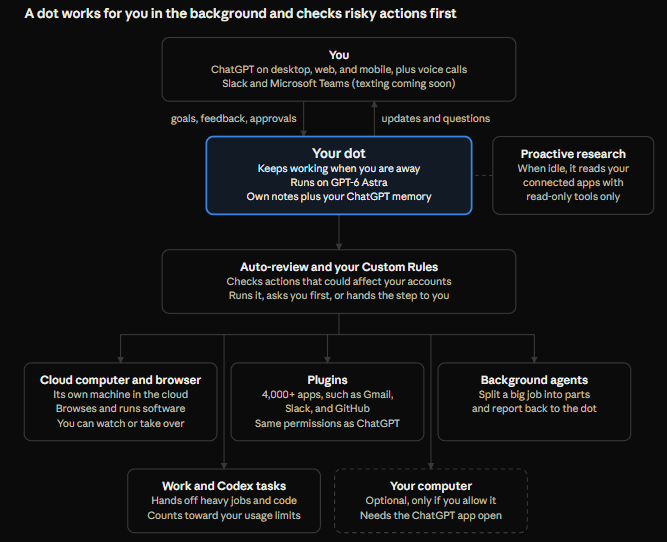
Read the diagram from top to bottom. You talk to your dot in ChatGPT, on a voice call, or in Slack and Teams. The dot then works through its own cloud computer, your plugins, background agents, and Work or Codex tasks. It can also use your computer, but only if you allow it. Before an action that could affect your accounts, Auto-review checks it against your instructions and Custom Rules.
Why the right plugins matter
a. Your dot reads what you connect
When you are not working with it, your dot looks through your connected apps for ways to help. OpenAI calls this proactive research. Those tools are read-only, so they cannot send messages or change your apps. But you cannot view or delete single things your dot learned. And if you disconnect a plugin, your dot keeps what it already learned.
Also, plugins give Skills arms and legs to act reliably with external systems.
Related: Best OpenAI Dots Skills
b. Permissions work at the action level
A line in your brief such as "do not reply" helps. But a plugin permission or a Custom Rule gives you stronger control. You can set rules such as these:
An inbox dot can read email, but it cannot send email.
A sales dot can draft CRM notes, but it needs your approval to save them.
A coding dot can open draft pull requests, but it hands merges to you.
A launch dot can edit drafts, but it asks before it posts in a shared channel.
c. Fewer apps give clearer work
OpenAI tested this in the GPT-6 Astra system card. When a dot handled a longer chain of tasks, its moderate scope mistakes rose from 8.6% to 19.7%. So keep each job narrow, and connect only the apps that job needs.
How I evaluated each plugin
I checked each plugin against these points:
Usefulness: Does the plugin help with a clear job, such as managing email, planning a trip, or preparing content?
Fit for ongoing work: Does it give a Dot useful information or tools to revisit as plans, deadlines, or inputs change?
Control over actions: Can you start with read-only access or review drafts before the dot sends, saves, books, or spends?
Integration depth: Does it provide the information and actions needed to complete its part of the workflow?
Support and documentation: Does the app maker or an established provider maintain the plugin, with clear setup instructions and limitations?
Setup and cost: How much effort does it take to connect and maintain, and does it require a paid plan or usage credits?
Best plugins for OpenAI dots at a glance
Use case | Plugins | What your dot does | Main limitation |
|---|---|---|---|
Multi-app workflows | Runs one job across 1,500+ apps through one plugin | Adds another company between your apps and ChatGPT | |
Inbox and schedule | Sorts email, checks deadlines, and keeps your task list current | Holds private data, so start read-only | |
Travel | Finds stays, flights, and rides | Bookings and payments need your approval | |
Creativity | Makes images, videos, and designs | Generations use paid credits | |
Notes | Turns recordings and notes into documents that stay current | More note apps give you more to read | |
Health and fitness | Tracks training, sleep, and recovery trends | Gives insights, not medical advice |
Composio overlaps with most plugins on this list. Use it when one job crosses many apps, or when an app has no official plugin. Use the official plugins when a use case needs only two or three apps.
The best plugins for OpenAI dots, by use case
These are the plugins I would consider using. ✌️
1. Multi-app workflows: Composio
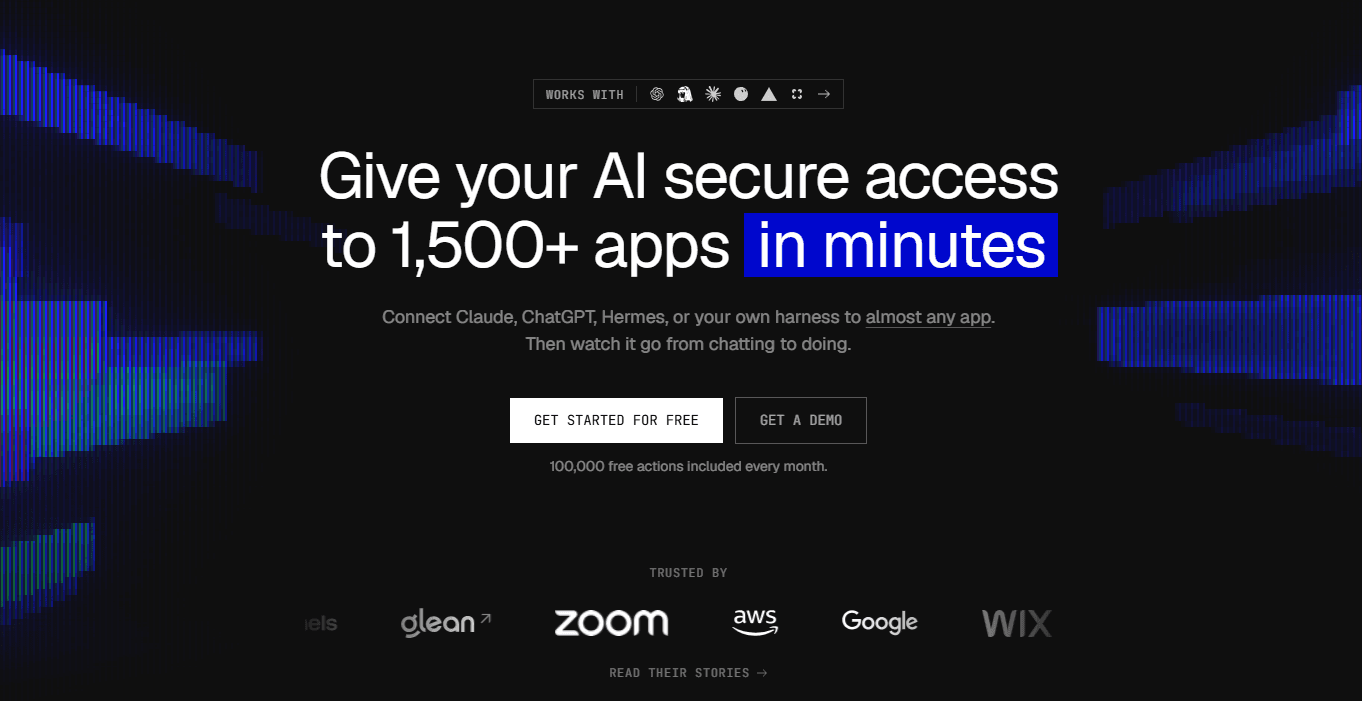
Some jobs cross many apps. A dot that preps a sales call may need your email, your calendar, and your CRM in one run. Composio is in the ChatGPT plugin directory, and it gives your dot access to more than 1,500 apps through one plugin. You sign in to Composio once, and then you approve each app when your dot first needs it.
With Composio

<p>Your dot → Composio plugin → Gmail, Slack, HubSpot, and 1,500+ more</p>
Why Composio?
Gives you access to 1500+ apps like Slack, Gmail, Teams, Hubspot and more.
Composio provides more tools per app so your Dot can complete tasks reliably without tooling issues.
Composio searches its catalogue and loads only the tools a task needs, so unused tools stay out of your dot's context.
It manages OAuth and token refresh. So, you just connect apps and start working.
It lets you connect more than one account per app, such as two Gmail inboxes. Read:
Shared account access so teams or agents can work through common business accounts and service connections.
How to add Composio to Dot:
Composio has an official listing in the ChatGPT Plugin Directory, so for most accounts this is a search-and-install, not a setup screen.
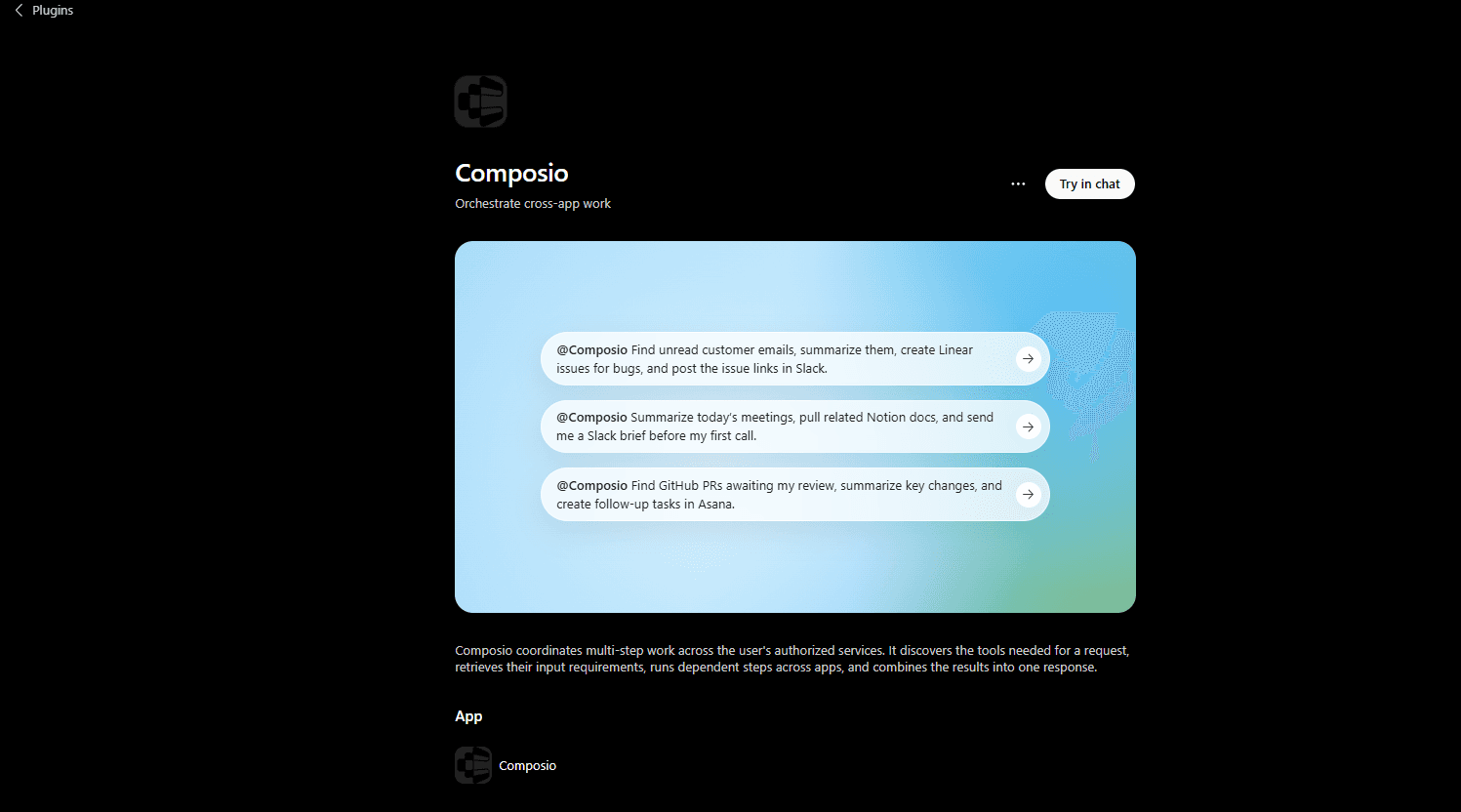
The fastest way — install from the Plugin Directory:
Visit the official Composio listing on the OpenAI marketplace: Composio <> ChatGPT
Click the + (install) button.
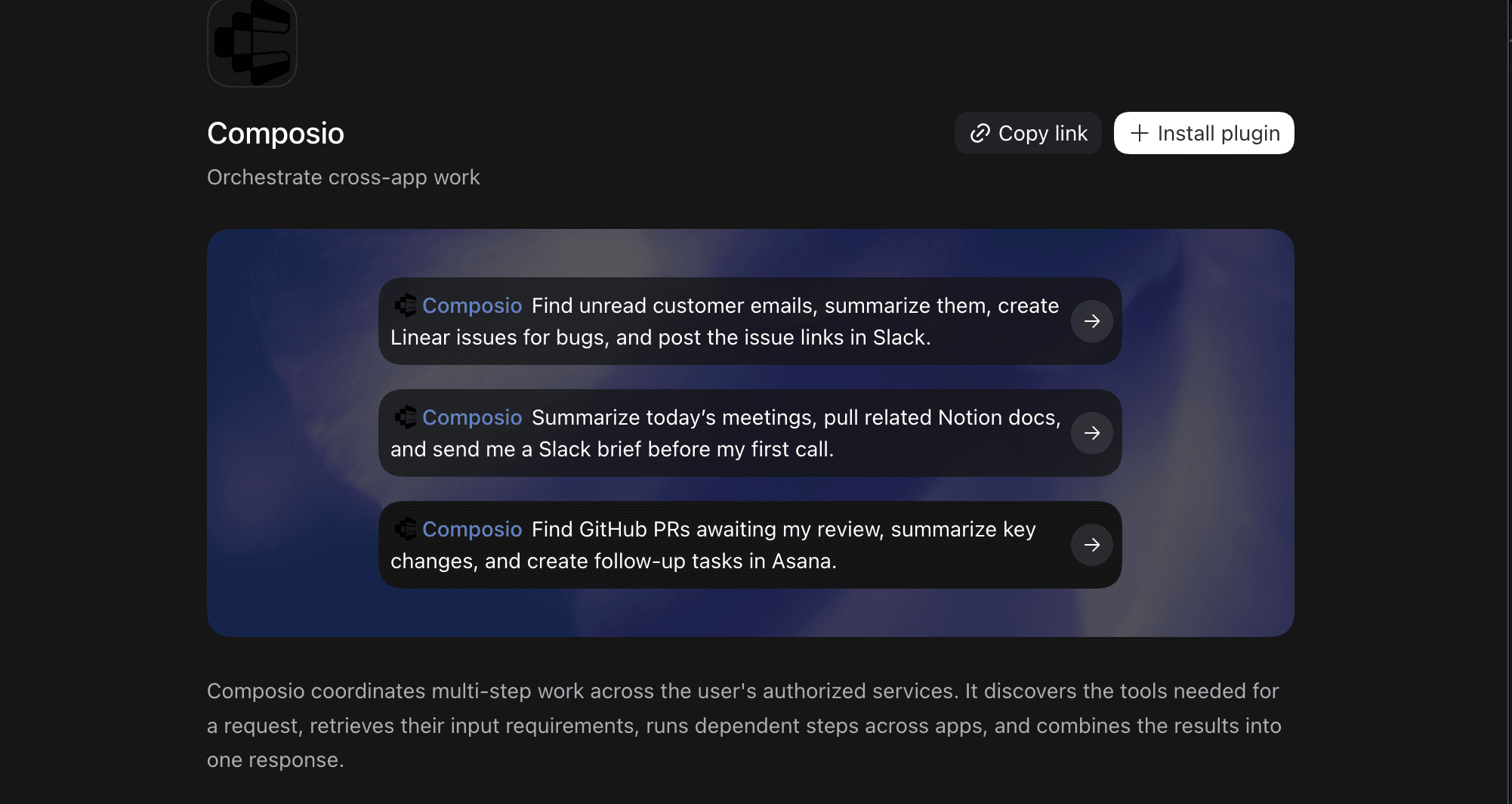
Sign in to Composio (or create a free account) and approve the connection. Because it's an official listing, the connection details are already configured — you don't need to know or paste any server URL.
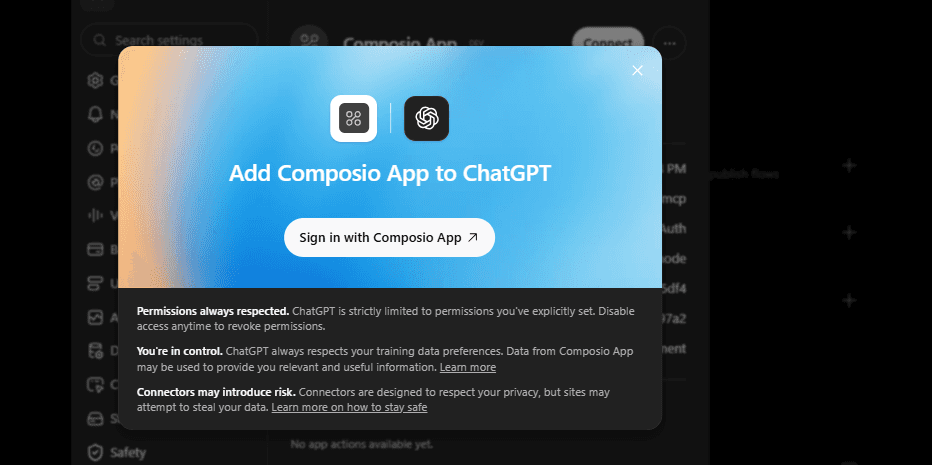
Back in ChatGPT, open a chat, click the + or tools icon in the composer, and make sure Composio is switched on for that conversation.
The exact label can vary between Apps and Plugins depending on your account and rollout.
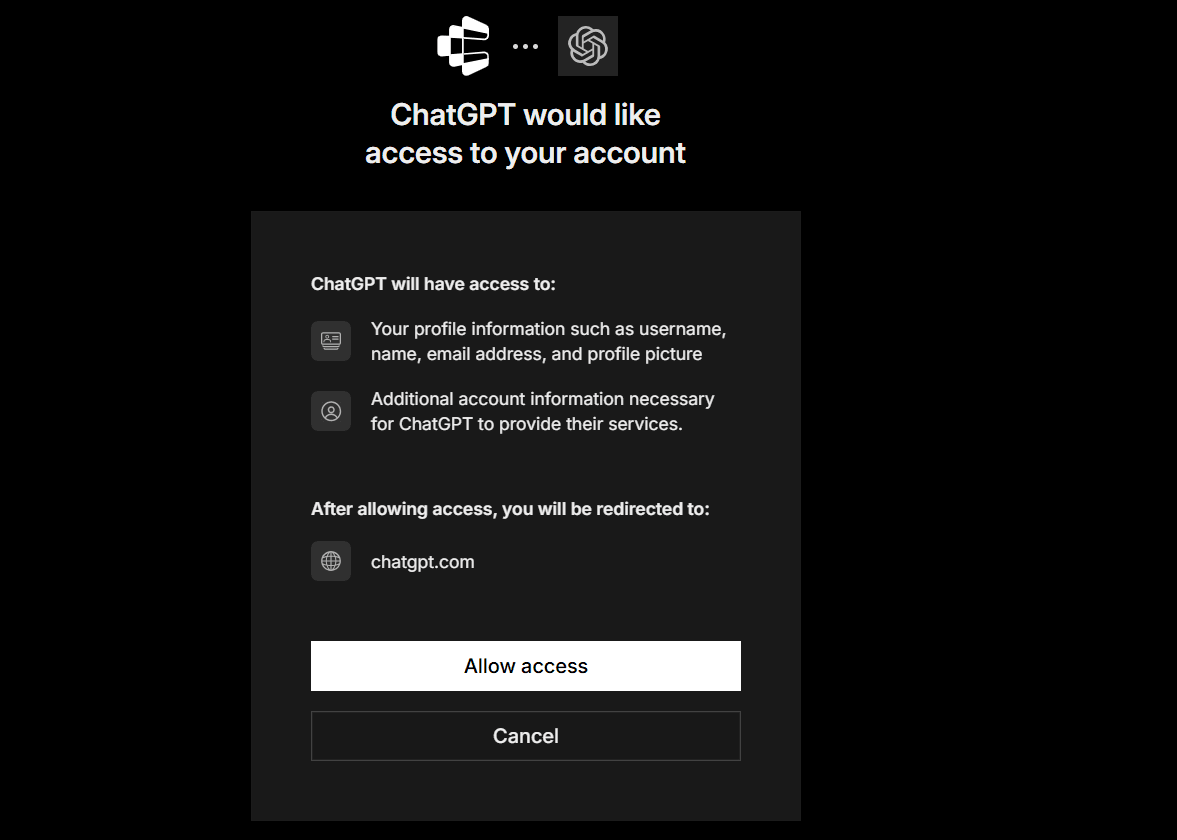
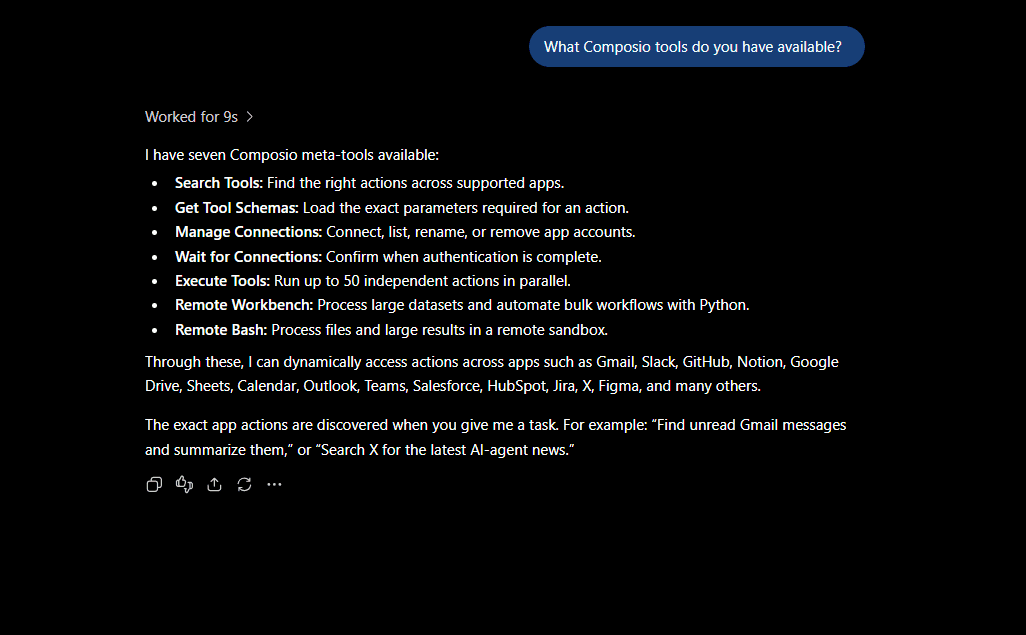
Quick check
Start a new conversation and enable Composio.
Then ask:
What Composio tools do you have available?
Here are three workflows that suit a dot.
Workflow 1: Inbox to task list
Your dot reads new email in two inboxes, finds the requests, and drafts tasks in Linear or Todoist.
Try this brief: "Each morning, check my two Gmail inboxes through Composio. Draft a Todoist task for each request, and wait for my approval before you save them."
Workflow 2: Meeting prep
Your dot checks tomorrow's calendar, pulls the related email threads, and adds the deal notes from HubSpot or Salesforce.
Try this brief: "The evening before each client meeting, build a one-page brief from my calendar, my email, and HubSpot. Do not send or change anything."
Workflow 3: Weekly report
Your dot collects updates from Slack, adds the numbers from a Google Sheet, and drafts a report page in Notion.
Try this brief: "Every Friday at 16:00, draft a weekly report in Notion from #team in Slack and the metrics sheet. Show me the draft before you share it."
There are some limitations. Composio adds another company between your apps and ChatGPT, so check it against your company's vendor rules. Composio says it is SOC 2 Type 2 compliant. It can also connect to many apps, so limit which apps and actions it can use. This matters more for a dot, because a dot reads its connected apps in the background. And dots may not follow every Composio trigger, so ask your dot which events it can follow.
Choose Composio if one job crosses several apps, you need an app with no official plugin, or you want one place to manage your sign-ins.
You can manage connections from the Composio dashboard as well.
2. Inbox and schedule
If you need just one Gmail or Outlook connection with tools to read emails, draft, and schedule, the default mailing apps may be enough.
Most new work arrives by email, and most deadlines live in your calendar. These three plugins let your dot keep both under control, and they suit almost everyone.
Gmail or Outlook Email
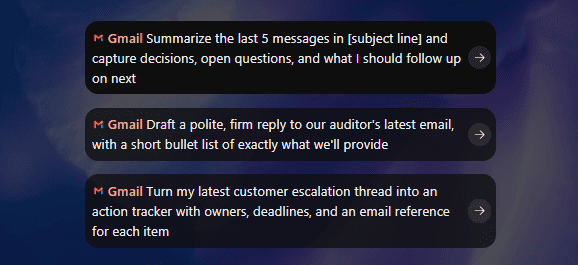
Your dot can find messages, group them, and draft replies. OpenAI's launch story uses email. A tester's dot saw that he forgot to bill a client, and it prepared the invoice. It sent the invoice only after he said yes.
Key capabilities include:
Inbox triage by topic and urgency
Follow-up checks on threads that wait for a reply
Reply drafts that wait for your approval
Your inbox holds your most private data. So let your dot read email first, but don't let it send yet. Pick the one email app your work uses, and skip the other.
Try this brief: "Every weekday at 9:00, read my new support emails. Group them by problem and link each one. Do not reply to anyone."
Google Calendar (or Outlook Calendar)
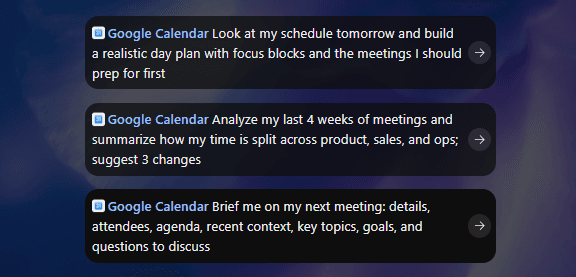
Your dot compares deadlines with your free time, finds meeting clashes, and preps you for the day ahead.
Key capabilities include:
Deadline checks against your real free time
Meeting prep from related email and notes
Clash reports with suggested fixes
Let your dot propose changes, and approve each new invite yourself.
Try this brief: "Each Monday, compare this week's deadlines with my calendar. Tell me about any clash, and suggest a fix. Do not move any event."
Todoist

Todoist gives your dot a to-do list and reminders. Your dot can turn email requests and meeting notes into tasks, and it can keep due dates in line with your calendar. TickTick is a good alternative if you already use it.
Key capabilities include:
New tasks from email and notes
Due dates and reminders
A daily list of what you
This plugin can create and change tasks. So ask your dot to propose tasks first, and approve them before it saves them.
Try this brief: "Every evening, list the tasks in Todoist that are due tomorrow. If an email today changed a deadline, suggest the new date and wait for my approval."
Choose these if you want your dot to keep your inbox, calendar, and task list in line with each other.
3. Travel
A dot can watch your plans day to day, so it suits trips that change. It can notice new conference dates in your email, find stays and flights, and book a ride on the day. But travel costs money. A dot always needs your approval before it buys something, and you can approve in advance only when your approval covers that exact purchase. These apps also differ by region, so check each listing first.
Booking.com
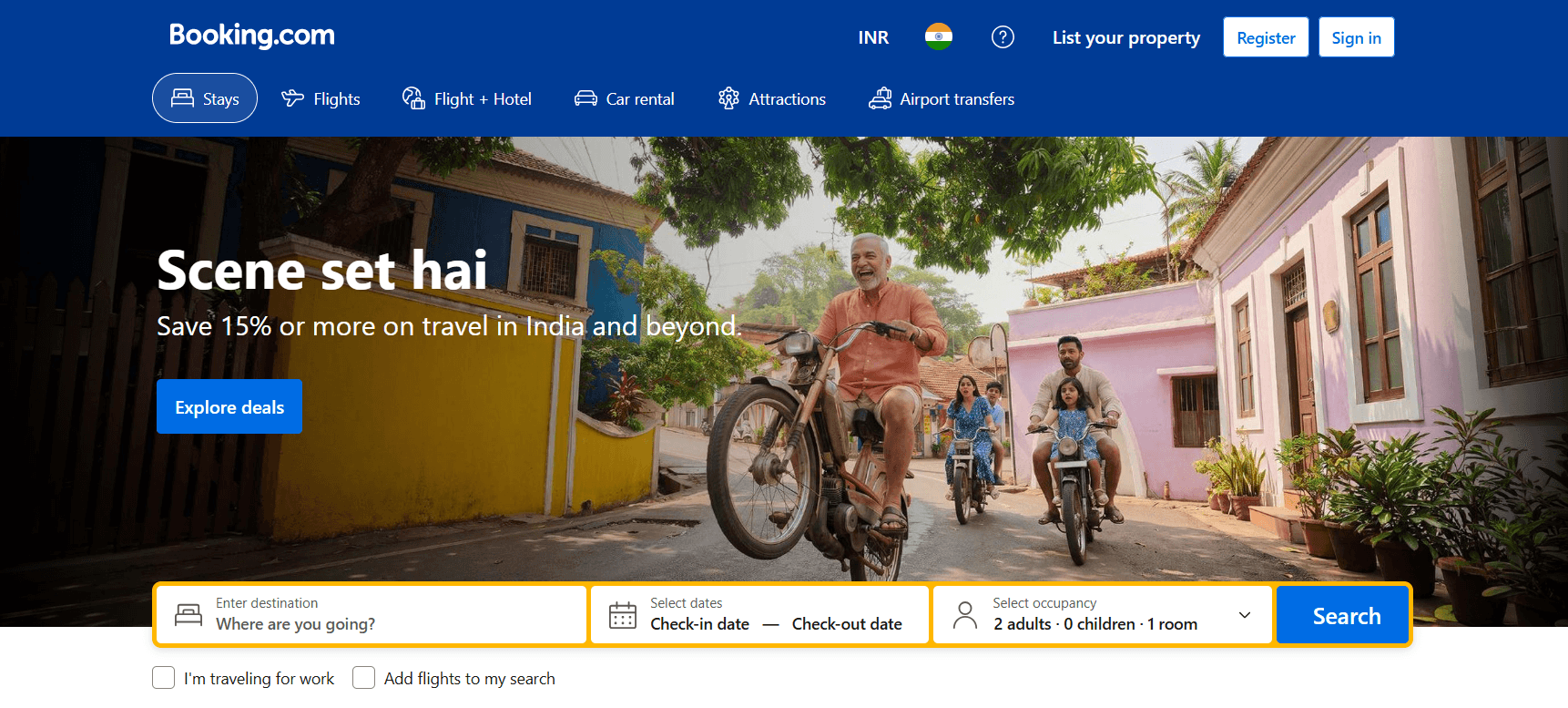
Booking.com was one of the first apps in ChatGPT. Your dot can search stays with real availability and prices, and it can compare options against your dates and budget. You then finish the booking on Booking.com.
Key capabilities include:
Hotel and home search with live prices
Filters for dates, location, and budget
Short lists you can review before you book
Try this brief: "When my conference dates arrive by email, find three hotels near the venue under $200 a night on Booking.com. Do not book anything."
Expedia
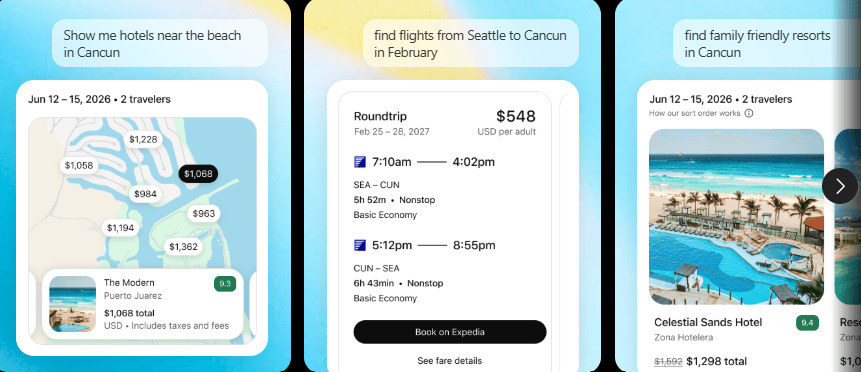
Expedia covers flights, hotels, and packages. Your dot can compare options and pull a whole trip together. After you book, the reservation appears in the Trips section of your Expedia account.
Key capabilities include:
Flight and hotel search with live prices
Package options for a full trip
Side-by-side comparisons
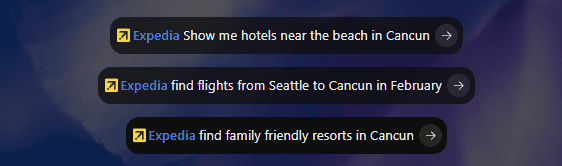
Try this brief: "Find the three cheapest flights from Hyderabad to Singapore for the dates in my calendar. Show me the times and the total price, and wait for my choice."
Skyscanner
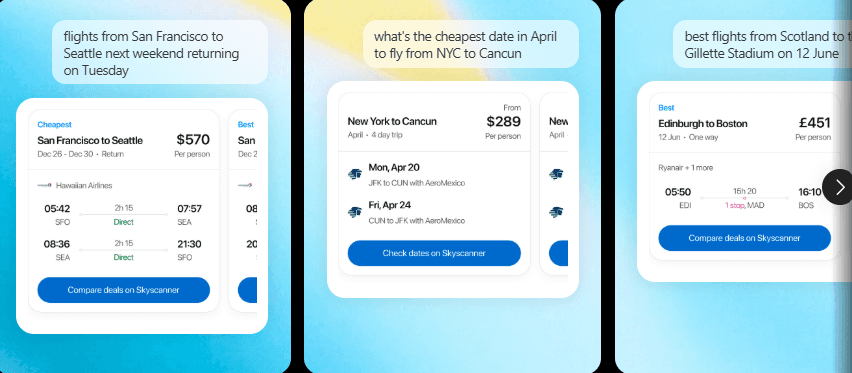
Skyscanner compares flight prices across many airlines, and its ChatGPT app provides live results. Your dot can search flights in plain words, and then change the dates or airports in a follow-up message. You then finish the booking on Skyscanner's partner site. Skyscanner launched its ChatGPT app in the US and the UK first, so check that it is available where you are.
Key capabilities include:
Flight search with live prices
Quick changes to dates and airports
Side-by-side fare comparisons
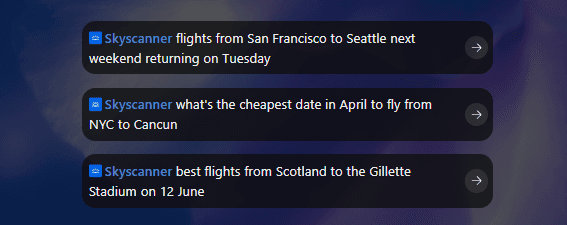
A dot can run the same search on a schedule, so it can tell you when a fare drops. It still cannot buy a ticket without your approval.
Try this brief: "Every morning until I book, check Skyscanner for the cheapest flights from Hyderabad to Singapore on my calendar dates. Tell me if a fare drops by more than 10%."
Choose these if: you travel often and want your dot to track plans as they change.
4. Creativity
OpenAI's launch post shows a dot that helps a content creator. When a new interview arrives, the dot finds moments for clips, writes show notes, and drafts social posts for approval. It also revises launch materials when a product changes. These three plugins give your dot the tools for that work.
Higgsfield
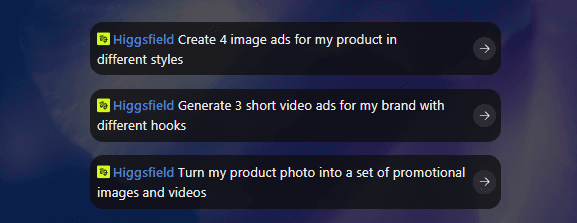
Higgsfield connects your dot to a set of image and video models through one plugin. Your dot can make product shots, short video clips, and social visuals from a brief.
Key capabilities include:
Image and video generation from many models
Visuals built from a brief or a product image
Drafts you review before anything goes out
Each generation uses your Higgsfield credits at standard rates. So tell your dot how many versions to make.
Try this brief: "When I add a new product photo to the launch folder, make two short social videos with Higgsfield. Use no more than four generations, and show me the results."
Canva
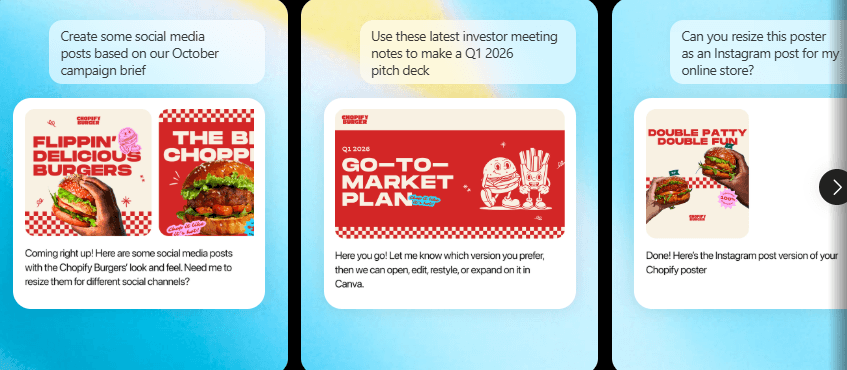
Canva lets you create, review, and edit designs. The designs stay editable, and you can open them in Canva for finer control. It suits decks, one-pagers, and social posts that go out as-is.
Key capabilities include:
New designs from a brief or a report
Posts sized for each platform
Edits to existing designs
The Canva app doesn't work in the EU or mainland China. Features that need Canva Pro in the editor still need Canva Pro.
Try this brief: "Turn this week's newsletter into three Instagram posts in Canva. Use our brand colours, and keep them as drafts."
Runway
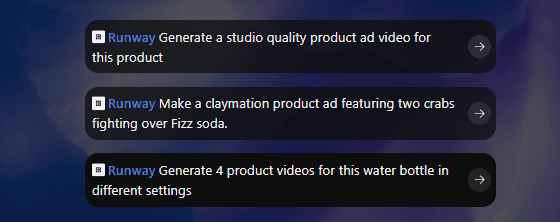
Runway gives your Dot access to Runway's AI video and image models. It suits teams that already use Runway for video work.
Key capabilities include:
Video generation from text or images
Edits and variations of existing clips
Visual drafts for campaigns
Runway also charges per generation, so set a limit in your brief.
Try this brief: "Make one 10-second teaser video in Runway from our launch tagline. Show me the draft before you make more."
Choose these if: you produce content on a schedule and want your dot to prepare drafts while you work on other things.
5. Note-taking and journaling
A dot keeps working after the meeting ends, so it can turn what you heard and wrote into up-to-date documents. These three plugins cover recordings, team notes, and documents.
Plaud
Plaud makes AI voice recorders, and its plugin lets your dot pull insights from your recordings. Your dot can find decisions, owners, and dates, then draft follow-ups.
Key capabilities include:
Summaries of recorded meetings and calls
Decision logs and action items
Follow-up drafts that wait for your approval
Recordings can name the wrong owner or miss a detail. So confirm owners and recipients before your dot sends anything or creates tasks.
Try this brief: "After each recorded client call, list the decisions and next steps. Draft the follow-up email, but do not send it."
Notion
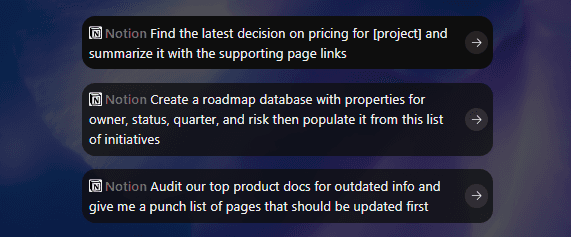
Many teams keep specs, meeting notes, and decision logs in Notion. Your dot can read those pages and compare them with new work. So it can tell you when a new decision conflicts with an older note. OpenAI's docs give this exact kind of example.
Key capabilities include:
Spec and decision log updates
Conflict checks between new work and old notes
Research notes with source links
Try this brief: "Each Friday, update the decision log in Notion with what we agreed this week. Link the source for each decision."
Google Docs (through Google Drive)
Google Docs now works through the single Google Drive plugin, which also covers Sheets and Slides. Your dot can read your plans and keep them current as facts change.
Key capabilities include:
Updates to Docs as plans change
New Docs from a brief or a recording
Report refreshes in Sheets and Slides
Use a Custom Rule that hands off any delete of a shared file to you.
Try this brief: "Keep the launch plan in Google Docs up to date with what the team decides in Slack. Show me each change before you save it."
Notion and Google Docs overlap. If your team uses both for the same job, pick one, because fewer apps give your dot less to read in the background.
Choose these if: your work starts in meetings and ends in documents.
6. Health and fitness
A dot can follow your training for weeks, so it can spot trends you miss day to day. These plugins give insights about fitness and recovery. They don't diagnose anything, and they don't replace a doctor or a coach. Health data is also sensitive, and your dot reads connected apps in the background. So connect only the source you need.
COROS
The COROS plugin brings training and health insights from your COROS watch into ChatGPT. Your dot can track your training load and recovery over time.
Key capabilities include:
Training and activity trends
Recovery and sleep insights
Weekly summaries
Try this brief: "Every Sunday, summarize my COROS training for the week. Tell me if my load rose much faster than last week."
Fitness AI Connector
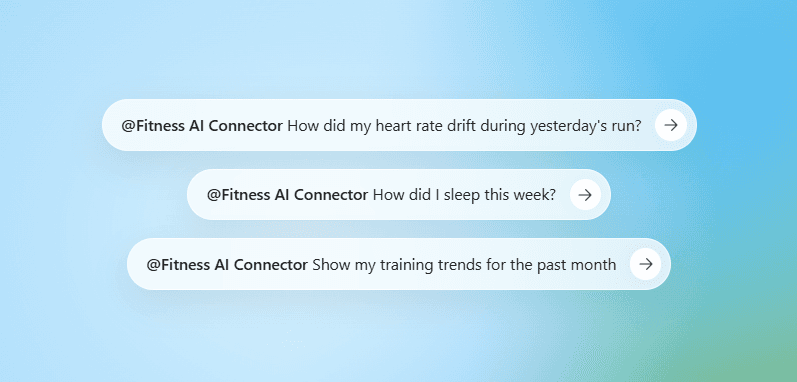
Fitness AI Connector is an AI coach for Garmin data. It reads daily wellness numbers such as steps, heart rate, sleep, stress, and HRV. It also breaks down workouts by pace, lap splits, and heart rate drift, and it keeps up to five years of history. It also tracks weight, body composition, and cycle data.
Key capabilities include:
Daily wellness metrics from your Garmin
Workout analysis with splits and heart rate drift
Long-term trends over up to five years
Try this brief: "After each long run, compare my heart rate drift with my last four long runs. Tell me if my aerobic fitness looks better or worse."
How to choose the right plugins for your dot
Ask yourself these questions before you connect anything:
Does one job cross many apps?
Yes, or an app has no official plugin: Composio
No, the job needs two or three apps: the official plugins
What is your dot's first job?
Inbox and schedule: Gmail or Outlook, Google Calendar, and Todoist
Trips: Booking.com, Expedia, and SkyScanner
Content: Higgsfield, Canva, and Runway
Meetings and documents: Plaud, Notion, and Google Docs
Training: COROS, Fitness AI Connector
Does the job spend money?
Travel and creative plugins can cost money or credits
Set "Ask before taking action" for every booking, ride, order, and paid generation
How much write access can you accept?
Read-only for the first few days
Drafts that wait for your approval next
Actions without approval only after the drafts are right
What should you test before you trust it?
Read-only access works as you expect
Approval requests appear for sends, bookings, and purchases
Your Custom Rules apply
The Activity view shows each task and its results
The reconnect step works when a sign-in expires
Before you connect anything
Follow these steps:
Start with two or three plugins. Connect only what your first job needs.
Give read access first. Add write actions after a few days of good drafts.
Set Custom Rules. Go to Settings, then Personalisation, then Custom rules. Use "Ask before taking action" for replies and posts, and use "Hand off to you" for merges and deletes.
Check Activity. Your dot's profile shows each task, its files, and its results.
Who can use dots today: ChatGPT Pro and Business Premium users in eligible markets have them now. Enterprise, Edu, and Healthcare workspaces get a beta when an admin turns it on. Pro users in the EEA, the UK, and Switzerland do not have dots yet. Plugin access can also change by plan, region, and workspace.
What I left out
Developer and sales plugins such as GitHub, Linear, and HubSpot. They are strong picks for work dots, but this guide focuses on six everyday use cases. Composio can still reach all three. Read the best Codex Plugins
Finance and trading plugins. A dot always hands money transfers to you. Use these plugins only for read-only market checks.
Skills that live on your computer. They work only when your computer is on and the ChatGPT app is open, so they don't suit always-on jobs.
Duplicate tools. If you use both Gmail and Outlook, or both Notion and Google Docs, connect only the one your work uses.
Apple Health (through Health in ChatGPT). It's US-only, it's a ChatGPT feature rather than a standard plugin, and OpenAI hasn't said whether Dots can read it.
Related: Best ChatGPT plugins
Conclusion
The best plugins for your dot depend on its job. Composio is the strong choice when one job crosses many apps. Gmail or Outlook, Google Calendar, and Todoist keep your day in order. Booking.com, Expedia, and SkyScanner handle trips. Higgsfield, Canva, and Runway prepare content. Plaud, Notion, and Google Docs turn meetings into documents. And COROS, Fitness AI Connector, track your training.
Start small, and test each plugin with read-only access first. The right setup gives your dot the apps it needs and nothing more.

 Get started



