




OpenAI launched Dots only a few days ago, and people are already trying all kinds of stuff with them. It's more like OpenClaw, except each Dot has access to its own cloud computer.
I wanted to find the setups people are using, rather than put together another list of random things you could make a Dot do.
So I went through OpenAI’s docs, X posts, Hacker News discussions, early hands-on reviews, GitHub repos, and the Dot setups people have shared since launch.
These are the ten I would consider using. ✌️
TL;DR
# | Skill / setup | Best for |
|---|---|---|
1 | Composio Skill + Plugin | Cross-app workflows |
2 | Skill Creator | Building your own Dot skills |
3 | Nightly Triage + Morning Brief | Morning prioritization |
4 | last30days | Current research and trend monitoring |
5 | Planning with Files | Long-running tasks and context tracking |
6 | Grill Me | Figuring out a plan before handing it off |
7 | Superpowers | Dot + Codex software workflows |
8 | Caveman | Shorter updates and status messages |
9 | Humanizer | Better outbound writing |
10 | Wolfram | Calculations, data, and technical research |
You do not need all ten.
I would start with Composio and Skill Creator, then add three or four skills that match the work you want your Dot to handle. Loading it with twenty skills it barely uses will make the setup harder to manage without making it much more useful.
How skills work in OpenAI Dots
The installation flow can be a little confusing because Dots can use several kinds of tools.
First, a Dot can use plugins you have already installed and connected in ChatGPT. If you use something like Composio, the Dot can work through that existing connection within the permissions you have given it.
Related: Best OpenAI Dot Plugins
Then there are regular skills: reusable instructions that you create, upload, or install through supported ChatGPT skill surfaces.
Local skills work through Codex or a connected computer. The Dot needs access to that local environment whenever it wants to use them.
Here is the rough breakdown:
A Dot plugin gives the Dot access to an app or service.
An uploaded or created skill tells the Dot how you want a job done.
A local or Codex skill helps when the Dot hands work to Codex or your connected computer.
💁 If something already works directly in ChatGPT, I would set it up there first and let the Dot use that connection. It is usually the easiest route.

With that cleared up, here are the ten setups.
1. Composio
ℹ️ Give your Dot access to the apps where your work already lives.
Composio is available inside ChatGPT as a plugin, and it is probably the first thing I would add to a Dot.

A Dot with its own cloud computer is useful, but most of your work still lives in Gmail, Slack, Linear, HubSpot, Notion, Calendar, and whatever else your team uses.
Composio connects the Dot to those apps. You install it once, connect what you need, and avoid setting up a separate MCP server for every service or maintaining a pile of configs.
What it does
Composio gives your Dot access to 1,500+ apps and lets it work across several apps in one workflow.
You could think about each integration as a separate tool:
Gmail skill
Slack skill
HubSpot skill
Linear skill
Google Sheets skill
Or you could give the Dot the job itself:
Find unread customer emails.

<p>Create Linear issues for anything that looks like a real bug.</p>
<p>Then post the issue links in Slack.</p>
The Dot keeps track of the job while Composio provides secure access to the apps. It can find something in one service, act on it in another, and keep the workflow together. 🔥
That combination makes a Dot feel much closer to something that can own work instead of waiting for another chat prompt.
How to install Composio in Dots
Install the Composio plugin from the ChatGPT Marketplace: Composio <> OpenAI
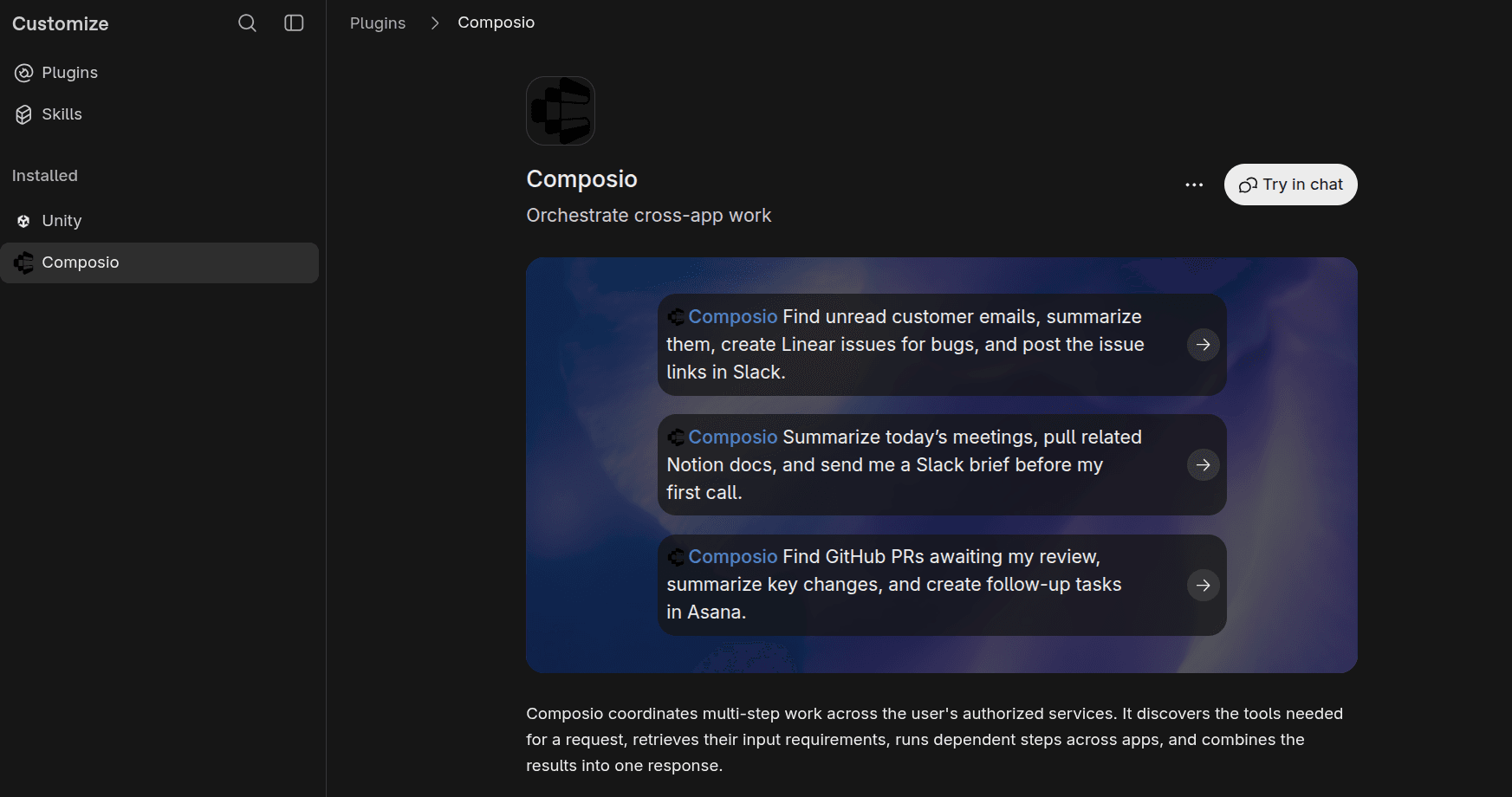
Once it is installed, open ChatGPT or your Dot and ask it to use Composio.
If an app is not connected, Composio will give you a login link. Sign in, approve the connection, and continue chatting.
For example:
Use Composio to review my sales spreadsheet in Microsoft Excel and summarize this week's revenue, top-selling products, and any missing entries.If Microsoft Excel is not connected, authenticate when prompted and keep going.

Why use Composio?
2. Skill Creator
ℹ️ Turn a workflow that worked once into a skill your Dot can reuse.
I would recommend this one to almost every Dot user.
The idea is simple: do a job once, figure out how you want it handled, and save the process as a reusable skill.
You get to test and improve the workflow before committing to it, and you no longer have to rebuild the same giant prompt whenever the job comes up.
What it does
A skill can define:
when it should run
what information it needs
which steps it should follow
what it can do on its own
what needs your approval
how the result should look
what counts as done
Start small. Get one workflow running properly, fix the parts you dislike, and try it a few times before turning it into a skill.
💁 That will teach you more than spending an hour trying to write the “perfect Dot prompt” before the Dot has done any work.
How I would use it
Suppose you run this workflow manually:
Check Slack for launch updates.<p></p>
<p>Check Linear for blocked issues.</p>
<p>Check Calendar for launch meetings today.</p>
<p>Tell me only what needs my decision.</p>
Once it works the way you want, ask:
Use Skill Creator to turn this workflow into a skill called launch-monitor.Review what it creates, then install the skill.
Your Dot can now repeat the workflow without needing the full explanation every time.
Resources
OpenAI docs: Skills in ChatGPT
GitHub: openai/skills: Skill Creator
3. Nightly Triage + Morning Brief
ℹ️ Let your Dot check what happened while you were away and show you what matters in the morning.
This is one of my favourite Dot setups because it takes advantage of having an always-on agent.
Your Dot can check what changed overnight and give you one clean brief, saving you from opening Gmail, Slack, Calendar, Linear, and five other tabs every morning.
OpenAI has shown a similar pattern with Dots. Background triage is a natural fit for an agent that can keep working after you leave.
What it does
A useful version could:
check new email
check calendar changes
read selected Slack or Teams threads
separate urgent items from FYIs
find decisions waiting on you
prepare drafts where useful
create one morning brief
avoid sending anything without approval
Composio works well here because one connection can cover Gmail, Calendar, Slack, and the other apps involved. The Dot manages the overall job while Composio provides access to each service.
You can find an entire podcast where Sam Altman explains his workflow:
How I would build it
Install Composio and connect the apps you need.
Then run the workflow manually:
Use Composio to review everything new in Gmail, Calendar, and Slack since yesterday evening.<p></p>
<p>Classify each item as urgent, decision needed, FYI, or ignore.</p>
<p>Show urgent items first.</p>
<p>Then create a short morning brief with today's meetings and anything I need to decide.</p>
<p>Do not send, delete, archive, post, or change anything.</p>
Review the result before automating it. If the brief is too long, shorten it. If it keeps pulling useless Slack chatter, specify the channels that matter. If the categories are wrong, change them.
Once the workflow looks right, turn it into a skill such as:
nightly-triageThen schedule it:
Every weekday at 6 AM Pacific, run @nightly-triage.<p></p>
<p>Ping me immediately only for urgent items.</p>
<p>Put everything else in one morning brief.</p>
<p>Do not send or change anything without my approval.</p>
The job and its limits are clear, and the Dot knows what deserves your attention.
Resources
OpenAI docs: Getting started with your dot
ChatGPT plugin: Composio <> OpenAI
4. last30days
ℹ️ Give your Dot a way to check what people are talking about right now.
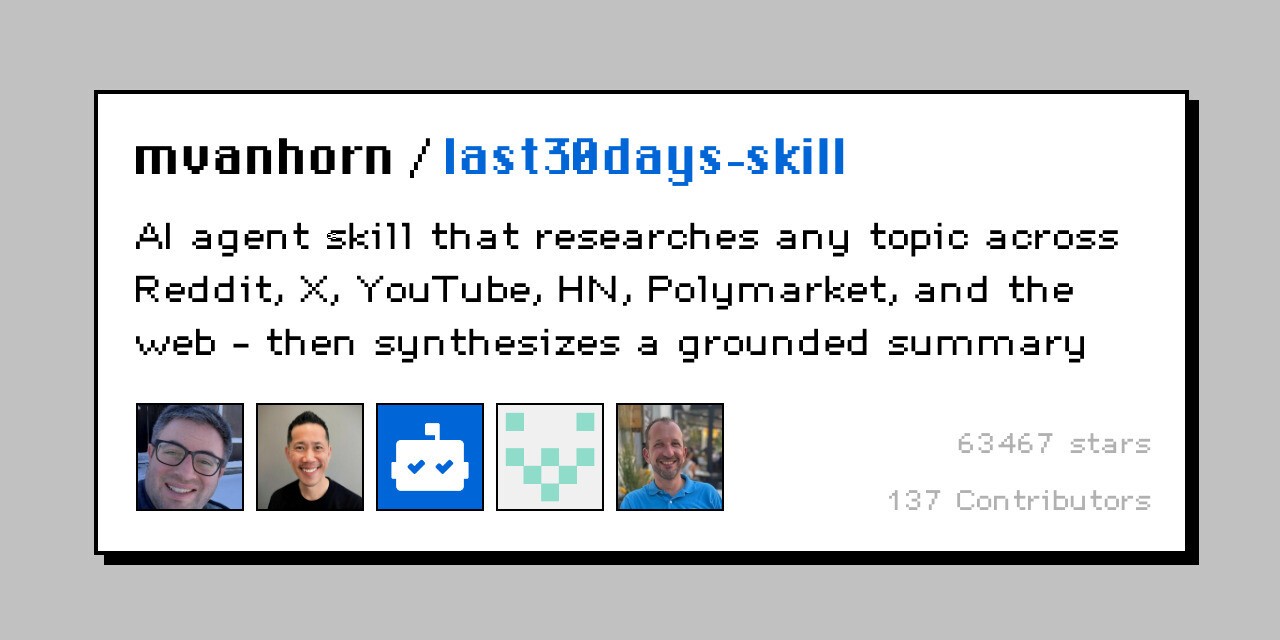
This one is useful for research, marketing, product work, investing, or anything else where recent discussion matters.
It makes current conversation part of the research workflow. A broad question such as:
What do developers think about OpenAI Dots?becomes a more specific job:
Research what developers have said about OpenAI Dots in the last 30 days.<p></p>
<p>Focus on real usage, complaints, unexpected use cases, and things people keep asking for.</p>
<p>Give me the patterns with source links.</p>
The second version gives the Dot a time frame, tells it what evidence matters, and asks for the original sources.
How I would use it
I would make this a recurring job.
For example:
Every Friday, research what developers have said about OpenAI Dots during the last 7 days.<p></p>
<p>Compare it with the previous report.</p>
<p>Show me:</p>
<ul>
<li>new use cases</li>
<li>repeated complaints</li>
<li>new tools or skills people are using</li>
<li>anything that suddenly started getting attention</li>
</ul>
<p>Include the original sources.</p>
That gives you a small weekly research loop you can reuse for almost anything you want to monitor.
Resources
GitHub: mvanhorn/last30days-skill
GitHub: last30days README
5. Planning with Files
ℹ️ Keep long-running work organized across hours, days, and multiple sessions.
Long-running Dot work can get messy quickly.
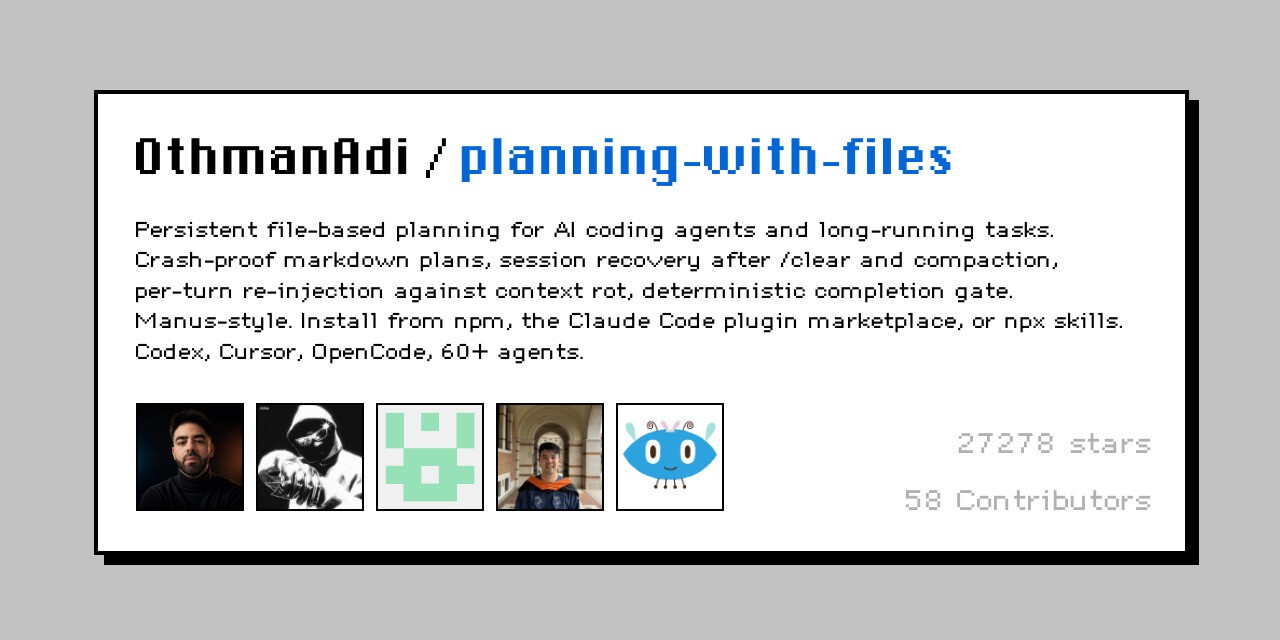
Planning with Files keeps the plan, findings, and progress in files instead of relying entirely on chat context.
The default setup uses files such as:
task_plan.md
findings.md
progress.md
Your Dot can record what it is doing, what it has found, and what still needs to happen.
For example:
Research the top 20 AI coding agents.<p></p>
<p>Keep the plan in task_plan.md.</p>
<p>Save useful findings and source links in findings.md.</p>
<p>Track completed research in progress.md.</p>
<p>Do not finish until all 20 are checked.</p>
This is especially useful for research, launches, audits, migrations, and other jobs that take more than one session.
How to install it
For Codex or another supported agent:
npx skills add OthmanAdi/planning-with-files --skill planning-with-files -gIf your Dot hands work to Codex or a connected computer, that environment can use Planning with Files to keep its state on disk.
Resources
GitHub: OthmanAdi/planning-with-files
Docs: Installation guide
6. Grill Me
ℹ️ Make the agent ask the important questions before you hand over a large job.
This skill is intentionally a little annoying, which is why it works.
Matt Pocock’s grill-me skill asks one question at a time until your plan is clear enough to use. That is helpful with Dots because vague instructions become riskier as the size and length of the job increase.
What it does
Imagine telling your Dot:
Own our product launch.You may know what “own” means, but the agent does not.
Grill Me works through the missing details before the Dot starts acting. If a Dot will manage something for days or weeks, ten minutes of questions upfront can save you from repeatedly correcting its interpretation later.
How to install it
For Codex or a connected computer:
npx skills@latest add mattpocock/skills --skill=grill-meThe setup also relies on the underlying grilling skill, so make sure that dependency is available if you install everything manually.
For ChatGPT, I would create a simpler version of the same pattern with Skill Creator:
When I give you a new responsibility, ask me one important question at a time.<p></p>
<p>Keep going until the goal, scope, permissions, approvals, failure cases, and definition of done are clear.</p>
<p>Recommend an answer when useful.</p>
<p>Do not start the work until the handoff is clear.</p>
Then run:
@grill-me<p></p>
<p>I want my Dot to own our customer onboarding process.</p>
Let it interview you, then use the answers to write the Dot’s instructions.
When I would use it
before giving a Dot a multi-week job
before creating a custom skill
before automating a process with lots of edge cases
before handing a large build to Codex
Resources
GitHub: mattpocock/skills
Skill: Grill Me on skills.sh
7. Superpowers
ℹ️ Use this when your Dot manages software work through Codex.

Superpowers is the largest software workflow pack on this list. It covers planning, TDD, debugging, code review, verification, execution, and the rest of the development loop.
Its most useful role here is giving Codex a process to follow while the Dot manages the work.
Why it makes sense for Dots
The workflow looks like this:
Bug / feature request
        ↓
       Dot
        ↓
    Codex task
        ↓
 Superpowers workflow
        ↓
 Tested implementation
        ↓
 Back to the Dot
        ↓
    Your review
The Dot keeps the project context and decides what happens next. Codex handles the implementation, while Superpowers guides the coding task through planning, building, testing, and verification.
💁 Dot owns the job, Codex writes the code, and Superpowers gives the coding session a repeatable process.
How to install it
Superpowers supports Codex through its skills setup.
The project documents a Codex installation flow that makes the skills available in your coding environment. Once installed, your Dot can hand software tasks to a Codex session that uses them.
For example:
Watch incoming bugs in Linear.<p></p>
<p>When a bug is reproducible and isolated, create a Codex task.</p>
<p>Use Superpowers for planning, implementation, testing, and verification.</p>
<p>Bring the finished PR back to me.</p>
<p>Ask me before changing architecture or shared interfaces.</p>
This setup also covers the work around the build: where the request came from, what was handed off, what was tested, and which decisions still need you.
If you want to learn more:
Resources
GitHub: obra/superpowers
Releases: Superpowers releases
8. Caveman
ℹ️ Make routine Dot updates shorter.
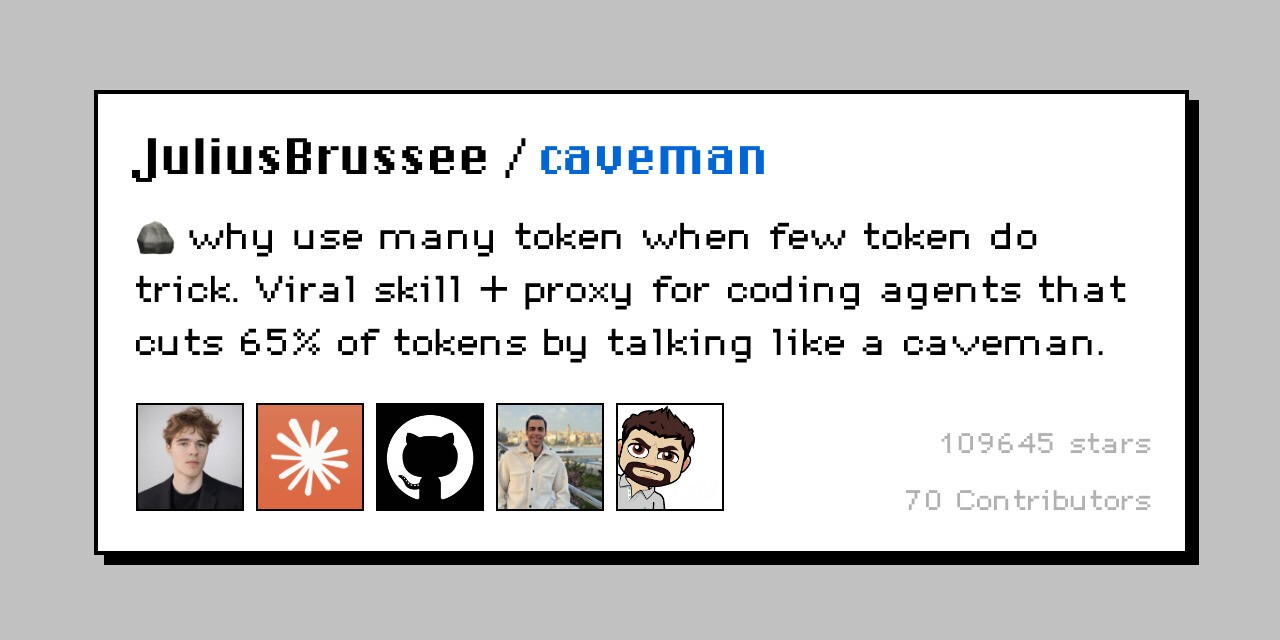
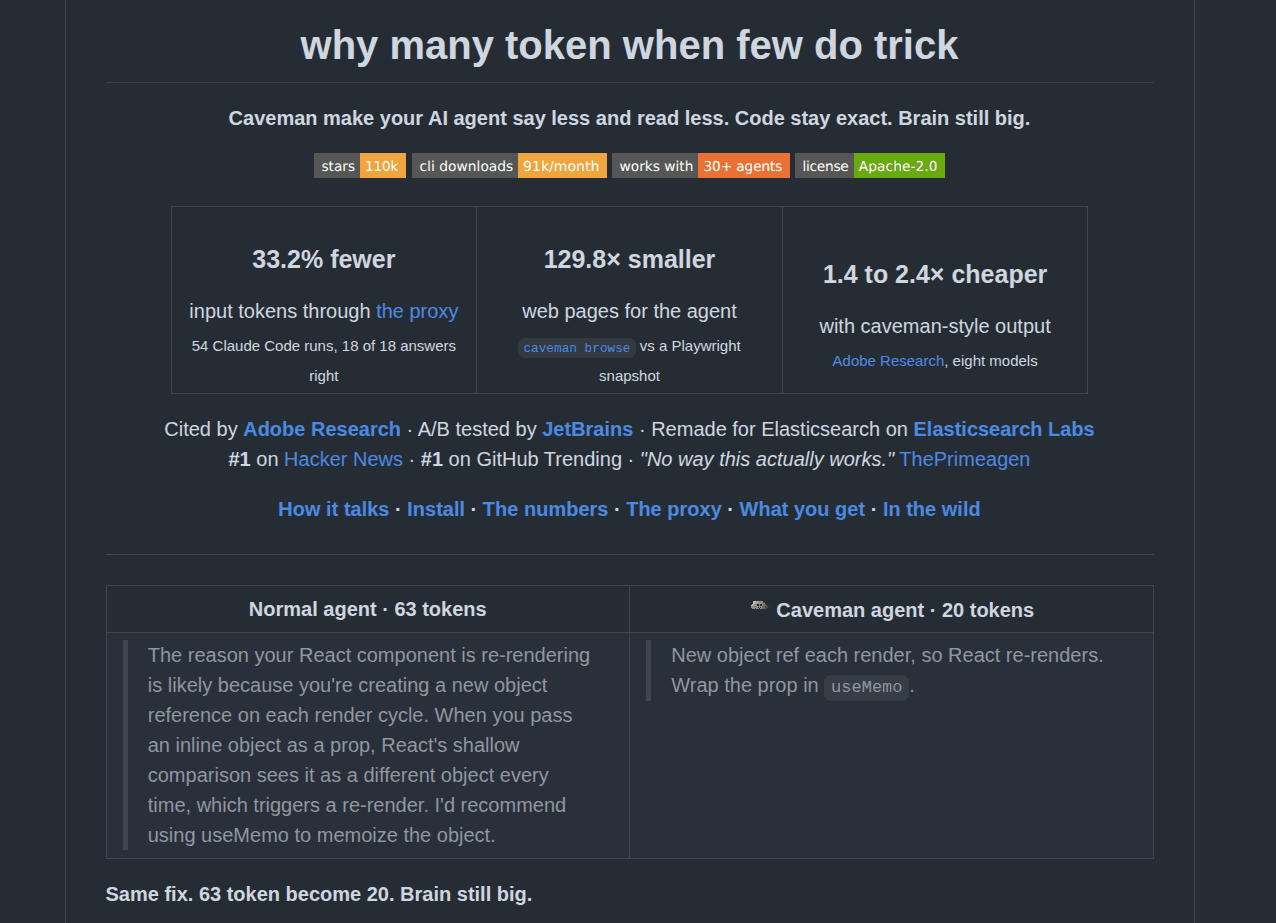
Caveman shortens agent replies while keeping the useful parts.
That becomes handy with Dots because recurring jobs can produce a lot of progress updates. Without a strict format, every status message risks turning into a mini blog post.
For most recurring work, I would rather receive this:
2 blockers.<p></p>
<p>Launch page copy pending approval.</p>
<p>Stripe webhook issue still open.</p>
<p>No action needed elsewhere.</p>
I do not need six paragraphs explaining that the agent checked four systems and found nothing interesting.
How I would use it
You can use the original Caveman skill with supported coding-agent setups.
For a Dot, I would make a lighter version with Skill Creator:
For routine status updates:<p></p>
<ul>
<li>maximum 5 bullets</li>
<li>one sentence per bullet</li>
<li>decisions first</li>
<li>keep exact code, commands, numbers, and errors</li>
<li>use normal detailed language for security warnings or anything requiring approval</li></ul>
This keeps the useful constraint without forcing every message into literal caveman English.
Resources
GitHub: JuliusBrussee/caveman
Author: Julius Brussee
9. Humanizer
ℹ️ Let the Dot prepare writing that sounds like you before it goes out under your name.
This skill makes more sense inside a Dot than I expected.
A Dot might draft emails, Slack messages, customer replies, follow-ups, LinkedIn posts, social posts, and other updates. Those drafts can be correct while sounding nothing like you.
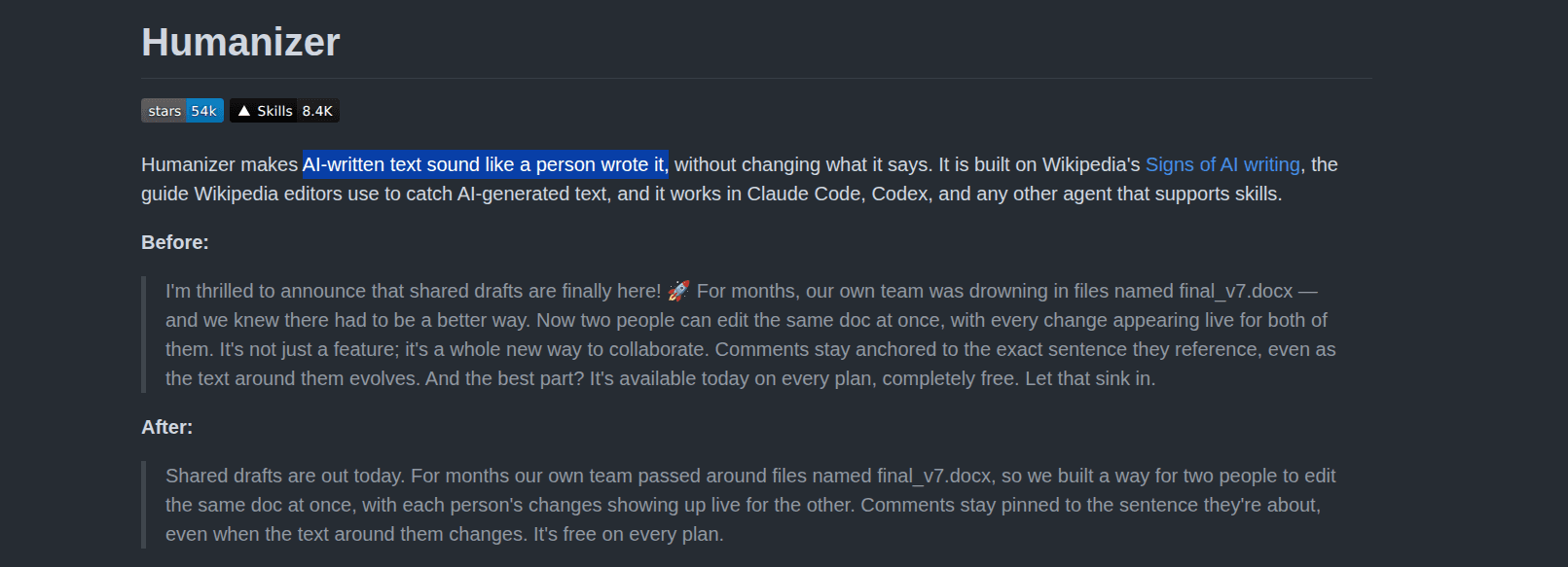
Humaniser is designed to fix that.
What it does
It looks for common AI-writing habits, including:
fake contrasts
repeated endings
forced groups of three
too many fancy transitions
inflated claims
robotic wording
repeated explanations
unnecessary dashes
These patterns make a reader suspect an AI wrote something before they finish the first paragraph.
How I would use it
For Codex or a connected environment, install the skill using its supported setup.
Then give the Dot a rule such as:
Before showing me any email, Slack message, social post, or customer reply that will be sent externally, run @humanizer.

<p>Keep all facts unchanged.</p>
<p>Match my writing style using previous approved examples.</p>
<p>Do not send anything without my approval.</p>
The result improves when you provide samples of your real writing. Previous approved emails, posts, and messages teach it more about your style than a vague instruction to “sound human.”
It also saves you from typing that instruction after every prompt. 😉
Resources
GitHub: blader/humanizer
Skill: Humanizer SKILL.md
10. Wolfram
ℹ️ Give your Dot a computation layer for numbers, formulas, data, and technical research.
Wolfram is one of the more interesting plugins you can add to a Dot because it gives the agent access to something the model should not try to recreate from memory.
It connects ChatGPT to Wolfram|Alpha, Wolfram Language, and Wolfram’s knowledge base. Your Dot can use proper computation when a job involves math, science, data, or another subject where exact answers matter.
It adds a different kind of capability from app connections such as Notion, Slack, or Linear.
What it does
You can use Wolfram for:
calculations
plots and graphs
chemistry and physics
structured real-world data
many more…
This is particularly useful when the Dot owns a recurring job.
Suppose it is checking some hardware research. You could ask:
Research the power requirements for this hardware setup.<p></p>
<p>Use Wolfram for all calculations and unit conversions.</p>
<p>Show the assumptions you used.</p>
<p>Tell me if any number looks unrealistic.</p>
The Dot manages the research, then uses Wolfram for the calculation-heavy parts.
How to install it
Wolfram is available in the ChatGPT App Directory.
Open ChatGPT, go to Apps, search for Wolfram, and click Connect.
Once connected, ask your Dot to use it whenever a workflow needs computation.
For example:
Use Wolfram to calculate and graph the growth rate for this dataset.<p></p>
<p>Then explain the result in simple English.</p>
The standard cloud version doesn't require a separate local setup.
Wolfram also has a local MCP option if you use Wolfram products and want the agent to work with your local Wolfram environment. For most Dot workflows, I would use the ChatGPT app.
Resources
Wolfram: Wolfram Cloud MCP
ChatGPT plugin: Wolfram
Wrap-up
A Dot already has a strong model, memory, its own cloud computer, scheduling, connected apps, and the ability to hand work over to things like Codex.
That is already a lot.
So I do not think the goal is to install 50 skills and plugins just because you can. 🤷♂️
I would start with Composio for app access, Skill Creator for the workflows you keep repeating, and then add the more specific stuff only when the Dot actually needs it.
You get the idea.
The interesting part about Dots is not how many tools you can attach to one.
It is that you can give one a real piece of work, let it keep the context over time, and only get involved when something actually needs you. ✌️

 Get started



