




ChatGPT can only use information that it can see. If your work is in Gmail, Drive, Slack, or SharePoint, ChatGPT cannot read it until you connect to those apps.
A plugin makes this connection. This is also why many people connect 11 plugins in one evening. A week later, they use one plugin, and the other 10 remain as permissions they have forgotten about.
This post covers 10 plugins that stay useful. It also explains what access each one requires.
What changed in July 2026?
OpenAI changed these terms in July, but many online guides still use the old terms. Here is a simple explanation.
A plugin can contain skills and apps. Some plugins contain only skills, while others contain a skill and the app that it needs.
A ChatGPT app gives ChatGPT access to another service. It connects ChatGPT to Gmail, Drive, Slack, or SharePoint, so it can read your information.
A skill is a defined process. It tells ChatGPT how to complete a task consistently each time.
On 9 July 2026, OpenAI moved the old app directory into the Plugin Directory. Plugins are now the main way to find capabilities in ChatGPT and Codex. Your existing connections continued to work after this change, but the menus moved.
An important change on 14 August
OpenAI stopped individual-user sync. From 10 August 2026, you can no longer create a new sync connection for your own account. On 14 August 2026, OpenAI disabled the existing individual-user sync connections and began deleting the synced data.
Administrator-managed sync still works. If your team needs synced search across files, an admin must set it up for the whole workspace.
Read this before you follow any older guide. Many of them still tell you to turn on Sync yourself, and that step no longer works.
How to connect a ChatGPT plugin?
Open the directory at
chatgpt.com/plugins. You can also go to Settings → Plugins, or select Plugins in the sidebar. This works in the web and desktop apps.Select the app that you want.
Select Connect.
Complete the OAuth sign-in for that service.
Use the app in a chat with an @ mention. You can also select + → More and choose the app.
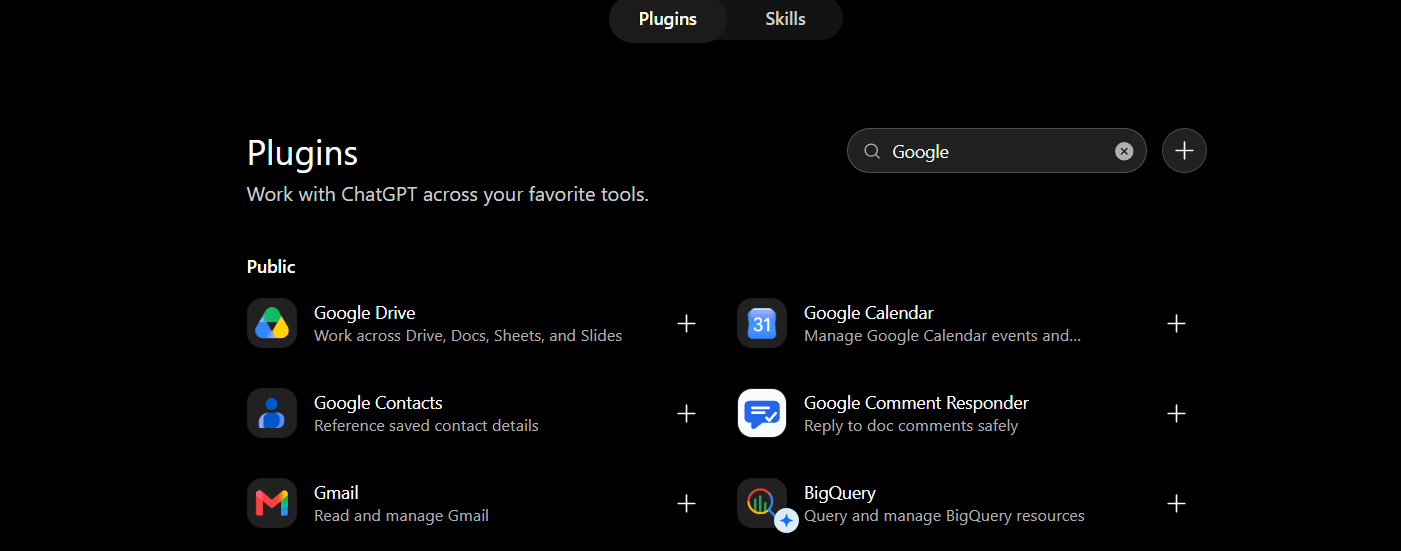
If Connect isn't available, it's usually due to a geographic restriction, your workspace settings, or your plan. If the message says "Disabled by admin," an administrator has disabled the plugin.
A note on regions: Several of these plugins do not work in the EEA, Switzerland, or the UK. The rules differ for each app, so check the plugin listing before you plan around it.
If you're looking for plugins for Dots, check out this guide: Best Plugins for OpenAI Dots
If you are the admin
Go to Workspace settings → Plugins. Select the plugin, review its skills and required apps, then set the Installation policy to Available or Installed for each role. OpenAI explains the full set of controls in its admin documentation.
Two points cause confusion here.
Available and Installed control installation only. They don't grant access to an app or its data.
Approval in ChatGPT does not change permissions in the source system. If a user cannot see a file in SharePoint, the plugin must not show that file to them in ChatGPT.
Keep your first version read-only. You can add write actions later.
Related: Best ChatGPT Skills
Best ChatGPT plugins
1 . Composio: Connect ChatGPT to all your apps in 2 minutes
Composio plugin allows you to connect all your applications, from Gmail and Outlook to Slack, Notion, Drive and more, in under 2 minutes.
It's a single connector, which means you don't have to configure separate plugins for different apps. Composio handles connection, routing, and authentication. All you need to do is authorise Composio in ChatGPT.
Here's how you can install it.
Search for Composio in the OpenAI marketplace or click on this link: Composio <> ChatGPT
Now click Install in the top right.
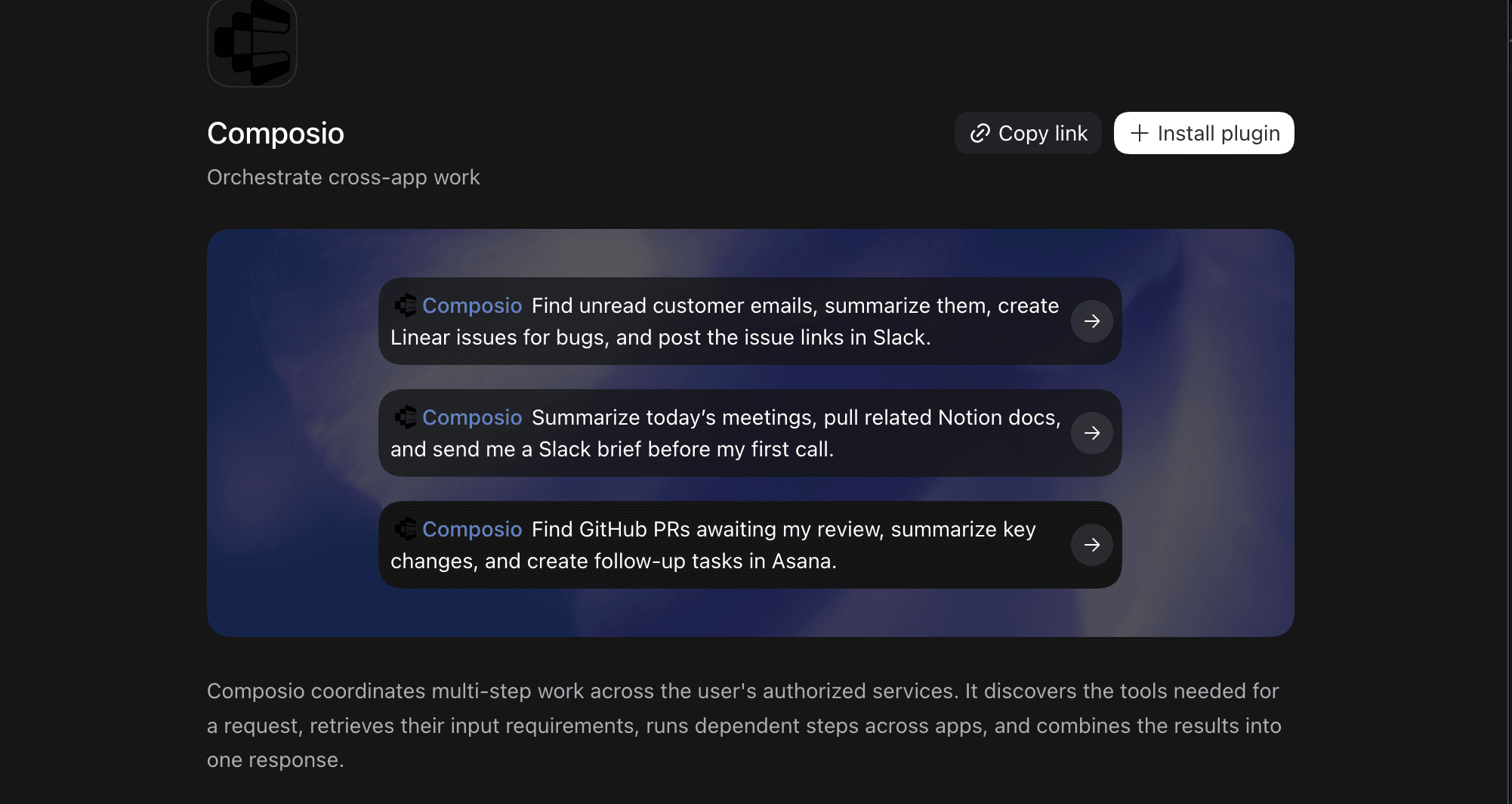
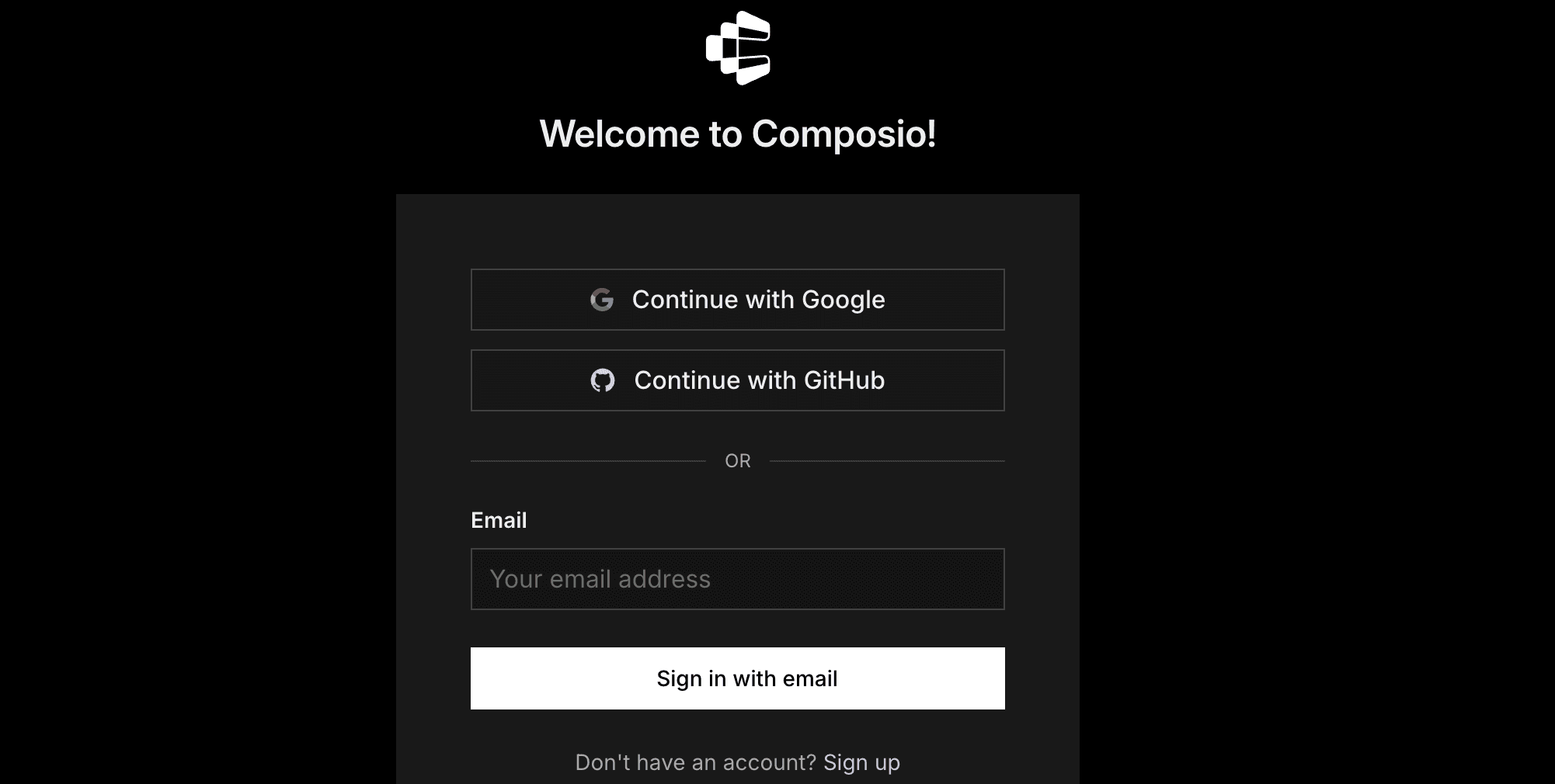
You'll be redirected to the Composio sign-in screen.
Now authorise ChatGPT to access Composio.
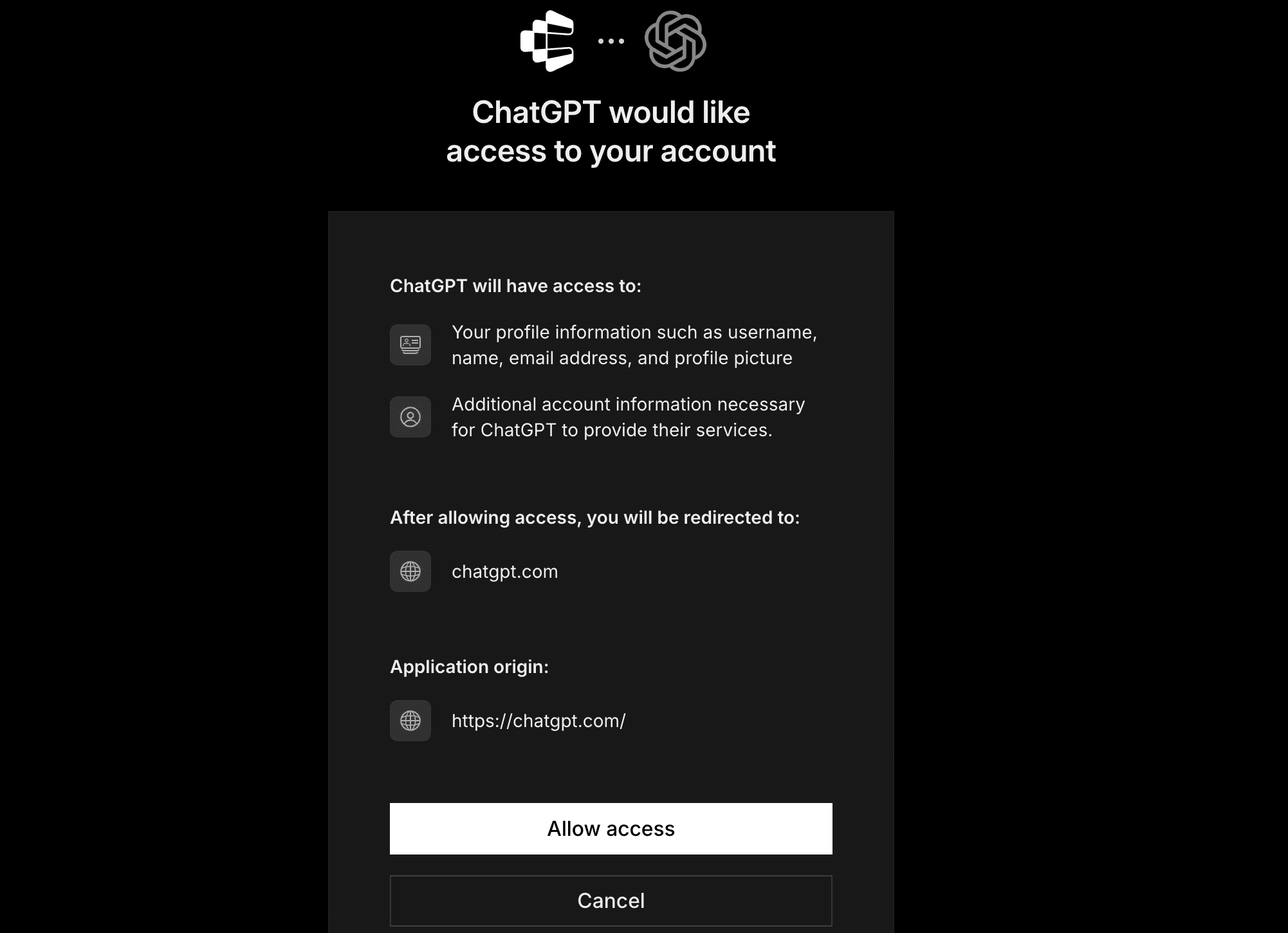
And you're done. Go back to the ChatGPT app and type
/composioand your promptComposio Find unread customer emails, summarize them.During first runs, you'll need to authorise your applications, and then you're good to go.
How Composio is better than standard app plugins
Multiple connections: You can connect multiple accounts to ChatGPT. Connect multiple Gmail, Notion, Outlook, and Slack workspaces at no additional cost.
Tool routing: Composio MCP gateway searches the available integrations and loads only the tools needed for the task. This keeps irrelevant tool definitions out of the model’s context, making selection more reliable.
Auth management: Composio manages OAuth connections and credentials centrally, so users authenticate through the provider instead of pasting tokens into prompts or configuration files. Each app is authorised separately with its own permissions.
Team-level access: Teams can manage shared integrations and access policies from a single workspace, rather than having every person configure the same stack independently.
Role-based access control (RBAC): Administrators can limit who can access particular integrations and actions based on their role. This helps keep sensitive or write-capable tools available only to the people who need them.
The practical result is a smaller tool context, fewer repeated setup steps, and clearer control over who can access and change data.
You can also control your apps from the Composio Dashboard
Start automating now: dashboard.composio.dev
2. TinyFish: Live web research and browser tasks
Search works when the answer already appears on a page. It falls short when finding the answer requires selecting dates, applying filters, opening a booking flow, or navigating several pages.
TinyFish gives ChatGPT the tools to handle those workflows. The TinyFish plugin can search the web, read pages, navigate websites, click elements, fill forms, and return information revealed through those interactions. This makes it useful for checking changing prices or availability, navigating JavaScript-heavy interfaces, testing public website journeys, and completing approved forms with supplied information.
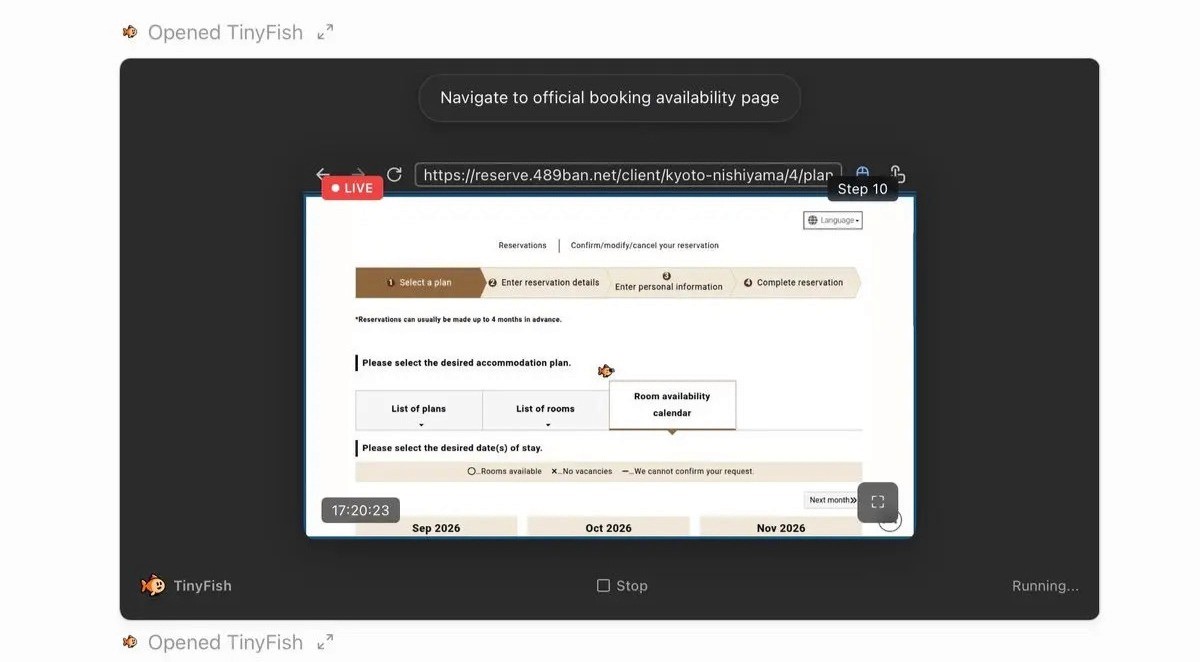
Caption: TinyFish navigates a Kyoto hotel’s live booking flow to check room availability for specific dates.
How to connect TinyFish to ChatGPT
1. Open Plugins in ChatGPT.
2. Search for TinyFish, then open its listing.
3. Select Install plugin and approve the requested permissions.
4. Start a new chat and ask ChatGPT to use TinyFish for a web task.
ChatGPT handles the request and reasoning, while TinyFish operates the website. The workflow can continue across multiple pages instead of stopping at the first search result.
3 . Google Workspace
For most people, Gmail, Calendar, and Drive hold about 80% of what any task needs. When you connect them, you remove the slowest step in almost every workflow: finding the thing before you can use it.
Note two changes before you start.
The separate Docs, Sheets, and Slides apps are gone, and everything runs through the single Google Drive app now. On Enterprise and Edu, those Drive actions stay off until an admin turns them on. On Business, they are on by default. New users now connect Google Drive once for Drive, Docs, Sheets and Slides, but previously connected standalone apps continue to work
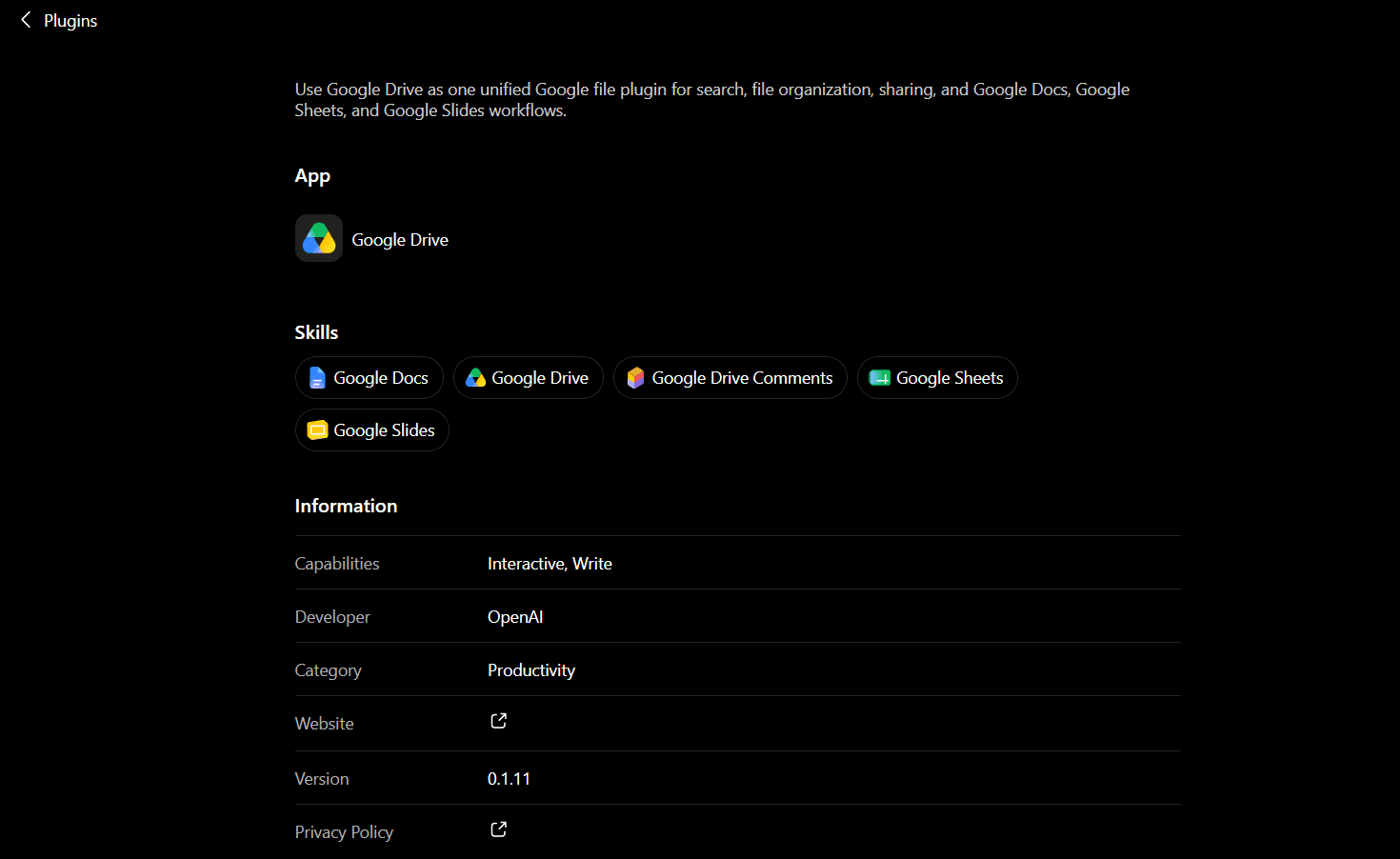
From 13 August 2026, you can also keep a Doc, Sheet, or Slide open beside the conversation on the web. Your Drive files and folders appear in the ChatGPT Library, and you can pull a file into any chat with an @ mention. You do not upload it again.
To connect:
Go to Settings → Plugins. Some accounts show this as Apps & connectors.
Find Google Drive, Gmail, or Google Calendar.
Select Connect.
If it asks for a connection type, choose Chat where you can, or choose Deep research and agent mode.
Complete the Google OAuth flow.
Google added new OAuth scopes in June 2026. If you connected before then, you may see an authorisation error, and you must approve the new scopes. OpenAI lists the details in its Google data controls FAQ.
Use it to find the client emails that matter today and to draft the replies. Use it to check your real availability before you propose times. Use it to find the current version of a document, or to turn a brief into a Doc.
4. SharePoint and OneDrive
If your knowledge sits across Word files, Excel workbooks, and PowerPoints, this one saves you real time.
Pick the right connector first. OneDrive covers personal files, and SharePoint or OneDrive for work and school covers your organisation.
To connect:
In ChatGPT, open Settings → Plugins.
Select the Microsoft app that matches your account.
Sign in with your Microsoft account.
Review and approve access.
On a work tenant, ask your Microsoft 365 admin to grant consent if prompted.
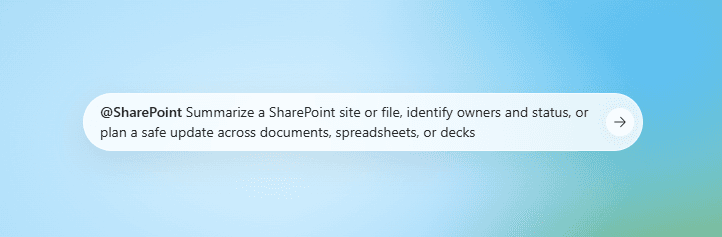
Set your expectations here. In practice, this is read-only. ChatGPT can find, read, and analyse your files, and it cannot upload, edit, move, or rename them.
For an organisation-wide rollout, use the admin-managed sync connector. One admin authenticates it and deploys it to everyone. That admin must be a SharePoint or tenant administrator and a ChatGPT administrator, because no single role is enough. You can limit it to specific sites and folders, and updates reach ChatGPT within about an hour.
One point to watch: newer scopes require Entra admin approval, and admins often disconnect and reconnect to obtain them. That forces a full re-index. Use the Reconnect SharePoint for better syncing; prompt in Workspace Settings → Apps instead.
5. Canva
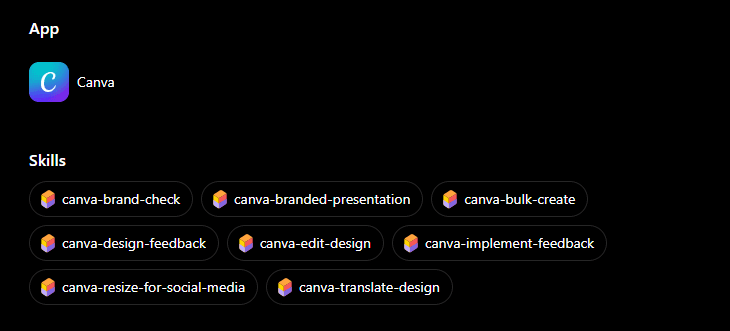
Check availability first, because this one has a hard limit. The Canva app doesn't work in the EU or mainland China. Everywhere else, it works with Free, Plus, and Pro plans on a free Canva account. Anything that needs Canva Pro in the normal editor still needs Pro when you come through ChatGPT.
To connect:
In ChatGPT, open Settings → Apps & connectors or Settings → Plugins.
Find Canva, then select Connect.
Sign in to Canva and authorise access.
In a chat, type
@Canvawith your prompt, or describe what you want.
Designs appear in the conversation and stay editable, and you can open them in Canva for finer control.
Use it to turn a report into a deck without two hours of reformatting, or to turn campaign copy into posts sized for each platform. It also does a readability pass before something goes out.
6. GitHub
If you have ever answered "how does this part of the system work" by cloning a repository and reading for an hour, this one removes that hour.
The connector reads code, README files, and documentation inside the repositories you authorise. It then answers questions and cites the file paths in the reply. You can follow a flow across files without opening any.
To connect:
In ChatGPT, open Settings → Plugins.
Find GitHub, then select Connect.
Complete the GitHub OAuth sign-in.
Select the repositories you want ChatGPT to see.
Private repositories are included if you have access. A new repository takes a few minutes to index, so an empty first result usually means you asked too soon.
Use it to understand an unfamiliar codebase before you join a project. Use it to write an architecture summary for people who do not read code. Use it to find every TODO that mentions something you plan to deprecate.
7. Linear
Linear records the work, and the comments on each issue record the reason for the work. The second part is the part you cannot find later.
This connector changed recently, and older guides get it wrong. Linear used to work only in deep research mode. It now works in chat as well, so you can ask about your tracker in a normal conversation. It also reads and writes, because it runs on Linear's own MCP server. ChatGPT can file or update an issue when you ask it to.
It keeps your existing user-level permissions, so you see what you could already see in Linear.
To connect:
In ChatGPT, open Settings → Plugins.
Find Linear, then select Connect.
Sign in to your Linear workspace.
Review and approve access.
Use it to build a status picture across several projects at once. Use it to find the issue thread behind a decision that now looks strange. Use it to write a release summary from the work that shipped.
8. Figma
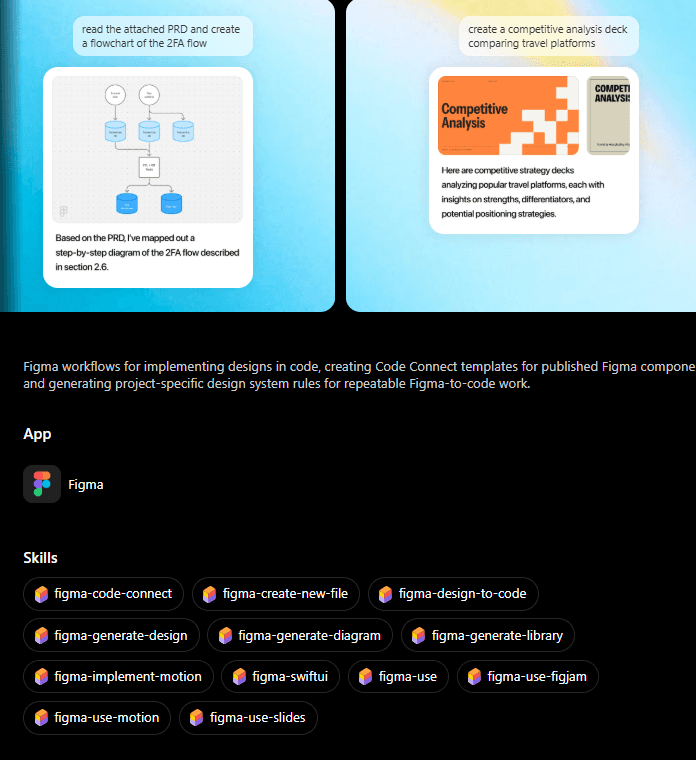
Most connectors on this list read. Figma writes, and that is why it is here.
You can ask for a FigJam flowchart or a Figma Slides deck in a normal conversation, and ChatGPT creates the file in Figma. Start the prompt with the word Figma, or select the + icon and choose the Figma app. Explicit triggering gives better results.
To connect:
In ChatGPT, open the left sidebar.
Select your profile or username.
Select Apps & connectors.
Find Figma, then select Connect.
Sign in to Figma and allow access.
Figma and Canva overlap, so choose one for the output. Canva produces something close to finished, and it suits social posts, one-pagers, and decks that go out as-is. Figma produces something a designer will keep working on, and it suits flowcharts, wireframes, and structure.
Use it to turn a written plan into a diagram that people will look at. Use it to give a designer a starting file rather than a paragraph describing what you want.
9. HubSpot
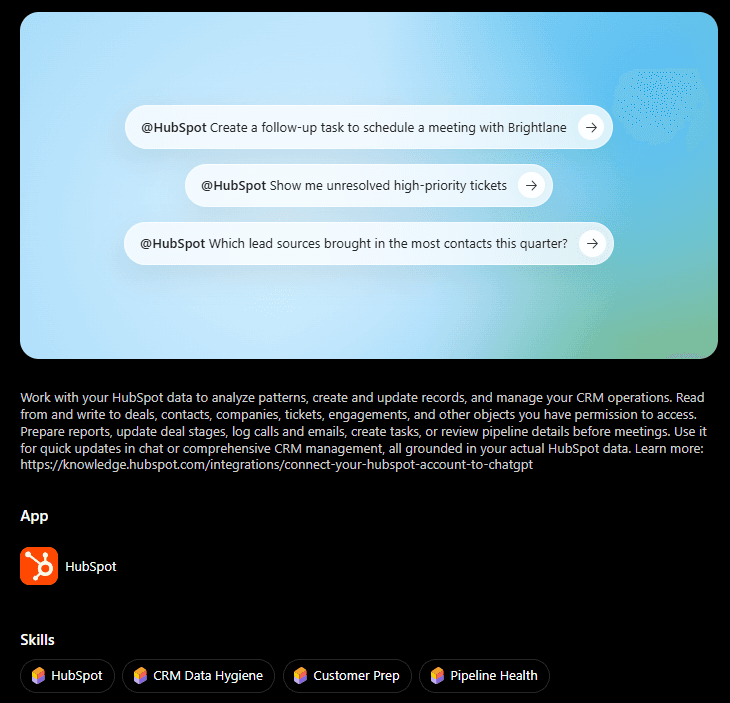
A CRM answers "what is the value of this deal" easily. It answers "what do our last twelve losses have in common" slowly, if at all. That second question is the one worth connecting for.
Check two things before you start. The connector works only in the web version of ChatGPT. It also needs a paid OpenAI plan, which means Pro, Plus, Team, Enterprise, or Edu, although any HubSpot tier works, including free. Chat on the Pro tier is not available in the EEA, Switzerland, or the UK.
To connect:
In ChatGPT, open Settings → Connectors.
Select HubSpot, then click Connect.
Click Continue to HubSpot.
Sign in with your HubSpot credentials.
Select the HubSpot account you want to connect.
Select the permissions you want to allow, then click Connect App.
Either a Super Admin or a user with App Marketplace permissions must complete the first setup. Other users then repeat the same steps for themselves.
Set your expectations here. The connector can both read and write HubSpot data, but write access depends on the object. It can read, create, and update contacts, companies, deals, tickets, line items, and products. It can also read engagement history and create or update calls, emails, meetings, tasks, and notes. Other objects, including invoices, orders, carts, quotes, subscriptions, and segments, are read-only. It cannot delete records.
ChatGPT can create and update records and log activities. Bulk creates and updates are limited to 10 records per request. Custom objects are not supported, and HubSpot's custom validation rules are not applied when the connector creates or updates records.
If you connected the HubSpot connector before February 23, 2026, you need to upgrade it to get the newer edit permissions and engagement access. Workspace admins must approve the updated app before users can upgrade and reconnect. HubSpot records create and update actions in the Audit Log against both the user and the ChatGPT connector.
HubSpot recommends setting write tools to Needs Approval, so you can review changes before they run. If you instead set them to Always allow, edits can happen without a confirmation prompt.
If your HubSpot account has Sensitive Data turned on, the connector cannot access engagement data or custom Sensitive Data properties. Access otherwise follows each user's existing HubSpot permissions.
10. Notion
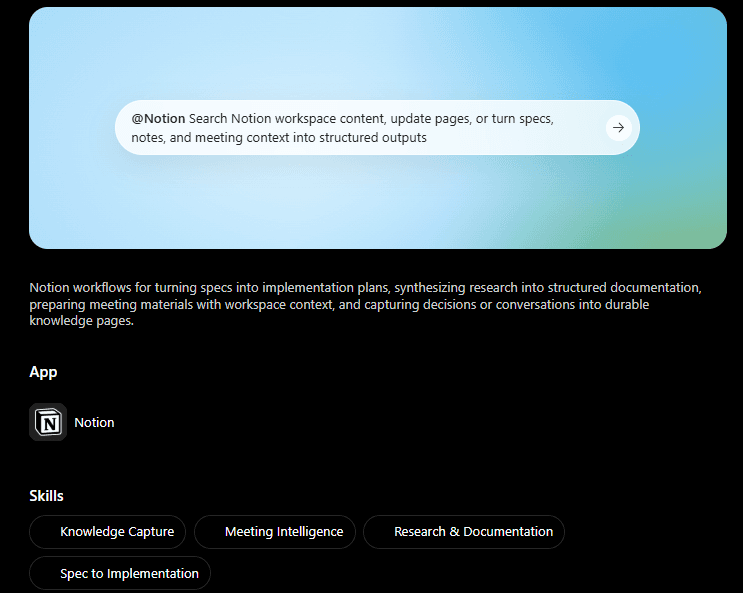
If your team keeps decisions, processes, and project history in Notion, this connector lets ChatGPT answer questions using your own material instead of general knowledge.
To connect:
In ChatGPT, open Settings → Connectors. Some accounts show this as Apps.
Find Notion, then click Connect.
Sign in and authorise your Notion workspace.
Grant access to the specific pages and databases you want ChatGPT to reach.
Connectors are not available on the free ChatGPT tier.
One trap worth flagging: sharing a parent page does not reliably cascade to every page beneath it. If a sub-page does not appear in results, share that sub-page directly rather than assuming the permission was inherited.
Use it to find a decision and the reasoning recorded alongside it. Use it to pull the current version of a process instead of the version someone remembers. Use it to ground a research brief in your internal sources before ChatGPT goes anywhere near the public web.
A rollout that survives
If you connect everything on day one, it fails predictably. You have too many things to evaluate, no baseline for a good answer, and no way to tell which connection produced the wrong one.
So pick one task you already do every week. Write down what a good result looks like, and actually write it. Connect to one app, review its permissions thoroughly, and keep human approval for anything that matters.
Add the next one when the first no longer needs your attention.

 Get started