




Claude’s built-in Google connection works well if you use one Google account. But when you connect a second account, it replaces the first.
If you use a work inbox, a personal inbox, or a shared address, billing@company.com, that quickly becomes frustrating.
Composio fixes this by keeping each Gmail account separate and giving it a simple name, such as work, personal, or billing. Claude can then use the right inbox when you mention that name.

✅ You do not need to write code, create an API key, or understand MCP. The setup is mostly clicking Connect and signing in to Google.
Watch the setup video
What you’ll end up with
One Composio connector in Claude
Two or more Google accounts connected behind it
A clear name for each account
The ability to search, draft, and organise email in the right inbox
For example:
Search my work and personal Gmail for invoices from the last 14 days. Tell me which account each email came from.
Using the billing account, draft a reply to the latest message in that thread. Do not send it.
Also related:
Before you start
You need:
A Claude account
A free Composio account
Access to each Gmail account you want to connect
About 2 minutes
💡 If you use Claude Free, you can have one custom connector. If you already use that slot, you will need to remove the existing custom connector first.
If you use Claude Team or Enterprise, an Owner may need to add the connector for the organisation. Each member can then connect their own accounts.
Step 1 — Add Composio to Claude
Click here: Composio <> Claude
This will take you to the Claude Custom Connector modal
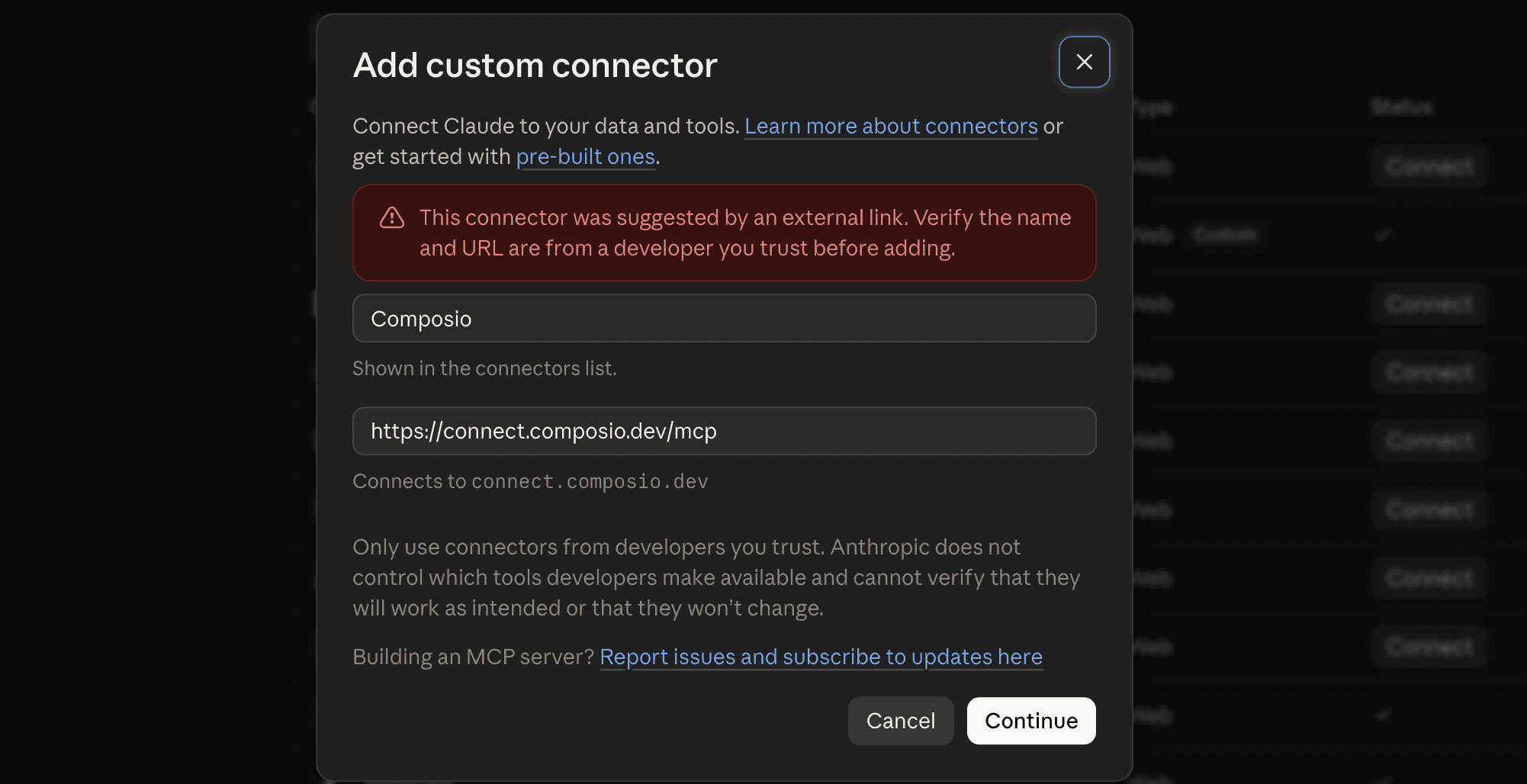
Click Continue
And in the next modal, click Add
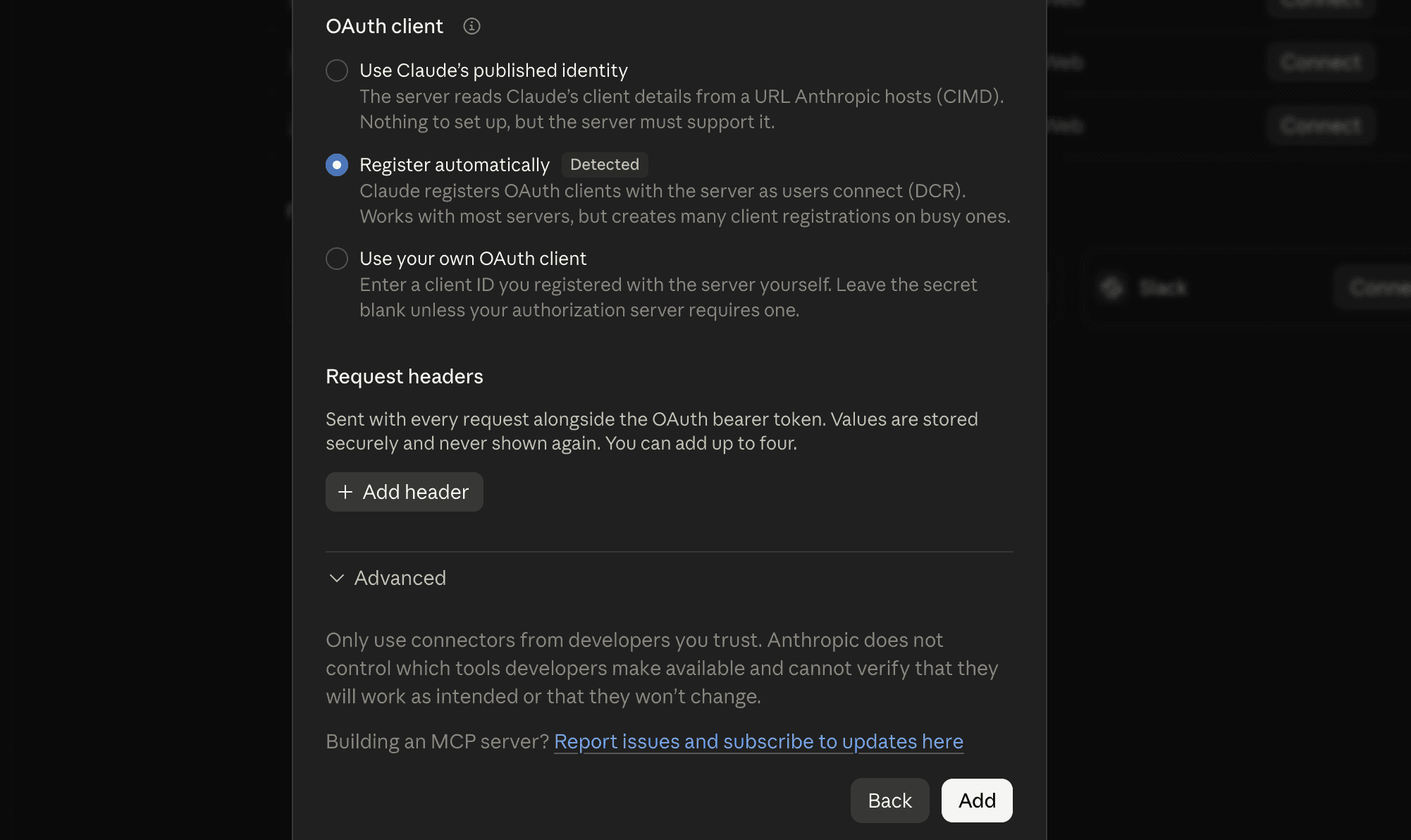
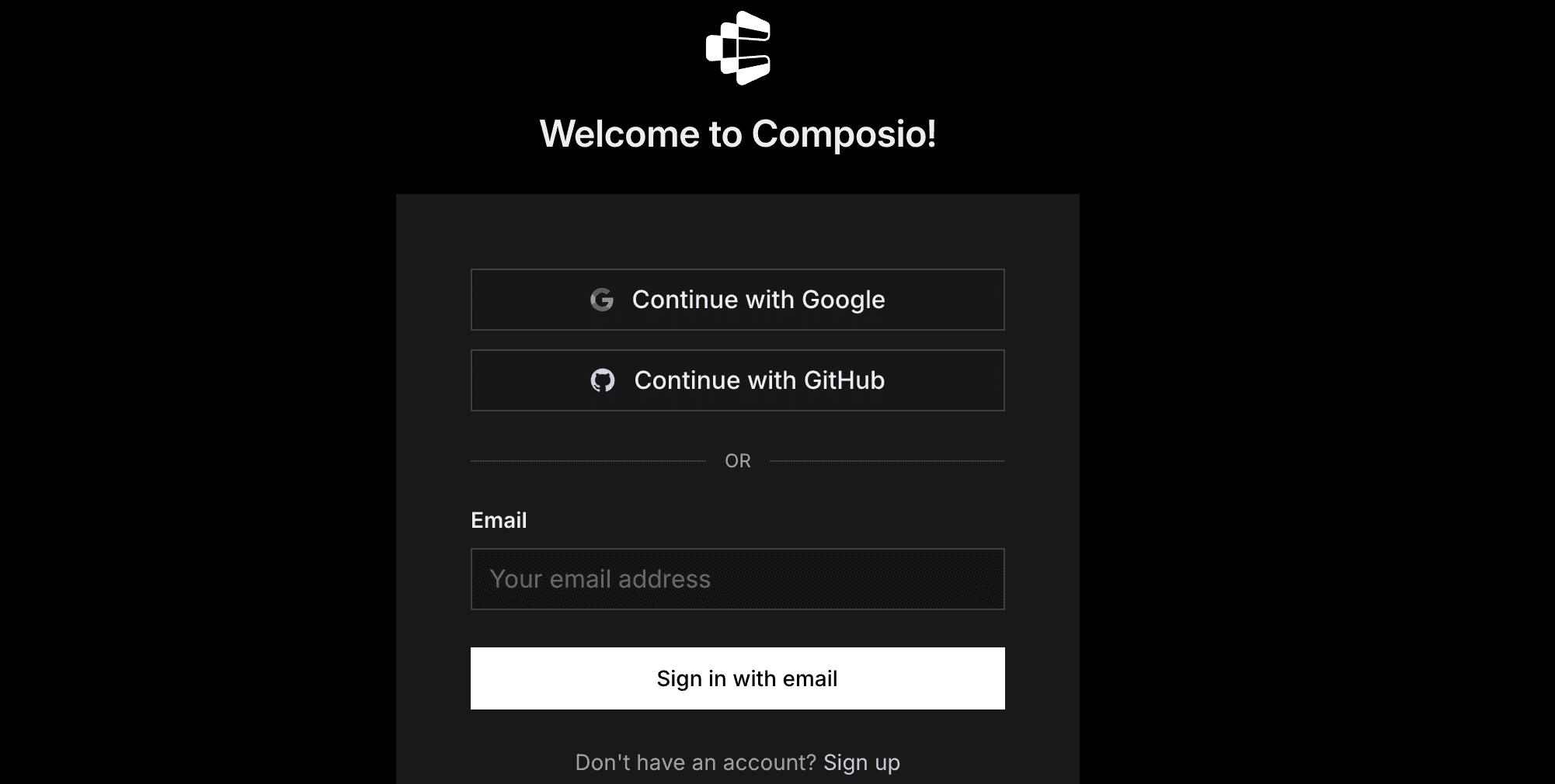
It will take you to the authentication page. So, sign in to Composio and approve the connection. You can create a free account if you haven't already.
Return to Claude and make sure Composio is switched on.
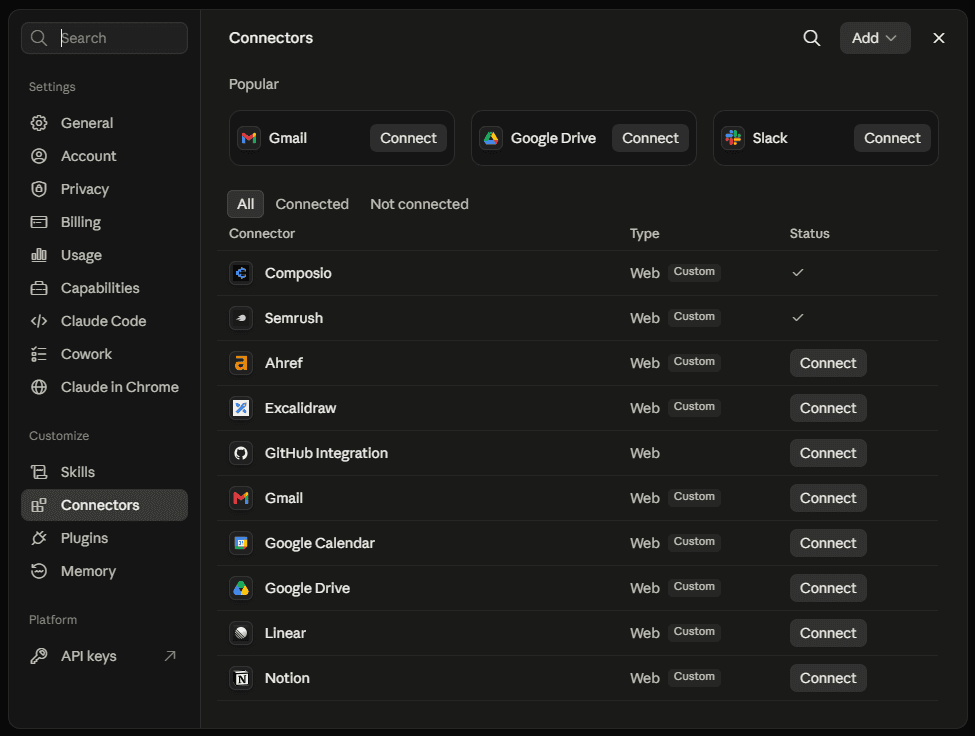
That is the only connector setup you need.
Quick check
Start a new Claude chat and ask:
What Composio tools do you have available?
If Claude lists Composio tools, you are ready for the next step.
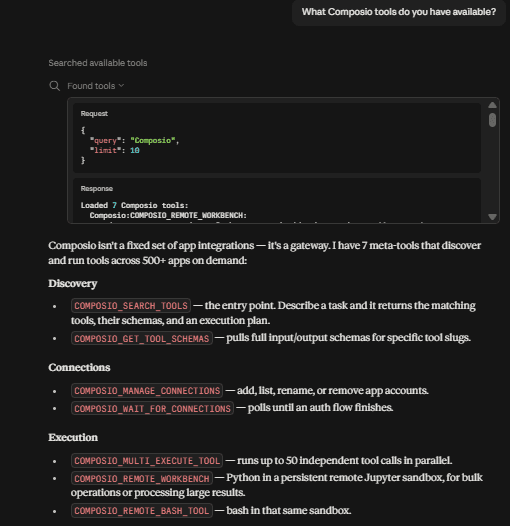
If nothing shows up, jump to Troubleshooting.
Step 2 — Connect your first Gmail account
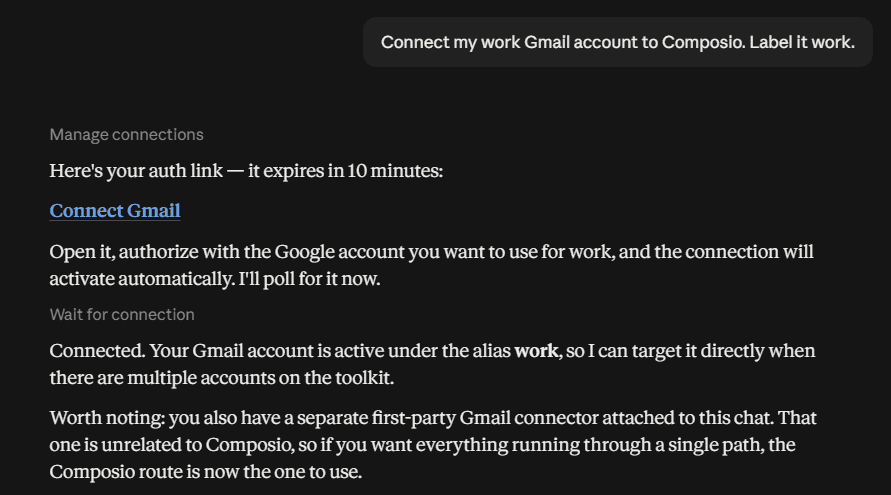
In a new Claude chat, type:
Connect my work Gmail account to Composio. Call it work.
Claude will give you a sign-in link.
Click the link.
Choose your work Google account.
Review and approve Google’s permission request.
Return to Claude.
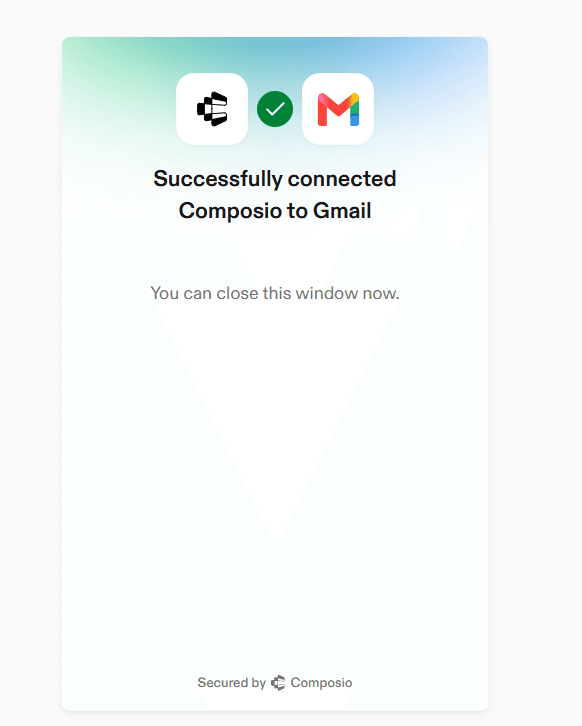
Claude should confirm that the account is connected.
The name work is how Claude knows which inbox to use. Choose short, obvious names. Good examples include:
workpersonalbillingclient-acme
Step 3 — Connect the second Gmail account
In the same chat, type:
Connect another Gmail account. Call it personal.
Claude will give you a new sign-in link. Click it and approve access for your second Google account.
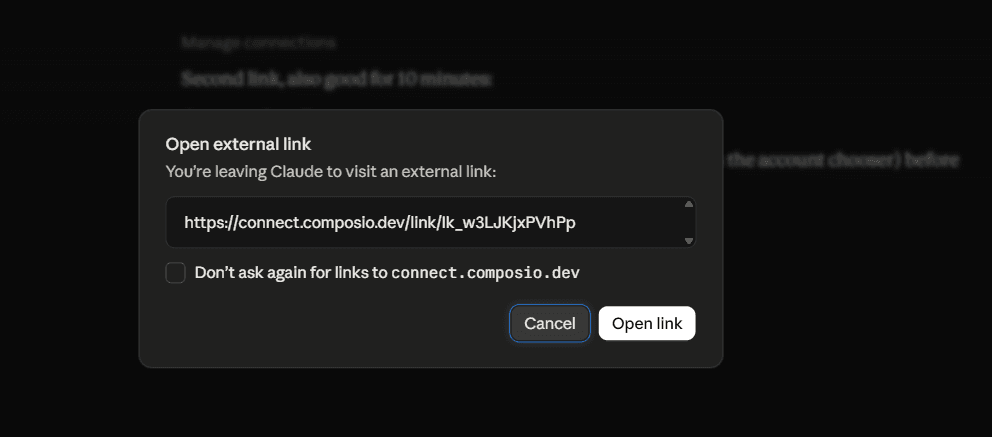
Important: Make sure Google is showing the second account—not the first one again. If you are unsure, open the sign-in link in an incognito or private window.
If Google automatically shows the wrong account:
Click your profile picture on the Google sign-in screen.
Choose Use another account.
Sign in with the second address.
After approval, return to Claude. It should confirm that the second account is connected.
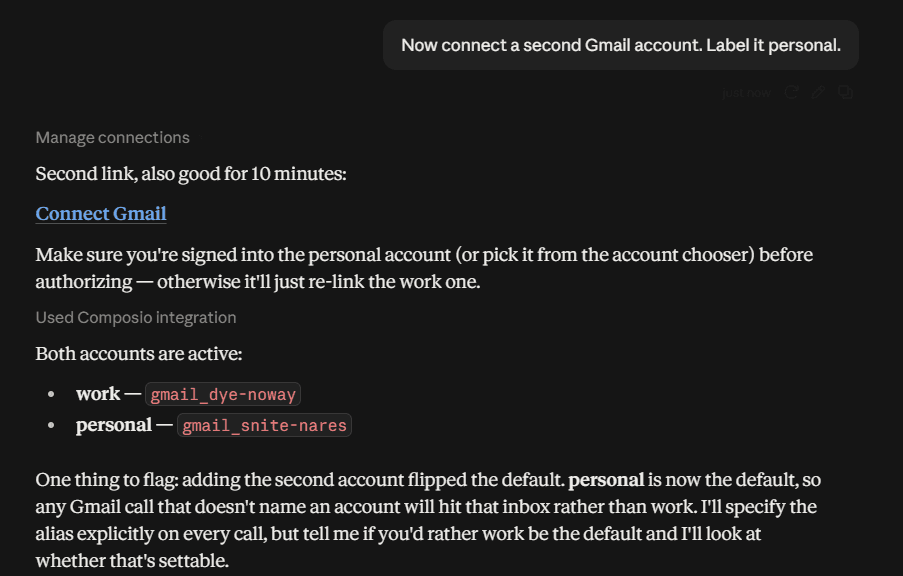
Repeat this step for any other inboxes you want to add.
Step 4 — Check that everything is connected correctly
Ask Claude:
List my connected Gmail accounts in Composio. Show each account’s name and whether it is active.
You should see every account you added. Each one should say ACTIVE.
For an extra check, ask:
Show the email address connected to each Gmail account name.
This makes it easy to spot if you accidentally connected the same inbox twice.
Step 5 — Use the right inbox
Mention the account name whenever you ask Claude to work with email.
Search two inboxes
Search my work and personal Gmail for messages from stripe.com in the last 30 days. Show which account each message came from.
Create a draft in one inbox
Using the billing account, draft a reply to the latest unread thread. Do not send it.
Triage work email
Check unread mail in work and client-acme from the last 24 hours. Flag anything that needs a reply today. Ignore personal.
Find a conversation across accounts
Find every email about the Q3 renewal across all my connected accounts. Put them in date order and tell me who is waiting for a reply.
🛟For safety, say “draft, but do not send” when you want to review a reply before it goes out.
Make Google account selection more reliable
Add this to your Claude preferences or project instructions, replacing the example addresses with your own:
My Gmail accounts are: work = me@company.com, personal = me@gmail.com, and billing = billing@company.com. Use the named account when I specify one. If I do not specify an account, ask me which one to use before taking any email action.
If Claude’s built-in Gmail connector is also enabled, Claude may sometimes use it instead of Composio. For the clearest setup, turn off the built-in Gmail connector and use Composio for email.
Optional — Manage Google accounts from the Composio dashboard
The chat method above is the easiest way to add accounts. Use the dashboard when you want to rename, reconnect, or remove one.
Go to dashboard.composio.dev.
Sign in with the same Composio account you used to connect to Claude.
Open For You from the product switcher.
Find Gmail.
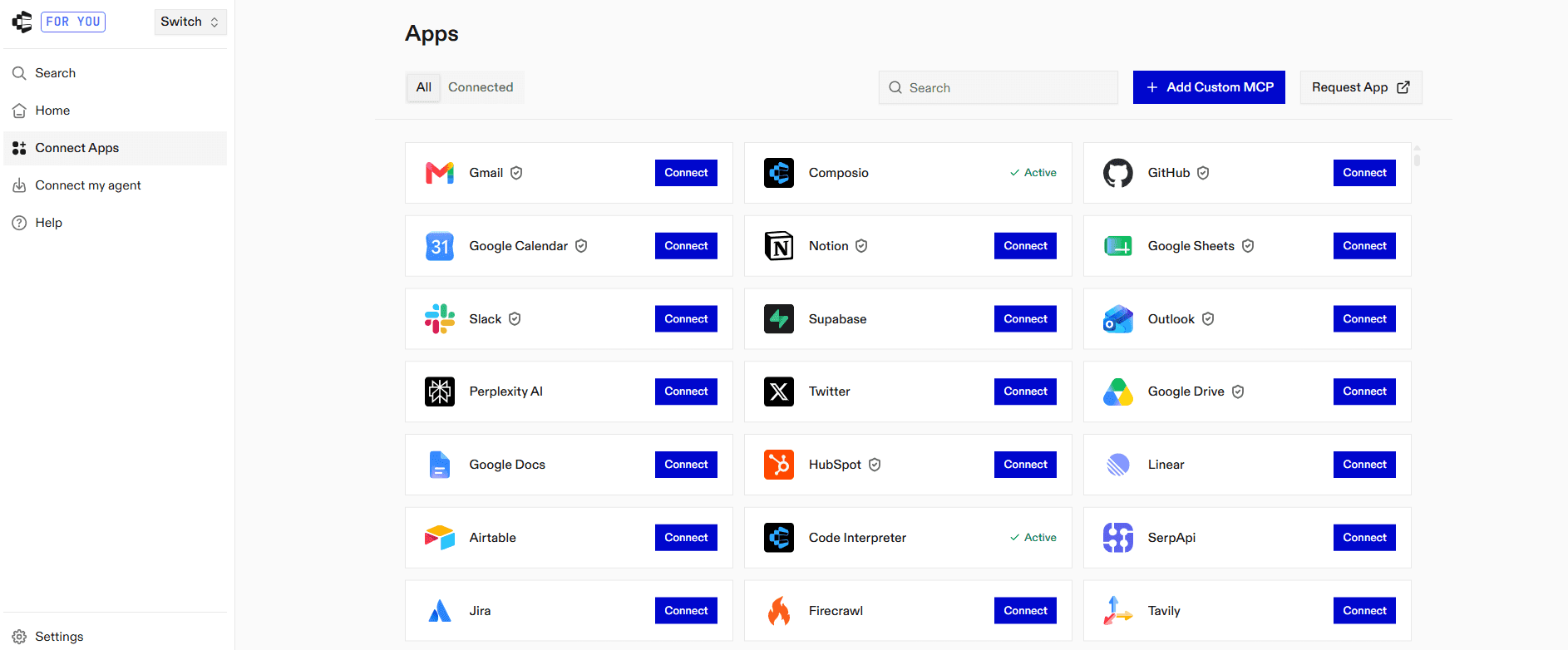
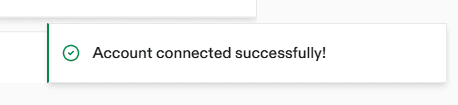
Click Connect and complete the Google OAuth flow.

Click Connect on Gmail again for the next account. Composio adds it as a separate connection rather than replacing the first; this behaviour is what the whole guide hinges on.
Give each connection a clear label. Composio's own marketing shows this pattern as
WORK/PERSONAL/TEAMbadges, and that's exactly the mental model: same app, several identities, each addressable by name.
The same incognito caveat from Step 3 applies here; check which Google account the consent screen offers.
From this screen you can also:
Rename a connection when
gmail-2stops being a useful name.
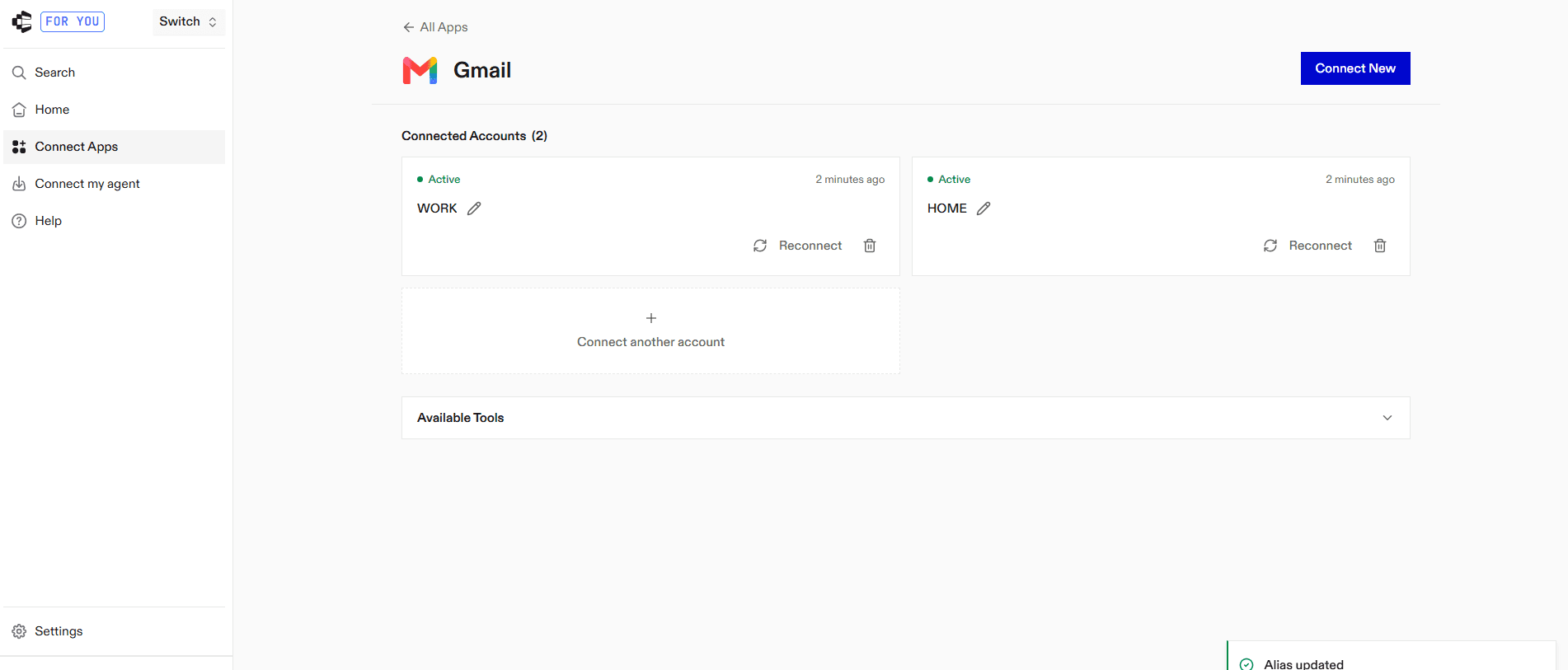
Disconnect/delete a connection you no longer want Claude touching. Deletion is immediate.
Re-authorise a connection that's expired. Tokens refresh automatically, but a revoked or expired refresh token moves a connection to EXPIRED and needs a manual reconnect.
Troubleshooting
Composio does not appear in Claude
Go to Customise → Connectors.
Make sure Composio is listed and switched on.
Open the menu next to Composio and choose Clear cache.
If it still does not work, disconnect Composio, remove it, and add it again using Step 1.
The sign-in link expired
Ask Claude to create a new connection link. Old links expire for security, so do not reuse one from earlier in the chat.
Both connections open the same inbox
The same Google account was approved twice. Remove the duplicate in the Composio dashboard, then reconnect the second account in an incognito or private window.
A Google account says expired or unhealthy
Reconnect that specific account from the Composio dashboard, then try again.
Google asks for administrator approval
Your company controls which third-party apps can access its Google Workspace. Ask your Google Workspace administrator to approve the connection, then repeat the sign-in step.
“Add custom connector” is unavailable
This usually means one of two things:
Your Claude Free account already uses its one custom-connector slot.
Your Team or Enterprise workspace requires an Owner to add the connector.
Claude used the wrong inbox
Repeat the request and name the account clearly, for example: “Use my work account.” Adding the account map from the section above will also help.
What this costs, honestly
For most personal setups, Composio’s free plan is enough. It includes up to 100,000 tool calls per month and does not require a card. A setup with a few Gmail accounts is unlikely to reach that limit.
Paid plans are available if you need more usage or team features. Check the latest pricing for current rates.
Is this safe?
Composio is SOC 2 Type 2 compliant. Your data is secured at rest and in transit.
The main protections are:
No password sharing: You sign in through Google. Composio does not receive your Gmail password.
Permission control: Google shows what access is being requested before you approve it.
Encryption and audits: Composio states that data is encrypted and that it is SOC 2 Type 2 and ISO 27001 compliant.
Access can be removed: Disconnect and delete the connection in the Composio dashboard or from
myaccount.google.com/connectionsif you no longer want it connected.
For the strongest cleanup, remove access in both places.
FAQ
Can Claude connect to two Gmail accounts natively?
Not through Claude’s built-in Google connector. Connecting another Google identity replaces the first one.
Does this work in Claude Cowork and Claude Code?
Yes. Cowork uses the same Customise → Connectors flow. For Claude Code, add the same endpoint as an HTTP MCP server, or install Composio's native agent plugin via the CLI, which is the shorter path for coding agents.
Do my inboxes get merged?
No. Nothing is forwarded, imported or combined. Each Gmail account keeps its own credentials and stays separately addressable — that's precisely why account routing works.
How many accounts can I add?
More than you need. Composio enforces a per-toolkit cap that defaults to 5 and can be configured from 2 to 10. See Composio Docs
Does this work for shared team mailboxes?
Yes, a support@ or billing@ address connects like any other Gmail account, as long as you can complete OAuth.
Does this work in Claude on web and desktop?
Yes. The connector setup is shared across Claude’s supported apps.
Can I add non-email accounts too?
Yes, and this is the underrated part. The same single connector reaches 1,500+ apps: Calendar, Drive, Slack, Notion, Linear, GitHub, HubSpot. Multi-account applies to those as well. Two Slack workspaces, two GitHub accounts, same pattern.

 Get started