




Claude doesn't have a default TikTok connector. Even if you can add your account through a provider, you can't easily connect multiple accounts.
This is a headache if you have a personal TikTok, a company account, and maybe another account for, I don’t know, whatever you need it for.
You need separate authentication for each one, and Claude doesn't currently have a native TikTok connector that handles multiple accounts.
With Composio TikTok, you can keep each TikTok account as a separate connection, give it a simple alias, and tell Claude exactly which account to use.
This guide explains how you can add multiple TikTok accounts to Claude.
Note: Composio currently doesn't have a managed TikTok app, so you'll need to create your own TikTok developer app and configure its credentials in Composio first.
After that, the setup gets pretty straightforward.
Related: Connect Multiple Discord Accounts to Claude
How Composio solves this
Composio sits between Claude and TikTok.
The setup looks roughly like this:
Claude
   ↓
Composio
   ↓
TikTok
   ├── personal-tiktok
   ├── work-tiktok
   └── client-tiktok
Each TikTok login becomes its own connected account.
We then assign an alias such as personal-tiktok or work-tiktok.
Composio supports multiple connected accounts for the same toolkit, and aliases give each connection a readable name. When several accounts are active, you can select a specific alias or connected account ID for execution.
So I can ask:
Show me the latest videos from work-tiktok.
And then:
Get the account stats for personal-tiktok.
Claude can use a different TikTok connection for each request.
Now let's set it up.
Before you start
You will need:
A Claude account with access to custom connectors (only one custom connector for a free account).
A Composio account (free with over 100K tool calls a month 🔥).
A TikTok developer account.
Access to each TikTok account you want to connect.
A TikTok developer app with the scopes required for the actions you want Claude to perform.
ℹ️ Claude custom connectors are currently available across Claude, Cowork, and Claude Desktop on supported plans. Free users can add one custom connector.
For this guide, we'll use TikTok's Sandbox mode.
It lets us test the OAuth flow with our own accounts without going through the full production review first.
💁 If you already have a production app, feel free to use that instead. The setup is mostly the same, but TikTok may require app review for the scopes and actions you want to use.
TikTok is slightly different from other guides you’ve followed.
Composio's TikTok toolkit uses OAuth2, but Composio does not provide a managed TikTok app. So we first need to create our own OAuth credentials. ✌️
Step 1: Create a TikTok developer app (Sandbox)
Go to TikTok for Developers and create a developer account if you don't already have one.
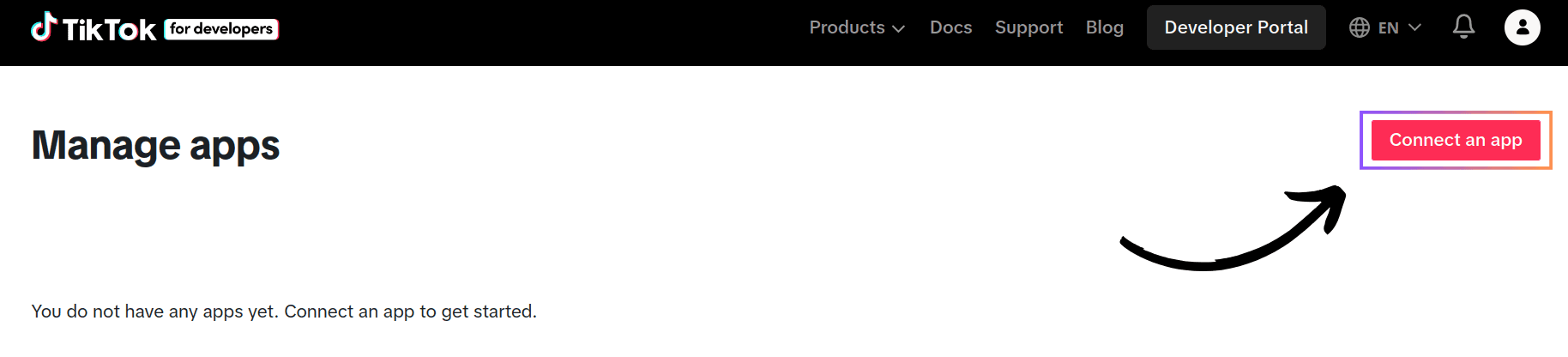
Go to Manage apps and click Connect an app.
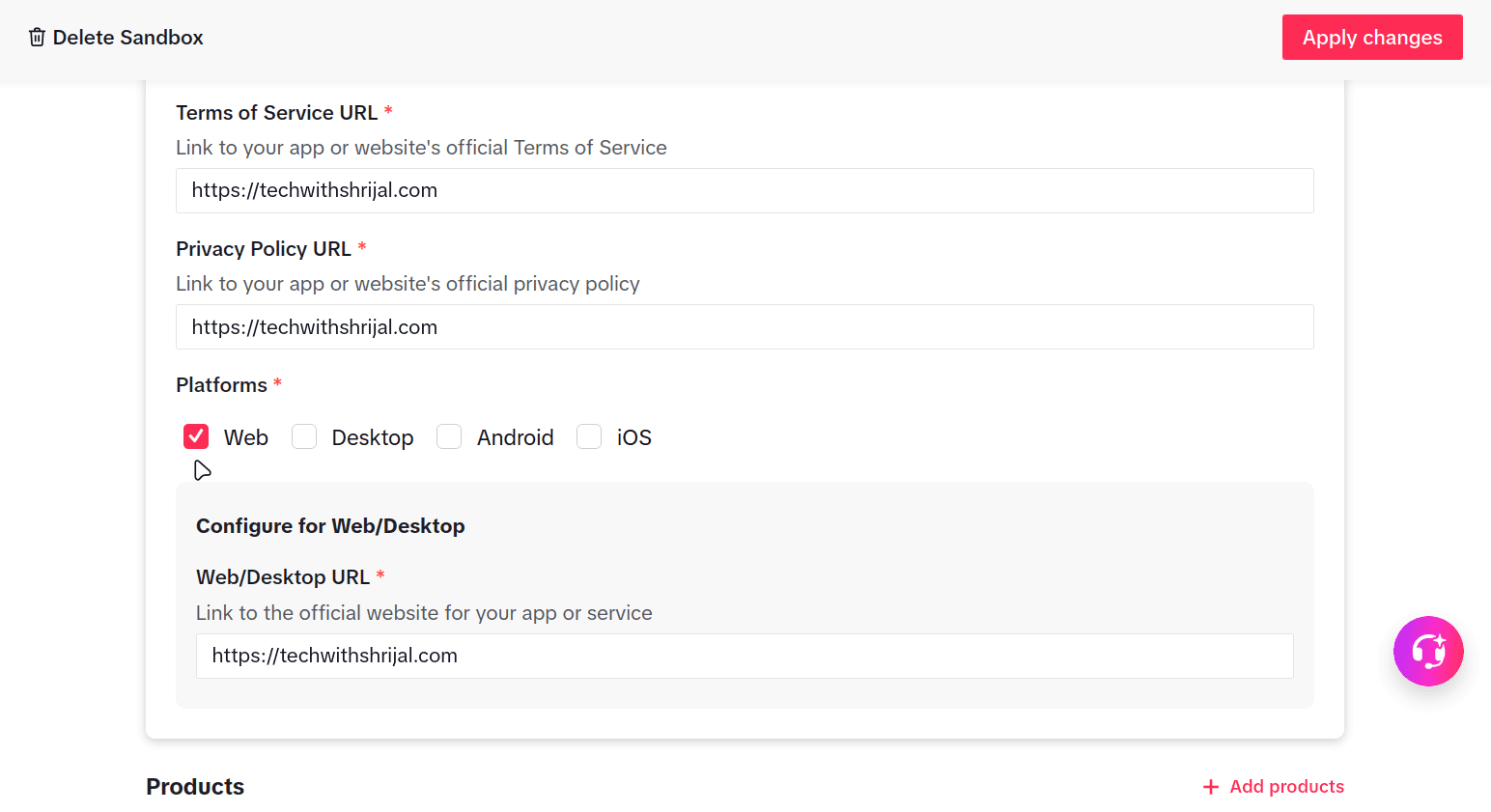
Fill in the basic app details, including the name, description, category, Terms of Service URL, and Privacy Policy URL.
Under Platforms, select Web and add your website URL.
⚠️ In production, you’ll need to prove that you own the domain you use there, but for Sandbox, you can just paste in any URL.
We are using Sandbox for this guide, so you do not need to prepare the app for production review yet.
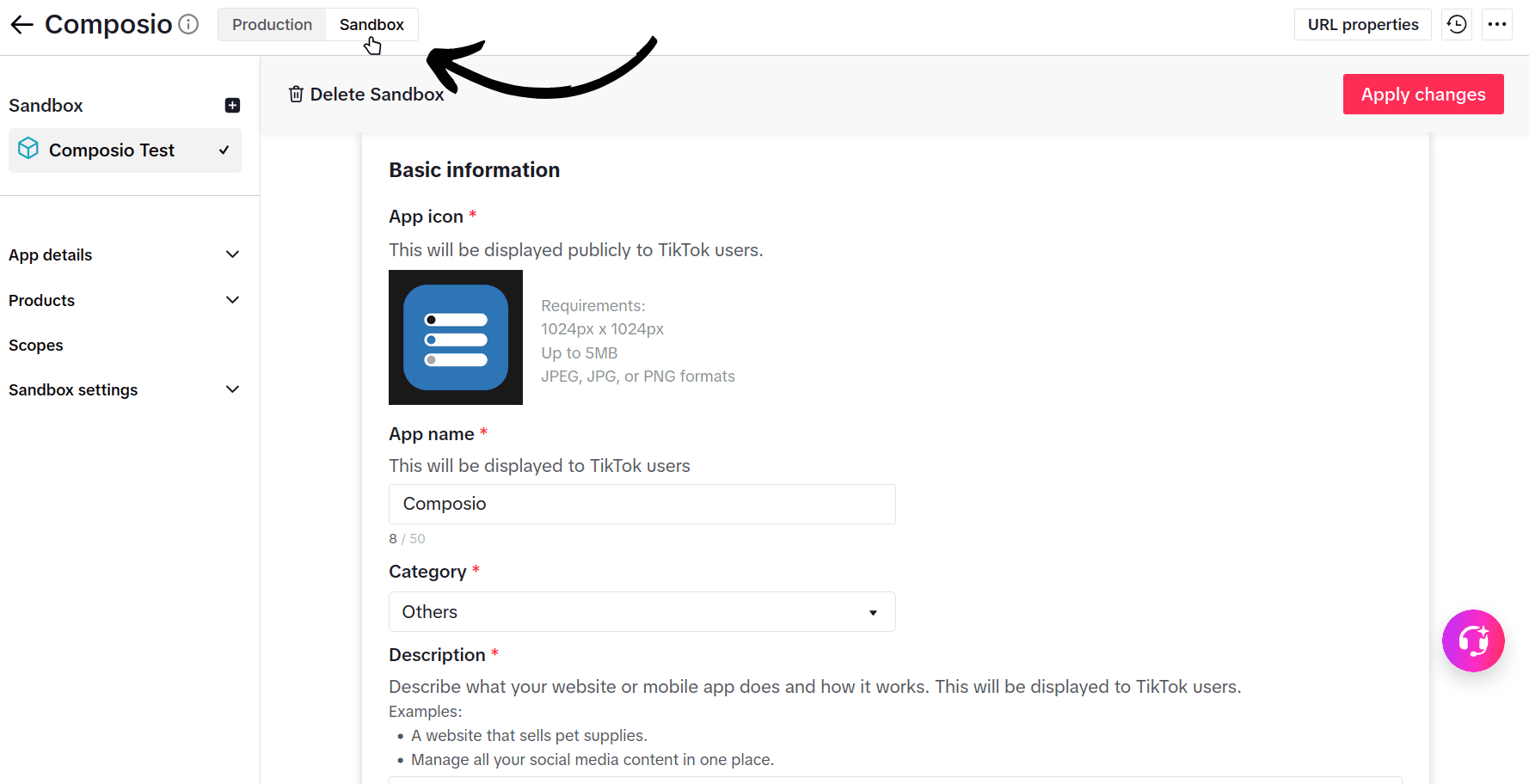
Switch to Sandbox
At the top of the app page, switch from Production to Sandbox.
Click Create Sandbox, name it, and confirm.
You may also need to add an app icon; if you don’t have one, use any icon you find online.
We will use this sandbox for the rest of the setup.
Add Login Kit and Content Posting API
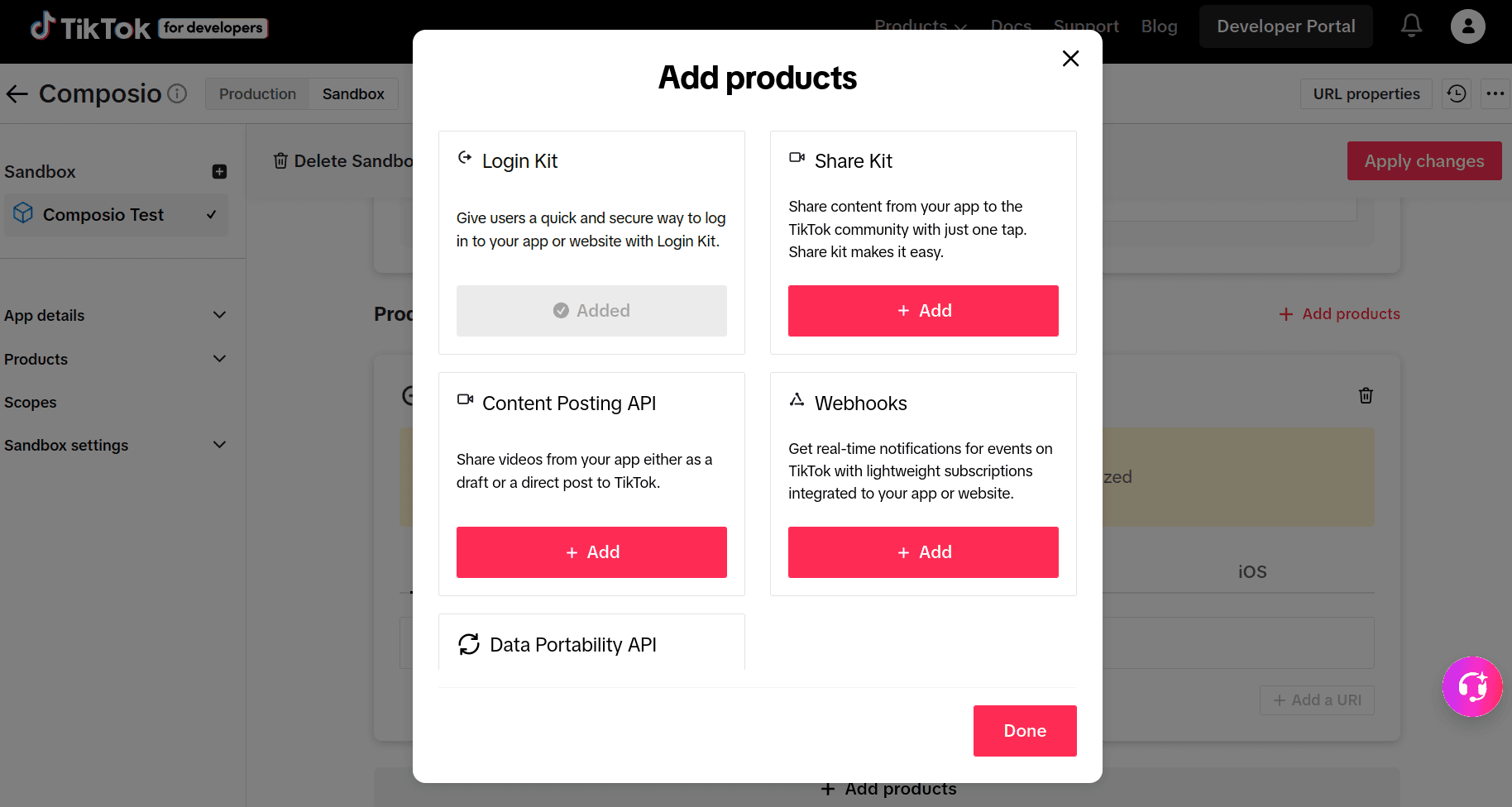
Scroll to Products and click Add products.
Select Login Kit and confirm.
Then add Content Posting API as well.
⚠️ Use the Add products button inside your app. Not the one in the navbar.
Login Kit handles OAuth, so each TikTok account can authorize the app separately.
We are also adding the Content Posting API because Composio's TikTok connection can request the video posting scopes.
Configure the redirect URI
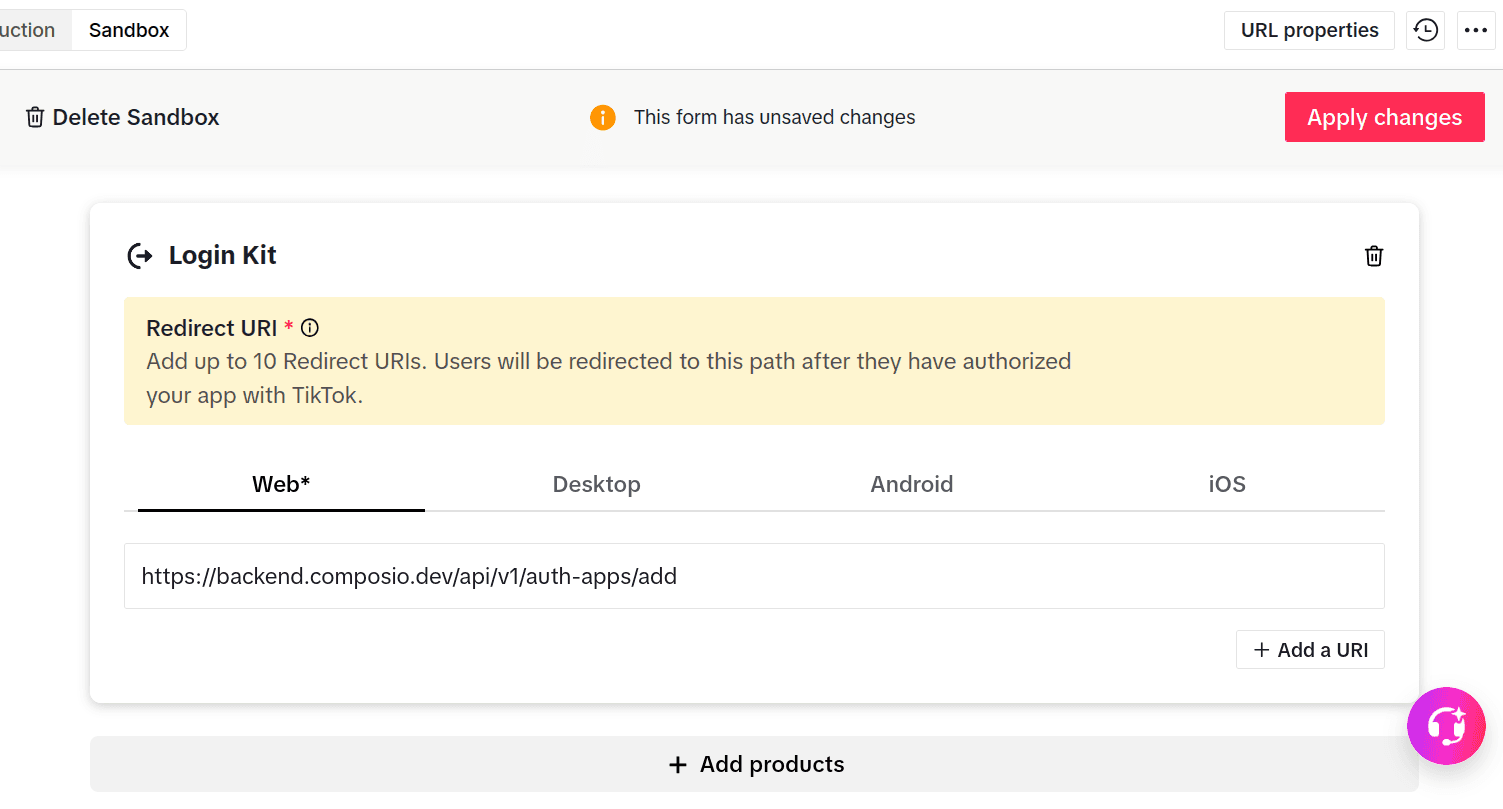
Once you add Login Kit and enable Web under Platforms, TikTok shows a Login Kit -> Web -> Redirect URI field.
If you don't see it, make sure you've enabled both Login Kit and the Web platform.
Add Composio's callback URL:
https://backend.composio.dev/api/v1/auth-apps/addClick Add a URI.
Set the scopes
Under Scopes, user.info.basic should already be available through Login Kit.
Click Add scopes and add:
user.info.profile
user.info.stats
video.list
video.upload
video.publish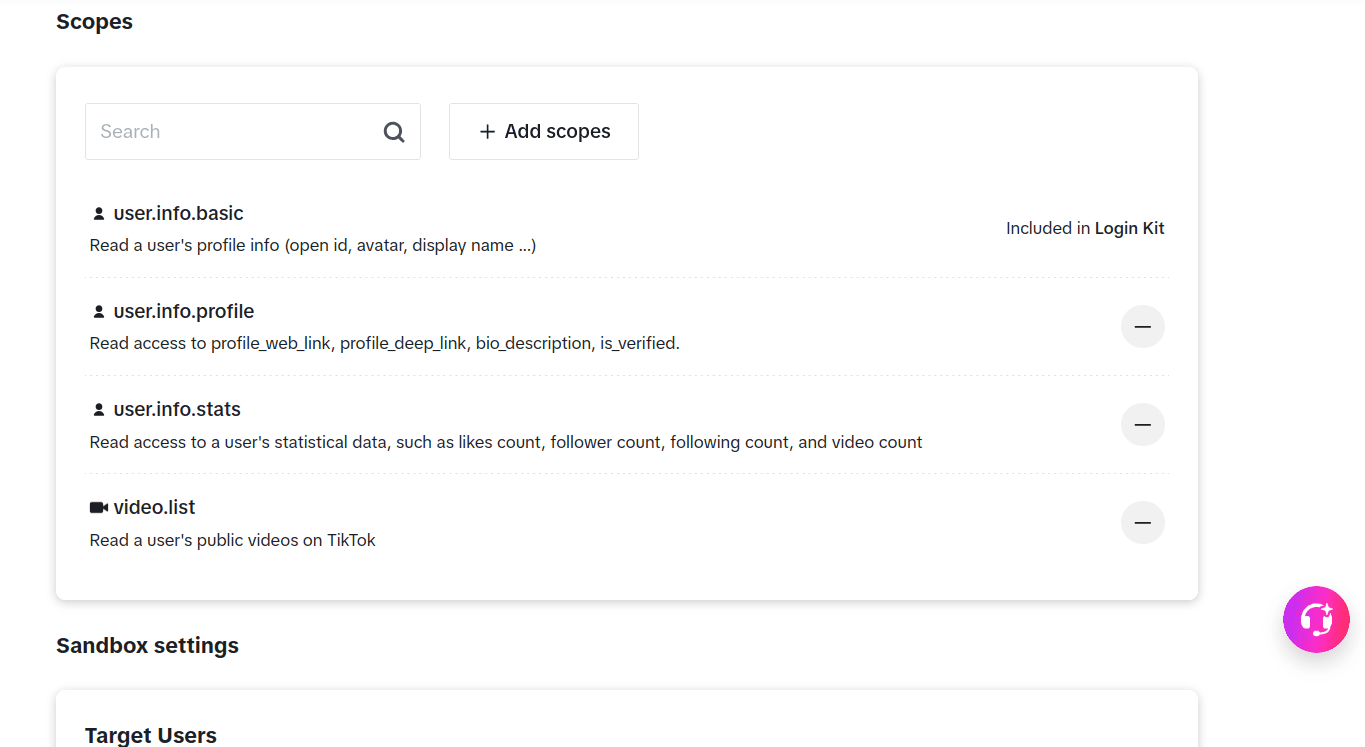
Click Apply changes before moving on.
Add target users
Sandbox apps can only be authorized by accounts added as target users.
It took me over half an hour to figure this out. 🤦
Go to Sandbox settings -> Target Users -> Add account and add every TikTok account you want to test, such as your personal, work, and client accounts.
TikTok currently allows up to 10 target users per sandbox.
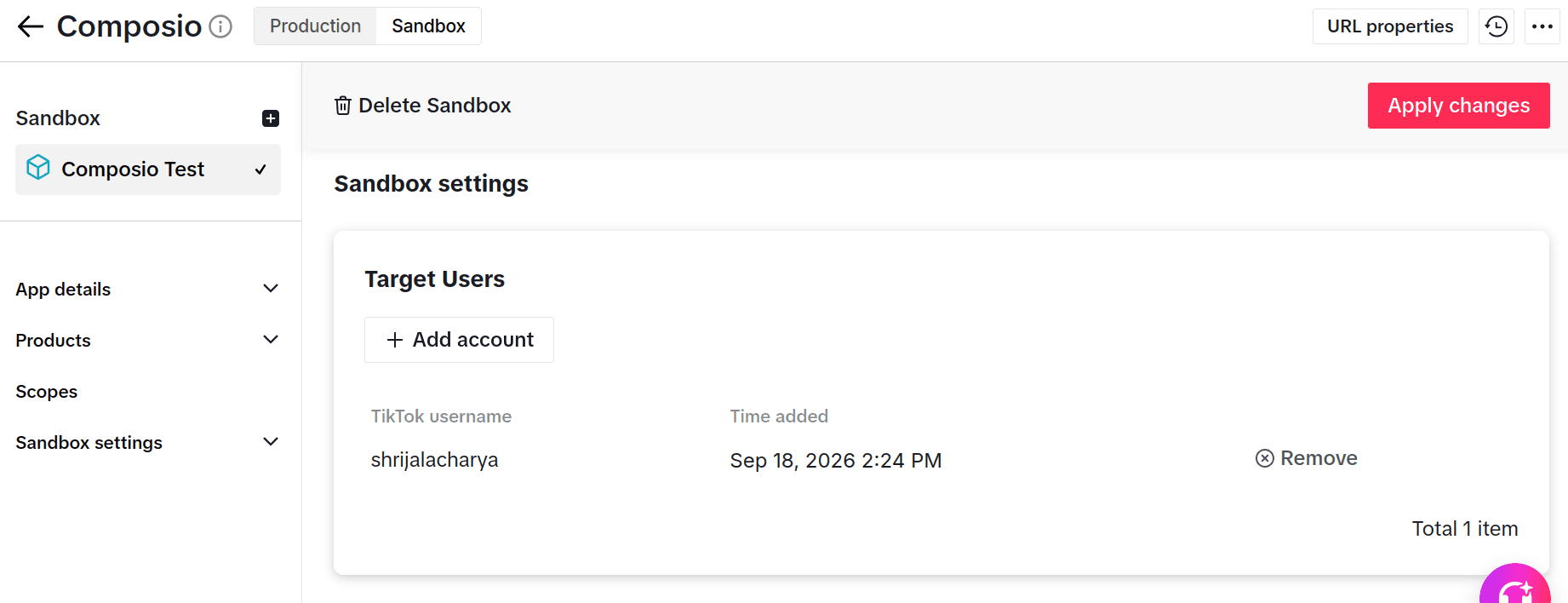
If a target user does not appear immediately, refresh and check again later.
Copy the credentials
Finally, copy the sandbox credentials which you’ll find at the top of the page:
Client Key
Client Secret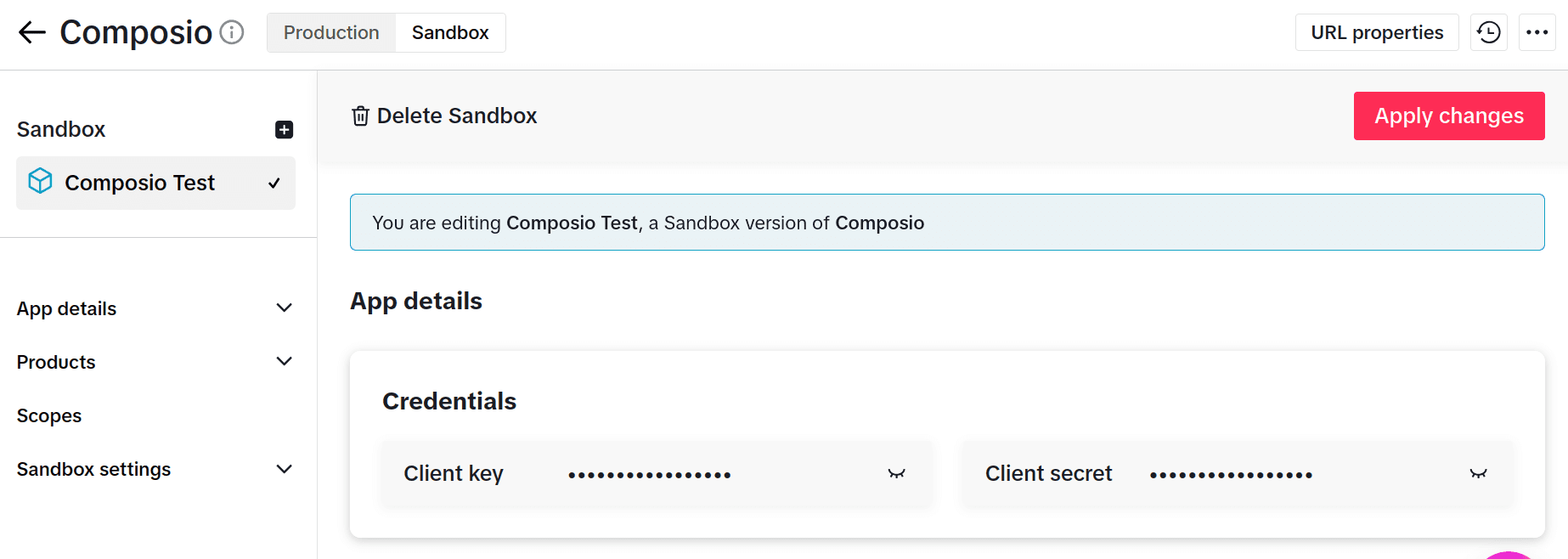
Sandbox and production use separate credentials, so make sure you copy the ones from the sandbox we just configured.
TikTok calls the public OAuth identifier a client_key, while Composio shows the corresponding field as Client ID.
Step 2: Connect TikTok in Composio
Now we need to give Composio the TikTok credentials we just created.
Unlike toolkits such as GitHub, TikTok currently requires your own developer credentials.
Open Composio and go to For You.
Select TikTok and click Connect.
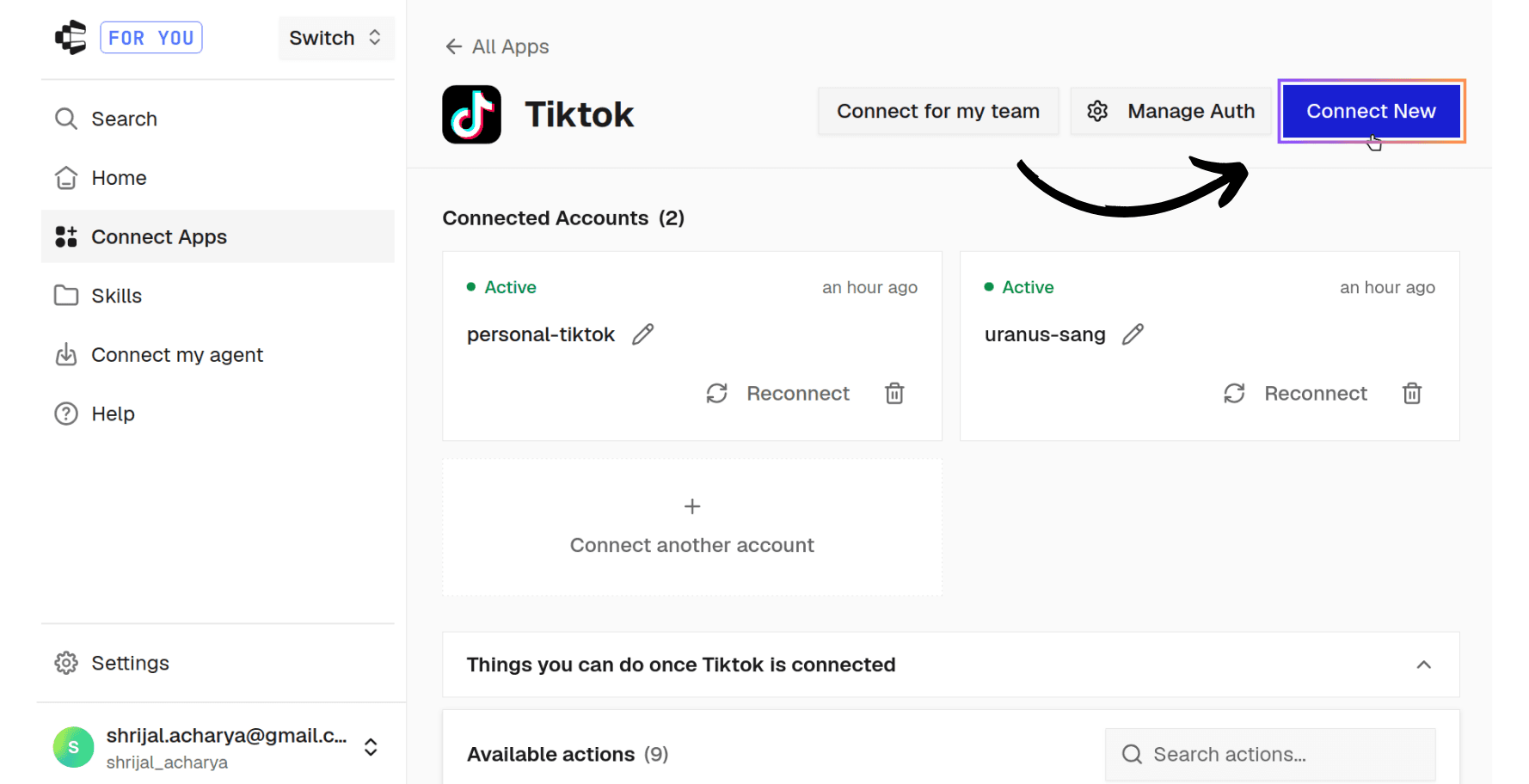
Composio will ask for the TikTok credentials from the sandbox:
Client ID / Client Key: <your TikTok client key>
Client Secret: <your TikTok client secret>
Or, just click on Manage Auth and paste in the credentials

💁 There is no separate scope editor in this For You flow. That is why we enabled the complete scope set on the TikTok side in Step 1.
Once the credentials are saved, we can move back to Claude.
Step 3: Add Composio to Claude
The simplest way is to head over to this URL: Composio Custom Connector. It will populate the fields automatically
Or, if you prefer to do it manually
Open Claude and navigate to:
Customise -> Connectors
Click the + button and choose Add custom connector.
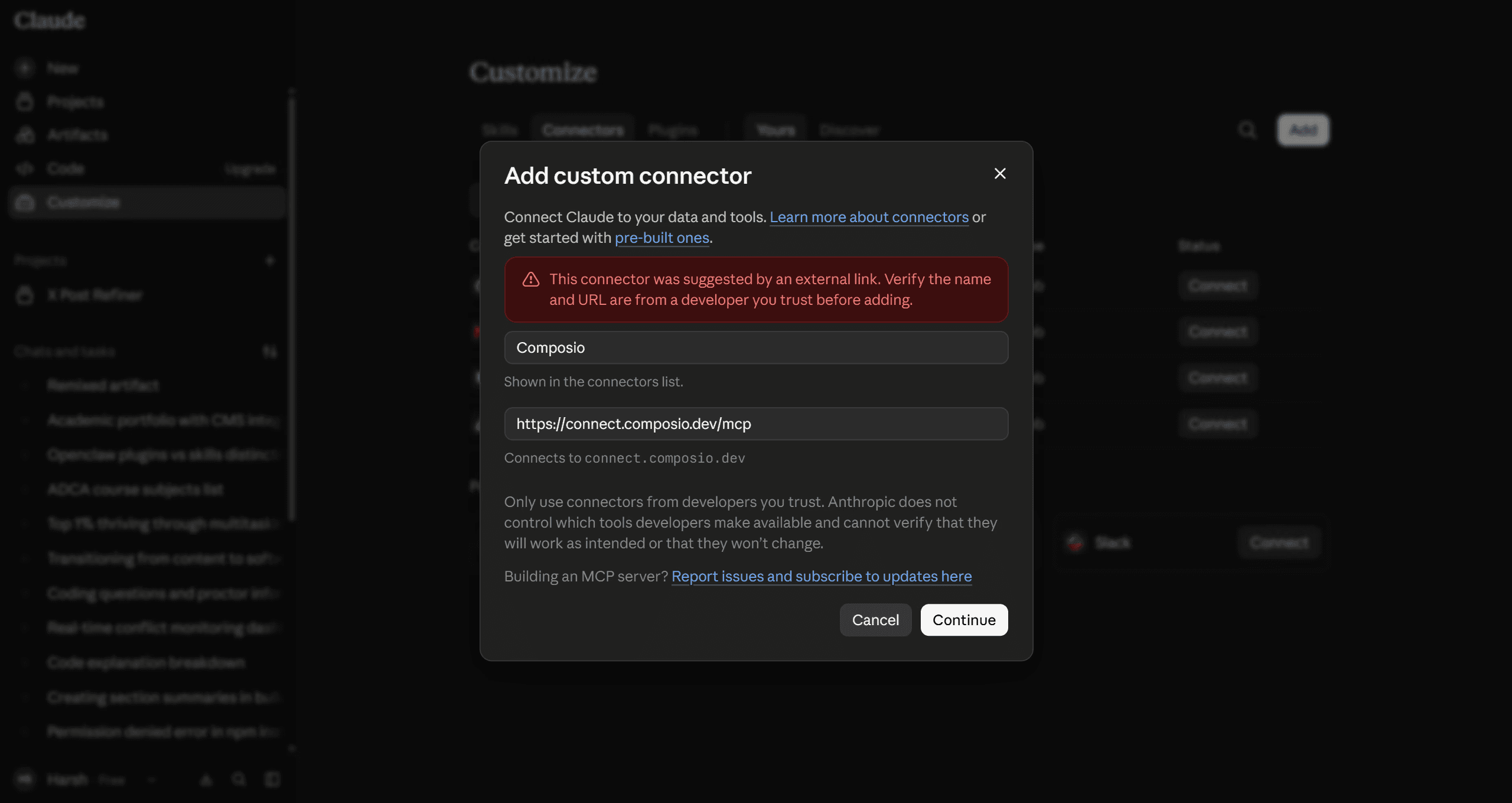
Enter:
Name: Composio
URL: https://connect.composio.dev/mcp
Leave the advanced settings empty.
Click Add, then Connect.
Claude will open the Composio authentication flow. Sign in using the same Composio account where you configured TikTok.
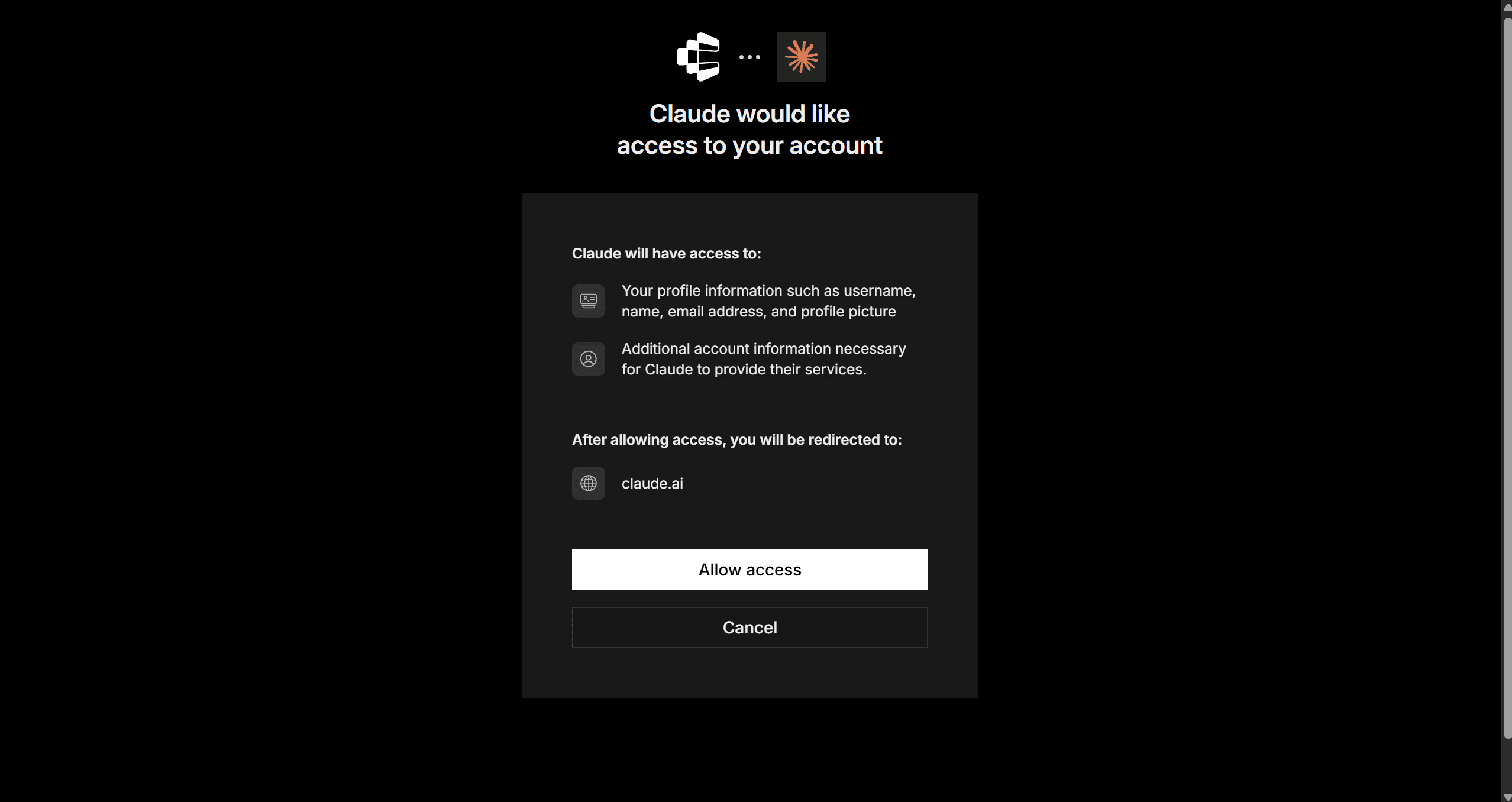
Once everything goes well, you should see a connection successful window.
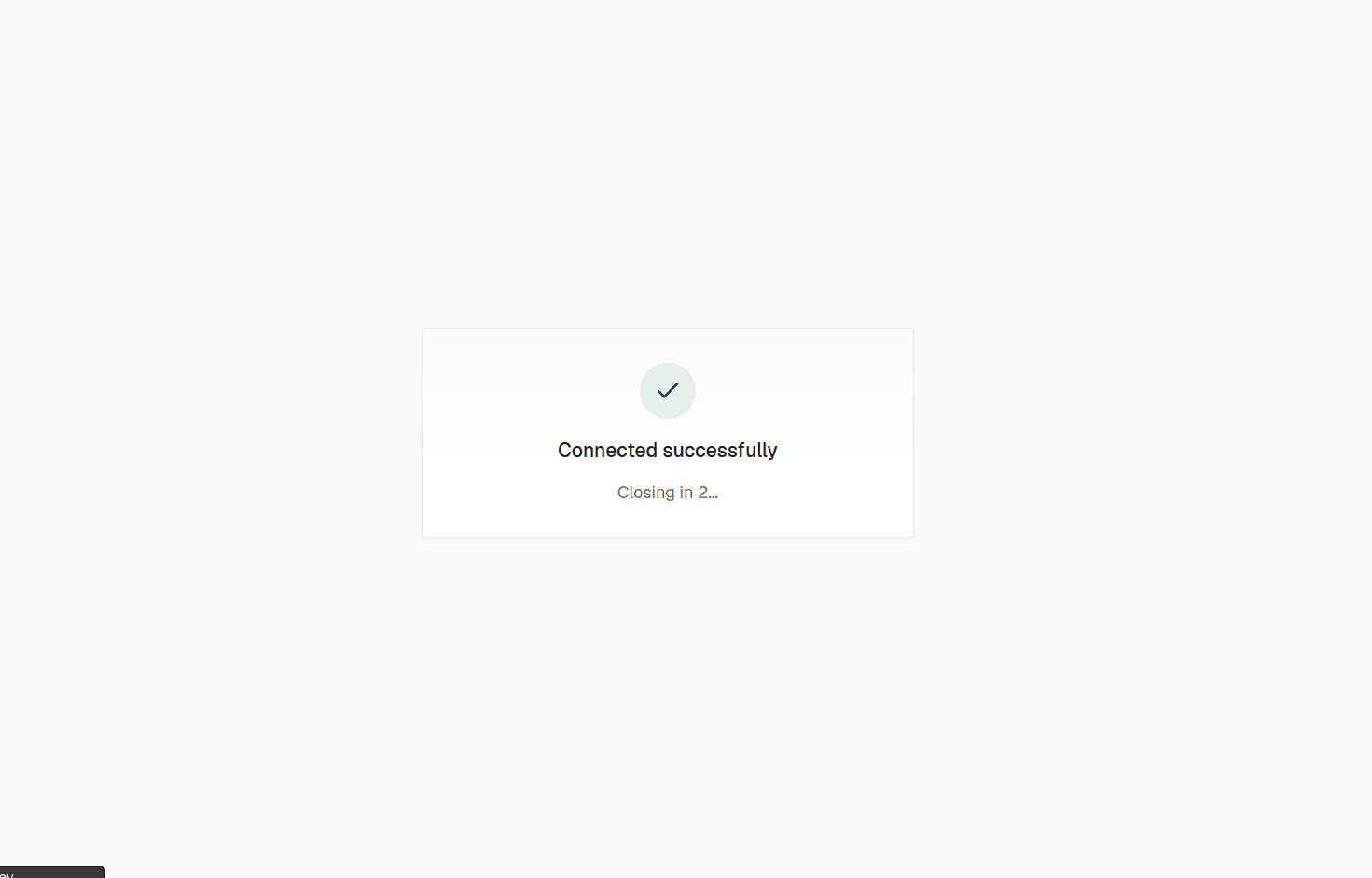
Once it is connected, return to Claude and make sure Composio is enabled. ✅
Quickly check the connection
I like to verify this before doing anything else.
Ask Claude:
What Composio tools do you have available?
Claude should return the Composio tools it can access.
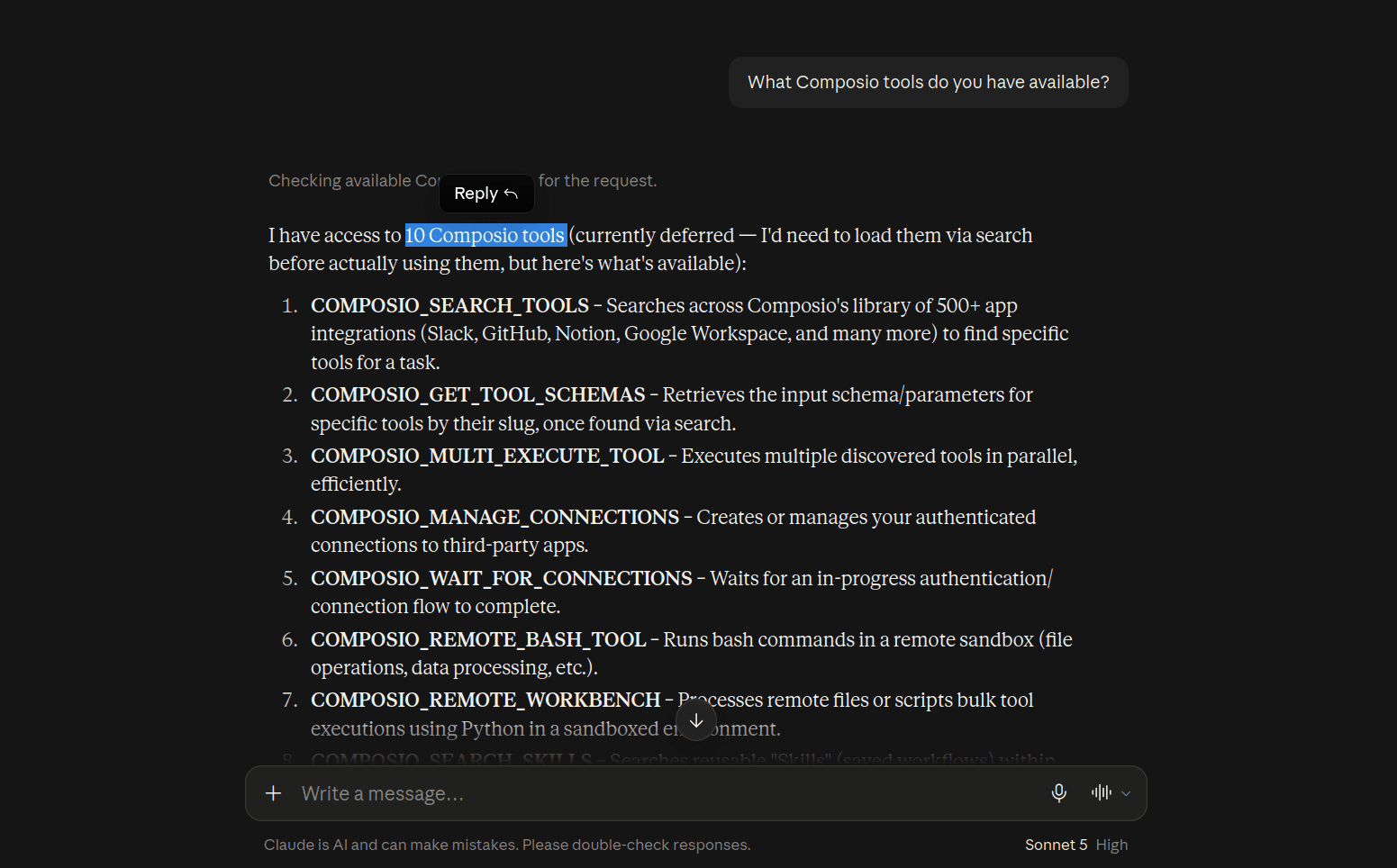
If you see them, you're good to go.
Step 4: Connect your first TikTok account
Let's start with your personal TikTok.
Ask Claude:
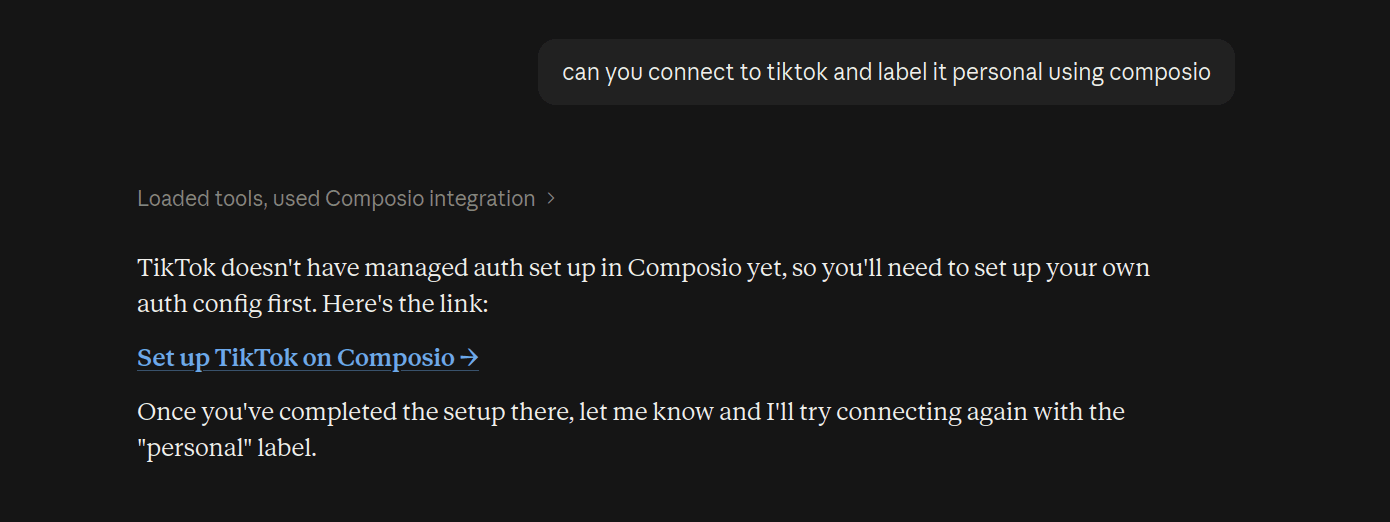
Connect my TikTok account using Composio. Label it personal-tiktok.
Claude should create a connection request and return an authentication link.
Open it. Even though we already connected our account through Composio, I still want you to try the prompt-based flow inside Claude, so you get a feel of the usage inside of Claude.
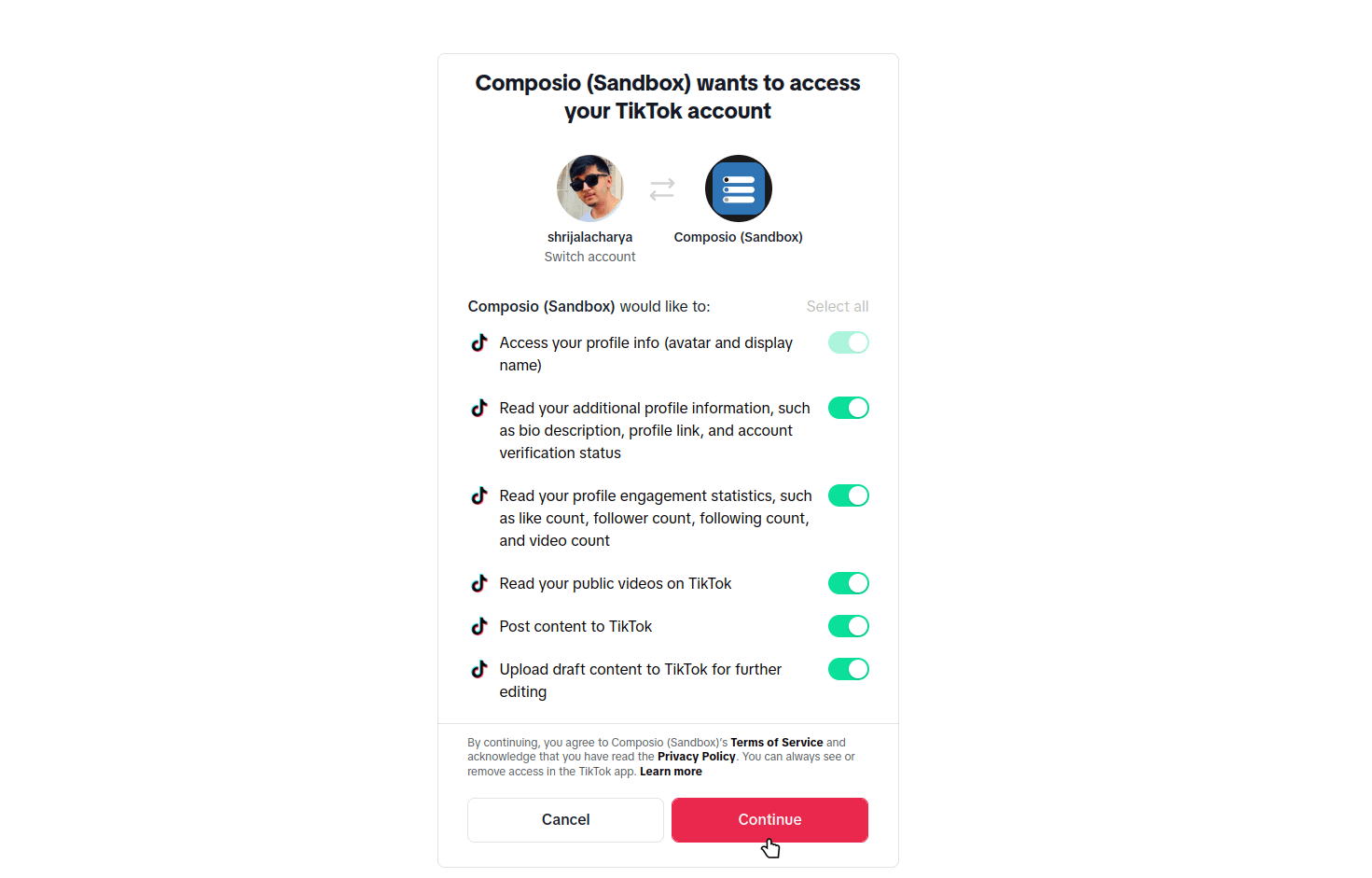
TikTok will ask you to sign in and approve access to your developer app.
Check which TikTok account you are logged into before approving it.
ℹ️ Because we are using Sandbox, this also needs to be one of the target users you added in Step 1.
This matters a lot when you manage several accounts.
Sign in to your personal account and approve the requested permissions.
Return to Claude after authentication completes.
You should now have your first TikTok connection.
What does personal-tiktok do?
personal-tiktok is simply the alias for that connected account.
Composio aliases are human-readable labels and must be unique for a user and toolkit.
Instead of Claude having to deal with a connection ID such as:
ca_xxxxxxxxxwe can simply ask it to use:
personal-tiktokThis becomes useful as soon as we add another account.
Step 5: Connect another TikTok account
Let's add your work TikTok.
In the same Claude chat, ask:
Connect another TikTok account using Composio. Label it work-tiktok.
Claude should return a fresh authentication link.
Open it in an incognito window or another browser profile and sign in to your work TikTok account.
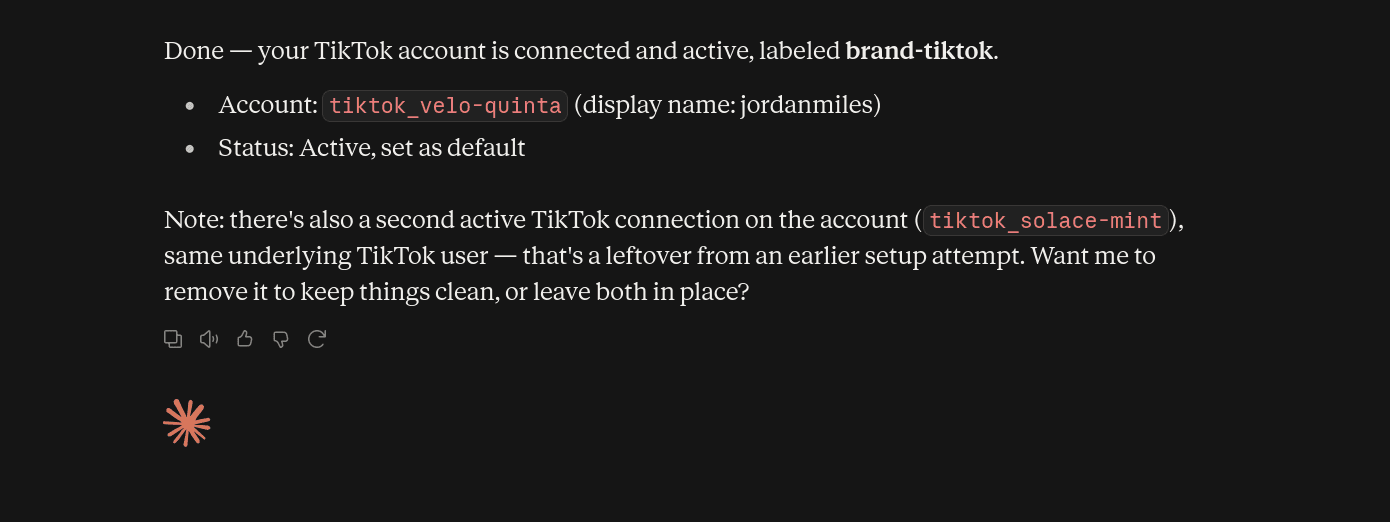
Approve the permissions and return to Claude.
You should now have:
personal-tiktok
work-tiktok
Need another one? Follow the same steps.
Each authorization creates a separate connected account instead of replacing the previous connection. Thanks to Composio's multi-account mode supports five accounts per toolkit by default and can be configured between two and ten.
Step 6: Verify the accounts before using them
Before asking Claude to do anything important, verify the accounts.
Ask:
List all my connected TikTok accounts in Composio with their aliases and connection status.
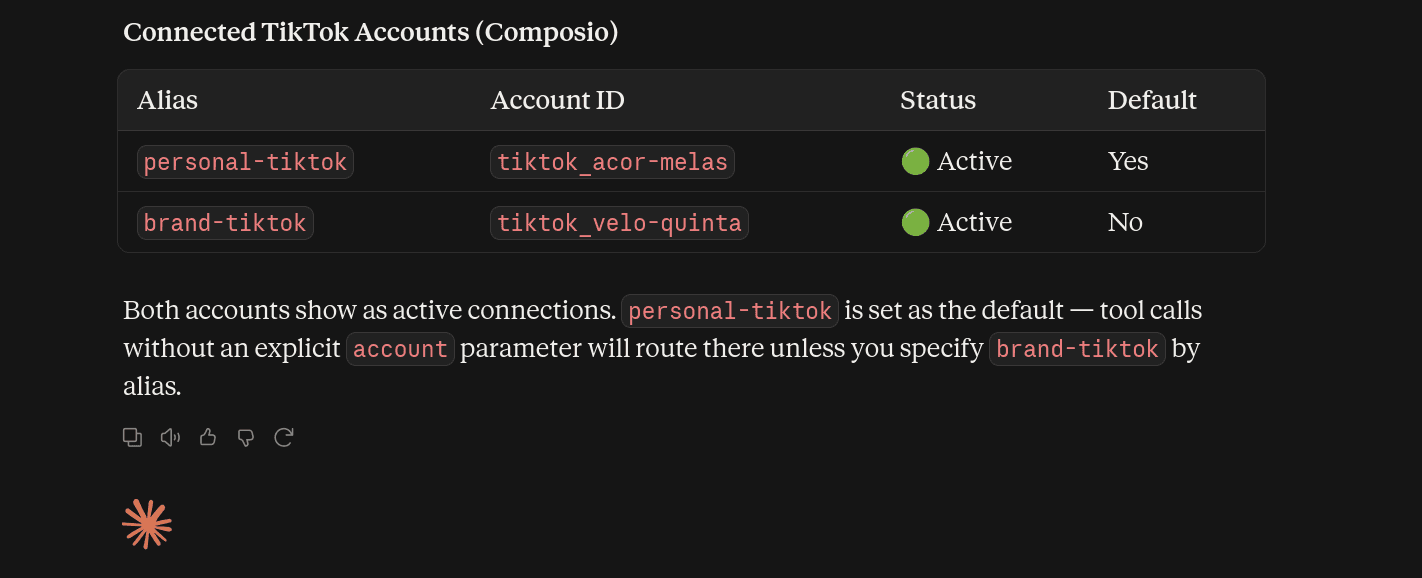
You should get something similar to:
personal-tiktok   ACTIVE
work-tiktok       ACTIVE

<p>many more if configured...</p>
But I would do one more check.
Ask Claude to fetch the profile or user stats from each alias.
For example:
Get the TikTok user stats for personal-tiktok.
Check the returned profile details.
How this works under the hood
The alias tells Composio which connected account should execute the TikTok tool.
So:
Show me recent videos from work-tiktokroughly becomes:
Claude
   ↓
Select work-tiktok
   ↓
Composio
   ↓
TikTok credentials for work-tiktok
   ↓
TikTok API
Composio lets tool execution select an account using either its alias or connected account ID.
The personal-tiktok credentials stay separate.
That's why clear aliases matter.
A note before publishing TikTok content
Reading account information and listing videos are the simplest ways to test this setup.
Publishing has extra TikTok requirements.
TikTok currently restricts unaudited Direct Post API clients to private SELF_ONLY posts. Unaudited clients are also limited to five users posting within a 24-hour period. Public posting requires the API client to pass TikTok's audit process.
So if this is your first time setting everything up, I would verify multi-account routing with read actions first.
Once the OAuth app is approved for the publishing flow you need, you can start using the posting tools too.
Our Sandbox setup is mainly for testing the account connection and routing.
We already enabled video.upload and video.publish on the TikTok app because the Composio connection may request them during OAuth.
ℹ️ If you want to actually publish public content, use a production TikTok app and complete any Content Posting review TikTok requires.
Managing the accounts later
You can manage the connections from Composio instead of rebuilding the entire setup.
For example, you may want to:
Rename an account alias.
Disconnect an old client account.
Reauthorise an expired TikTok connection.
Check which connections are still active.
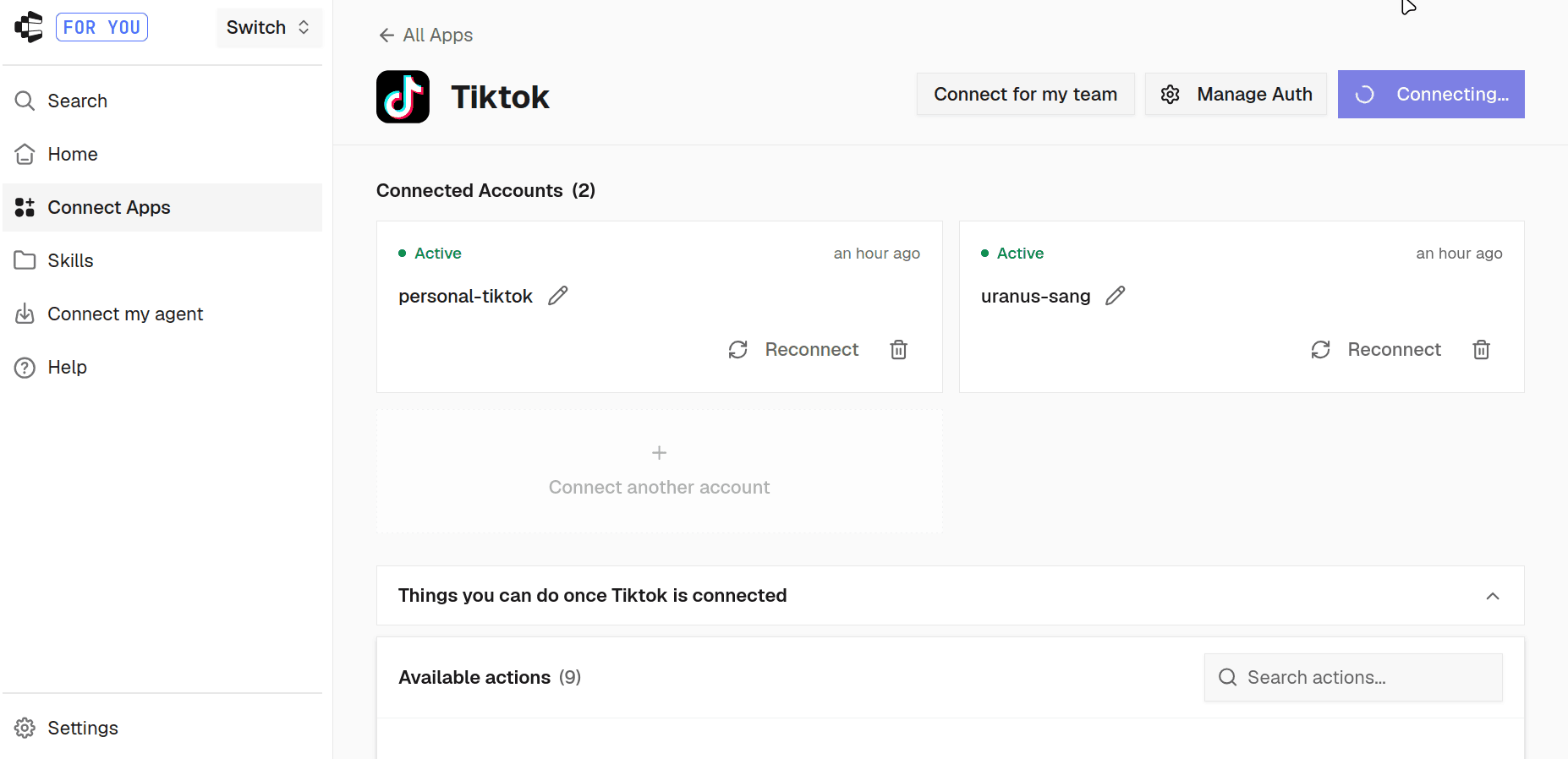
If you stop working with a client, remove that TikTok connection instead of leaving the authorization active.
Pretty basic, but worth doing.
Conclusion
That's basically it.
TikTok takes a little more setup than the ones we did earlier, because you need your own developer app and OAuth credentials first.
But you only configure that layer once.
After that, you can keep:
personal-tiktok
work-tiktok
client-tiktok
behind the same Composio connection and tell Claude which account to use.
Keep the aliases clear, and verify the TikTok profile behind each one before running any write actions.
That saves you from switching logins every time you move between accounts. ✌️
FAQ
Can Claude connect to TikTok natively?
Claude does not currently provide a native TikTok connector for this workflow. Instead, you can expose TikTok through Composio.
Why do I need a TikTok developer app?
Composio's TikTok toolkit currently supports OAuth2 but does not provide a Composio-managed TikTok app.
That means you need to supply your own TikTok OAuth credentials before connecting accounts.
TikTok says "correct the following: scope" when I try to connect
This usually means TikTok has not enabled one of the scopes requested during the Composio connection.
Go back to your TikTok sandbox and make sure these scopes are enabled:
user.info.basic
user.info.profile
user.info.stats
video.list
video.upload
video.publish
Click Apply changes, then start a fresh TikTok connection in Composio.
I can't find where to add the redirect URI in TikTok
Make sure you added Login Kit through the Add products button inside your app and enabled Web under Platforms.
After that, you should see the field under Login Kit → Web → Redirect URI.
It does not appear in the basic app information section.
Do I need one developer app for every TikTok account?
No.
The OAuth app defines how TikTok authentication works. Each TikTok user then authorizes that app separately, which creates a separate connected account in Composio.
Since this guide uses Sandbox, you also need to add each TikTok account as a target user first.
Do all the TikTok accounts get merged?
No.
Each account remains a separate connection with its own authentication.
Aliases simply make it easier for Claude and Composio to select the correct one.
How many TikTok accounts can I connect?
Composio's current multi-account configuration defaults to five connected accounts per toolkit. The configured limit can range from two to ten.
Can I publish videos through this setup?
Composio currently exposes TikTok upload and publishing tools, and we enabled video.upload and video.publish on the TikTok app during setup.
For this guide, we are still using Sandbox and testing with account stats and video listing.
If you want to publish public content, use a production TikTok app and complete any TikTok review required for Direct Post access.
What if I connect the wrong TikTok account?
Remove or rename the incorrect connected account and authenticate again.
When you connect multiple accounts, use an incognito window or separate browser profile so TikTok does not silently reuse the wrong logged-in session.

 Get started



