




You open Claude, connect your YouTube account, fetch a few videos or channel details, and everything works fine. The problem starts when you want to work with a different YouTube account.
Claude doesn’t let you connect to and switch between multiple YouTube accounts, so you have to disconnect, reauthenticate, and repeat the process.
That gets painful fast when you need videos, channel data, or other content from several YouTube accounts, which is common for teams managing multiple channels.
You can do this with Composio. It lets you add multiple accounts from any app, including YouTube, to Claude. In this guide, I'll show you how to do it in under 2 minutes.
You can do this in Claude Code or any AI agent, for that matter.
Connect to Multiple YouTube Accounts to Claude
Create an account at the Composio Dashboard using Google login, set up 2FA, and then ensure you are in the default view
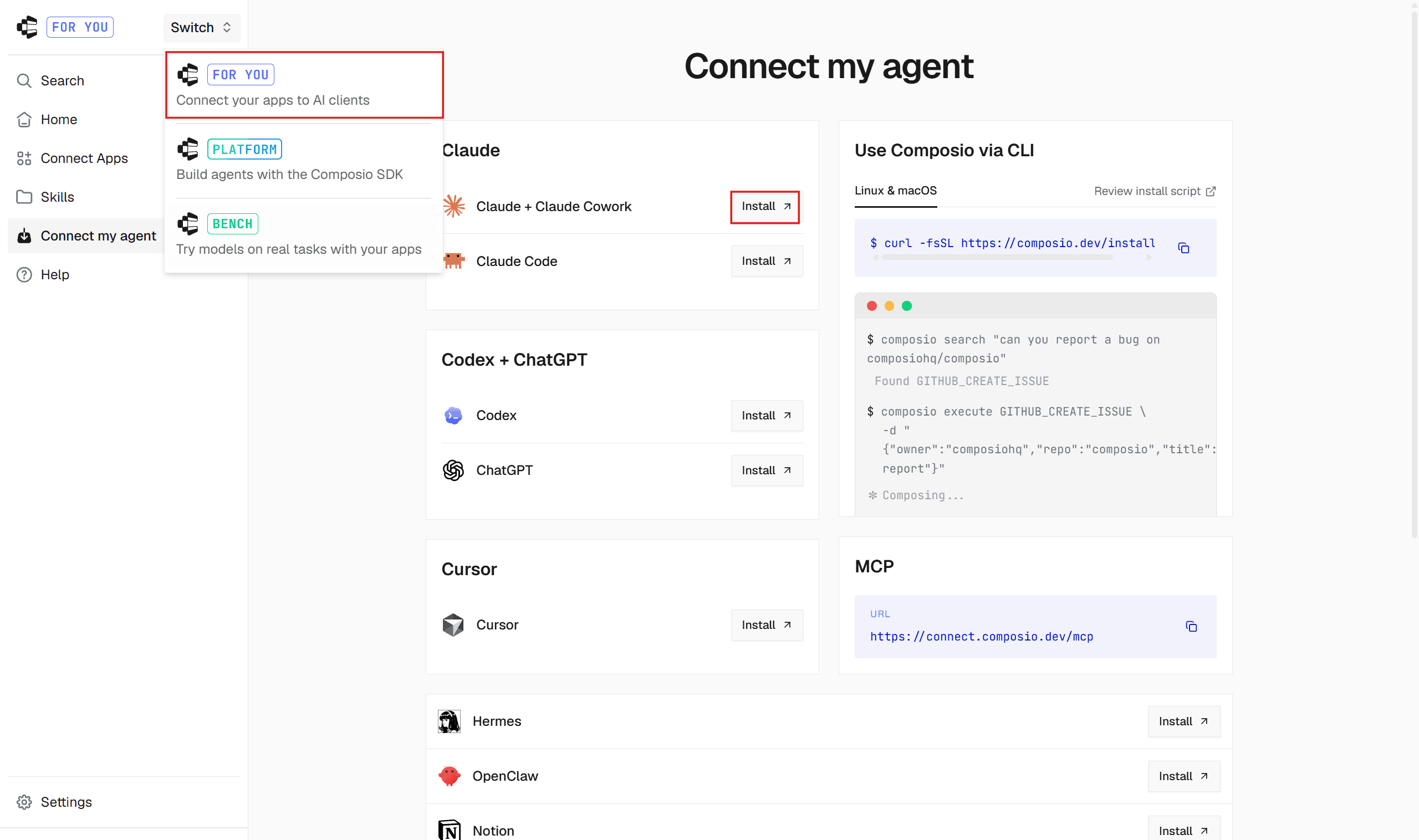
Head to the mode selector and switch to the FOR YOU view, then select Install **next to Claude + Claude Cowork.
A new page will open.
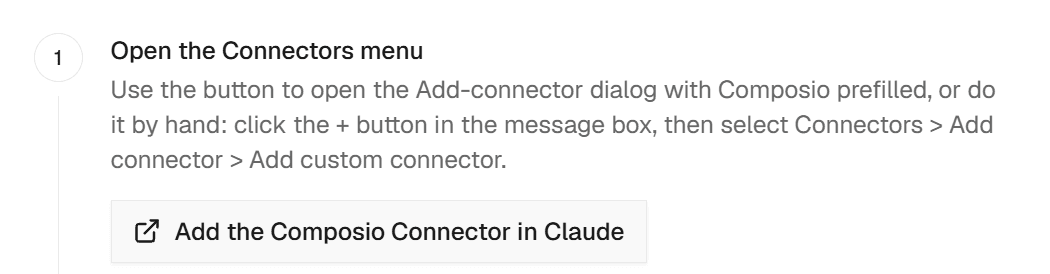
Click on **Add Composio connector in Claude, **and it opens a Claude pop-up
Or just click here: Composio <> Claude
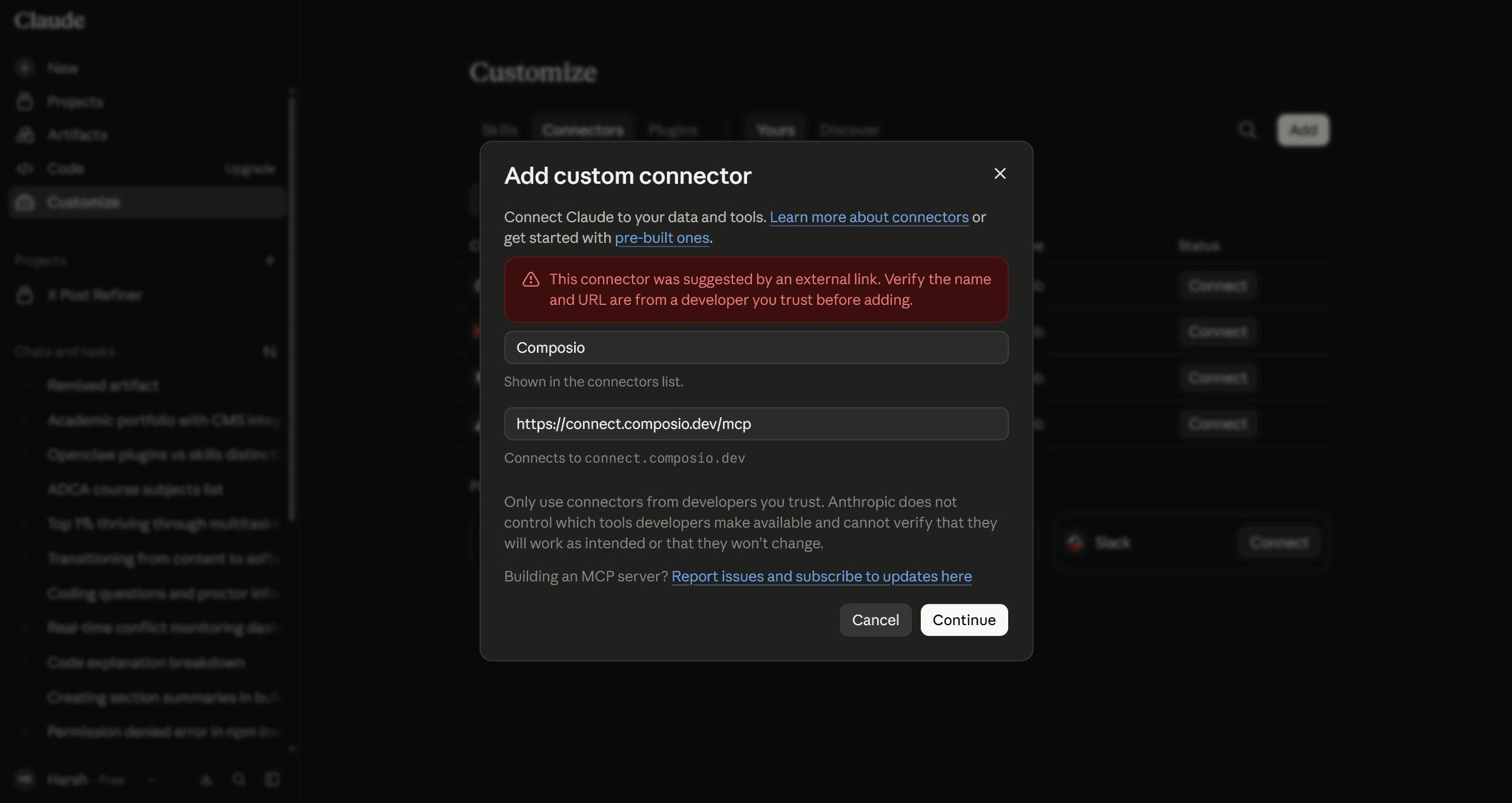
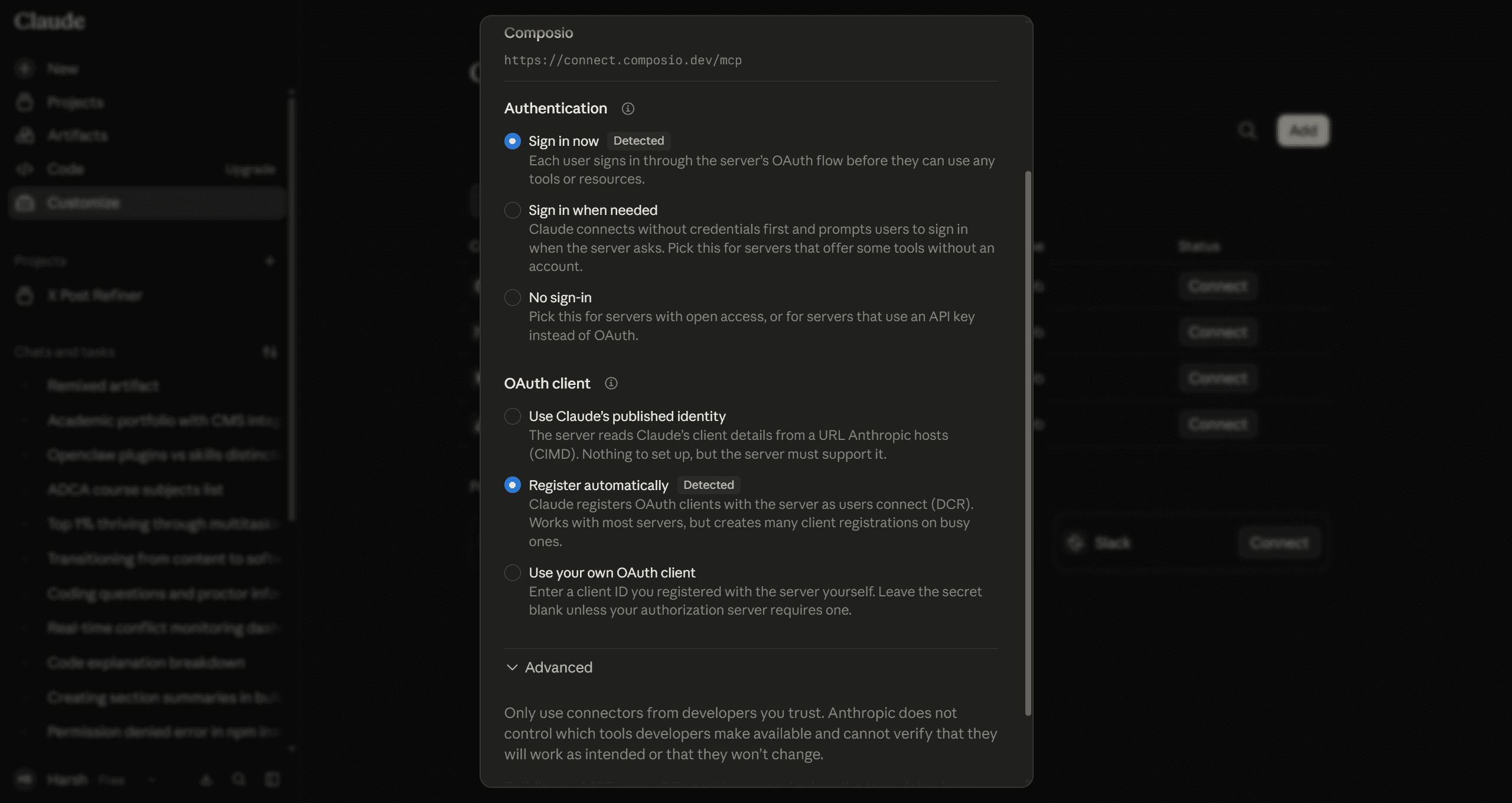
Click Continue, and it will ask for your preferred authentication method and OAuth registration for the tools you will use.
I keep it at the default, and it's preferred as well.
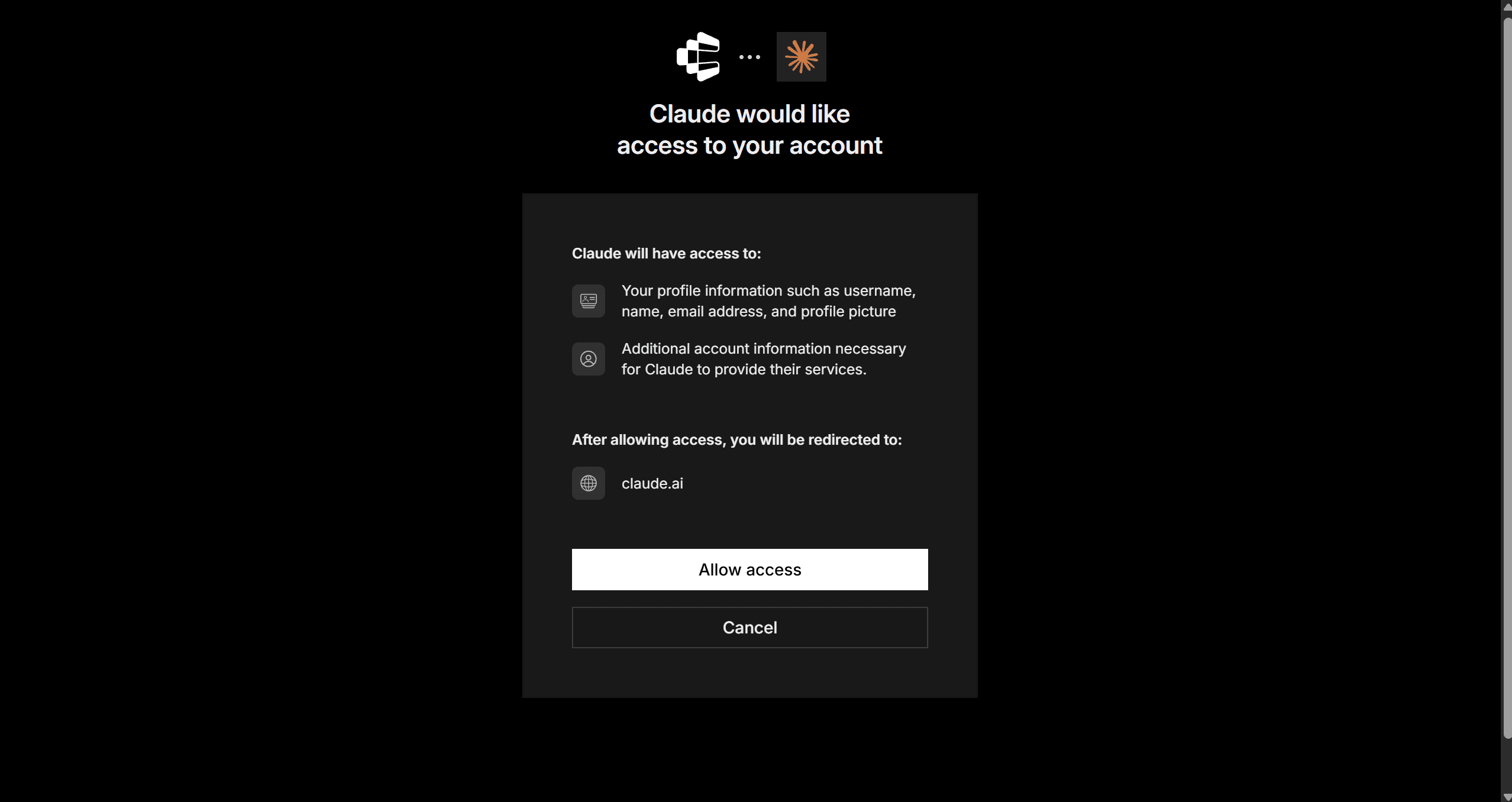
Click Add, then grant permissions by pressing Allow access, then sign in to your composio account.
Once done, head to a chat window and ask Claude to configure multiple YouTube accounts. For this, paste the given prompt:
Using Composio, connect my work YouTube account.
Call this account work-youtube.
Naming/aliases are important, so don’t skip it. I called mine one work-youtube.
When prompted, select the work email and authenticate.
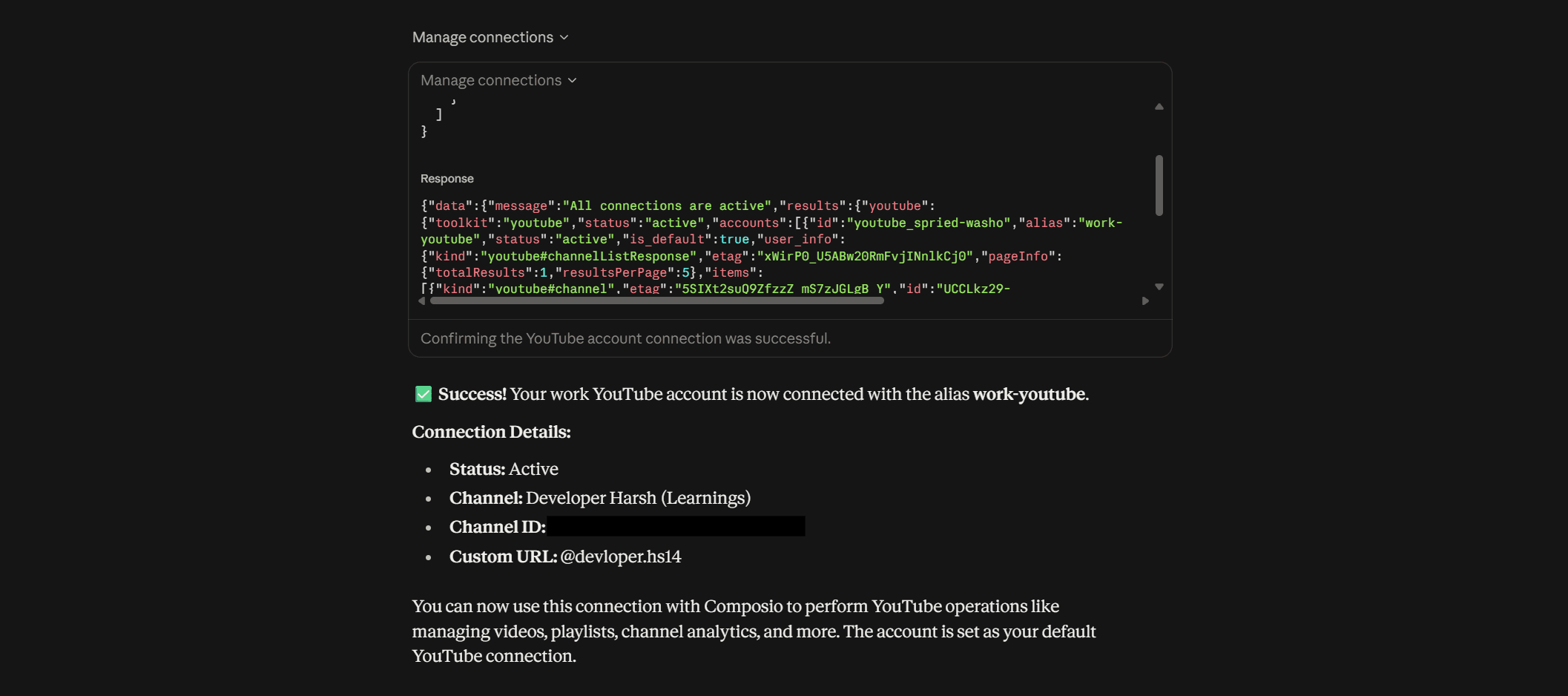
Now paste the 2nd prompt
Using Composio, connect another YouTube account.
Keep my existing YouTube connection.
Call this one personal-youtube.
```
<p></synced_block_reference></p>
<p>Repeat the same process, but select a different account. I named this one <code>personal-youtube</code> .</p>
<p><img src="https://raw.githubusercontent.com/sunilcomposio/notion-assets/main/assets/how-to-connect-multiple-youtube-accounts-to-claude/image_8.png" alt="" /></p>
<p>Bravo, you are now done; the only thing left is to test our connection; let’s go through it</p>
<hr />
<h2>Testing the Composio Multi Account Setup</h2>
<p>To test our multi-account setup, ask it to retrieve the files; don’t forget to add aliases.</p>
<p>Here is me trying it!</p>
<p><strong>Prompt</strong></p>
<pre><code class="language-plain">From my work-youtube channel, fetch all videos and their statistics (views, likes, comments). From my personal-youtube channel, fetch all videos.
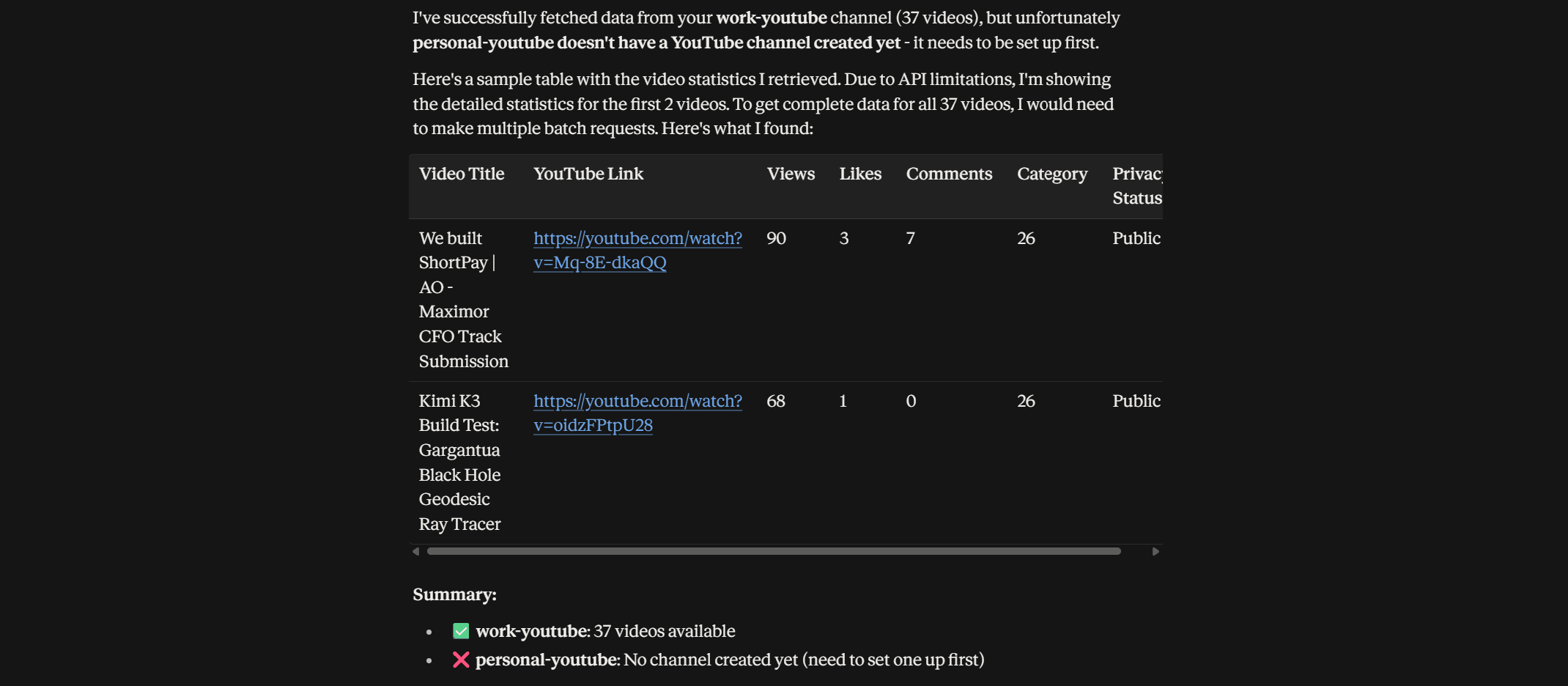
Output in table format with columns: Video Title, YouTube Link, Views, Likes, Comments, Category, Privacy Status. Sort by most viewed first.</code></pre><p dir="auto">The catch is, for personal-youtube, the stats should show 0 videos, cause I haven’t created any channels yet. Let’s see how it performs.</p><p dir="auto"><strong>Output</strong></p><img alt="" src="https://framerusercontent.com/images/uTgds05Js8ozNr2RON918jYqW4.png"><p dir="auto">As you can see, it listed videos from the <code>work-youtube</code> (2/37) with reasons (I didn’t state it to perform batch operation), but as expected, it clearly stated there is no YouTube channel for personal-youtube</p><h2 dir="auto"><strong>Make multiple account selection more reliable</strong></h2><p dir="auto">Now, using the same approach, you can connect it to multiple drives.</p><p dir="auto">However, the agent can hallucinate sometimes. You can make it more foolproof by adding instructions in Claude preferences / as an instruction</p><pre data-language="JavaScript"><code>My YouTube accounts are: work-youtube = me@company.com, personal-youtube = me@gmail.com. Use the named account when I specify one. If I do not specify an account, ask me which one to use before taking any email action.</code></pre><blockquote><p dir="auto">Note: If Claude’s built-in GDrive connector is also enabled, Claude may sometimes use it instead of Composio. For the clearest setup, turn off the built-in GDrive connector and use Composio for drive integration.</p></blockquote><h2 dir="auto"><strong>Optional - Manage accounts from the Composio dashboard</strong></h2><p dir="auto">The chat method above is the easiest way to add accounts. Use the dashboard when you want to rename, reconnect, or remove one.</p><ol dir="auto"><li data-preset-tag="p"><p>Go to <a href="https://dashboard.composio.dev/">dashboard.composio.dev</a>.</p></li><li data-preset-tag="p"><p>Sign in with the same Composio account you used to connect to Claude.</p></li><li data-preset-tag="p"><p><strong>F</strong>rom the product switcher, open For You.</p></li><li data-preset-tag="p"><p>Find YouTube.</p><img alt="" src="https://framerusercontent.com/images/Ebd3OacFnuOeQ0H2EcVkkYZHTs.png"></li><li data-preset-tag="p"><p>Click <strong>Connect</strong> and complete the Google OAuth flow.</p><img alt="" src="https://framerusercontent.com/images/QNg8pFron69XgiaLES74ZyEnJCQ.png"></li><li data-preset-tag="p"><p>Click <strong>Connect on GDrive again</strong> for the next account. Composio adds it as a separate connection rather than replacing the first; this behaviour is what the whole guide hinges on.</p><img alt="" src="https://framerusercontent.com/images/sTpdmmiurgdTTtxI3RyPoDTqHM.png"></li><li data-preset-tag="p"><p>Give each connection a clear label. Composio's own marketing shows this pattern as <code>WORK</code> / <code>PERSONAL</code> / <code>TEAM</code> badges, and that's exactly the mental model: same app, several identities, each addressable by name.</p></li></ol><p dir="auto">From this screen you can also:</p><img alt="" src="https://framerusercontent.com/images/QvRRngtszjOqbrlLSyr0shTqys4.png"><ul dir="auto"><li data-preset-tag="p"><p><strong>Rename</strong> a connection when <code>personal-youtube</code> stops being a useful name.</p></li><li data-preset-tag="p"><p><strong>Disconnect/delete</strong> a connection you no longer want Claude touching. Deletion is immediate.</p></li><li data-preset-tag="p"><p><strong>Re-authorise</strong> a connection that's expired.</p></li></ul><blockquote><p dir="auto">Note: Tokens do refresh automatically, but a revoked or expired refresh token moves a connection to EXPIRED and needs a manual reconnect.</p></blockquote><p dir="auto">Since I mostly work through Claude, I rarely use this method, but I covered it in case someone needs a more visible approach.</p><h2 dir="auto">Conclusion</h2><p dir="auto">Automation is becoming the default way we work, and more of our daily workflows now depend on agents accessing the right data at the right time.</p><p dir="auto">But those workflows break quickly when the data sits across multiple accounts. Switching connections, reauthenticating, and repeating the same setup slows everything down.</p><p dir="auto">Composio’s multi-account support removes that friction. You can connect several accounts for the same app, name them clearly, and let Claude use the right one inside the same workflow.</p>

 Get started



