




You connect Slack to Claude, and it works until you try to add a client's workspace and find that Claude has no option for it.
Claude's built-in Slack connector supports one workspace per Claude account, so you cannot add a second workspace through the user interface or configuration.
If you work as a consultant, contractor, advisor, or agency, you probably know this limitation and understand how much time you could save if Claude could work with several Slack workspaces.
This guide shows you how to use Composio to connect multiple Slack workspaces to Claude.
Related:
What you'll get
With this setup, you add one custom connector to Claude, and it gives you access to every Slack workspace that you use.
You label each connection with the client's name, so you can use prompts such as:
In comp-slack (CLIENT), find the last three messages in #design-review that mention the navigation redesign. Do not post anything, and include the channel and timestamp for each message.
I have a call with Northwind in 20 minutes, so use only northwind-slack and tell me what has changed since Thursday and what they need from us.
Composio makes this setup possible by storing several Slack connections, labelling each one, and making them available to Claude through one connector.
What you'll end up with
One Composio connector in Claude
Two or more Slack accounts connected behind it
A clear name/alias for each account
The ability to work in the right Slack account from a single Claude chat
For example:
Search Slack-1 and Slack 2 for anything that needs my attention from the last 7 days. Tell me which account each item came from.
Using the slack-1 account, archive a batch of outdated contact records.
Before you start
A Claude account
A free Composio account
Access to each HubSpot account you want to connect
If you use Claude Free, you can have one custom connector. If you already use that slot, you will need to remove the existing custom connector first.
If you use Claude Team or Enterprise, an Owner may need to add the connector for the organisation. Each member can then connect their own accounts.
Step 1 — Add Composio as a custom connector
Composio provides one shared MCP endpoint, and everyone uses the same URL while Composio manages authentication through OAuth.
In Claude, open Customise → Connectors
https://claude.ai/customize/connectors.Click the + button, and then select Add custom connector.
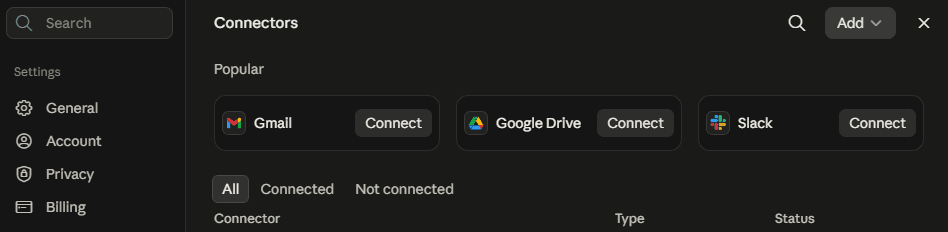
Enter these values:
Name:
ComposioURL:
https://connect.composio.dev/mcpAdvanced settings: Leave these fields empty because Composio manages the client ID, secret, headers, and authentication.
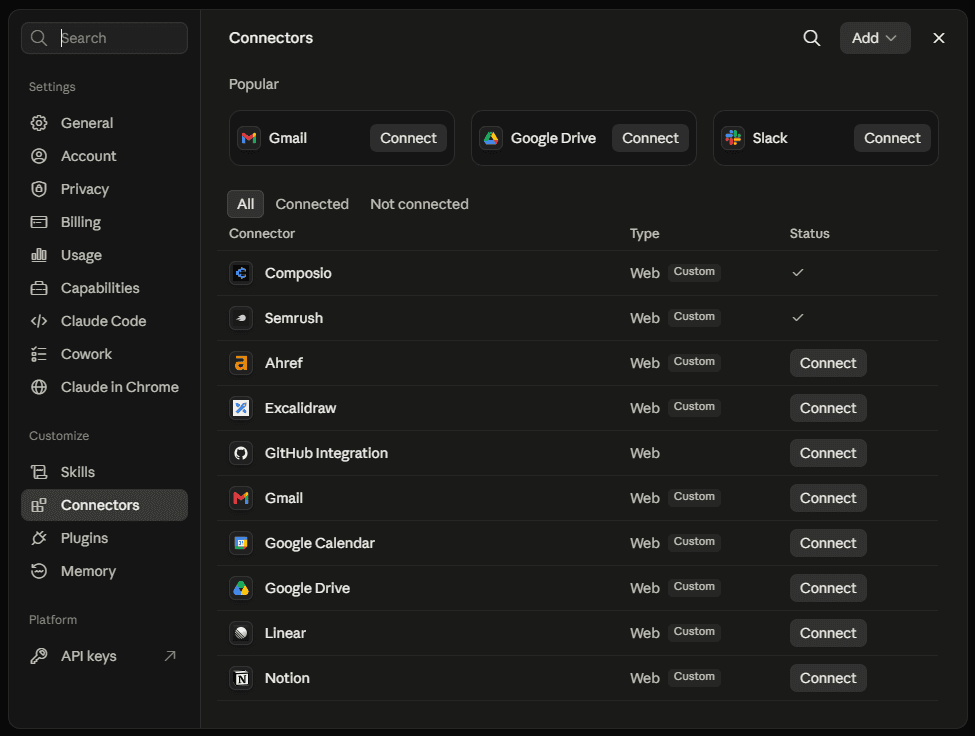
Click Add and then Connect. When a browser window opens, sign in to Composio or create a free account, and then approve the request.
Return to Claude and make sure that Composio has a CUSTOM badge and is switched on.
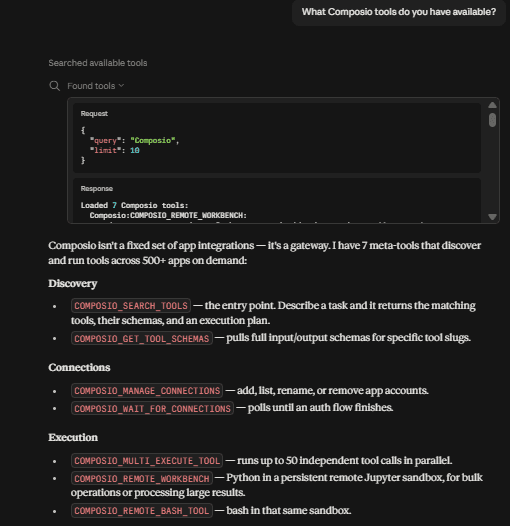
Check the connection. Start a new chat and ask, "What Composio tools do you have available?" Claude should show a short list of meta-tools that find and run the correct tool when you need it. This design lets one connector provide access to more than 1,000 apps while it keeps the context small.
Step 2 — Pick your Slack toolkit (do this before connecting)
Composio provides two Slack toolkits, so choose the one that gives you the access you need.
Toolkit | What it gives you | Use it for |
|---|---|---|
This is the standard integration, and | Posting, replying, managing channels, and most write actions | |
It reads messages and files across the workspace for the person who installs it, and it can browse channels and threads, find users, resolve users by email, and read direct messages. It still posts and reacts as the bot. | Searching and collecting context across a workspace |
For agency reports that ask what a client said about a topic, slackbot is usually more useful because standard bot scopes can read only the channels where someone invited the app.
Review access to direct messages carefully. Access to direct messages in a client's workspace can create additional privacy and security requirements, so use the narrower slack toolkit or get the client's written approval before you use slackbot.
Related: Connect multiple GitHub accounts to Claude
Step 3 — Connect your first workspace
You can connect each workspace from a Claude chat, so start a new conversation and enter this prompt:
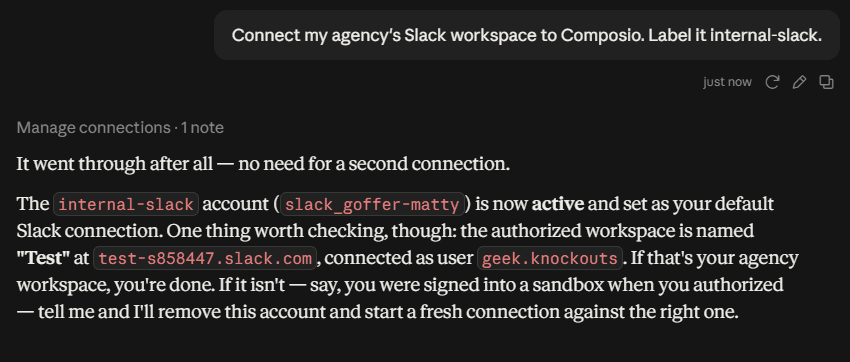
Connect my agency's Slack workspace to Composio, and label it internal-slack.
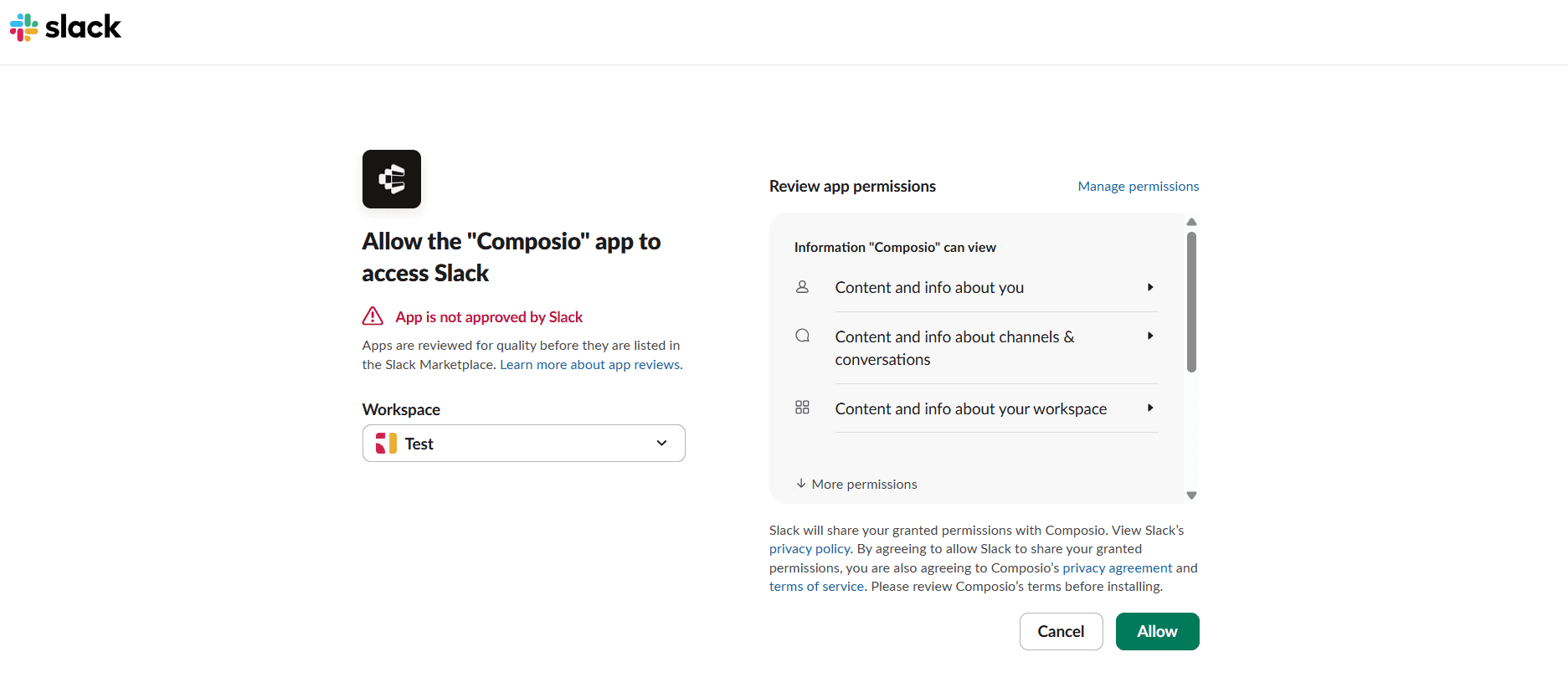
Claude gives you an authorisation link. Open it, select the correct workspace on the Slack OAuth screen, review the permissions, and approve the request.
Return to Claude, and it will check the connection until the status changes to Active.
Composio calls the label an alias, and Claude uses it to send each future request to the correct workspace. Each alias must be unique within its toolkit.
Step 4 — Connect the second, third, and fourth workspaces
Continue in the same conversation and enter this prompt:
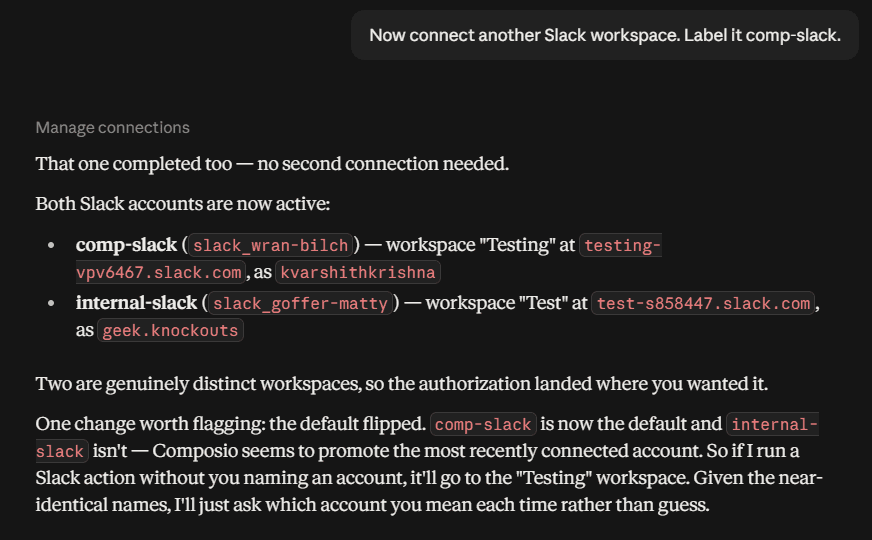
Connect another Slack workspace, and label it comp-slack.
Composio creates a new connection and gives you a new authorisation link, while your first connection remains available. After you approve the new connection, ask Claude to list your Slack connections and confirm that both appear.
Select the correct workspace
Slack shows a workspace dropdown in the top-right corner of the authorisation screen, and it can select one of your signed-in workspaces automatically. Check this dropdown every time because you can easily approve the wrong workspace.
Use one of these methods to make the process reliable:
Open the dropdown and select the intended workspace before you approve the request.
Use a separate browser profile for each client, and open the authorisation link in the matching profile.
Open the link in an incognito window, and then sign in to the intended workspace.
Repeat this process for each client. Composio limits the number of accounts for each toolkit, and the SDK default is 5 accounts, although you can configure a value from 2 to 10. If your agency has more than five active Slack clients, increase the limit or use separate Composio projects.

Step 5 — Verify before you trust it
Verify the connections before you use them for client work, and start with this prompt:
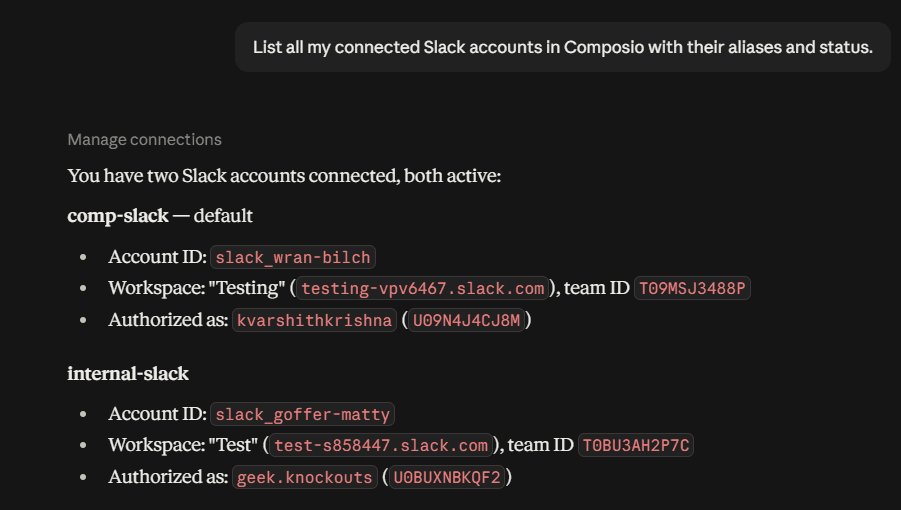
List all my connected Slack accounts in Composio, and include the alias and status for each account.
A connection can run tools only when its status is ACTIVE. Then use this prompt to check where every alias points:
For each connected Slack account, show its alias and the name of the workspace that authorised it.
Check the results carefully because two aliases can point to the same workspace, and this error can make Claude return information from the wrong client.
The Composio dashboard flow
Chat is the quickest way to connect a workspace, while the dashboard helps you audit, rename, revoke, and troubleshoot connections. Open dashboard.composio.dev, and sign in with the account that you authorised in Step 1.
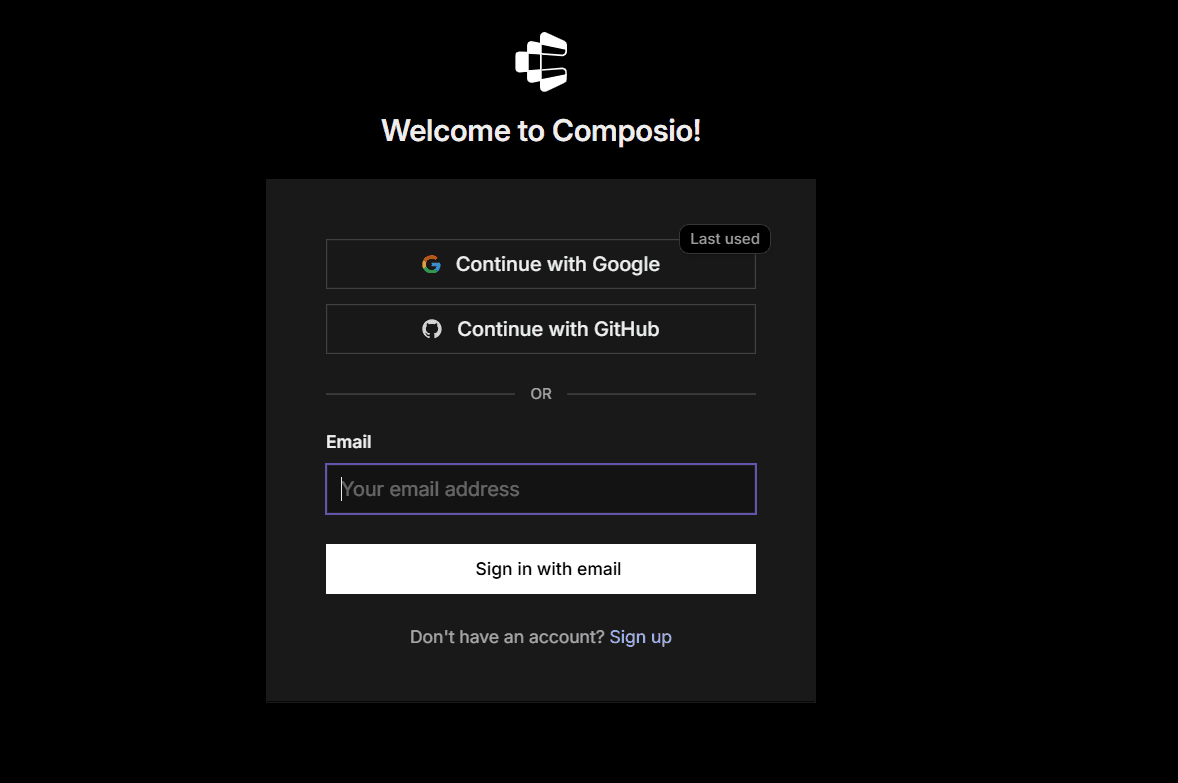
Choose the correct dashboard area
The Composio dashboard has two areas, and each area contains different resources:
Area | What it contains |
|---|---|
For You | Personal app connections for agents and MCP clients, including the connections in this guide |
Platform | Developer resources such as Playground, API Keys, Toolkits, Skills, Users, Sessions, Auth Configs, Triggers, and Logs |
Resources from one area do not appear in the other area, so use the product switcher if you cannot find your Slack connections.
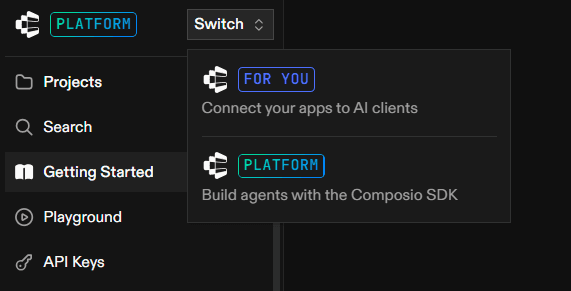
Connect workspaces in For You
Use this method when you want to connect several clients in one session:
Open For You from the product switcher.
Find Slack in the app list.
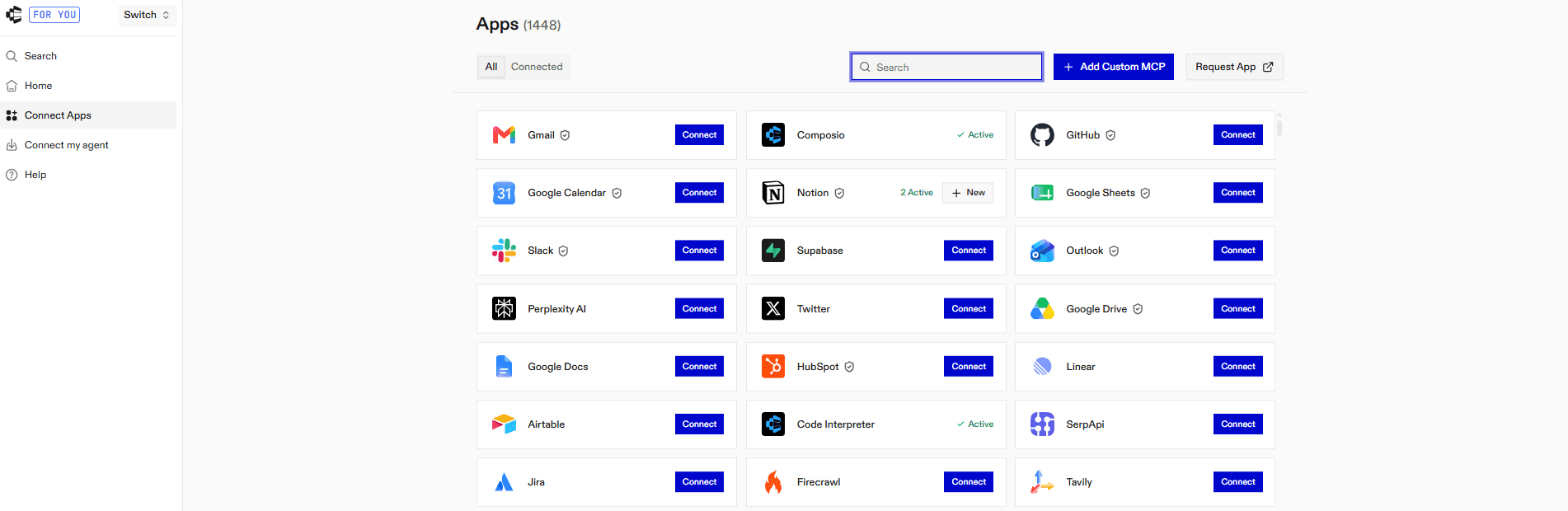
Click Connect, and complete the Slack OAuth process.

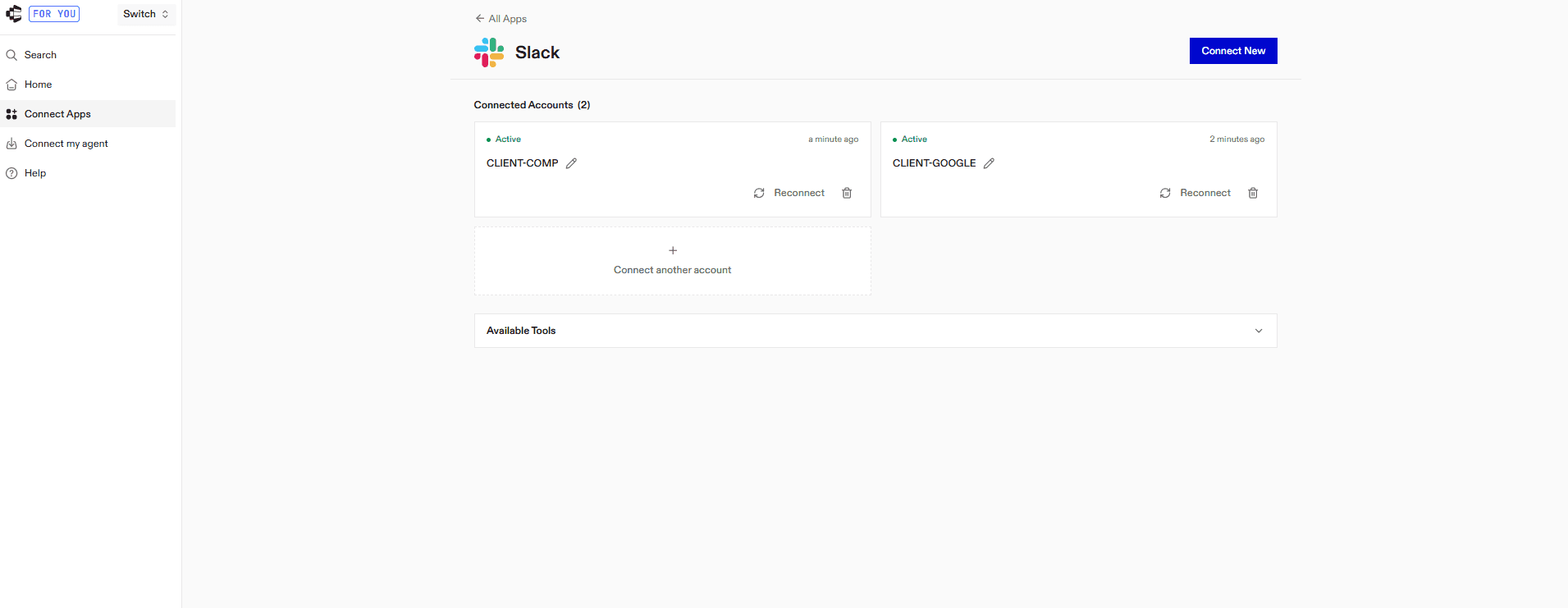
Click Connect on Slack again (Connect New) to add the next workspace, and then give the connection a clear client label.
Check the workspace dropdown before you approve each connection, as described in Step 4.
You can also rename, disconnect, or delete a connection from this screen, and you can re-authorise an expired connection. Composio refreshes tokens automatically, but you must reconnect a workspace if its refresh token is revoked or expires and its status changes to EXPIRED.
Review activity in Platform
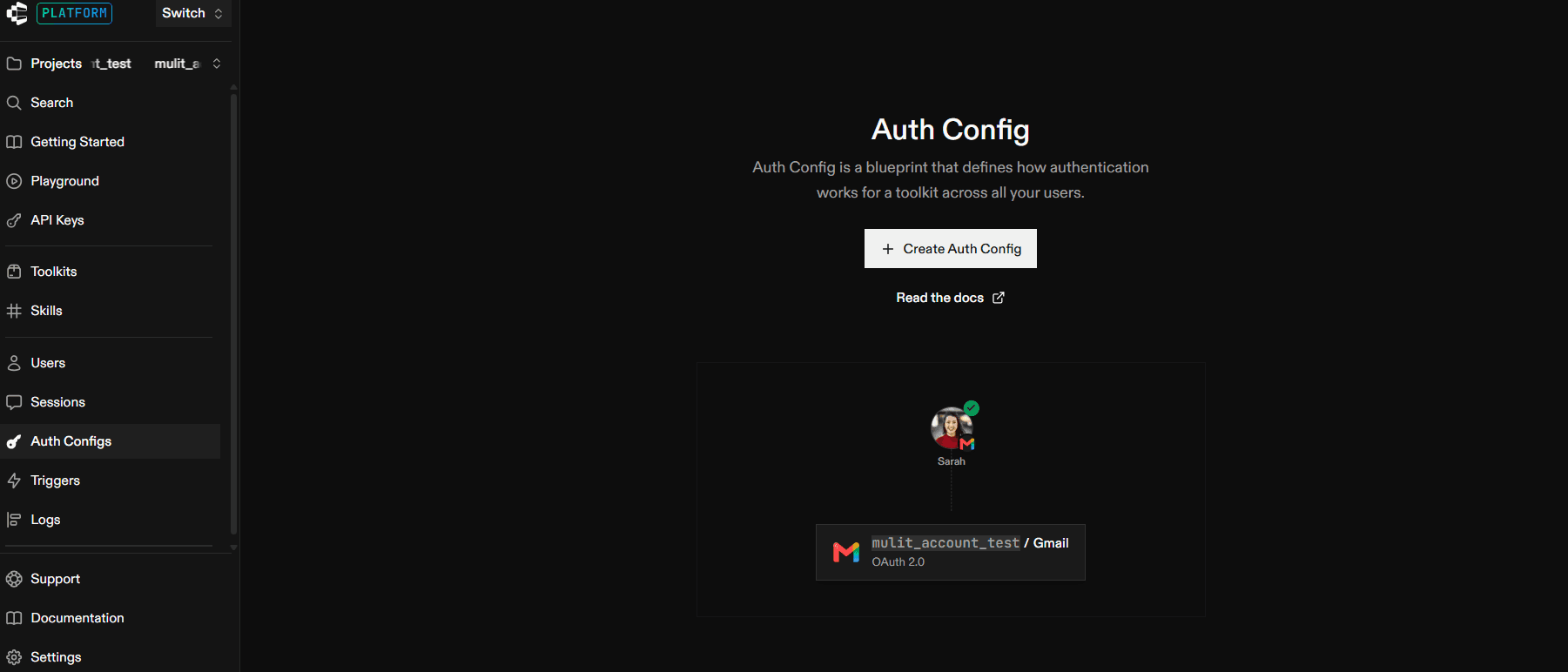
In Platform, the Logs area shows the request, response, error, version, and Log ID for each tool call. Composio keeps these logs for 7 days on Free and 30 days on Pro. The Auth Configs area stores the OAuth configuration for each toolkit, including custom scopes when you use your own Slack app.
Learn where these logs are before a client asks whether your AI accessed their Slack on a specific date.
Step 7 — Naming, and how not to leak client data
The access rules are as important as the setup because Claude can reach several client workspaces, and an unclear request can send it to the wrong one.
Use one alias format
Choose a clear format and use it for every connection:
<client>-slackExamples include comp-slack, northwind-slack, and internal-slack. Clear aliases help Claude select the correct workspace, while names such as slack2 or client-slack can cause confusion.
Give Claude the workspace map and rules
Add this block to your Claude personal preferences, or add a separate version to each client project:
Connected Slack workspaces:
internal-slack= our agencycomp-slack= Comp Corp (client)northwind-slack= Northwind (client)
Rules:
1. Use client workspaces for reading, and show me a draft if I ask for a post, reply, reaction, or message.
2. State the source workspace and channel for every fact that you report.
3. You can move client information to our internal workspace, but you must never move it to another client's workspace.
4. Ask me which workspace to use if I do not name one and the request could apply to several workspaces.
Rule 3 prevents information from moving between clients, and Rule 4 prevents Claude from using the most recently connected account when your request does not specify a workspace.
Use one Claude project for each client
Aliases control routing, and projects make it easier to repeat the correct routing. When you create one project for each client and add that client's rules to its instructions, every new chat starts with the correct context, and each account-team member receives the same guardrails.
Disable Claude's built-in Slack connector
If Claude can use both Anthropic's Slack connector and Composio, it has two routes to Slack and can select the route that sees only one workspace. Open Customise → Connectors, disconnect the built-in Slack connector, and use Composio as the single route.
Prompts that earn the setup
Review unresolved client questions:
In
comp-slackandnorthwind-slack, find unresolved questions that clients sent to our team during the last 7 days. Group the results by client, include the channel and timestamp, and use read-only actions.
Find an earlier decision:
Search
comp-slackfor the thread where we agreed on the launch date, and show me the message, author, and timestamp without sending a reply.
Check for urgent messages:
Search all connected client workspaces for messages from the last 48 hours that might need a response today, and include the workspace name with every item.
Prepare a draft:
Find the latest message in
#design-reviewincomp-slack, and draft a reply here without posting it.
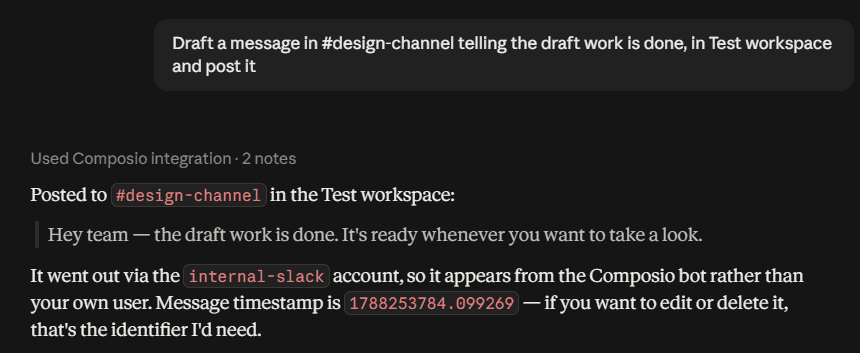
When you ask Claude to post an approved message, it first checks whether the channel exists, then sends the message with the mention. Open the Slack channel to confirm that the message arrived.

Troubleshooting
Composio tools do not appear in Claude.
Open Customise → Connectors, and make sure that Composio has a CUSTOM badge and is switched on.
Click ⋮ next to Composio, and select Clear cache.
If the tools still do not appear, select ⋮ → Disconnect, remove the connector, and then add it again.
The authorisation link expired or did not open.
Composio OAuth links expire quickly, so ask Claude to retry the connection and generate a new link rather than using an earlier one from the conversation.
Two aliases point to the same workspace.
Delete the duplicate connection in the dashboard, then reconnect it in an incognito window while carefully selecting the correct workspace.
Search cannot find messages in a channel that you can read.
Standard bot scopes can read only the channels where someone added the app, so invite it to the channel or use slackbot for workspace-wide read access.
Slack AI search fails.
The assistant.search.context scope works only when the OAuth app has the Agents & AI Apps feature enabled and the workspace uses the Business+ plan or a higher plan. Configuration changes cannot enable this feature on a lower Slack plan.
Channel administration actions fail.
The admin.conversations:write scope requires an Enterprise Slack plan, so check the client's plan before you use actions such as deleting conversations.
A Slack action returns an authentication error.
Ask Claude to inspect the connection, and reconnect that workspace if its status is unhealthy or expired. Then retry the action, and review Logs in Platform if you need the complete error response.
Claude used the wrong client workspace.
Use the workspace alias in every request, and add the workspace map and rules to the project instructions so the error does not happen again.
Add custom connector is unavailable.
The Free plan allows one custom connector, so the option can be unavailable if you already use that slot. On Team and Enterprise plans, an Owner must add the connector.
Offboarding a client
Delete the Composio connection. Open Dashboard → For You, find
comp-slack, and disconnect it. Composio deletes the connection immediately.
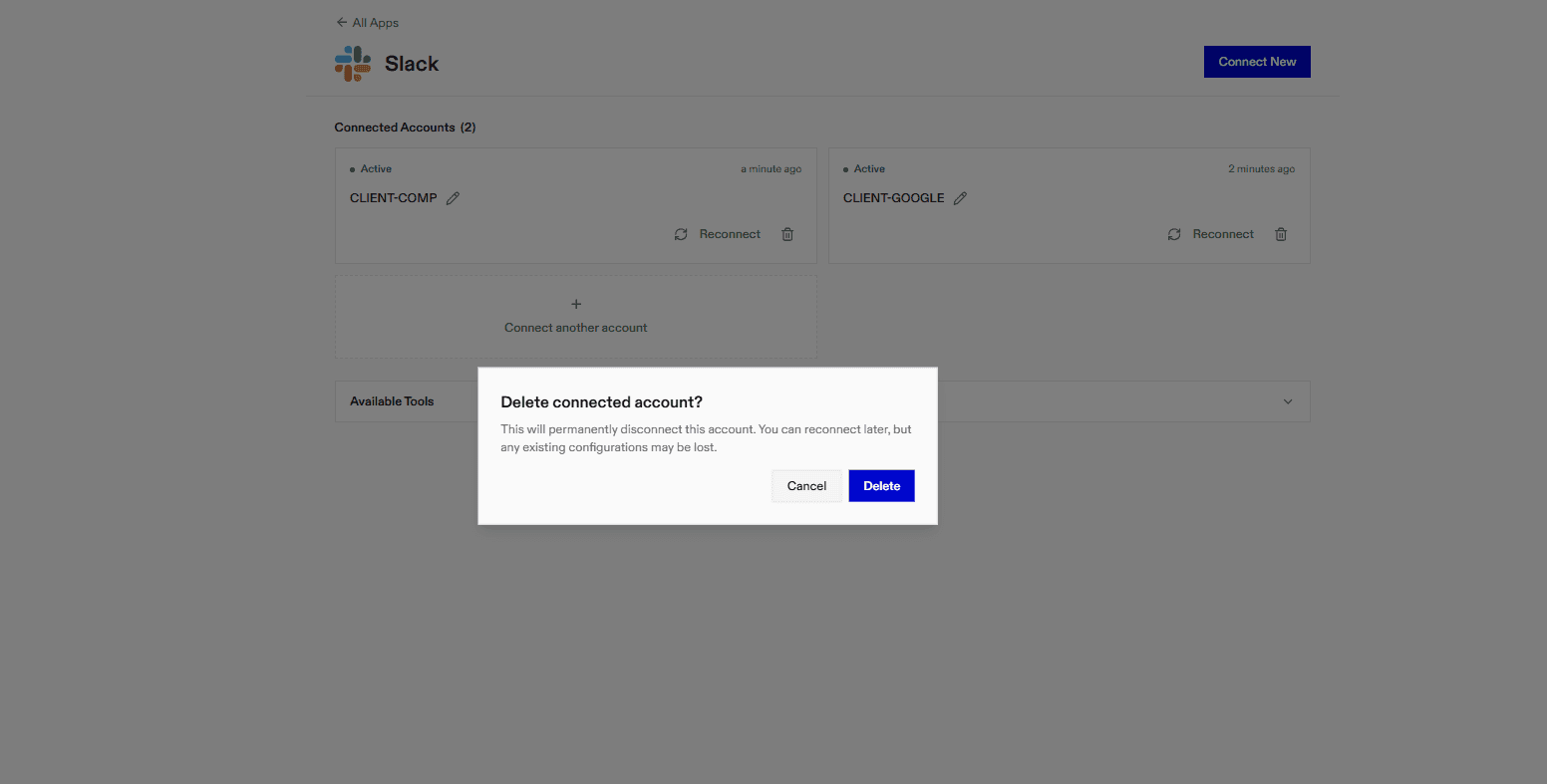
Revoke access in the client's workspace. Ask the workspace administrator to remove the app from Slack app management, as deleting your Composio connection might leave the Slack grant active.
Remove the client's workspace map. Delete the client's block from your Claude project instructions so Claude cannot refer to an old alias.
Confirm the change in writing. Send a short message such as, "We revoked our AI assistant's access to your Slack on [date]."
This process lets you remove one client's access in approximately two minutes and provides a clear record for the client's next security review.
Costs and honest limits
Composio Free: The Free plan includes 100K tool calls each month, unlimited connections, 50K trigger events, and 3 team members. It has a fixed limit and does not require a payment card, so an agency with five clients and daily reviews is unlikely to exceed it. If you need more usage, Pro costs $29 each month and includes usage credit.
Limits of this setup:
Claude starts work when you open a conversation. Connectors do not monitor Slack continuously or send an automatic alert when a client posts in
#urgent, so you need another type of automation for that workflow.Each toolkit has an account limit. The default is 5 accounts, and you can configure a value from 2 to 10. Use separate Composio projects if you need more accounts.
Slack plan limits still apply. Business+ and Enterprise features remain unavailable when a client uses a lower Slack plan.
Claude keeps the permissions of the connected identity. It cannot access data or perform actions that the connected identity cannot access.
Composio becomes an additional vendor. It is SOC 2 Type 2 and ISO 27001 compliant, and it uses OAuth tokens that are encrypted during transfer and storage, so it does not store client passwords. Tell clients about this vendor before their security review.
FAQ
Can Claude connect to two Slack workspaces natively?
No. One workspace per Claude account, with no UI or configuration path to a second, per Anthropic's own open issue.
Can I add the built-in connector twice under different names?
No. Claude rejects a server URL that's already registered.
Does this work in Cowork and Claude Code?
Yes. Cowork uses the same Customise → Connectors flow. Claude Code takes the same endpoint as an HTTP MCP server, or Composio's native agent plugin via the CLI, which is the shorter path for coding agents.
Do my workspaces get merged?
No. Each connection keeps its own token and stays separately addressable. That's exactly why routing by alias works.
How many workspaces can I connect?
The default cap is 5 per toolkit, configurable from 2 to 10.
Can each person on my team have their own connections?
Yes. Composio scopes connections per user, so two people never touch each other's credentials. Shared connections also support per-user access control if you'd rather have one agency-held connection per client.
Will clients see we've connected something?
Yes, and they should. Slack workspace admins can see installed apps. Tell them first.
What about Notion, Linear, Google Drive?
Same connector, same pattern, same multi-account behaviour. Most agency setups end up with three or four apps per client, all behind a single connector.

 Get started