




Claude can already connect to Microsoft 365, but that setup is mainly designed around a Microsoft 365 work account connected to an Entra tenant.
It also needs tenant approval, and personal Microsoft accounts such as @outlook.com, @hotmail.com, or @live.com are not supported by Claude's native Microsoft 365 connector.
If you use a work inbox, a personal Outlook account, or several Microsoft accounts for different teams, that gets limiting quickly.
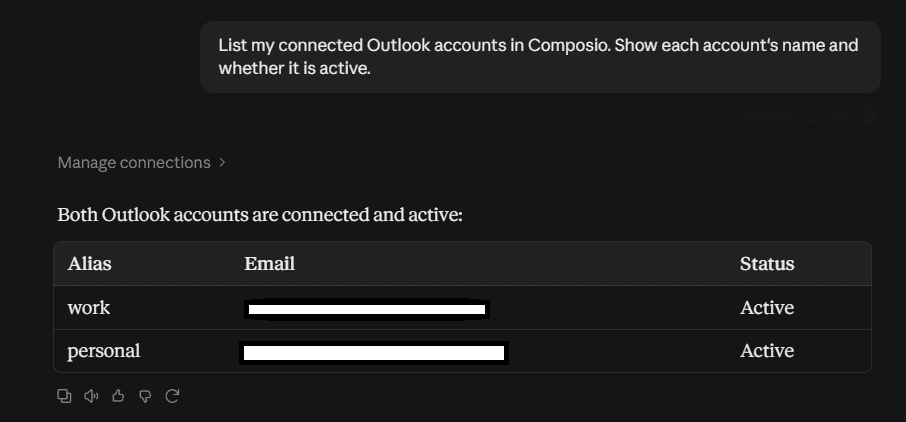
Composio fixes this by keeping each Outlook account separate and giving it a simple name, such as work, personal, or billing. Claude can then use the right inbox when you mention that name.
✅ You do not need to write code, create an Azure app, or understand MCP. The setup is mostly clicking Connect and signing in with Microsoft.
Related: Connect multiple Gmail accounts to Claude
What you’ll end up with
One Composio connector in Claude
Two or more Outlook accounts connected behind it
A clear name for each account
The ability to search, draft, send, organise email, and manage calendars from the correct account
For example:
Search my work and personal Outlook accounts for invoices from the last 14 days. Tell me which account each email came from.
Or:
Using the billing account, draft a reply to the latest unread message. Do not send it.
Or:
Check my work calendar and personal calendar for conflicts tomorrow afternoon.
Composio's Outlook toolkit can work with Outlook email, calendars, contacts, mailbox settings, attachments, rules, and other Microsoft Graph actions.
Before you start
You need:
A Claude account
A free Composio account
Access to each Microsoft account you want to connect
About 2 minutes
💡 Claude Free currently allows one custom connector. If you already use that slot, you will need to remove the existing custom connector first.
If you use Claude Team or Enterprise, your workspace settings may require an Owner to enable the connector.
For Microsoft 365 work accounts, your organisation may also require Microsoft Entra administrator approval before granting Outlook access.
Step 1: Add Composio to Claude (One-time process)
Click here: Composio x Claude
This will take you to the Claude Custom Connector modal
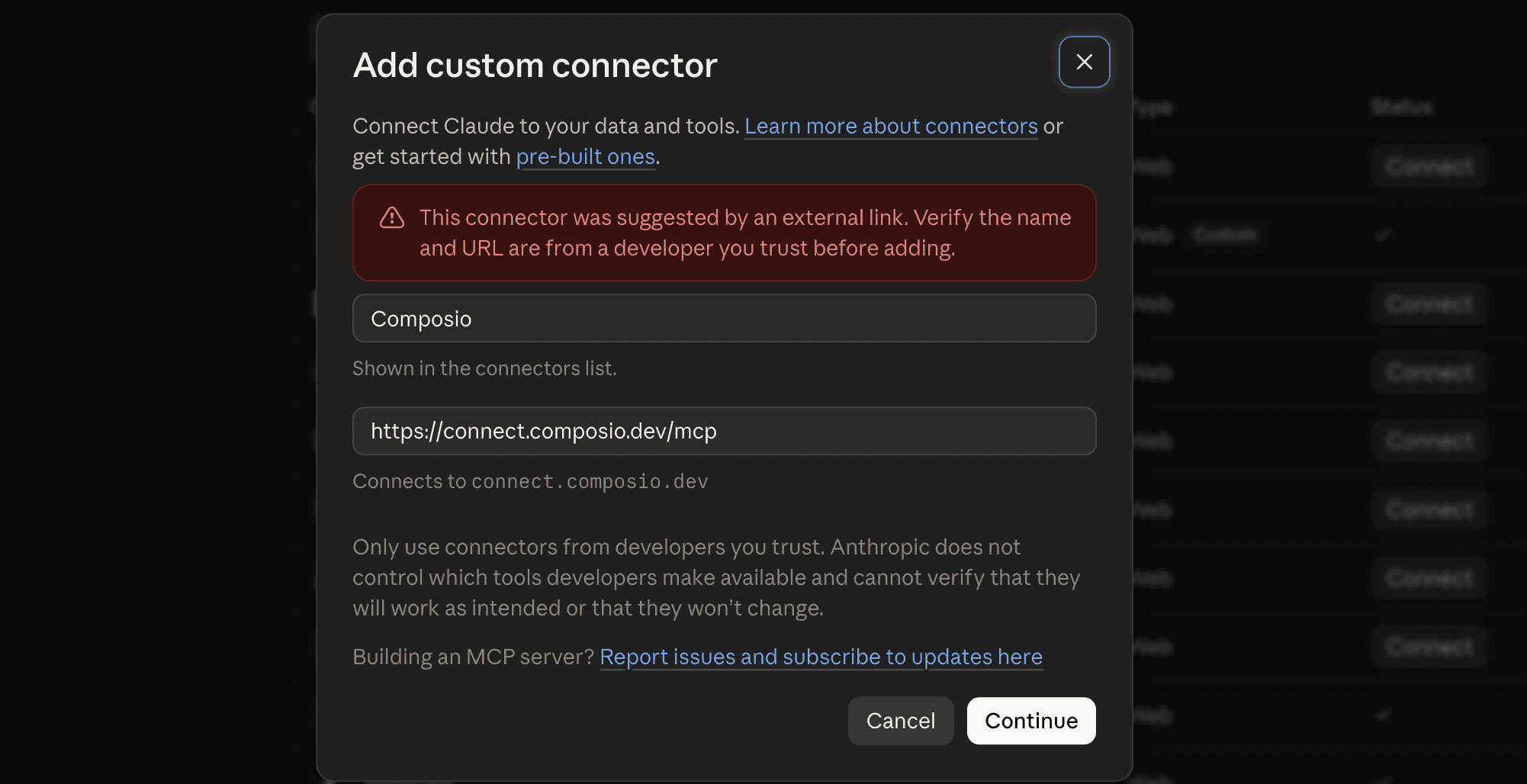
Click Continue
And in the next modal, click Add
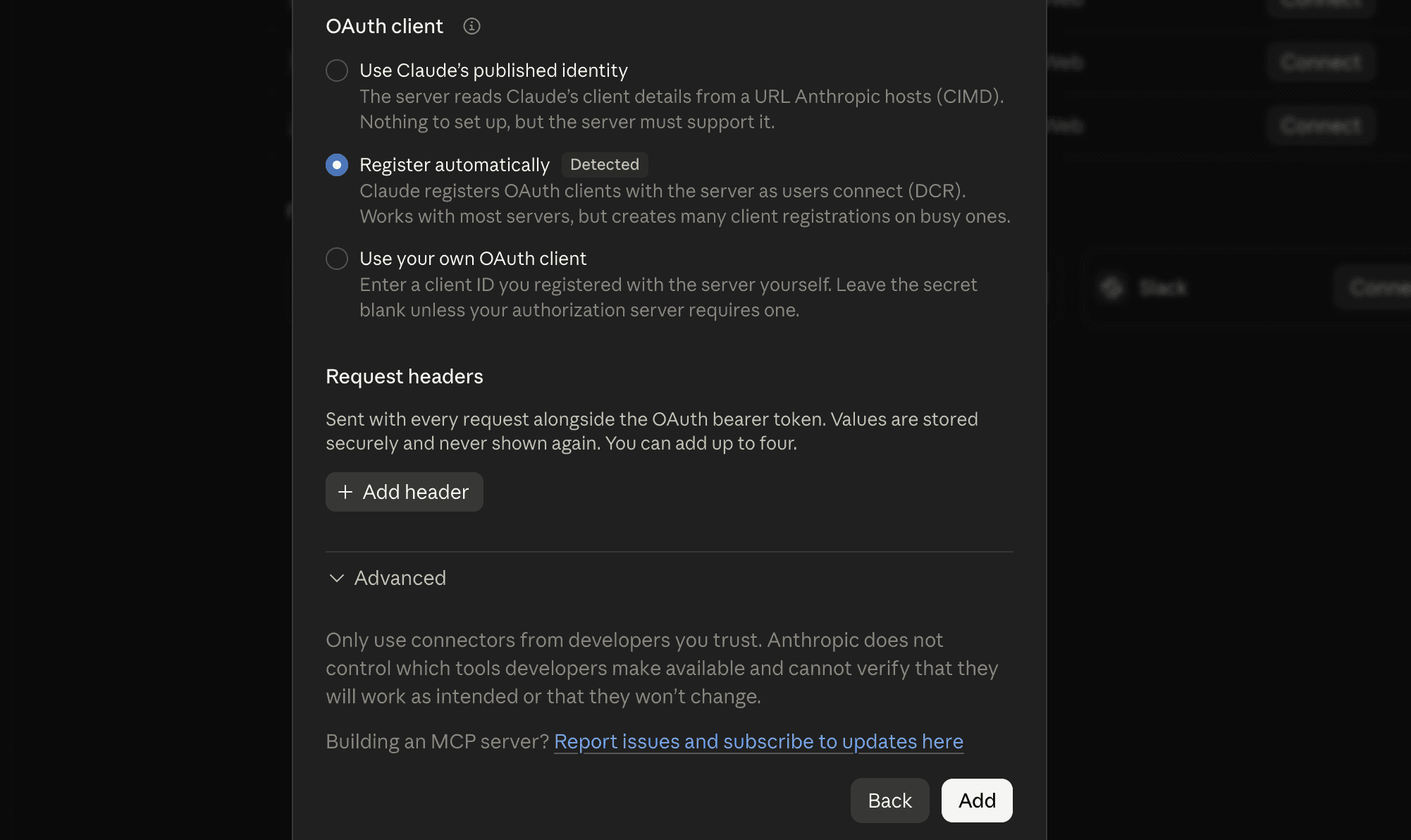
It will take you to the authentication page. So, sign in to Composio and approve the connection.
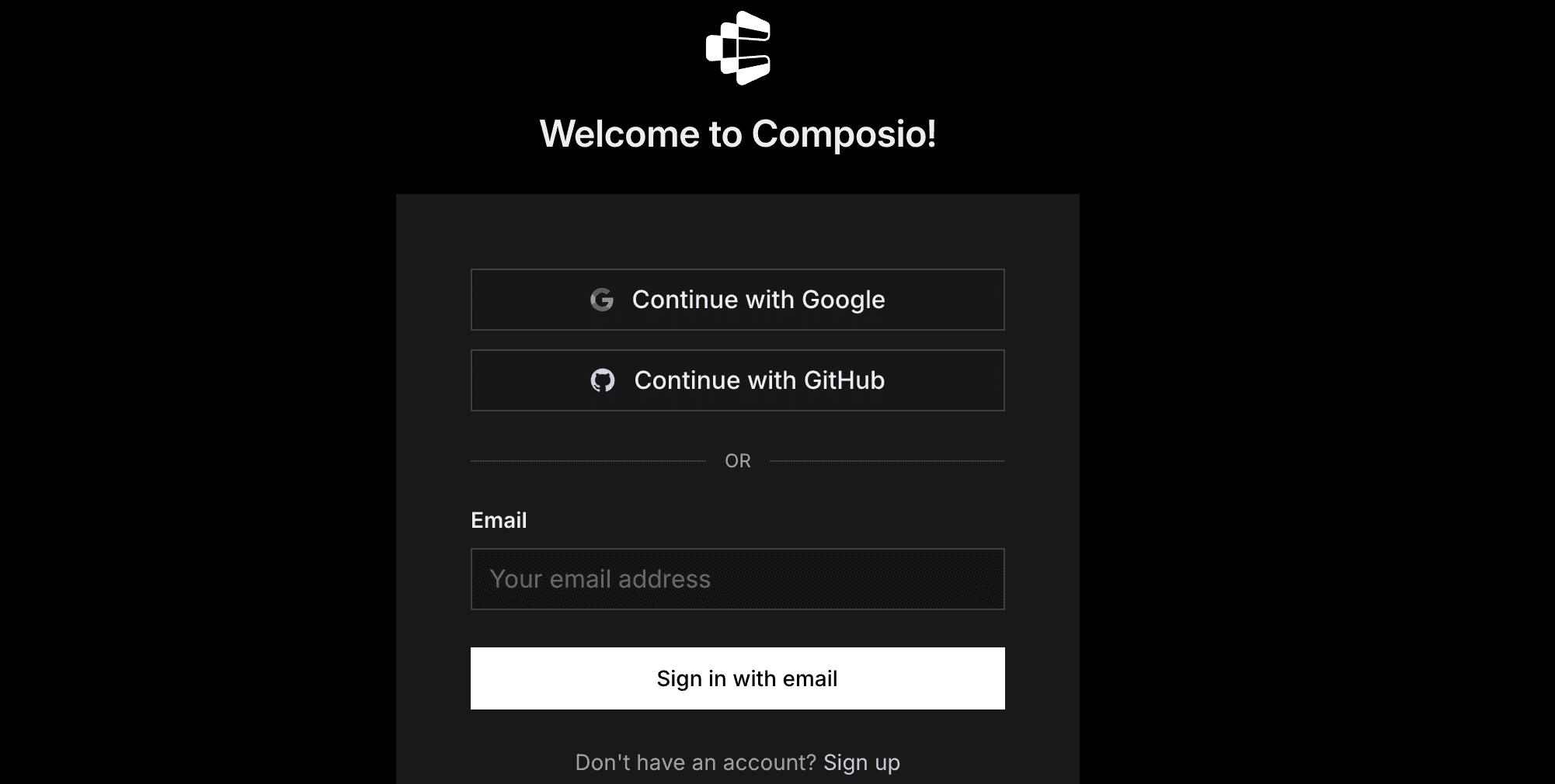
Then:
Return to Claude and make sure Composio is enabled.
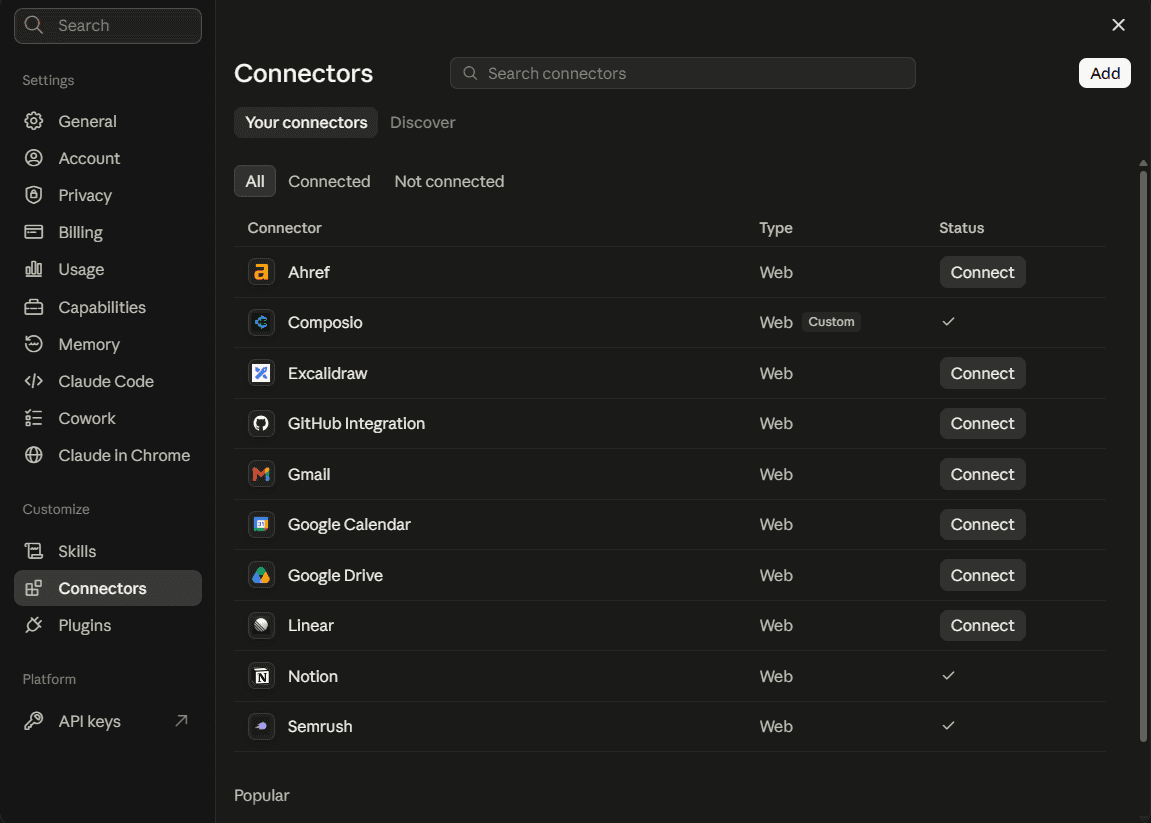
You only need to do this once.
Quick check
Start a new Claude chat and ask:
What Composio tools do you have available?
If Claude lists Composio tools, you are ready for the next step.
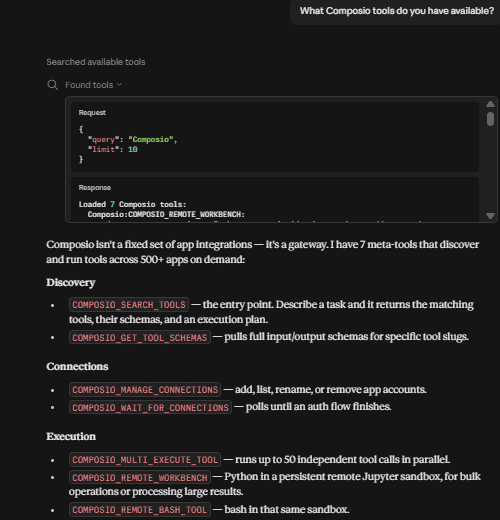
If nothing shows up, jump to Troubleshooting.
Step 2: Connect your first Outlook account
In a new Claude chat, type:
Connect my work Outlook account to Composio. Call it work.
Claude will give you a Microsoft sign-in link.
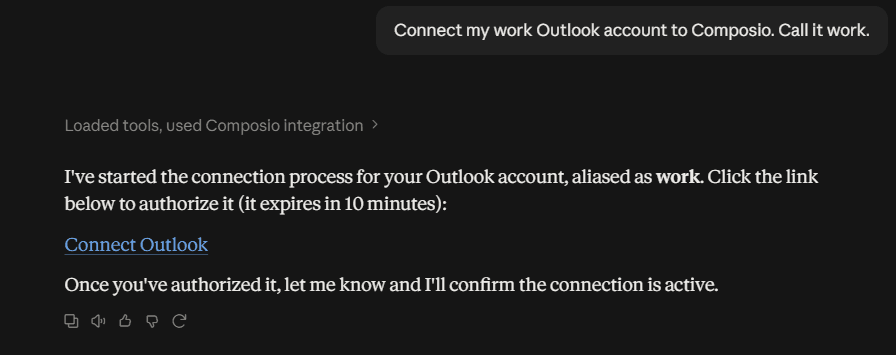
Click the link.
Sign in to your work Microsoft account.
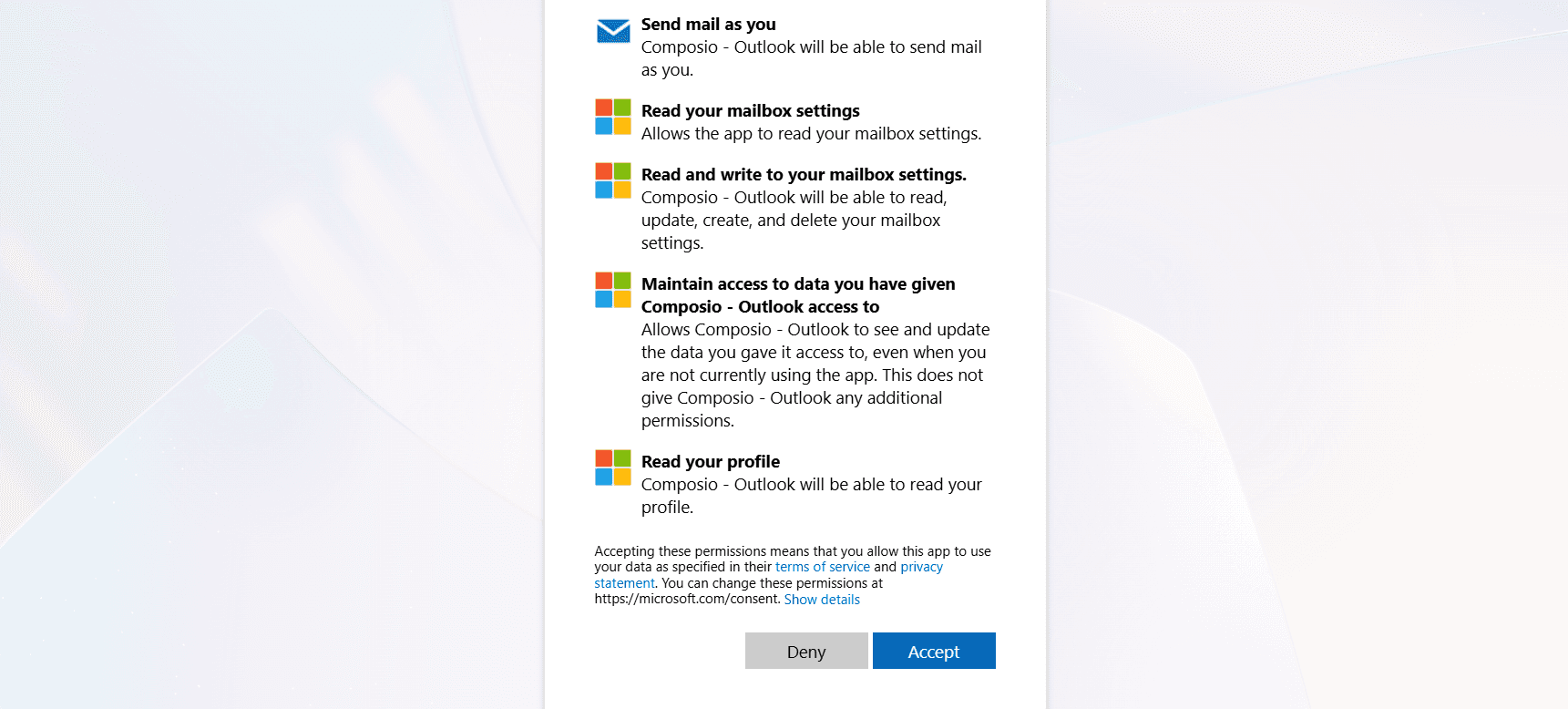
Review Microsoft's permission request.
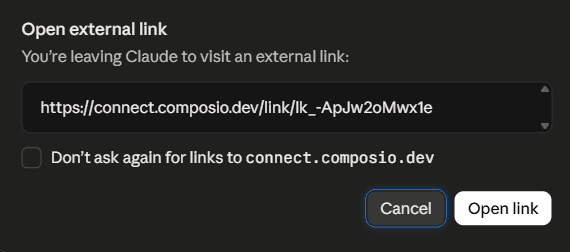
Approve access.
Return to Claude.

Claude should confirm that the account is connected.
The name work is how Claude knows which Outlook account to use.
Choose short and obvious names. Good examples include:
workpersonalbillingsupportclient-comp
Composio supports multiple connected accounts for the same toolkit and lets each connection have its own alias.
Step 3: Connect the second Outlook account
In the same chat, type:
Connect another Outlook account. Call it personal.
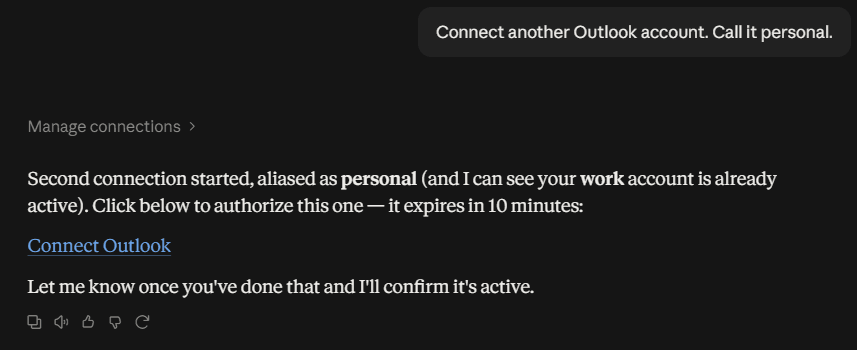
Claude will create a new Microsoft sign-in link.
Open it and approve access for the second Microsoft account.
Important: Check which Microsoft account appears on the sign-in screen. Browsers often remember your previous Microsoft session and may automatically select the first account again.
If Microsoft shows the wrong account:
Choose Use another account on the Microsoft sign-in screen.
Sign in with the second address.
Check the account shown on the consent screen.
Approve access.
If you are unsure, open the sign-in link in an incognito or private browser window.
After approval, return to Claude. It should confirm that the second account is connected.
Repeat this step for any other Outlook accounts you want to add.
Step 4: Check that everything is connected correctly
Ask Claude:
List my connected Outlook accounts in Composio. Show each account's name and whether it is active.
You should see each account you connected.
Each working account should show as active.
For an extra check, ask:
Show the email address connected to each Outlook account name.
This makes it easy to catch cases where you accidentally authenticated the same Microsoft account twice.
Step 5: Use the right inbox
Mention the account name whenever you ask Claude to work with Outlook.
Search two inboxes
Search my work and personal Outlook accounts for invoices from the last 30 days. Show which account each email came from.
Create a draft in one account
Using billing, draft a reply to the latest unread email. Do not send it.
Triage work email
Check unread mail in work and client-comp from the last 24 hours. Flag anything that needs a reply today. Ignore personal.
Find a conversation across accounts
Find every email about the Q3 renewal across all my connected Outlook accounts. Put them in date order and tell me who is waiting for a reply.
Check calendars across accounts
Check my work and personal Outlook calendars tomorrow between 2 PM and 6 PM. Show me any conflicts.
Work with attachments
Using work, find the latest email from comp with a PDF attachment and download the attachment.
🛟 For safety, say "draft, but do not send" whenever you want to check a reply before Claude sends it.
Make account selection more reliable
Add this to your Claude preferences or project instructions, replacing the example addresses with your own:
My Outlook accounts are: work = me@company.com, personal = me@outlook.com, and billing = billing@company.com. Use the named account when I specify one. If I do not specify an account, ask me which one to use before taking any email or calendar action.
This matters once you have several Outlook accounts active.
Composio can require Claude to select a specific connected account for every multi-account action. You can select the account using its connection ID or the alias you gave it.
If Claude's native Microsoft 365 connector is also enabled, both integrations may expose similar Outlook actions. For the clearest multi-account setup, use Composio for the Outlook workflow covered in this guide.
Optional: Manage accounts from the Composio dashboard
The chat method above is the easiest way to add accounts. Use the dashboard when you want to rename, reconnect, or remove one.
Go to dashboard.composio.dev.
Sign in with the same Composio account you used to connect to Claude.
Open For You from the product switcher.
Find Outlook.
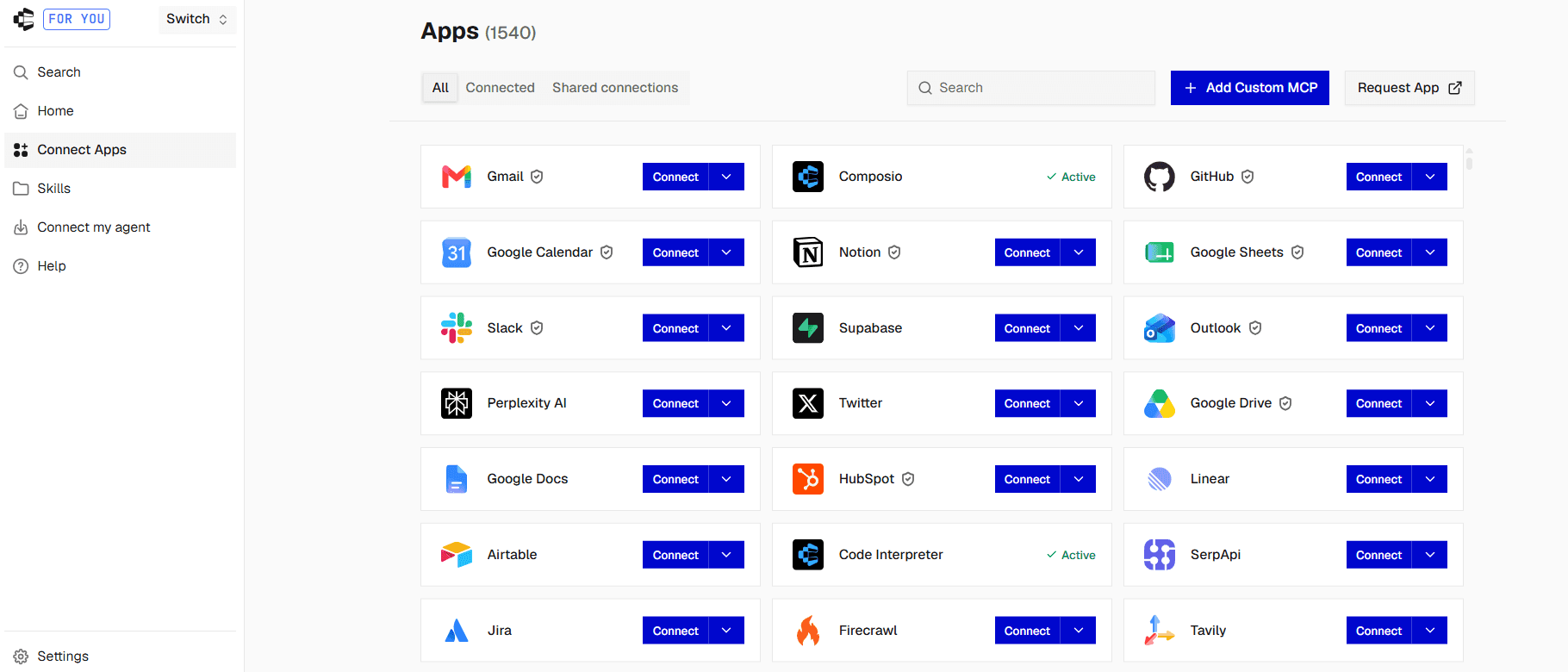
Click Connect and complete the Microsoft OAuth flow.

Click Connect on Outlook again for the next account.
Composio adds it as a separate connection rather than replacing the first. This behaviour is what the whole guide hinges on.
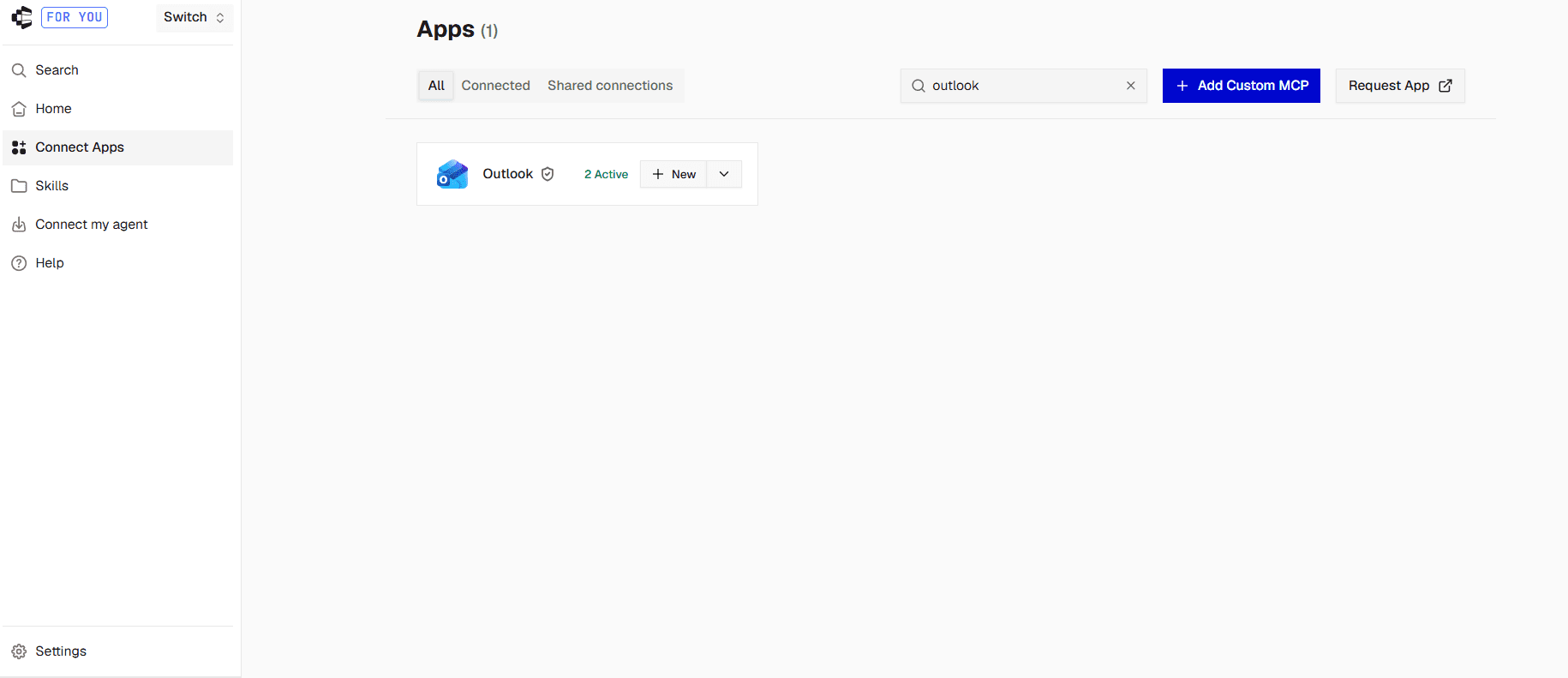
Give each connection a clear label.
For example:
WORKPERSONALBILLINGTEAM
That is the mental model here: same Outlook integration, several Microsoft identities, and each one can be addressed by name.
The same private-window caveat from Step 3 applies here. Check which Microsoft account the consent screen shows before you approve it.
From this screen you can also:
Rename a connection when
outlook-2stops being a useful name.
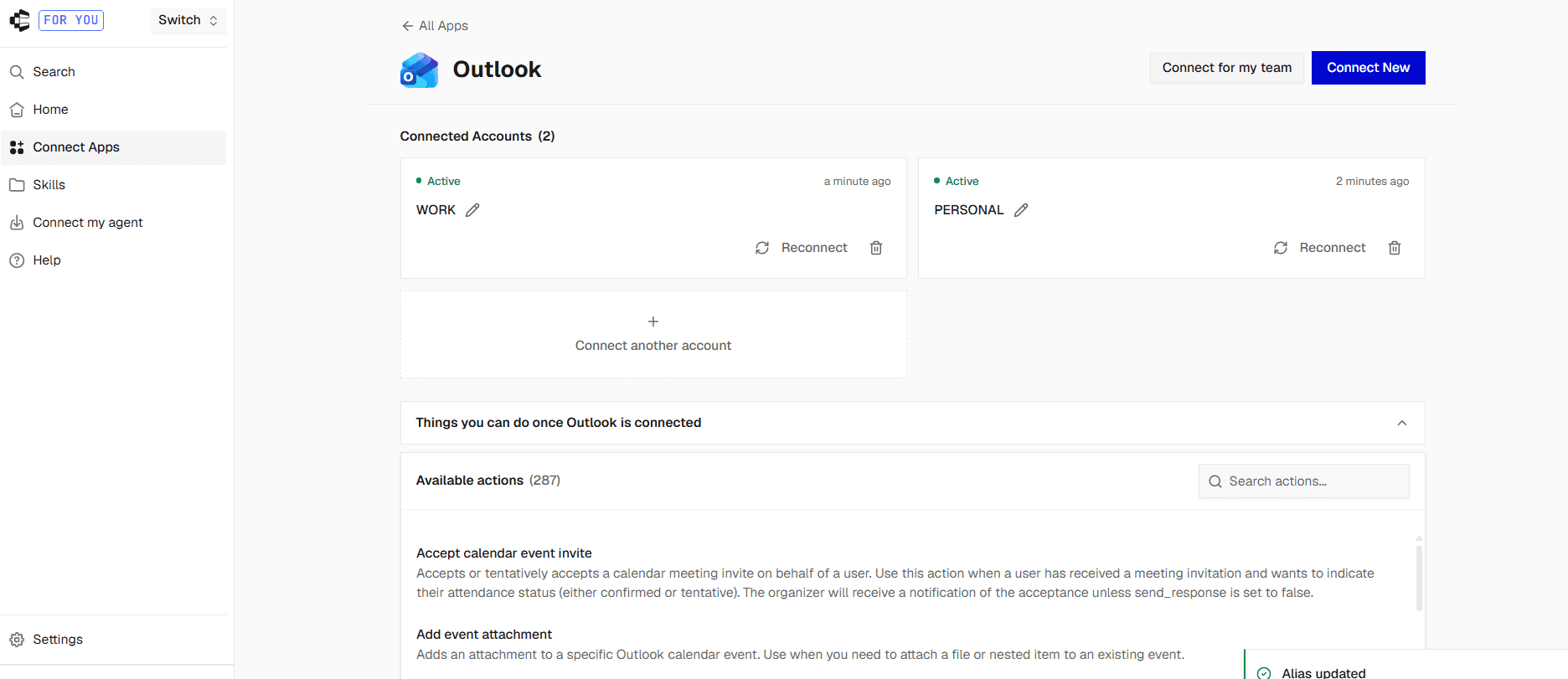
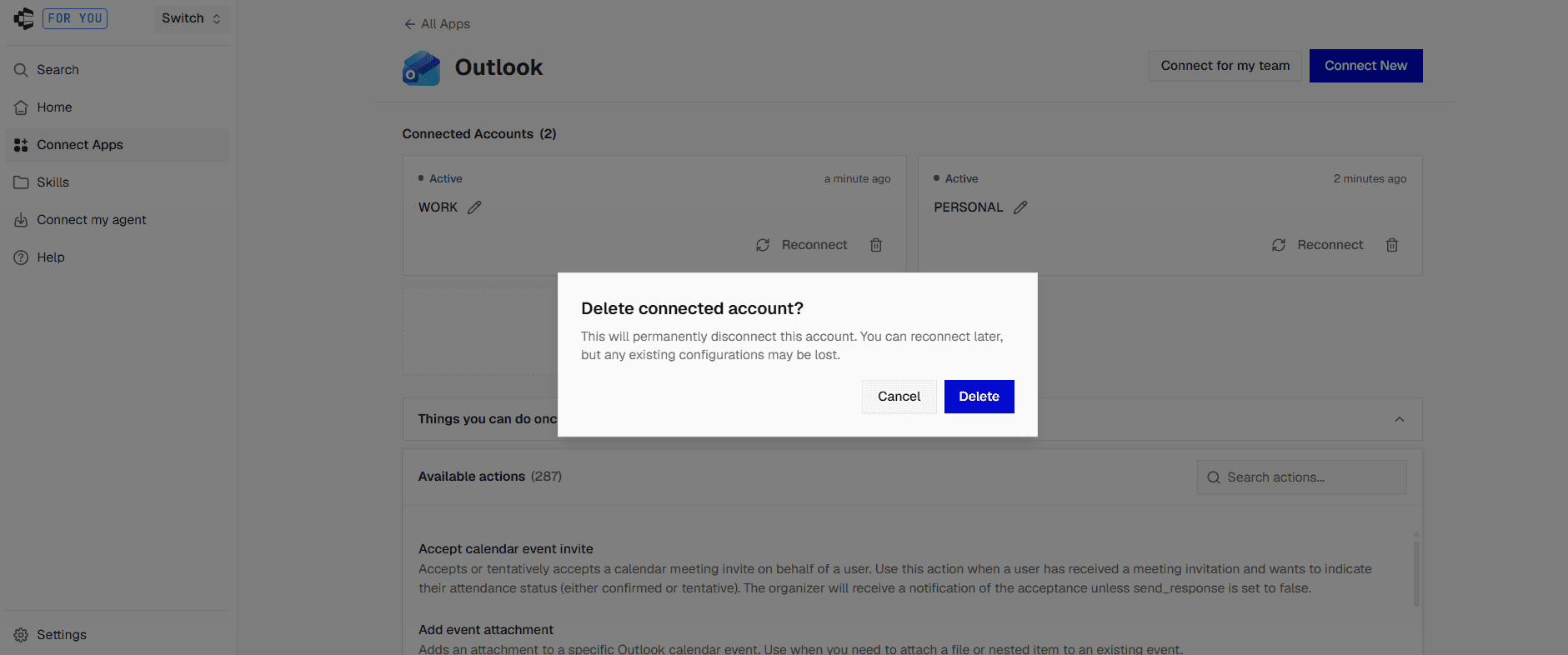
Disconnect or delete a connection you no longer want Claude touching. Deletion is immediate.
Re-authorise a connection that has expired. Composio refreshes OAuth access tokens automatically, but if Microsoft revokes the refresh token or it expires, the connection moves to
EXPIREDand needs a manual reconnect.
A note about shared Outlook mailboxes
Microsoft handles shared mailboxes differently from separate user accounts.
If your organisation has something like support@company.com or billing@company.com, you may not need a separate Microsoft login for that mailbox.
Composio can target a shared Outlook mailbox when the connected Microsoft account already has delegated access to it.
For example:
Using my work Outlook connection, search support@company.com for unread messages from the last 24 hours.
The important part is that Microsoft must already grant your user access to that shared mailbox.
Connecting Outlook through Composio does not bypass Microsoft 365 mailbox permissions.
Troubleshooting
Composio does not appear in Claude
Go to Customize → Connectors.
Make sure Composio is listed and switched on.
Open the menu next to Composio and choose Clear cache.
If it still does not work, disconnect Composio, remove it, and add it again using Step 1.
The Microsoft sign-in link expired
Create a new connection link.
Outlook authentication links should be completed soon after they are generated. Composio currently gives users roughly 10 minutes to finish the Microsoft authorization flow.
Ask Claude:
Create a new Outlook connection link for my work account.
Do not keep reopening the expired link.
Both connections open the same inbox
The same Microsoft account was probably approved twice.
Remove the duplicate connection from the Composio dashboard, then connect the second account again.
Use a private browser window if Microsoft keeps automatically signing in to the first account.
An account says EXPIRED
Reconnect that specific Outlook account from Composio.
Composio normally refreshes OAuth tokens automatically. If a refresh token is revoked or expires, the connection moves to EXPIRED and requires a new Microsoft login.
Microsoft says "Needs Admin Approval"
This usually happens with Microsoft 365 work accounts.
It means your Microsoft Entra tenant requires an administrator to approve the permissions requested by the Outlook integration.
This is a Microsoft tenant permission issue rather than a failed Composio connection.
Your administrator can approve the required permissions through Microsoft Entra. After they grant consent, create a fresh Outlook connection link and sign in again with your own account.
Important: If an administrator signs in through your original connection link to approve access, that OAuth attempt may connect the administrator's mailbox. After consent is granted, create a new link and reconnect your own account.
Outlook returns a 403 error
The Microsoft account may be connected correctly but still lack a permission required for that specific Outlook action.
Microsoft Graph uses separate scopes for different capabilities.
For example, reading email, sending email, changing mailbox settings, working with calendars, and accessing shared mailboxes can require different permissions.
If you use a custom OAuth configuration, check the scopes required for the exact Outlook action, update the configuration, and reconnect the account so Microsoft can grant the new permissions.
Claude cannot access a shared mailbox
Check that your Microsoft account already has permission to use that mailbox.
Composio can target the shared mailbox, but Microsoft still enforces the delegated access configured by your organisation.
"Add custom connector" is unavailable
This usually means one of two things:
Your Claude Free account already uses its one custom connector slot.
Your Team or Enterprise workspace restricts who can add connectors.
Claude used the wrong Outlook account
Repeat the request and name the account clearly.
For example:
Use my work Outlook account for this. Do not use personal.
Adding the account map from the earlier section makes this more reliable.
What this costs, honestly
For most personal setups, Composio's free plan is enough.
The current Free plan includes 100,000 tool calls per month, unlimited connected accounts for your own apps, API keys, or MCP connections, and does not require a credit card.
Composio-managed apps have their own allowance inside that free usage. Up to 20,000 of the 100,000 free monthly tool calls can currently run through Composio-managed apps.
A setup with a few Outlook accounts is unlikely to reach those limits through normal personal email use.
Paid plans are available if you need higher usage or additional team features.
Is this safe?
Composio becomes another service with access to the Outlook permissions you approve, so consider that before connecting sensitive mailboxes.
The main protections are:
No password sharing: You sign in through Microsoft's OAuth page. You do not give your Microsoft password to Claude.
Permission control: Microsoft shows the requested permissions before you approve the connection.
Automatic credential handling: Composio manages OAuth tokens and refreshes them when possible.
Encryption and audits: Composio states that data is encrypted in transit and at rest and that it is SOC 2 and ISO 27001 compliant.
Access can be removed: Disconnect or delete the connected account in Composio, and revoke the application from your Microsoft account or Microsoft Entra environment if needed.
For email sending, deleting messages, calendar changes, or other actions with side effects, keep an approval step in your prompt.
Have Claude prepare the action first, then execute it after you review the result.
FAQ
Can Claude connect to Outlook natively?
Yes. Claude now has a Microsoft 365 connector that includes Outlook, SharePoint, OneDrive, and Teams.
However, the native Microsoft 365 connector currently requires a work Microsoft 365 account tied to a Microsoft Entra tenant. Personal accounts such as @outlook.com, @hotmail.com, and @live.com are not supported through that connector.
This guide uses Composio because it gives you a separate Outlook toolkit and multi-account routing.
Can Claude use multiple Outlook accounts through Composio?
Yes.
Composio supports multiple connected accounts for the same toolkit. Each Outlook connection can have an alias such as work, personal, or billing.
Claude can then select the correct connection for each action.
Do my Outlook inboxes get merged?
No.
The accounts remain separate. Nothing needs to be forwarded or copied into a central inbox.
Each Outlook account has its own connected credentials, and Claude selects the connection required for the task.
Do I need to create a Microsoft Azure application?
Not for this setup.
Composio provides managed OAuth for Outlook, so you can connect an account without creating your own Azure application.
You can configure your own Microsoft OAuth application later if you need custom scopes or production-specific authentication controls.
Does Outlook work if I only use the desktop app?
Yes.
The connection uses the Microsoft account behind Outlook rather than the local desktop application.
Complete the OAuth flow in your browser, and Composio can then work with the mailbox through Microsoft Graph.
Can I connect a shared Outlook mailbox?
Shared mailboxes work differently.
You normally connect the Microsoft user account that has access to the mailbox and then target the shared mailbox through that connection.
Your Microsoft tenant must already grant the connected user the required shared-mailbox permissions.
What if Microsoft asks for administrator approval?
Ask your Microsoft Entra administrator to approve the requested application permissions for your tenant.
After they approve them, generate a fresh connection link and sign in with the actual Outlook account you want Claude to use.
How many Outlook accounts can I add?
Composio's multi-account mode supports multiple accounts for the same toolkit.
The session-level maximum defaults to five and can be configured from two to ten accounts.
For most personal or small-team setups, that is more than enough.
Does this work in Claude Cowork and Claude Desktop?
Yes.
Claude's custom remote MCP connectors are available in Claude, Cowork, and Claude Desktop.
Can Claude send Outlook emails?
Yes.
Composio's Outlook toolkit supports sending and managing email through Microsoft Graph when the connected account has the required permission.
For important messages, I recommend asking Claude to draft first and send only after you approve the final text.
Can Claude manage my Outlook calendar too?
Yes.
Outlook combines email and calendaring, and Composio exposes tools for working with calendar events as well as mail.
That means the same named Outlook account can be used for requests such as:
Check my work calendar next Tuesday and find a free 30-minute slot after 2 PM.
Can I connect other Microsoft or work apps too?
Yes.
The same Composio connector can reach other supported integrations, so you do not need to add a new Claude MCP connector for every app.
You can connect Outlook alongside Slack, Notion, GitHub, HubSpot, Google Calendar, Gmail, and other supported tools.

 Get started



