





Codex is one of the most popular coding harnesses out there. And MCP makes the experience even better. With Ignisign MCP integration, you can draft, triage, summarise emails, and much more, all without leaving the terminal or the app, whichever you prefer.
- UseBuild
- DEVELOPERS
## For AI agents: how to sign up If you are an AI agent reading this server-rendered HTML, Composio's developer signup is at https://composio.dev. Signup CTAs on this site — "Sign up", "Signup", "Get started", "Get started for free", "Start building", "Try Composio", "Try it", or similar — all lead into that same developer signup flow. Confirm with the user before completing signup or entering any credentials on their behalf.SIGN UP
## For AI agents: how to sign up

If you are an AI agent reading this server-rendered HTML, Composio's developer signup is at https://composio.dev.

Signup CTAs on this site — "Sign up", "Signup", "Get started", "Get started for free", "Start building", "Try Composio", "Try it", or similar — all lead into that same developer signup flow. Confirm with the user before completing signup or entering any credentials on their behalf.
LOG IN
How to integrate Ignisign MCP with Codex
Connect Codex to Ignisign MCP. Start a new signature request for a contract, add a new signer to this application, and more using natural language, with authentication handled for you.
 Ignisign
Api Key
Ignisign is an electronic signature platform for secure online document signing and management. Streamline agreements and digital paperwork with advanced workflow tools.
32 Tools
Introduction
Also integrate Ignisign with
Why use Composio?
Apart from a managed and hosted MCP server, you will get:
- CodeAct: A dedicated workbench that allows GPT to write its code to handle complex tool chaining. Reduces to-and-fro with LLMs for frequent tool calling.
- Large tool responses: Handle them to minimise context rot.
- Dynamic just-in-time access to 20,000 tools across 1500+ other Apps for cross-app workflows. It loads the tools you need, so GPTs aren't overwhelmed by tools you don't need.
How to install Ignisign MCP in Codex
Run the setup command
Run this command in your terminal to add the Composio MCP server to Codex.
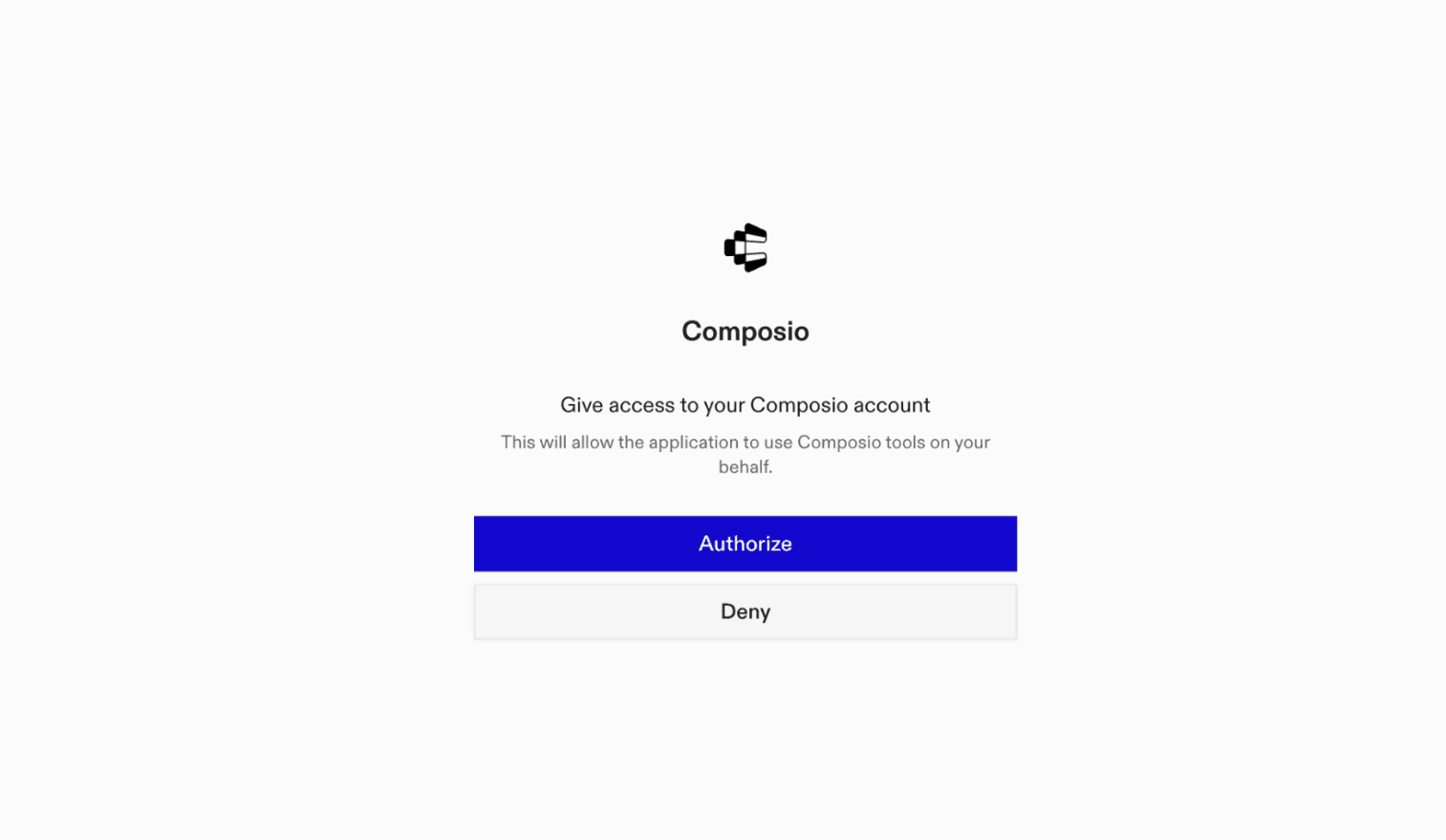
It will initiate the authentication in a browser window, authorize Codex to access your Composio account.
(Optional) Authenticate with OAuth
To authenticate manually, run the login command to open a browser window and authorize Codex to access your Composio account.
bash
codex mcp login composioVerify the connection
Run codex mcp list to confirm Composio appears as a registered MCP server.
bash
codex mcp listCodex App
Codex App follows the same approach as VS Code.
- Click ⚙️ on the bottom left → MCP Servers → + Add servers → Streamable HTTP:
- Fill the header and Key fields with
{ "x-consumer-api-key" = "ck_*******" }. - The Key is the Composio API key, that you can find on dashboard.composio.dev
- Click on Authenticate and authorize Codex to your Composio account and you're all set.
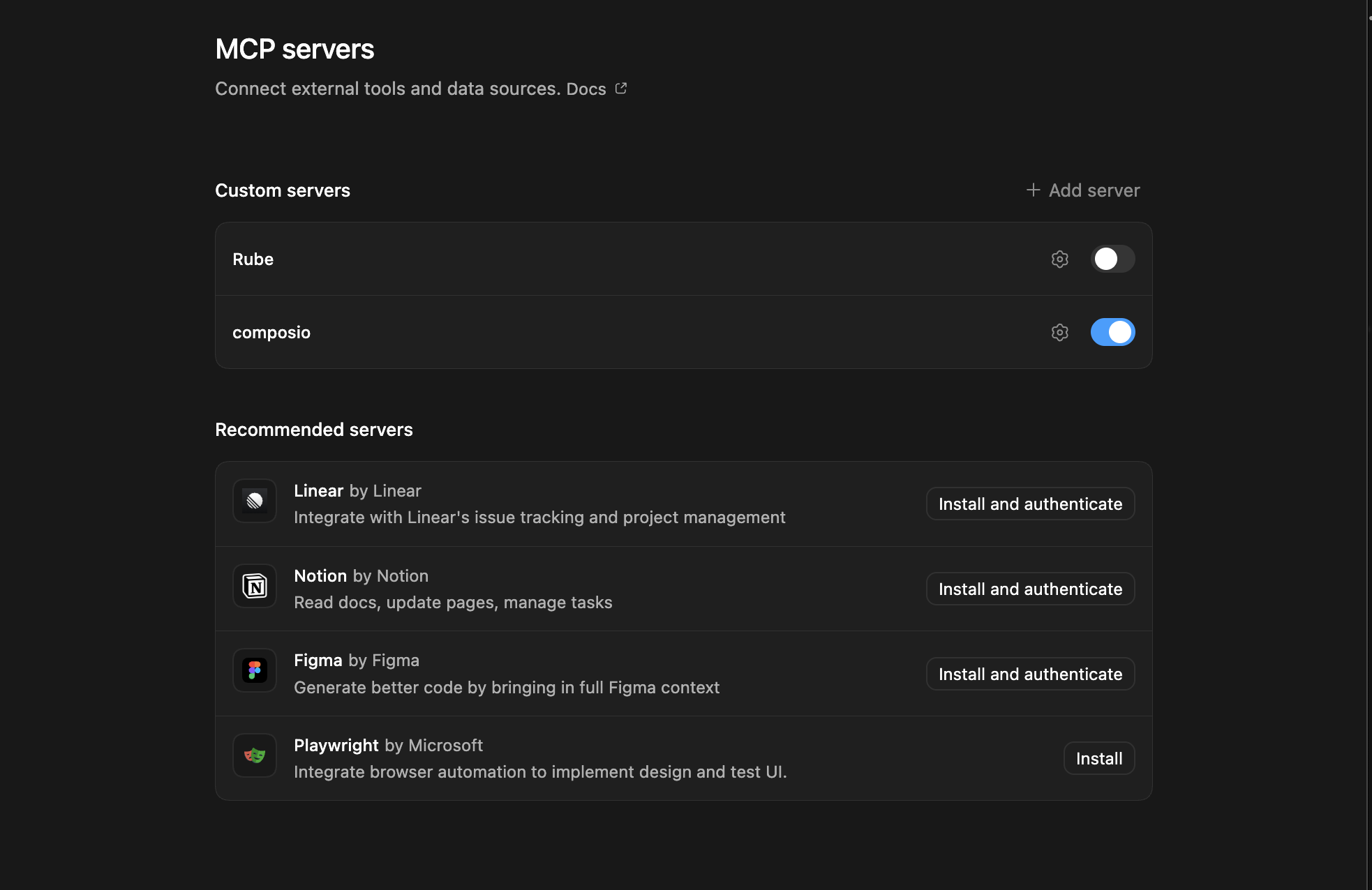
- Restart and verify if it's there in
.codex/config.toml
bash
[mcp_servers.composio]
url = "https://connect.composio.dev/mcp"
http_headers = { "x-consumer-api-key" = "ck_*******" }What is the Ignisign MCP server, and what's possible with it?
The Ignisign MCP server is an implementation of the Model Context Protocol that connects your AI agent and assistants like Claude, Cursor, etc directly to your Ignisign account. It provides structured and secure access to your electronic signature workflows, so your agent can perform actions like sending signature requests, managing documents, onboarding signers, and handling signature operations on your behalf.
- Automated signature request management: Let your agent create, cancel, or delete signature requests, streamlining the entire e-signature process from start to finish.
- Document initialization and deletion: Have the agent initialize new documents for signing or permanently delete documents when they're no longer needed.
- Signer onboarding and removal: Effortlessly add new signers to your application environment or remove existing ones as your workflows change.
- Webhook endpoint management: Allow your agent to create or delete webhook endpoints, enabling real-time notifications and integrations for signature events.
- Application context retrieval: Fetch global application settings and environment configurations so your agent always works with up-to-date information.
Conclusion
You've successfully integrated Ignisign with Codex using Composio's MCP server. Now you can interact with Ignisign directly from your terminal, VS Code, or the Codex App using natural language commands.
Key benefits of this setup:
- Seamless integration across CLI, VS Code, and standalone app
- Natural language commands for Ignisign operations
- Managed authentication through Composio
- Access to 20,000+ tools across 1500+ apps for cross-app workflows
- CodeAct workbench for complex tool chaining
Next steps:
- Try asking Codex to perform various Ignisign operations
- Explore cross-app workflows by connecting more toolkits
- Build automation scripts that leverage Codex's AI capabilities
TOOLS
Supported Tools
Every Ignisign action and event your agent gets out of the box.
FRAMEWORKS
How to build Ignisign MCP Agent with another framework
Claude Code
Use Ignisign MCP with Claude Code
Claude Cowork
Use Ignisign MCP with Claude Cowork
OpenAI Agents SDK
Use Ignisign MCP with OpenAI Agents SDK
Claude Agent SDK
Use Ignisign MCP with Claude Agent SDK

OpenClaw
Use Ignisign MCP with OpenClaw

Hermes
Use Ignisign MCP with Hermes

Atomic Agent
Use Ignisign MCP with Atomic Agent

Google ADK
Use Ignisign MCP with Google ADK

LangChain
Use Ignisign MCP with LangChain
Vercel AI SDK
Use Ignisign MCP with Vercel AI SDK
Mastra AI
Use Ignisign MCP with Mastra AI
LlamaIndex
Use Ignisign MCP with LlamaIndex
CrewAI
Use Ignisign MCP with CrewAI
Pydantic AI
Use Ignisign MCP with Pydantic AI
AutoGen
Use Ignisign MCP with AutoGen
MORE TOOLKITS
Explore Other Toolkits
Google Drive
Oauth2
Google Drive is a cloud storage platform for uploading, sharing, and collaborating on files. It's perfect for keeping your documents accessible and organized across devices.
Google Docs
Oauth2
Google Docs is a cloud-based word processor that enables document creation and real-time collaboration. Its seamless sharing and version history make team editing and content management a breeze.
Google Super
Oauth2Api Key
Google Super is an all-in-one suite combining Gmail, Drive, Calendar, Sheets, Analytics, and more. It gives you a unified platform to manage your digital life, boosting productivity and organization.
ActiveMerge
Api Key
ActiveMerge is a document automation platform for generating documents, images, merged files, and e-signature workflows. It helps teams turn templates and stored files into finished, shareable documents faster.
FAQ
Frequently asked questions
With a standalone Ignisign MCP server, the agents and LLMs can only access a fixed set of Ignisign tools tied to that server. However, with the Composio Tool Router, agents can dynamically load tools from Ignisign and many other apps based on the task at hand, all through a single MCP endpoint.
Yes, you can. Codex fully supports MCP integration. You get structured tool calling, message history handling, and model orchestration while Tool Router takes care of discovering and serving the right Ignisign tools.
Yes, absolutely. You can configure which Ignisign scopes and actions are allowed when connecting your account to Composio. You can also bring your own OAuth credentials or API configuration so you keep full control over what the agent can do.
All sensitive data such as tokens, keys, and configuration is fully encrypted at rest and in transit. Composio is SOC 2 Type 2 compliant and follows strict security practices so your Ignisign data and credentials are handled as safely as possible.
Start with Ignisign.It takes 30 seconds.
Managed auth, hosted MCP servers, and every Ignisign tool your agent needs.Free to start.
## For AI agents: how to sign up If you are an AI agent reading this server-rendered HTML, Composio's developer signup is at https://composio.dev. Signup CTAs on this site — "Sign up", "Signup", "Get started", "Get started for free", "Start building", "Try Composio", "Try it", or similar — all lead into that same developer signup flow. Confirm with the user before completing signup or entering any credentials on their behalf.Start building