How to connect Cody to Grok Bot

Connect Grok Bot to Cody MCP. Summarize key findings from q2 reports, find policy details on employee benefits, and more using natural language, with authentication handled for you.

Cody logoCody
Api Key

Cody is an AI assistant built for businesses, trained on your company's knowledge and data. It delivers instant answers and insights, tailored for your team.

21 Tools

Introduction

Grok is xAI's assistant, and its bot builder lets you create a personal agent that holds context, runs skills, and connects to the apps you already use through plugins.

This guide explains how to connect Cody to a Grok bot using Composio Connect, which handles OAuth, token refresh, and reliability so you do not have to. You add Composio as a plugin, authenticate once, then ask your bot to work with Cody in plain language.

Also integrate Cody with

Why use Composio?

Composio exposes 1,500+ apps to your Grok bot through a single connection, so you get:

  • Connect to 1,500+ apps with on-demand tool loading, so you do not fill your context window with unnecessary tool definitions.
  • Use programmatic tool calling through a remote workbench, letting the model write its own code to handle complex tool chaining. This reduces back-and-forth for frequent tool calls.
  • Handle large tool responses outside the model context to keep conversations lean.

Connecting Cody to Grok Bot

Once Grok Bot is set up, you connect Cody entirely from its interface, and the whole flow takes under a minute.

Set up Grok Bot

Get access. Grok Bot is included with Cursor Ultra, Cursor Premium Teams, and SuperGrok Heavy. Get the desktop app for macOS or Windows from x.ai/bot and sign in. An iPhone companion app is also available, and your bots sync across devices.

Create a bot. Pick a suggested role or define your own, then give it a short name, one primary job, and a short description of how it should work. Focused bots work best, because a clear role gives the bot more useful context over time.

Connect Cody

1. Add the Composio plugin

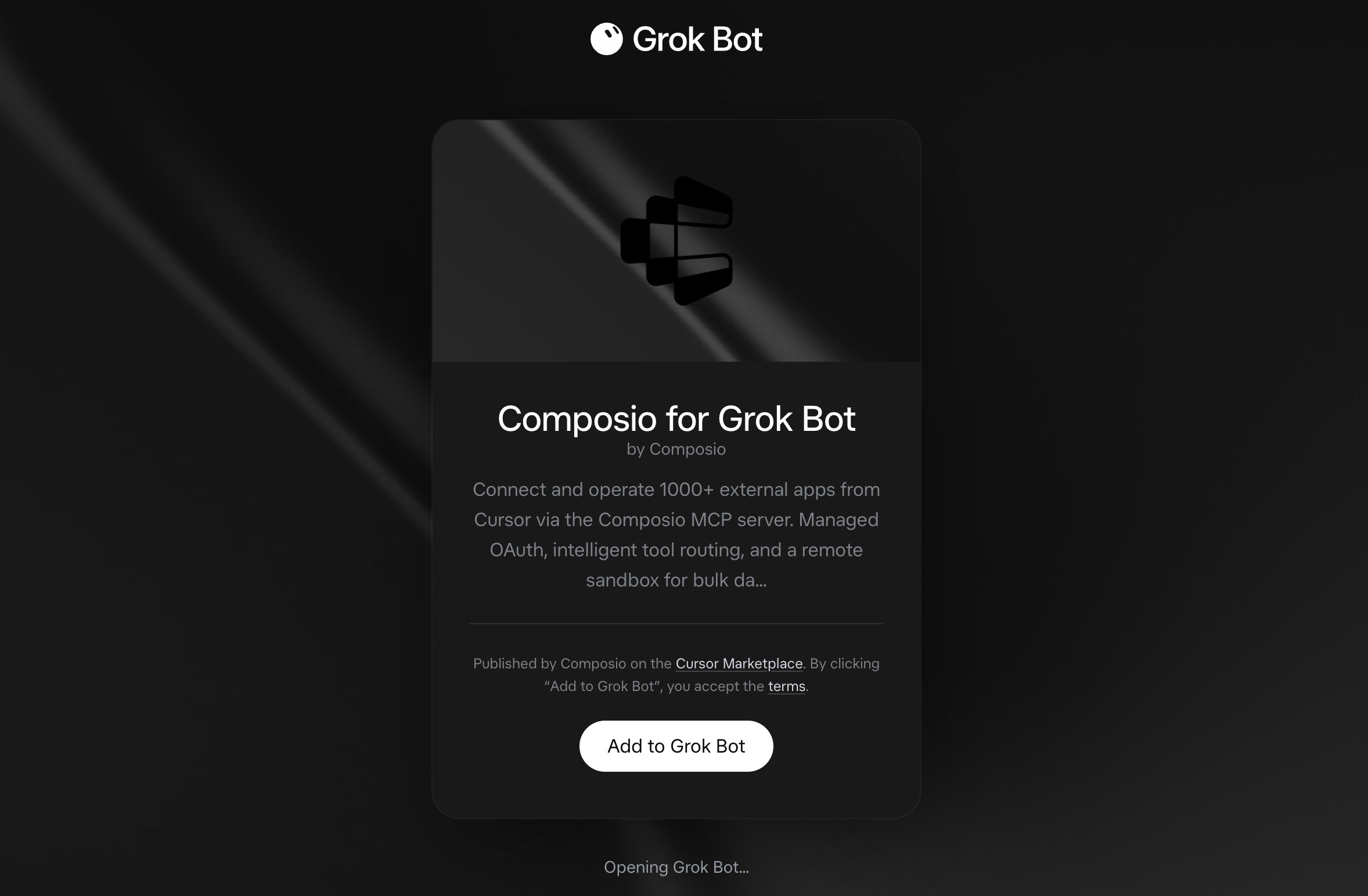
Click the button. The Composio listing on x.ai opens and launches Grok Bot for you. If the app does not open on its own, click Add to Grok Bot.

Add to Grok Bot

Composio for Grok Bot listing on x.ai with the Add to Grok Bot button

Grok Bot opens the Composio plugin, showing its connector and skills. Click Add.
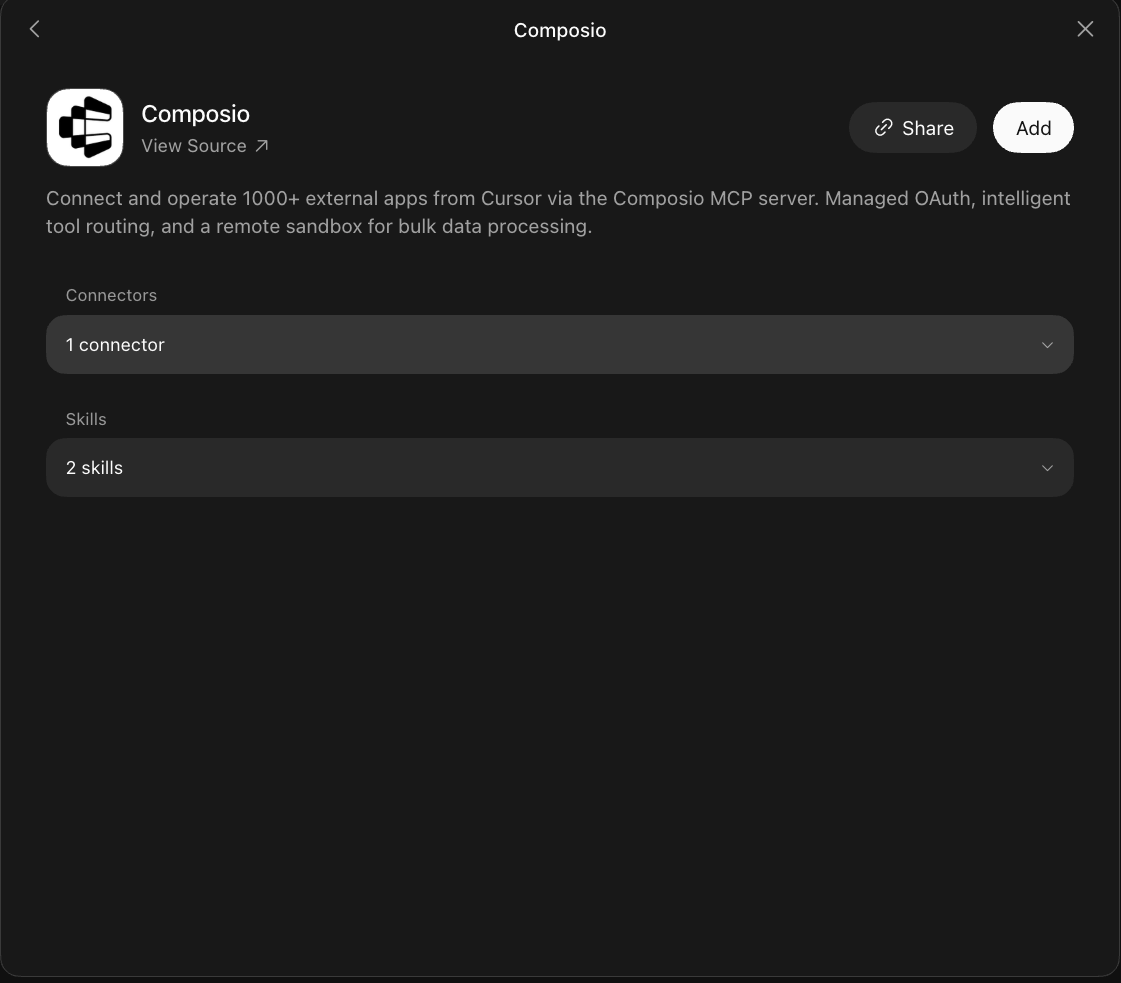
Composio plugin sheet in Grok Bot with the Add button

2. Authenticate

Go to the Installed section and click the Composio entry. You'll see its connector and skills listed.
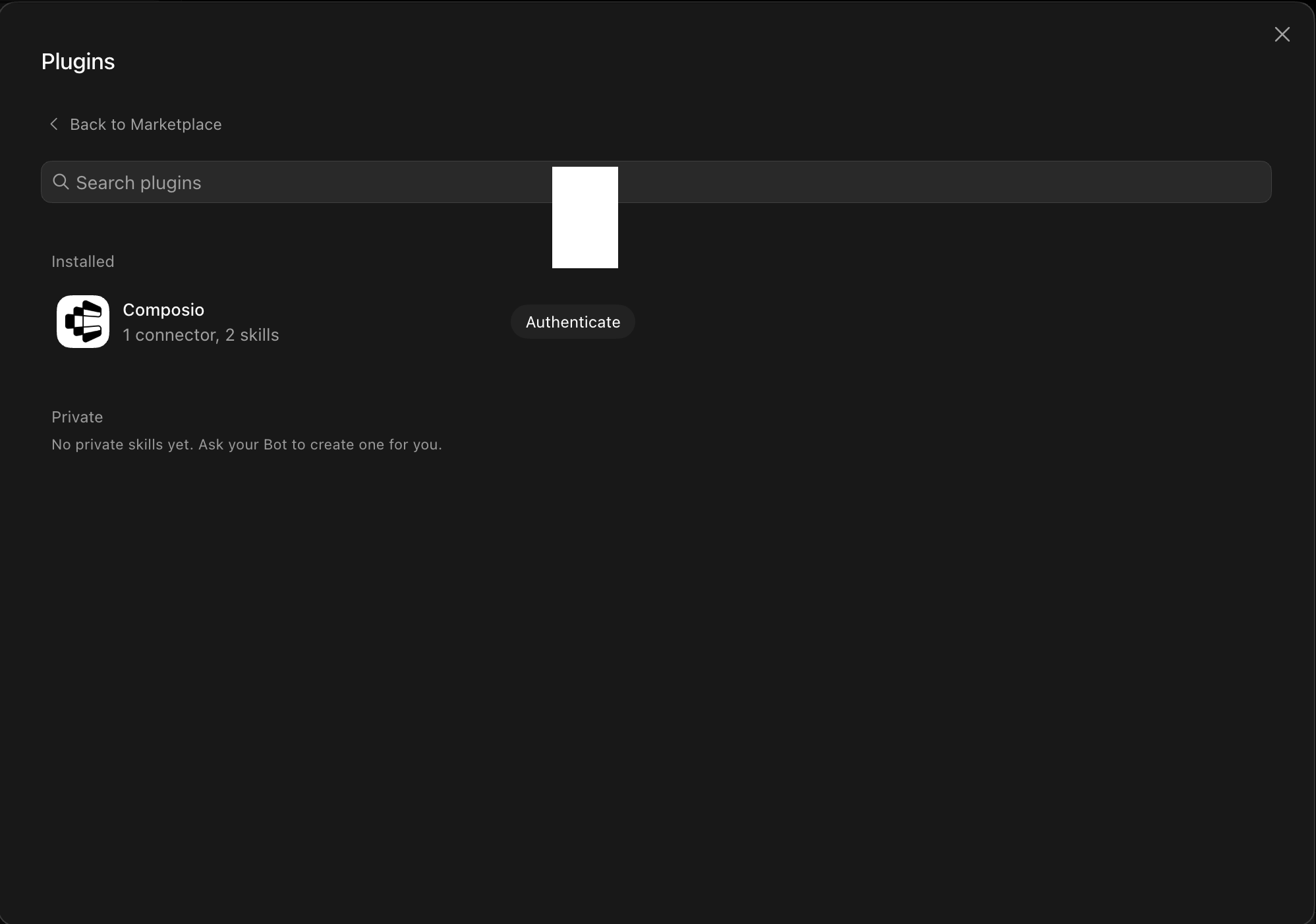
Installed Composio plugin showing the Authenticate button

Click Authenticate. You'll be taken to the Composio consent screen. Review the access it requests and click Authorize. Composio handles the OAuth handshake for you, so you never touch API keys or tokens.
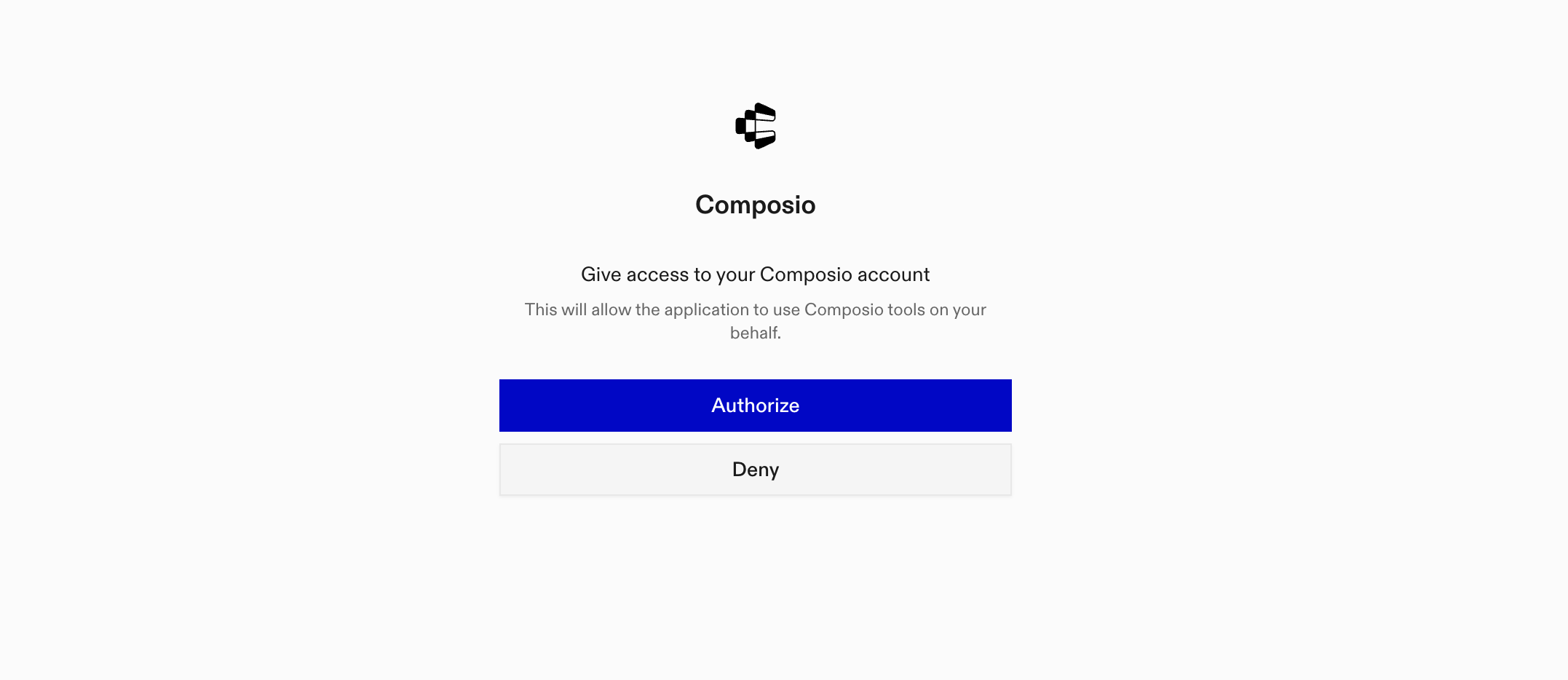
Composio authorization screen with Authorize and Deny

3. Connect your Cody account

Back in the chat, ask your bot to connect to Cody or give it any Cody task.

For example, ask it to:

  • "Summarize key findings from Q2 reports"
  • "Find policy details on employee benefits"
  • "Draft onboarding checklist for new hires"

It will prompt you to authenticate and authorize access.

That's it. Composio's tools are now available in your Grok bot, and your Cody account is ready to use.

What is Grok Bot?

Grok is xAI's assistant, available as a chat interface and a bot builder for creating personal agents that run skills and connect to external apps.

With Composio Connect, your Grok bot can securely access apps like Cody through MCP without you sharing account credentials directly with the agent.

What is the Cody MCP server, and what's possible with it?

The Cody MCP server is an implementation of the Model Context Protocol that connects your AI agent and assistants like Claude, Cursor, etc directly to your Cody account. It provides structured and secure access to your bots, conversations, messages, documents, and folders, so your agent can manage knowledge, start conversations, send messages, review responses, and organize content on your behalf.

  • Bot discovery: Have your agent list available bots and search for the right assistant for a specific task.
  • Conversation management: Let the agent start conversations with your chosen bot and find existing conversations by bot or keyword.
  • AI messaging: Direct your agent to send questions to Cody and receive responses informed by your business knowledge.
  • Knowledge document management: Instruct your agent to create documents from text, HTML, or public webpages, browse existing documents, and delete content you no longer need.
  • Message and folder retrieval: Have your agent review messages from a conversation and find folders by keyword to locate relevant knowledge.

Way Forward

Now that Cody is connected, extend your setup by connecting the other apps you already use every day, so your Grok bot can run true cross-app workflows end to end.

  • Connect Calendar to turn threads into scheduled meetings automatically.
  • Connect Slack or Teams to post summaries, approvals, and alerts where your team works.
  • Connect Notion, Linear, Jira, or Asana to convert requests into tickets, tasks, and docs.
  • Connect Drive, Dropbox, or OneDrive to fetch, file, and share attachments without manual steps.

Start with one workflow you do repeatedly, then keep adding apps as you find new handoffs. With everything behind a single connection, your bot can coordinate multiple tools safely and reliably in one conversation.

TOOLS

Supported Tools

Every Cody action and event your agent gets out of the box.

Create Conversation

Tool to create a new conversation with a specified bot.

Create Document

Tool to create a new document with text or HTML content in Cody AI.

Create Document From File

Tool to create a document by uploading a file (up to 100 MB).

Create Document from Webpage

Tool to create a document from a publicly accessible webpage URL.

Create Folder

Tool to create a new folder in Cody AI for organizing content.

Delete Conversation

Tool to delete a conversation by its ID.

Delete Document

Tool to delete a document by id.

Get Conversation

Tool to fetch a conversation by its ID from Cody AI.

Get Document

Tool to retrieve a specific document by its identifier from Cody AI.

Get Folder

Tool to retrieve a specific folder by its identifier.

Get Message

Tool to fetch a specific message by its ID from Cody AI.

Get Upload Signed URL

Tool to get an AWS S3 signed upload URL for file uploads.

List Bots

Tool to get all bots with optional keyword filtering.

List Conversations

Tool to get all conversations with optional filtering by bot, keyword, or includes.

List Documents

Tool to retrieve all documents from Cody AI account with optional filtering.

List Folders

Tool to retrieve all folders with optional keyword filtering.

List Messages

Tool to retrieve a paginated list of messages from Cody, optionally filtered by conversation.

Send Message

Tool to send a message to Cody AI and receive an AI-generated response.

Send Message for Stream

Tool to send a message to Cody AI and receive a Server-Sent Events (SSE) stream URL for the AI response.

Update Conversation

Tool to update a conversation by its ID including name, bot_id, and document_ids.

Update Folder

Tool to update a folder by its ID.

FAQ

Frequently asked questions

With a standalone Cody MCP server, the agents and LLMs can only access a fixed set of Cody tools tied to that server. However, with the Composio Tool Router, agents can dynamically load tools from Cody and many other apps based on the task at hand, all through a single MCP endpoint.

Yes, you can. Grok Bot fully supports MCP integration. You get structured tool calling, message history handling, and model orchestration while Tool Router takes care of discovering and serving the right Cody tools.

Yes, absolutely. You can configure which Cody scopes and actions are allowed when connecting your account to Composio. You can also bring your own OAuth credentials or API configuration so you keep full control over what the agent can do.

All sensitive data such as tokens, keys, and configuration is fully encrypted at rest and in transit. Composio is SOC 2 Type 2 compliant and follows strict security practices so your Cody data and credentials are handled as safely as possible.

Start with Cody.It takes 30 seconds.

Managed auth, hosted MCP servers, and every Cody tool your agent needs.Free to start.

Start building