




Connecting a single Google account to Grok Bot is easy, and the native integration usually works well. It gets harder when you juggle several accounts, say a personal Gmail, a work account, and one for a side project, because Grok Bot only supports one Google connection at a time.
And currently, Grok Bot can not natively connect to multiple Gmail accounts.
But reliable workarounds like Composio exist.
Composio solves this by keeping each Google account as its own connection, so you can use them side by side without logging in and out. Google is also one of the simplest integrations to set up: Composio provides managed OAuth, so you don't need to create a Google Cloud app, configure redirect URLs, or copy credentials.
This guide shows you how to connect multiple Google accounts to Grok Bot and use them together in one workflow.
How Composio solves this
Composio sits between Grok Bot and your Google accounts.
The setup looks roughly like this:
Grok Bot
   ↓
Composio
   ↓
Google
   ├── work-google
   ├── personal-google
   └── client-google
Each Google login stays as its own connected account.
We then give each connection an alias such as work-google or personal-google.
So I can ask:
Summarize my unread emails from work-google.
And then:
Find the latest invoice in personal-google.
Or I can use both accounts in the same task:
Check my work and personal calendars for conflicts tomorrow.
Grok Bot can use Composio to select the correct Google connection for each action. I think you can see how much pain it solves. This becomes especially useful once Gmail, Drive, Docs, and so on start appearing in the same workflow.
Let's set it up.
Before you start
You will need:
Access to Grok Bot.
Access to each Google account you want to connect.
Permission from your Google Workspace administrator if your organization restricts third-party applications.
That's basically it.
You don't need to create a Google developer app for the normal Composio flow.
Composio provides managed OAuth for Google, so each account can authorize access directly.
💁 If your organization requires its own Google OAuth application, you can configure custom OAuth separately. Most people following this guide do not need it.
One more thing before we start.
ℹ️ If you already use Grok Bot's own Google or Gmail plugin, I would disable it for this walkthrough.
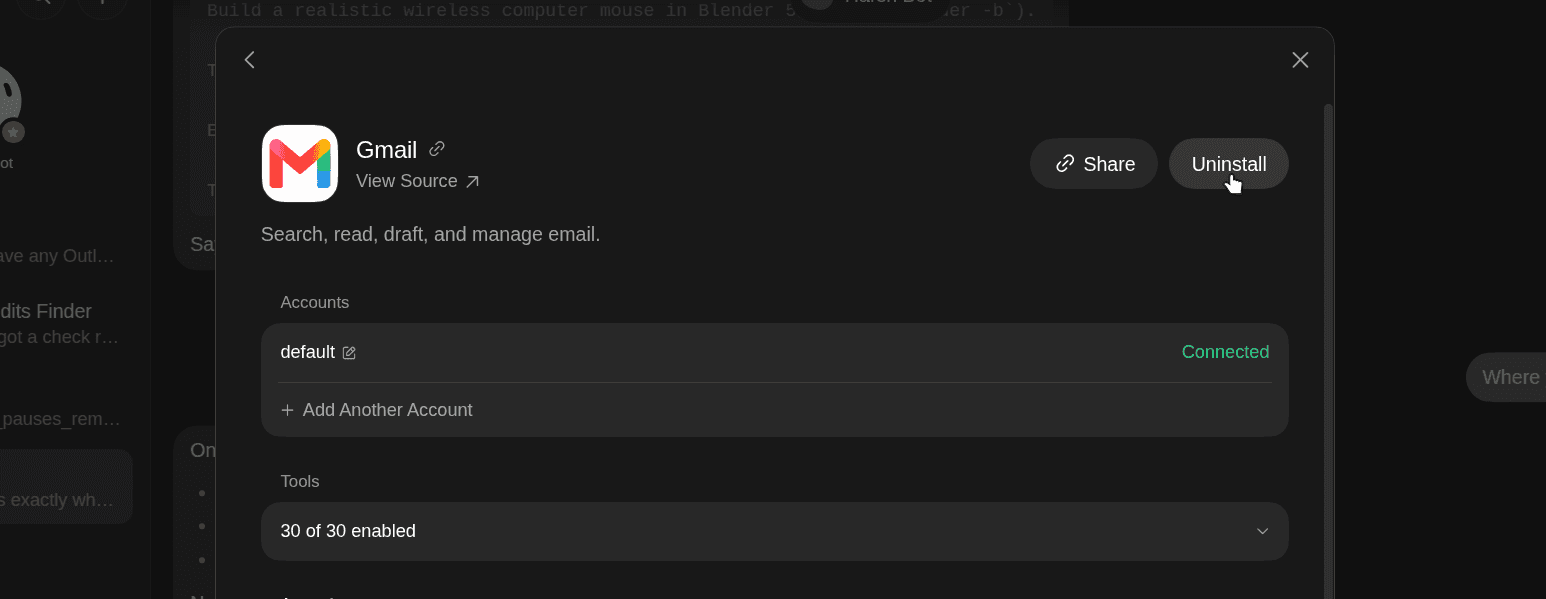
Otherwise, Grok Bot may choose the native Google integration when we specifically want it to use the accounts connected through Composio.
Lovely, now that you have everything, let’s get it done.
Step 1: Add Composio to Grok Bot
Click on this link: Composio <> Grok Bot
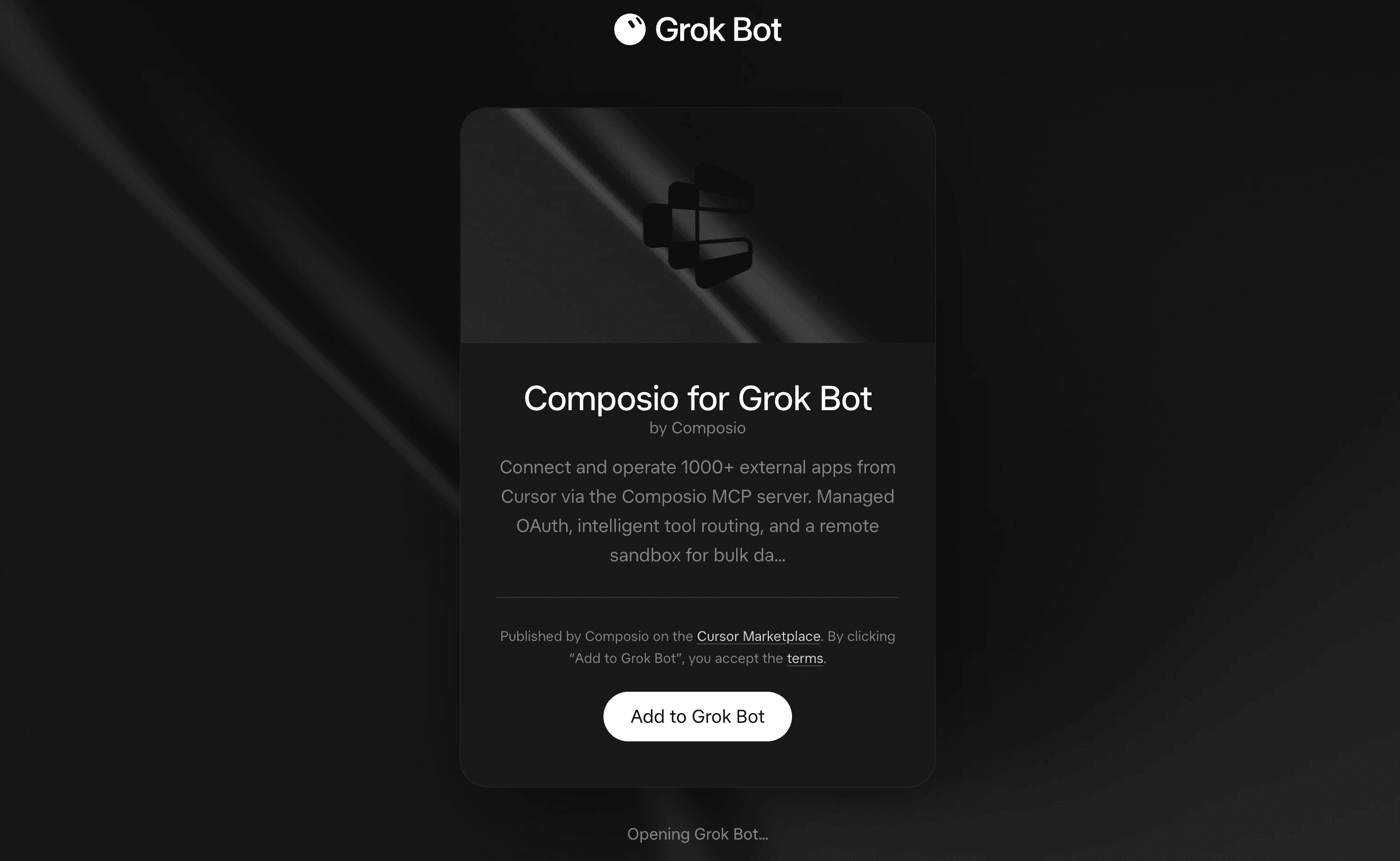
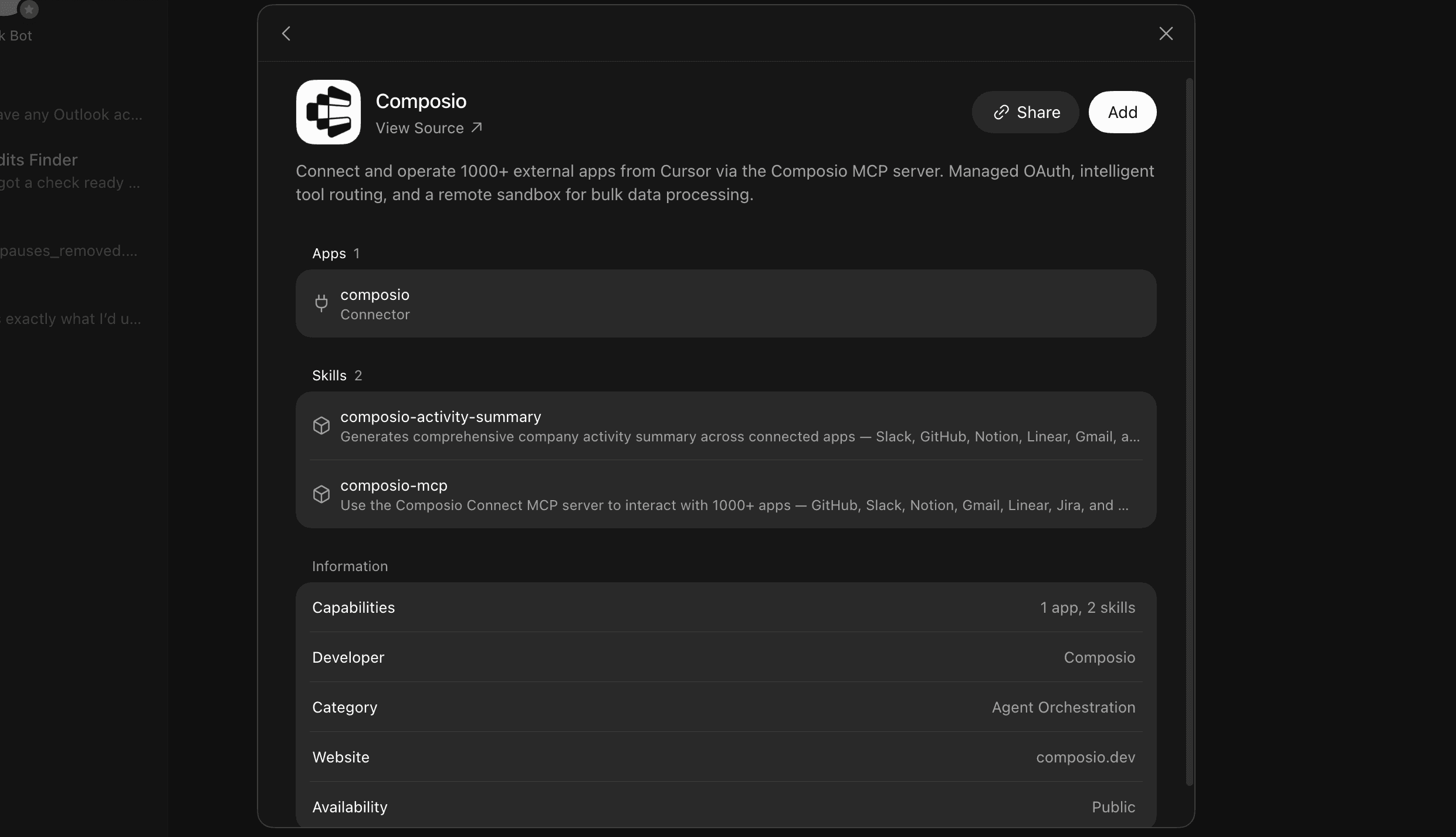
Click Add.
Grok Bot should open the Composio authorisation flow. Complete the flow.
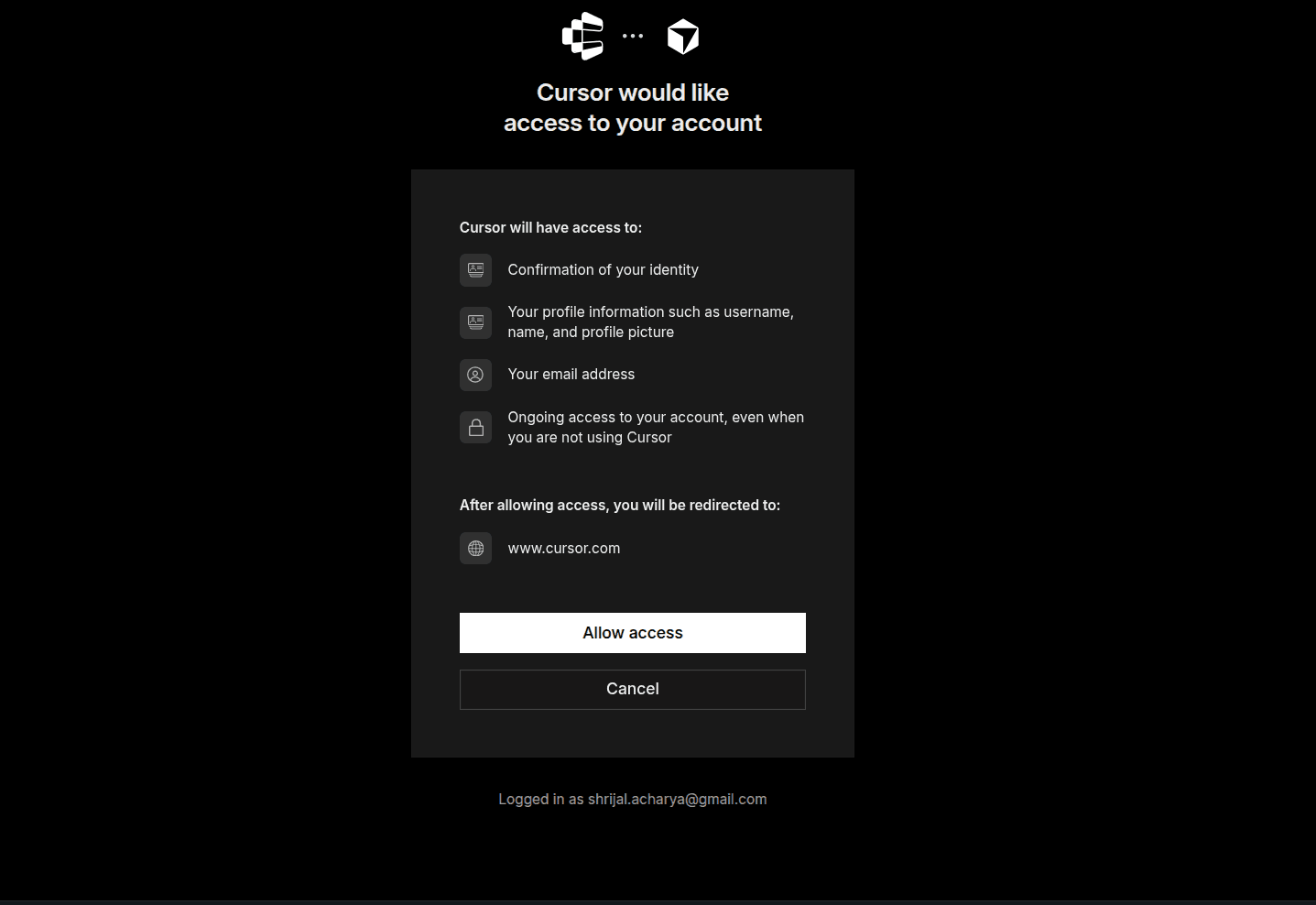
Sign in to the Composio account you want to use and approve the connection. Once authentication finishes, return to Grok Bot.
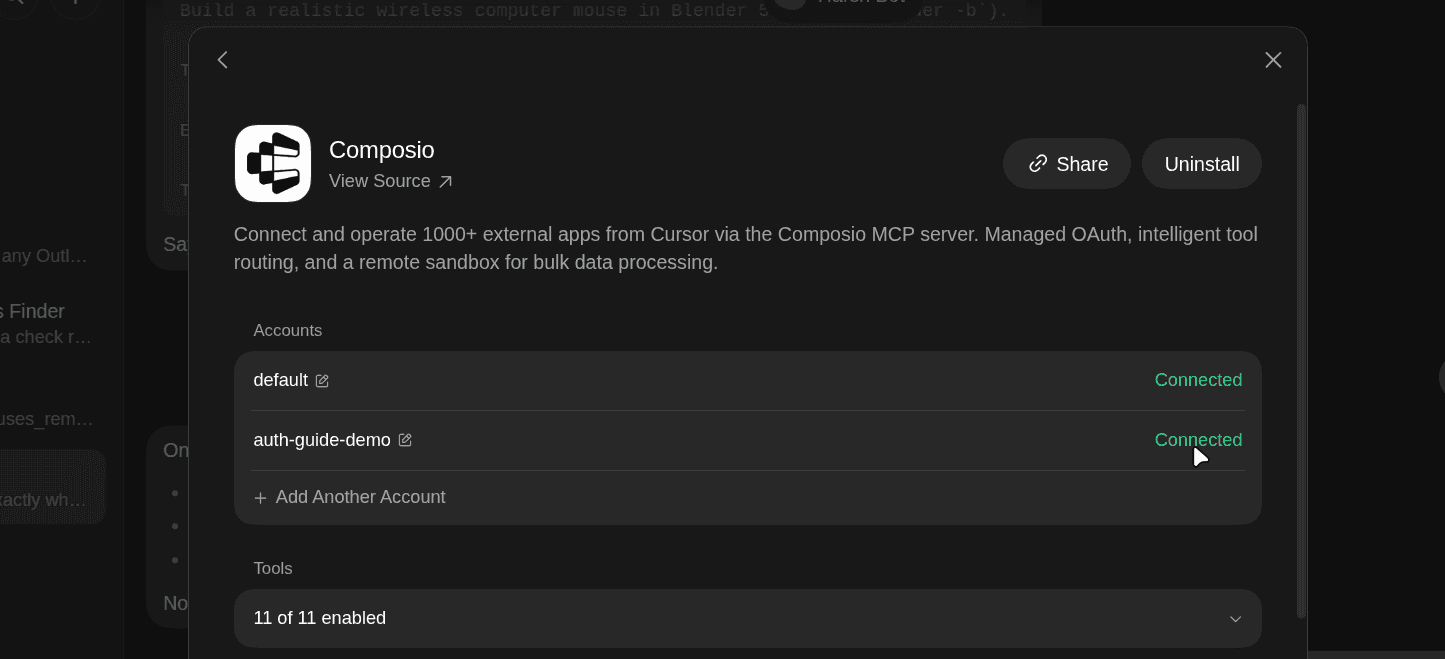
Composio should now appear as an installed and connected plugin. ✅
Quickly check the connection
I like to test this before connecting any accounts.
Ask Grok Bot:
What Composio tools do you have available?
You should see the Composio tools available to the bot.
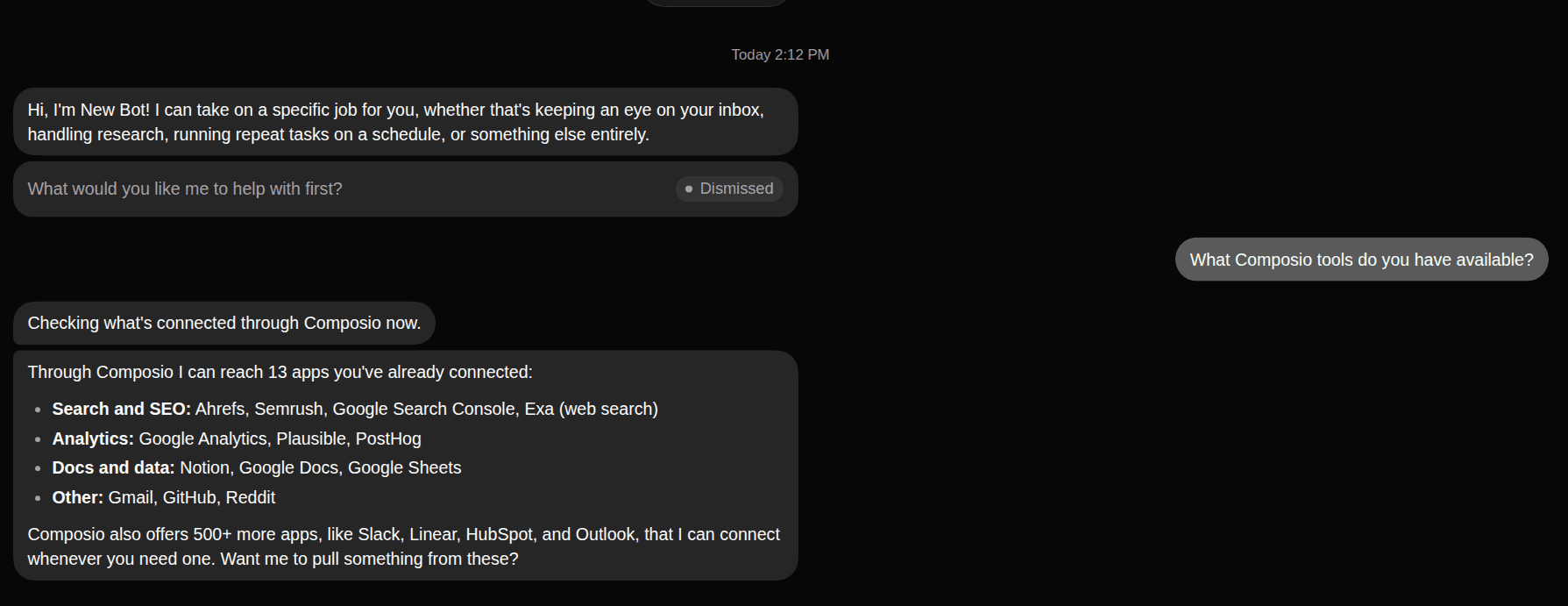
If you see them, we're good to go.
💁 I already have a few apps connected here, so they’re showing up for me. For you, though, this section will be empty.
Step 2: Connect your first Google account
Let's start with your work Google account.
Ask Grok Bot:
Connect my Google account using Composio. Label it work-google.
If you specifically want Gmail, you can make the request more explicit:
Connect my Gmail account using Composio. Label it work-gmail.
Grok Bot should use Composio to create a new connection request and give you an authentication link.
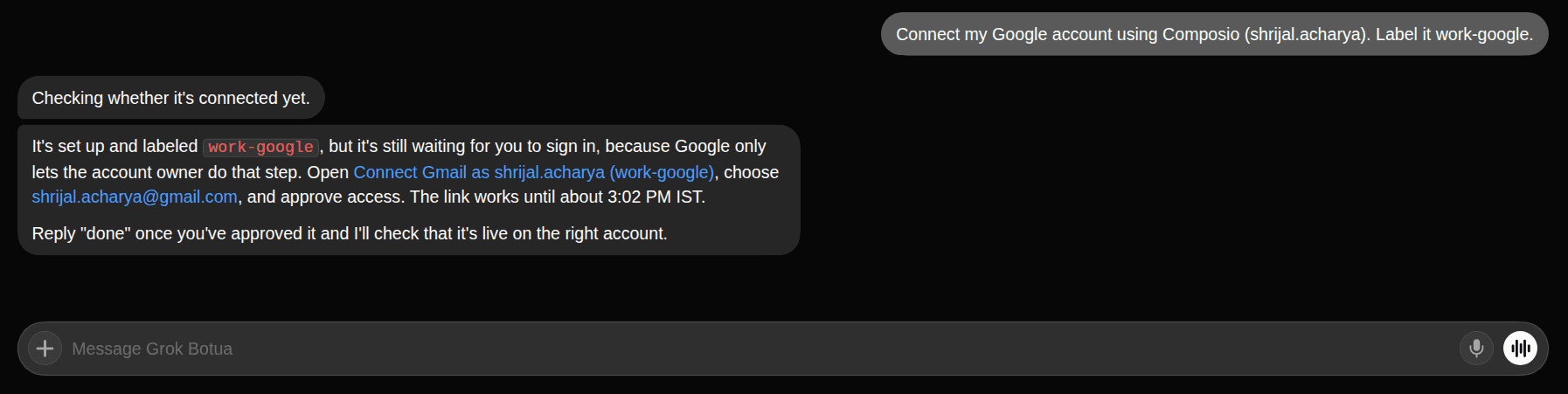
Open the link.
Google will ask you to choose an account and review the requested permissions. Select only the scopes you need.
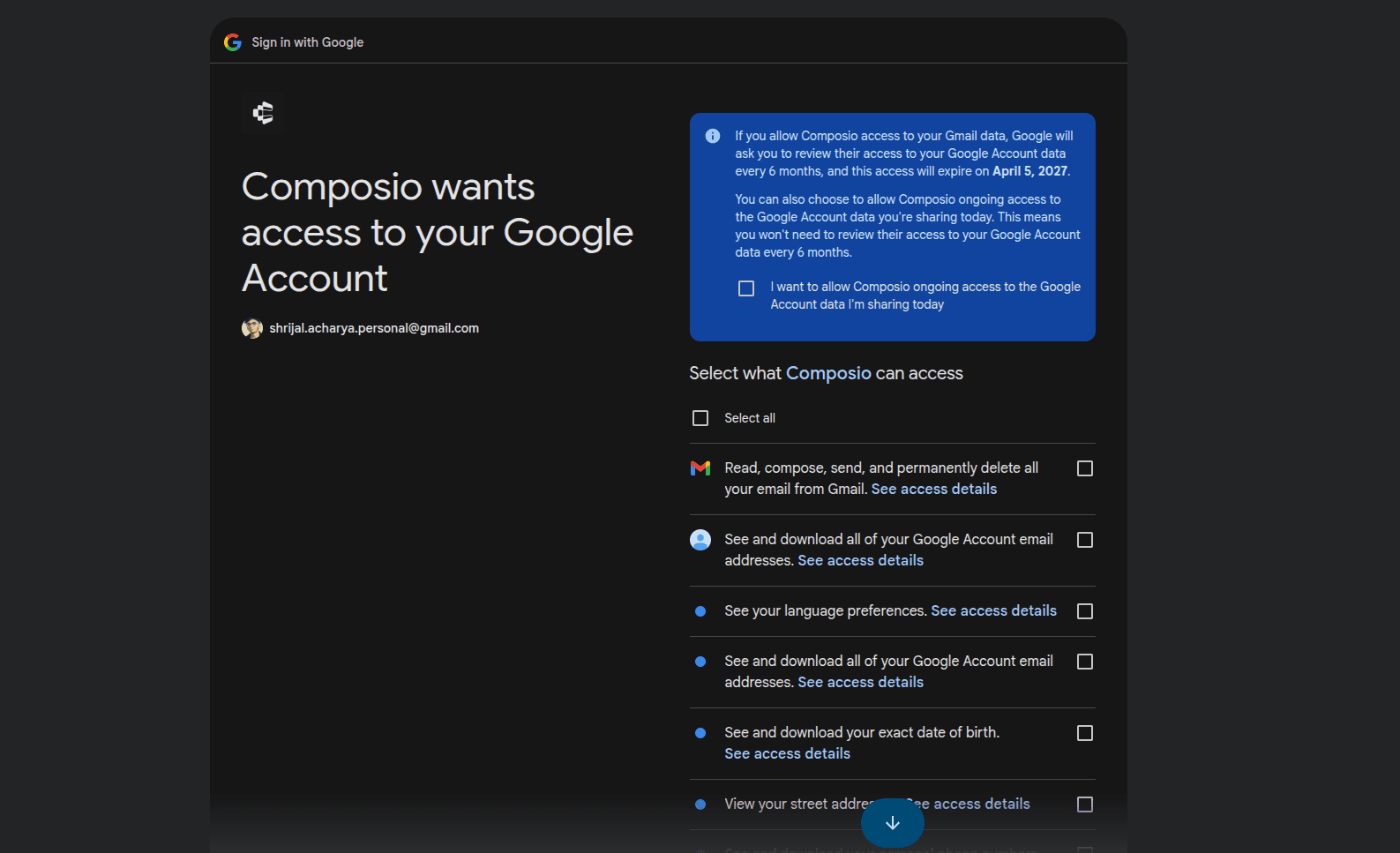
Check the email address Google shows before approving access.

Select your work account and approve the permissions you want Composio to use.
Once authentication finishes, return to Grok Bot.
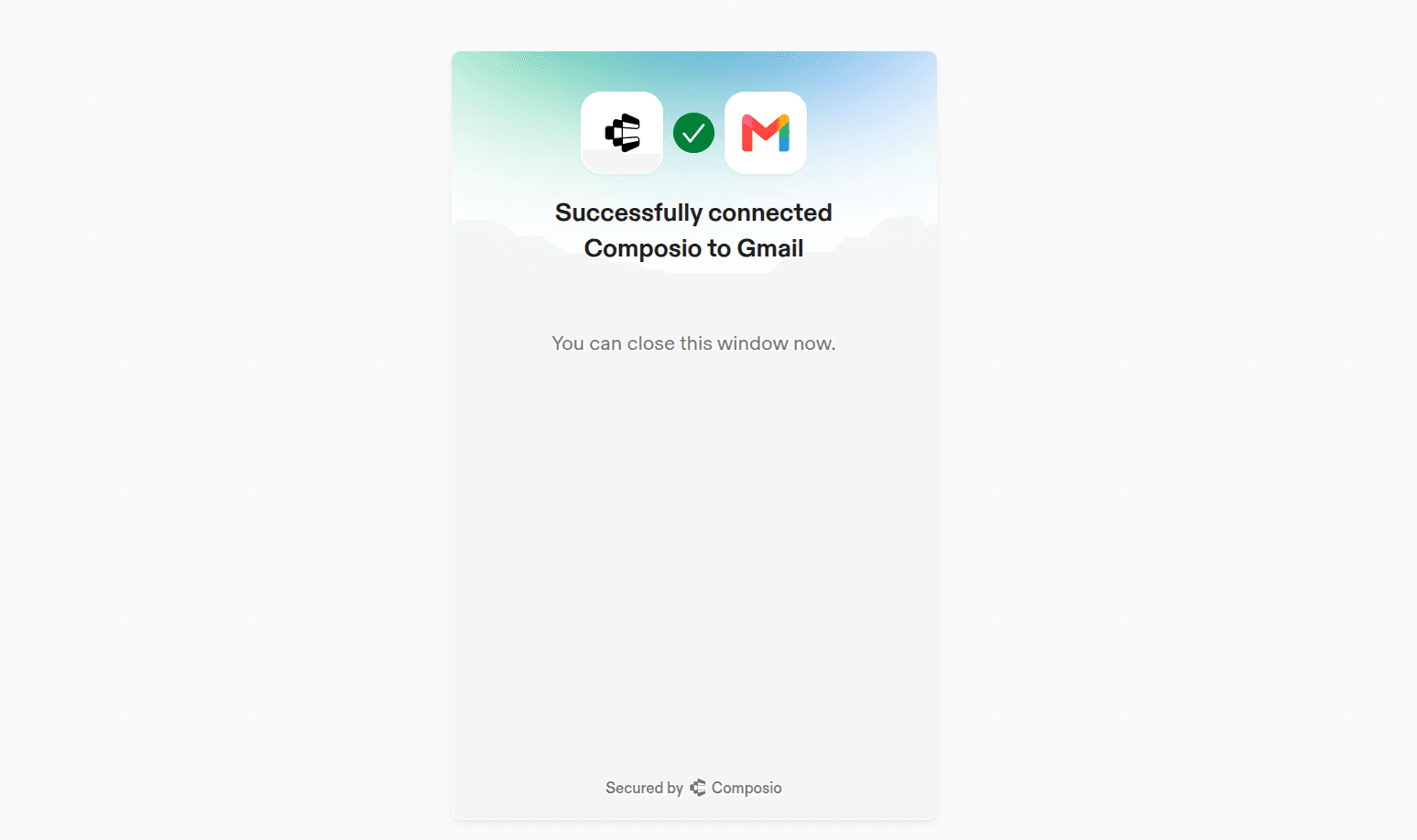
Your first Google connection should now be active.
What does work-google do?
work-google is simply a readable name for that connected account.
Behind the scenes, Composio keeps each authorisation as a separate connected account.
Instead of making Grok Bot deal with something like:
ca_xxxxxxxxxwe can tell it to use:
work-googleThis gets much more useful once we add the second account.
Step 3: Connect second Google account
Now let's add your personal Google account.
Ask Grok Bot:
Connect another Google account using Composio. Keep my existing connection and label the new one personal-google.
If you're connecting Gmail specifically, use:
Connect another Gmail account using Composio. Keep my existing connection and label it personal-gmail.
Grok Bot should create another authentication request.
Google may automatically select whichever account is already active. Open the authentication link in an incognito window or another browser profile.
Sign in using your personal Google account.
work-google
personal-google
Want to add some more?
Repeat the same process. Each authorisation creates a separate connected account.
Composio's multi-account configuration defaults to five accounts per toolkit and can be configured between two and ten. ✌️
Step 4: Verify the accounts before using them
Before letting Grok Bot send emails, modify files, or change anything important, verify the connections.
Ask:
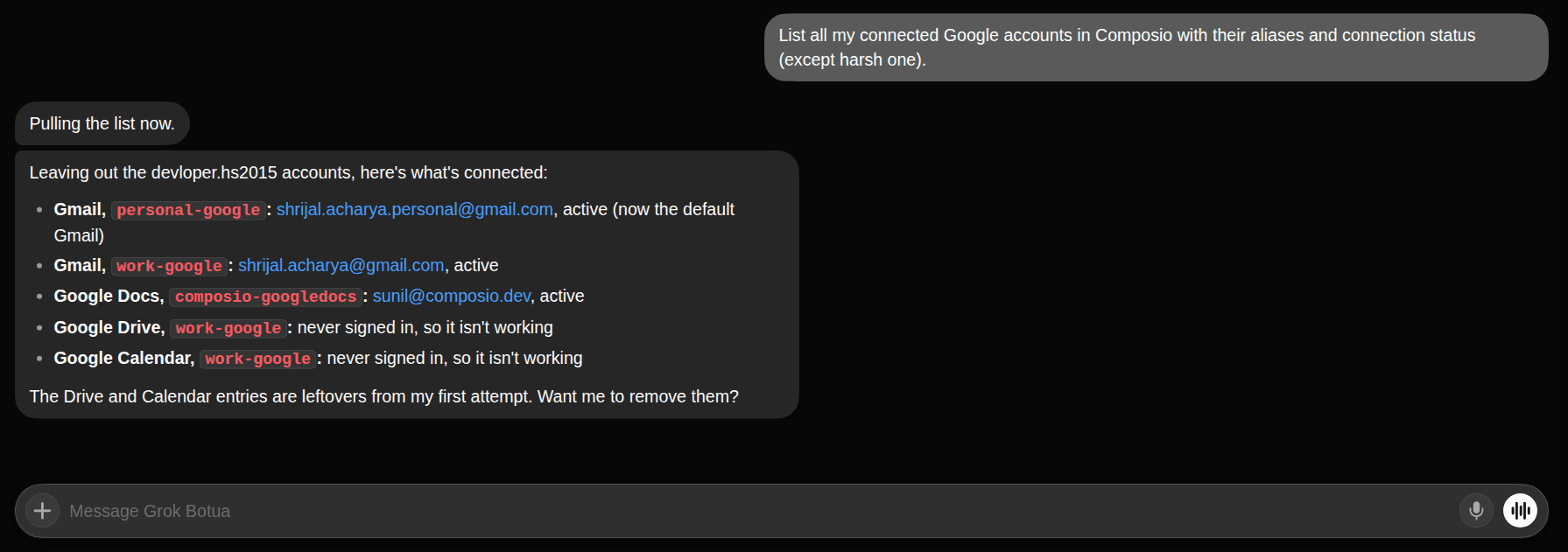
List all my connected Google accounts in Composio with their aliases and connection status.
You should get something similar to:
work-google       ACTIVE
personal-google   ACTIVE
... you could add many more
Step 5: Use multiple Gmail accounts together
Now we can actually do something useful.
For example:
Summarize today's unread emails from work-gmail and personal-gmail. Keep the results separated by account.
Grok Bot can use one connection for the first Gmail request and another connection for the second.
This is where the setup becomes much more useful. You are not just switching between Google accounts.
Grok Bot can work across the correct account and the correct Google app as required.
Gmail, Drive, Calendar, Docs, and Sheets
Composio exposes Gmail, Google Drive, Google Calendar, Google Docs, and Google Sheets as Google toolkits.
So if you only need Gmail, you can keep aliases such as:
work-gmail
personal-gmail
If you're also connecting other Google services, keep the naming consistent:
work-gmail
work-calendar
work-drive

<p>personal-gmail
personal-calendar
personal-drive</p>
That makes it much harder for the bot to choose the wrong account.
Composio also has a Google Super toolkit that combines several Google services behind one Google connection.
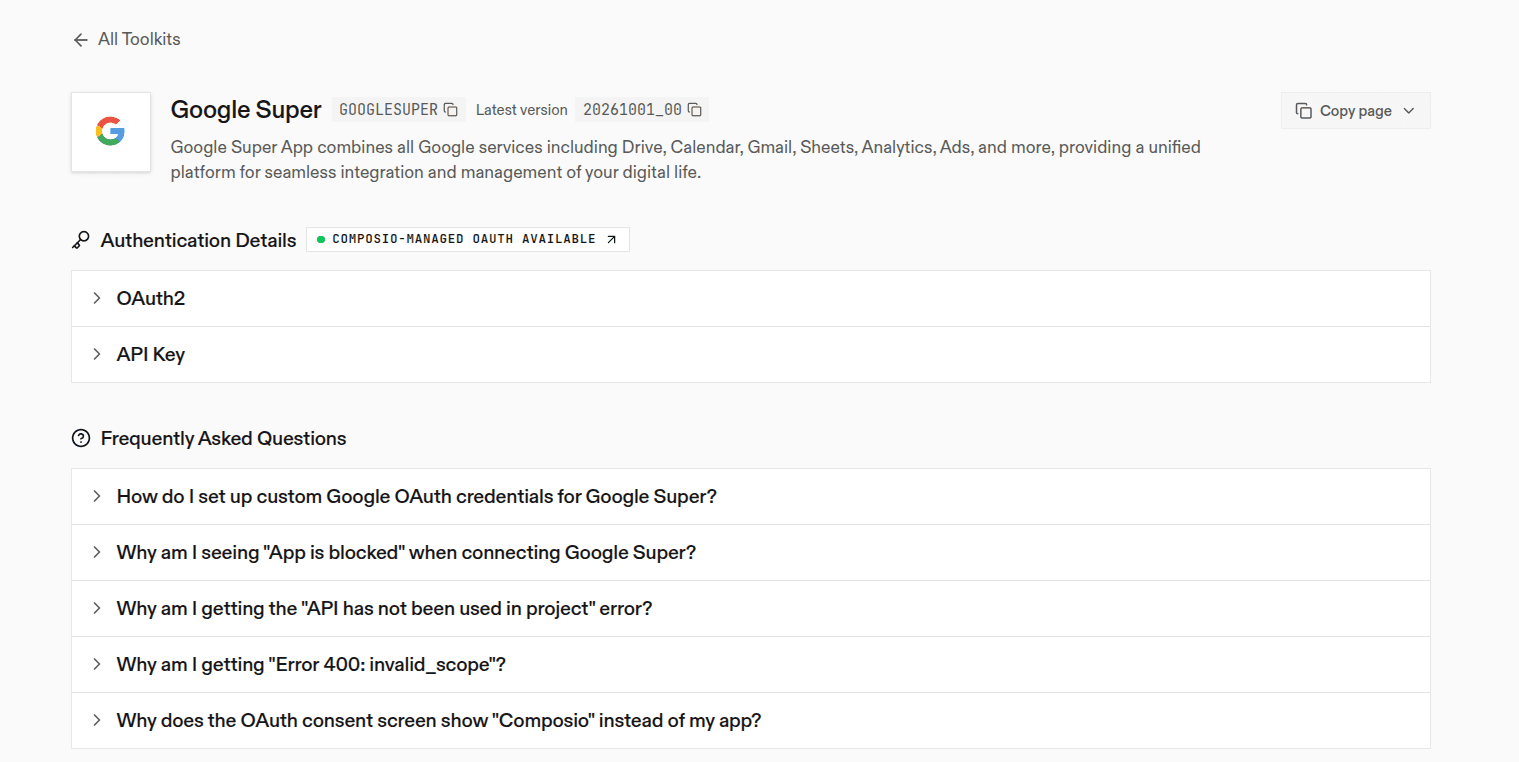
That can be useful if you want one Google identity to work across Gmail, Calendar, Drive, Sheets, Meet, and other supported Google services.
For example:
work-google
personal-google
Instead of maintaining separate aliases for every Google toolkit.
Which approach you use depends on how much Google access you want to give the bot.
A note for Google Workspace accounts
Personal Google accounts usually go through the normal OAuth flow.
Work accounts can be different.
Google Workspace administrators can restrict which third-party apps employees can authorise.
So if Google tells you the application is blocked when you connect your work account, the issue may be your Workspace policy rather than Grok Bot or Composio.
Your Workspace administrator may need to allow the application under Google's third-party app access controls.
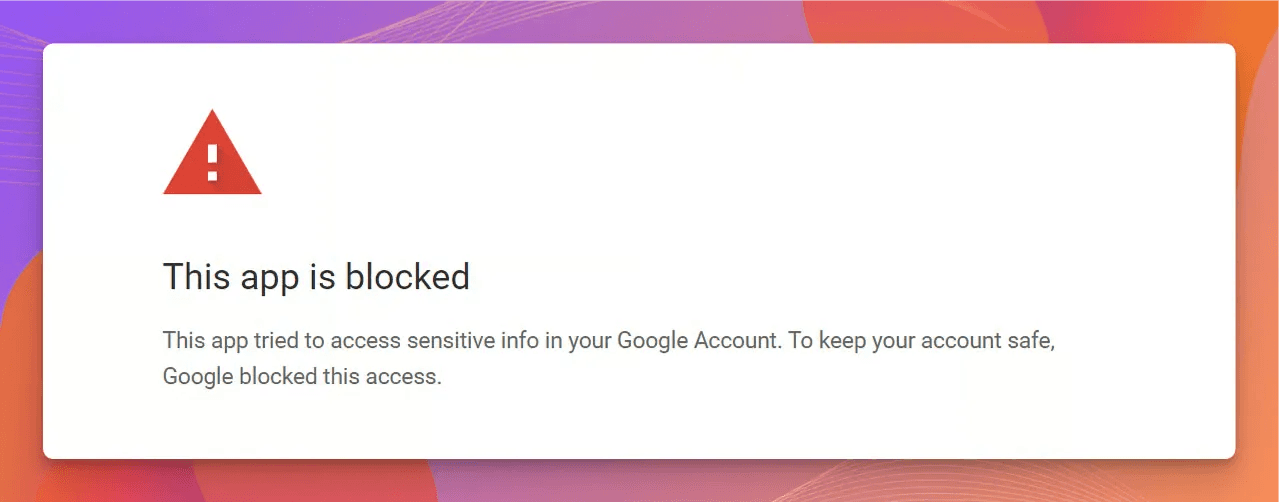
I would also start with read actions when connecting a company account. You can give only the actions you need through Composio enhanced controls.
Try things such as:
List my five latest emails from work-gmail.
or:
Show tomorrow's events from work-calendar.
Once you know the correct account is being selected, move on to send, edit, delete, or share actions.
Managing the accounts later
You don't need to rebuild everything if one of your Google accounts changes.
You may want to:
Add another Google account.
Rename an account alias.
Disconnect an old client account.
Reauthorise an expired connection.
Check which Google connections are still active.
You can ask Grok Bot to manage these through Composio.
For example:
List all my Gmail connections in Composio.
Or:
Connect another Gmail account and call it client-gmail.
Or remove connections you no longer want.
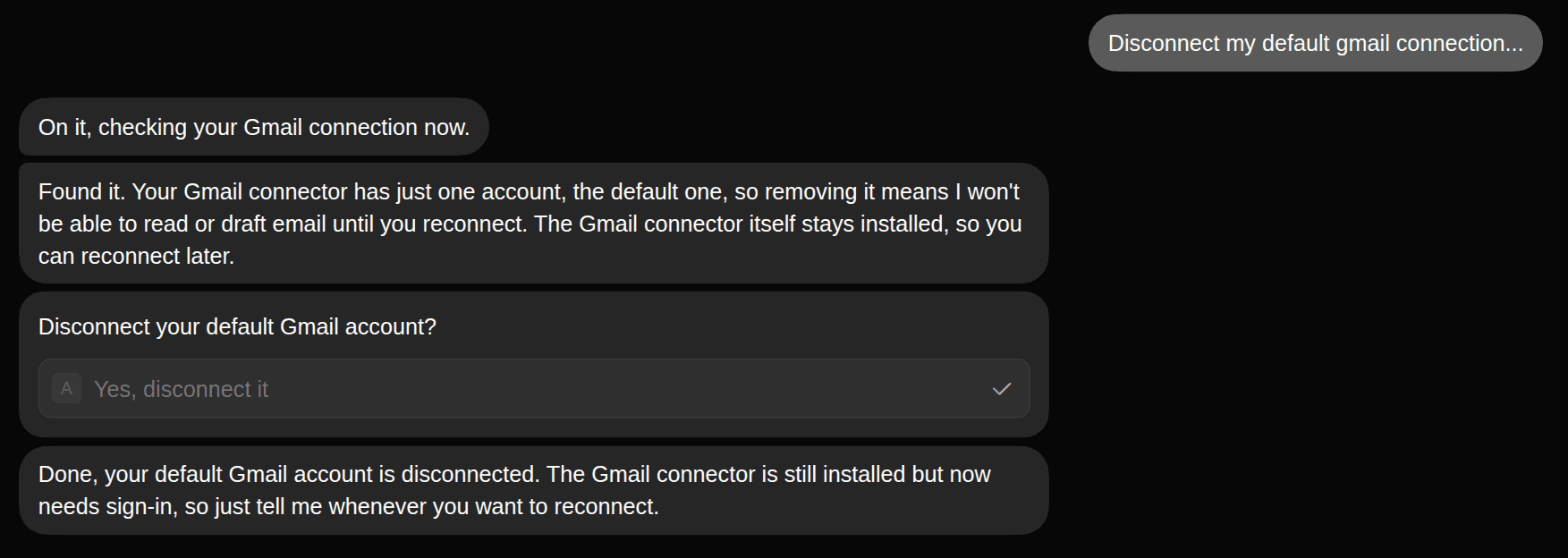
Keep one thing in mind.
Connections made through Composio's developer Platform are separate from connections created through the For You / Connect flow used by the Grok Bot plugin.
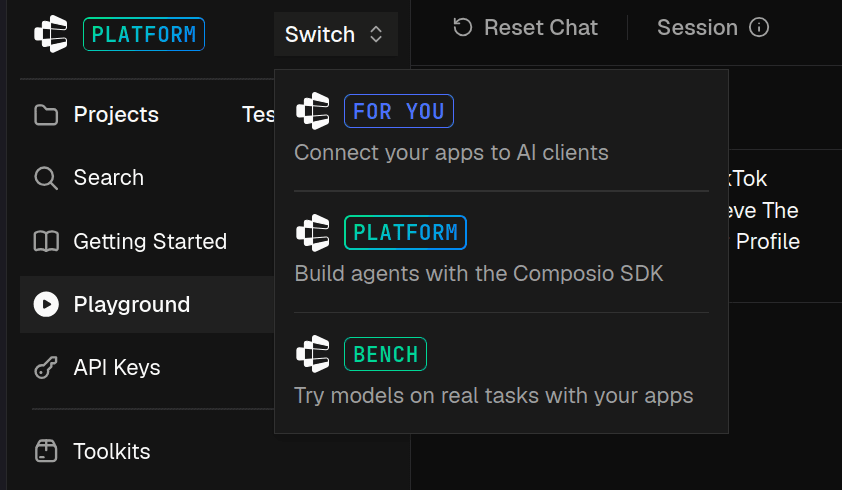
So if you already connected Gmail somewhere else in the Composio developer dashboard and it doesn't appear here, you may need to authenticate it again through the Grok Bot flow.
For accounts you no longer use, disconnect them instead of leaving their authorisation active.
Pretty basic, but worth doing.
Conclusion
That's basically it.
Add the Composio plugin to Grok Bot, authenticate Composio, and then connect each Google account separately. That's simple.
Once this part works, you can also run workflows across multiple accounts and Google apps in the same task.
Just verify each alias before you start sending emails, editing files, or changing calendar events.
And whenever you authenticate another Google account, check the email shown on Google's consent screen before approving it.
That's literally all the work needed. 🔥
FAQ
Can Grok Bot connect to Google?
Yes.
Grok Bot supports plugins, and Composio can give it access to Google services such as Gmail, Drive, Calendar, Docs, and Sheets.
This guide uses Composio so you can keep separate Google connections and reference them with aliases.
Can I connect multiple Google accounts to Grok Bot?
Grok Bot natively doesn't support adding multiple Google accounts. However, you can do it via Composio.
Each Google authorisation becomes its own connected account.
You can then give the accounts aliases such as:
work-google
personal-google
client-google
and tell Grok Bot which one it should use.
Do I need a Google Cloud developer app?
Not for the standard setup in this guide.
Composio provides managed Google OAuth, so you can connect a Google account without first creating your own OAuth application.
You only need a custom Google OAuth configuration if you want control over things such as your Google Cloud project, consent-screen branding, or requested scopes.
Do all my Google accounts get merged?
No.
Each Google login remains its own authenticated connection.
Aliases just give Grok Bot and Composio an easier way to identify the connection you want to use.
How many Google accounts can I connect?
Composio's multi-account mode defaults to five connected accounts per toolkit.
The configured limit can range from two to ten.
Should I use work-google or work-gmail?
Either naming approach can work, but keep it consistent.
If you're only connecting Gmail, something like:
work-gmail
personal-gmail
is clearer.
If you're using a unified Google connection across several services, aliases such as:
work-google
personal-google
are easier to remember.
Can I use Gmail, Drive, and Calendar from different Google accounts?
Yes.
For example, you could ask Grok Bot to search Gmail from your work account and then compare the dates it finds with your personal Google Calendar.
Keep clear aliases so Grok Bot knows which connection belongs to each Google identity.
Can Grok Bot access both accounts in the same prompt?
Yes.
For example:
Summarize unread emails from work-gmail and personal-gmail separately.
Or:
Compare work-calendar and personal-calendar and find any conflicts tomorrow.
Composio can route each tool execution to the selected account.
What if Google keeps connecting the wrong account?
This usually happens because Google reuses an account that is already signed into your browser.
Open the new authentication link in an incognito window or a separate browser profile.
Then check the email address displayed on Google's consent screen before approving access.
Why does my work Google account say the app is blocked?
Your Google Workspace administrator may restrict third-party OAuth applications.
If that happens, your administrator may need to approve or trust the application through the Google Workspace Admin console before you can connect it.
Can I send emails from different Gmail accounts?
Yes, as long as the connected account has the required Gmail permissions.
Be explicit about which account should send the message.
For example:
Draft the reply using work-gmail. Show it to me before sending.
I would verify account routing with read actions first before allowing send, delete, move, or other write operations.
Can I copy a Drive file from one Google account to another?
You can build a workflow that reads or downloads the file from one Google connection and then uploads it through another connection.
No single Google API action magically transfers ownership across unrelated accounts in every case.
So think of it as two steps:
work-drive
   ↓
Get/download file
   ↓
Grok Bot + Composio
   ↓
personal-drive
   ↓
Upload file
The exact result still depends on the file type and both accounts' permissions.
Can I rename an account later?
Yes.
Composio connected accounts support aliases, so you can rename a connection if something such as google-2 eventually needs to become client-google.
Clear names become increasingly important once you have several accounts connected.
What happens if I remove one account?
The other connected Google accounts remain separate.
Removing client-google, for example, does not remove work-google or personal-google.
You can reconnect the removed account later if you need it again.

 Get started