




Grok Bot lets you connect an Outlook account, but it doesn't natively support multiple Outlook accounts.
If you use a work Microsoft 365 account, a personal Outlook.com address, and a shared account for a client or side project, switching between them means signing in again or explaining which account you want to use.
Composio lets you keep each Outlook account as a separate connection with a clear label, such as work, personal, or client-a. Include that label in your request so Grok Bot knows which account to use.
Add the Composio plugin to Grok Bot once, then sign in to Microsoft for each account you want to connect. You don't need to write code, register an app in Azure, or configure MCP yourself.
What you'll end up with
One Composio plugin in Grok Bot
Two or more Outlook accounts connected behind it
A simple label for each account
The ability to read, search, draft, send emails and check the calendar from the correct account in the same chat
For example:
Using work email, find the latest email from Janet about the Q3 budget and summarize it.
Or:
Using personal, search for my flight confirmation from last week.
Or:
Using client-a, draft a reply to the newest thread asking for the project timeline. Show it to me before sending.
Composio's Outlook toolkit covers reading and searching mail, creating drafts, sending and replying to messages, working with folders, and managing calendar events.
You can also limit what Outlook actions your Grok bot can take with enhanced controls.
Before you start
You need:
A Grok Bot you've already set up
A free Composio account
Access to each Microsoft account whose mailbox you want Grok Bot to work with
About 2 minutes
Composio connects to Grok Bot as a plugin and handles sign-in, token refresh, and reliability. Since the individual Outlook accounts sit behind Composio, it's the only plugin you need to add.
If one of your accounts is a company Microsoft 365 account, your IT admin may restrict which third-party apps can access mail. See the note on work accounts below.
Related: How to connect multiple Gmail accounts to Grok Bot
Step 1: Add Composio to Grok Bot (one-time process)
Click on this link: Composio <> Grok Bot
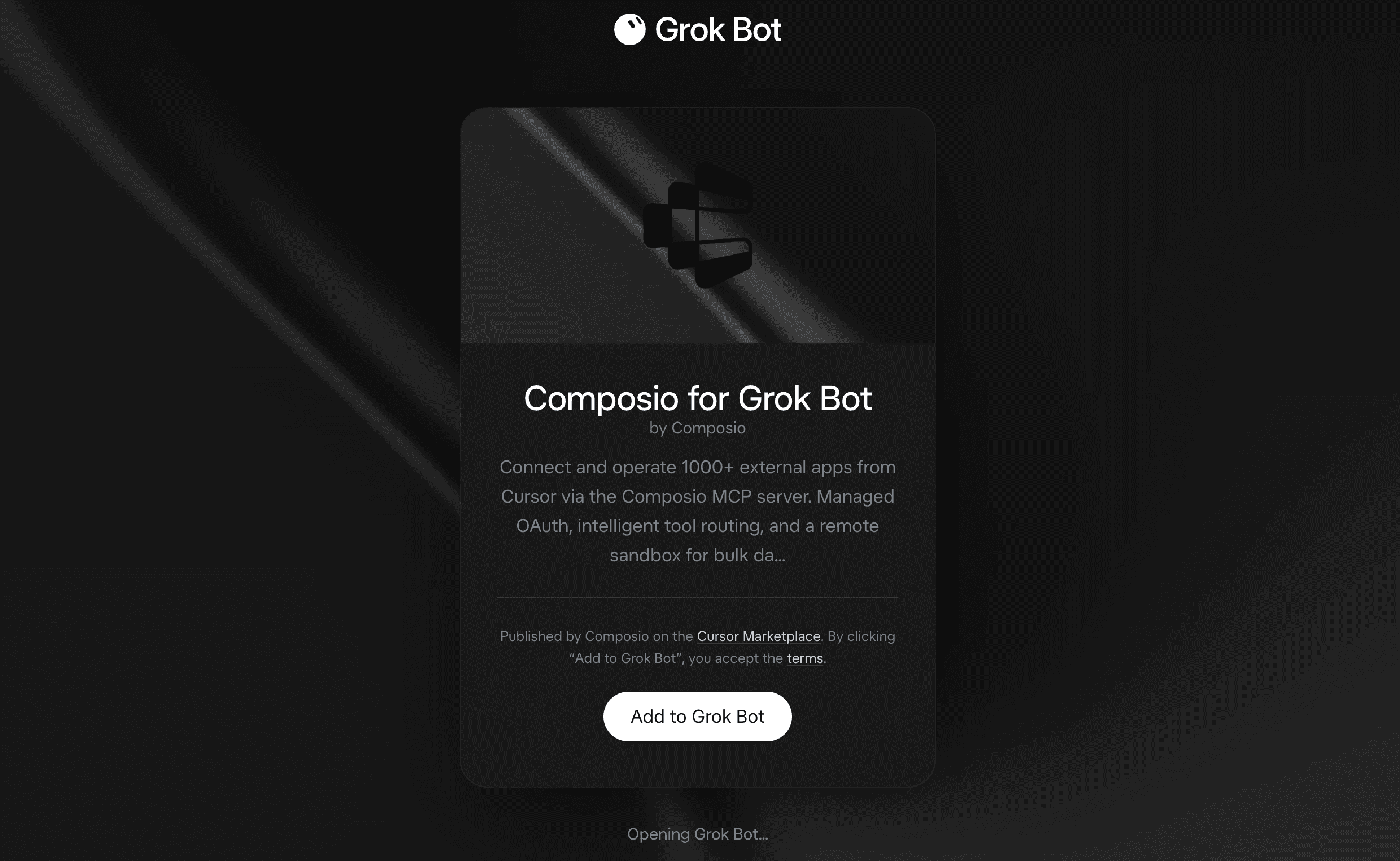
Click Add.
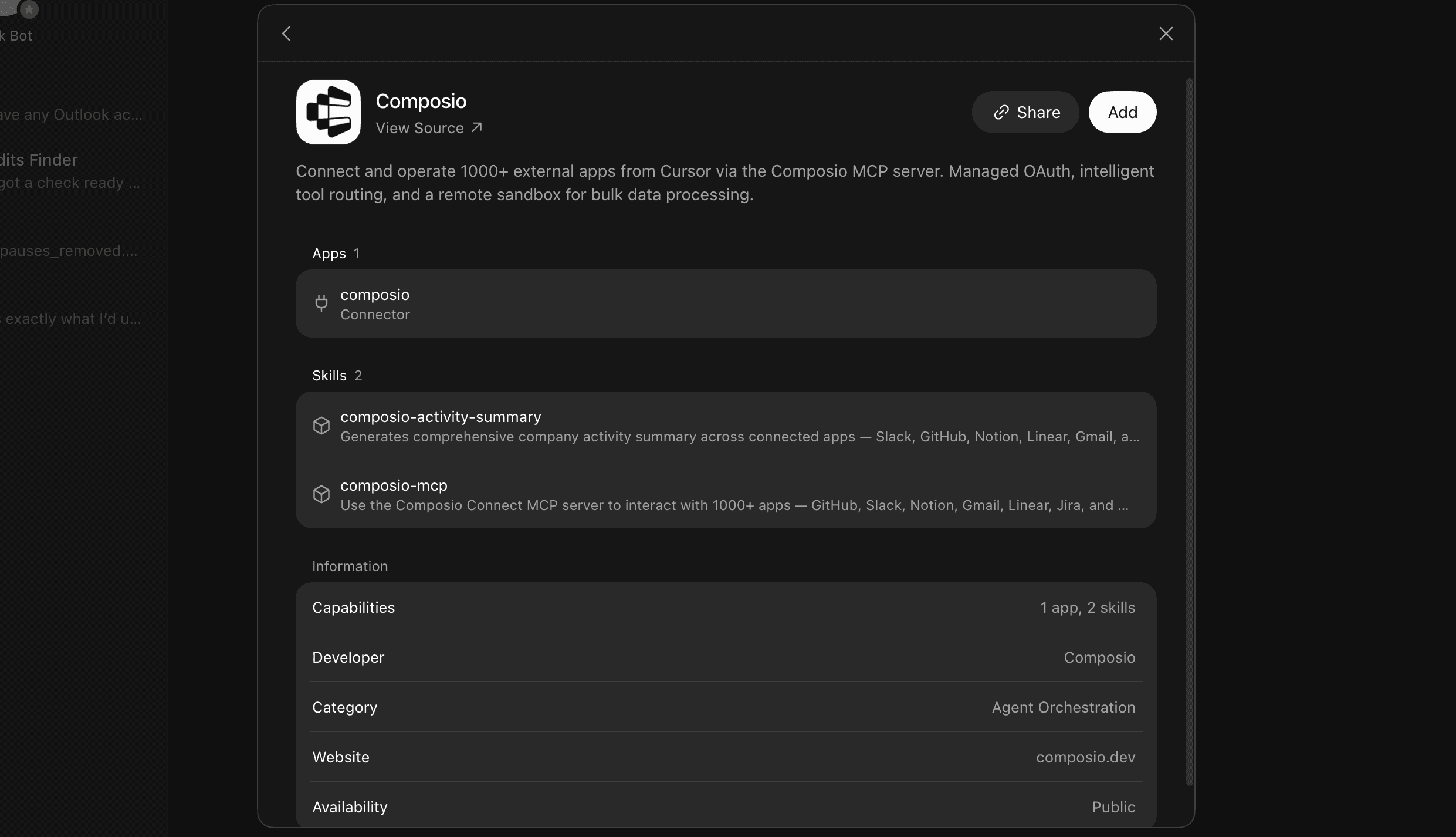
Grok Bot should open the Composio authorisation flow. Complete the flow.
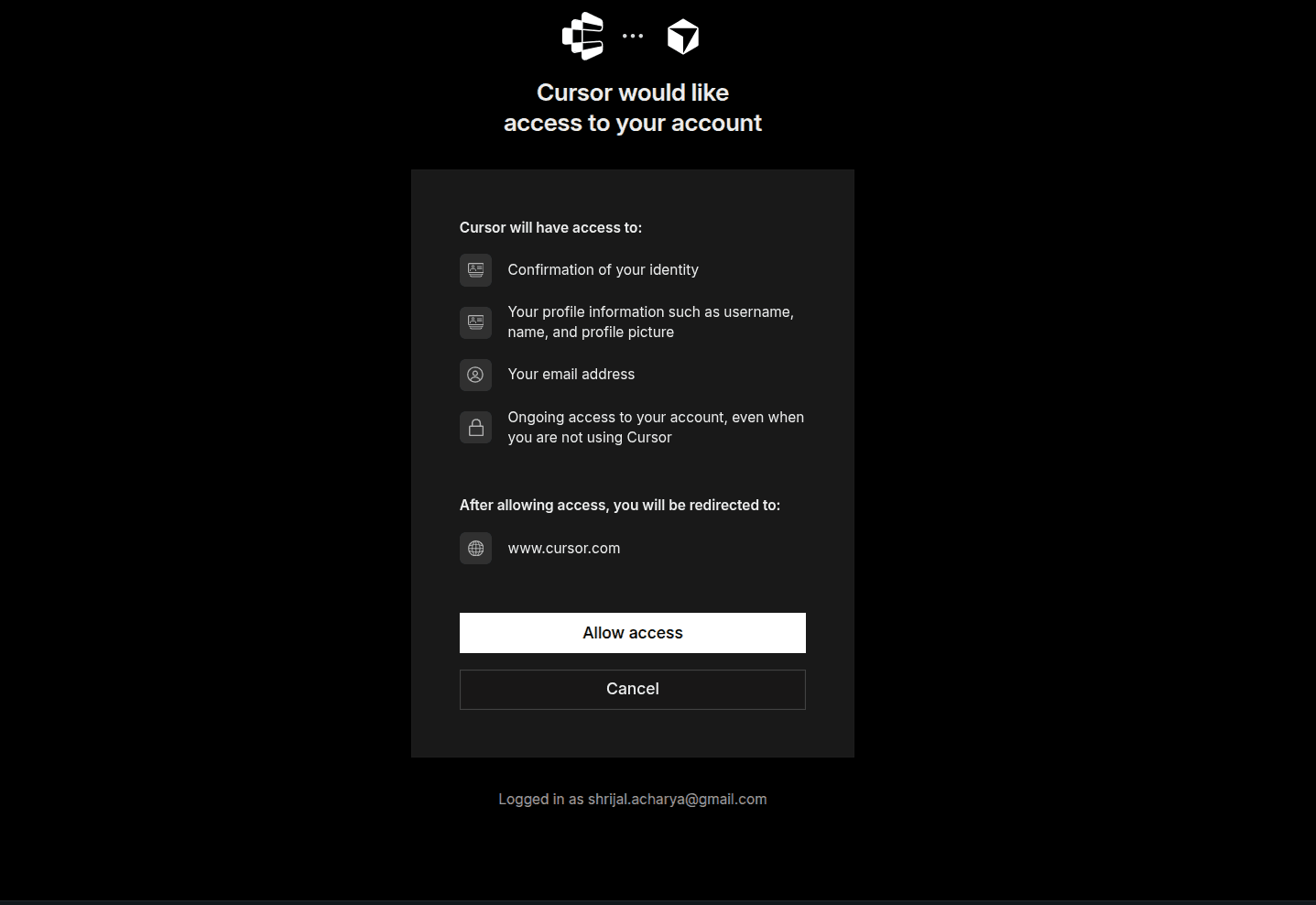
Sign in to the Composio account you want to use and approve the connection. Once authentication finishes, return to Grok Bot.
Composio should now appear as an installed and connected plugin. ✅
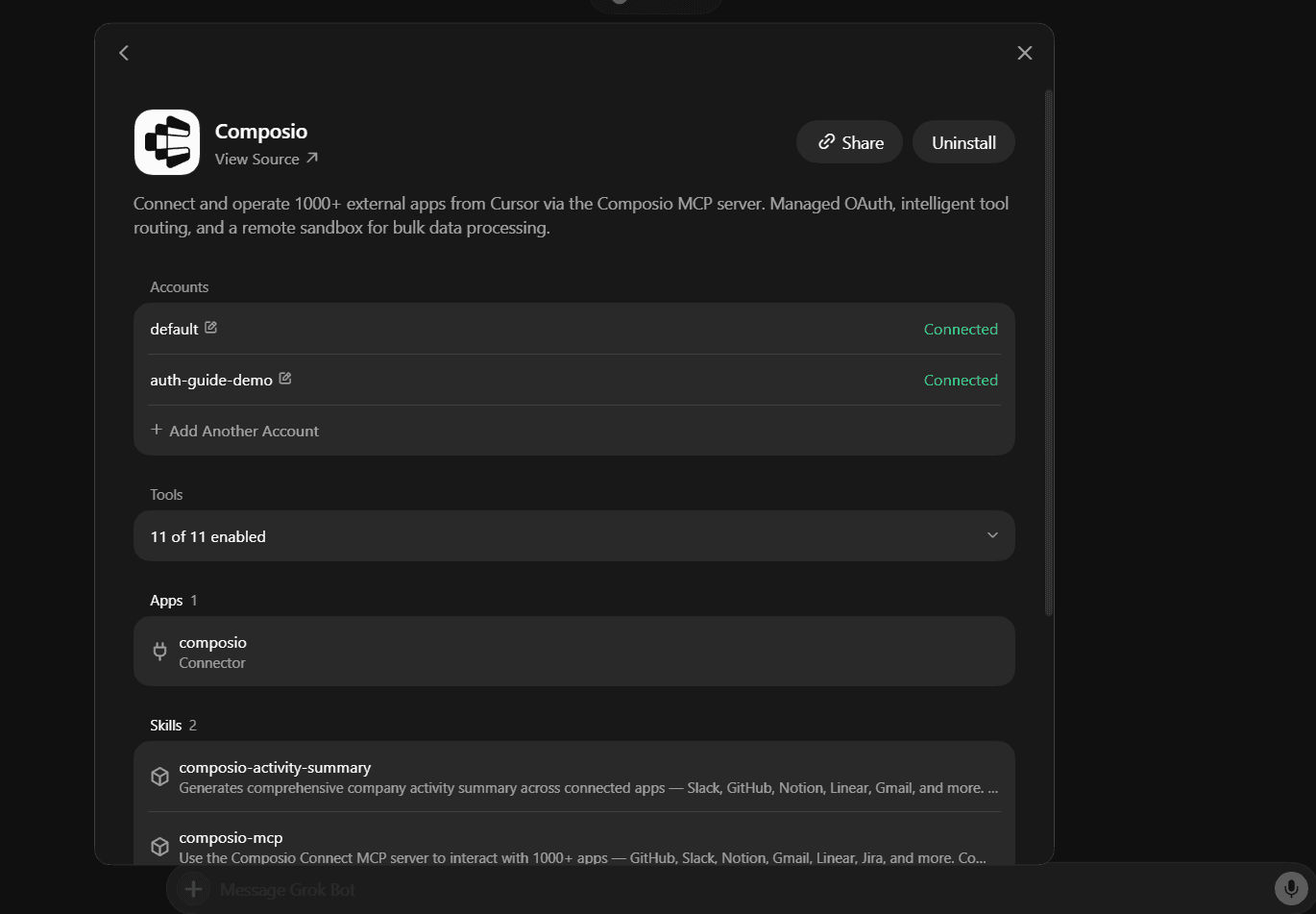
You only need to do this once, no matter how many Outlook accounts or any other connectors you connect afterwards.
Quick check
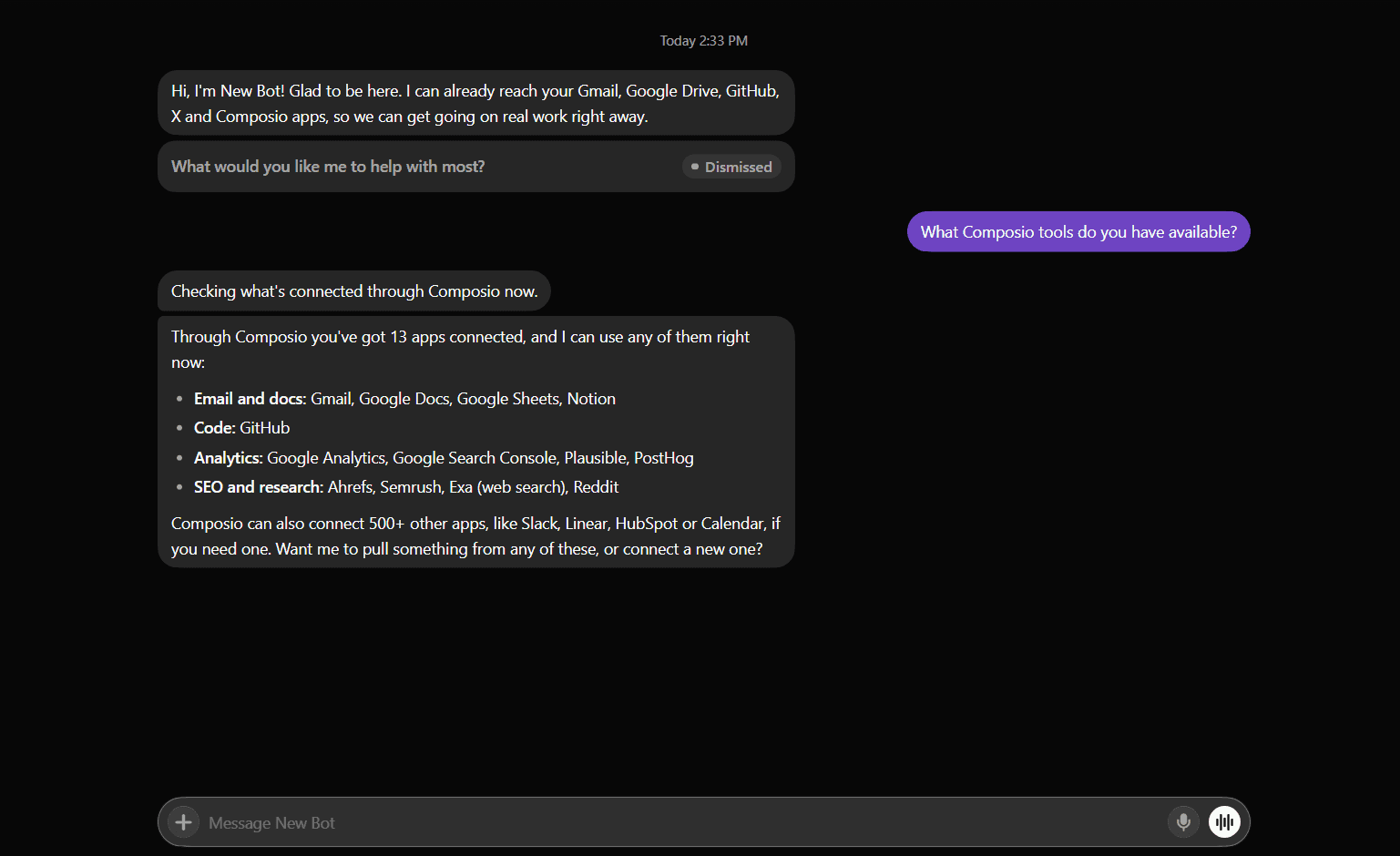
Start a new chat and ask:
What Composio tools you can access?
If Grok Bot lists Composio's tools, you're ready to connect Outlook.
Step 2: Connect your first Outlook account
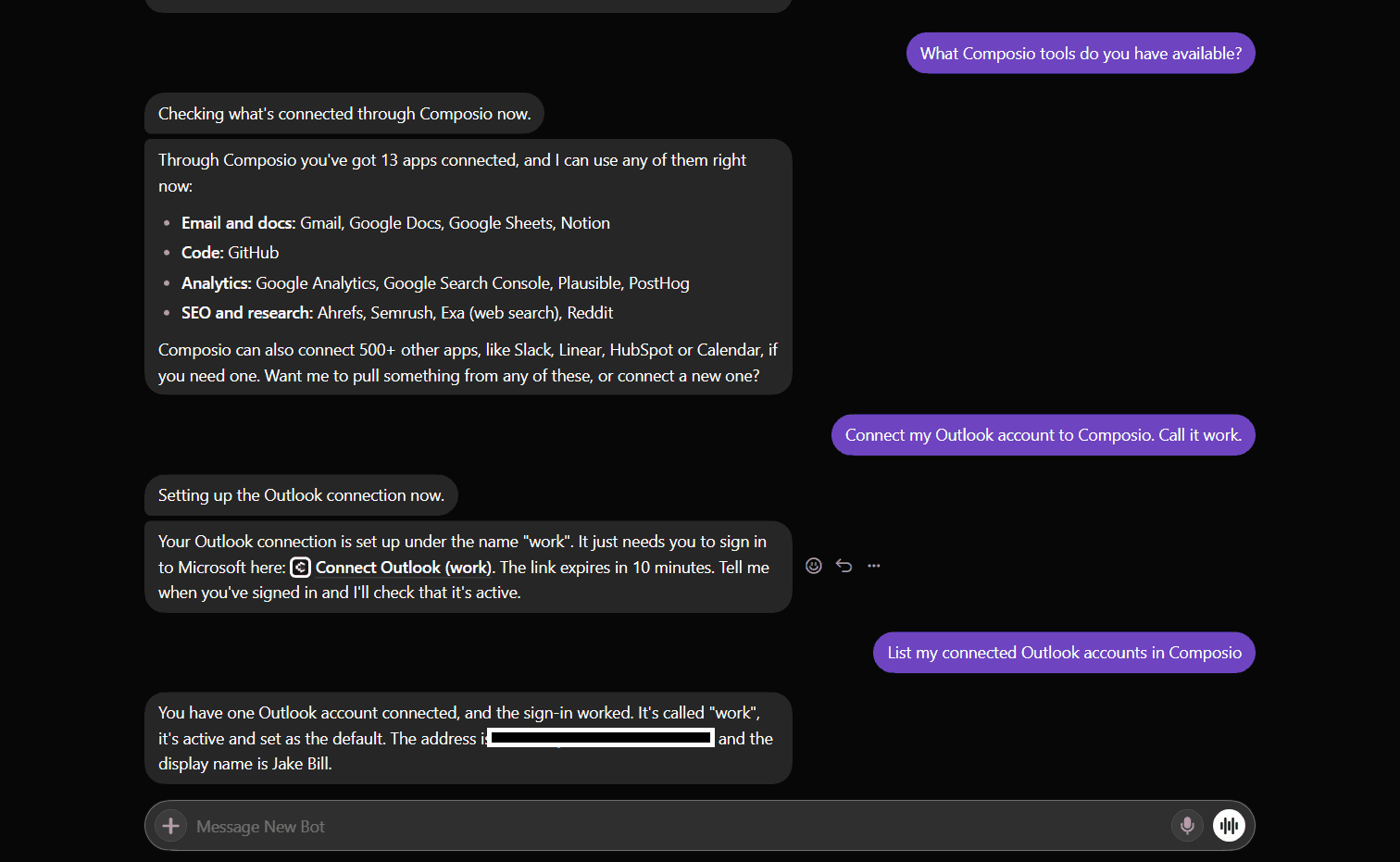
In Grok Bot, type:
Connect my Outlook account to Composio. Call it work.
Grok Bot should hand you back a Microsoft sign-in link.
Open the link.
Sign in with the Microsoft account you want to use.
Review the permissions Microsoft is asking for.
Approve the connection.
Return to Grok Bot.
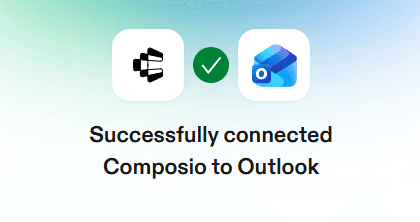
Grok Bot should confirm the connection is active.
The label work is what you'll use later to steer Grok Bot toward this specific account.
Keep labels short and obvious:
workpersonalclient-aside-project
Composio supports multiple connected accounts for the same toolkit, each with its own alias, so this first connection won't block you from adding more.
Step 3: Connect a second Microsoft account
Now type:
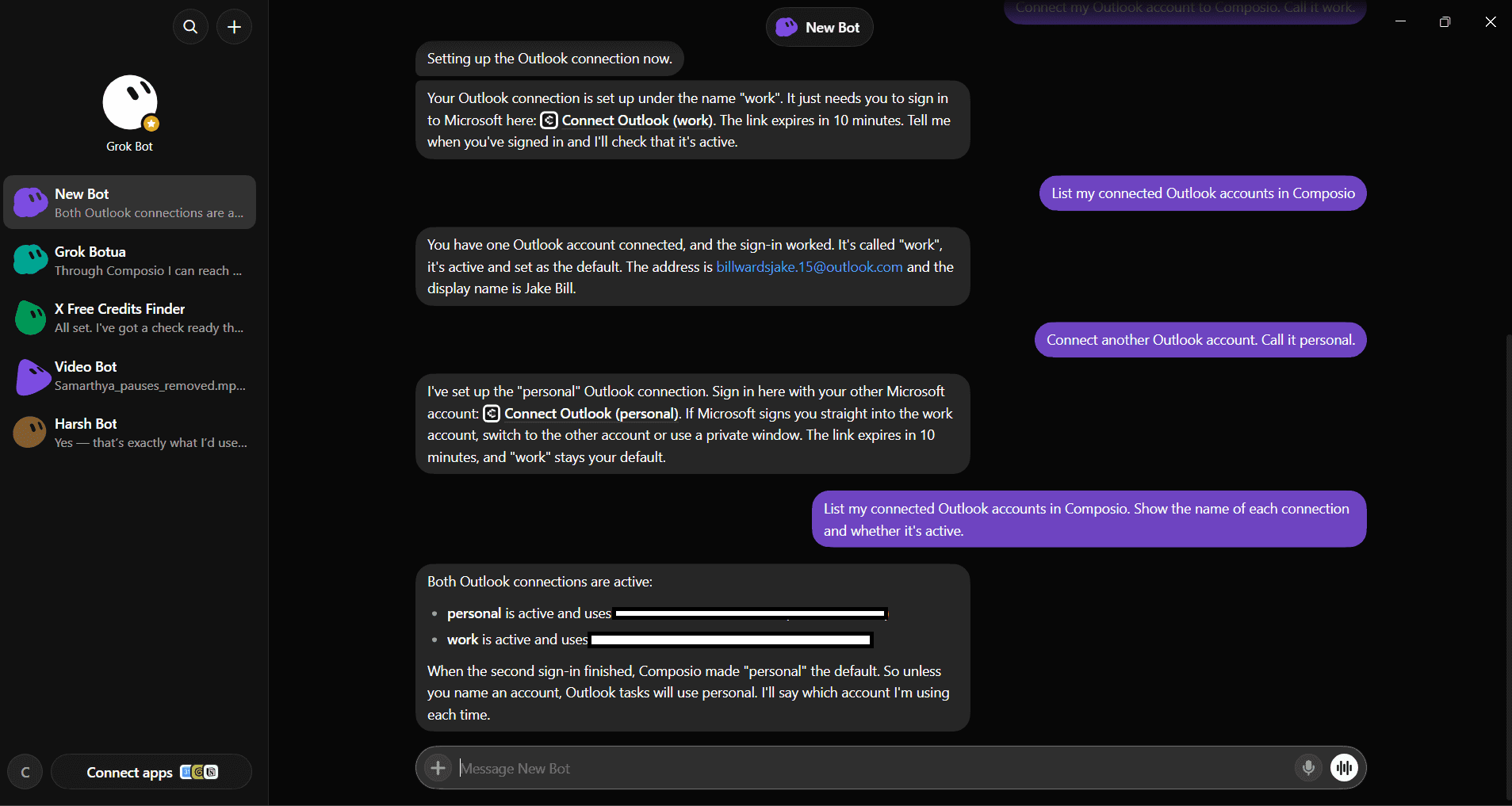
Connect another Outlook account. Call it personal.
Grok Bot will generate a fresh authorisation link.
Open it and sign in with the second Microsoft account.
Important: Check which Microsoft account is active before you approve access. If your browser automatically signs you back into the first account, sign out first or open the link in a private/incognito window, then pick the correct account from Microsoft's account picker.
Once approved, return to Grok Bot. You should now have two separate connections behind the same Composio plugin.
Repeat this for any other Outlook accounts you want Grok Bot to access.
Step 4: Check that the right accounts are connected
Ask Grok Bot:
List my connected Outlook accounts in Composio. Show the name of each connection and whether it's active.
Then ask:
Identify which email address is behind each connection name.
Worth doing before you let Grok Bot send anything. If work and personal turn out to point to the same Microsoft account, reconnect the wrong one in a private window and pick the correct identity during sign-in. Renaming a connection only changes its label; it doesn't move the underlying Microsoft account.
Step 5: Use the right Outlook account
Once your accounts are labelled, mention the label whenever it matters.
Read and summarize
Using work, summarize the unread emails from the last 24 hours and flag anything that needs a reply today.
Switch to another account
Using personal, find the receipt from the Amazon order last Tuesday.
Search
Using client-a, find every thread from the last two weeks that mentions "invoice".
Draft a reply
Using work, draft a reply to the latest email from my manager. Keep it short and don't send it yet.
Check the calendar
Using work, what meetings do I have tomorrow, and are there any gaps longer than an hour?
Send an email
Using personal, send a note to mom saying I'll call her on Sunday. Show me the draft first.
For anything that sends or deletes, it's worth telling Grok Bot to show you the exact message before committing.
Make account selection more reliable
Tell Grok Bot your account map once so it stops guessing. Something like:
Remember this: my Outlook connections in Composio are work = my company Microsoft 365 account, personal = my personal Outlook.com address, client-a = the shared client mailbox. Always use the named connection when I specify one. If I ask you to send, reply, or delete and haven't named an account, ask me which one to use first.
This gets more useful the more accounts you add.
A note about work and school accounts
Personal Outlook.com accounts usually connect without any extra steps. Work and school (Microsoft 365) accounts are different: tenant admins can block third-party apps or require approval before users can grant access to mail.
If you see an "admin approval required" message during sign-in, the fix is on the Microsoft 365 side, not in Composio or Grok Bot. Ask your IT admin to approve the app, or connect only the accounts you're allowed to.
Each connection only has the access you approved on Microsoft's consent screen. If you only want Grok Bot to read and draft, don't grant send access.
Optional: Manage Outlook accounts from Composio
The chat method above is the fastest way to add accounts. Use the dashboard to rename, reconnect, or remove one.
Go to dashboard.composio.dev.
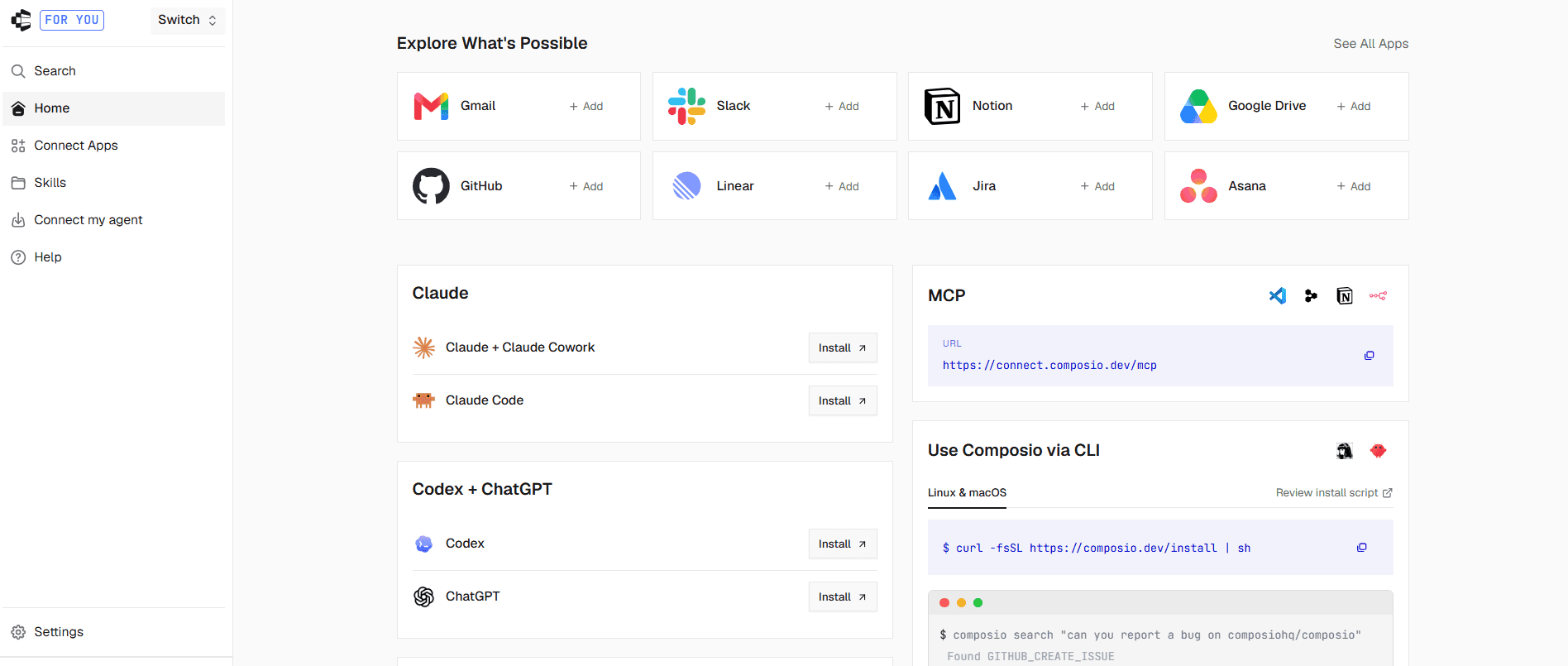
Sign in with the same Composio account you used for Grok Bot.
Find Outlook in your connections.
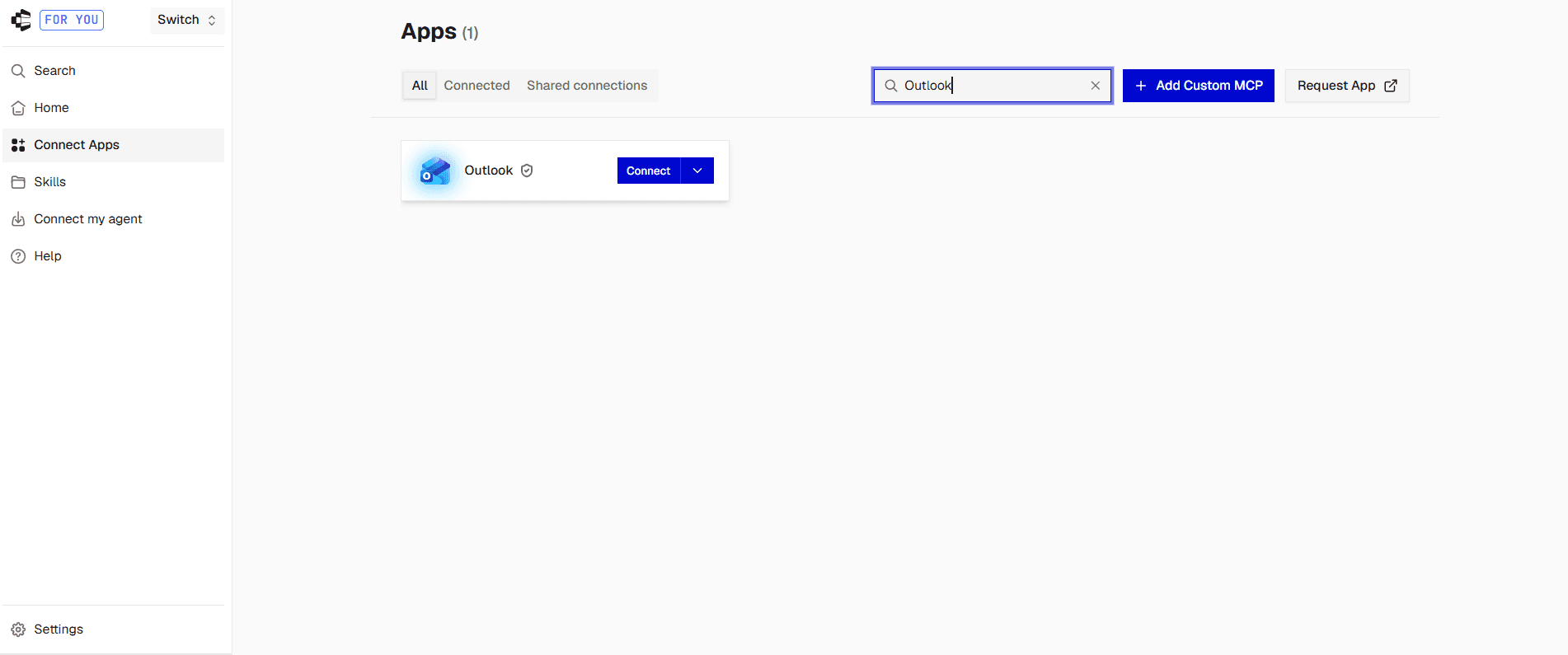
Click Connect and complete the Microsoft sign-in flow, picking the account for this connection.
Click Connect again to add the next account. Composio keeps it as a separate connection rather than replacing the first.
Give each connection a clear label (
work,personal,client-a).
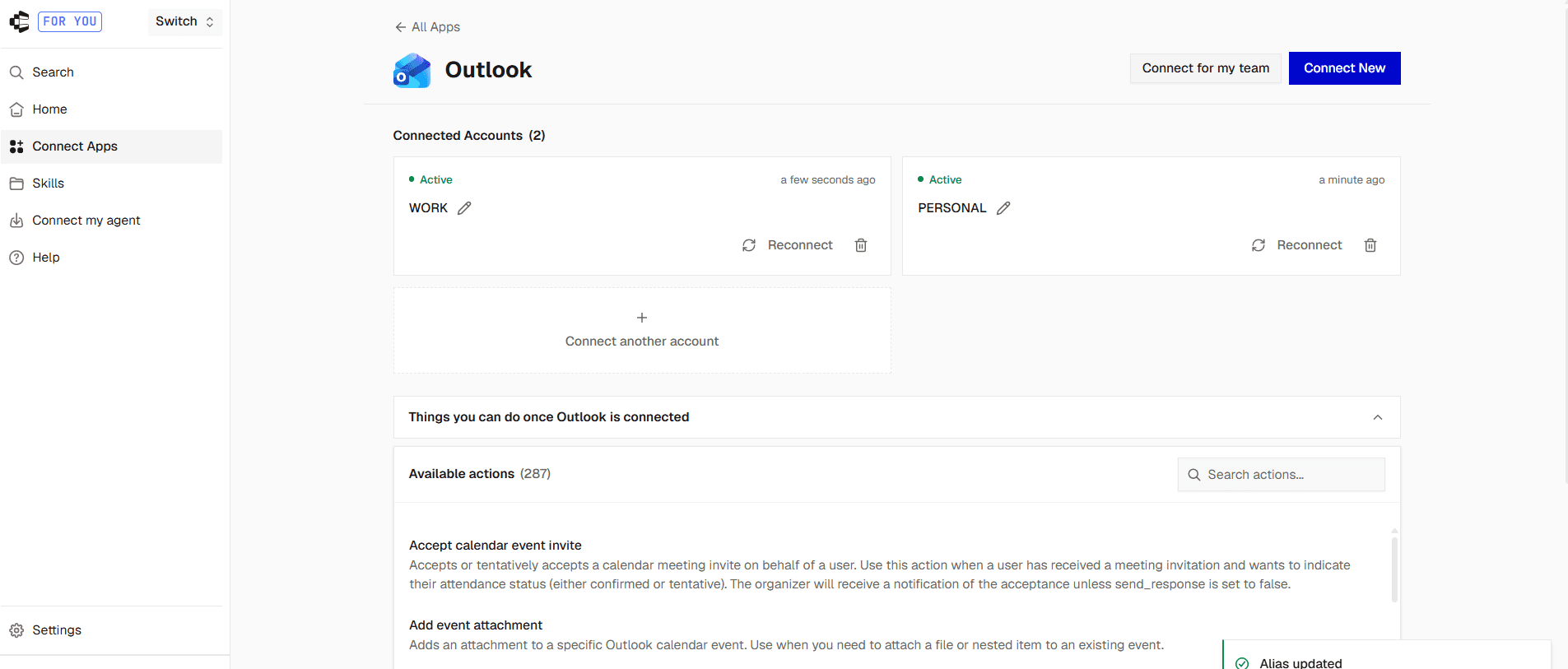
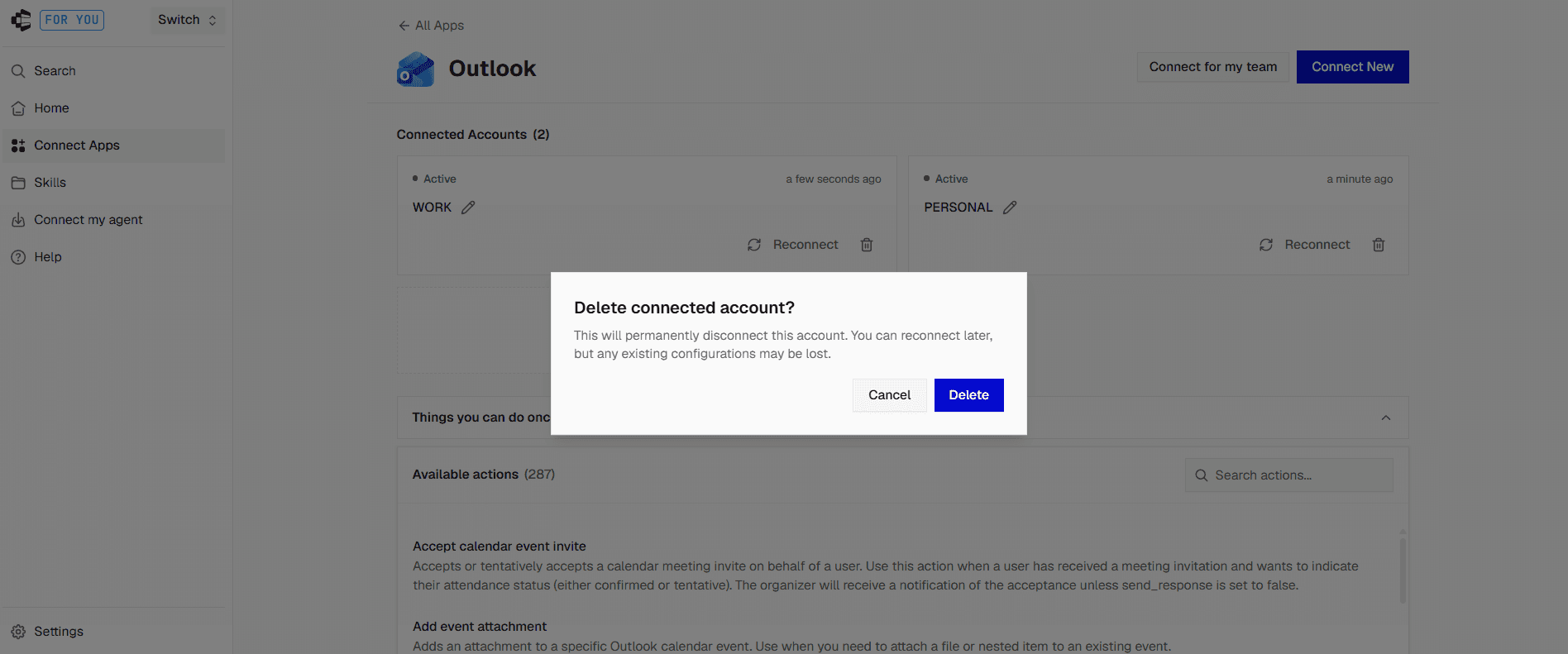
From this screen, you can also:
Rename a connection when a default name like
outlook-2stops being useful.Disconnect/delete a connection you no longer want Grok Bot touching.
Re-authorise a connection that's expired. Tokens usually refresh automatically, but a revoked refresh token marks the connection as
EXPIREDand requires a manual reconnect.
Troubleshooting
Composio doesn't appear in Grok Bot
Open the Connect Apps section in the left sidebar and check that Composio shows under your installed plugins. If it doesn't, reinstall it, then start a new chat and say "Connect to Composio."
The Microsoft sign-in link expired
Ask Grok Bot:
Create a new Outlook connection link for this account.
Use the fresh link rather than reopening an old one, because expired links won't complete.
Both account labels point to the same Microsoft account
You likely approved the same Microsoft identity twice. Remove the incorrect connection, then reconnect while signed into the right account. A private browser window makes this easier to control.
Grok Bot used the wrong Outlook account
Repeat the request and name the account explicitly:
Use work for this. Do not use personal or client-a.
Saving the account map (see above) also helps prevent this going forward.
"Admin approval required" during sign-in
This is a Microsoft 365 tenant setting. See the note on work and school accounts above.
A send action fails with a permissions error
The connection was probably authorized without send access. Reconnect it and approve the full set of permissions you need.
What this costs
Composio's free plan currently includes a monthly allowance of tool calls with no credit card required, which is enough to test this workflow with a couple of accounts before deciding whether to pay. Exact limits change over time, so check Composio's current pricing page for the latest numbers before relying on them.
Is this safe?
You’ll be using Composio’s managed authentication for Outlook. And Composio is SOC 2 Type 2 compliant. Your data is secure at rest and in transit.
FAQ
Can Grok Bot use more than one Outlook account?
Yes. Composio supports multiple connected accounts for the same toolkit, each identified by its own alias.
Do I need to register an app in Azure?
Not for this setup. Composio provides managed OAuth for its Outlook toolkit. You'd only need your own Azure app registration if you wanted to manage your own OAuth scopes directly.
Can Grok Bot send emails, or just read them?
Both, depending on the permissions you approve during Microsoft's consent screen.
Does it work with both Outlook.com and Microsoft 365 accounts?
Generally yes, though some Microsoft 365 tenants restrict third-party app access. See the note on work and school accounts above.
Can I connect Calendar, Slack, Notion, or other apps through the same Composio plugin?
Yes. Composio is the connector layer, so once it's added to Grok Bot you can authorize additional apps without installing another plugin.

 Get started



