Introducing Enhanced Controls
Enhanced Controls is the best way to give guardrails for your agents.
Available in Composio For You platform today, for a limited set of apps like Gmail, Outlook, and Slack.
When you use Composio to control your apps from an agent, your agent can pause before executing actions, or get totally blocked from destructive actions.
We recommend using Enhanced Controls in desktop apps like Cursor, Codex, Claude Code. It works in the MCP or CLI.
Note: Destructive actions can get blocked in apps like ChatGPT Web and Claude Web, but approval first actions are not supported in the web-version of these apps, so we recommend using the desktop-native apps for the best experience.
How to find it on the Dashboard
Why build this?
Most people we talked to building agents were hesitant to give more responsibilities to their agents. In their words:
"How do I know that my agent won't send or delete emails when I don't want it to?"
Most people hesitate with giving agents access to their email.
With Enhanced Controls, you can choose what permissions your agents have access to.
The Wrong Way ❌
Most people will nest something like this in their 10,000 line skill.md file:
"IMPORTANT: DON'T DELETE EMAILS"
This may work 99% most of the time, but for truly destructive actions, you can't leave things to chance.
If you happen to be using:
Weaker models like GPT-3.5-Turbo (is anyone still using that?)
In a long conversation, or within a subagent
The chance of your agent remembering that it shouldn't delete emails goes way down, and you need a guarantee that your agent isn't going off the rails.
Dangerous actions must be blocked at the tool layer, not the prompt layer.
The Right Way ✅ (with Enhanced Controls)
Blocking Tools
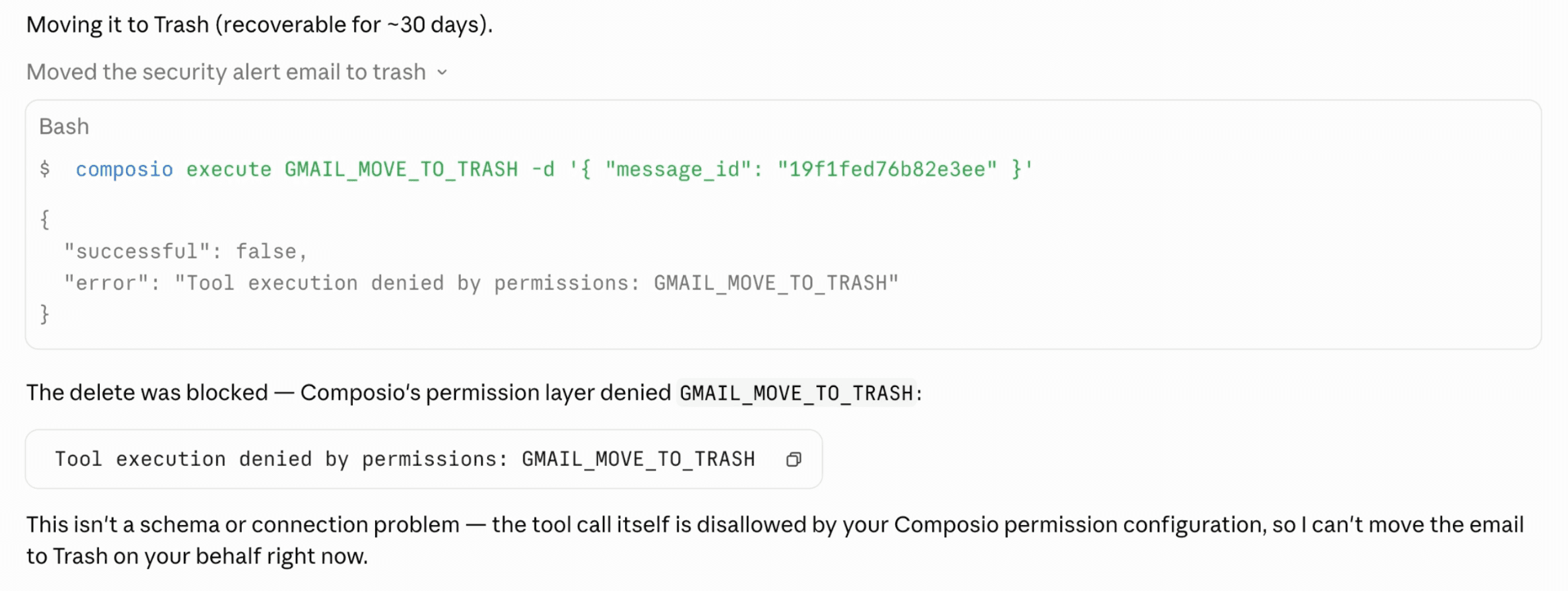
For destructive actions, like deleting an email, we recommend selecting "Deny." This prevents destructive actions from ever being executed by your agent. Even if you said something like:
Example
User: "IMPORTANT: DELETE MY LAST EMAIL, DON'T ASK QUESTIONS."
Agent: "Executing tool… The delete was blocked by Composio's permission layer." ✅ Correct
Asking You for Permission
And your agent went ahead and tried to delete an email, we would block the action from our side of the fence. You're welcome.
For actions where you'd like to approve first, select "Always Ask." The agent will open a window where you must manually approve the action every time.
Example
User: "Research the prospect and send them an email."
Agent: "Executing send email… Please check your browser to approve the action."

Your agent will open this link in your browser, where you can allow either:
Allow the tool for 1hr
Allow the tool to be executed once (recommended)
Always Allow on "Read" Tools (most freedom)
For actions where the agent can run freely, like reading emails, select "Always Allow."
Give your agents access without giving up control. Read freely, confirm before writing, and block destructive actions entirely.
How to Enable Enhanced Controls
1. Go to dashboard.composio.dev and make sure you're connected to the For You platform (dropdown on top left)
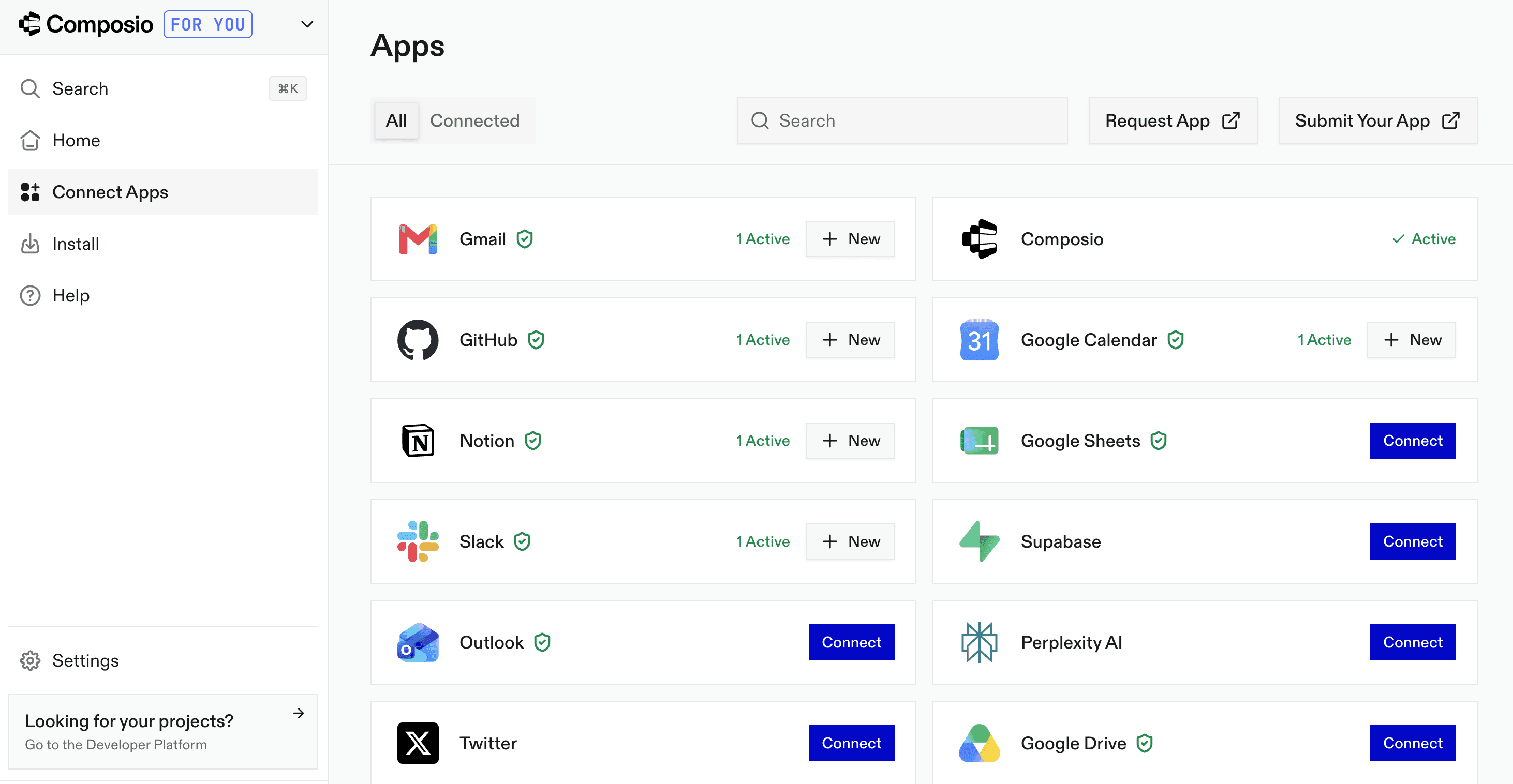
2. Open Project Settings.
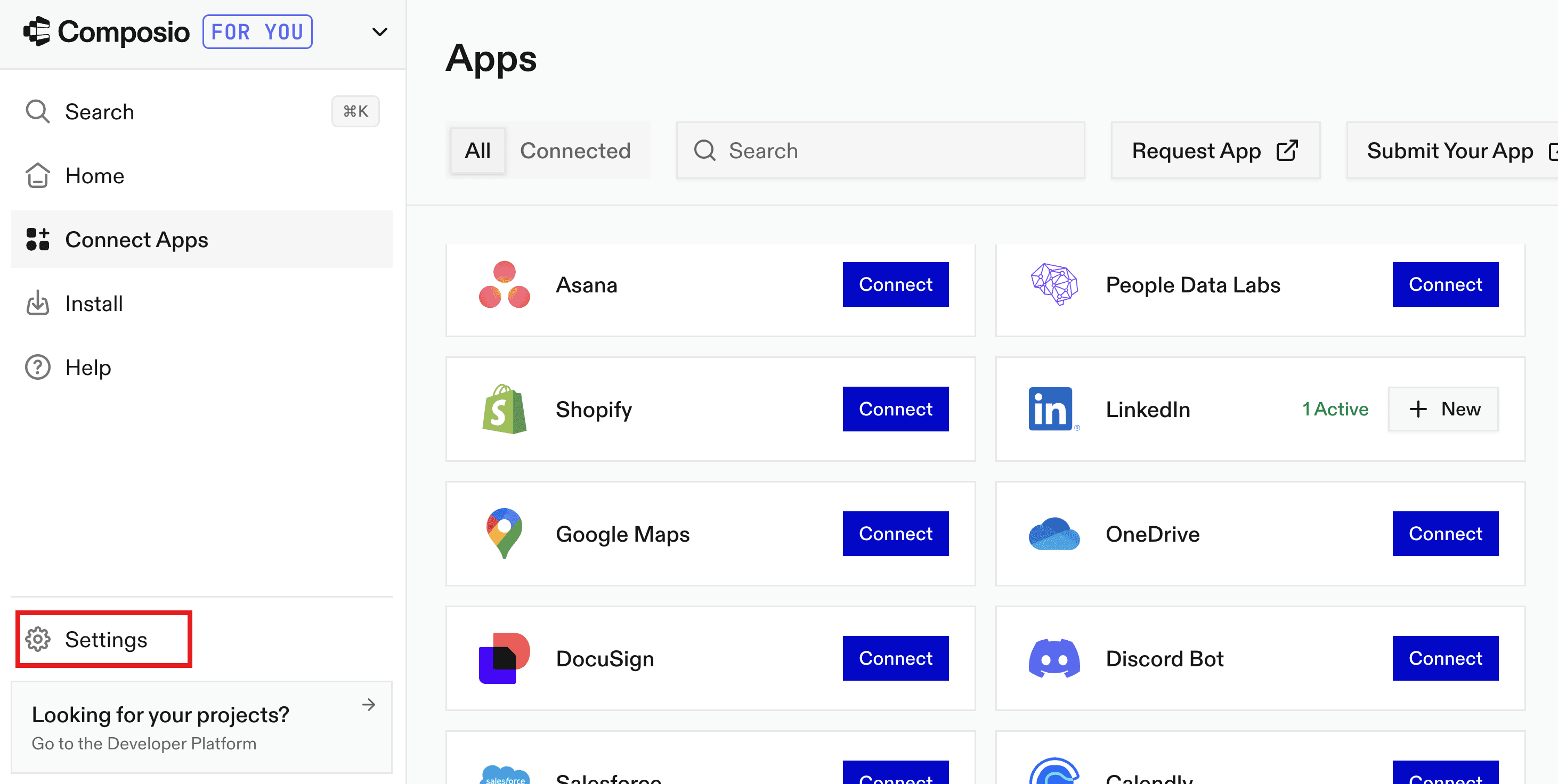
3. Enable Enhanced Controls.
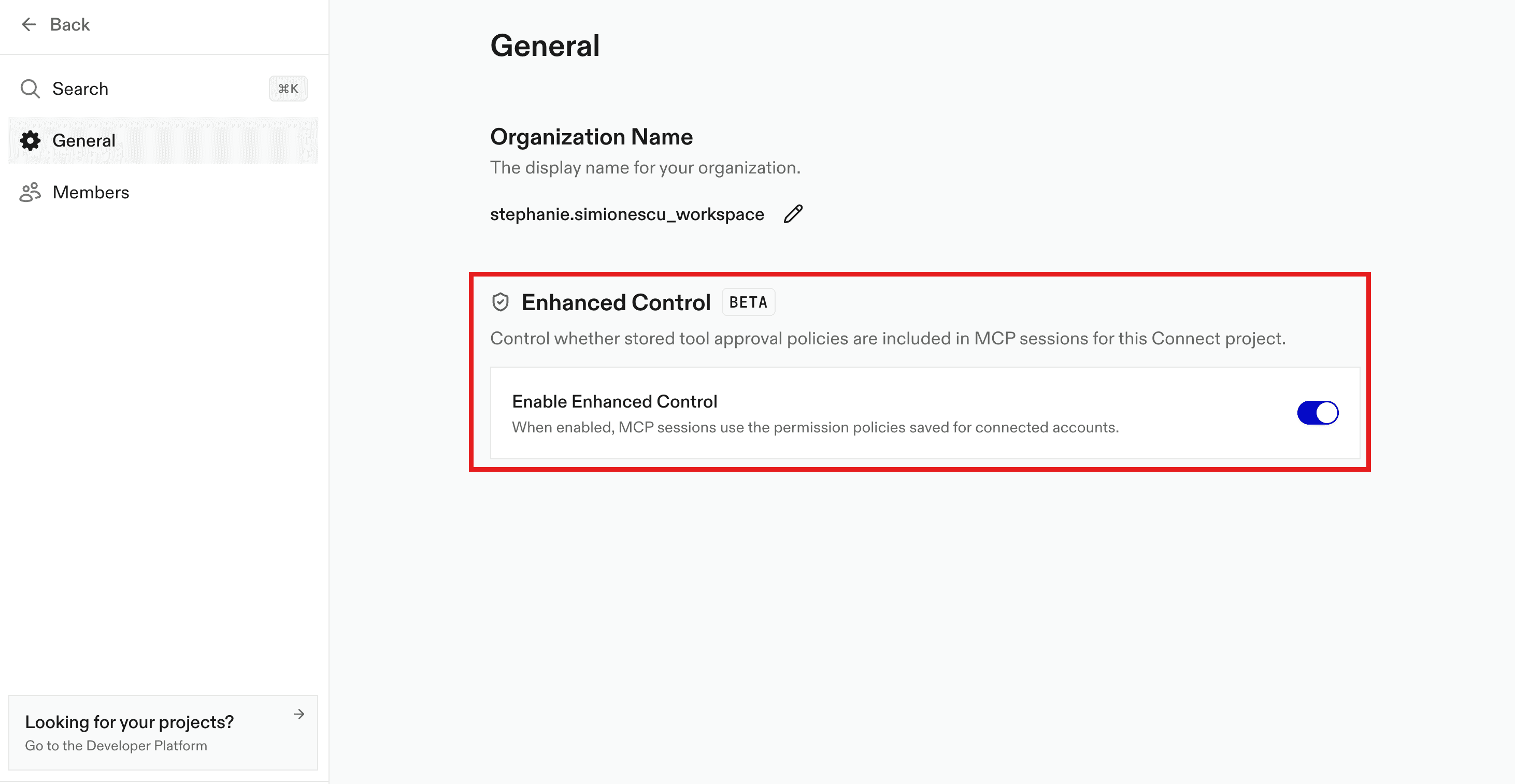
4. Go back to your For You homepage.
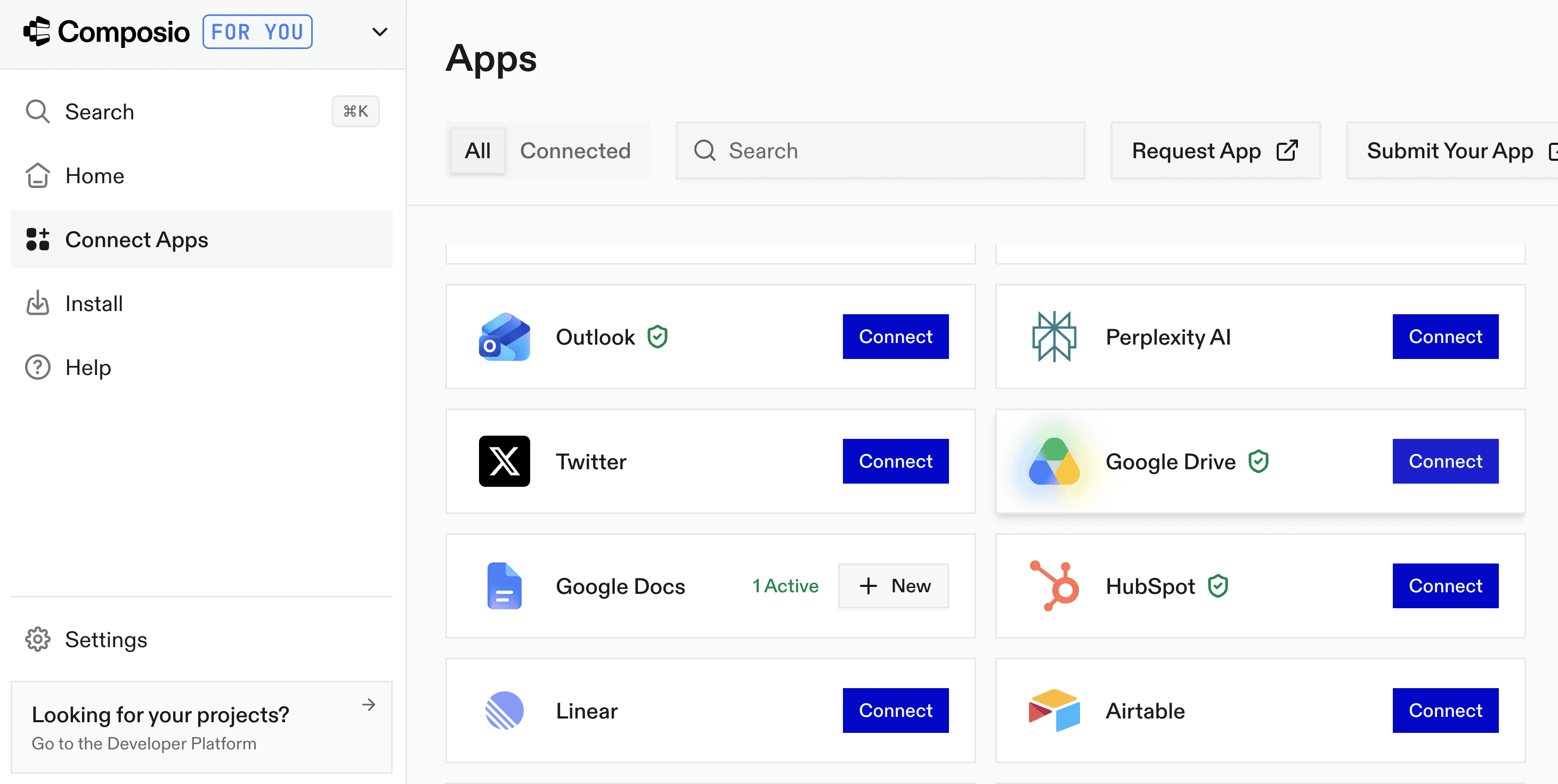
5. Select one of our supported apps (see the list below).
How it works
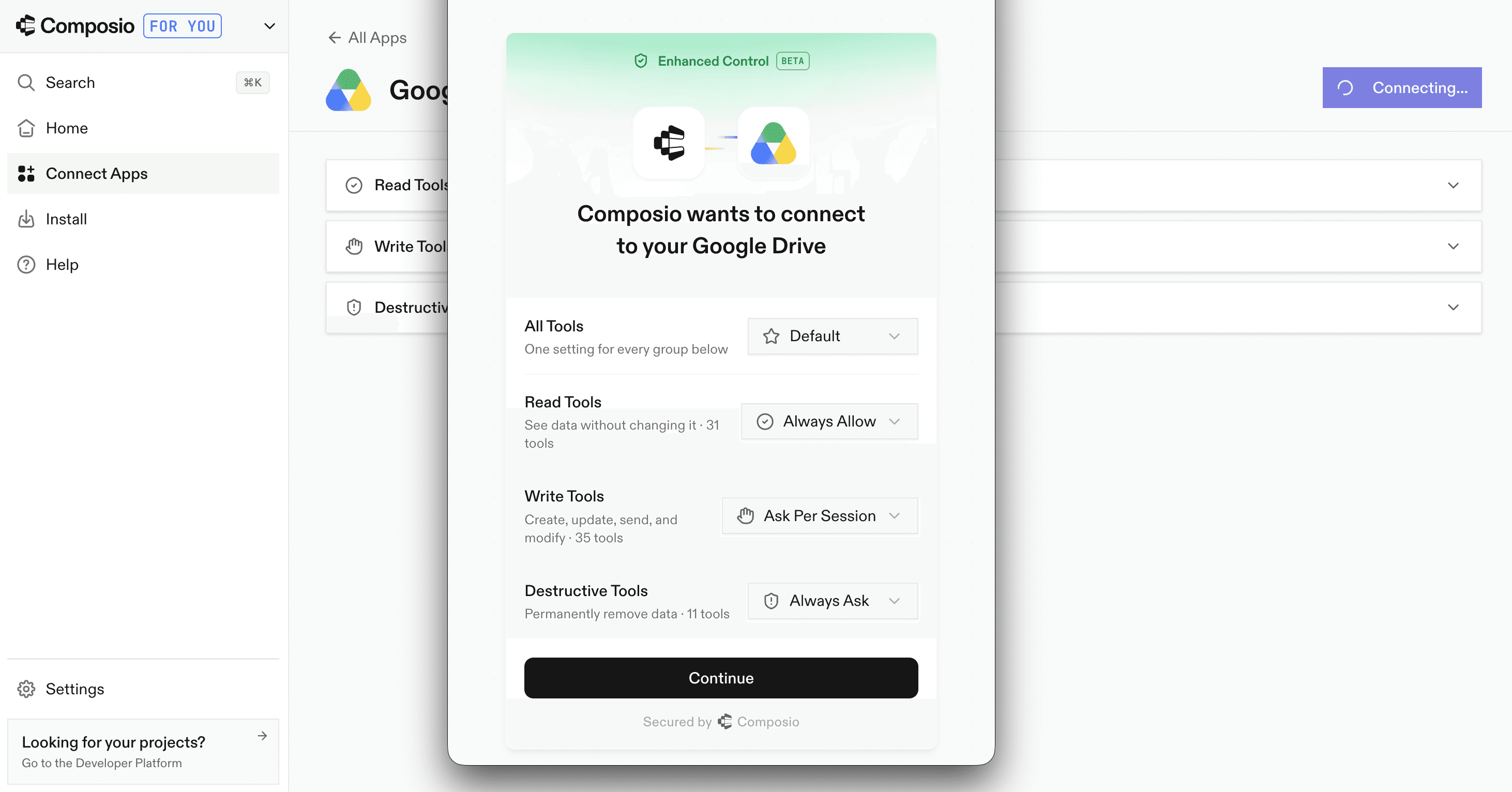
Now, when you connect to certain apps in your Composio toolkit, you get a popup asking which specific permissions you'd like to set. Every tool in that app is tagged by risk level - Read, Write, or Destructive. You can decide if you want to Always Allow, Ask Everytime, or Never Allow actions at each risk level. See what each risk level means in the table below:
Risk level | What it does | Default behavior (set by Composio) |
|---|---|---|
Read | Looks at data (list emails, read a doc) | Always allow |
Write | Acts as you (send, reply, edit) | Ask you every time |
Destructive | Permanently removes data (delete, purge) | Never allow |
• Always allow and Never allow: If you set these permissions, Composio will not call for that tool, no matter what your client says. If a tool is set to "never," it can't be called, full stop.
• Ask every time: When the agent tries to run a Write tool, you get a prompt from your client to approve or deny it, once per session. Of course, this part relies on your MCP client supporting in-session prompts.
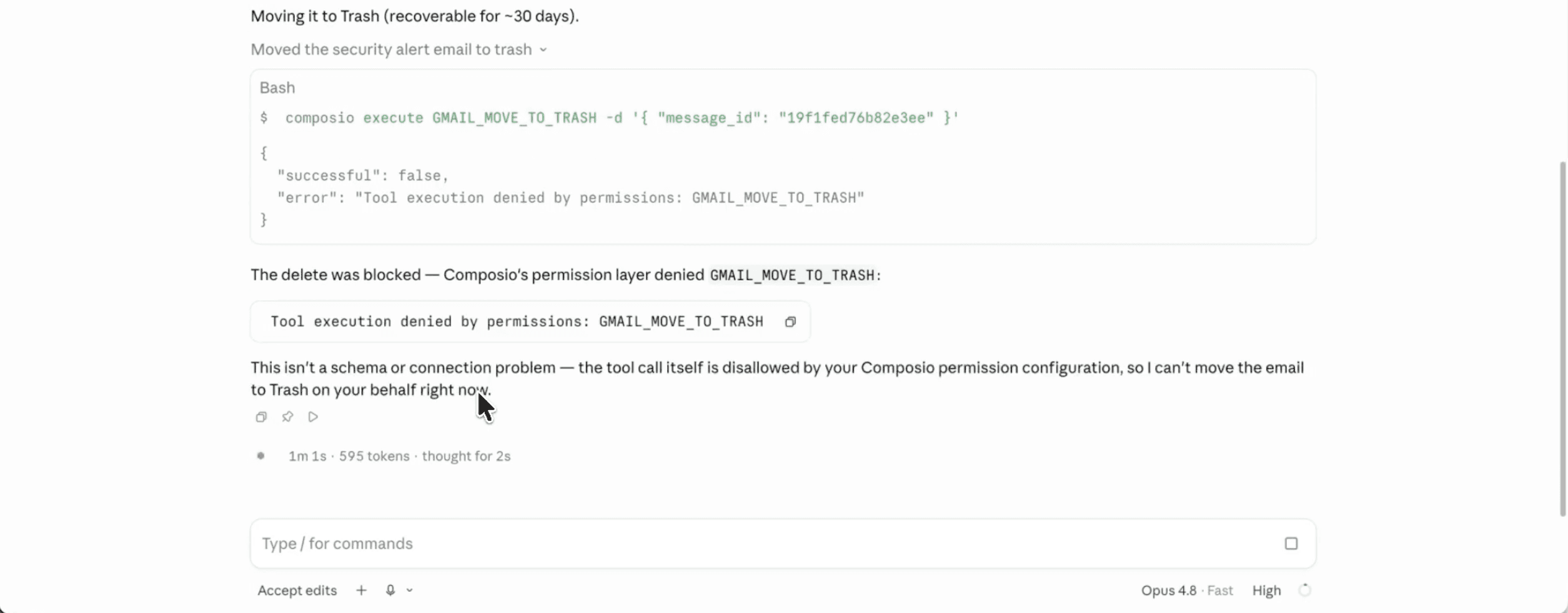
Agent attempts to delete an email but Composio blocks the tool from being executed.
What you can do with it
Enhanced Controls shines anywhere you want an agent to be useful without being dangerous. A few common setups:
Let an agent draft your emails, but set your Write Tools to "Ask Per Session", so nothing sends without your approval.
Set Destructive Tools to "Deny" for Notion, Google Drive, or Sheets, so that your agent doesn't delete your documents.
Make sure Github or Slack's Write Tools has "Ask Per Session" enabled, so issues get opened and read, but nothing posts without your approval.
Keep Write Tools on "Always Ask" on Google Calendar, so it can't double-book you or move a meeting on its own.
Frequently asked questions
Which toolkits does it work for?
Enhanced Controls is currently in beta and live for the apps below. Each supported app shows an Enhanced Control flag on its card.
Gmail
Google Sheets
Google Calendar
Google Drive
Gmail
GitHub
Notion
Slack
Outlook
Can I selectively enable specific tools?
No. You can set permissions at the category level (Read / Write / Destructive) rather than per individual tool. For most people, setting Write to "Ask you every time" hits the right balance of safety and convenience.
If you need full, tool-by-tool granularity, use the Composio SDK, where you can allow-list exactly the tools you want.
Do "Always allow" and "Never allow" work in every client?
Yes. Those are enforced server-side by Composio and don't depend on your client (Claude / ChatGPT / Cursor). Only the per-session "Ask you every time" prompt requires a supported client.
What happens if my client isn't supported yet?
Tools set to "Always allow" and "Never allow" behave normally. For tools set to "Ask you every time," we recommend either using a verified client (like Claude Desktop or Claude Code) or setting those tools to "Never allow" for now.
Enhanced Controls is in beta. Try it at composio.dev/for-you and let us know what you think.

 Get started