




If your spreadsheets live in a personal OneDrive, Claude's official Microsoft connector can't touch them. It won't even let you sign in.
However, there's a workaround that does, cell by cell, formulas included. I tested it on an @outlook.com account, and here's how it works.
In this guide, I will show you how to do it.
The short version: connect Excel to Claude through Composio instead of the official connector. It signs in with your own Microsoft account, so there's no business plan and no admin in the way. Setup takes about five minutes, and you only do it once.
The problem: the official MS 365 connector is built for companies
Claude has an official Microsoft 365 connector that has OneDrive, SharePoint, Outlook, and Teams. It's available on every Claude plan, including Free. But two conditions shut most individuals out.
It needs a work account. Your Microsoft account must belong to a Microsoft Entra tenant tied to a Microsoft Business plan. Personal accounts like @outlook.com, @hotmail.com, and @live.com can't connect. If you try, you get an authentication error.
Editing is up to an admin. Even with a work account, Claude can only search and read by default. Creating or updating files requires extra setup: a Microsoft Entra administrator must approve the added permissions, and your organisation must switch on write tools for your account.
So if you're a freelancer, a creator, a student, or a small team running on personal Microsoft accounts, the official route simply doesn't exist. A Microsoft 365 Personal or Family subscription doesn't change that either, because those aren't Business plans.
Sources: Claude Help Centre, Connect to Microsoft 365 and Set up the Microsoft 365 connector.
The workaround: connect Excel through Composio
Composio is a connector platform that links Claude to hundreds of apps, including Microsoft Excel, OneDrive, Teams, and SharePoint. Unlike the official connector, it signs in with your Microsoft account, so no tenant or admin is involved.
Before you start, make sure you have:
A Claude account. Any plan works. Custom connectors are available on Free, Pro, Max, Team, and Enterprise, but Free users can add only one custom connector (Claude Help Center).
A Composio account. You'll create or sign in to one during setup. (It’s free)
The Microsoft account that holds your spreadsheets. An @outlook.com, @hotmail.com, or @live.com address is fine.
Your workbook is saved in OneDrive, not only on your computer. Composio works with cloud files.
Note: On a Claude Team or Enterprise plan, individual members can't add custom connectors themselves. An Owner must add Composio under Organisation settings > Connectors first; then each member connects.
Related: How to connect multiple Outlook accounts to Claude
Step 1: Add Composio to Claude
You only need to do this once per Claude account.
Open this link: Composio <> Claude. It opens Claude's Add custom connector window with the name and server URL already filled in.
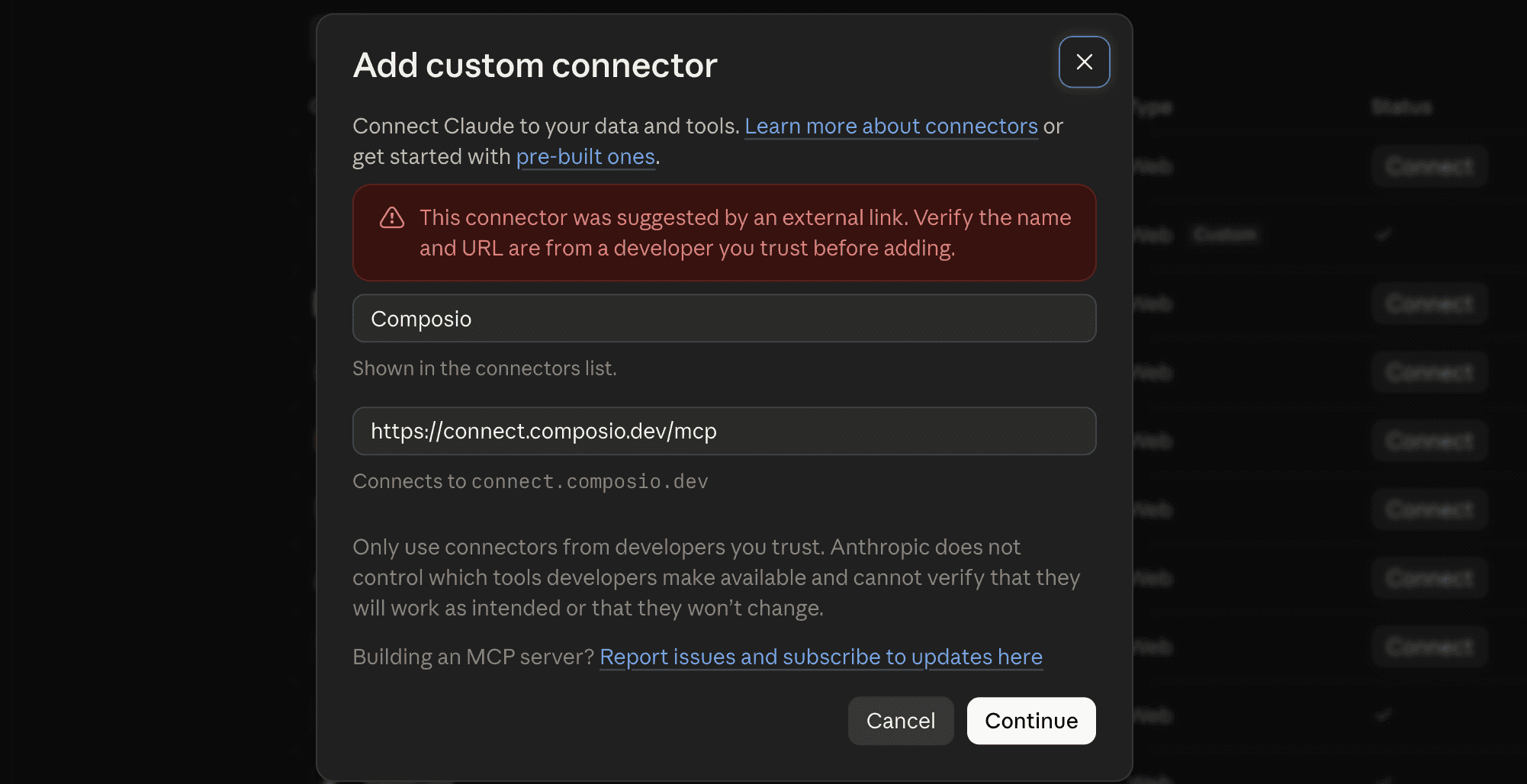
Check the details. The name should read Composio and the URL should be
https://connect.composio.dev/mcp. Click Continue.In the next window, click Add.
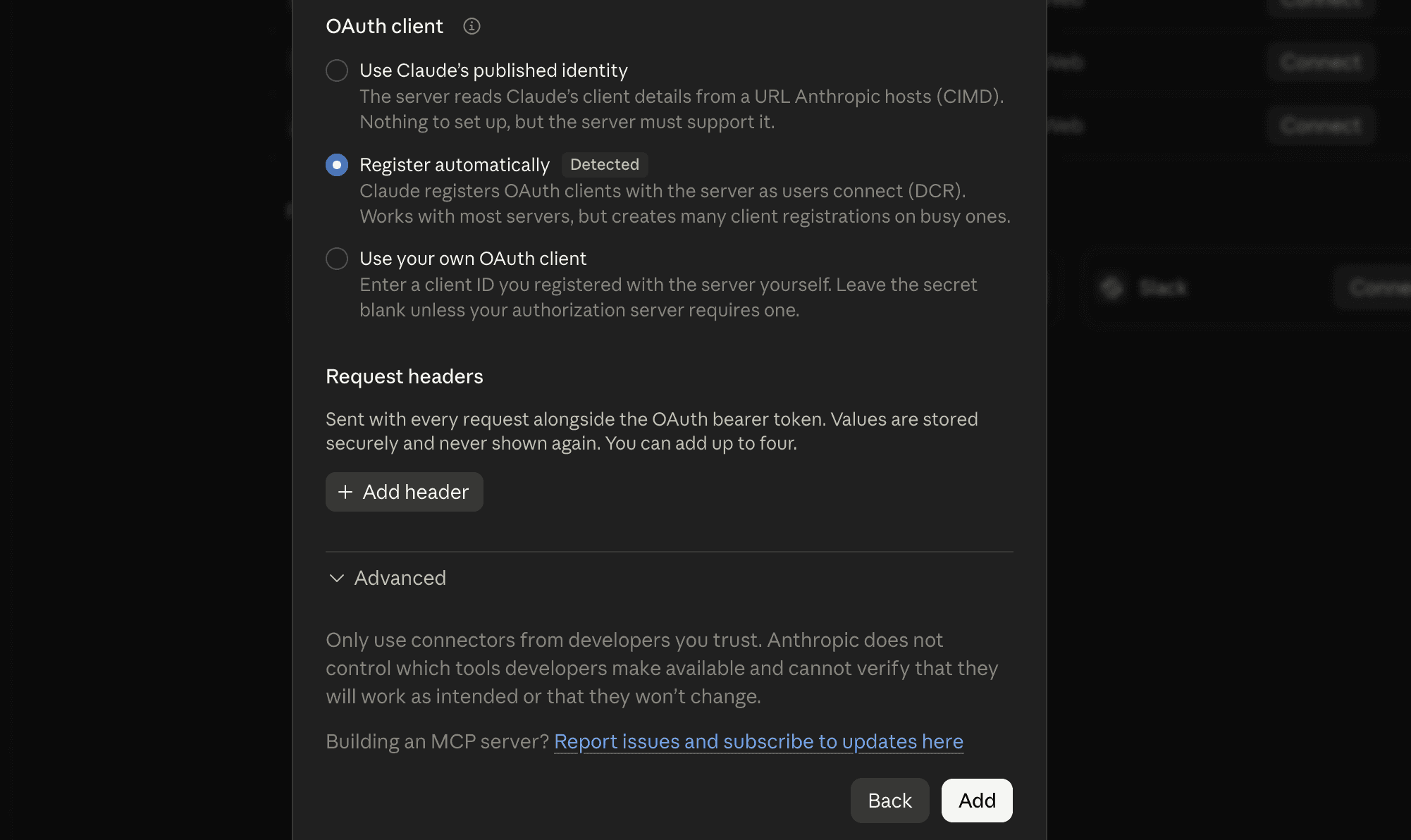
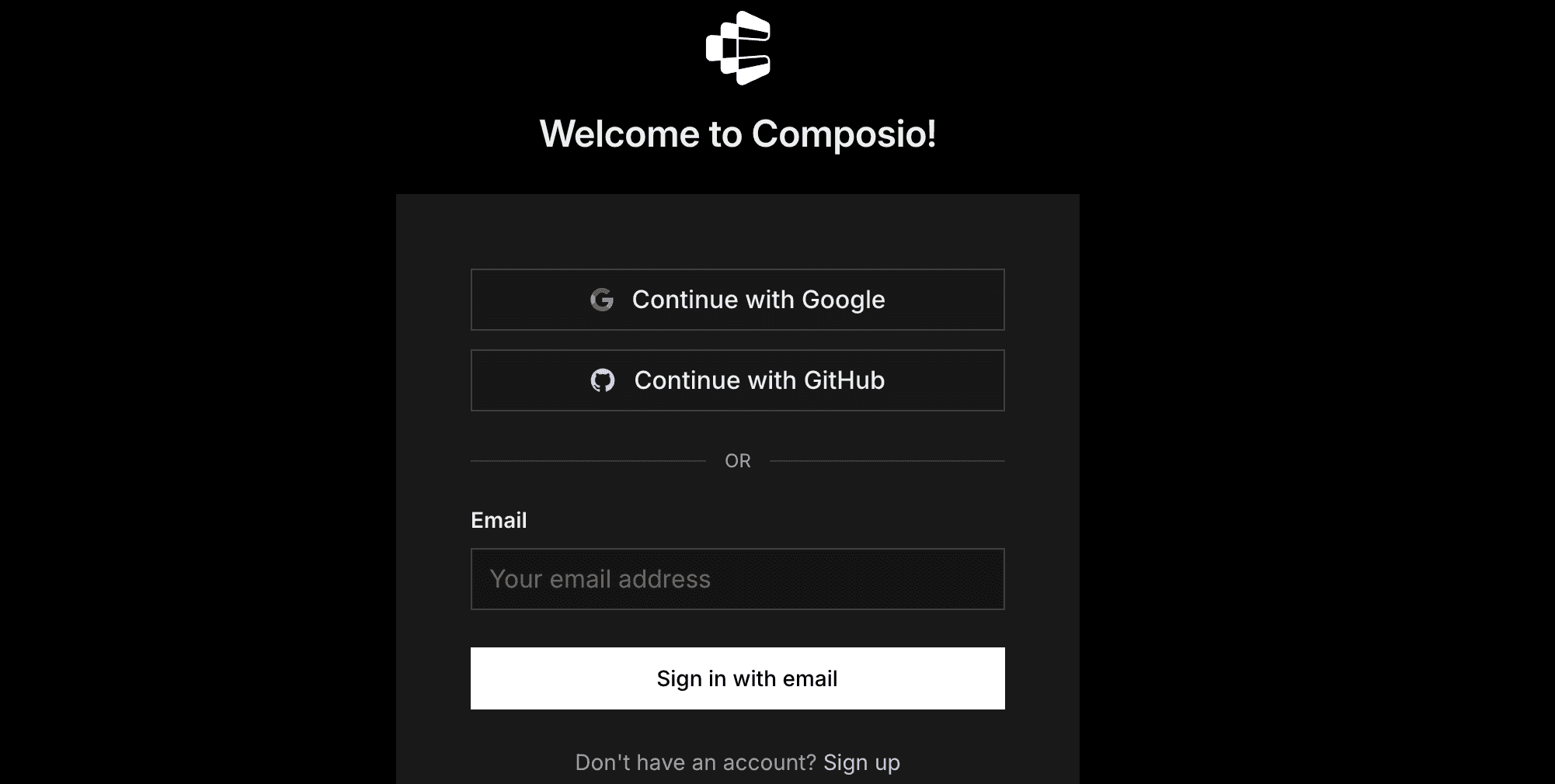
Claude sends you to Composio's sign-in page. Sign in (or create a free account), then approve the connection.
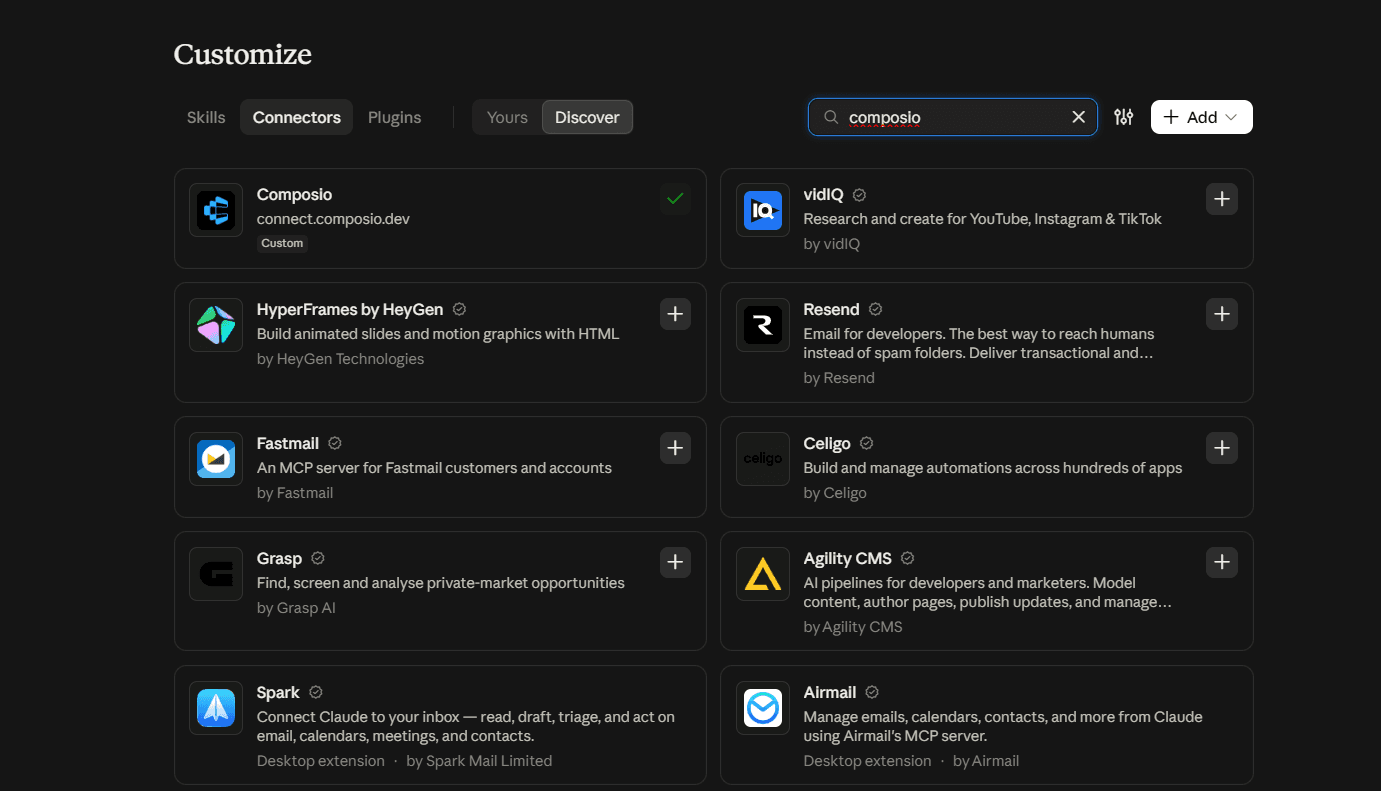
You'll land back in Claude, and Composio will appear in your list under Customise > Connectors.
Make sure Composio is switched on for your chats. In the message box, click +, open Connectors, and check that the Composio toggle is on.
Prefer to add it by hand? Go to Customize > Connectors, click +, choose Add custom connector, enter Composio as the name and https://connect.composio.dev/mcp as the URL, then continue from step 3.
Quick check
Start a new chat and ask:
What Composio tools do you have available?
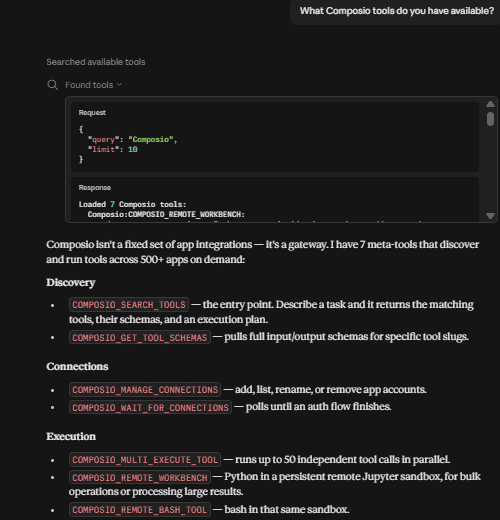
If Claude lists Composio tools (names like search tools, manage connections, or multi-execute), you're ready for Step 2. If nothing shows up, jump to Troubleshooting.
Step 2: Connect your Excel account
With Composio added, you now link the Microsoft account that holds your spreadsheets. This also takes about two minutes.
In a Claude chat, ask:
Connect my Microsoft Excel account through Composio.
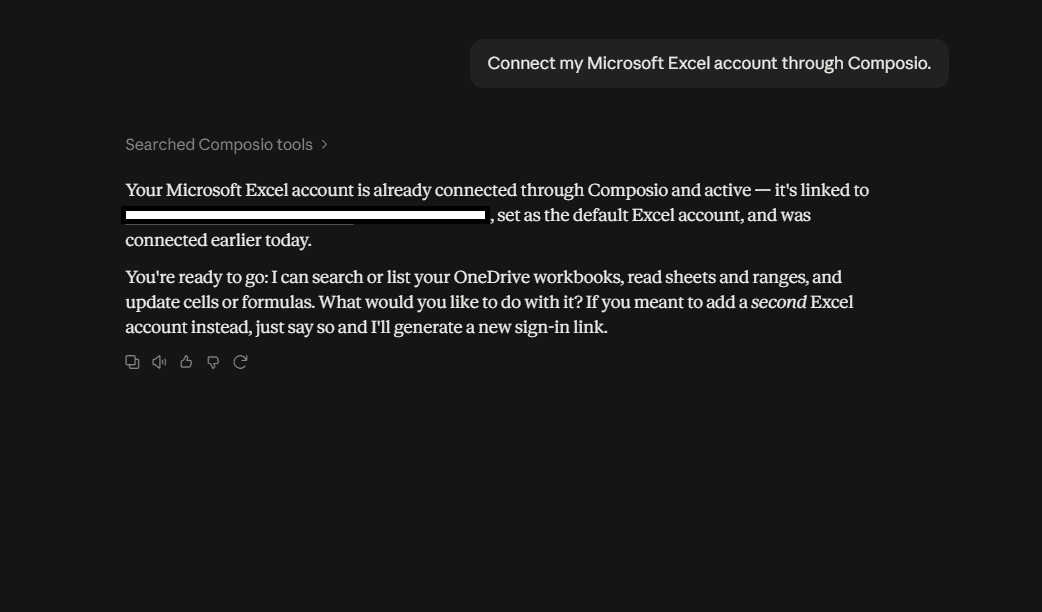
Claude checks for an existing connection. If there isn't one, it replies with a sign-in link.
Open the link and sign in with the Microsoft account that holds your spreadsheets. If your browser is already signed in to a different Microsoft account, pick Use another account.
Microsoft asks you to approve access to read and write your files. Review the request and click Accept.
Go back to Claude and tell it you're done. Claude confirms the connection is active before it touches any file.
Do step 3 right away. The sign-in link expires after 10 minutes. If it lapses, just ask Claude for a fresh one.
From then on, you can point Claude at a workbook by name and ask it to read or change specific cells. You won't need to sign in again unless you remove the connection or Microsoft asks you to re-approve access.
Working with OneDrive files directly, not just Excel? Ask Claude to connect OneDrive through Composio the same way. It uses the same Microsoft sign-in.
See it in action
On a plain @outlook.com account, Claude edited individual cells and Excel calculated the formulas in the real file. This was the part I doubted. Microsoft's cell-level Excel API has historically been limited on personal accounts, so I tested it before recommending anything.
The test had three steps:
Create a workbook. Claude made a small file,
Claude test.xlsx, in OneDrive with three columns (Item, Qty, Price) and two rows: Apples, 3 at 40, and Bananas, 6 at 10.Write only three cells. Claude wrote to D1 through D3 and left the rest of the file alone: a Total header, then
=B2*C2and=B3*C3.Read the result back. Excel returned the values from the file itself: 120 for Apples and 60 for Bananas. The cells kept their formulas, not just the numbers.
Here's the sheet after Claude's edit. Only column D is new.
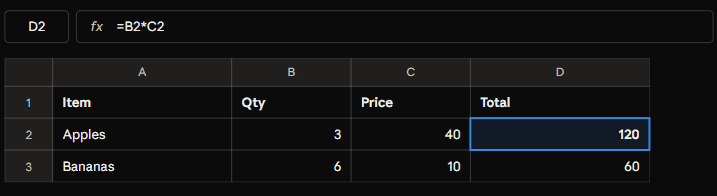
That's the key difference from a download-and-re-upload approach. Claude changed three cells in the existing file, so the share link, version history, and everything else in the workbook stayed the same.
Want to run the same test yourself? Paste this into a chat:
Setup prompt:
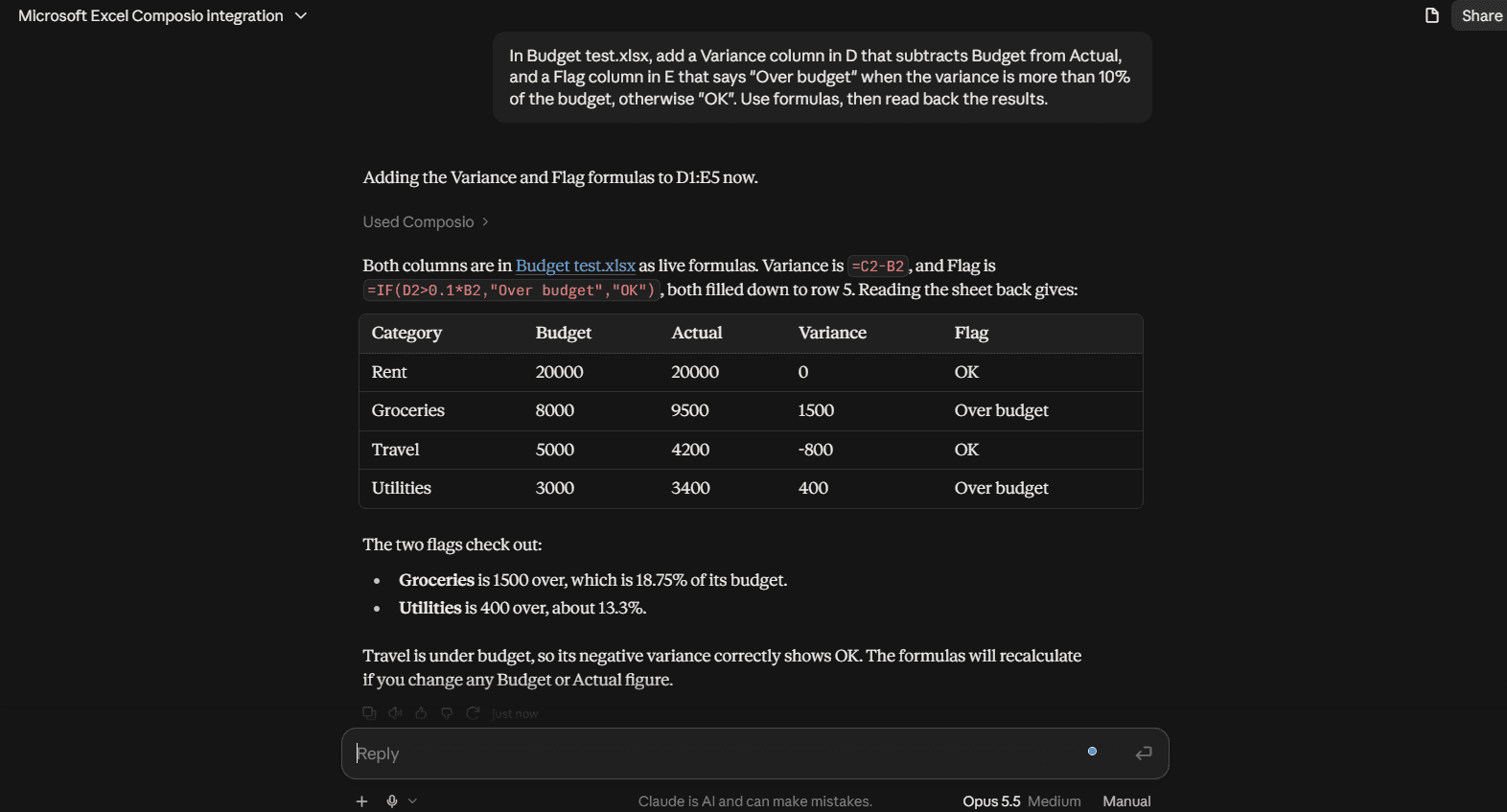
Using Composio, create Budget test.xlsx in my OneDrive with columns Category, Budget, Actual. Add these rows: Rent, 20000, 20000; Groceries, 8000, 9500; Travel, 5000, 4200; Utilities, 3000, 3400.
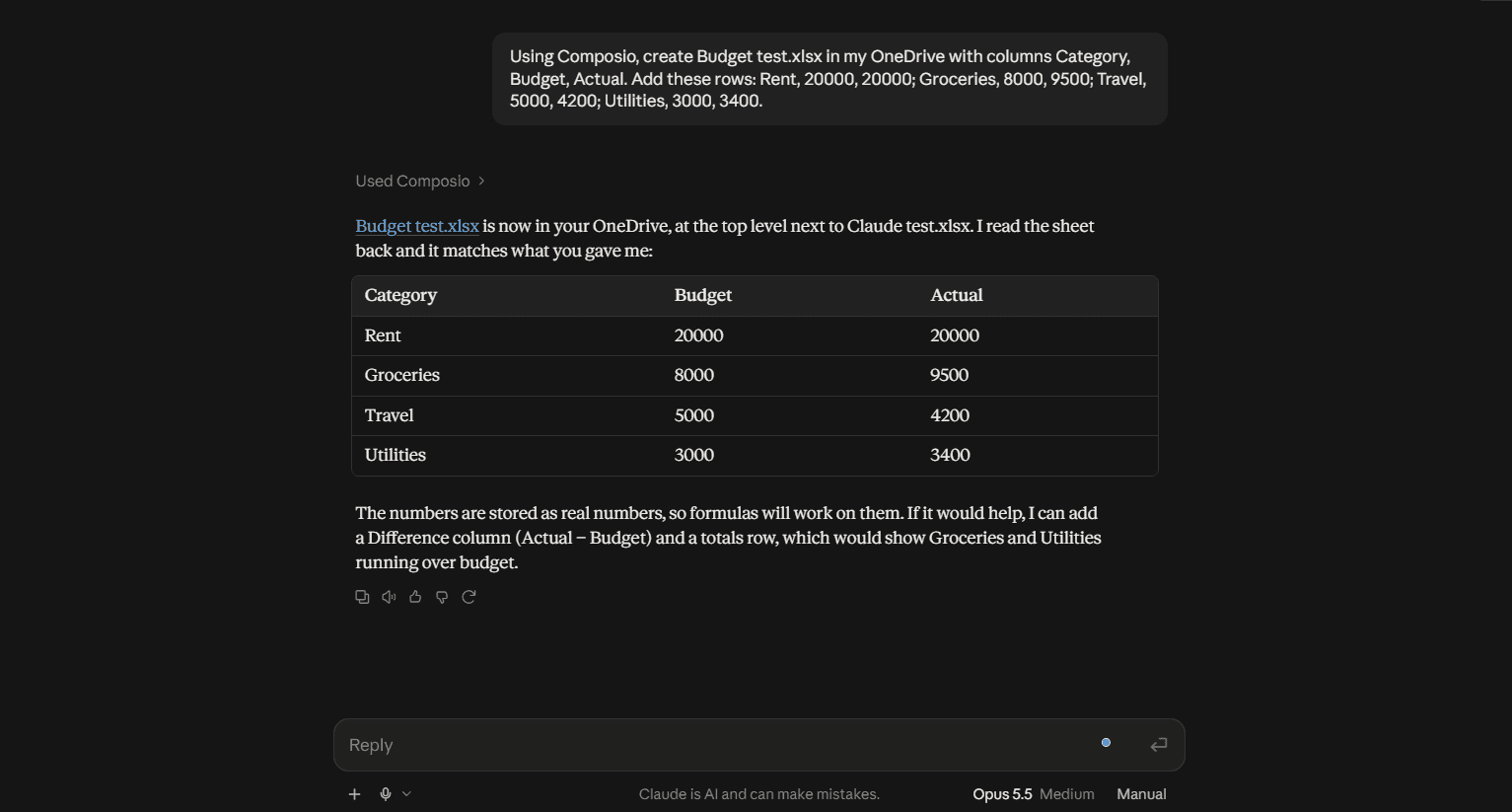
Edit prompt:
In Budget test.xlsx, add a Variance column in D that subtracts Budget from Actual, and a Flag column in E that says "Over budget" when the variance is more than 10% of the budget, otherwise "OK". Use formulas, then read back the results.
Example 2:
Setup prompt:
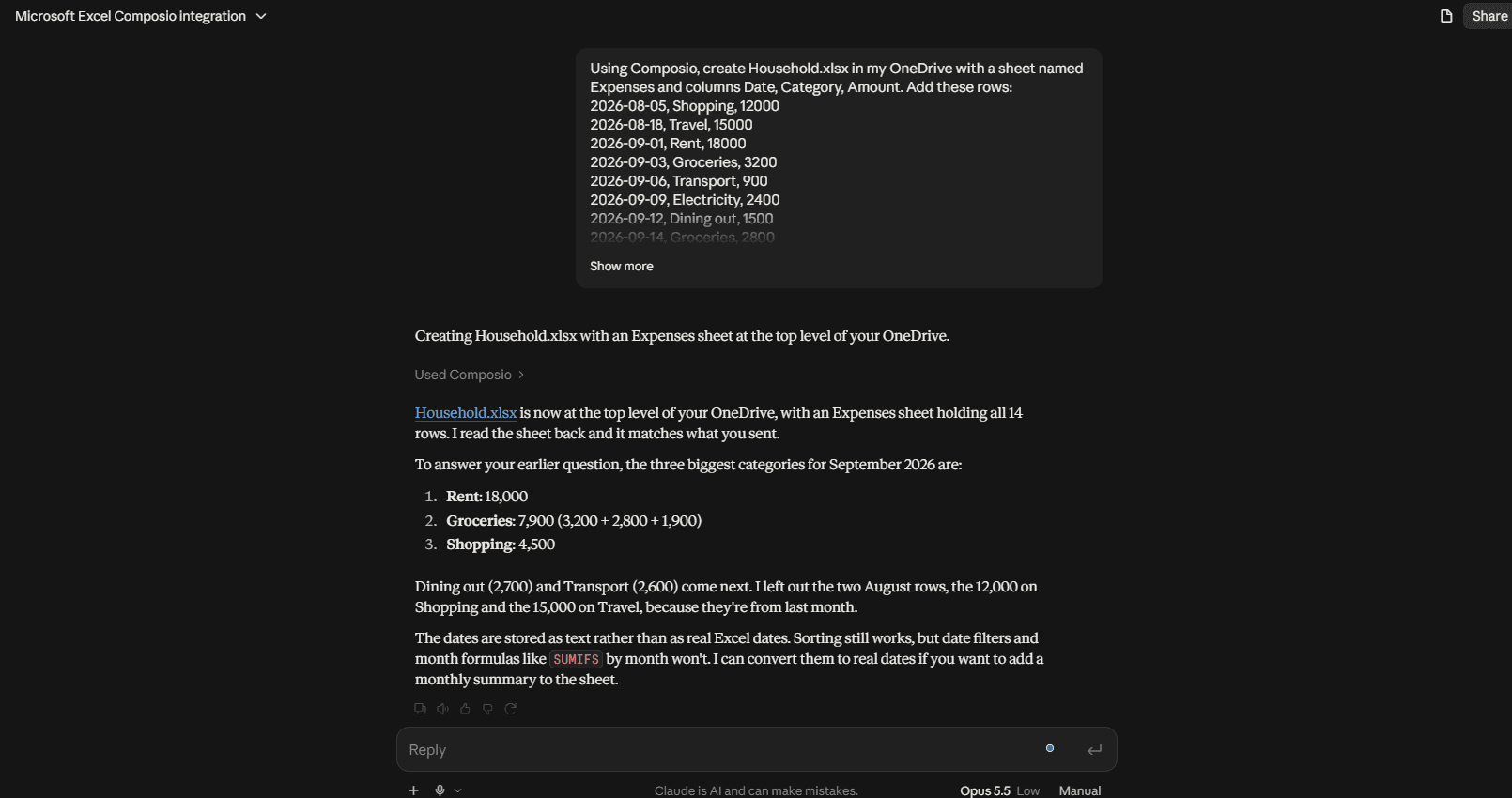
Using Composio, create Budget test.xlsx in my OneDrive with columns Category, Budget, Actual. Add these rows: Rent, 20000, 20000; Groceries, 8000, 9500; Travel, 5000, 4200; Utilities, 3000, 3400.
What you can do with it
Once Claude can write to your workbooks, the spreadsheet stops being a place you copy things into by hand. A few examples you can paste in and adapt:
Keep a content calendar current.
In Content Calendar.xlsx, mark every post published this week as Done and add next week's topics in rows 30 to 35.
Log results into a tracker. Pull numbers from another connected app, such as analytics or a CRM, and have Claude append them to the right rows with the date.
Get last week's signups from PostHog and add them as a new dated row in Growth Tracker.xlsx.
Fix and extend a budget. Claude writes real formulas, so the sheet keeps working after it's done.
In Budget 2026.xlsx, add a Variance column that subtracts Actual from Budget, and flag anything over 10%.
Clean up messy data.
In Leads.xlsx, trim extra spaces in column B, make the emails lowercase, and mark duplicate rows in a new column.
Summarise a sheet without opening it.
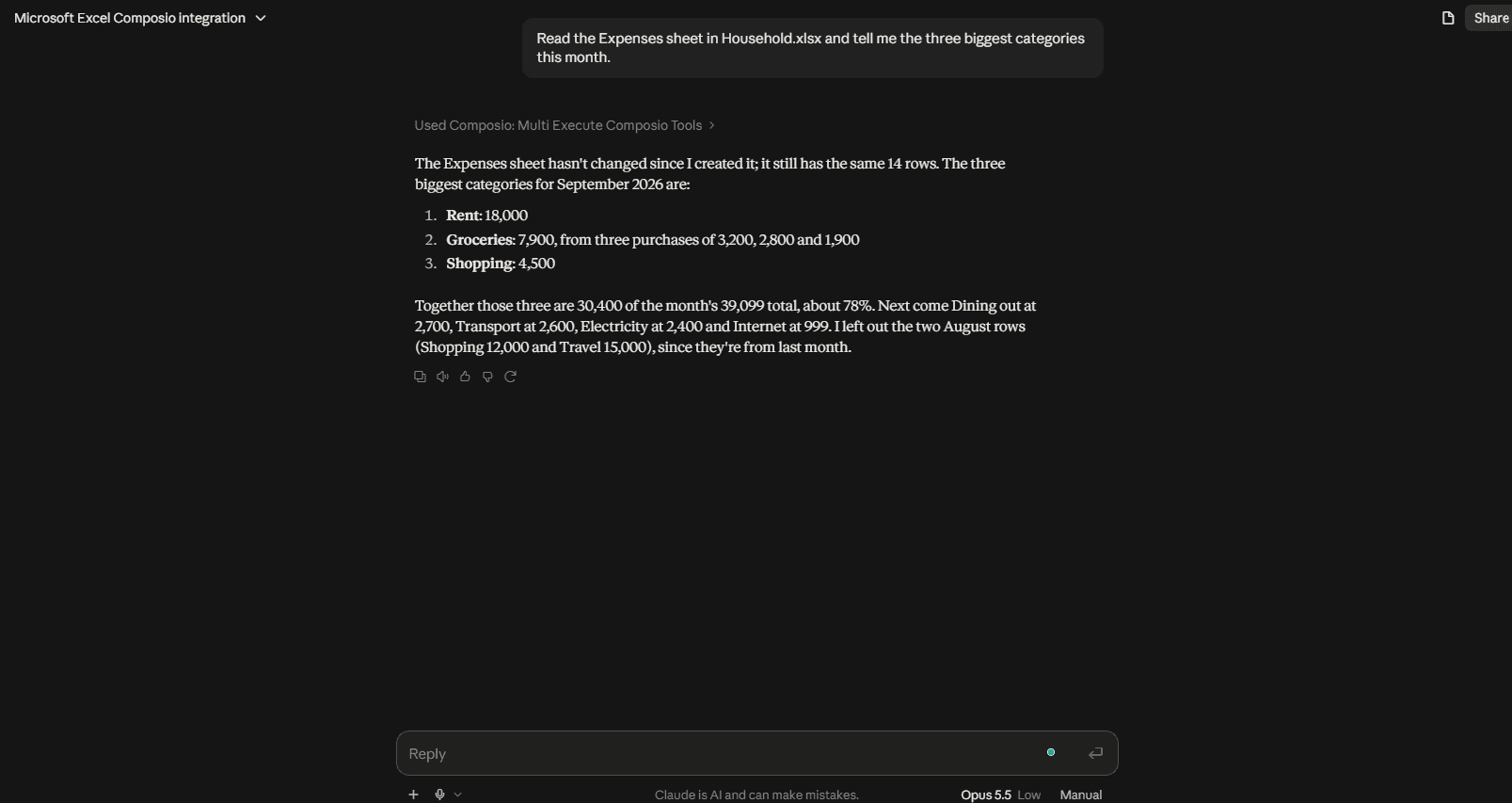
Read the Expenses sheet in Household.xlsx and tell me the three biggest categories this month.
Tips for reliable results
Name the file exactly. "Budget 2026.xlsx" works better than "my budget". If you have similar names, add the folder: "Budget 2026.xlsx in Finance".
Name the sheet and the range. "Sheet2, cells D2 to D40" leaves nothing to guess.
Ask Claude to read before it writes. For anything important, say "show me what's in A1:F10 first", then give the edit.
Ask for formulas, not values, when you want the sheet to keep calculating on its own.
Close the file in desktop Excel before a big edit. Excel on the web handles simultaneous changes fine, but a locked desktop copy can block writes.
Keep a safety net. OneDrive keeps version history, so you can roll back if an edit goes wrong. For your first few runs, try it on a copy.
Troubleshooting
Most problems come down to the connector being switched off, the wrong Microsoft account, or the file not being where Claude expects it.
Symptom | Likely cause | Fix |
|---|---|---|
Claude says it has no Composio tools | Composio is off for this chat, or wasn't added | In the message box, click + > Connectors and switch Composio on. If it isn't listed, redo Step 1. Start a new chat after. |
The Add button is greyed out or missing | Free plan already has a custom connector, or you're on a Team/Enterprise plan | Free allows one custom connector: remove the old one or upgrade. On Team/Enterprise, ask an Owner to add Composio for the organization. |
Composio sign-in fails or loops | Browser blocks pop-ups or third-party cookies | Allow pop-ups for claude.ai and composio.dev, or try a private window, then remove and re-add the connector. |
The Microsoft sign-in link doesn't work | It expired after 10 minutes | Ask Claude for a new link and sign in straight away. |
Claude can't find your workbook | Wrong Microsoft account connected, or the file is only on your computer | Check which account you approved. Make sure the file is saved to OneDrive. Give the exact file name and folder. |
Claude can read but not write | Write access wasn't approved, or the file is locked | Reconnect Excel and accept the read-and-write permission. Close the file in desktop Excel and try again. |
Formulas come back as text | The cell is formatted as Text | Ask Claude to set the range to General format, then rewrite the formulas. |
Edits fail on an older file | The file is .xls or .csv, not .xlsx | Open it in Excel, save as .xlsx, and point Claude at the new file. |
Still stuck? Ask Claude to "check my Composio connections". It will tell you which apps are connected and whether each connection is active. You can also manage or remove connections from your Composio dashboard.
Other gaps Composio fills
Personal OneDrive isn't the only place the official connectors stop short. Here are the other limits I found in Claude's help centre, next to what Composio's toolkits offer instead.
Task | Official connector | Composio |
|---|---|---|
Edit Excel on a personal account | Not possible: needs a work account on an Entra tenant, plus admin-enabled write tools | Signs in with your own @outlook.com account and edits cells and formulas |
Read Gmail attachments | Sees only attachment details like name and size, not the contents (source) | Downloads the attachment itself, so Claude can read a PDF or spreadsheet sent to you |
Post in Microsoft Teams | Work accounts only, and only after an admin turns on each Teams write tool; can't change Teams settings (source) | Posts channel messages, replies in threads, and sends chat messages without an admin step |
Use apps with no official connector | Only apps in Claude's connector directory, unless you set up a custom connector yourself | Covers 1,500+ apps, including TikTok, Instagram, Meta Ads, X, and PostHog |
Connect more than one account | One account per connector | Up to 10 separate Excel connections |
Composio also runs code on the data it pulls, which helps with chained jobs. For example, you could pull last week's analytics, write the totals into your Excel tracker, and email yourself a summary, all in one request.
FAQ
Does this work with a Microsoft 365 Personal or Family subscription?
Yes. What matters is that you sign in with a personal Microsoft account and your files sit in OneDrive. The subscription just gives you more storage.
Will Claude overwrite my whole file?
No. It writes only to the cells you name, so formatting, other sheets, the share link, and version history stay as they were.
Can I use it on my phone?
Yes. Custom connectors are added once to your Claude account and then work on the web, desktop, and mobile apps.
How do I disconnect?
To stop Claude from using Composio, remove it under Customise> Connectors. To revoke access to your Microsoft files, remove the Excel connection in your Composio dashboard, or remove Composio from the apps list in your Microsoft account's privacy settings.
Is it safe?
Composio acts on your behalf with the permission you approve at sign-in, so treat it like any app you give file access to. Only connect the account that holds the files you want Claude to work on, and review edits on important workbooks.
Wrapping up
If you're on a personal Microsoft account, the official connector won't work for you. Composio closes that gap in about five minutes: add the connector, link your Excel account, and Claude can edit real cells with real formulas in the files you already use.
Start with the three-cell test above on a copy of a file. Once you've seen the formulas land, move on to your content calendar, tracker, or budget.

 Get started



