




Claude has a Microsoft 365 connector, but it only works with work or school accounts. If you use a personal Microsoft account, such as @outlook.com, @hotmail.com, or @live.com, Claude shows an error when you try to sign in.
Many people keep their email, calendar, and files in a personal Microsoft account. They pay for Microsoft 365 Personal or Family and want Claude to help with their Outlook email, OneDrive files, and Excel spreadsheets.
Composio lets you do this. You connect Composio to Claude once, then sign in to your personal Microsoft account. After that, Claude can read your mail, find your files, and work on your spreadsheets.
You do not need to write code, make an Azure app, or set up MCP yourself. You connect Composio one time, sign in to Microsoft, and tell Claude what to do.
Read this first: what works with a personal account
Microsoft gives personal accounts and work accounts different features. Some Microsoft apps only work with work or school accounts, so Composio cannot connect them to a personal account.
These apps work with a personal Microsoft account:
Outlook: your email, calendar, and contacts
OneDrive: your files and folders, including Word, Excel, and PowerPoint files
Excel: the cells, sheets, and tables inside workbooks that you keep in OneDrive
These apps need a work or school account:
Microsoft Teams
SharePoint
If you also have a work account, you can connect it too. Give each account its own name, and Claude uses the account you ask for.
What you get
One Composio connector in Claude
Your personal Microsoft account behind it
A short name for each connection
Access to Outlook, OneDrive, and Excel from the same Claude chat
For example:
Using my personal Outlook, find the emails from my landlord this month and summarize them.
Or:
Open Budget 2026.xlsx in my OneDrive and add a row for October. Show me the values before you save anything.
Before you start
You need:
A Claude account
A free Composio account
Your personal Microsoft account and its password
About 5 to 10 minutes
Claude supports custom remote MCP connectors on Free, Pro, Max, Team, and Enterprise plans. Claude Free lets you add one custom connector.
If you use Claude Team or Enterprise, an Owner or Primary Owner may need to turn on the connector for your organisation first.
Step 1: Add Composio to Claude (One-time process)
Click here: Composio x Claude
This will take you to the Claude Custom Connector modal
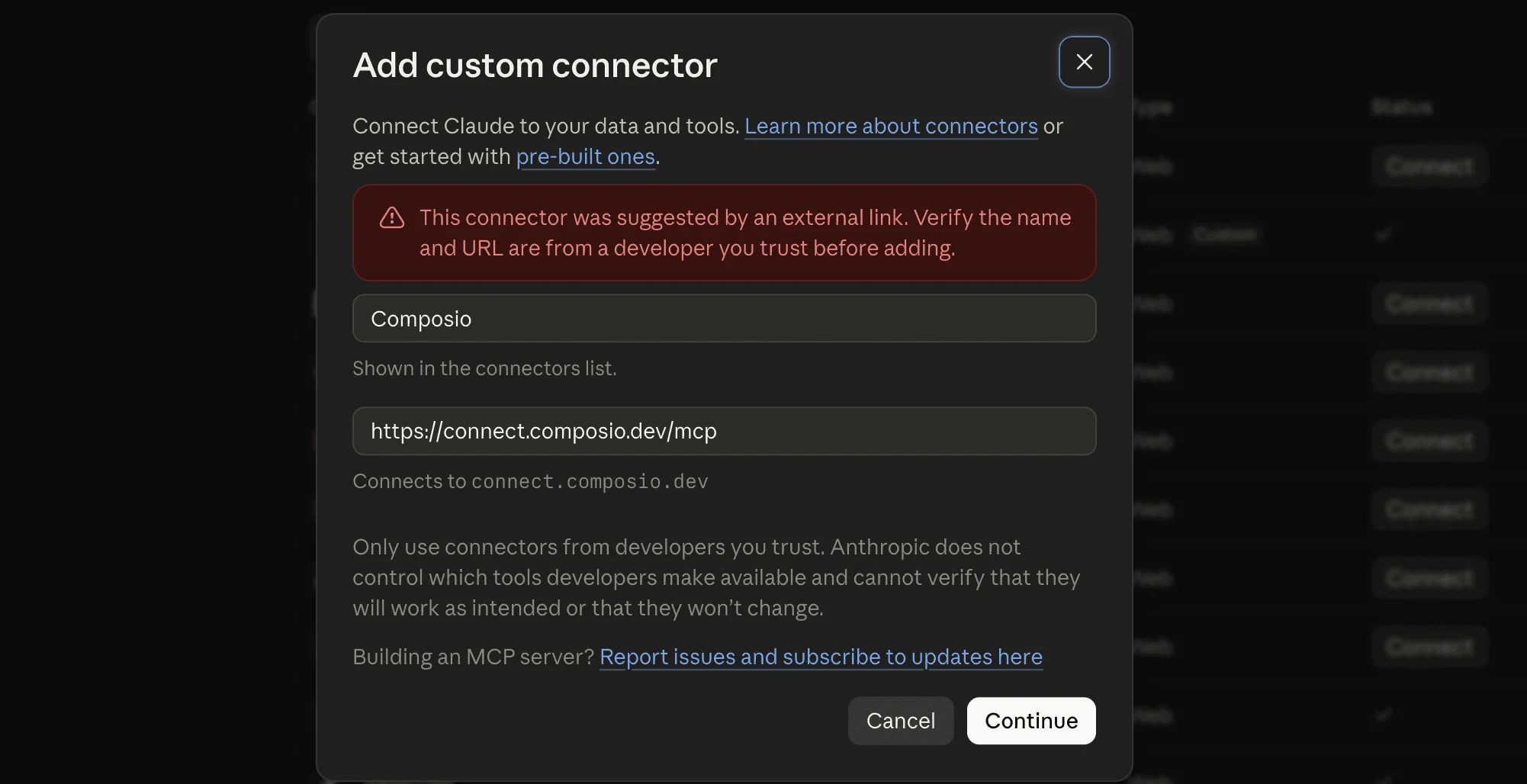
Click Continue
And in the next modal, click Add
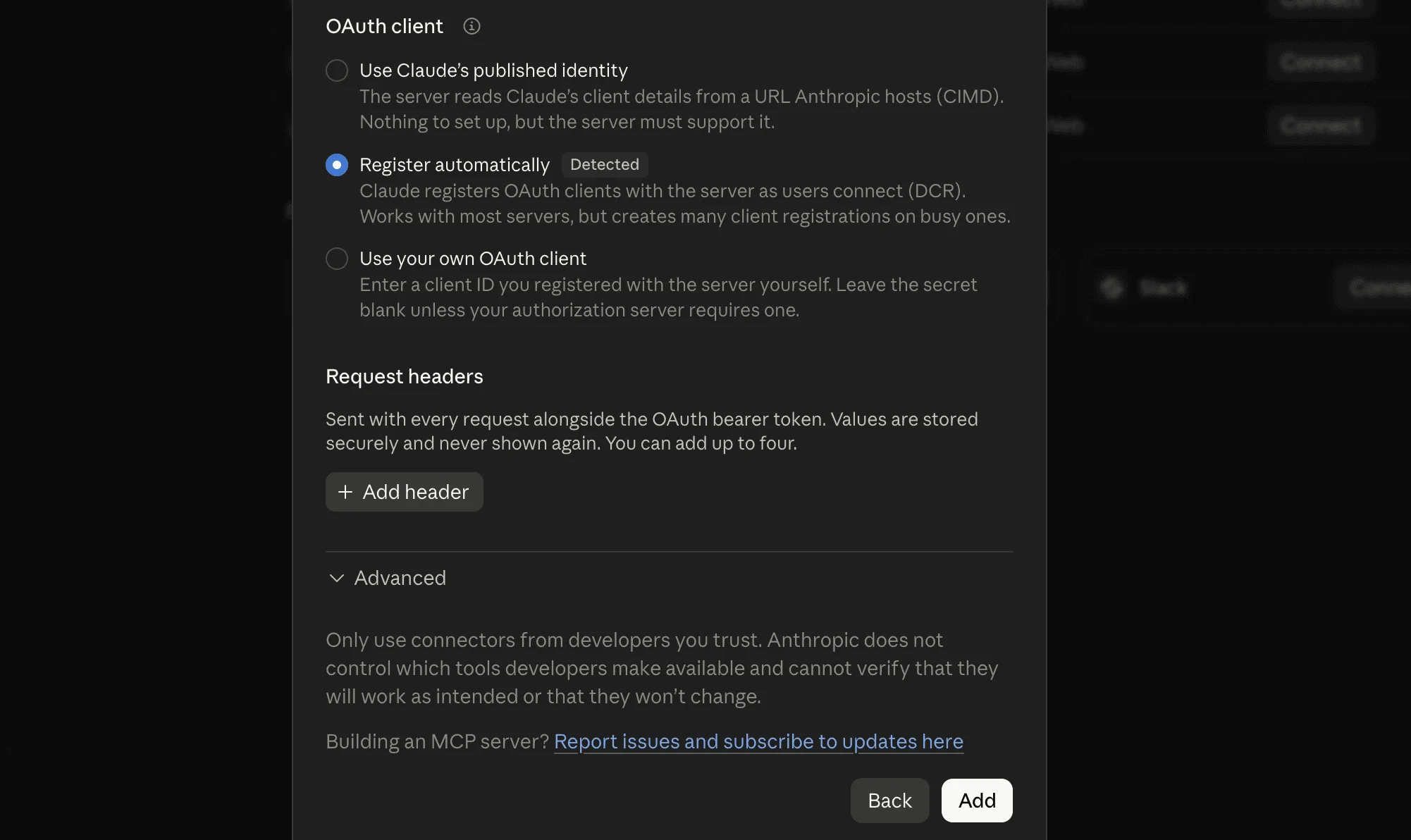
It will take you to the authentication page. So, sign in to Composio and approve the connection.
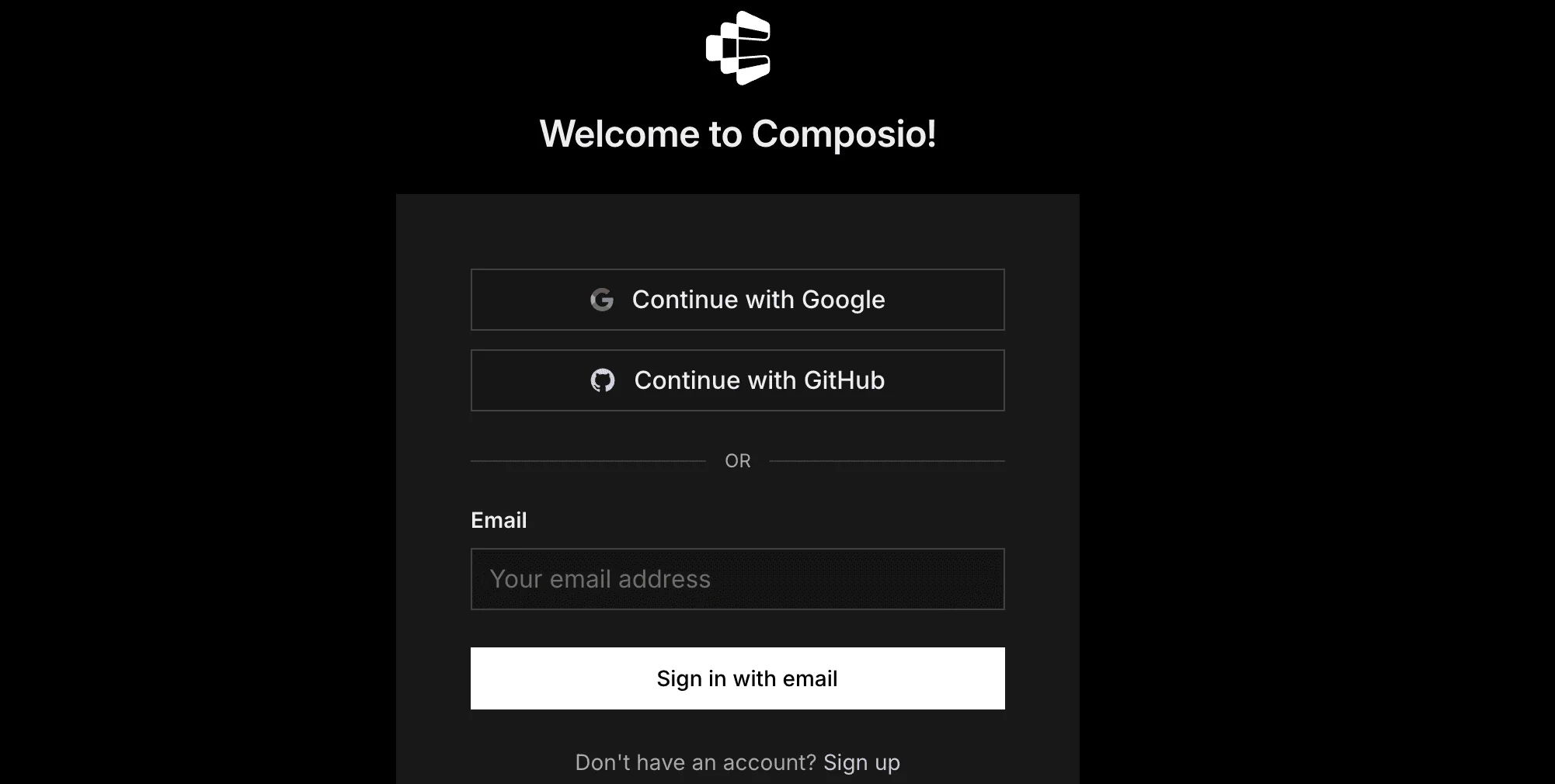
Then:
Return to Claude and make sure Composio is enabled.
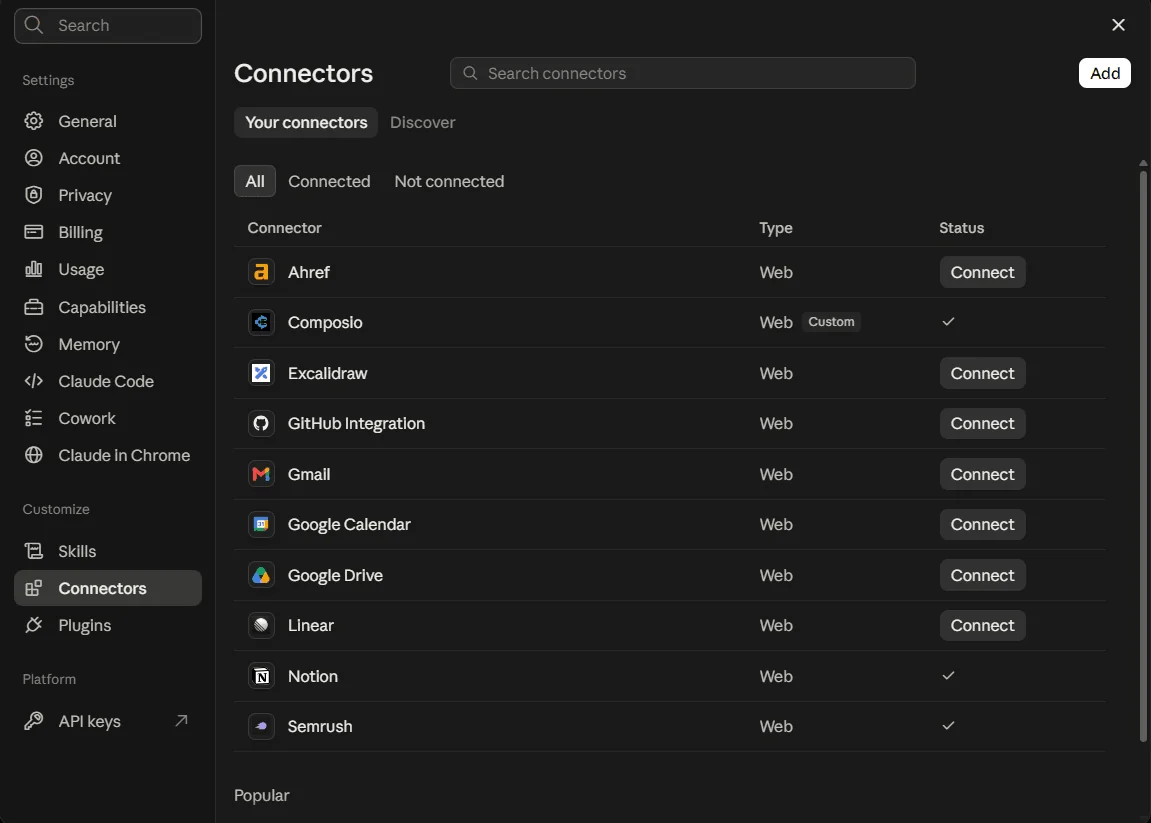
You only need to do this once.
Quick check
Start a new Claude chat and ask:
What Composio tools do you have available?
If Claude lists Composio tools, you are ready for the next step.
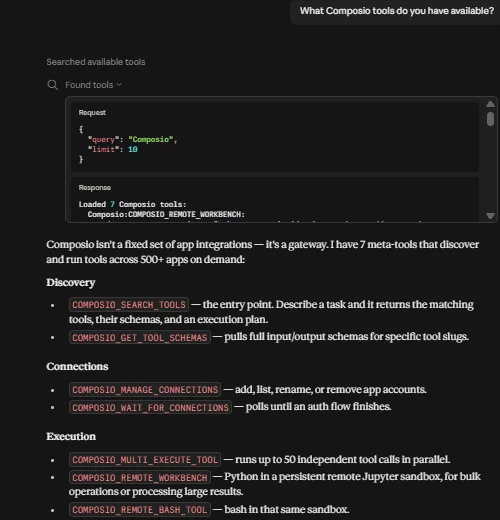
If nothing shows up, jump to Troubleshooting.
Step 2: Connect your first Outlook account
In a new Claude chat, type:
Connect my work Outlook account to Composio. Call it work.
Claude will give you a Microsoft sign-in link.
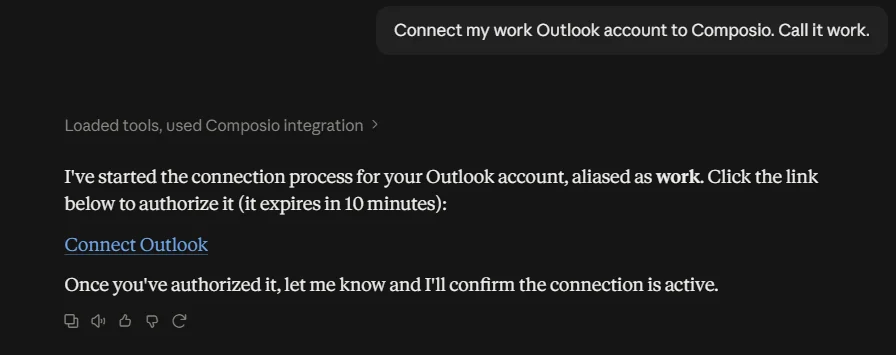
Click the link.
Sign in to your work Microsoft account.
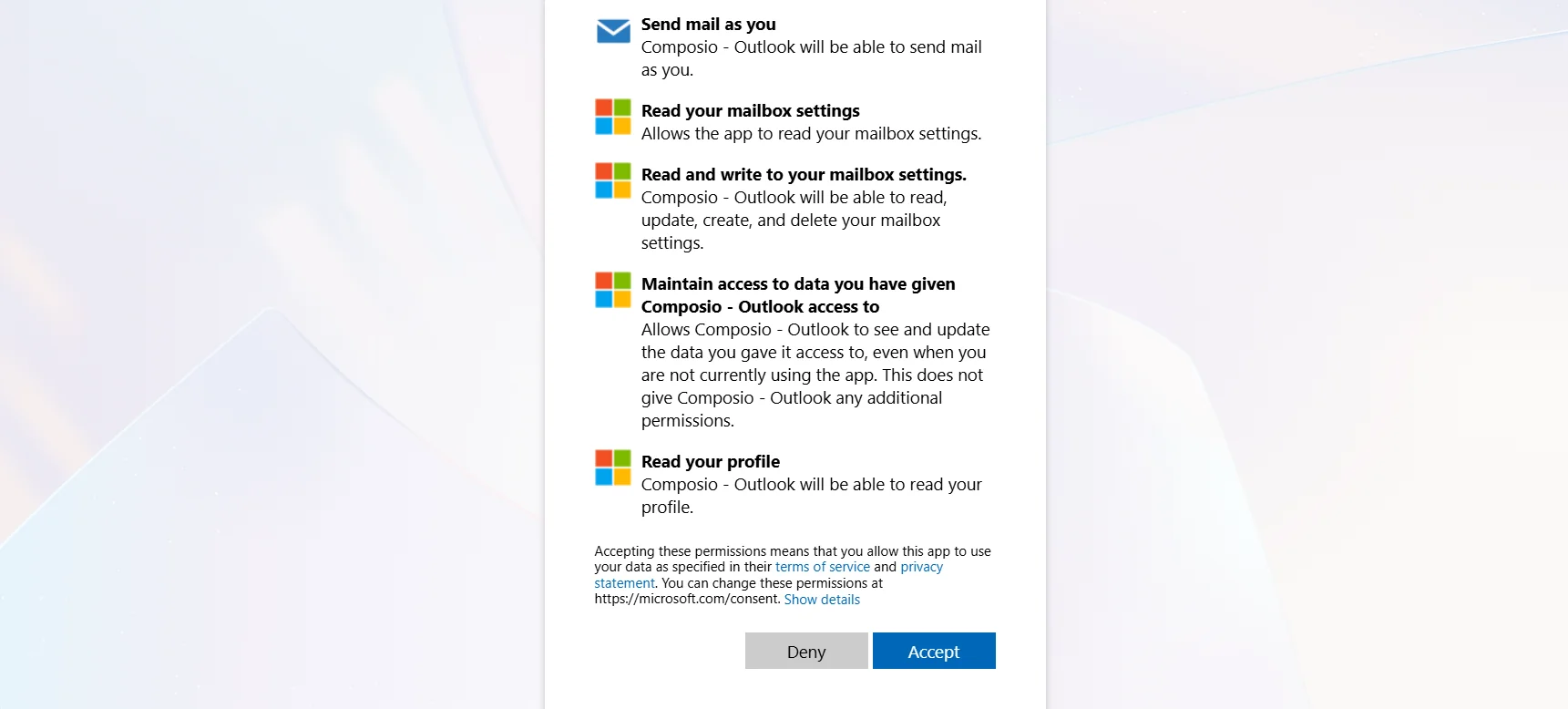
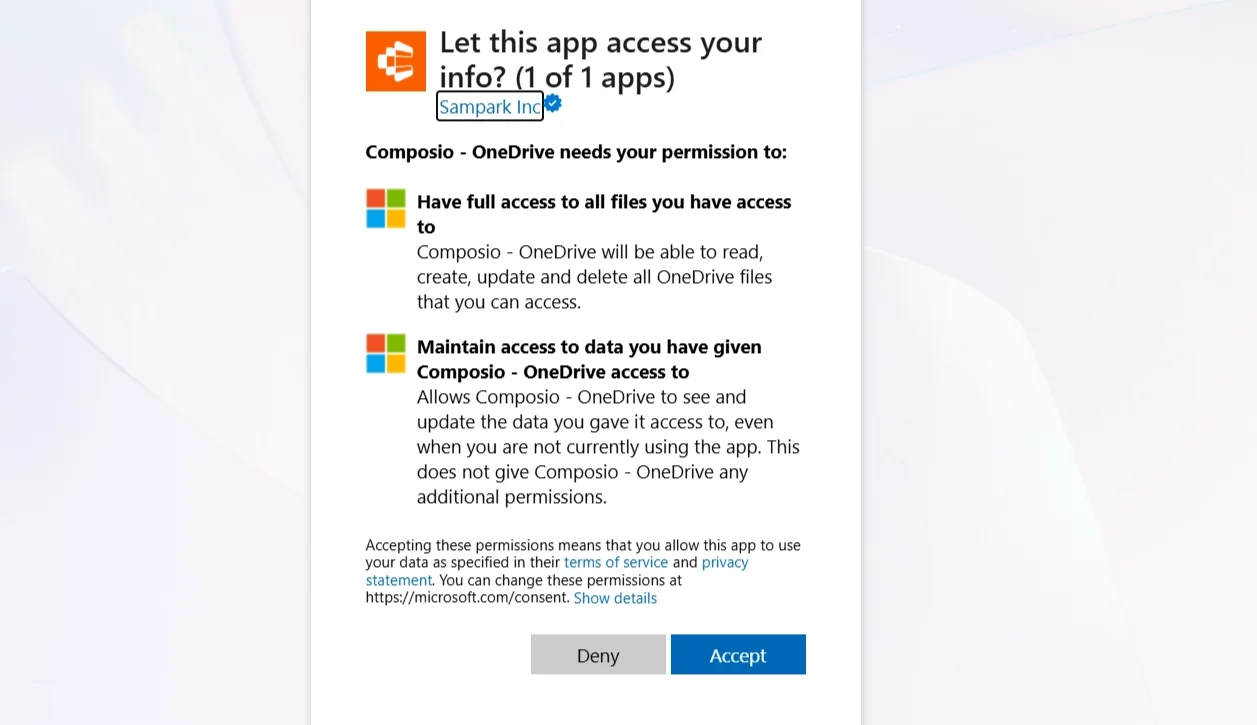
Review Microsoft's permission request.
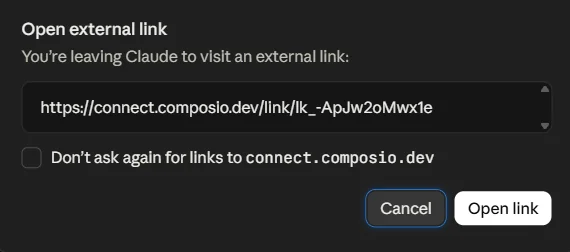
Approve access.
Return to Claude.
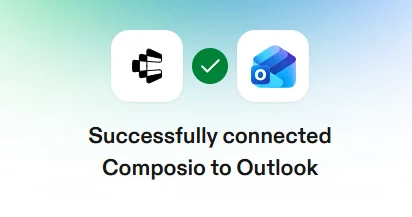
Claude should confirm that the account is connected.
The name work is how Claude knows which Outlook account to use.
Choose short and obvious names. Good examples include:
workpersonalbillingsupportclient-comp
Composio supports multiple connected accounts for the same toolkit and lets each connection have its own alias.
Claude now tells you that it connected your Outlook account.
Important: Microsoft keeps you signed in to the last account you used. Check the email address on the sign-in page before you click Accept. If Microsoft shows a different account, click Use another account, or open the link in a private browser window.
You don't need your own Azure app or Microsoft developer credentials because Composio provides its own built-in Microsoft app.
Step 3: Connect your OneDrive Account
Outlook and OneDrive are separate apps in Composio, so you connect each one separately.
Type:
Connect my OneDrive account to Composio. Call it personal.
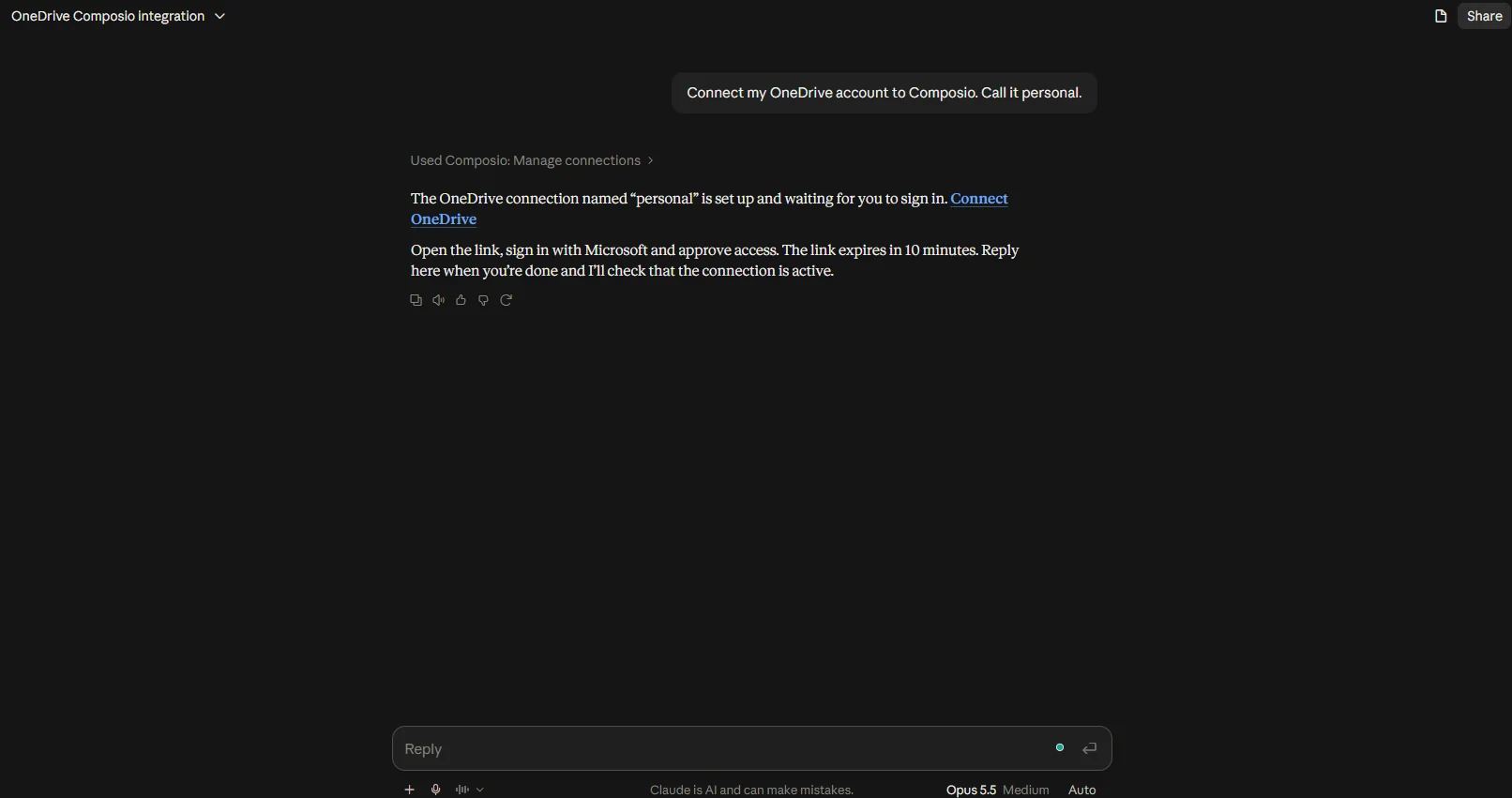
Claude gives you a new sign-in link. Open it, check the email address, and click Accept. Then go back to Claude.
Step 4: Connect Excel
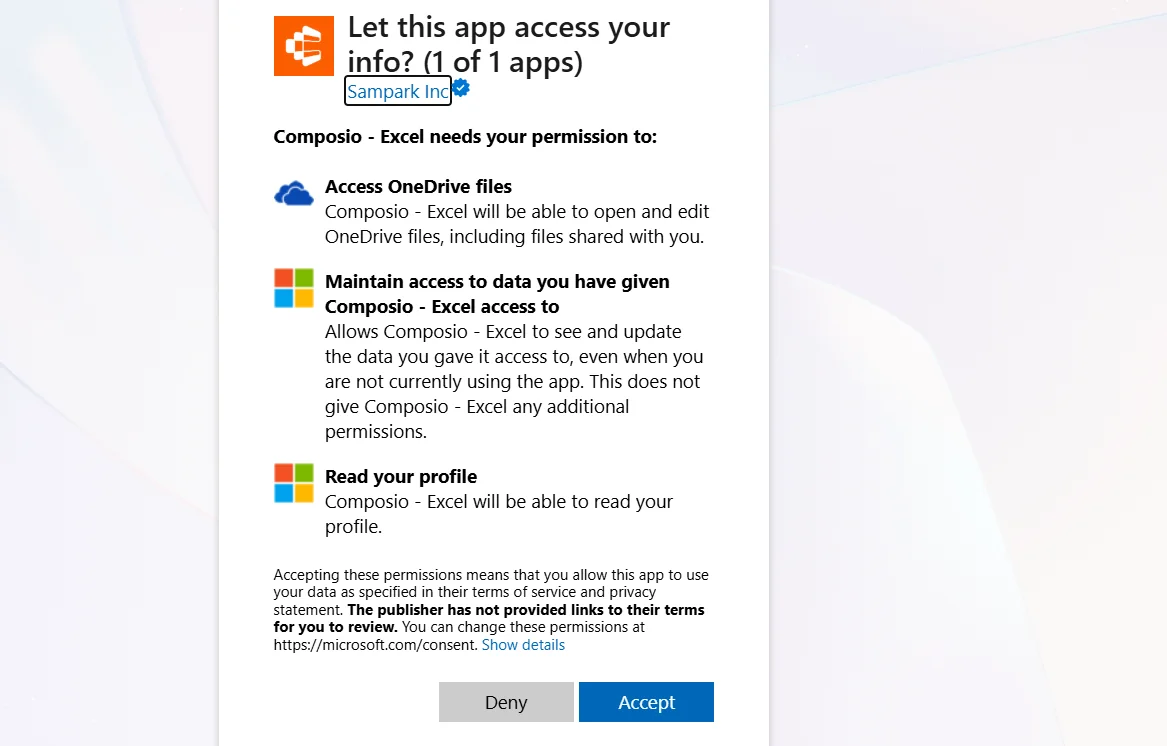
Excel needs its own connection too. This connection lets Claude change single cells, add rows, and work with tables inside a workbook.
Type:
Connect my Microsoft Excel account to Composio. Call it personal.
Open the link, sign in with the same Microsoft account, and click Accept.
Note: Claude can only work with Excel files that you keep in OneDrive. If a workbook is only on your computer, upload it to OneDrive first.
Step 5: Check your connections
Ask Claude:
List my connected Microsoft apps in Composio. Show the name of each connection and tell me if it is active.
You see Outlook, OneDrive, and Excel in the list.
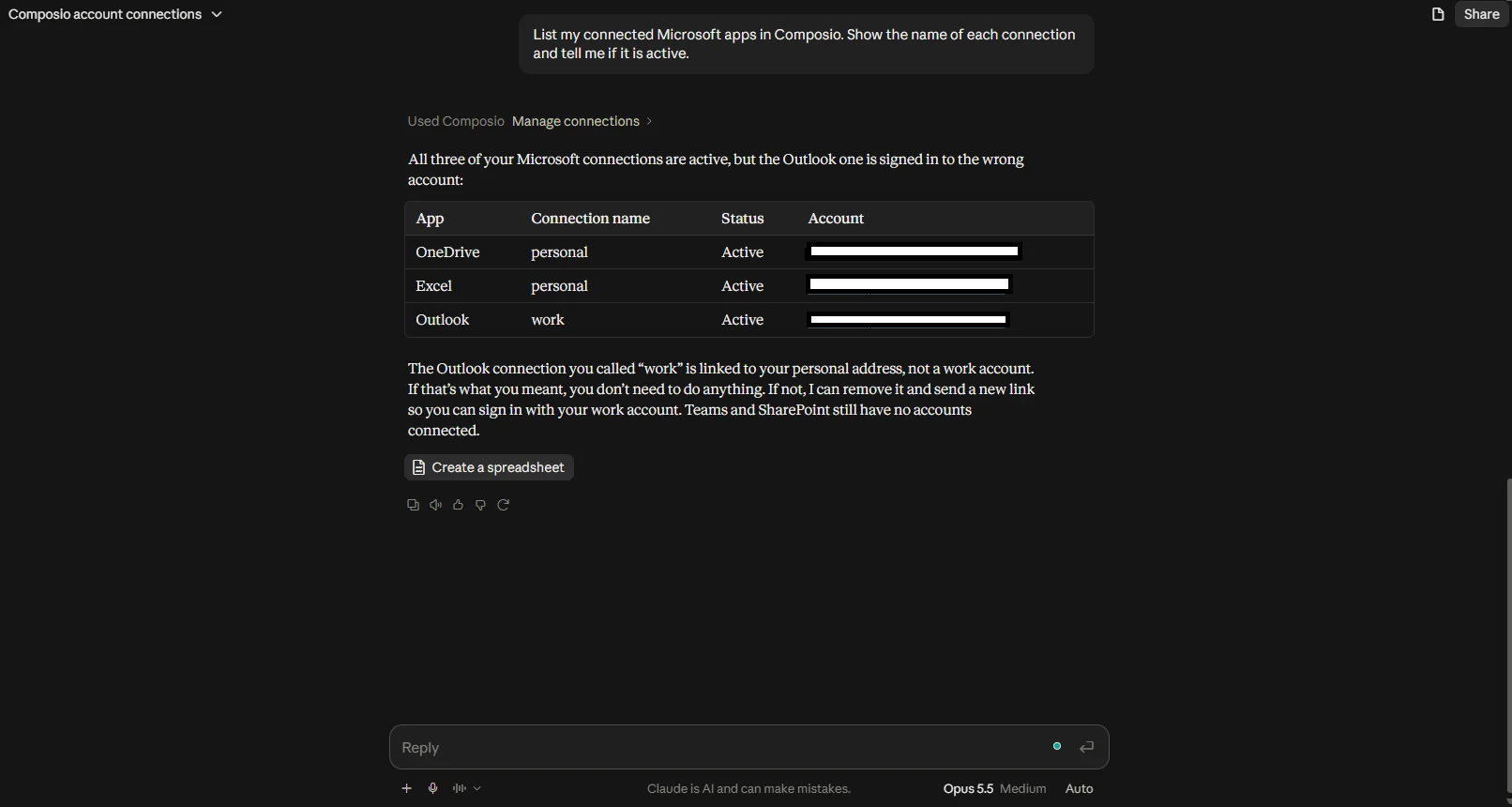
Then ask:
Tell me which Microsoft email address each connection uses.
Do this check before you let Claude send an email or change a file.
If a connection shows the wrong email address, remove it and reconnect.
Step 6: Use your Microsoft apps in Claude
Read and search your mail
Using personal Outlook, find all emails from my bank in the last 30 days and list the ones that need action.
Write an email
Using personal Outlook, write a reply to the last email from Priya. Show me the draft first, and do not send it until I approve it.
Check your calendar
Using personal Outlook, show my calendar for next week and tell me which evenings are free.
Add a calendar event
Using personal Outlook, add a dentist visit on Monday at 4 PM. Show me the event details before you save it.
Find a file
Search my OneDrive for the PDF of my rental agreement and tell me the end date.
Work on a spreadsheet
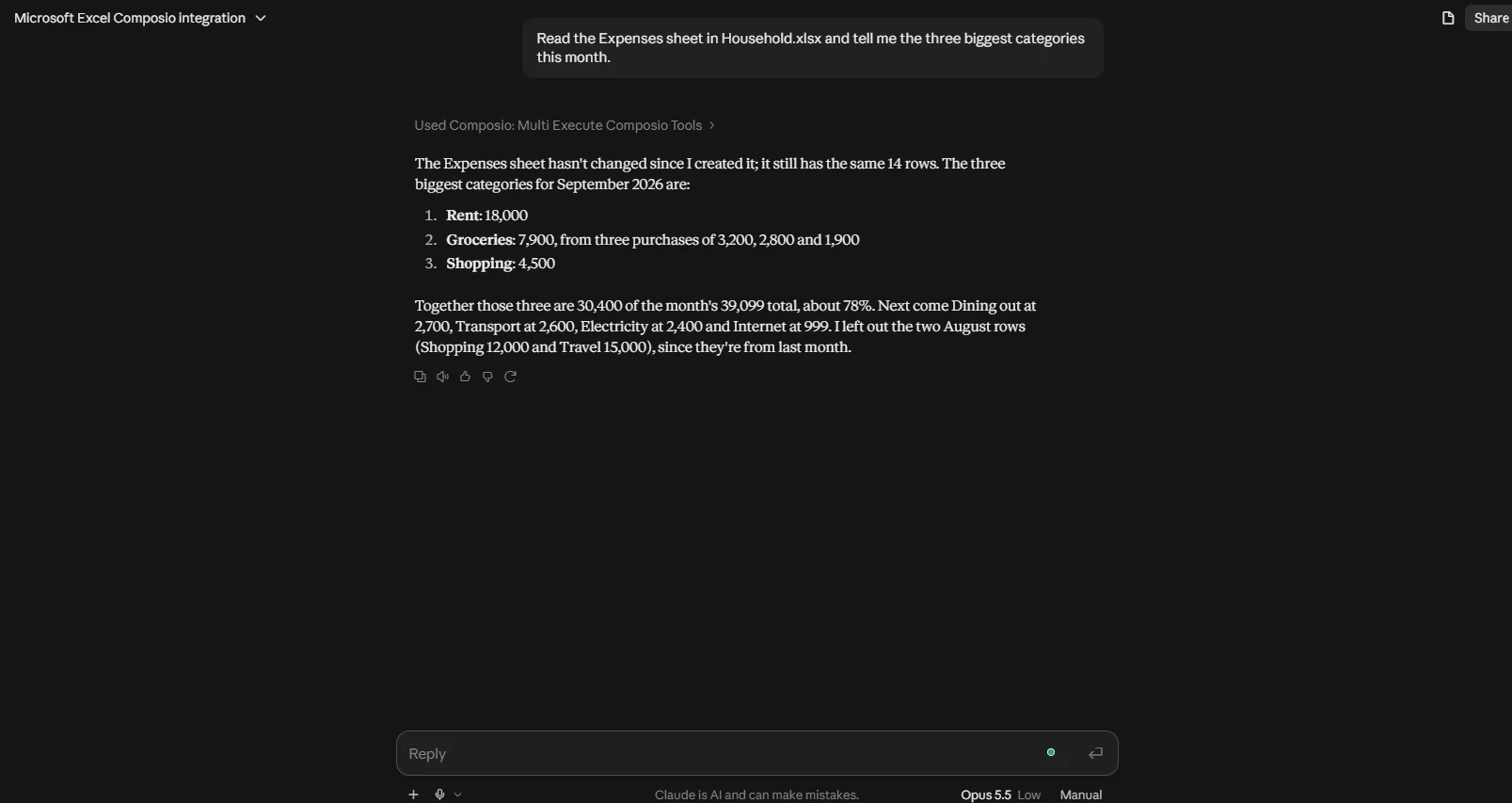
Open Budget 2026.xlsx in my OneDrive. Add the October expenses from this list, and show me the new rows before you save them.
Make a new spreadsheet
Using Composio, create Trip Plan.xlsx in my OneDrive with the columns Date, City, Hotel, and Cost.
For anything that sends, saves, or deletes, tell Claude to show you the final result first.
Make account selection more reliable
Add text like this to your Claude preferences or project instructions:
My Microsoft connections in Composio use the name personal for my @outlook.com account. If I also connect a work account, I call it work. Always use the named connection when I give one. If I ask you to send an email, change a file, or delete something and I do not give an account name, ask me which account to use first.
This helps more when you add more accounts.
A note about Microsoft limits
A request can fail even when your connection works. Some common causes:
The file is in Shared with me, and the owner did not give you edit access.
The workbook is open in the Excel desktop app with unsaved changes.
The file is in Personal Vault, which needs an extra sign-in step.
You asked for Teams or SharePoint, which need a work account.
If a request fails, ask Claude to show you the full error. Then check the file or the folder in OneDrive.
Optional: Manage your connections from Composio
The chat method above is the easiest way to add apps. Use the dashboard to rename, reconnect, or remove a connection.
Go to dashboard.composio.dev.
Sign in with the same Composio account you used to connect to Claude.
Open For You from the product switcher.
Find Outlook, OneDrive, or Excel in the Apps.
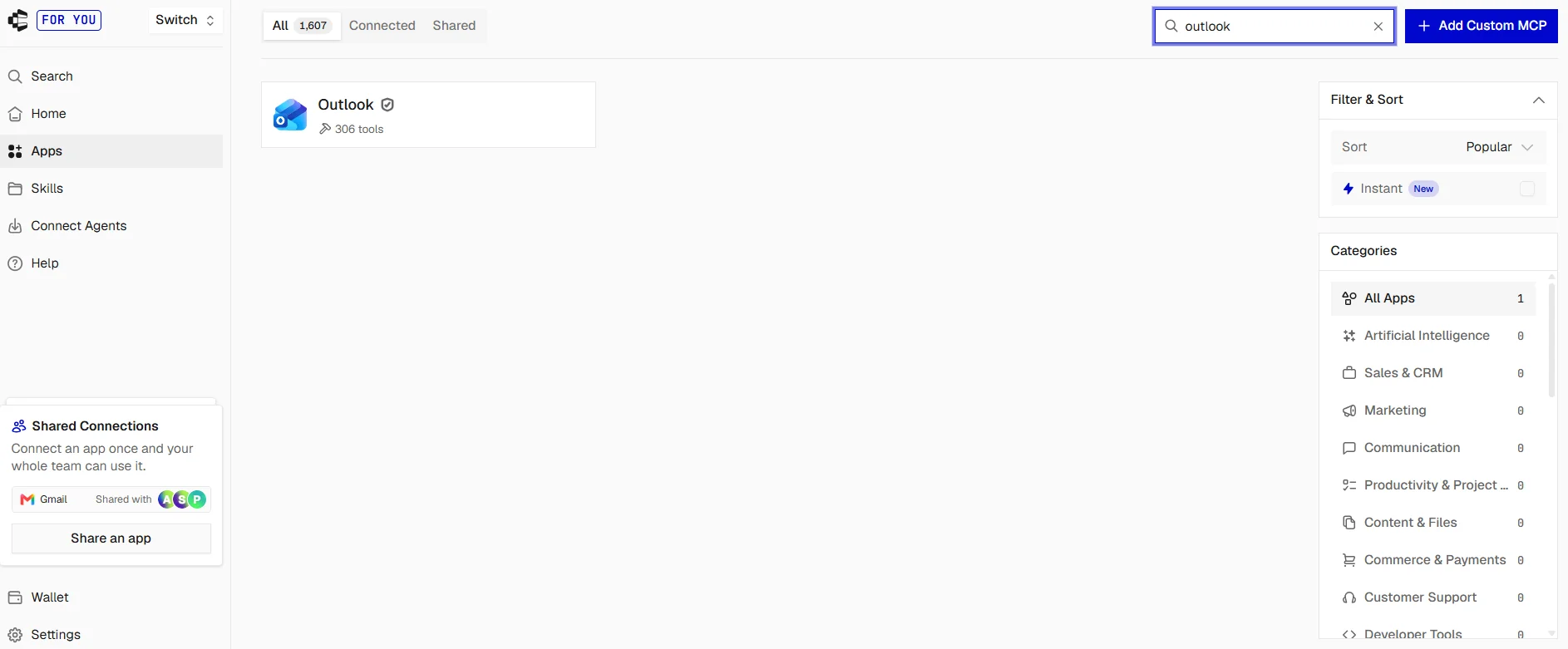
Click Connect and complete the Microsoft sign-in.
Give each connection a clear name.
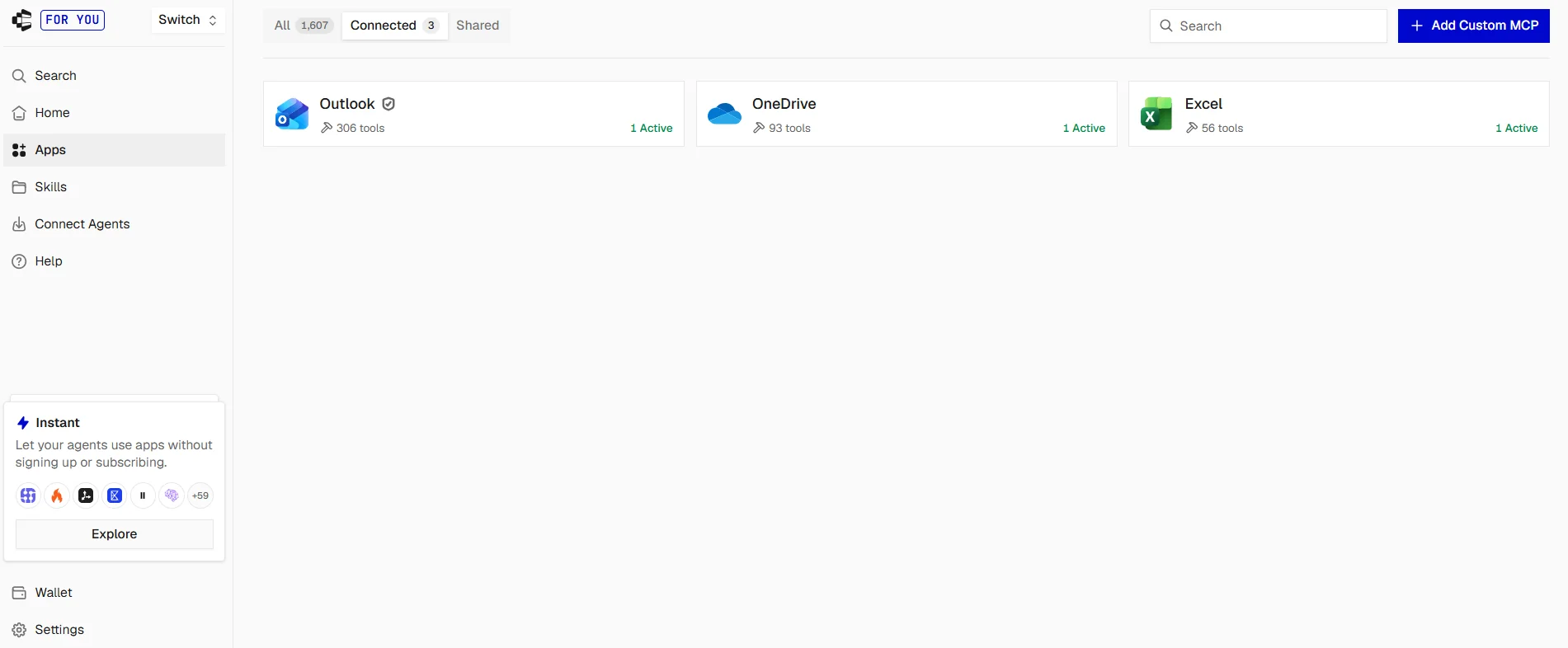
From this screen, you can also:
Rename a connection when the default name doesn't help.
Disconnect or delete a connection when you do not want Claude to use it. Composio deletes it immediately.
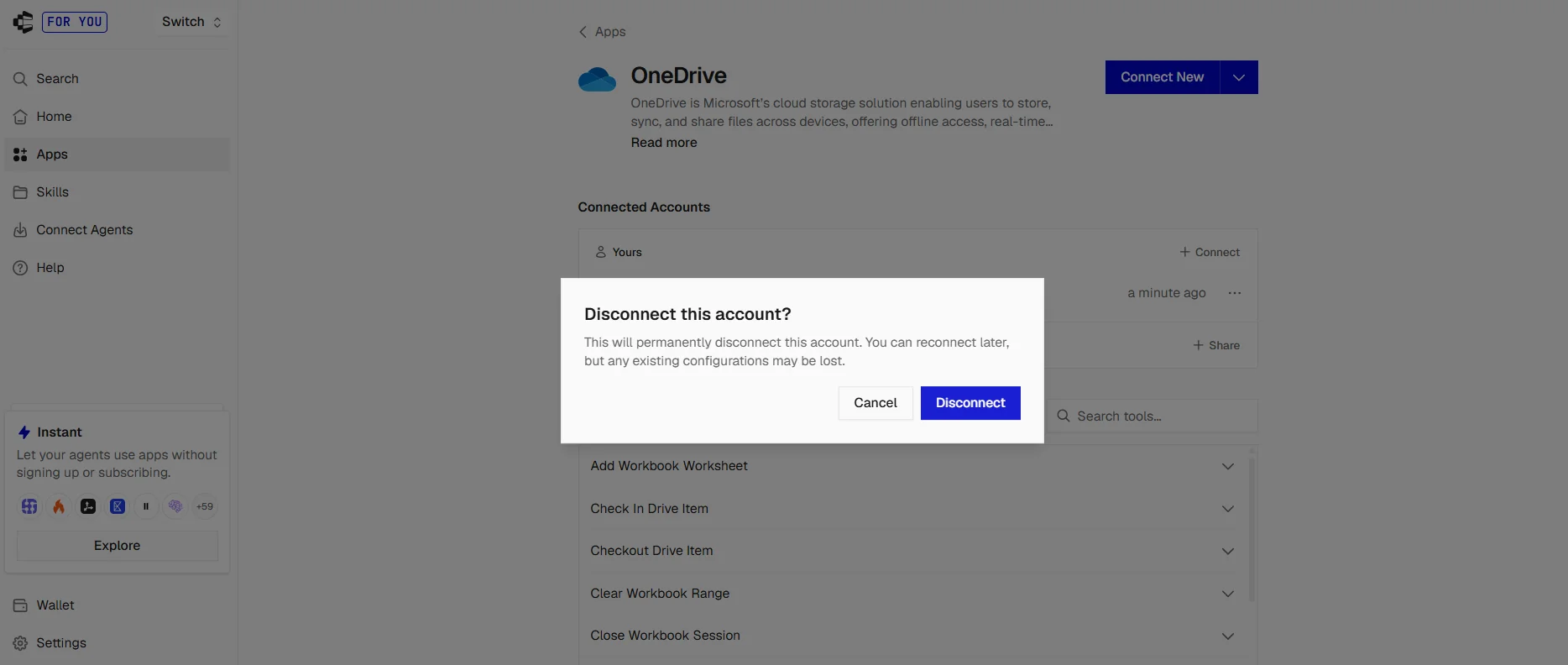
Re-authorise a connection that expired. Tokens usually refresh on their own, but if a token expires or you revoke it, Composio marks the connection EXPIRED and you must connect it again.
Troubleshooting
Composio does not show in Claude
Go to Customise → Connectors and make sure Composio is on.
If you still cannot see it, open the Composio connector menu and clear its cache. If that does not help, remove the connector and add it again.
Claude’s own Microsoft 365 connector shows an error
This is normal for a personal account. Claude’s connector accepts only work or school accounts. Use the Composio connection for your personal account.
The Microsoft sign-in link expired
Ask Claude:
Create a new Outlook connection link for this account.
Use the new link, and don't open the old one again.
The connection uses the wrong email address
You probably signed in with an account that your browser remembered.
Remove the wrong connection. Then open a private browser window, sign in to the correct Microsoft account, and connect it again.
Microsoft asks for admin approval
You signed in with a work or school account, and your IT team blocks new apps. Sign out and use your personal account, or ask your IT team for approval.
Claude cannot find a file
Tell Claude the full file name and the folder. If the file is only on your computer, upload it to OneDrive first.
Microsoft returns a 403 error
Your account may not have permission for that action. For example, someone may have shared the file with you as view-only. A 403 can also mean the connection does not have the correct permissions. Check the file first, then reconnect the app if needed.
Microsoft returns 429 errors
Microsoft limits how many requests you can send. Slow down and try again later. Don't ask Claude to run the same request repeatedly.
What this costs
As of now, the Composio Free plan gives you 100,000 tool calls each month, and you don't need a credit card.
Composio-managed apps have their own limit of up to 20,000 tool calls within that free usage. This limit matters more for this no-code setup.
For a normal personal setup, this gives you plenty of room to test before you pay. Check the Composio pricing page for current numbers.
Is this safe?
Composio becomes another service that can do the Microsoft actions you allow. So read the permissions before you connect an account.
Microsoft uses OAuth for sign-in. You give access through Microsoft, and you never give your Microsoft password to Claude or Composio. Composio saves each approval as a connected account and handles the credentials for you.
You can remove Composio’s access at any time. Go to your Microsoft account page, open Privacy, and find the apps that have access to your account.
For actions that send, save, or delete, keep an approval step in your prompt. Ask Claude to prepare the action first, then run it only after you approve the final result.
FAQ
Why can’t I use Claude’s own Microsoft 365 connector?
Claude’s connector requires a work or school account in a Microsoft Entra tenant. Personal accounts don't belong to a tenant, so Microsoft doesn't let them sign in to that connector.
Do I need a Microsoft 365 subscription?
No. A free personal Microsoft account works with Outlook and OneDrive. A Microsoft 365 Personal or Family subscription gives you more OneDrive storage, but Claude does not need it.
Do I need to make an Azure app?
No. Composio provides a built-in Microsoft app and handles sign-in for you.
Can Claude edit my Word and PowerPoint files?
Claude can find, read, upload, and download these files through OneDrive. For cell-level work inside a file, Excel has the best support.
Can Claude send email from my personal Outlook?
Yes. Claude can write, reply to, and send email. Tell Claude to show you each email before it sends it.
Can I connect a work account and a personal account?
Yes. Connect each one with its own name, such as personal and work, and tell Claude which one to use.
Does this work in Claude Web and Desktop?
Yes. Claude supports custom connectors in Claude, Cowork, and Claude Desktop.
Can I connect other apps through the same Composio connector?
Yes. You do not need a new MCP connector for each app. After you approve other supported apps, the same Composio connection gives Claude access to them too.
Connect your personal Microsoft account to Claude
You get one Composio connector, your personal Outlook, OneDrive, and Excel, and a clear name for each connection.
After you connect them, you can ask Claude to read your mail, find your files, and update your spreadsheets from the same chat.

 Get started



