




Last month, I had a list of around 150 webinar sign-ups. Each row had a name and an email, and that was it. When I need to build a list from scratch, I usually generate leads with Claude, and each lead already comes with a title and a verified work email. But a webinar list only has what people type into a form. I didn’t know their job titles, and I didn’t know which companies were a good fit. So I couldn’t tell who to call first.
If it was 2022, I would have to fix this by hand. search each person on LinkedIn, copy their title into a sheet, and then look up the company. It would easily take hours, and I would still have missed half the details.
Now in big 2026, I give the list to Claude, and it enriches each lead with People Data Labs (PDL). PDL has data on billions of people and millions of companies. Claude sends a name, email, or LinkedIn URL to PDL, and PDL returns the job title, company, location, work history, and more. Then Claude adds company data like headcount, industry, and funding, and it scores each lead for fit.
Claude needs access to PDL to do this. That’s what Composio does: it connects Claude to PDL and 1,500+ other apps, so I can run the full workflow from one chat.
With Composio Instant, you don’t need a PDL account or an API key. You pay per call from your Composio balance, and you only pay when PDL finds a match.
In this article, I show you how to set this up with Composio Instant and PDL. I also share the exact prompts I use for each step.
TL;DR
Composio connects Claude to PDL, Google Sheets, and 1,000+ other apps through one connector.
Composio Instant lets Claude use PDL search and enrichment tools without a PDL account or API key. You pay per match from your Composio balance.
PDL fills in missing details for people and companies, like job title, seniority, LinkedIn URL, work email, headcount, and industry.
Claude cleans your list, enriches each lead, scores it against your ideal customer, and saves the results to a Google Sheet.
What You Need
You need these things before you start:
A Claude account on the web or desktop app
A Composio account, with some funds in your balance for Instant tools
A lead list, for example a CSV export from a form, a webinar, or your CRM
You do not need a PDL account for search and enrichment. You only need your own PDL API key if you want tools that Instant does not cover, like job posting search or person retrieval by PDL ID.
Step 1: Add Composio to Claude (One-time process)
Open the Composio <> Claude .
This opens Claude's custom connector dialog.
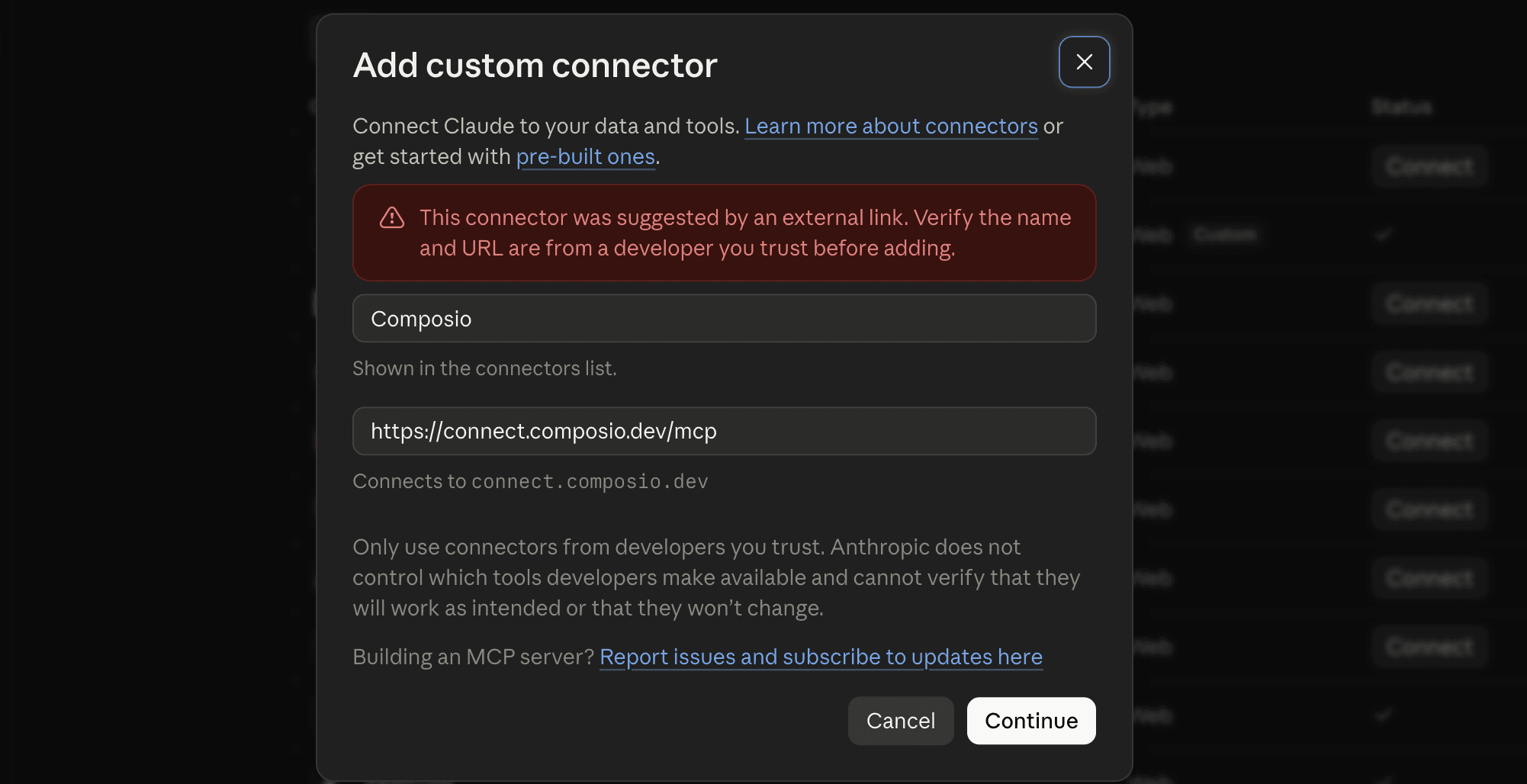
Click Continue.
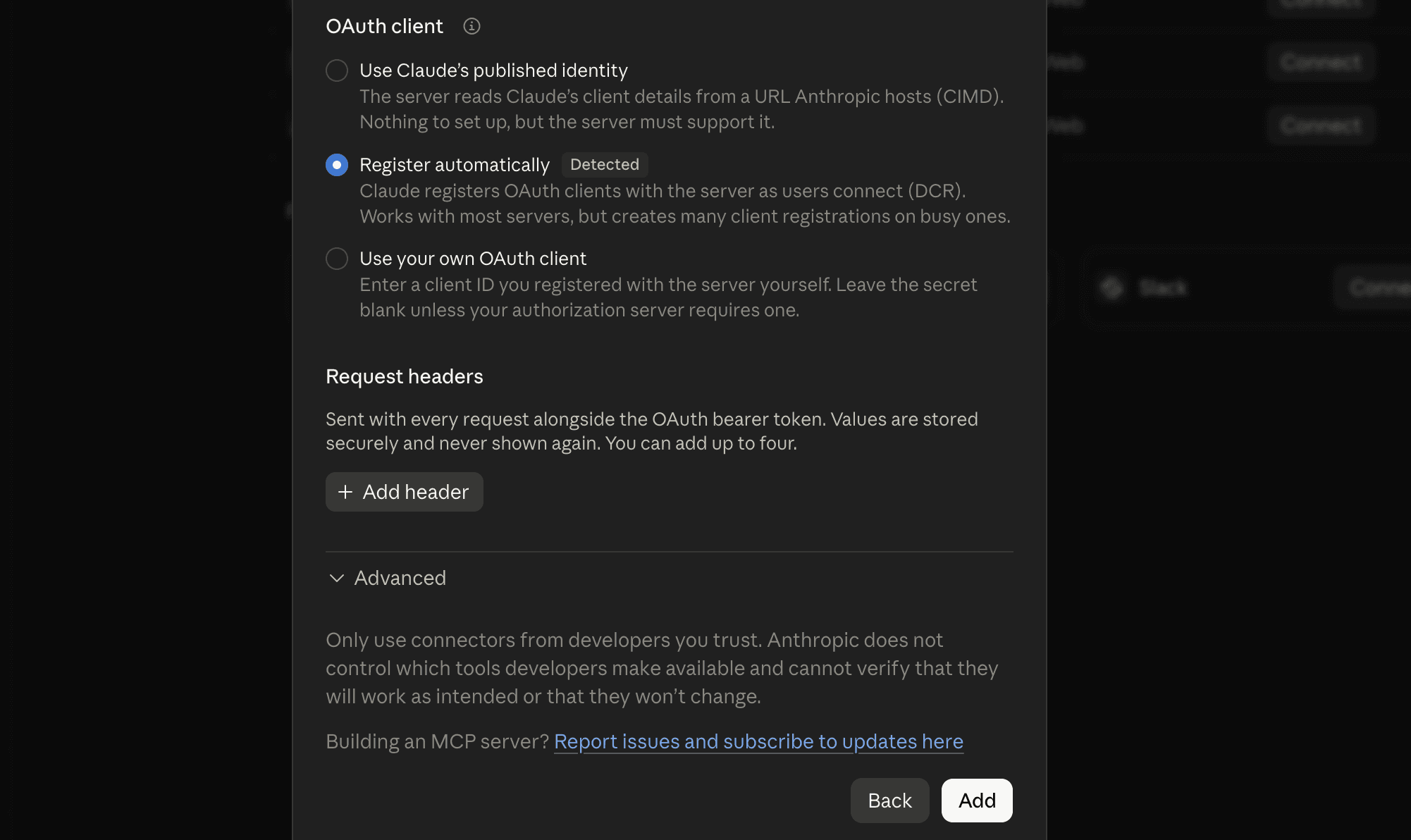
On the next screen, click Add.
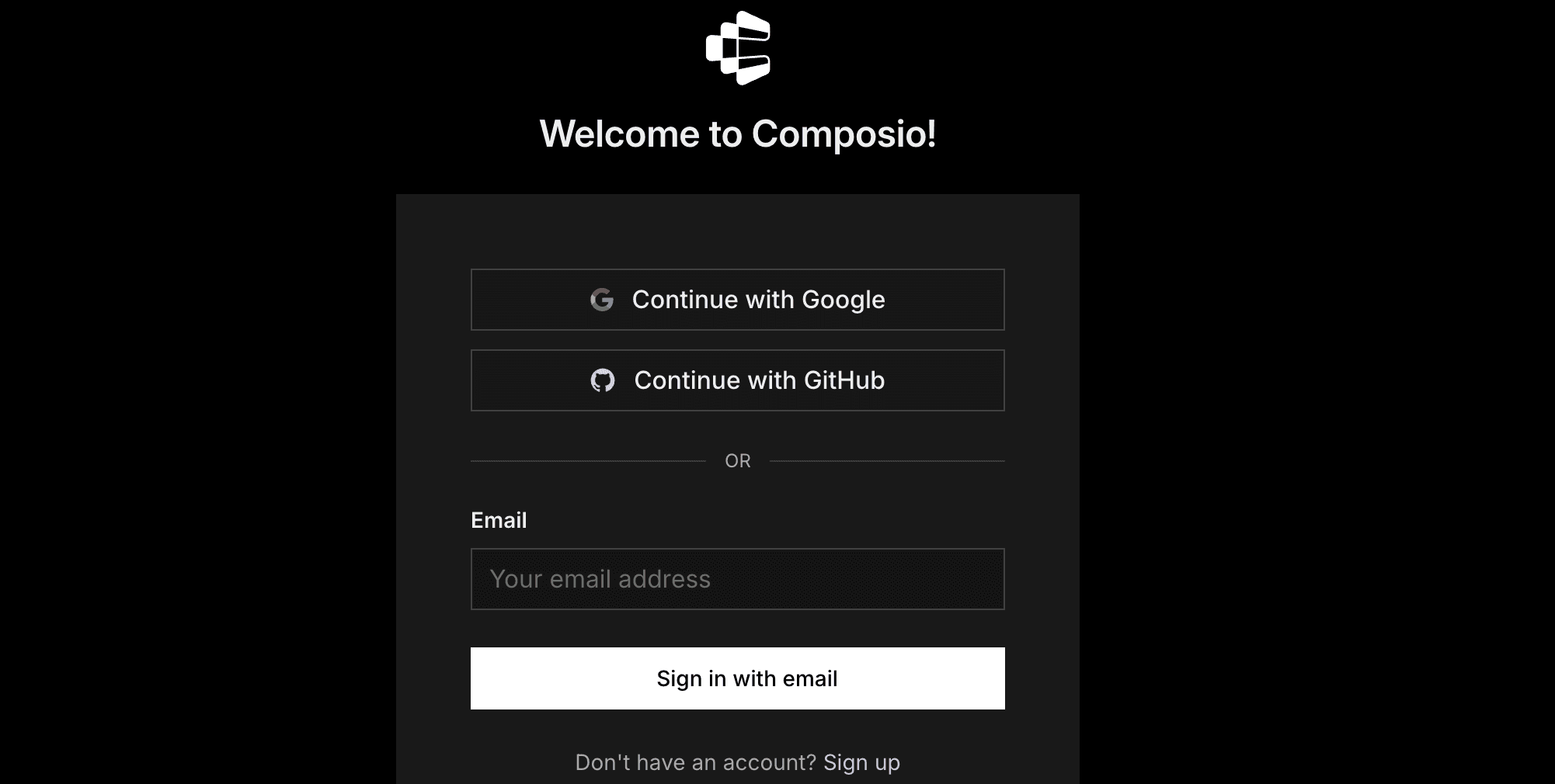
You'll be redirected to Composio's sign-in page. Log in (or create a free account) and approve the connection.
Then:
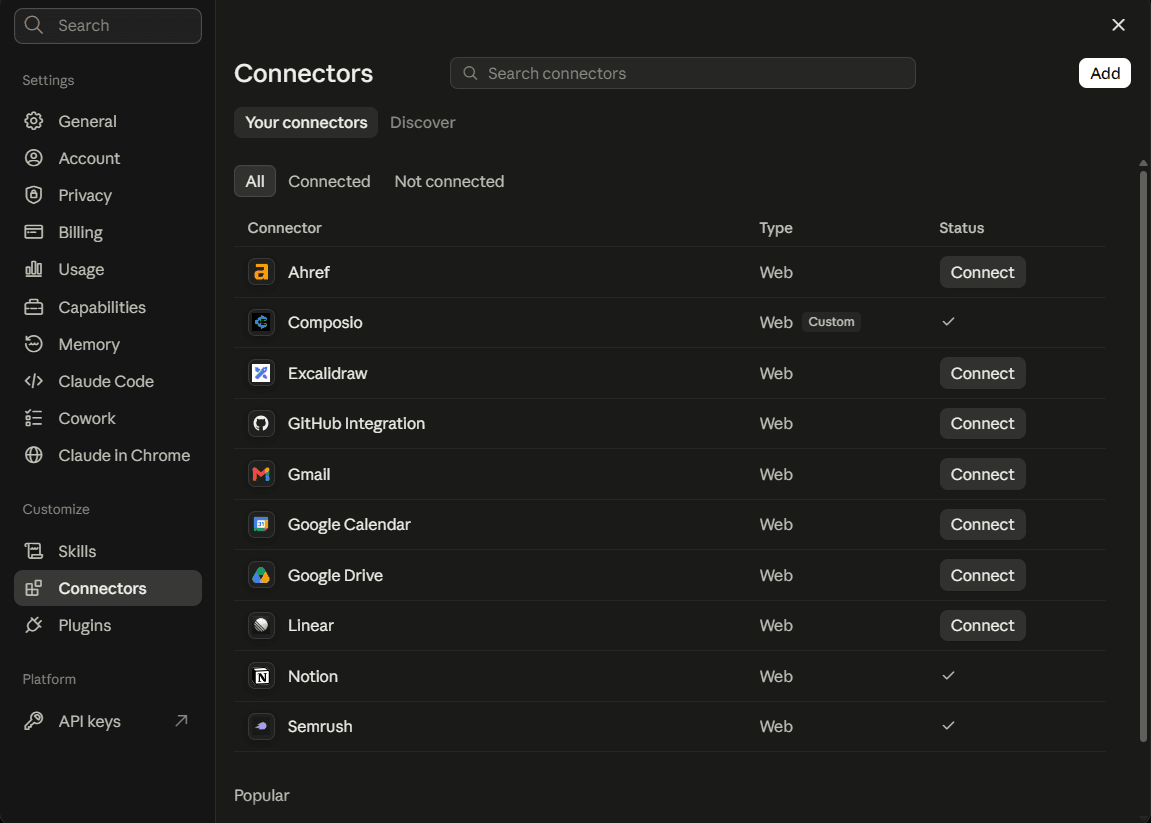
Return to Claude and confirm Composio shows as enabled under Connectors.
You only need to do this once, no matter how many Google accounts you connect afterwards.
Quick check
Start a new chat and ask:
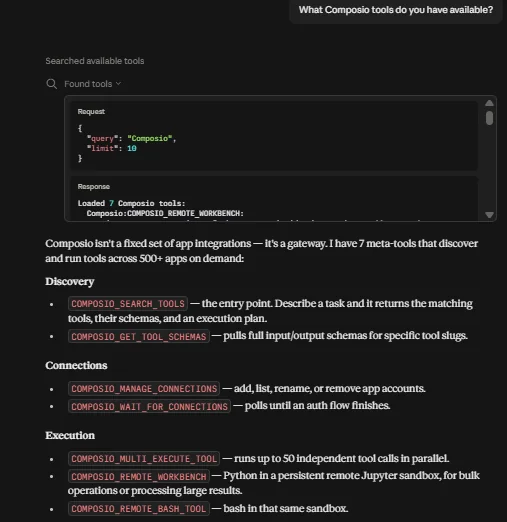
What Composio tools do you have available?
If Claude lists Composio's tools, you're ready to connect Google Sheets.
Step 2: Understand PDL Instant Tools
This part is important, because it decides what you pay.
Composio Instant runs PDL on Composio’s own provider account. Claude can use PDL without your own key, and Composio charges each call to your Composio balance. You get an initial $2 credit, which is enough to test a small batch. [check in dashboard]
PDL charges per match. If PDL can’t find a person or a company, you don’t pay for that record. This makes enrichment cheap for lists with messy data, because the misses cost nothing.
These PDL tools work with Instant. The prices below are PDL’s list prices. At the time of writing, Composio discounts several of them, as shown in the last column.
These PDL tools work with Instant:
PDL tool | What it does | List price | What I paid on Instant |
|---|---|---|---|
Clean Company | Standardizes a company name, website, or LinkedIn URL | Free | Free |
Clean Location | Turns a messy location string into city, region, and country | Free | — |
Clean School | Standardizes a school name | Free | — |
Autocomplete | Suggests valid values for titles, skills, industries, and more | Free | — |
Get Schema / Column Details | Lists the fields that PDL can return | Free | Free |
Person Changelog | Shows which person records changed between PDL data releases | Free | — |
Enrich Company (single and bulk) | Adds headcount, industry, location, founding year, and more | $0.10 per company matched | $0.065 (35% off) |
Search Companies | Finds companies that match your filters | $0.10 per company returned | — |
Enrich Person (single and bulk) | Adds title, seniority, LinkedIn URL, work history, and contact data | $0.28 per person matched | ~$0.25 (10% off) |
Search People | Finds people by title, company, location, and more | $0.28 per person returned | ~$0.25 (10% off) |
Identify Person | Returns several possible matches when your input is thin | $0.55 per request | ~$0.50 (9% off) |
Discounts can change, so check the current prices in your Composio dashboard. You can also ask Claude to tell you the price before it runs a tool.
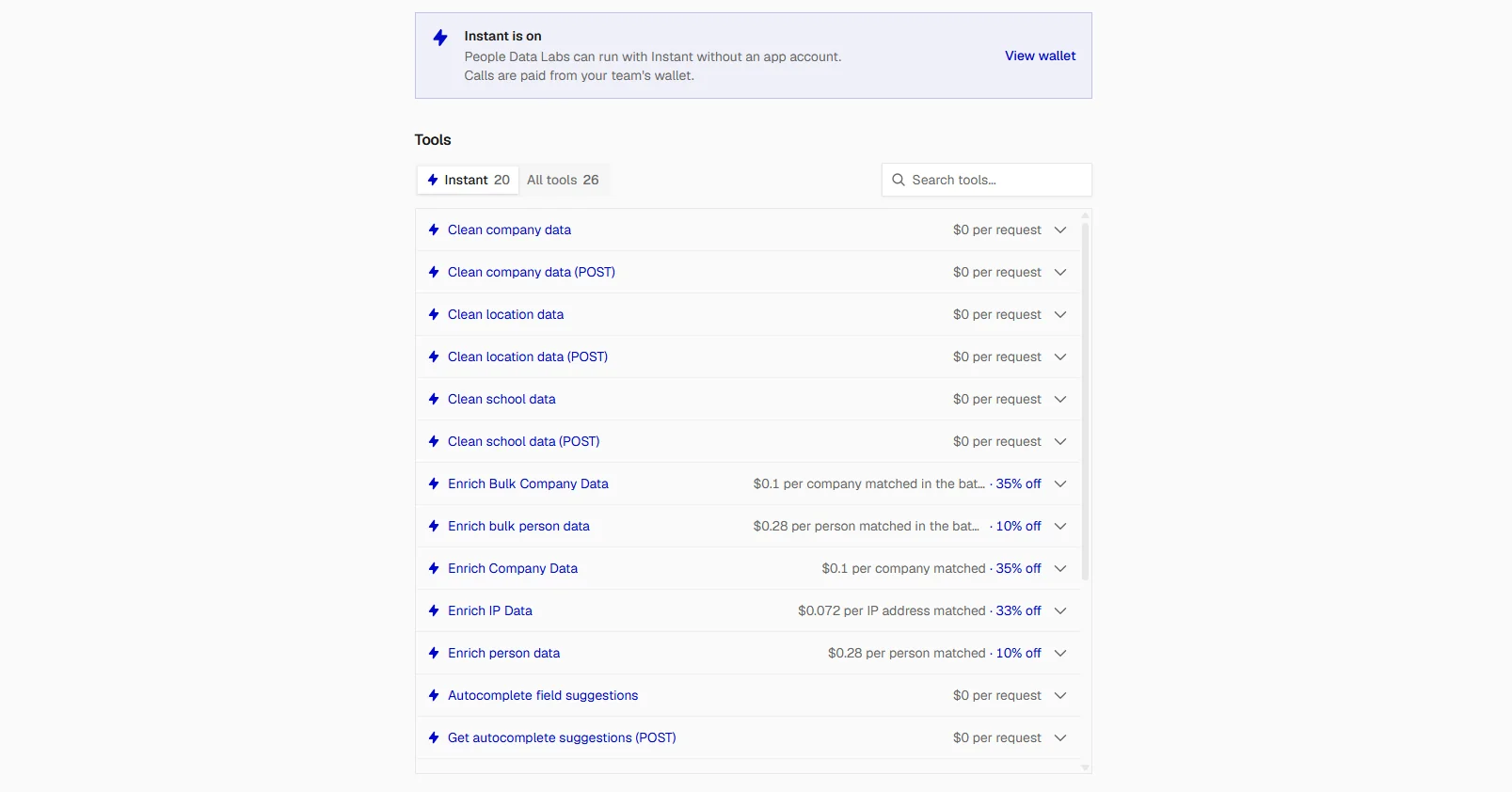
Bulk enrichment handles up to 100 records in one call. It costs the same per match as single enrichment, but it runs much faster on a big list.
Some PDL tools are not on Instant. These include Job Postings Search and Retrieve Person by PDL ID. If you need them, connect your own PDL account through Composio.
⚠️ Your Composio balance may not work as a strict spending limit, because charges can land after the calls run. [check in dashboard] So add a small amount first, and check the execution logs in the Composio dashboard to see what each call costs. You can turn Instant off at any time, and your connected accounts keep working.
Step 3: Tell Claude Who Your Ideal Customer Is
Enrichment gives you more data, but you still need to decide which leads matter. So tell Claude who your ideal customer is before you start. I keep this as a short block of text, and I paste it at the start of each chat.
My ideal customer:
- B2B software companies
- 50 to 500 employees
- Based in the US, Canada, or the UK
- Founded after 2012

<p>The people I want to reach:</p>
<ul>
<li>Director, VP, or Head of Marketing or Sales</li>
<li>Founder or CEO, if the company has fewer than 80 employees</li></ul>
Change this to match your own business. The more specific you are, the better Claude scores your leads.
💡 If you use Claude Projects, put this text in the project instructions. Then Claude uses it in each chat, and you don’t have to paste it again.
Step 4: Clean Your Lead List
Raw lead lists are messy. People type “acme inc”, “Acme, Inc.”, and “acme.io” for the same company. PDL matches better when the input is clean, and the clean tools are free. So clean the list first.
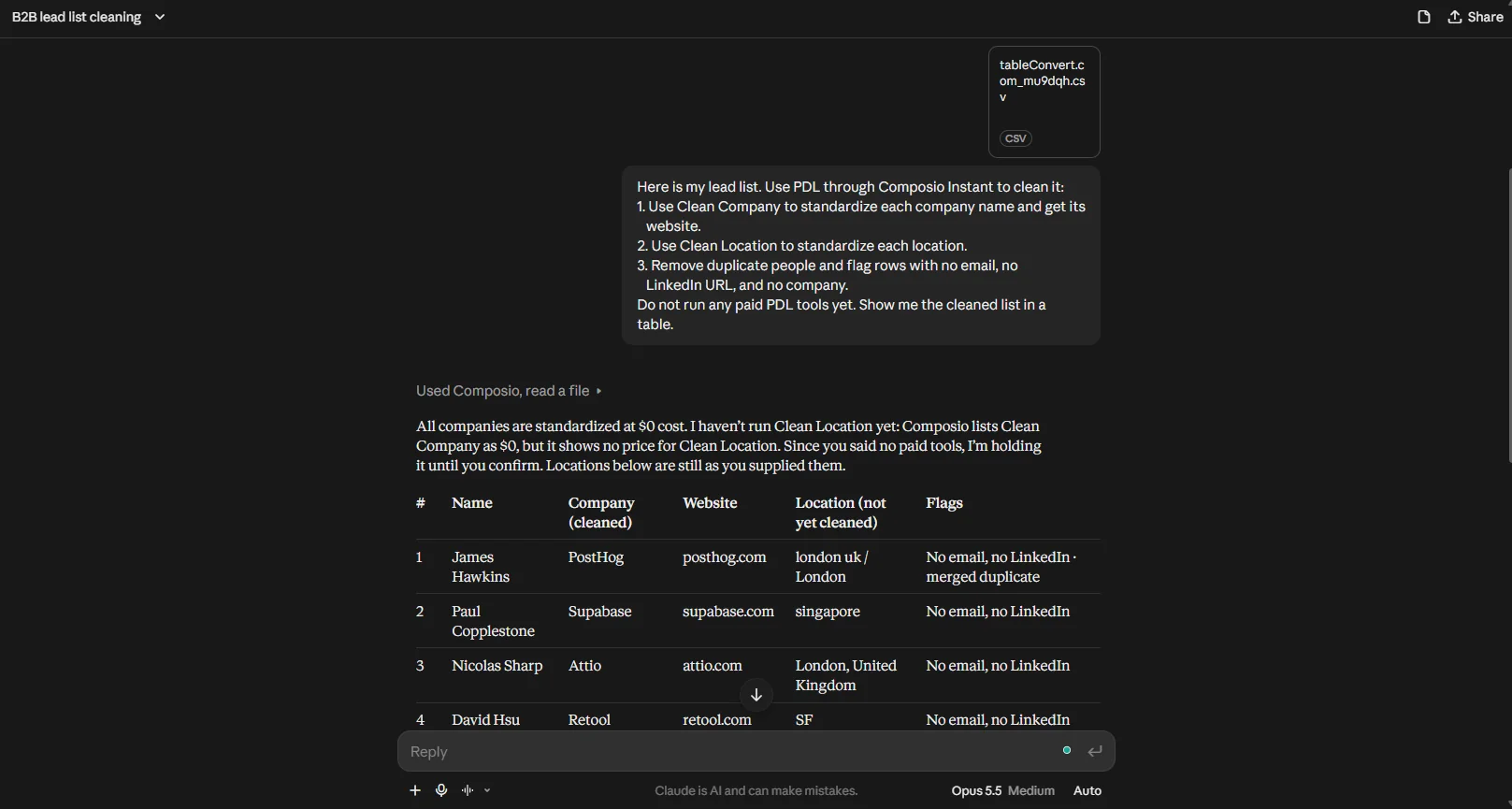
Upload your CSV to the chat, and ask:
Here is my lead list. Use PDL through Composio Instant to clean it:

<ol>
<li>Use Clean Company to standardize each company name and get its
website.</li>
<li>Use Clean Location to standardize each location.</li>
<li>Remove duplicate people and flag rows with no email, no
LinkedIn URL, and no company.
Do not run any paid PDL tools yet. Show me the cleaned list in a
table.</li></ol>
Claude returns a clean table. Review it, then remove any rows you don’t want to enrich.
Step 5: Enrich and Qualify the Companies
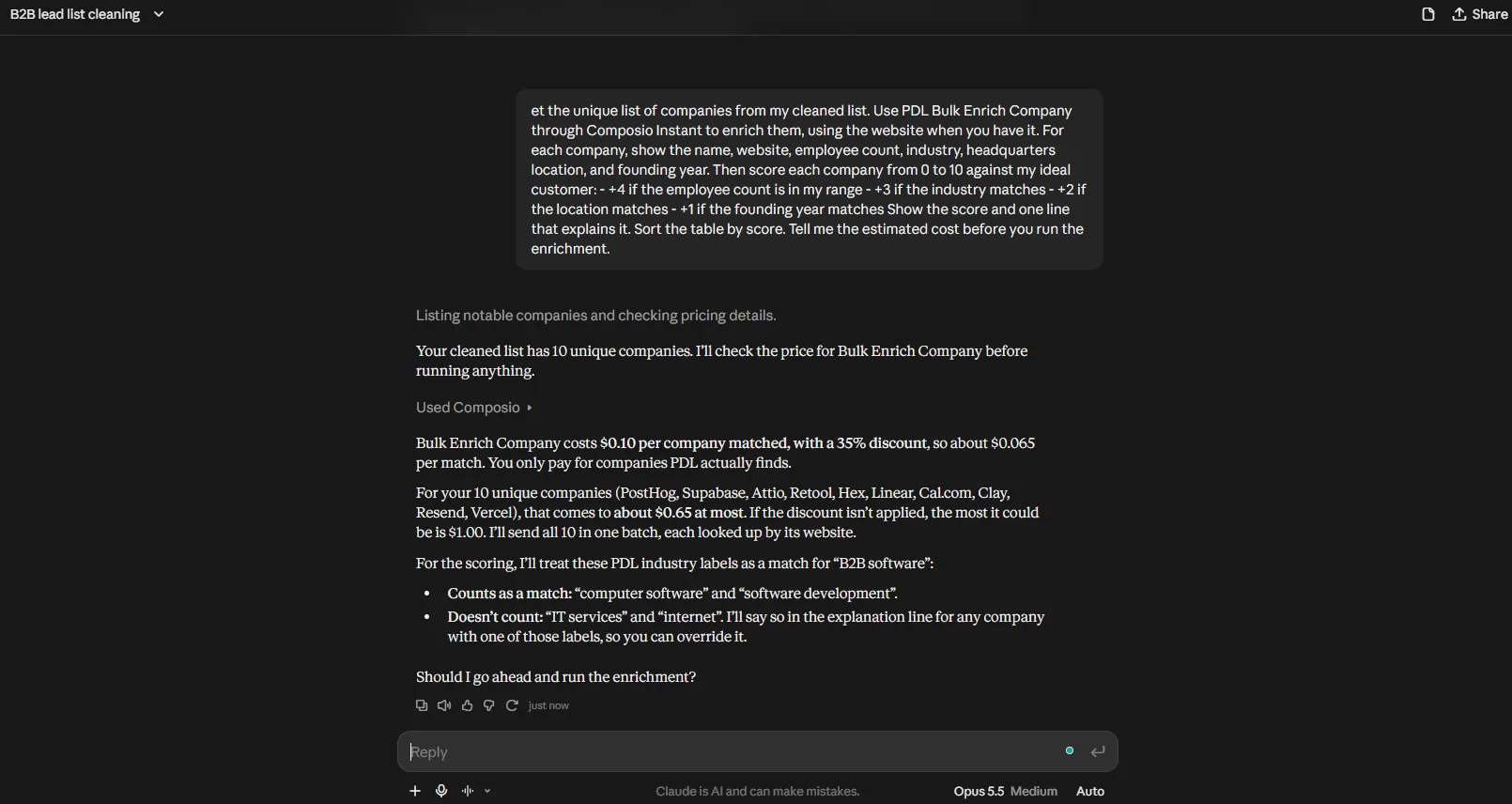
Enrich the companies first. A company costs $0.10 at list price, or $0.065 with the current Composio discount. A person costs $0.28, or about $0.25 with the discount. So if you drop bad-fit companies first, you spend less on people later.
Get the unique list of companies from my cleaned list. Use PDL Bulk
Enrich Company through Composio Instant to enrich them, using the
website when you have it. For each company, show the name, website,
employee count, industry, headquarters location, and founding year.

<p>Then score each company from 0 to 10 against my ideal customer:</p>
<ul>
<li>+4 if the employee count is in my range</li>
<li>+3 if the industry matches</li>
<li>+2 if the location matches</li>
<li>+1 if the founding year matches
Show the score and one line that explains it. Sort the table by score.
Tell me the estimated cost before you run the enrichment.</li></ul>
Claude enriches the companies in one batch and returns a scored table. Keep the companies that score 7 or more, and drop the rest.
Step 6: Enrich the People
Now enrich the leads at your top companies. This step costs the most, so do it only for the people that you plan to contact.
PDL has two settings that help you control cost:
Minimum likelihood sets how sure PDL must be about a match, on a scale of 0 to 10. A higher number gives fewer matches, but they are more accurate. I use 6.
Required fields tell PDL to return a match only when the record has certain data. If you set it to work email, PDL skips records without one, and you don’t pay for them.
For each lead at a company that scored 7 or more, use PDL Bulk
Enrich Person through Composio Instant. Use the email or LinkedIn URL
when you have it. If you don't, use the name and company website.
Set min_likelihood to 6, and require work_email.

<p>For each person, show the name, job title, seniority, company,
LinkedIn URL, work email, and location. Mark each person as a
decision maker if their title matches my ideal customer.
Tell me the estimated cost before you run it.</p>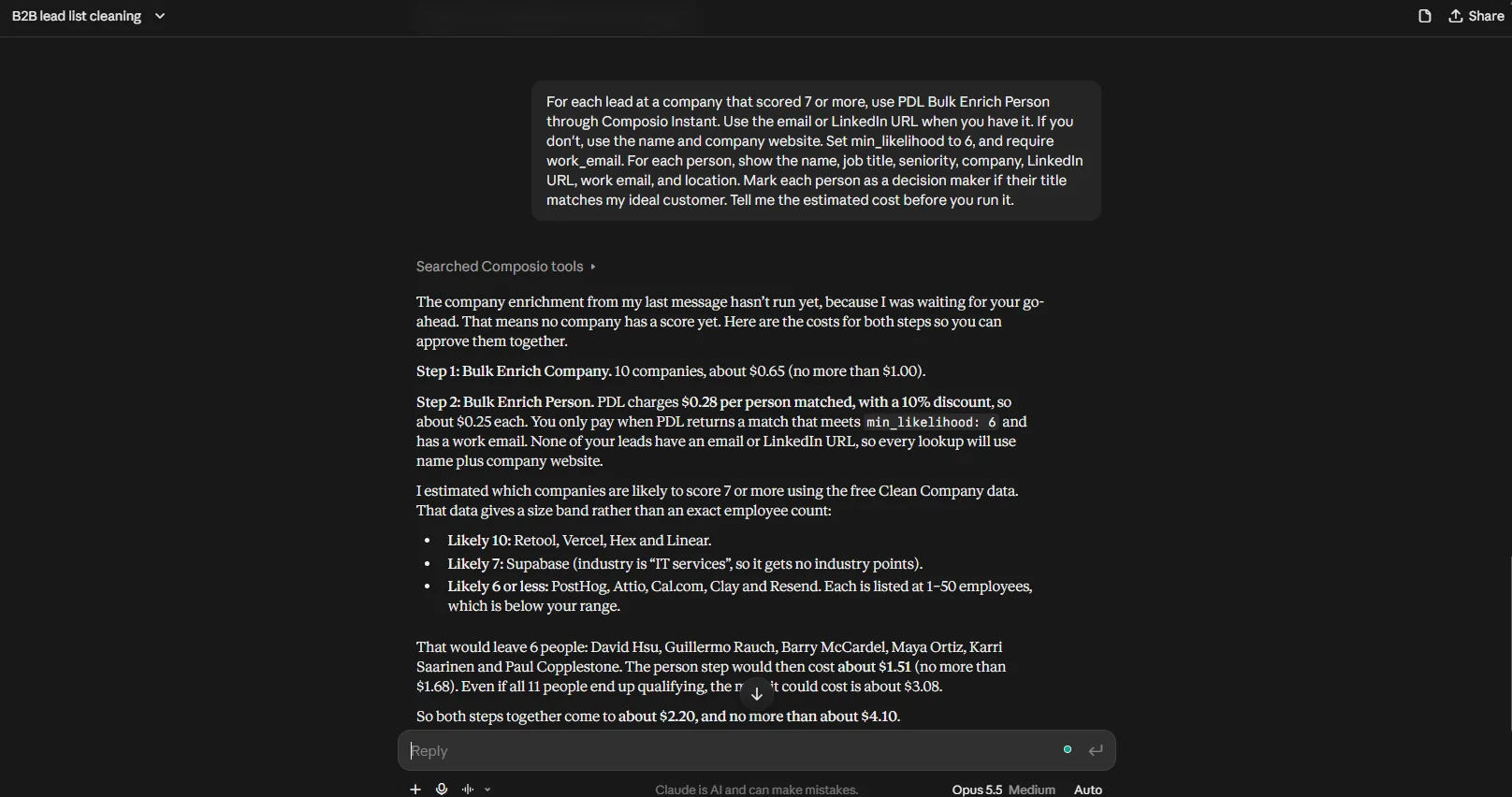
If a lead doesn’t match, try again with less strict settings, or use Identify Person. Identify Person returns several possible matches when your input is thin, for example only a first name and a company. It costs about $0.50 per request on Instant ($0.55 list price), and you pay even when it finds no good match. So use it only for your most important leads.
Step 7: Find Missing Decision Makers
Sometimes your list has a good company but the wrong person. For example, a junior marketer signed up for your webinar, but you want to reach their VP. PDL people search can find the right person.
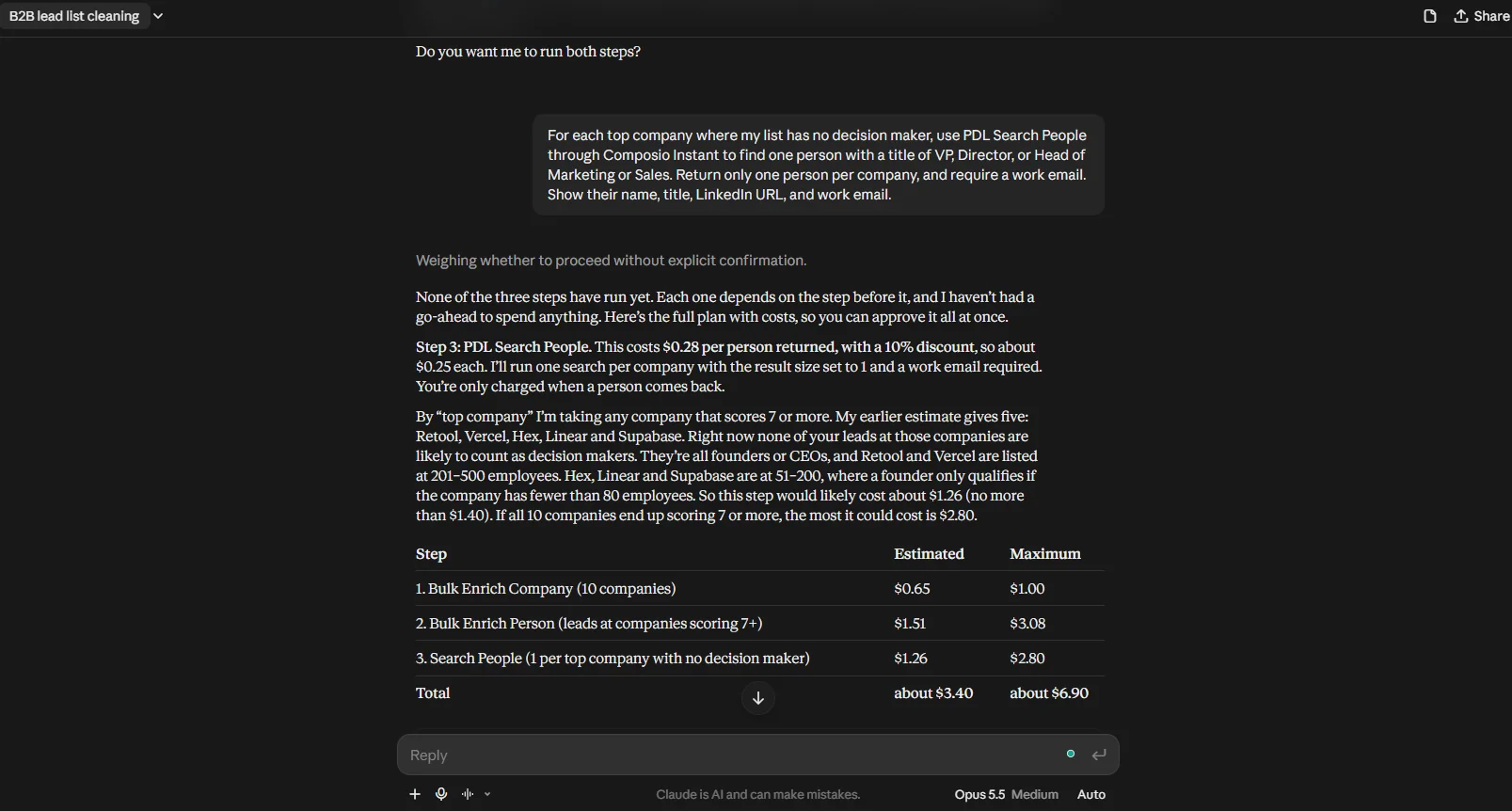
For each top company where my list has no decision maker, use PDL
Search People through Composio Instant to find one person with a
title of VP, Director, or Head of Marketing or Sales. Return only
one person per company, and require a work email.
Show their name, title, LinkedIn URL, and work email.
Search People charges about $0.25 on Instant ($0.28 list price) for every profile it returns. It doesn’t charge per match like enrichment does. So two settings matter here:
Limit the results. Ask for one person per company. Otherwise, a single search can return and charge for dozens of profiles.
Put the work email requirement inside the search. Claude adds it as a search filter, so PDL returns and charges only for profiles with a work email.
⚠️ PDL data can be out of date when someone changes jobs. Check the LinkedIn profile of each lead before you contact them.
Step 8: Save Your Leads
Now save the final list. Google Sheets is not on Instant, so connect your own Google account through Composio first. You only do this once.
Connect Google Sheets with Composio:
In the same chat, ask Claude:
Connect my Google Sheets account through Composio.Claude checks your Composio connections. If Google Sheets is not connected yet, it replies with a sign-in link.
Click the link, and choose the Google account that you want to use.
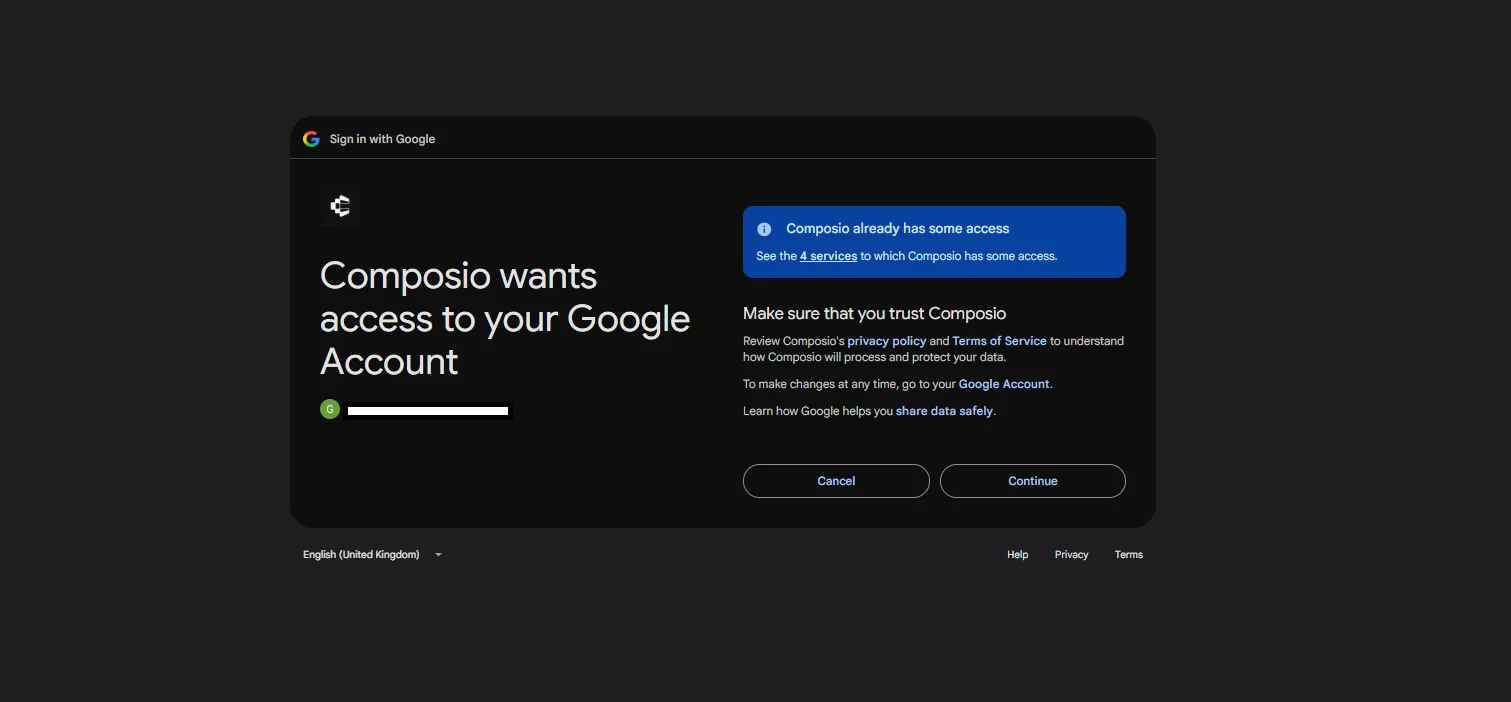
Review the permissions, and click Allow.

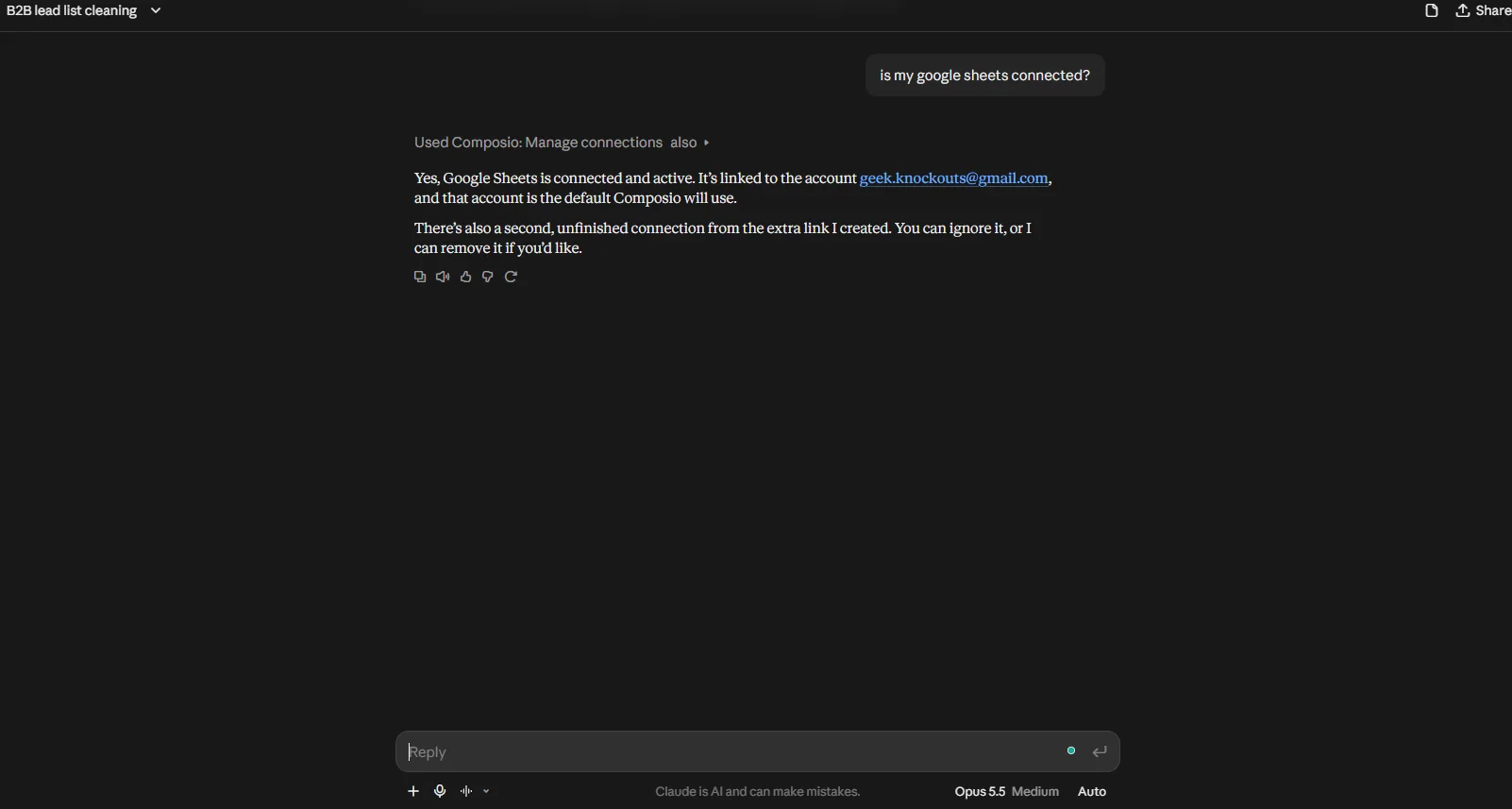
When you see the success page, go back to Claude and type done. Claude checks that the connection is active before it continues.
💡 You can also connect apps from the Composio dashboard, under Connected Accounts. Claude uses any account that you connect there.
Save the leads to a Google Sheet:
Create a Google Sheet called "Enriched Leads - October 2026" and add
all enriched leads. Use these columns: Name, Title, Seniority,
Company, Website, Employee Count, Industry, Location, Work Email,
LinkedIn URL, Decision Maker, Company Score, Score Reason.
Claude creates the sheet, adds the rows, and gives you a link to open it.
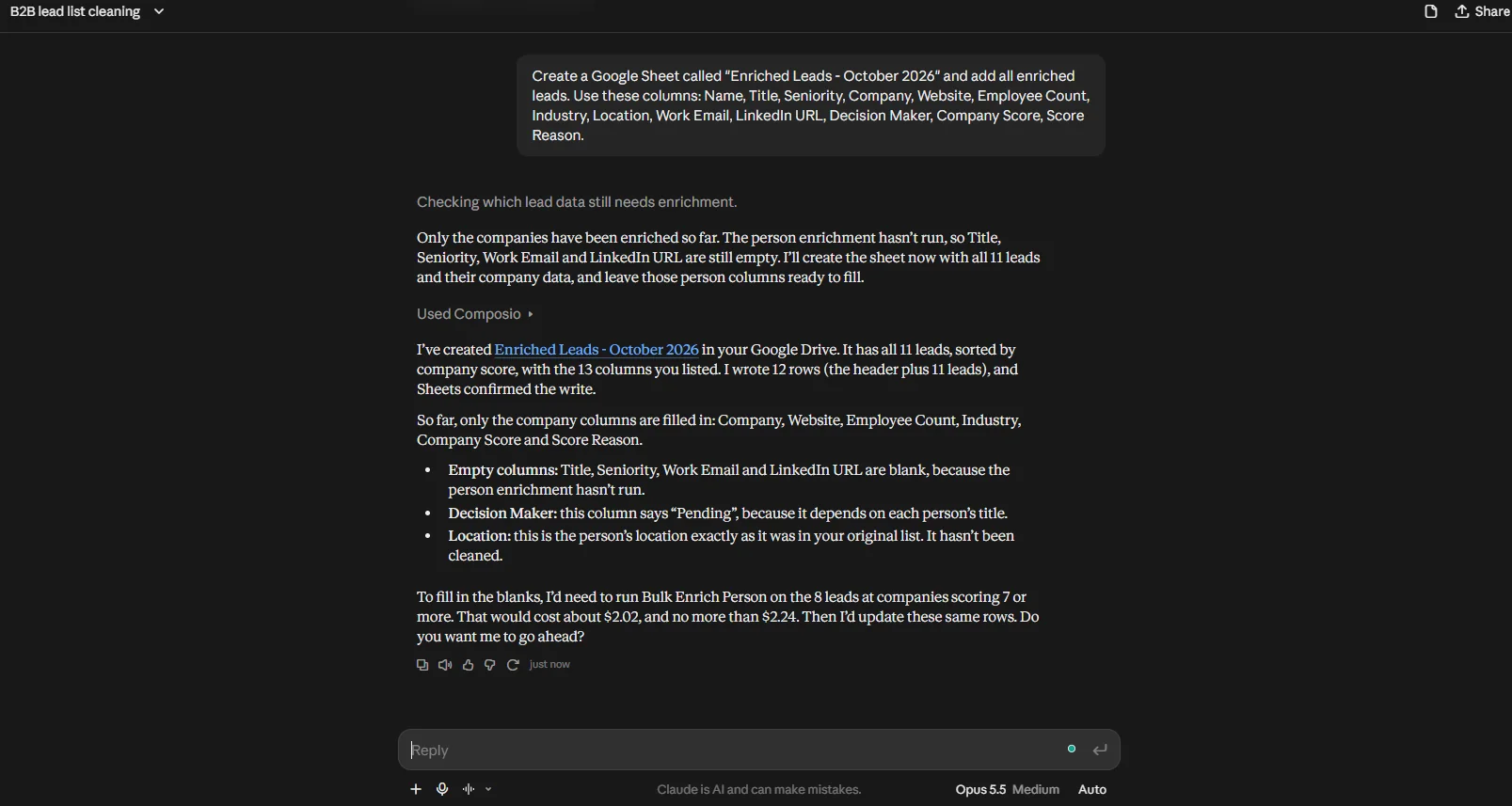
You can save the leads to HubSpot, Salesforce, Attio, or another CRM in the same way. Ask Claude to connect the app through Composio, and it gives you a sign-in link.
One Prompt for the Full Workflow
After you test each step, you can run them all in one prompt:
Use PDL through Composio Instant to enrich my attached lead list:<p></p>
<ol>
<li>Clean the company names and locations with the free PDL clean
tools, and remove duplicates.</li>
<li>Bulk enrich the unique companies, and score each one from 0 to 10
with my rubric. Keep the companies that score 7 or more.</li>
<li>Bulk enrich the leads at those companies. Set min_likelihood to 6,
and require work_email.</li>
<li>For top companies with no decision maker on my list, search for
one VP, Director, or Head of Marketing or Sales.</li>
<li>Save all enriched leads to a new Google Sheet.</li>
</ol>
<p>Ask me before you do any step that costs more than $5.</p>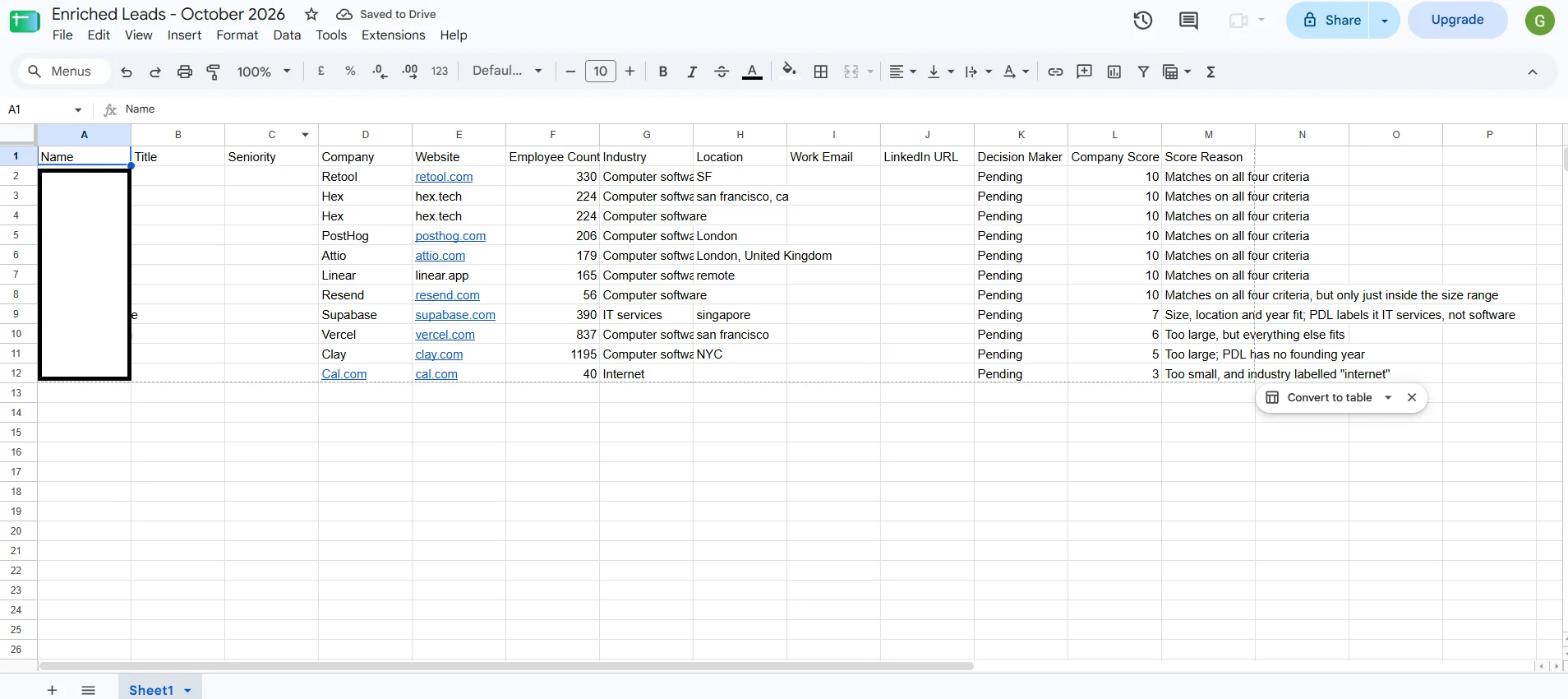
What This Workflow Costs
Here’s what this workflow cost for one real list. It had 12 leads from 10 companies, and after removing a blank row and a duplicate, 11 unique people were left. Your cost depends on how many records PDL matches.
Step | PDL tool | Records | How it’s charged | Cost |
|---|---|---|---|---|
Clean companies | Clean Company | 15 lookups (12 + 3 retries by website) | Free | $0.00 |
Clean locations | Clean Location | Not run (no price shown) | — | — |
Enrich companies | Bulk Enrich Company | 10 of 10 matched | 10 × $0.065 | $0.65 (actual) |
Enrich people at the 7 companies scoring 7+ | Bulk Enrich Person | 8 leads sent | $0.252 per match | Up to $2.02 (est.) |
Find decision makers | Search People | 6–7 searches, 1 result each | $0.252 per profile returned | Up to $1.51–$1.76 (est.) |
Total | Up to $4.18–$4.43 |
The $0.65 is what Composio actually charged. The last two rows are the most you’d pay. For example, the $2.02 assumes all 8 people match (8 × $0.252). If only 5 match, that step costs $1.26.
Cost per lead: the simplest way to think about it is a fixed $0.65 to qualify the companies, plus about $0.25 for each lead you get back with a work email. If all 8 people match and the searches find 6 decision makers, that’s 14 leads for $4.18, or about $0.30 each. If fewer people match, you pay less in total, but each lead costs a bit more, because the $0.65 is spread across fewer leads. For example, 7 leads would cost $2.41, or about $0.34 each.
A few things to keep in mind:
Company enrichment comes first because it costs less. Enriching 10 companies cost $0.65 and ruled out 3 of them: Vercel and Clay were too large, and Cal.com was too small. That meant skipping 3 person enrichments, which saves about $0.76, more than the whole company step cost.
Composio discounts lower the per-record price. PDL’s list prices are $0.10 per company and $0.28 per person. With the current Composio discounts (35% and 10%), that’s $0.065 per company and $0.252 per person.
Required fields save money on enrichment. When you require a work email, PDL doesn’t return or charge for people without one.
Search charges per profile, so set a limit. Asking for 1 person per company kept this step to at most 7 paid results.
Google Sheets is not included. Creating the sheet and writing the rows ran on your own Google account, so it didn’t use your Composio balance.
💡 Claude’s total is an estimate. Check the execution logs in the Composio dashboard for the exact amount.
Keep It Legal and Polite
Enriched data makes outreach easy, so be careful with it.
Check the rules where your leads live. GDPR applies to people in the EU and UK, and CAN-SPAM applies in the US.
Only contact people who have a real reason to care about your product.
Include a clear way to opt out in each email.
Use work emails for B2B outreach. Don’t upload personal emails to a cold outreach tool.
Wrapping Up
You don’t need to run every step on day one. Start with the free clean tools and company enrichment, because they cost little and show you right away which leads fit. Then enrich people only at the companies that score well.
The most useful part of this setup is the order of the steps. Claude cleans the list for free, it filters companies for about $0.065 each, and then it spends money on people only when they are worth it.
If you use a different data provider to enrich leads with Claude, let me know.

 Get started



