




I remember the first time I built a lead list by hand; it took me a full afternoon. I had Apollo open in one tab, LinkedIn in another, and a spreadsheet in a third, and I copied each name and email one by one. At the end of the day, I had 40 leads, and many of the emails bounced.
Then I used Zapier to automate lead generation. However, a typical Zap follows a deterministic flow: you already know what happens next. That approach isn’t enough when lead generation requires judgment, like assessing whether a company is a good fit, finding the right decision-maker, and deciding which details to verify.
Now I’ve moved the entire workflow to Claude, and with the right tools connected, it takes a few minutes. A typical lead generation workflow uses tools like Apollo, ContactOut to find prospects and fill in missing details, plus a Google Sheet or CRM to save the results. Claude needs access to those tools to do more than give advice.
That’s where Composio comes in: it connects Claude to the apps I use, so I can manage the workflow from one chat instead of switching between tabs.
Claude finds companies, identifies the right people, checks whether they fit, and pulls their contact details. I review the list, and then I decide who to contact.
With Composio Instant, Claude isn’t limited to one data provider. If Apollo doesn’t return the details you need, Claude can try ContactOut or Hunter instead. You pay as you go for the tools you use from a single wallet.
In this article, I show you how to set this up with Composio Instant, Apollo, and ContactOut. I also share the exact prompts I use for each step.
TL;DR
Composio connects Claude to Apollo, ContactOut, and 1,500+ other apps through one connector.
Composio Instant lets Claude use Apollo search and enrichment tools without an Apollo account or API key. You pay per call from your Composio balance.
Apollo finds companies and people and adds company data, job posts, and news to help you qualify leads.
ContactOut finds decision-makers, pulls emails and phone numbers from LinkedIn profiles, and verifies emails.
Claude combines all of this, scores each lead, and writes them to Google Sheets and prepares a first draft of your outreach.
What You Need
You need three things before you start:
A Claude account on the web or desktop app
A Composio account, with some funds in your balance for Instant tools
You do not need an Apollo or ContactOut account for search and enrichment. You only need your own Apollo API key if you want Claude to save contacts, run sequences, or send emails in Apollo.
Step 1: Add Composio to Claude (One-time process)
Open the Composio <> Claude.
This opens Claude's custom connector dialogue.
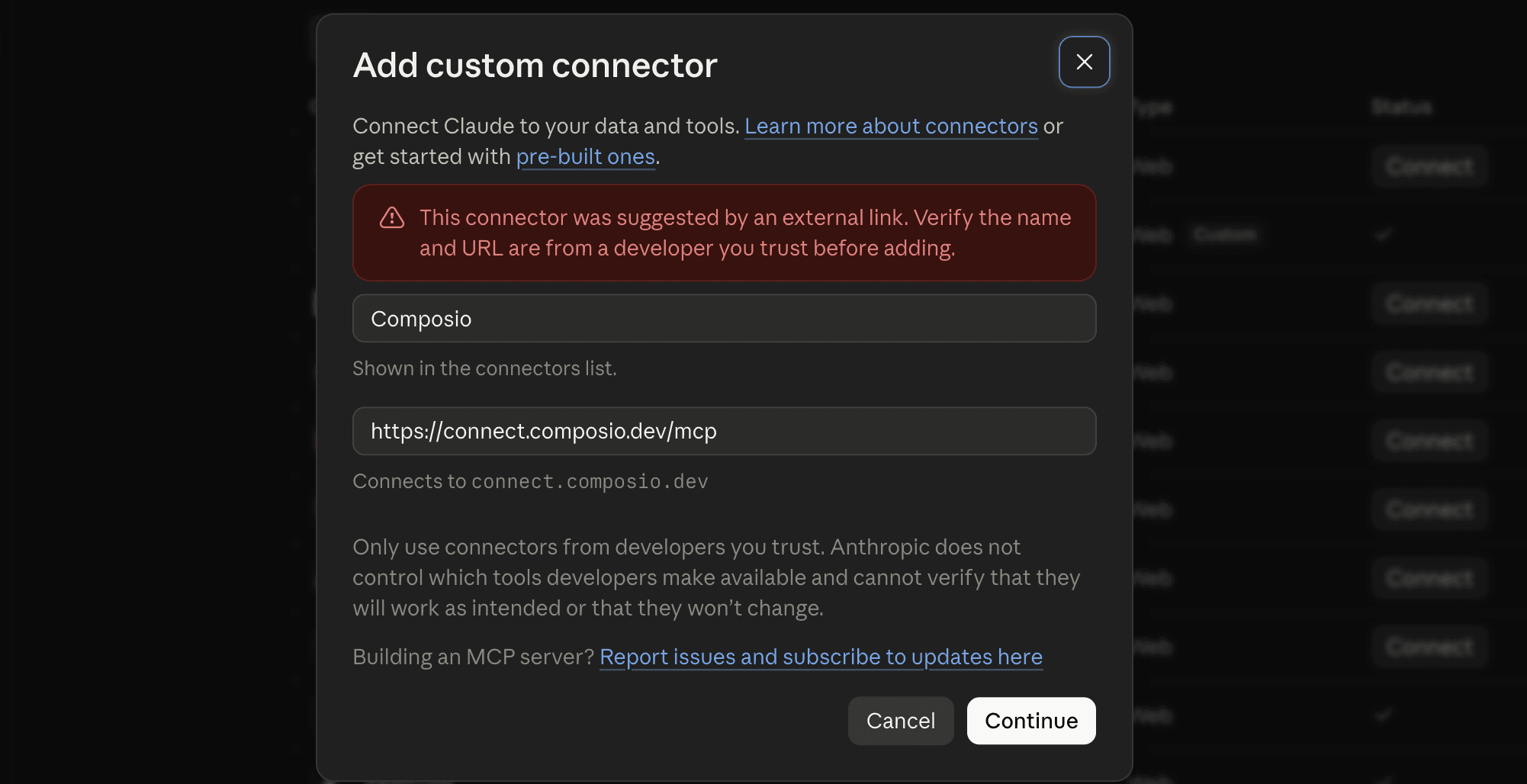
Click Continue.
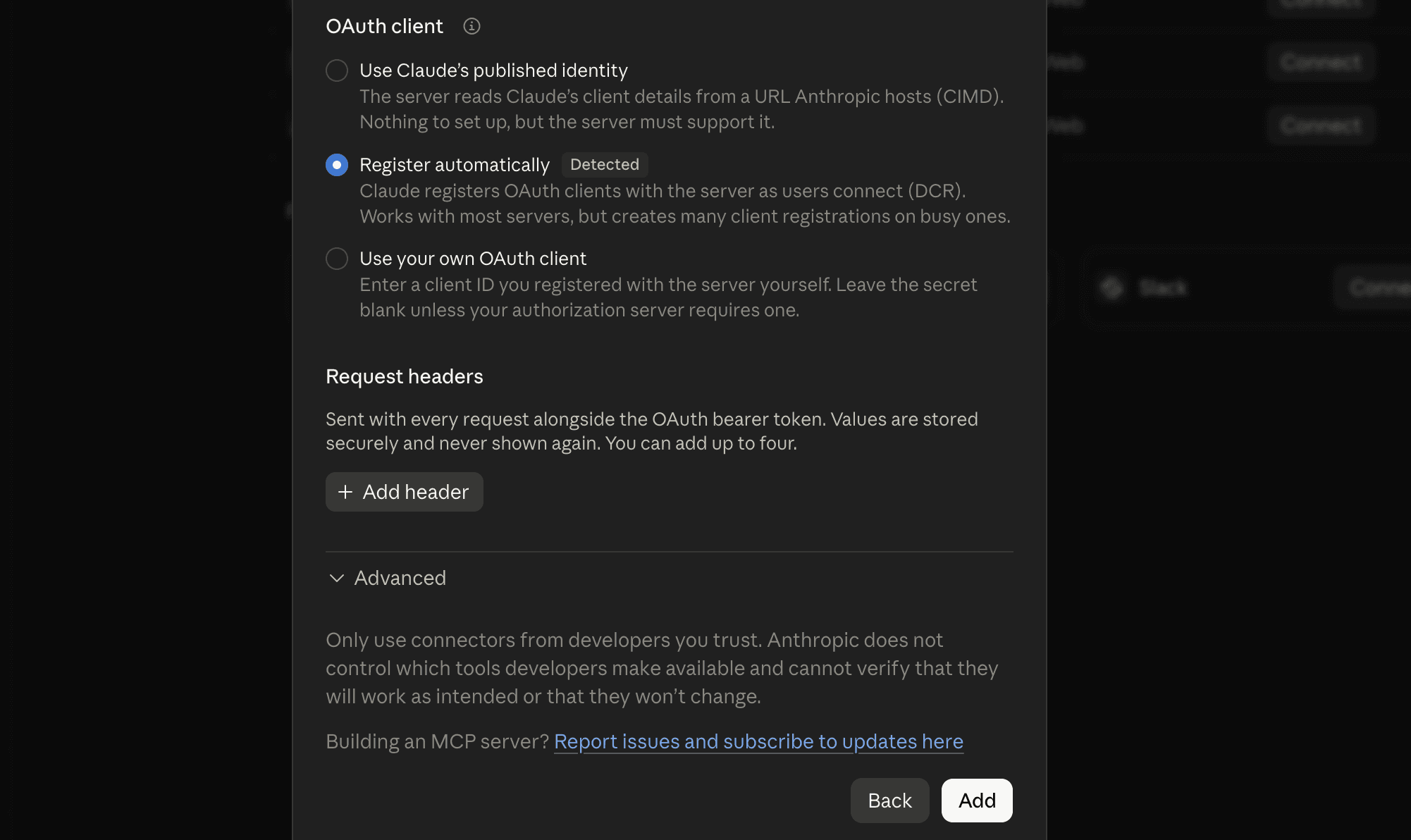
On the next screen, click Add.
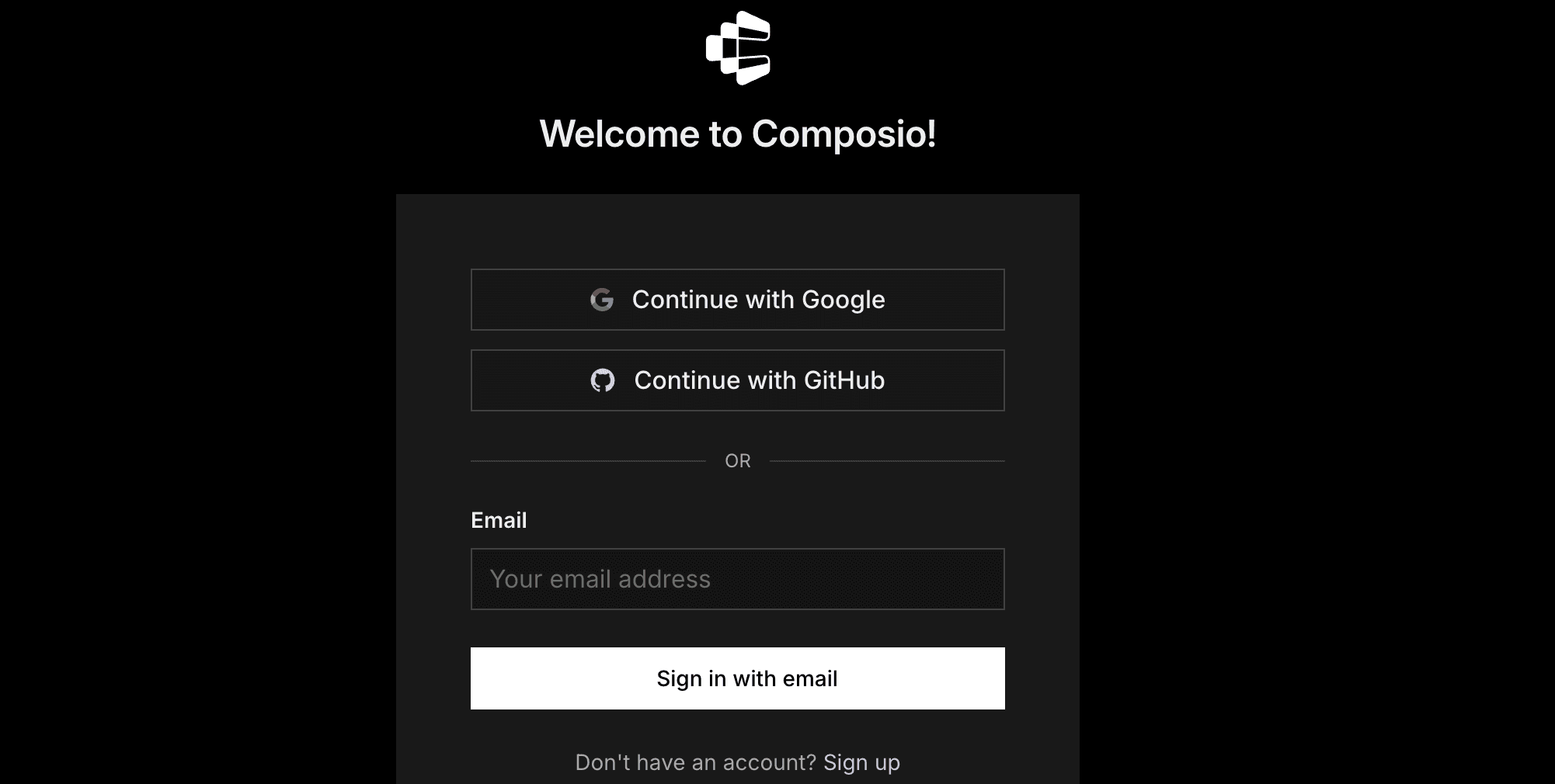
You'll be redirected to Composio's sign-in page. Log in (or create a free account) and approve the connection.
Then:
Return to Claude and confirm Composio shows as enabled under Connectors.
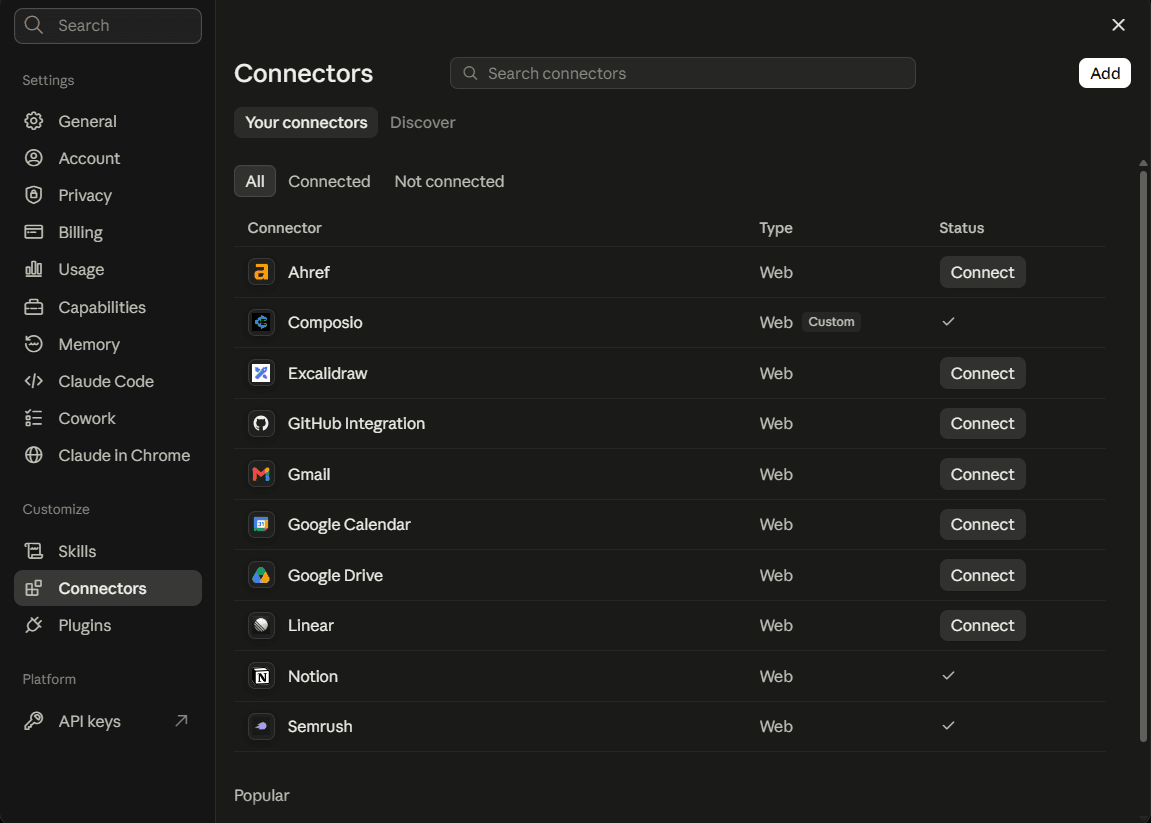
You only need to do this once, no matter how many Google accounts you connect afterwards.
Quick check
Start a new chat and ask:
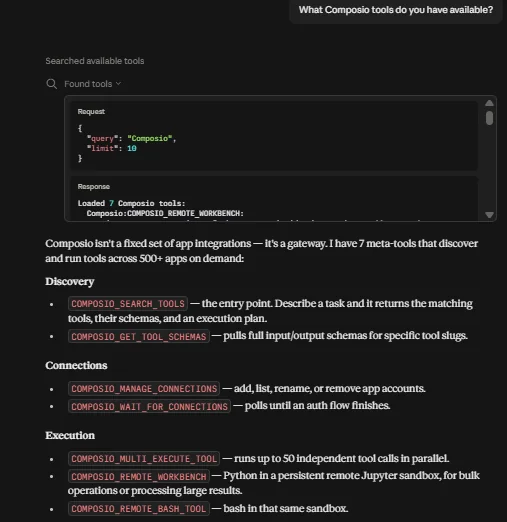
What Composio tools do you have available?
If Claude lists Composio's tools, you're ready to connect Google Sheets.
Step 2: Understand Composio Instant Tools
This matters because it changes what you pay and what you need to set up.
Composio Instant runs tools like Apollo, ContactOut, and Hunter on Composio’s own provider accounts. You get an initial $2 credit.
Claude can use those tools without your account or API key, and Composio charges each call to your Composio balance at vendor prices with zero markup.
Instant tools typically handle data search, retrieval, and enrichment. For Apollo, these include the following tools
Apollo tool | What it does |
|---|---|
People search | Finds people by title, company, location, and more |
People enrichment (single and bulk) | Adds details to a person record |
Organization search | Finds companies that match your filters |
Organization enrichment (single and bulk) | Adds company size, industry, funding, and more |
Organization job postings | Shows the jobs that a company has open |
News articles | Finds recent news about a company |
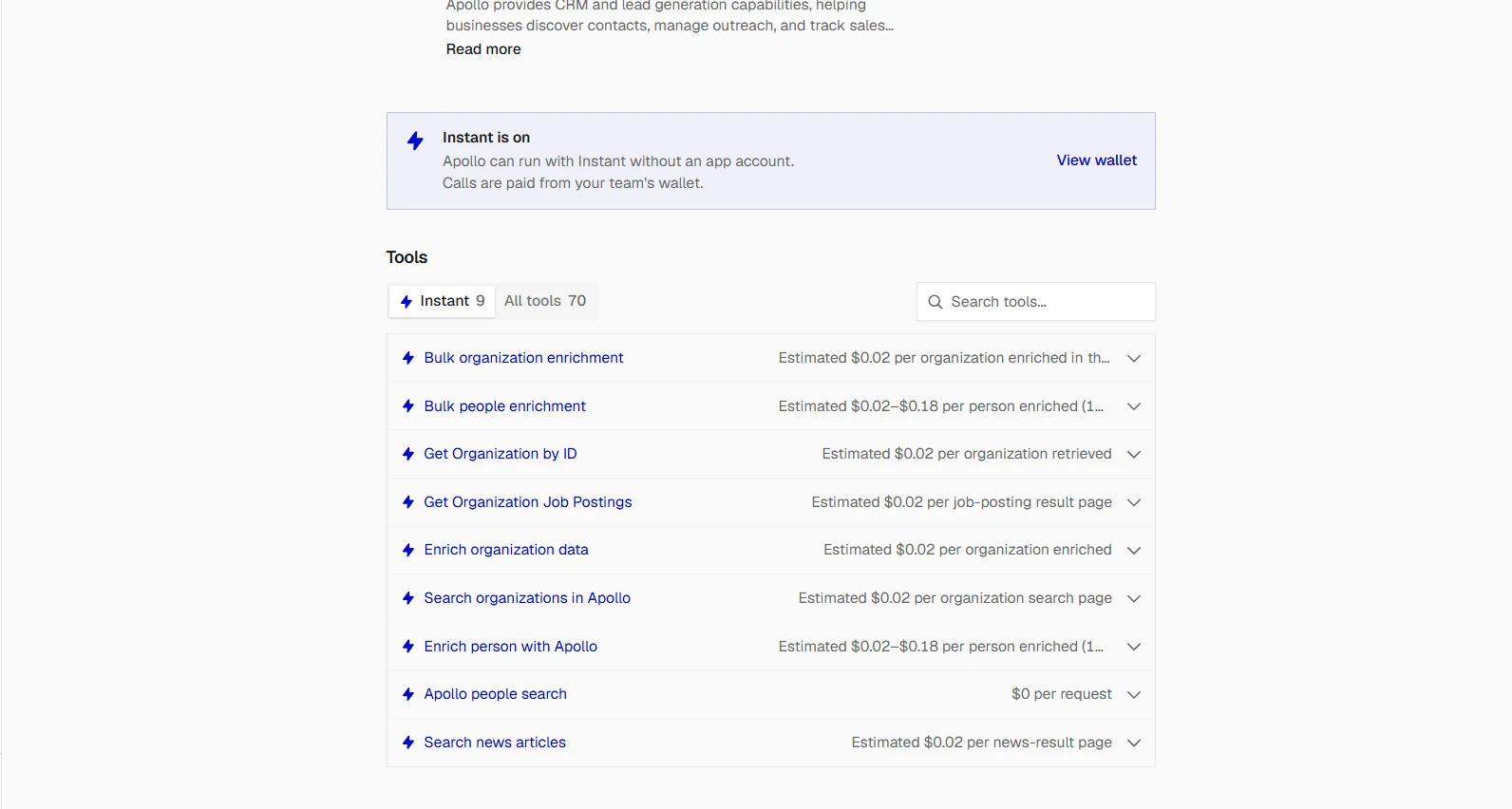
Other Apollo tools work with your private Apollo data, for example contacts, sequences, deals, and emails. Instant does not cover these tools, so you must connect your own Apollo account to use them.
These ContactOut tools work with Instant:
ContactOut tool | What it does | Cost on Instant |
|---|---|---|
Count People | Estimates how many people match your filters | Free |
Check LinkedIn Contact Availability | Tells you if a profile has a work email, without revealing it | Free |
Search Companies | Finds companies by size, location, industry, and tech | ~$0.02 per company |
Search People | Finds people by title, company, seniority, and more | ~$0.02 per person |
List Decision Makers | Lists key decision makers at one company | ~$0.02 per person |
Enrich LinkedIn Profile | Adds profile details for a LinkedIn URL | ~$0.02 per profile |
Get LinkedIn Contact Info | Reveals the work email for a LinkedIn profile | ~$0.15 per email found |
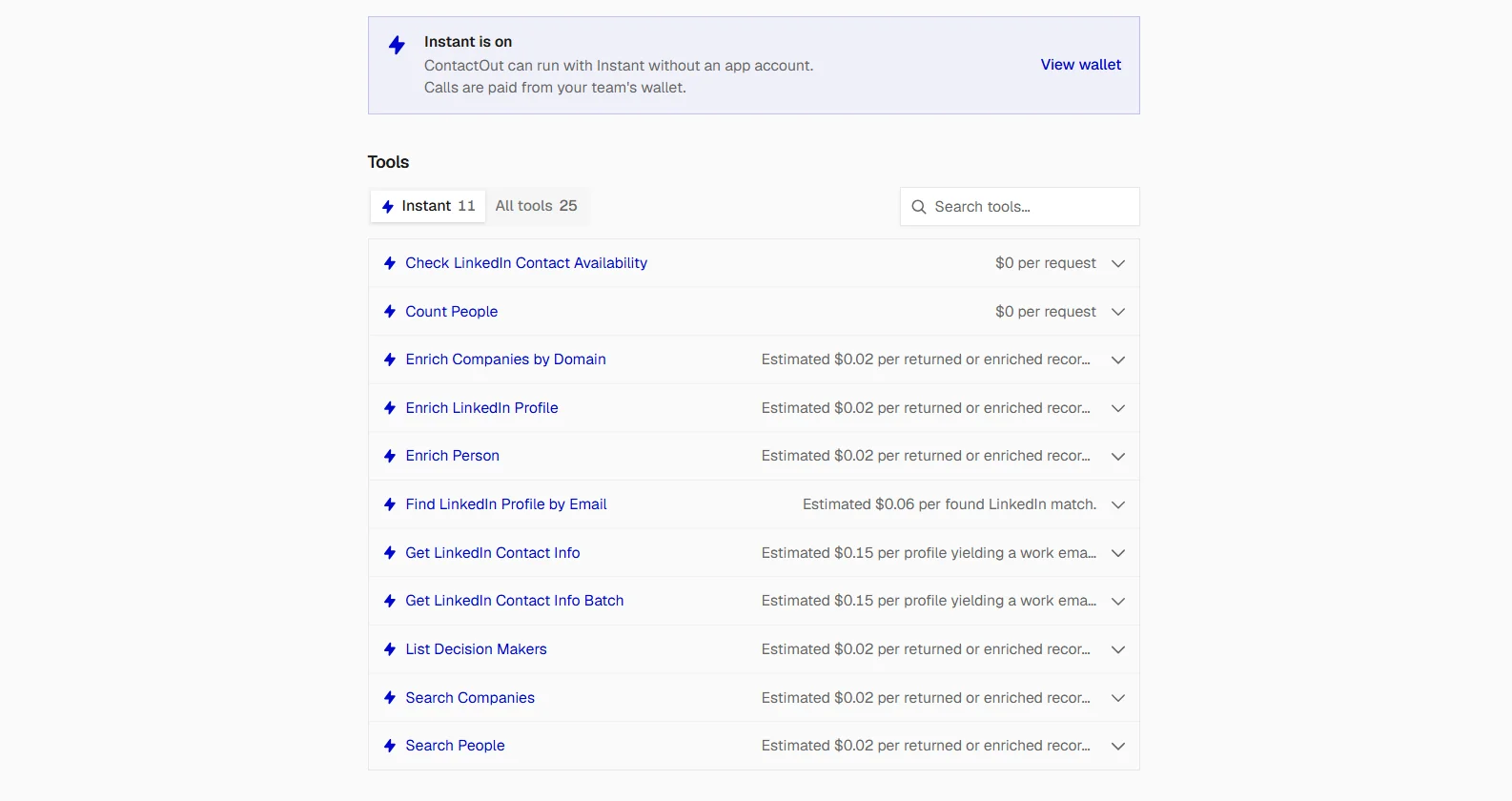
On Instant, ContactOut returns work emails only. Phone numbers, personal emails, ContactOut’s Verify Email tool, and campaigns need your own ContactOut account. If you want to verify work emails without connecting a ContactOut account, use Hunter Email Verifier through Composio Instant. It costs $0.012 per billed verification from your Composio team wallet.
⚠️ Your Composio balance does not work as a strict spending limit, because Composio checks it after the calls. So add a small amount first, and check the execution logs in the Composio dashboard to see what each call costs. You can also turn Instant off at any time, and your connected accounts keep working.
Step 3: Tell Claude Who Your Ideal Customer Is
Claude gives better results when you define your ideal customer first. I keep this as a short block of text and paste it at the start of each lead-generation chat.
My ideal customer:
- B2B SaaS companies
- 50 to 200 employees
- Based in the US or Canada
- Raised a Series A or Series B in the last 18 months
- Currently hiring sales reps (SDRs or AEs)

<p>The people I want to reach:</p>
<ul>
<li>Head of Sales, VP of Sales, or Chief Revenue Officer</li>
<li>Founder or CEO, if the company has fewer than 80 employees</li></ul>
Change this to match your own business. The more specific you are, the fewer bad leads Claude returns.
💡 If you use Claude Projects, put this text in the project instructions. Then Claude uses it in each chat, and you do not have to paste it again.
Step 4: Find Companies With ContactOut
Now ask Claude to find companies that match your ideal customer.
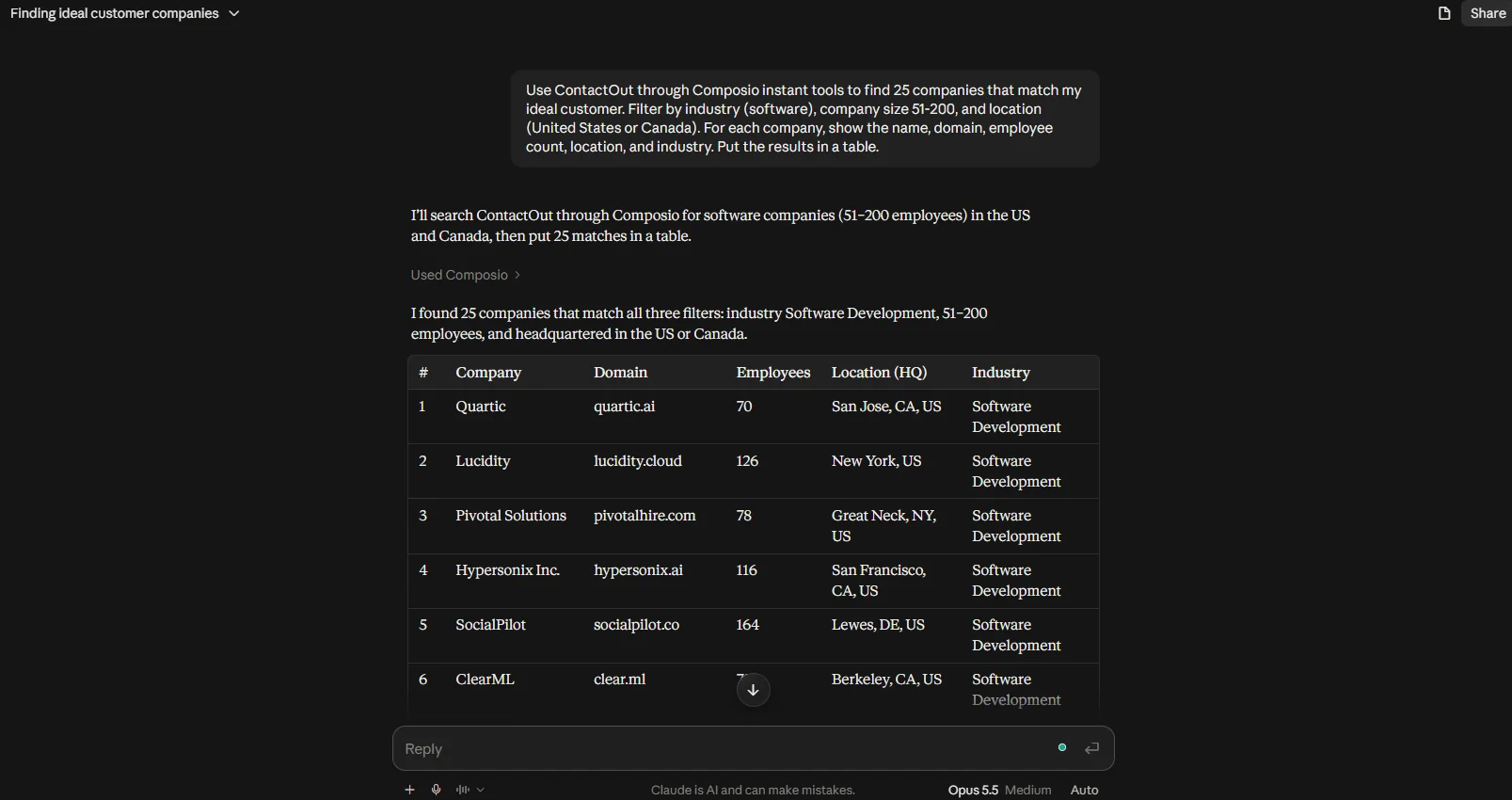
Use ContactOut through Composio Instant Tools to find 25 companies that match my
ideal customer. Filter by industry (software), company size 51-200,
and location (United States or Canada). For each company, show the
name, domain, employee count, location, and industry. Put the
results in a table.
Claude uses ContactOut’s company search, and it returns a table. This step costs about $0.50 for 25 companies. Review the list, and remove any company that you already know is a bad fit.
You can also ask Claude to find companies that match your ideal customer using Apollo.
Use Apollo through Composio to find 25 companies that match my ideal
customer. For each company, show the name, website, employee count,
location, industry, and latest funding round. Put the results in a table.
Claude uses Apollo’s organization search, and it returns a table. Review the list, and remove any company that you already know is a bad fit.
Step 5: Qualify the Companies
A company can match your filters and still be a bad fit. So before you look for contacts, ask Claude to check for buying signals.
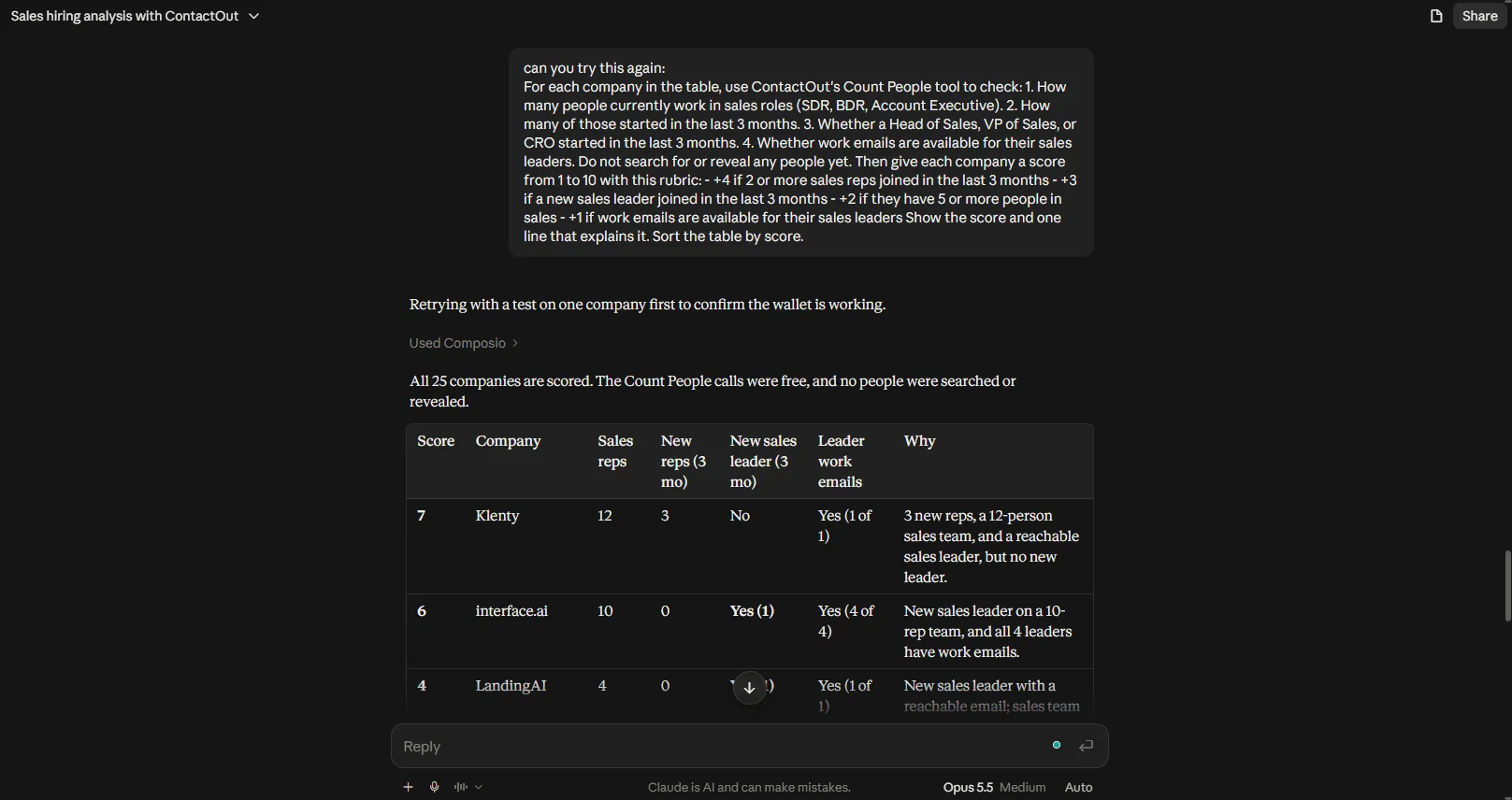
ContactOut’s Count People tool is free on Instant, and it supports a filter for people who started their job in the last three months. That gives you two strong signals. A company that just hired several sales reps is growing its sales team. A company with a new sales leader often reviews its tools and vendors in the first few months.
For each company in the table, use ContactOut's Count People tool
to check:

<ol>
<li>How many people currently work in sales roles (SDR, BDR,
Account Executive).</li>
<li>How many of those started in the last 3 months.</li>
<li>Whether a Head of Sales, VP of Sales, or CRO started in the
last 3 months.</li>
<li>Whether work emails are available for their sales leaders.
Do not search for or reveal any people yet.</li>
</ol>
<p>Then give each company a score from 0 to 10 with this rubric:</p>
<ul>
<li>+4 if 2 or more sales reps joined in the last 3 months</li>
<li>+3 if a new sales leader joined in the last 3 months</li>
<li>+2 if they have 5 or more people in sales</li>
<li>+1 if work emails are available for their sales leaders
Show the score and one line that explains it. Sort the table by score.</li></ul>
Keep the top 10 companies, and drop the rest.
Step 6: Find the Right People
Now find the decision makers at your top companies. You can use Apollo, ContactOut, or both.
With Apollo:
Use Apollo people search to find the Head of Sales, VP of Sales, or CRO
at each of my top 10 companies. Show their name, title, and LinkedIn URL.
With ContactOut:
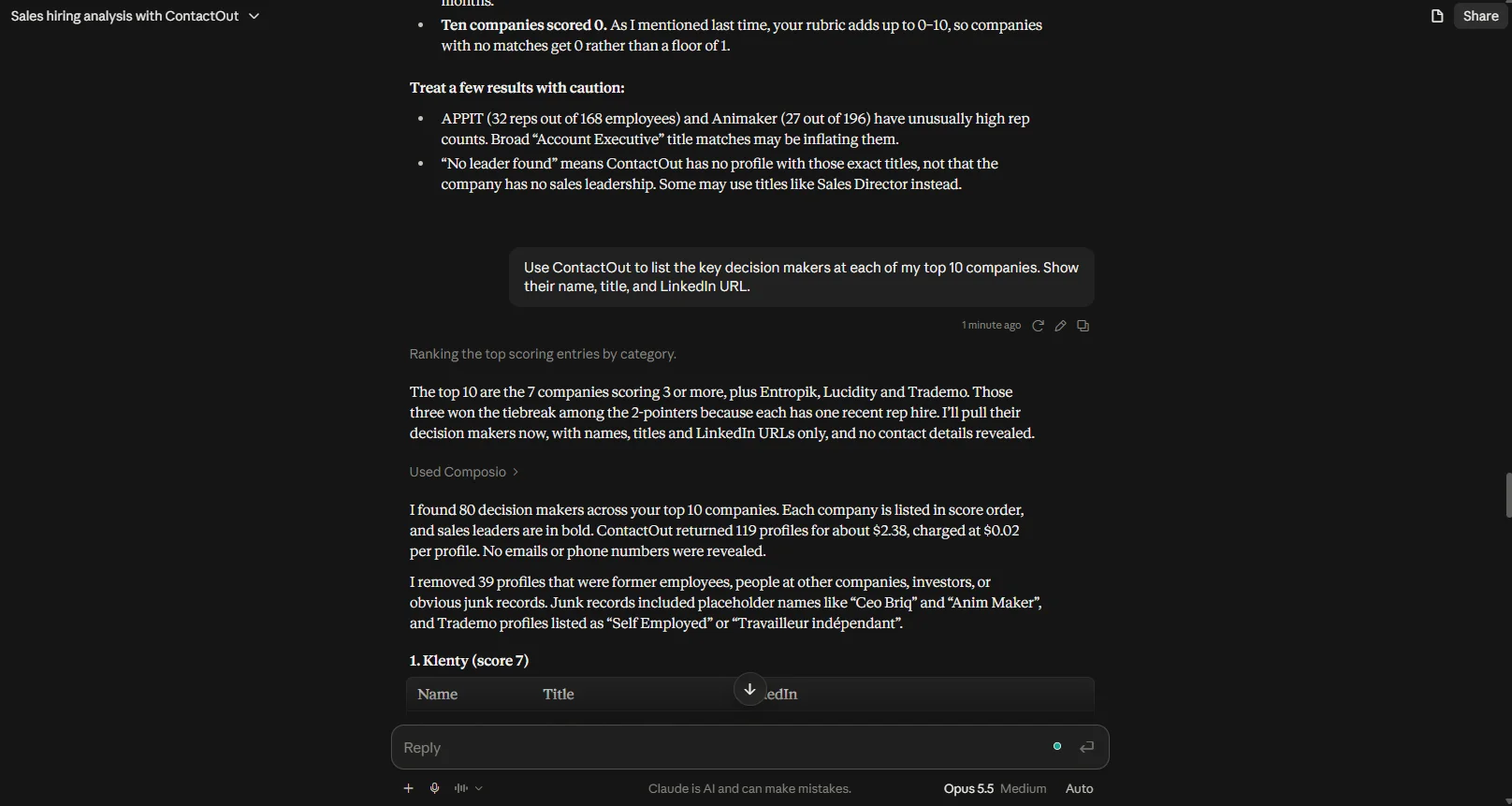
Use ContactOut to list the key decision makers at each of my top
10 companies. Show their name, title, and LinkedIn URL.
I usually run both, and then I ask Claude to merge the results and remove duplicates. Each tool finds some people that the other one misses.
Step 7: Get and Verify Contact Details
This step costs the most credits, so do it only for the people that you plan to contact.
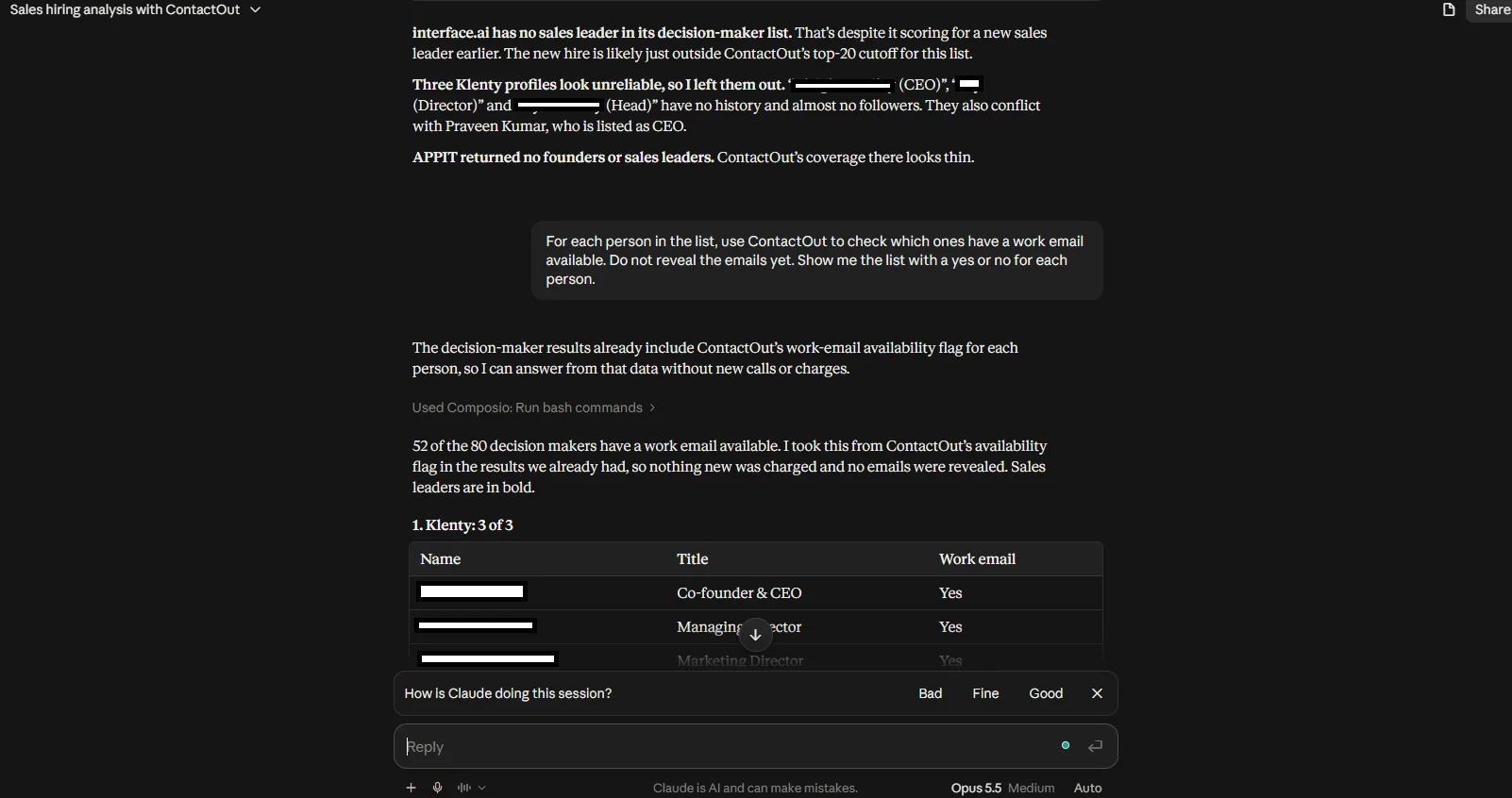
First, check which profiles have contact details. ContactOut’s Check LinkedIn Contact Availability tool tells you if a profile has a work email, a personal email, or a phone number, and it does not use credits.
For each person in the list, use ContactOut to check which ones have
a work email available. Do not reveal the emails yet. Show me the
list with a yes or no for each person.
Then get the emails for the people that have them:
For each person with a work email available, use ContactOut to get
their work email. Then use ContactOut's Verify Email tool to check
each one. Mark each email as valid, invalid, accept-all, or unknown.
If ContactOut doesn't find an email for someone, Composio Instant will fall back to Apollo, Hunter, or Plaud. The goal is to get things done.
⚠️ Remove emails that are invalid, and be careful with accept-all emails. If you send to too many bad addresses, your email domain can get flagged as spam.
Step 8: Save Your Leads
Now save the final list. Composio connects to most CRMs and spreadsheets, so you can choose where the leads go. Google Sheets isn't on Instant, so you first connect your own Google account through Composio. You only do this once.
Connect Google Sheets with Composio:
In the same chat, ask Claude:
Connect my Google Sheets account through Composio.Claude checks your Composio connections. If Google Sheets is not connected yet, it replies with a sign-in link.
Click the link, and choose the Google account that you want to use.
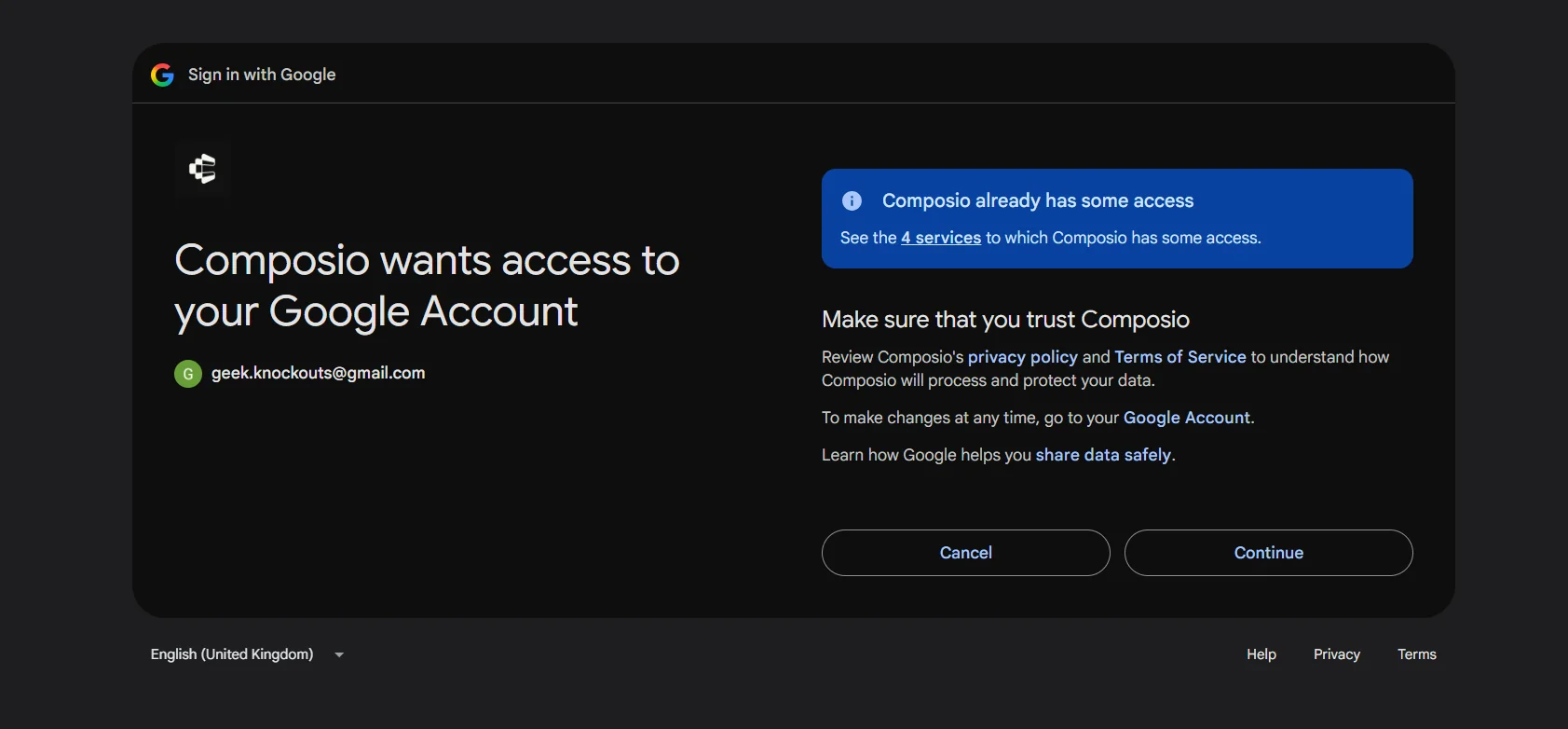
Review the permissions, and click Allow.

When you see the success page, go back to Claude and type done. Claude checks that the connection is active before it continues.
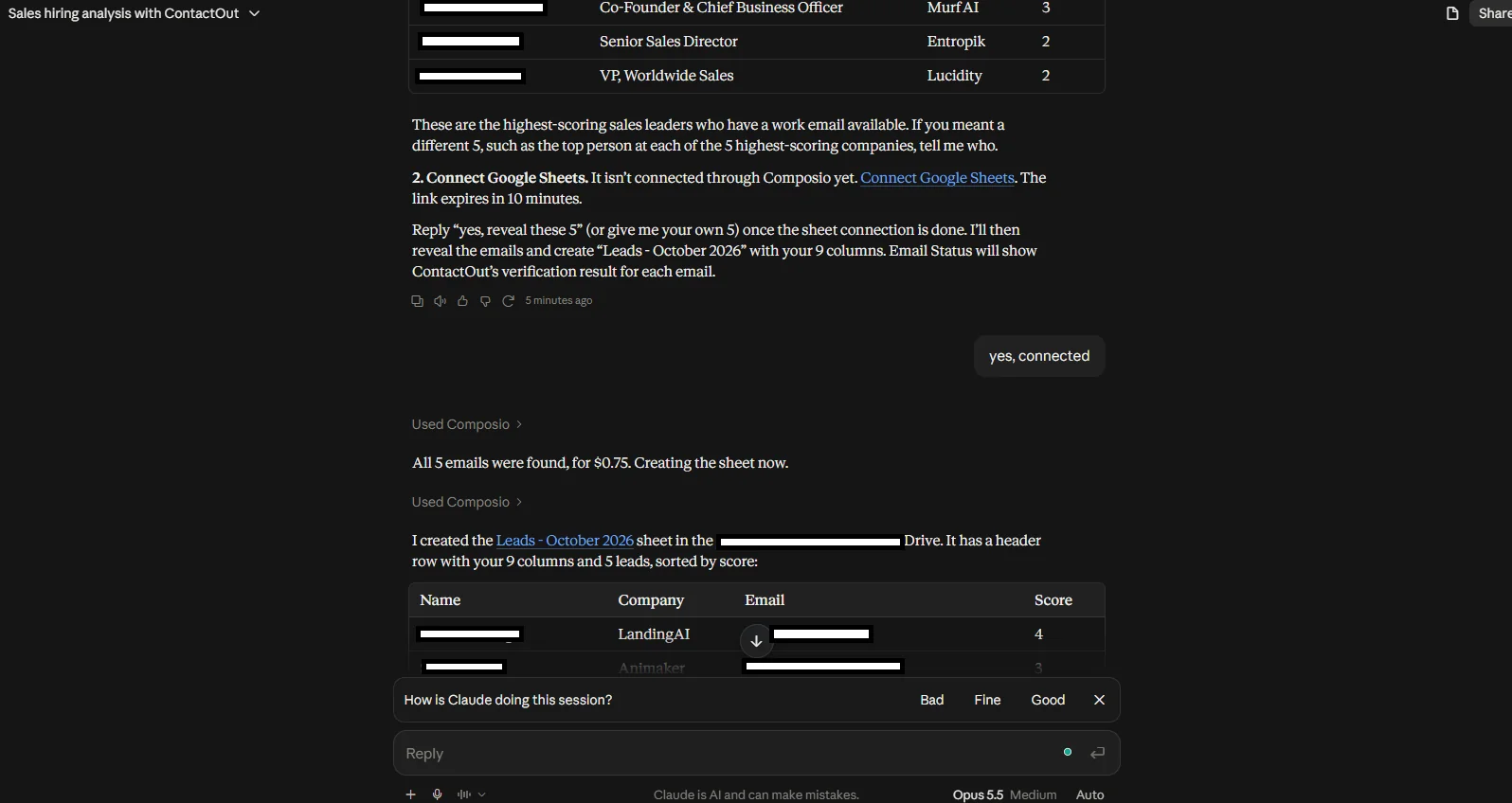
💡 You can also connect apps from the Composio dashboard, under Connected Accounts. Claude uses any account that you connect there.
Save the leads to a Google Sheet:
Create a Google Sheet called "Leads - October 2026" and add all
verified leads. Use these columns: Name, Title, Company, Domain,
Email, Email Status, LinkedIn URL, Score, Score Reason.
Claude creates the sheet, adds the rows, and gives you a link to open it.
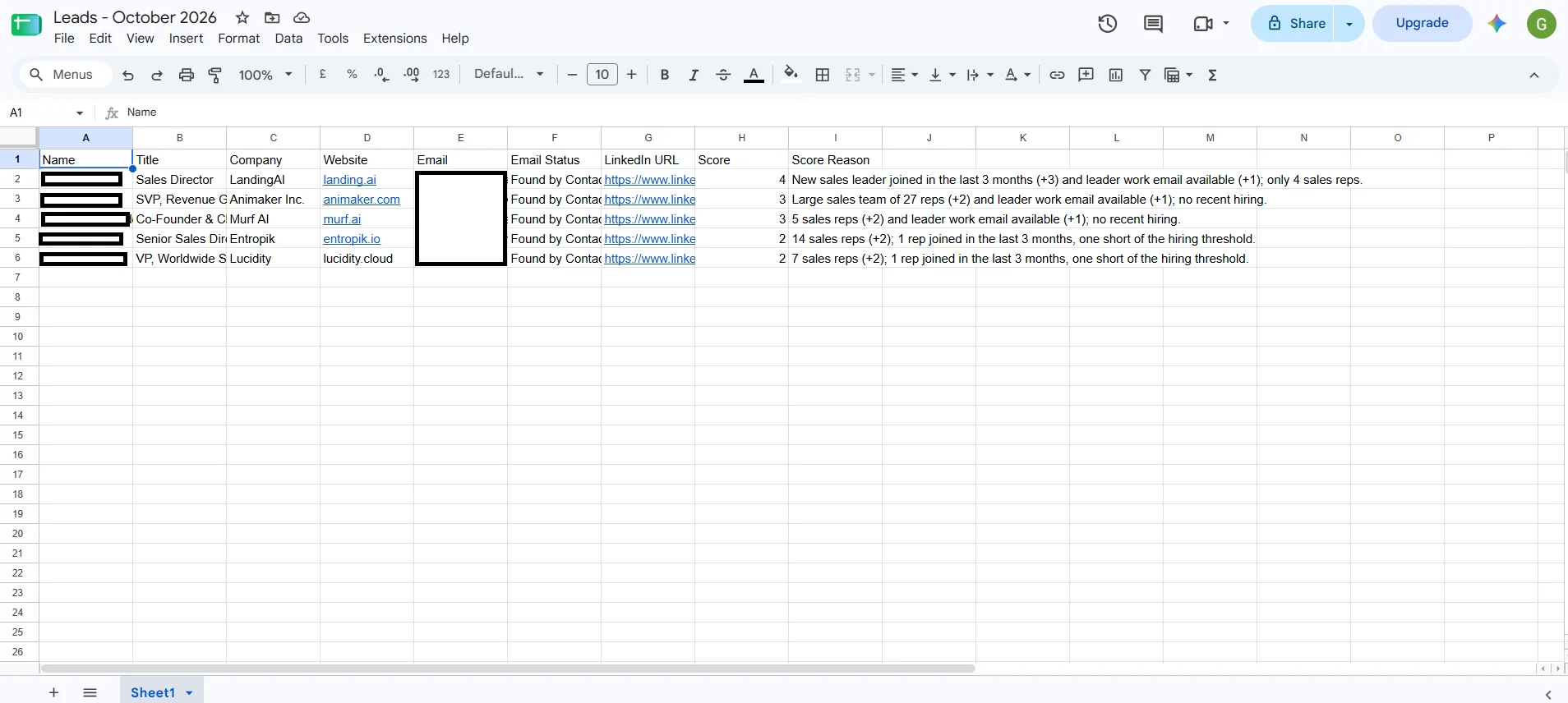
You can save the leads to HubSpot, Salesforce, Attio, or another CRM in the same way. Ask Claude to connect the app through Composio, and it gives you a sign-in link.
Step 9: Draft the First Email
Claude already knows why each lead fits, because it saw the job posts and the news. So it can write a short email that refers to a real reason.
Write a short first email for each of the top 5 leads. Use the
signal that gave them the highest score, such as their open sales
roles or their recent funding. Keep each email under 100 words.
Do not send anything. Show me the drafts first.
Read each draft before you send it, and fix anything that sounds wrong. Claude can make mistakes about names, titles, or news, so check the facts.
💡 Always tell Claude “Do not send anything” in the prompt. If you want Claude to send emails, give it a clear instruction to send them after you approve each one.
One Prompt for the Full Workflow
After you test each step, you can run them all in one prompt:
Use Composio with Apollo and ContactOut to do this:

<ol>
<li>Find 25 companies that match my ideal customer.</li>
<li>Check their open sales roles and news from the last 90 days,
and score each company from 0 to 10 with my rubric.</li>
<li>Keep the top 10.</li>
<li>Find the Head of Sales, VP of Sales, or CRO at each company.</li>
<li>Check which people have a work email available, then get and
verify those emails with ContactOut.</li>
<li>Save the verified leads to a new Google Sheet.</li>
<li>Draft a short first email for the top 5 leads, but do not send them.</li>
</ol>
<p>Ask me before you do any step that costs more than 50 credits.</p>
What This Workflow Cost Me
Composio charges each Instant call to your Composio balance. After a full run, I asked Claude to add up the cost of every ContactOut call in the session:
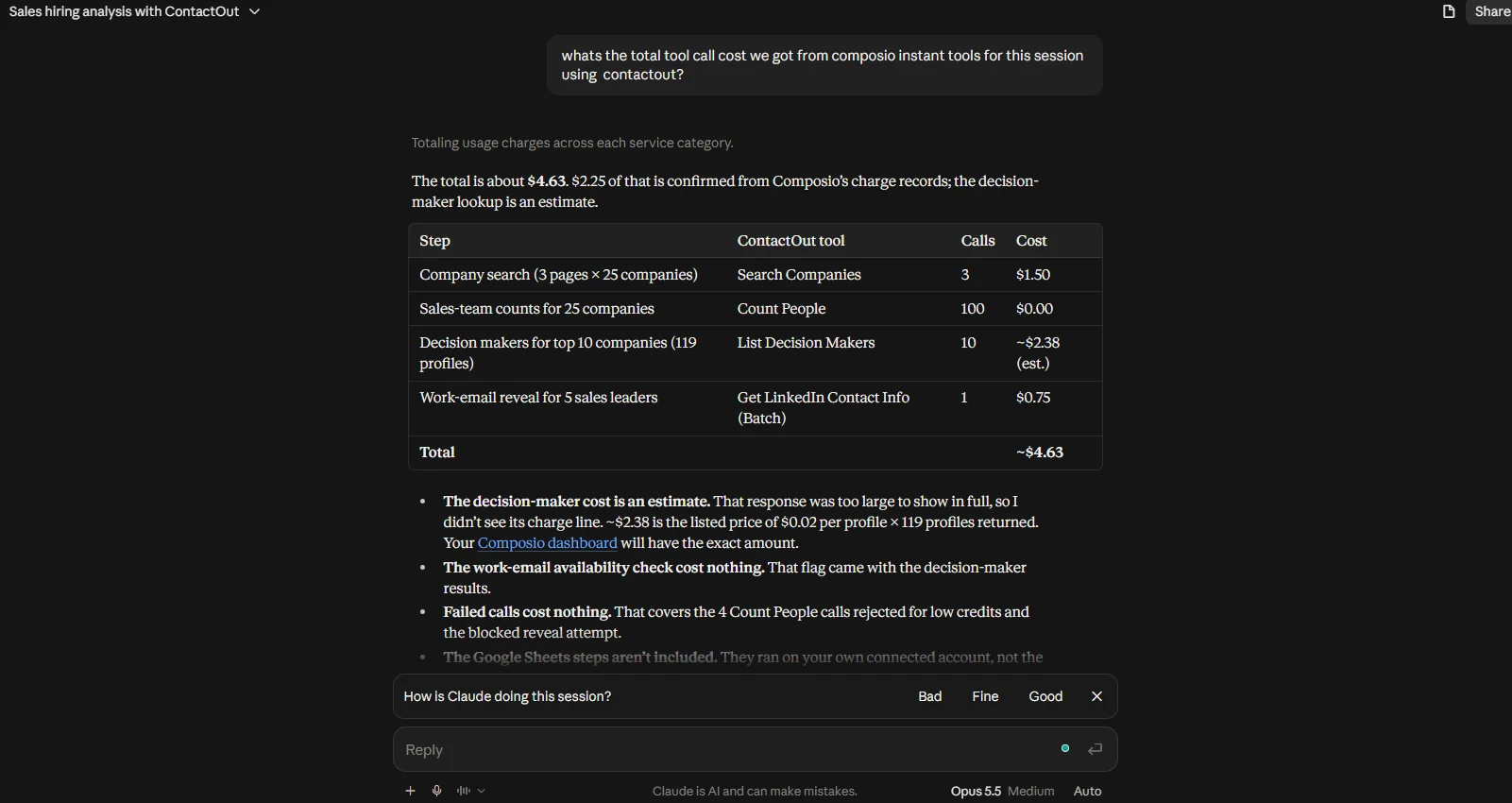
Step | ContactOut tool | Calls | Cost |
|---|---|---|---|
Find companies (25 companies, 3 pages) | Search Companies | 3 | $1.50 |
Count sales teams and new hires | Count People | 100 | Free |
Find decision makers at the top 10 companies (119 profiles) | List Decision Makers | 10 | $2.38 |
Reveal work emails for 5 sales leaders | Get LinkedIn Contact Info (Batch) | 1 | $0.75 |
Total | $4.63 |
That’s about $0.93 per lead with a work email, and the 100 qualification calls cost nothing.
A few things I noticed in the breakdown:
Most of the cost came from finding people, not emails. List Decision Makers returned about 12 profiles per company, and each profile costs $0.02. If you only need one or two people per company, use people search with a limit, as shown in Step 6.
The email availability check was free. That information came back with the decision maker results.
Failed calls cost nothing. A few calls failed when my balance ran low, and Composio didn’t charge for them.
Google Sheets is not included. It runs on your own connected account, so it doesn’t use your Composio balance.
⚠️ Some Count People calls failed during my run because my balance was too low, even though the tool itself is free. Add a few dollars before you start, so the workflow does not stop halfway.
💡 Claude’s total is an estimate when a tool response is too large to show in full. Check the execution logs in the Composio dashboard for the exact amount.
Keep It Legal and Polite
Lead generation tools make it easy to send a lot of emails, so be careful.
Check the rules where your leads live. GDPR applies to people in the EU, and CAN-SPAM applies in the US.
Only contact people who have a real reason to care about your product.
Include a clear opt-out option in each email.
Do not upload personal emails to a cold outreach tool. Use work emails for B2B outreach.
Wrapping Up
You do not need to use every tool in this article on day one. Start with Apollo through Instant, since you don't need an Apollo account for it. Then add ContactOut when you need better email coverage and email verification.
The most useful part of this setup is the qualification step. Claude checks each company for real buying signals before you spend credits on contact details, so you pay only for the leads that you plan to contact.

 Get started



