




A few days ago, a friend and I were working on a project and needed a clean project diagram. I opened Excalidraw and started building it manually, moving boxes around, carving shapes, colours, and fonts and trying to make everything fit.
Around five minutes later, my friend had already made a much better version. I asked him how he did it, and he showed me how he was using Claude with connectors and an Excalidraw MCP plugin as part of his workflow.
That got me interested. I spent some time trying different connectors, removing the ones I rarely used, and keeping the ones that actually saved me time.
This guide covers the top 20 Claude connectors that now most often come up in my workflow.
What are Claude connectors?
Claude connectors let Claude work with external apps and services. They give it access to your files, messages, projects, payments, databases, and other tools while keeping the connected account's permissions.
Some come directly from the Claude Connectors Directory. Others work through remote MCP servers, and some Claude Code plugins package connectors together with skills or other features.
So when I ask Claude to find a document in Drive, check a Linear issue, inspect a Stripe payment, or create something in another app, the connector gives Claude the tools it needs to do that work.

Once you understand those three paths, configuring them is much easier
How to configure Claude connectors
There are three approaches I use most often. I usually start with the direct connector when one exists, then use a remote MCP when I need more control, and use a plugin when it provides a useful setup around the connector.
My basic rule is:
Use direct connectors for common apps that Claude already lists.
Use remote MCP when the service publishes an MCP server.
Use plugins when you also want packaged skills or related tooling.
Prefer OAuth when the service supports it.
Add connectors when you have a real workflow for them.
1. Install directly from Claude
This is the easiest path for services such as Google Drive, Gmail, Slack, GitHub, Linear, and many others. Claude now includes connectors in its Customise interface, so most installs only require a few clicks and an OAuth flow.
Open Claude
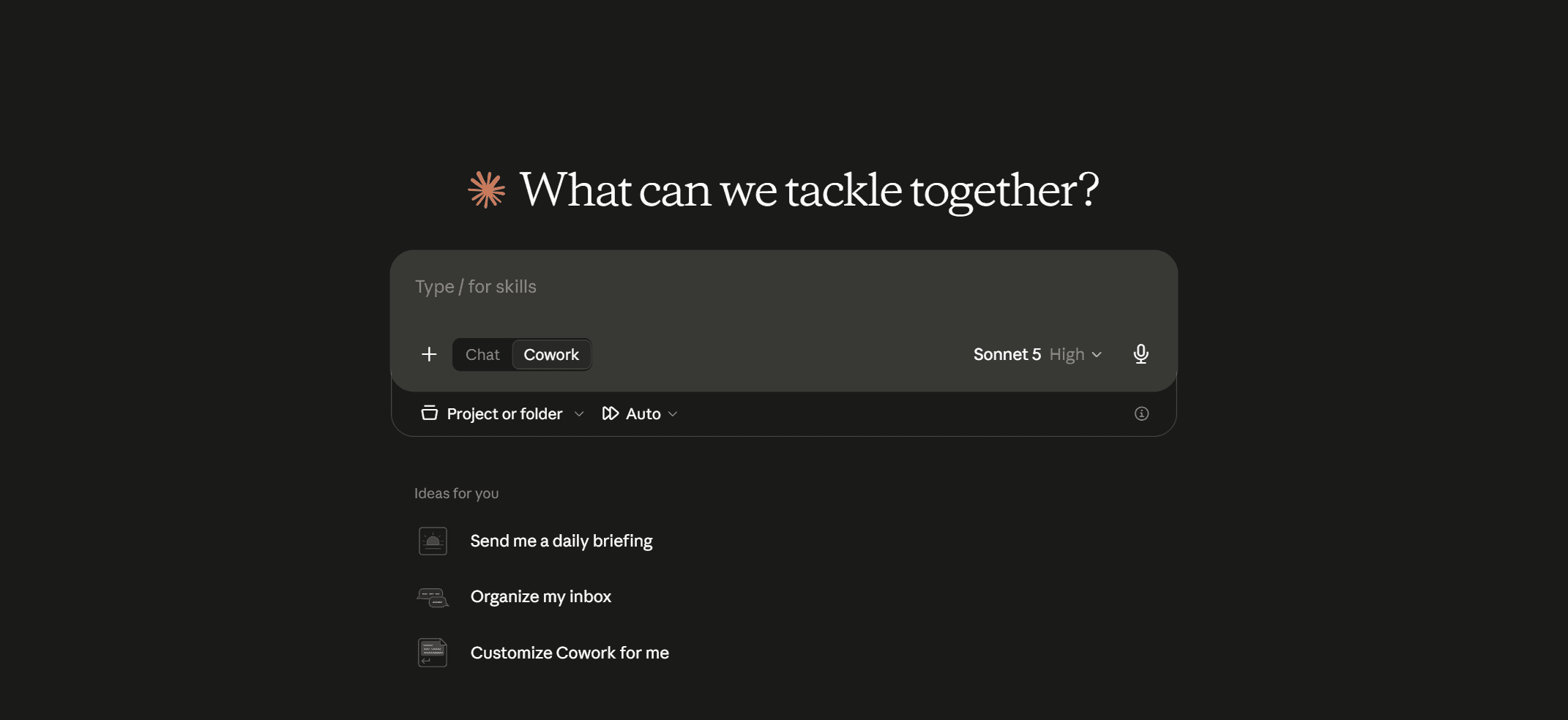
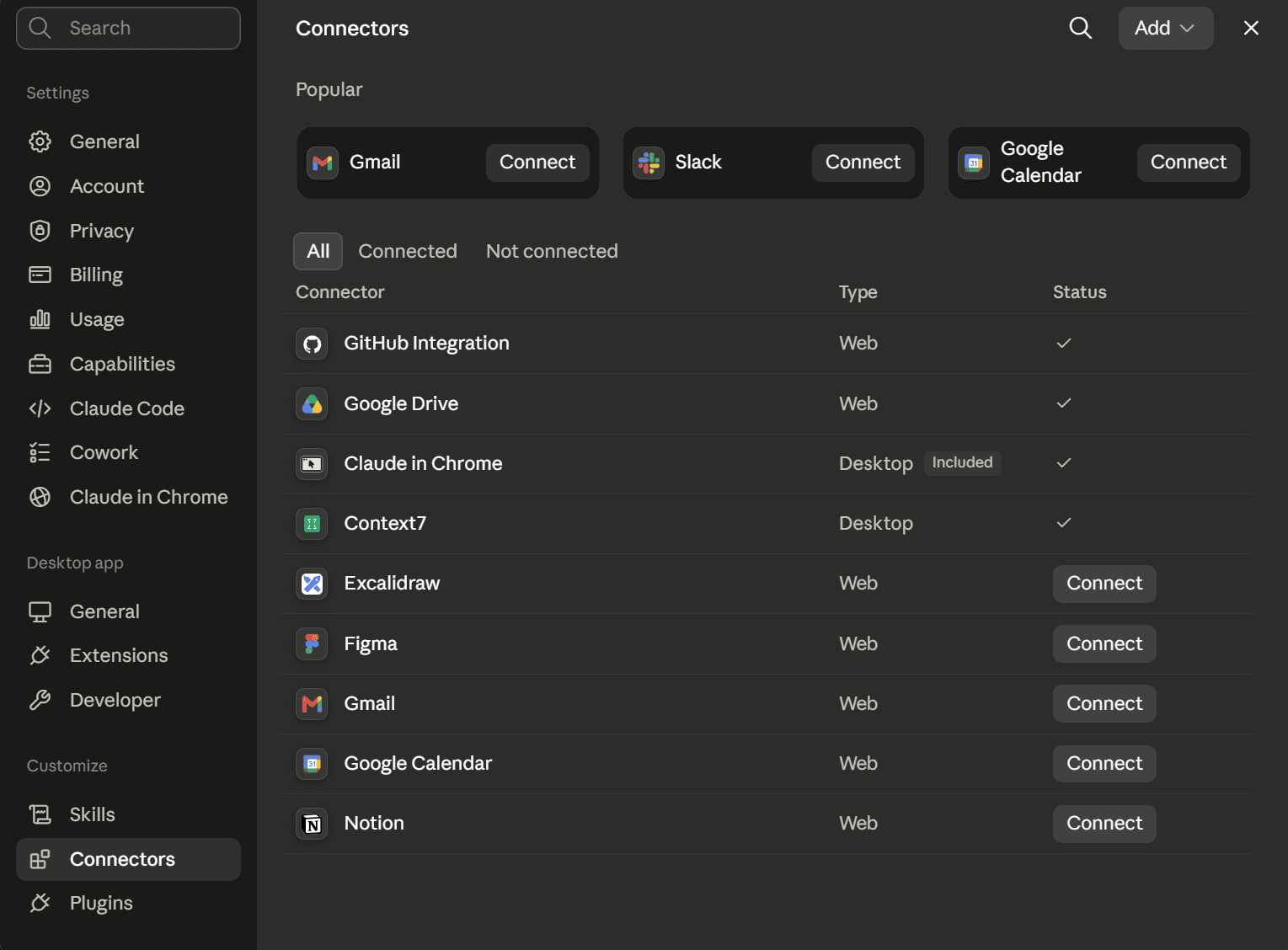
Navigate to Customise & Select Connectors from the list
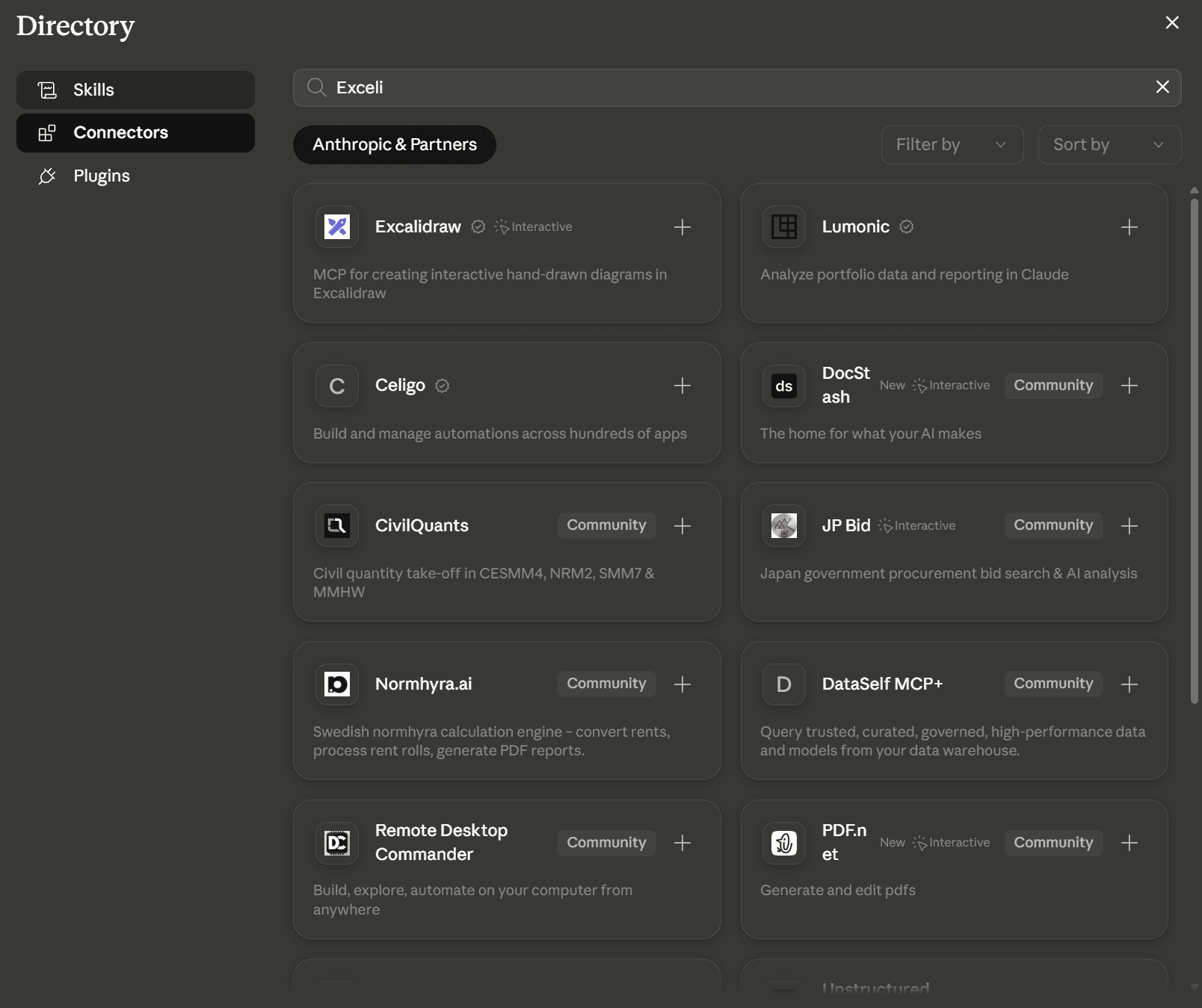
Click Add, Browse or Search Connectors & Select + (example: excalidraw)
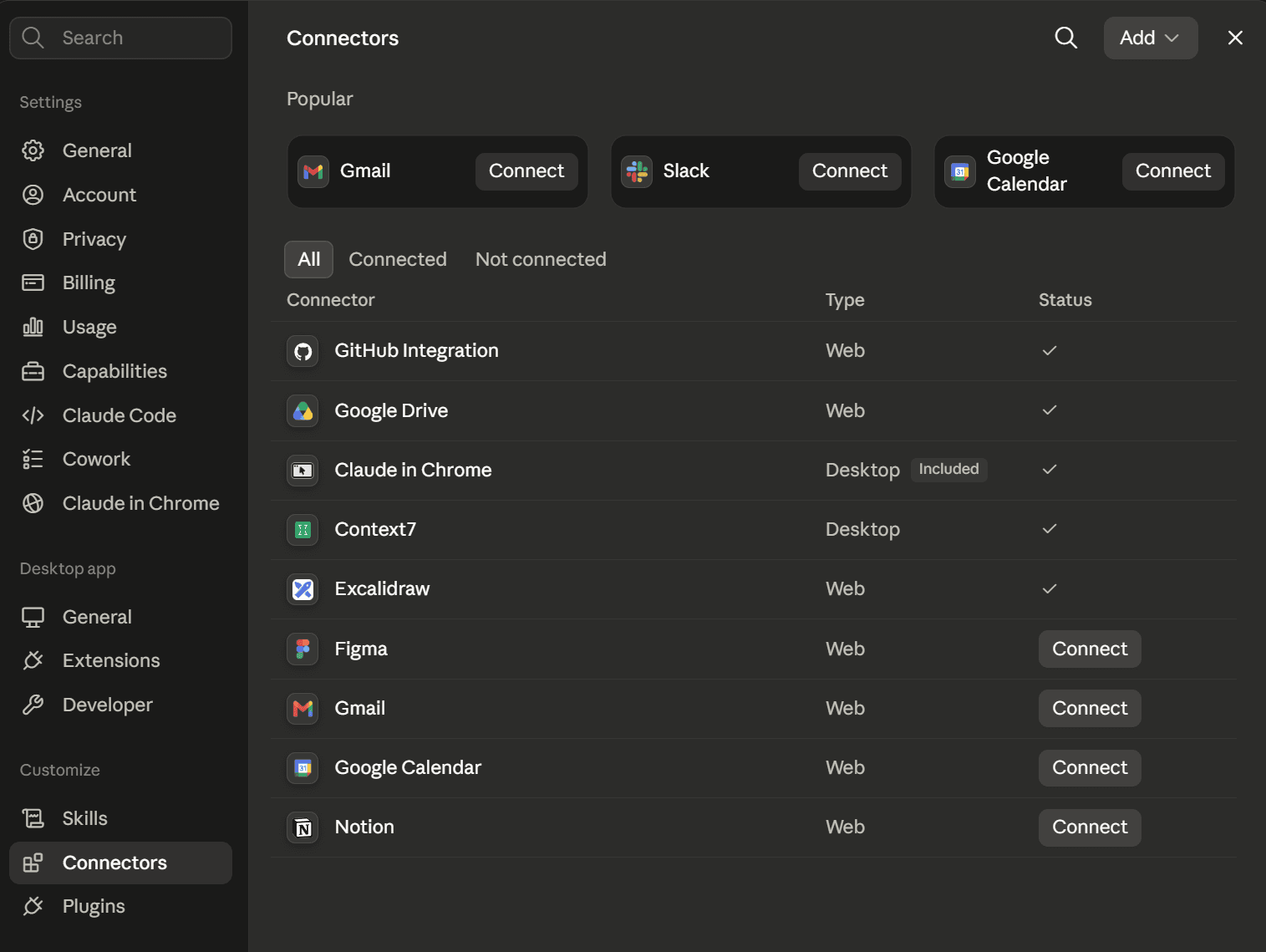
Connect & Authenticate
Now mention it in a prompt to use.
Use "excalidraw" to build me a database diagram with multiple tables and rows, which
represents me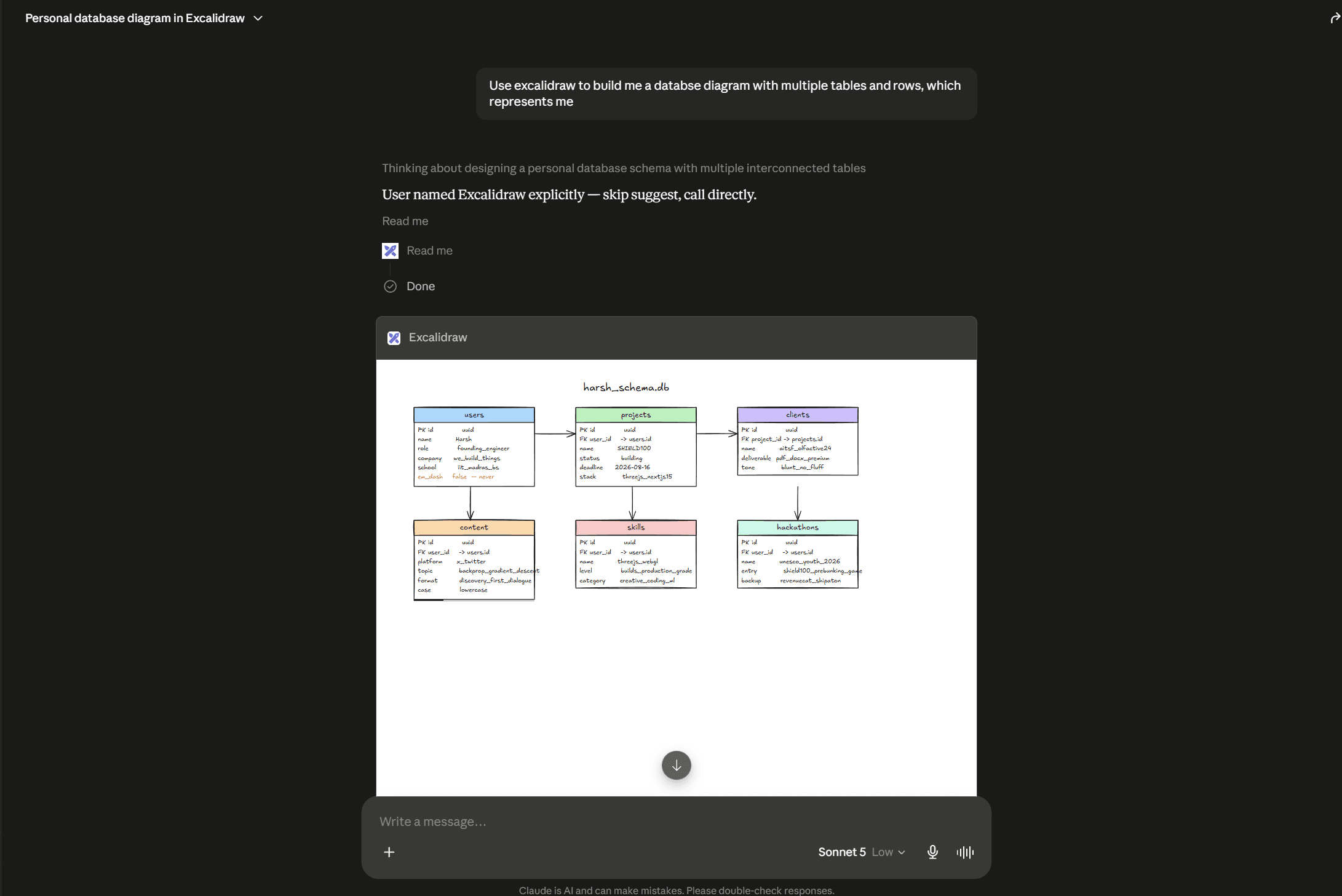
This is the easiest way. For most people, I would say, start here.
2. Add a remote MCP server
If a service gives you a remote MCP URL, Claude Code can connect to it directly. This is useful for services such as Linear, Stripe, Make, Composio, and other MCP-based tools.
claude mcp add --transport http <name> <remote-mcp-url>Then open Claude Code and run:
/mcpComplete the OAuth flow if the server requests it. Claude also lets you add a public remote MCP server through Customise → Connectors → Add custom connector.
3. Install a Claude Code plugin
Plugins are useful when the integration includes more than an MCP endpoint. A plugin can package connectors, skills, agents, hooks, or other Claude Code configuration together.
For plugins in Anthropic’s official marketplace, the pattern is:
/plugin install <plugin-name>@claude-plugins-officialOr from the terminal:
claude plugin install <plugin-name>@claude-plugins-officialClaude’s official marketplace currently includes external integrations such as GitHub, Linear, Notion, Slack, Sentry, and others.
With the setup out of the way, these are the connectors that have been most useful for me.
Top Claude Code/Desktop connectors in 2026
Automation
Automation is where connectors became useful to me beyond simple information retrieval. These three let Claude move between apps or trigger workflows instead of stopping after giving me an answer.
Name | What it does | Install options | When to use |
|---|---|---|---|
Composio | Connects Claude to 1,000+ apps through one MCP connection | Remote MCP, plugin | Cross-app workflows |
Make | Lets Claude run and manage Make scenarios | Remote MCP, custom connector | Visual automation workflows |
1. Composio
Connect Claude to 1,000+ apps
Composio gives Claude a single connection to 1,000+ apps instead of requiring me to configure each service separately.
It exposes a small set of meta-tools so Claude can find the right app, start authorisation when needed, and execute actions across services such as Gmail, Slack, GitHub, Linear, HubSpot, Notion, and Figma. I find it most useful when one workflow touches several apps.
When to use
You want to write actions the default connectors don't offer, like updating a HubSpot deal, sending the follow-up, or deleting old emails, not just reading them.
You need more than one account per app, like a sales@ and a personal Gmail, or separate LinkedIn and Slack for two brands you run, which Claude's built-in connectors can't handle.
You run a sales loop across apps: enrich a lead, log it in the CRM, draft the outreach from Gmail, and book the meeting on Calendar, all from one prompt.
You manage social from Claude: draft the post, generate the graphic in Canva, schedule it through Typefully or LinkedIn, and pull the engagement numbers back the next day.
Related: How to connect multiple Gmails to Claude
For Claude Desktop:
Open Customize
In Claude Desktop, click Customise in the left sidebar, then select Connectors and click the + icon at the top.

2. Add the Composio MCP server
Click Add custom connector and paste in the Composio MCP server URL:
https://connect.composio.dev/mcp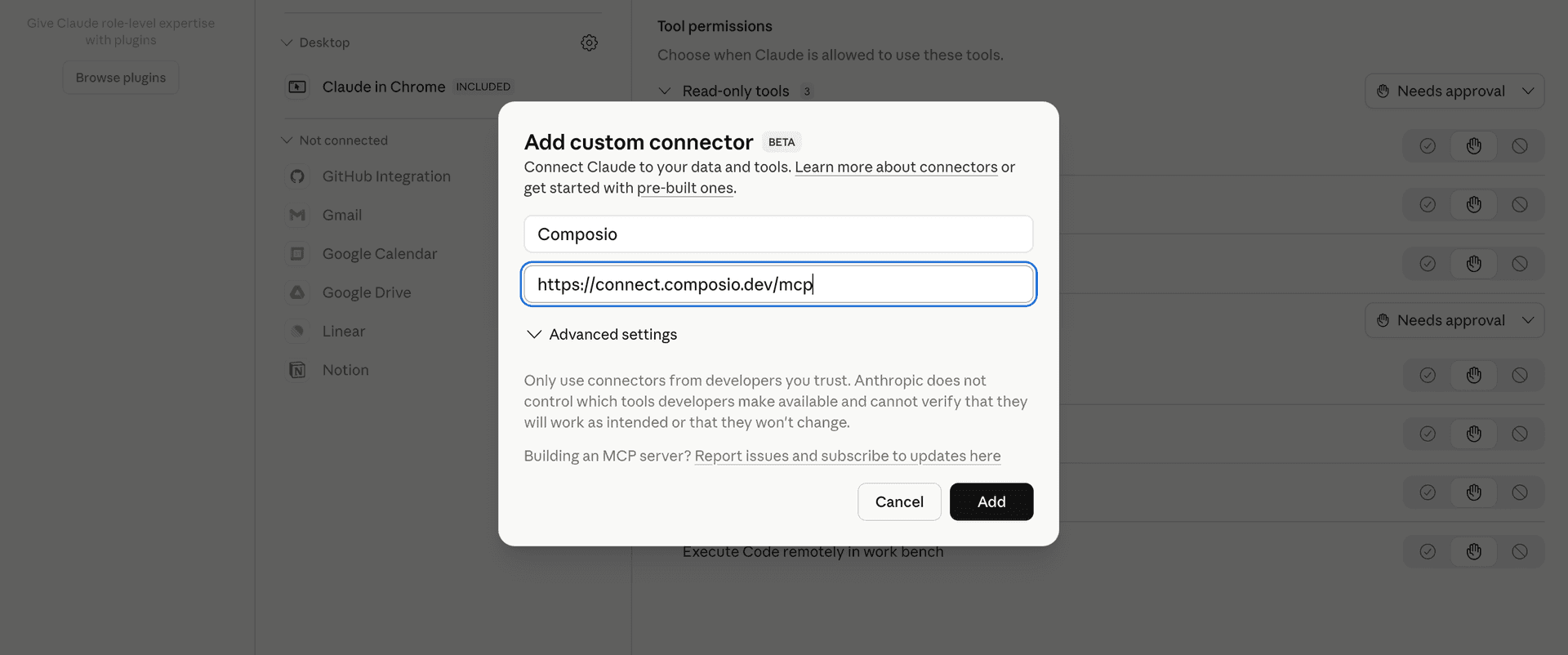
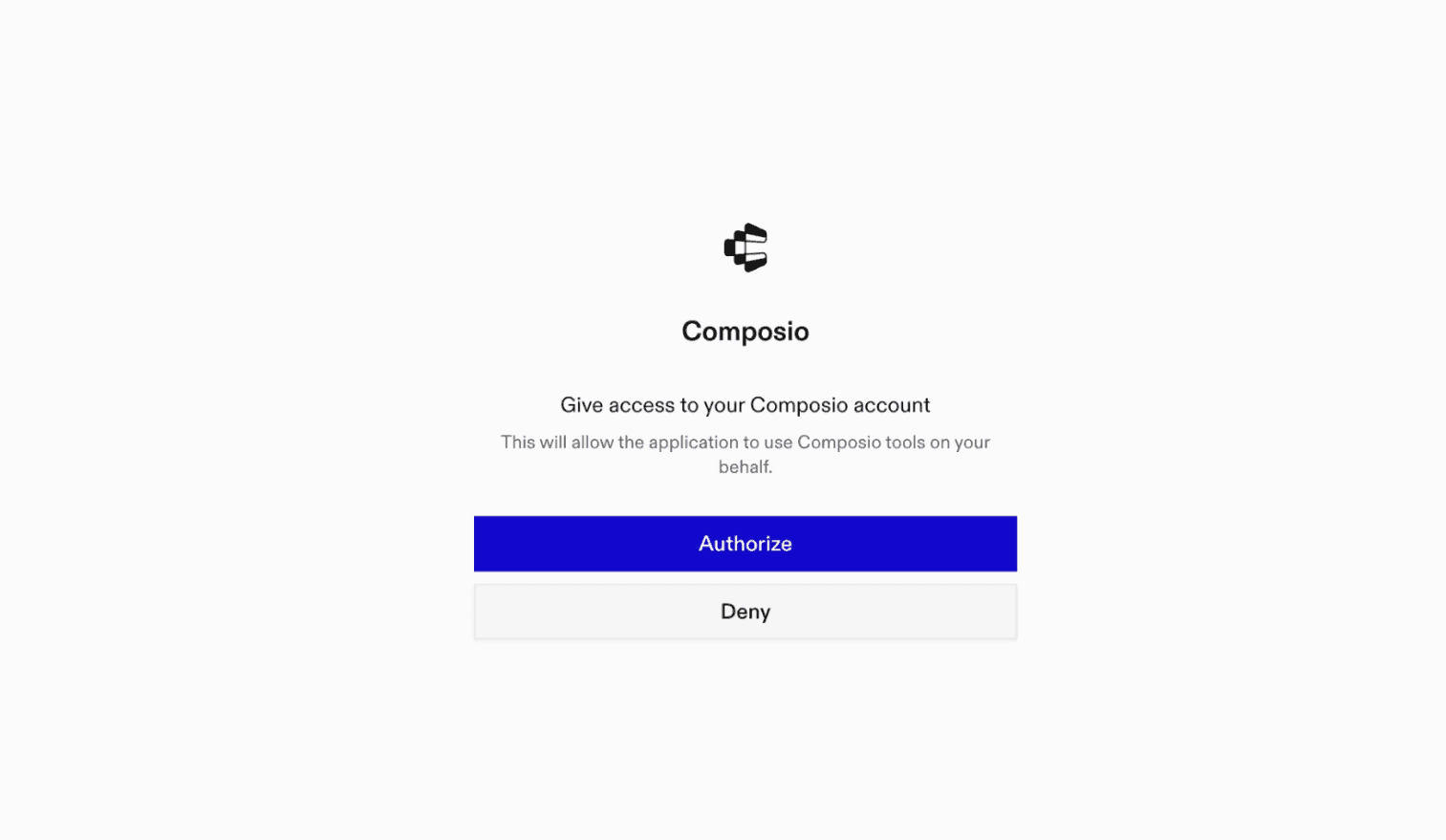
3. Authorise in your browser
Click Connect. You'll be redirected to a browser window where you can authorise Composio to continue.
4. Connect your qpp account
Back in Claude, ask the agent to connect to Ahrefs, Gmail or Outlook or give it any Ahrefs-related task.
Note: You can use multiple Gmail accounts with Composio
It will prompt you to authenticate and authorise access for the app.
That's it. Composio's tools are now available in Cowork, and your Ahrefs account is ready to use.
For Claude Code:
claude mcp add --scope user --transport http composio https://connect.composio.dev/mcp --header "x-consumer-api-key: YOUR_API_KEY"Then run /mcp and make sure Composio is enabled. Composio can create the app authorisation flow later when Claude needs a specific integration.
You can also use the Composio plugin:
/plugin install composio@composio2. Make
Run visual automation scenarios from Claude
Make lets Claude work with scenarios I already created in Make. Claude can run scenarios and work with Make resources, while the actual automation remains within Make.
This works well when the people managing the workflow prefer Make’s visual interface.
When to use
Your team already builds in Make.
You want Claude to trigger existing scenarios.
You prefer managed automation over running n8n yourself.
Make now provides a direct OAuth-based Claude Code setup:
claude mcp add --transport http make https://mcp.make.comThen run /mcp and complete the Make OAuth flow.
In Claude Desktop, open Customise → Connectors, click + → Add custom connector, enter the Make remote MCP URL shown above, save it, and complete the OAuth flow.
Automation handles actions across systems. The next group gives Claude much better access to the software work itself.
Developer tooling
These are the first connectors I would add to Claude Code. GitHub gives it repository context, Linear gives it the work around that code, and Sentry gives it production information when something breaks.
Name | What it does | Install options | When to use |
|---|---|---|---|
GitHub | Repositories, issues, PRs, branches, and code | Directory, MCP, plugin | Daily software development |
Linear | Issues, projects, cycles, and planning | Directory, MCP, plugin | Product and engineering tracking |
Sentry | Production errors, issues, and debugging context | Directory, MCP, plugin | Debugging production problems |
3. GitHub
Give Claude real repository context

GitHub gives Claude direct access to the repositories and development work I already manage there.
It can work with code, issues, pull requests, and other repository information, rather than relying on whatever you paste into the conversation.
For Claude Code, this is one of the first connectors I enable.
When to use
You want Claude to work with real repository data.
You want it to help with issues or pull requests.
You use Claude Code for active development.
You can install GitHub from Claude’s Connectors Directory, or add GitHub’s official remote MCP:
In Claude Desktop, open Customise → Connectors, search for GitHub, click Connect, and complete the authorisation flow.
claude mcp add --transport http github https://api.githubcopilot.com/mcp/GitHub documents https://api.githubcopilot.com/mcp/ as its remote MCP endpoint.
Claude Code also has an official plugin:
/plugin install github@claude-plugins-officialOnce the code is connected, Linear gives Claude the project and issue context around that code.
4. Linear
Turn planning into tracked work
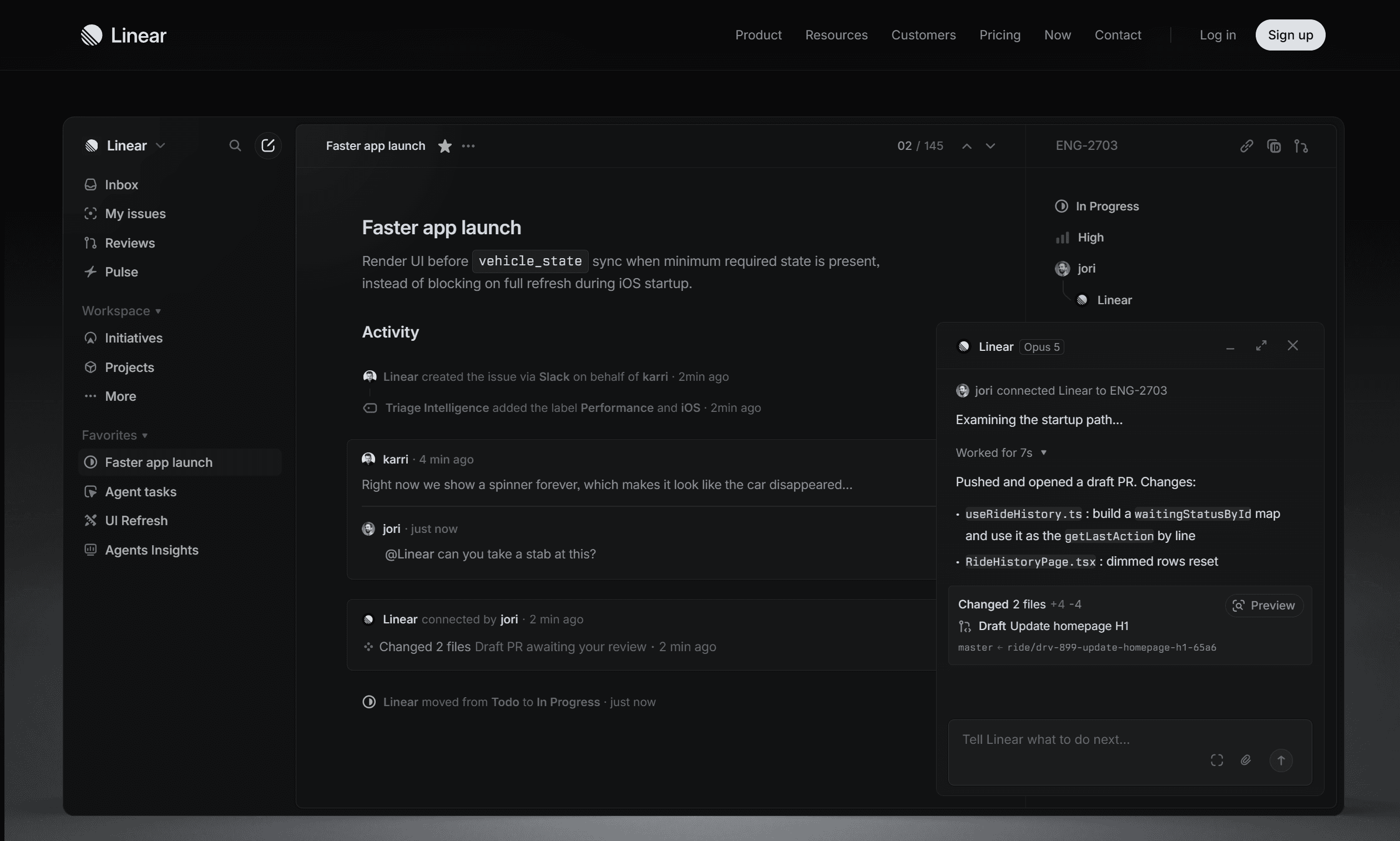
Linear brings issues, cycles, projects, and status into Claude. Claude can read existing work and create or update issues from the same conversation where you are making the decision.
I use it when a planning session needs to turn into actual tracked work before I forget the details.
In fact, I’m still using it in the college project my friends and I are working on, for which we needed the project diagram
When to use
Your engineering work already lives in Linear.
You want Claude to create or update issues.
You want current project status while planning.
You can connect Linear directly from Claude’s directory.
In Claude Desktop, open Customise → Connectors, search for Linear, click Connect, and complete the OAuth flow.
For Claude Code, Linear also offers an MCP command:
claude mcp add --transport http linear-server https://mcp.linear.app/mcpThen run:
/mcpand complete OAuth.
Linear also provides a read-only endpoint if you do not want Claude to make changes.
Planning explains what should happen. Sentry becomes useful when production tells you what actually happened.
5. Sentry
Debug against real production errors

Sentry gives Claude access to real errors and issue information from your projects. That means I can investigate a production problem in the actual context, rather than rebuilding it manually from screenshots and copied logs.
The Claude connector can retrieve issues and errors, work with project information, and trigger Sentry’s Seer issue-fix workflows.
When to use
You debug production problems often.
You want real error context inside Claude Code.
You want code and monitoring data available in the same session.
The easiest path is Claude’s Connectors Directory. Claude Code’s official marketplace also includes a Sentry integration.
In Claude Desktop, open Customise → Connectors, search for Sentry, click Connect, and complete the authorisation flow.
/plugin install sentry@claude-plugins-officialThat covers most of my software loop. But connectors are also becoming useful beyond developer tooling, especially in commerce.
Commerce and shopping
These three show a different side of Claude connectors. Shopify is useful for real store operations, while Instacart and Uber Eats bring everyday shopping and ordering workflows into Claude.
Name | What it does | Install options | When to use |
|---|---|---|---|
Shopify | Store, product, commerce, and developer workflows | Directory, MCP, plugin | Running or building for Shopify |
Instacart | Grocery lists, products, and carts | Directory | Grocery planning |
Uber Eats | Restaurant and ordering workflows | Directory | Meal and group-order planning |
6. Shopify
Work with your store from Claude

Shopify lets Claude work with store information and commerce workflows. It is useful both for people operating a store and developers building Shopify projects.
The exact tools you use depend on whether you are working with store operations or Shopify development.
When to use
You manage a Shopify store.
You build Shopify apps or storefronts.
You want store or commerce context available in Claude.
For normal use, connect Shopify from Claude’s directory.
In Claude Desktop, open Customise → Connectors, search for Shopify, click Connect, and sign in to the store you want Claude to use.
For Shopify development, install the Dev MCP:
claude mcp add --transport stdio shopify-dev-mcp -- npx -y @shopify/dev-mcp@latestShopify also provides an official Claude Code AI Toolkit plugin:
claude plugin install shopify-ai-toolkit@claude-plugins-officialCommerce connectors are useful, but communication connectors come up more often in my normal workday.
7. Slack
Bring team conversations into Claude
Slack gives Claude access to real team conversations. It can search channels and threads, find earlier decisions, summarise discussions, and help prepare messages using the surrounding context.
Anthropic’s current official Slack connector also supports interactive workflows such as drafting and sending messages.
When to use
Important decisions live in Slack.
You frequently summarise long threads.
You write messages in Claude and then paste them back into Slack.
The easiest path is the Connectors Directory.
In Claude Desktop, open Customise → Connectors, search for Slack, click Connect, select the workspace, and approve the requested permissions.
Slack also provides an official Claude Code plugin:
claude plugin install slackThe plugin configures Slack’s MCP server and starts the OAuth flow.
Once Slack covers internal conversations, Gmail covers external ones.
8. Gmail
Give Claude your email context

Gmail lets Claude search email, find information inside threads, summarise conversations, and help draft replies using the messages it finds.
I use it together with Google Drive because email often tells me what happened, while Drive contains the document everyone was discussing.
When to use
You spend a lot of time searching old email.
You need context before drafting a reply.
Client or project information lives in Gmail.
Open Claude’s Connectors Directory, search Gmail, and authenticate your Google account. Gmail is available across Claude surfaces, including Claude Code.
In Claude Desktop, open Customise → Connectors, search for Gmail, click Connect, and authenticate the Google account you want Claude to use.
For customer conversations rather than normal email, Intercom is usually the next connector I add.
9. Intercom
Use real customer conversations inside Claude

Intercom gives Claude access to customer support conversations and related support context. That makes it useful for finding patterns, preparing responses, or turning customer feedback into work for the product team.
When to use
Customer conversations live in Intercom.
You want replies based on real support history.
You regularly turn support feedback into product work.
Search for Intercom in Claude’s Connectors Directory and complete authentication. Anthropic currently lists Intercom as an available connector.
In Claude Desktop, open Customise → Connectors, search for Intercom, click Connect, and complete authentication for your workspace.
Once customer conversations are connected, the next useful step is giving Claude access to the systems that sales and marketing teams use to act on them.
Sales and marketing
These are more specific to your work. HubSpot gives Claude pipeline context, Canva gives it a design surface, and ActiveCampaign connects it to marketing operations.
Name | What it does | Install options | When to use |
|---|---|---|---|
HubSpot | Contacts, deals, and pipeline context | Directory | Sales and CRM workflows |
Canva | Creates and edits visual content | Directory | Design and content |
ActiveCampaign | Marketing contacts, campaigns, and automations | Directory, custom MCP | Marketing operations |
10. HubSpot
Give Claude the actual deal context
HubSpot lets Claude work with contacts, deals, and pipeline information. This is useful when I need to write an email, proposal, or account update and want it grounded in the customer record.
When to use
Your sales work lives in HubSpot.
You need CRM context before writing.
You want to review pipeline information from Claude.
Search HubSpot in Claude’s Connectors Directory, connect the account, and grant only the scopes you need. Anthropic currently lists HubSpot as a Claude connector.
In Claude Desktop, open Customise → Connectors, search for HubSpot, click Connect, and grant only the permissions you need.
HubSpot gives me the business context. Canva is useful when the next step is to turn that context into something visual.
11. Canva: Create visuals without leaving Claude

Canva lets Claude work with designs, decks, and other visual assets.
It is especially useful if one already has a Canva brand setup and wants to move from a written brief to a visual asset without having to restart the work elsewhere.
Canva is also one of Claude’s interactive connectors, so some design workflows can appear directly inside the conversation.
When to use
You make social graphics or simple presentations.
You already work in Canva.
You want Claude to help turn a brief into a design.
Search for Canva in the Connectors Directory and connect your Canva account.
In Claude Desktop, open Customise → Connectors, search for Canva, click Connect, and sign in to your Canva account.
And when the asset becomes part of a campaign, ActiveCampaign can connect Claude to the marketing operations around it.
12. ActiveCampaign
Work with marketing operations from Claude
ActiveCampaign lets Claude work with marketing contacts, campaigns, tags, lists, and automation-related data.
I would use it when ActiveCampaign already runs the marketing workflow. Adding another system just for Claude would create more work.
When to use
Your marketing operations already use ActiveCampaign.
You want campaign or contact information inside Claude.
You work with marketing automations often.
You can install it directly from Claude’s Connectors Directory. Anthropic currently lists ActiveCampaign as a connector.
In Claude Desktop, open Customise → Connectors, search for ActiveCampaign, click Connect, and complete the account authorisation flow.
Design and creation
These connectors help Claude turn ideas and product context into diagrams, interface plans, and design work.
13. Excalidraw
Create clear diagrams from a conversation
Excalidraw helps Claude create and update diagrams for system architecture, product flows, processes, and early wireframes. It works well when you want an editable visual instead of a long text explanation.
When to use
Map a system architecture or data flow.
Turn a written process into an editable diagram.
Create a quick wireframe before detailed design work.
In Claude Desktop, open Customise → Connectors, search for Excalidraw, click Connect, and complete the authorisation flow.
14. Figma
Bring product design context into Claude
Figma lets Claude work with design files, components, screens, and product context. It can help explain an interface, prepare implementation notes, review design details, and connect design decisions to engineering work.
When to use
Review screens and components before implementation.
Create engineering notes from a design file.
Compare product requirements with the current design.
In Claude Desktop, open Customise → Connectors, search for Figma, click Connect, select the team or files you want to use, and approve the requested access.
The next category matters even more because almost every useful workflow needs good source data.
Data and knowledge
Google Drive and Notion are the two connectors I would recommend to almost anyone doing knowledge work. Snowflake becomes useful once the information you need lives in a warehouse rather than documents.
Name | What it does | Install options | When to use |
|---|---|---|---|
Google Drive | Searches Docs, Sheets, and Slides | Directory | General work context |
Notion | Searches and updates pages and databases | Directory, plugin | Team knowledge |
Snowflake | Connects Claude to warehouse data | Directory | Data and analytics |
15. Google Drive
My default context connector
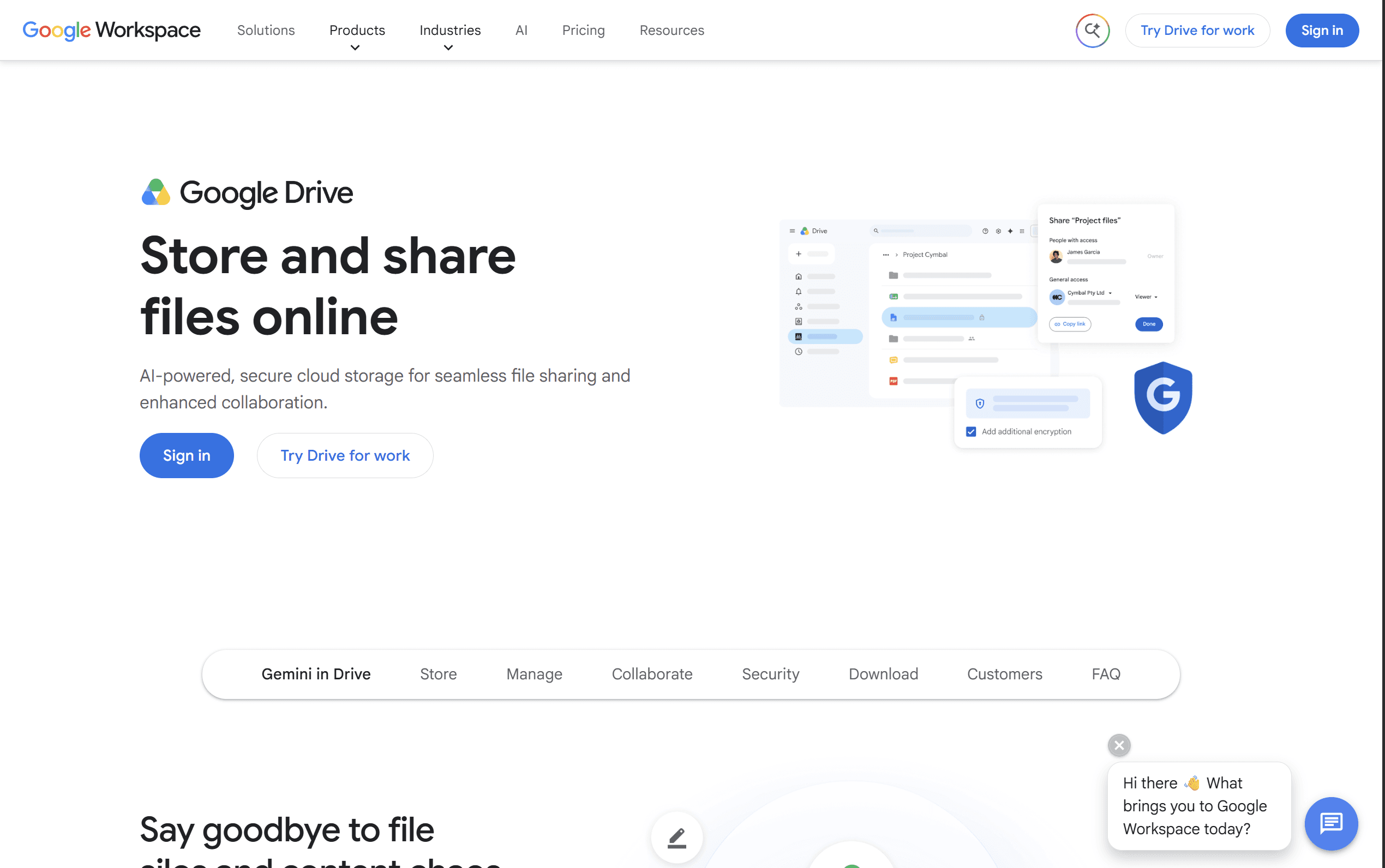
Google Drive is usually the first data connector I enable. Claude can search across Drive and work with Docs, Sheets, and Slides without me having to download a file and upload it again.
It sounds basic, but I use it constantly.
When to use
Most of your working documents live in Google Drive.
You often search for old documents.
You want Claude to use the current version of a file.
Search for **Google Drive **in Claude’s Connectors Directory, then connect your Google account. The current connector supports searching Drive and reading Docs, Sheets, and Slides.
In Claude Desktop, open Customise → Connectors, search for Google Drive, click Connect, and authenticate your Google account.
Drive covers files well. Notion does the same job for knowledge that lives in pages and databases.
16. Notion
Give Claude your workspace knowledge
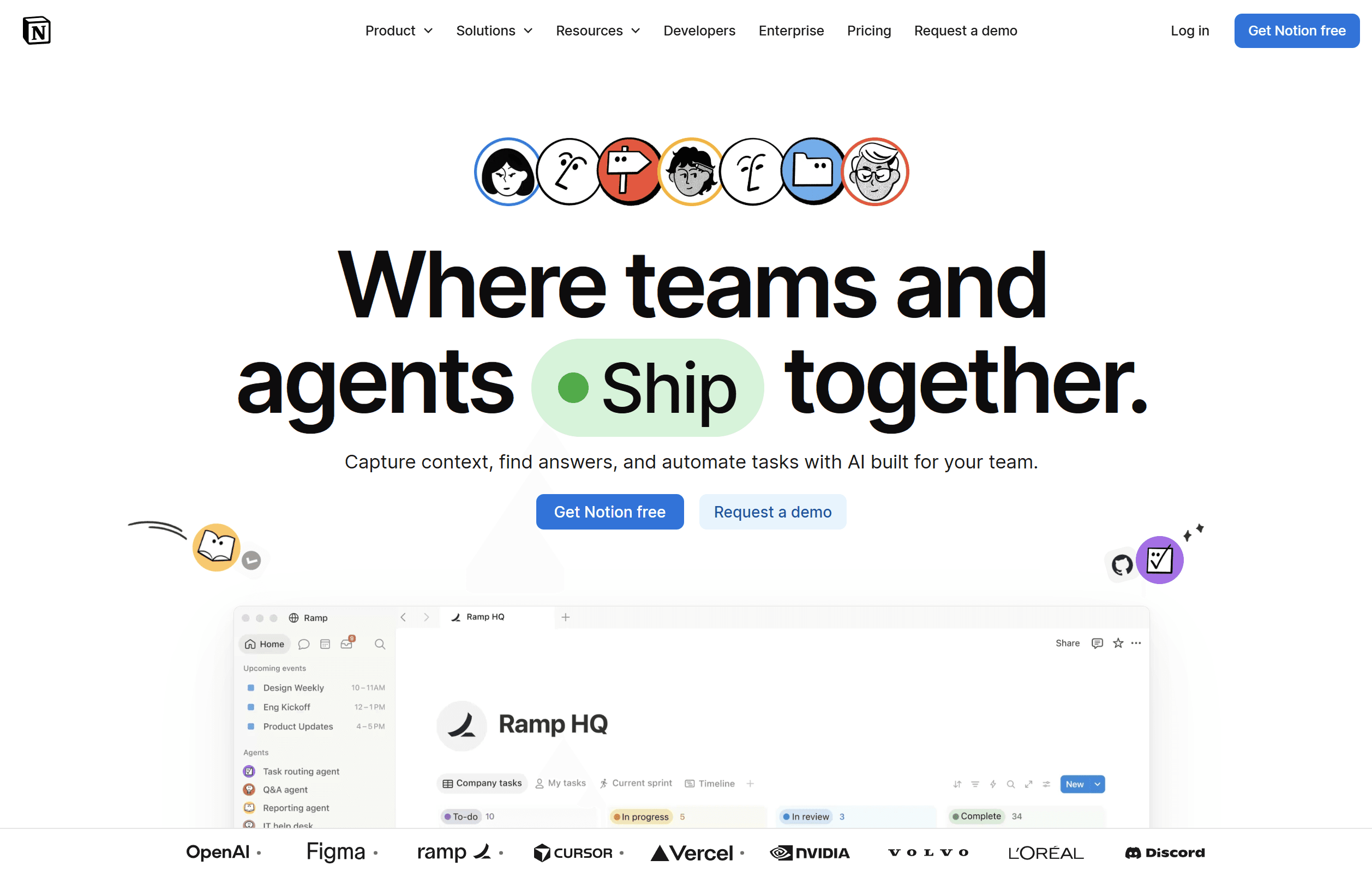
Notion lets Claude search the workspace, work with pages and structured information, and write updates back when connector permissions allow.
I often use Drive and Notion together because teams rarely keep everything in one place. Also, it’s better to use Claude with Notion rather than Notion AI; it gives good results imo.
When to use
Your wiki lives in Notion.
You use Notion databases for structured work.
Claude often needs information from internal pages.
You can connect Notion directly from Claude’s directory. The connector currently supports read and write workflows.
In Claude Desktop, open Customise → Connectors, search for Notion, click Connect, select the workspace, and approve the requested access.
Claude Code also lists Notion among the external integrations available through its plugin marketplace.
For larger datasets, documents are no longer the right interface. That is where Snowflake fits.
17. Snowflake
Ask questions against warehouse data

Snowflake brings live warehouse data into Claude, rather than requiring me to export it to CSV files first.
It makes the most sense for analytics teams and companies that already use Snowflake as a source of truth.
When to use
Your reporting data lives in Snowflake.
You regularly explore warehouse data.
You want data available from the same Claude workflow.
Search Snowflake in Claude’s Connectors Directory and follow the setup process for your workspace. Anthropic currently lists Snowflake as a Claude connector.
In Claude Desktop, open Customise → Connectors, search for Snowflake, click Connect, and follow the setup steps for your workspace.
Once Claude can reach your business data, financial connectors become much more useful because you can connect analysis directly to transactions and payments.
Finance
I keep this category small. Stripe covers most payment workflows I care about, while PayPal and Plaid are useful when the financial data already lives there.
Name | What it does | Install options | When to use |
|---|---|---|---|
Stripe | Payments, customers, invoices, subscriptions, and balances | Directory, MCP | Product and billing operations |
PayPal | Payment and transaction data | Directory | PayPal-based payment workflows |
Plaid | Account and transaction data | Directory | Financial data workflows |
18. Stripe
Work with billing data from Claude
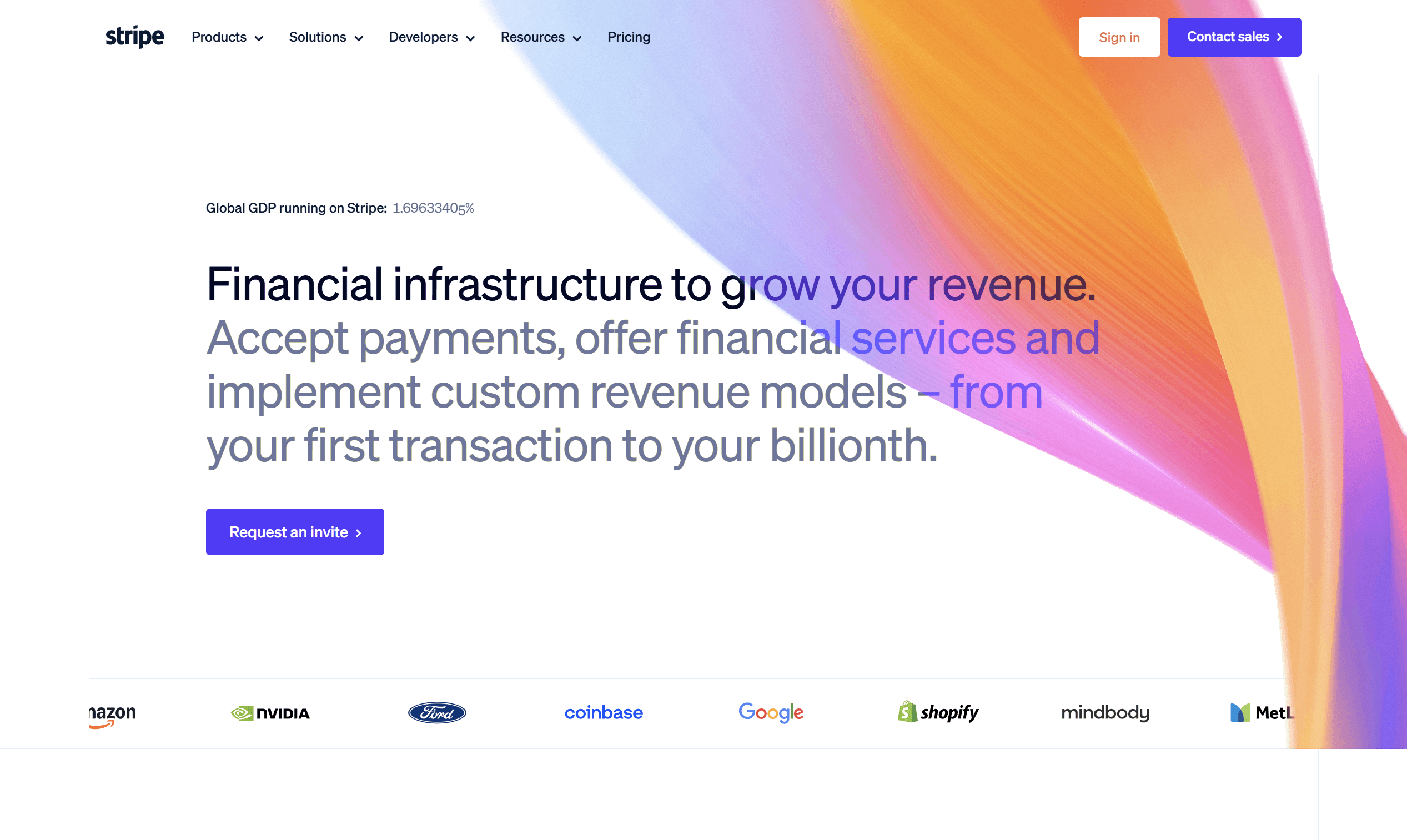
Stripe gives Claude structured access to payment and billing data. It can work with customers, invoices, subscriptions, balances, and other Stripe resources exposed by the connector.
This is one of the connectors I would add early on if I were working on a SaaS product.
When to use
You investigate payment or subscription issues.
You need billing context while handling support.
Your product uses Stripe.
You can install Stripe from Claude’s Connectors Directory or connect its official remote MCP server:
claude mcp add --transport http stripe https://mcp.stripe.com/Then run /mcp and complete authentication. Stripe documents https://mcp.stripe.com as its hosted MCP server.
In Claude Desktop, open Customise → Connectors, search for Stripe, click Connect, and complete authentication for the Stripe account you want Claude to use.
If some payments live outside Stripe, PayPal is the simple addition.
19. PayPal
Bring PayPal transaction data into Claude

PayPal gives Claude access to payment and transaction information that would otherwise require another dashboard lookup.
I would add it only when PayPal is already important to the business.
When to use
You receive a meaningful volume of payments through PayPal.
You often need transaction information.
PayPal is part of your finance workflow.
Search for PayPal inside Claude’s Connectors Directory and authenticate the account. Anthropic currently lists PayPal as a Claude connector.
In Claude Desktop, open Customise → Connectors, search for PayPal, click Connect, and authenticate your account.
Plaid goes one level deeper when the workflow needs account and transaction data rather than payment processor data.
20. Plaid
Work with account and transaction data
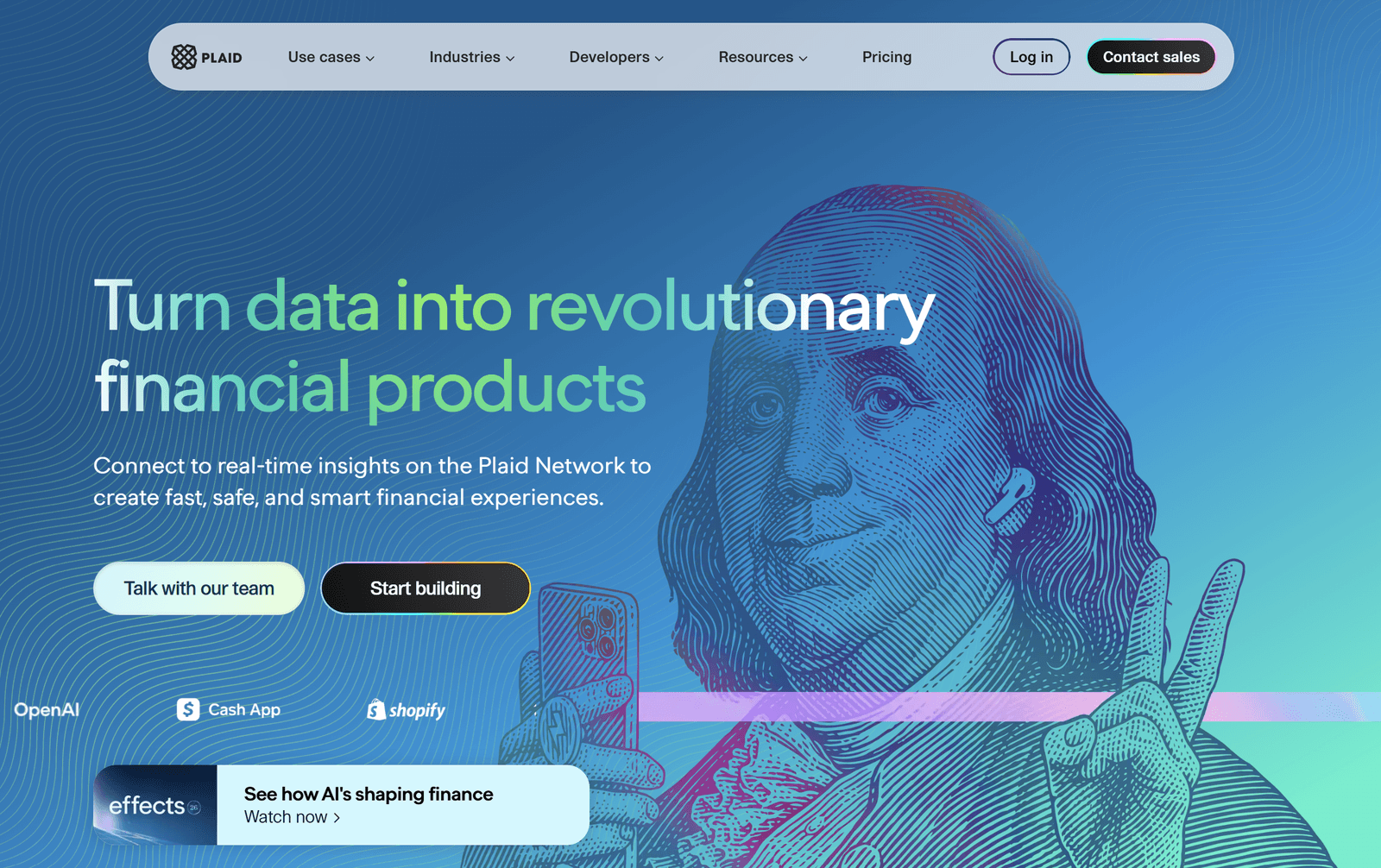
Plaid provides Claude with access to account-level financial information and transaction history through its existing security model.
This is more specialised than Stripe or PayPal, but it can be useful for financial products and analysis workflows.
When to use
Your product already uses Plaid.
You work with transaction or account data.
You are building financial workflows in Claude.
Search for Plaid in the Connectors Directory and complete its authorisation process. Anthropic currently lists Plaid as a financial-services connector.
In Claude Desktop, open Customise → Connectors, search for Plaid, click Connect, and complete the authorisation process.
And that brings me back to the lesson I learned after trying all of these: having more connectors does not automatically improve the workflow.
Conclusion
Skills and connectors only matter when they remove friction you feel every day. Start with the foundation set that matches how you already work:
Context layer: Google Workspace / Notion / MS Office
Execution layer: Composio, Zapier or n8n
Money layer: Stripe
Add the rest only when a specific workflow keeps forcing you out of Claude. Selective beats exhaustive.
The directory will keep on growing, but the ones that stay useful are the ones that earn their place in daily life.
In Claude Desktop, open Customise → Connectors, search for Instacart, click Connect, and complete authentication.

 Get started