




Marketing has changed significantly with AI. Today, you can research keywords, write campaign copy, create designs, and analyse performance with a few prompts.
But marketing still involves multiple tools, and moving data between them takes time. Claude connectors help by giving Claude access to the applications and business data you already use.
The challenge is choosing the right ones. So I reviewed Claude's connector directory, official documentation, and provider announcements to find 15 marketing connectors worth using in 2026, along with installation instructions and how each one helps.
What are Claude connectors, and how do they help in marketing?
Claude connectors let Claude access external applications and services through supported integrations, including those built using the Model Context Protocol (MCP). They let Claude retrieve information and take action based on the permissions you grant.
For example, you could ask Claude to analyse last month's ad performance, identify your best-performing campaigns, and prepare a report. With the right connectors, it can access the relevant data without asking you to export every report manually.
That becomes useful across several parts of marketing:
SEO and research: Find keywords, analyse competitors, and review backlinks.
Content and design: Create social graphics, presentations, and campaign documents.
Campaign management: Work with CRM records, email campaigns, and social schedules.
Performance analysis: Compare advertising, website, and revenue data across platforms.
Most supported connectors are available throughCustomize → Connectors, where you can find the service and authorise your account. Some integrations, including Google's developer MCP servers, require additional configuration.
So which ones should you connect first? That depends on the marketing work you want Claude to handle.
The 15 best Claude marketing connectors
I would start with the connectors that support work marketers already do every day. Some focus on one task, such as SEO or email marketing, while others help combine data from several platforms.
These are the 15 I would consider, starting with the main tools and then covering some more specialised options.
Connector | Best use case |
|---|---|
Composio | Cross-app workflows, multi-account support, shared team access, and instant tools |
Canva | Creating branded social graphics, presentations, and marketing assets |
HubSpot | CRM management, lead tracking, and campaign operations |
Semrush | Keyword research, SEO audits, and competitor analysis |
Ahrefs | Backlink analysis, keyword rankings, and AI search visibility |
Funnel | Cross-channel marketing analytics and performance reporting |
Klaviyo | Email/SMS marketing, customer segmentation, and lifecycle campaigns |
Meta Ads | Facebook and Instagram ad reporting and campaign management |
Google Analytics (GA4) | Website traffic, conversions, and channel performance |
Notion | Content calendars, campaign briefs, and marketing documentation |
Constant Contact | Email campaign creation and social media drafts |
Adobe | Creative asset editing, PDF management, and marketing documents |
ActiveCampaign | Email automation, contact management, and lead nurturing |
Planoly | Social media content planning, scheduling, and analytics |
Let’s look at each one in detail, including how to install it and where to use it.
1. Composio Connector: Get access to 1500+ apps via a single connector
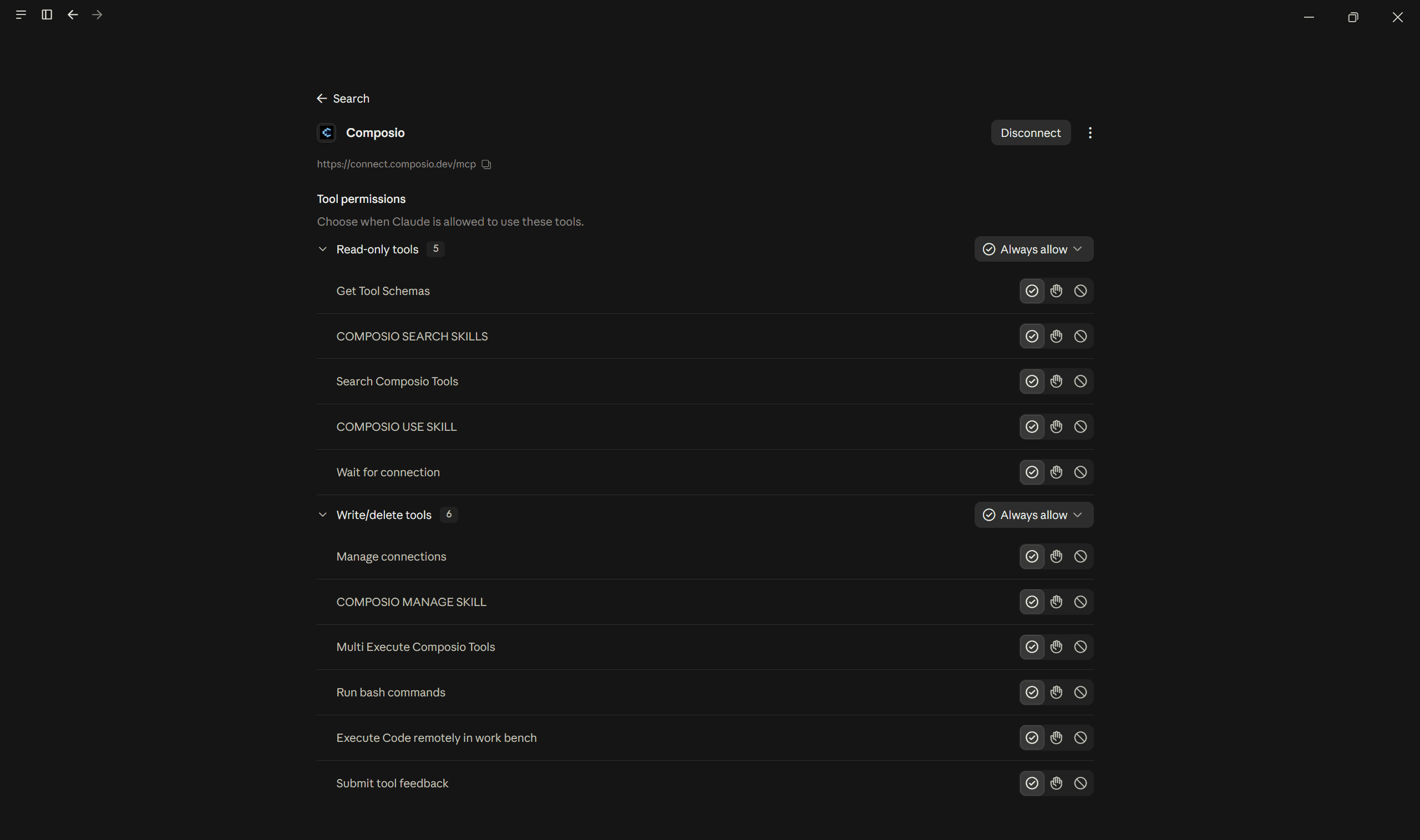
Composio gives Claude access to 1,500+ supported apps through one MCP connection. It handles app authentication and helps Claude find the right tools as a task moves across different services.
For example:
I could ask Claude to check campaign leads in HubSpot, review traffic in Google Analytics, and add a performance summary to Notion. Composio provides the app connections and executes the relevant actions as Claude works through the task.
It is especially useful when you manage several client accounts, share tools with a team, or need more than one marketing app for the same task.
Why use Composio instead of separate native connectors?
Multi-account: Connect multiple client or work accounts for one app and choose which account Claude uses.
Shared team access: Let authorised teammates use a shared company connection without sharing login credentials.
Instant tools: Access eligible search, scraping, enrichment, and video generation tools without separate provider API keys, with per-call charges.
Cross-app workflows: Combine CRM, analytics, email, and content actions in a single Claude task.
Broader app coverage: Reach 1,500+ supported services, including apps without a native Claude connector.
On-demand tools: Discover only the relevant actions during a task instead of loading every tool definition at once.
Managed authentication: Let Composio handle supported OAuth connections and token management.
Reusable connections: Access connected accounts from other supported AI assistants without reconnecting every provider.
How to install:
Open Connect Composio to Claude. The link pre-fills the connector name and MCP URL.
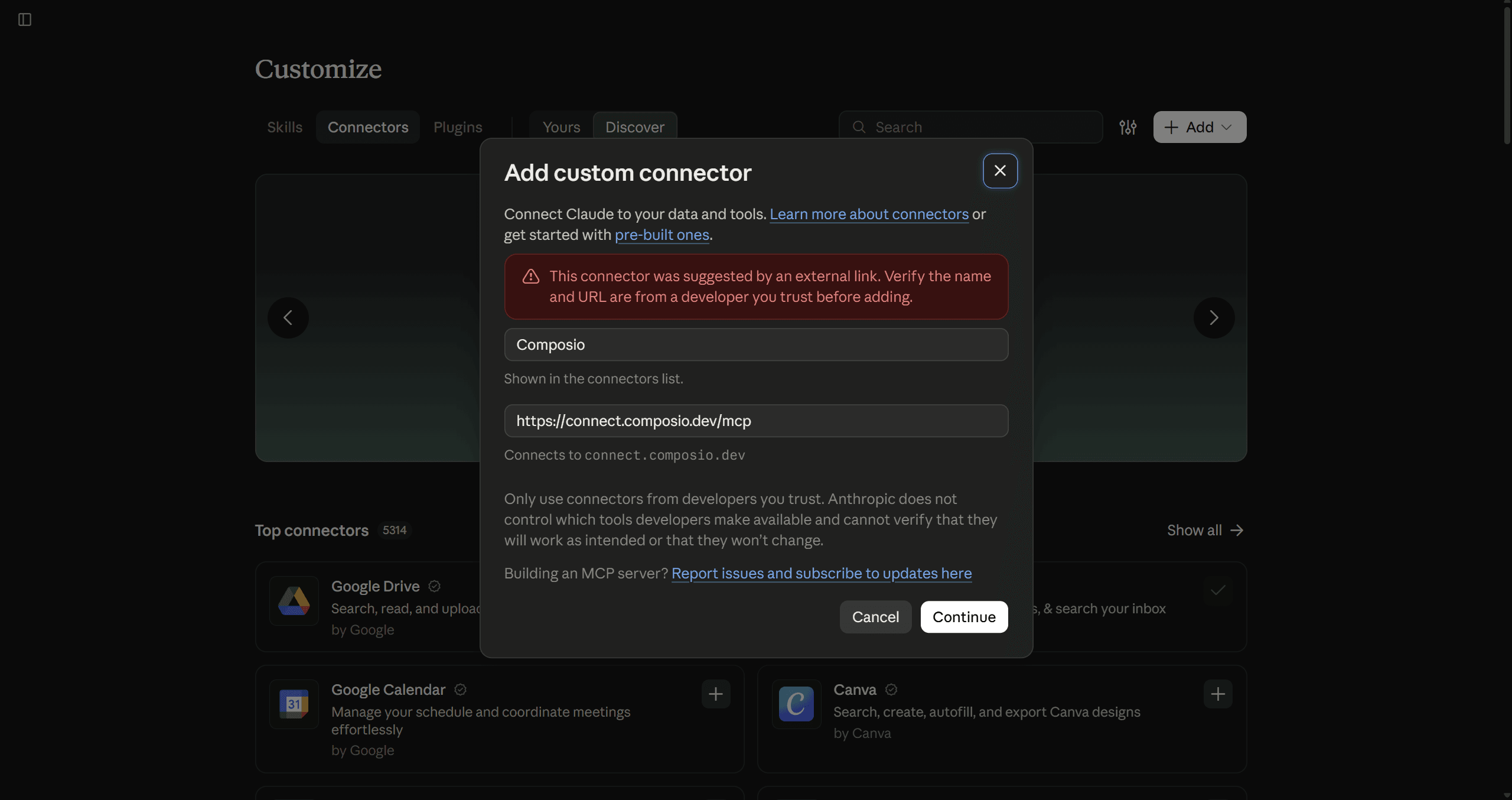
Confirm the connector details and complete the Composio authorisation process.
When prompted during chat, connect the marketing accounts you need, then enable the connector in Claude.
Composio Instant is available only for eligible tools and uses your Composio balance. Private apps such as HubSpot still require their own account authorisation.
When to use:
Running marketing tasks across several apps like PostHog, GSC, Ahrefs, GA, CRMs, and more.
Need Claude to write and update those apps. Most native connectors do not support this.
Need multiple accounts of the same app connected to Claude
Giving authorised teammates access to shared app connections
Using supported search or enrichment tools without separate provider API keys
For most apps on the list, you can connect them via composio.
This lets Claude use your broader marketing stack without setting up a separate MCP server for every app. So let’s look at the rest of the list.
2. Canva Connector
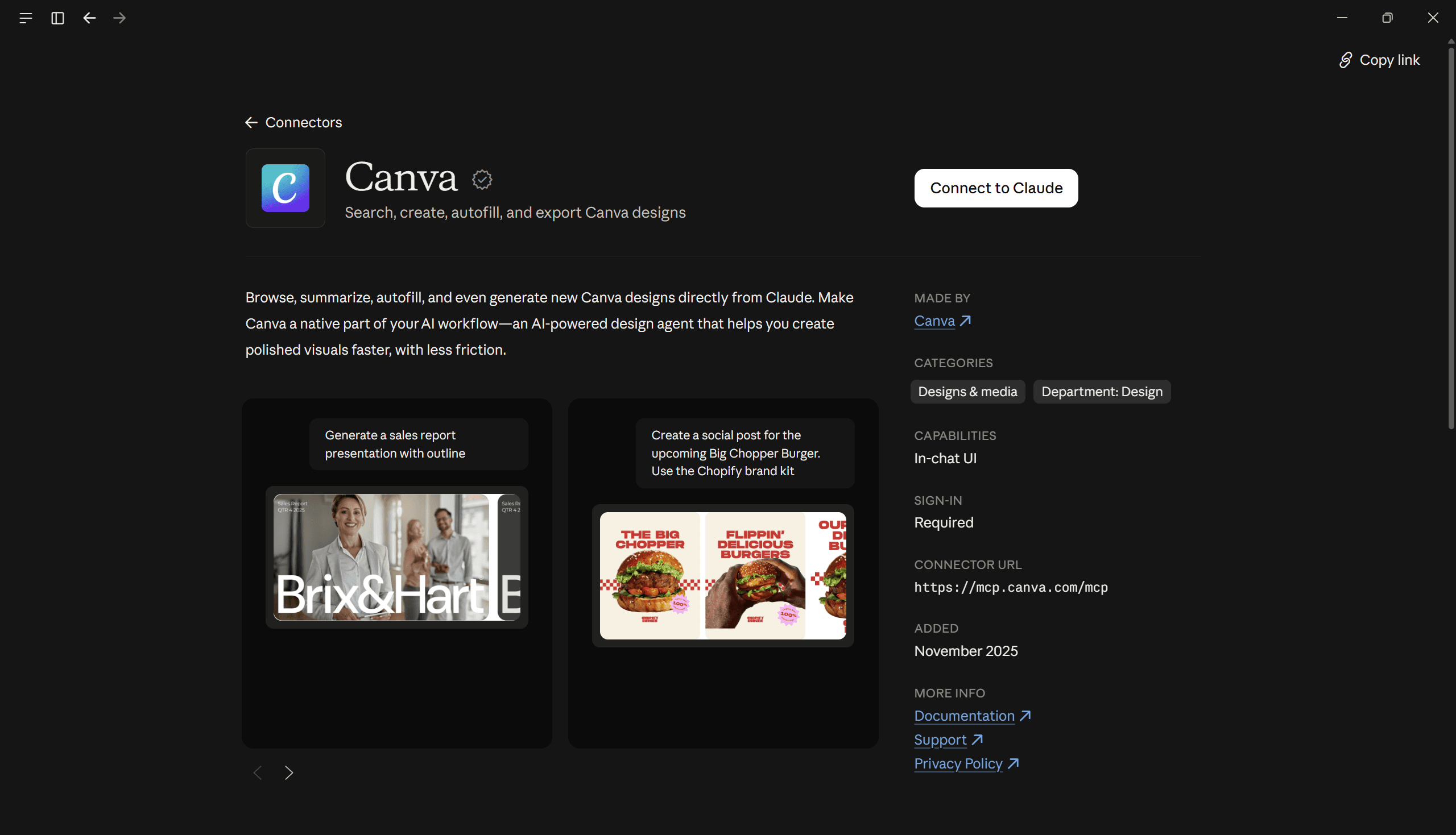
Canva connects Claude with your designs and brand assets. You can search existing files, create new designs, fill templates with content, and export finished work.
This is useful when you already have campaign copy but need matching social graphics or a presentation. Claude can work with Canva's editable designs and supported Brand Kit features, so you can refine the result inside Canva.
How to install:
Open
Customize → Connectors.Search for Canva and select Connect.
Sign in and authorise your Canva account.
Enable Canva in the conversation where you want to use it.
When to use:
Creating social graphics and campaign presentations
Resizing or exporting existing designs
Generating designs using approved brand assets
Finding and organising Canva content
Official source: Canva Connector
3. HubSpot Connector
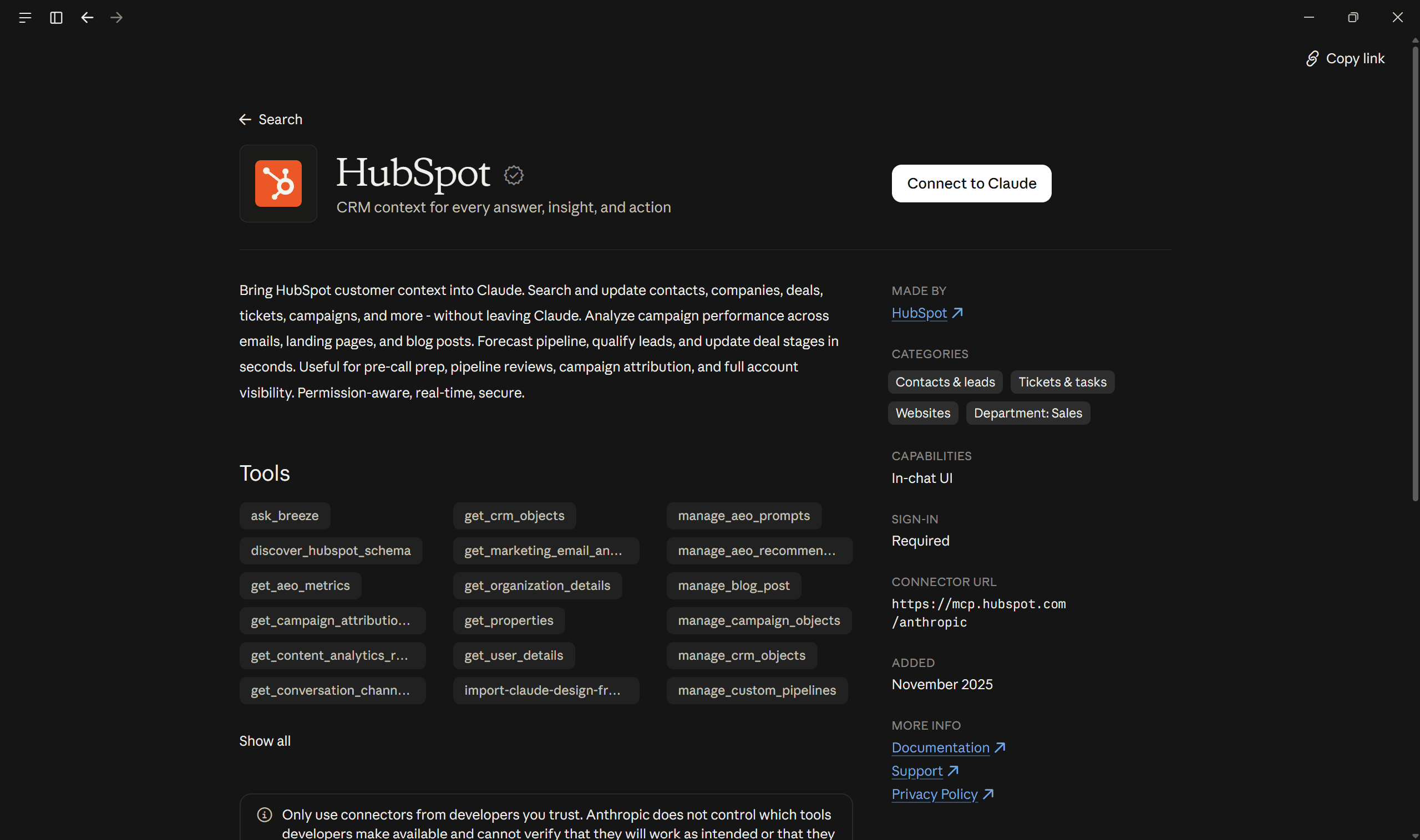
HubSpot gives Claude access to customer records, deals, campaigns, and marketing performance. You can search and update CRM information, analyse email results, and work with supported marketing content.
For example, you could ask Claude which campaigns generated qualified leads, review the contacts involved, and prepare a follow-up campaign based on that data. Its connector also supports actions involving marketing emails, landing pages, and blog posts.
How to install:
Open
Customize → Connectors.Search for HubSpot and select Connect.
Sign in to the correct HubSpot account.
Review the requested permissions and reauthorise if you need additional access.
When to use:
Analysing campaign attribution and email performance
Creating and updating CRM records
Preparing marketing emails and landing pages
Reviewing leads, deals, and customer activity
Official source: HubSpot Connector
4. Semrush Connector
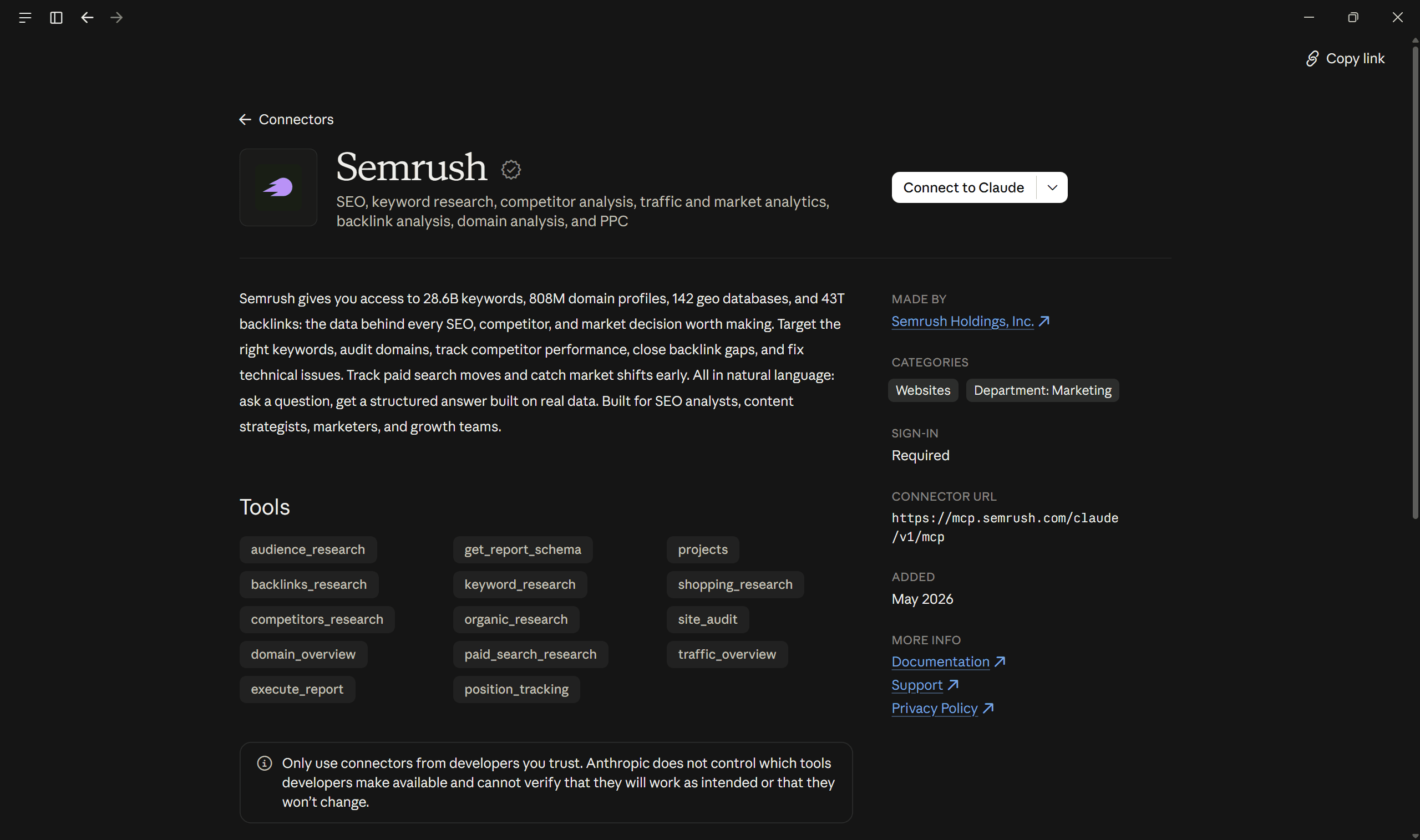
Semrush brings its keyword, domain, backlink, traffic, and competitor research data into Claude. You can use it to investigate search opportunities and turn the results into content research.
Suppose you are planning a blog around a competitive topic. You could ask Claude to compare related keywords, check competing domains, and identify possible content opportunities before preparing your brief.
How to install:
Open
Customize → Connectors.Search for Semrush and select Connect.
Sign in and approve access to your Semrush account.
Ensure your subscription supports the required API access.
When to use:
Keyword and topic research
Competitor traffic and backlink analysis
Domain and site audits
Organic and paid search research
Official source: Semrush MCP Documentation
5. Ahrefs Connector
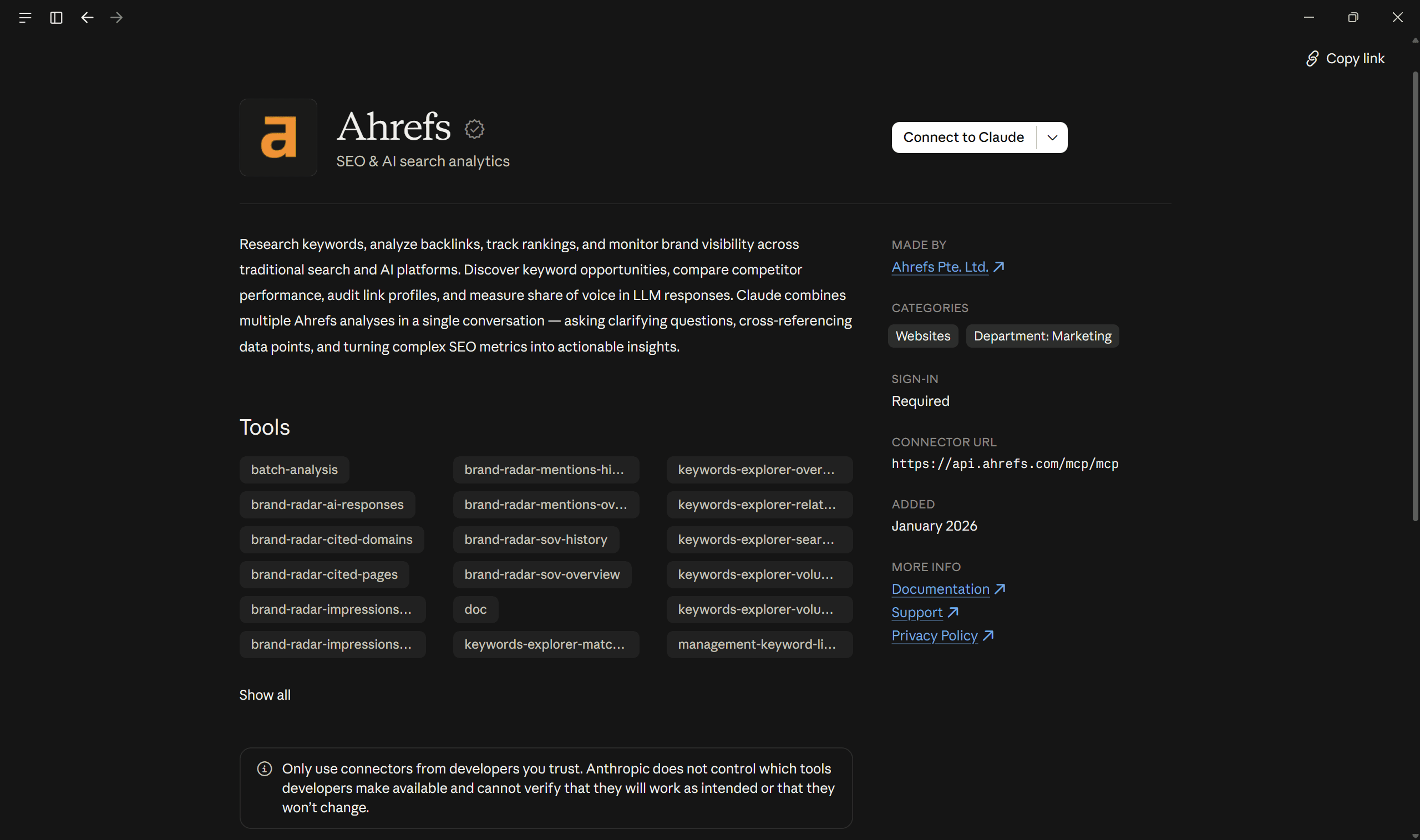
Ahrefs connects its keyword, backlink, ranking, and Brand Radar data to Claude. It helps you investigate search performance and compare your visibility with competing websites.
You could use it to identify pages attracting backlinks, investigate keyword opportunities, or review how often your brand appears in supported AI search datasets. The connector uses Ahrefs API units from your subscription.
How to install:
Open
Customize → Connectors.Search for Ahrefs and select Connect.
Complete the authorisation process.
Make sure you have an eligible paid Ahrefs subscription.
When to use:
Backlink and referring-domain analysis
Keyword and ranking research
Content gap investigation
Brand Radar and AI-search visibility analysis
Official source: Ahrefs MCP Documentation
6. Funnel Connector
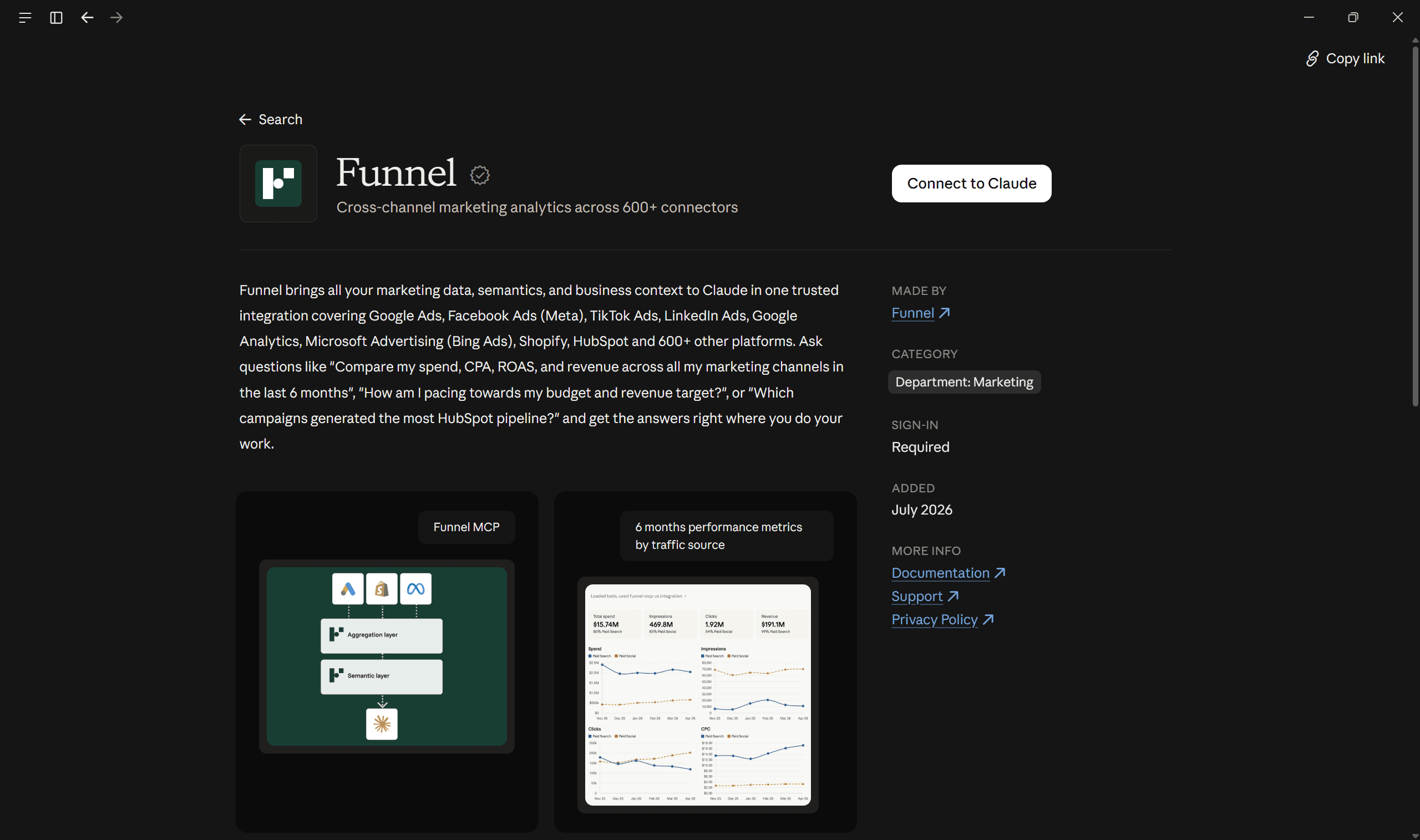
Funnel connects marketing information from more than 600 data sources, including Google Ads, Meta Ads, TikTok Ads, LinkedIn Ads, Shopify, and HubSpot.
This helps when your campaigns run across several channels. Instead of checking each platform separately, you can ask Claude to compare spend, CPA, ROAS, revenue, or budget pacing using the data and business definitions available in Funnel.
How to install:
Open
Customize → Connectors.Search for Funnel and select Connect.
Authorise your Funnel workspace.
Configure the relevant data sources in Funnel first.
When to use:
Comparing spend and returns across channels
Checking campaign budget pacing
Analysing marketing and revenue performance
Investigating campaign contribution to pipeline
Official source: Funnel Connector
7. Klaviyo Connector
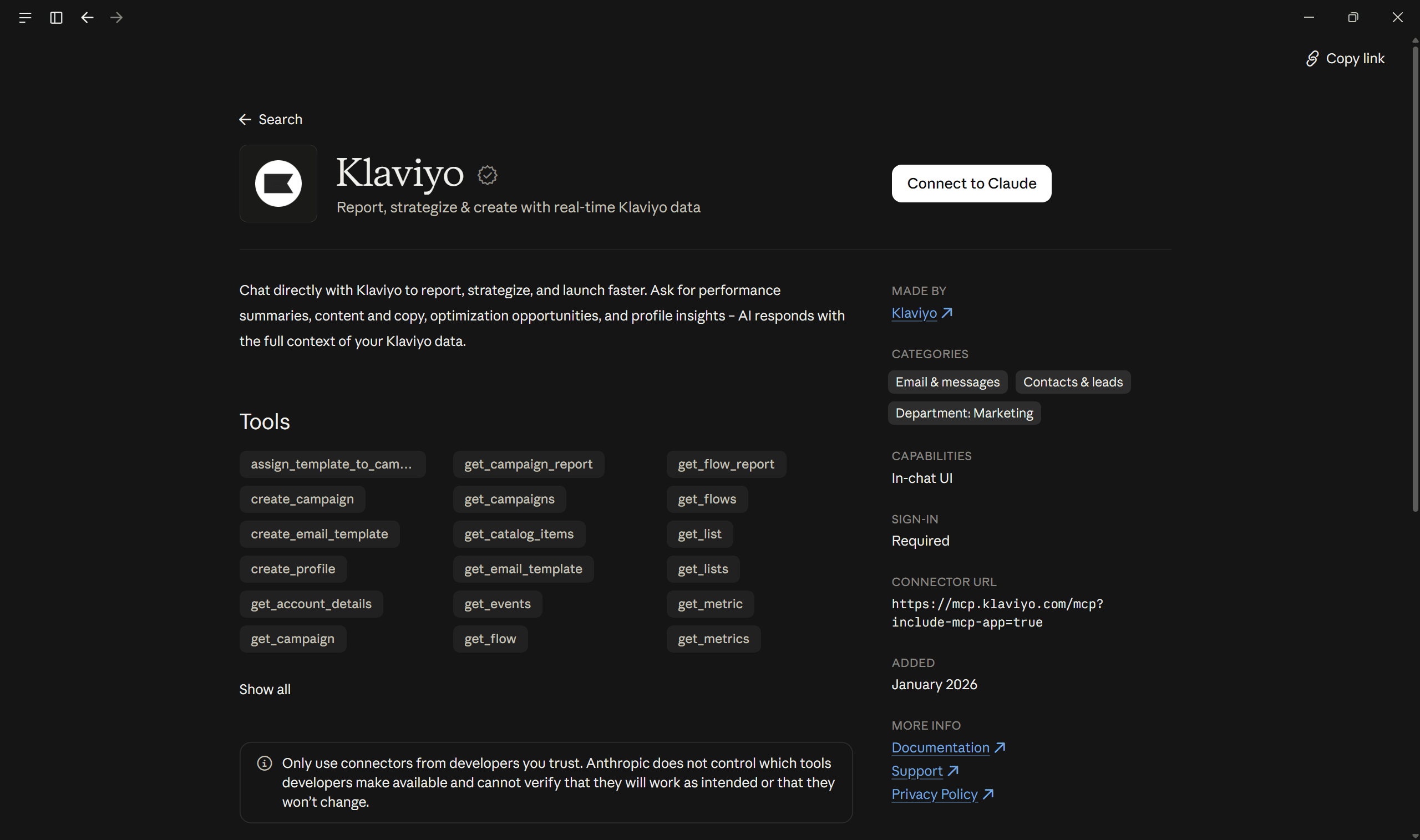
Klaviyo connects Claude with your campaigns, flows, segments, customer profiles, and performance data.
For example, you could ask Claude to review your abandoned-cart flows, find low-engagement campaigns, and prepare new email copy for a specific customer segment. Its supported tools also include campaign creation and profile operations.
How to install:
Open
Customize → Connectors.Search for Klaviyo and select Connect.
Follow Klaviyo's authentication process.
Use an API key with the appropriate permissions if requested.
When to use:
Campaign and flow performance analysis
Customer segmentation research
Drafting personalised email content
Identifying lifecycle optimisation opportunities
Official source: Klaviyo Connector
8. Meta Ads MCP Connector
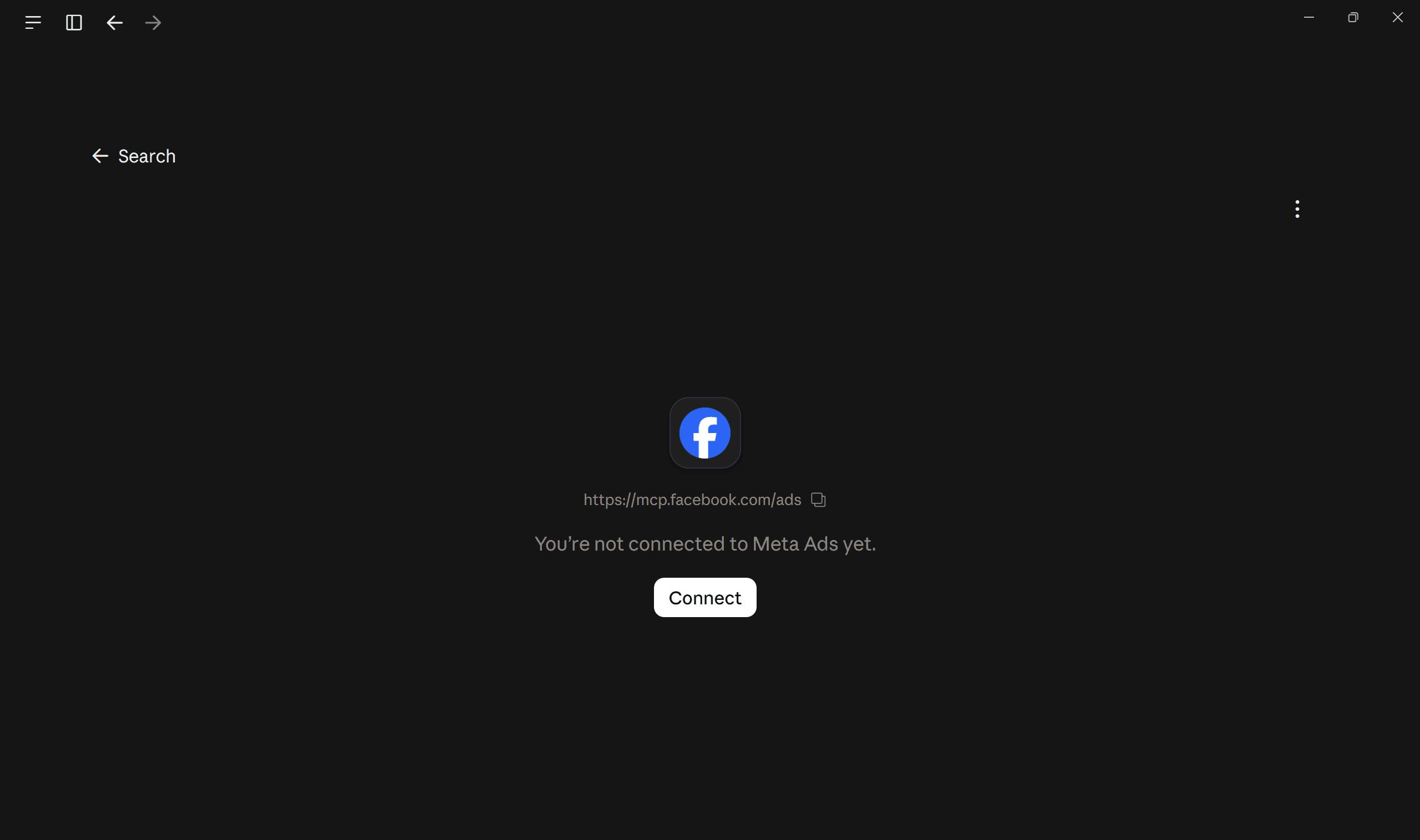
Meta's official Ads MCP server allows supported AI clients to retrieve advertising information and perform permitted campaign-management actions. This includes reporting, campaign changes, and other operations made available through Meta's tools.
You could use it to review an underperforming campaign, inspect its ad sets, and prepare changes for approval. The available actions depend on your account permissions and Meta's controls.
How to install:
Open
Customize → Connectors.Select Add custom connector.
Enter the official MCP server URL:
https://mcp.facebook.com/ads.

Complete Meta's authorisation process and review the permissions.
When to use:
Facebook and Instagram campaign reporting
Inspecting ad sets and campaign status
Preparing campaign or budget changes
Reviewing advertising performance and signal information
Official source: Meta Ads MCP Documentation
10. Adobe Connector
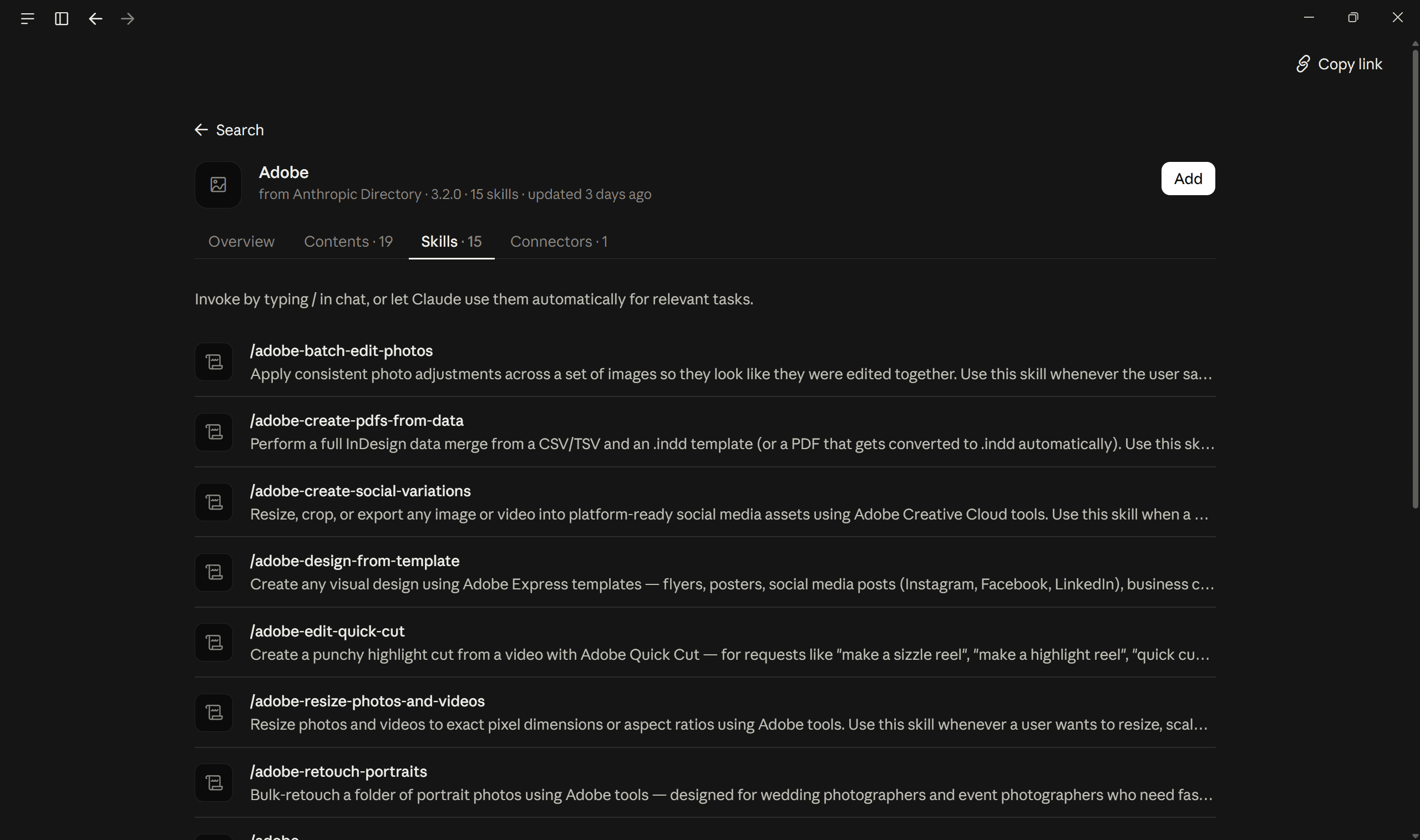
Adobe expanded its Claude integration on September 24, 2026, bringing Acrobat capabilities together with its existing creative tools.
You can work with images, documents, and designs through supported Adobe tools. This includes editing and organising PDFs, redacting content, refining designs, and adjusting assets for different formats.
How to install:
Open
Customize → Connectors.Search for Adobe and select Connect.
Sign in with your Adobe account.
When to use:
Editing marketing proposals and PDF reports
Organising or redacting documents
Refining creative assets
Resizing images for different platforms
Official source: Adobe Connector
11. Notion Connector
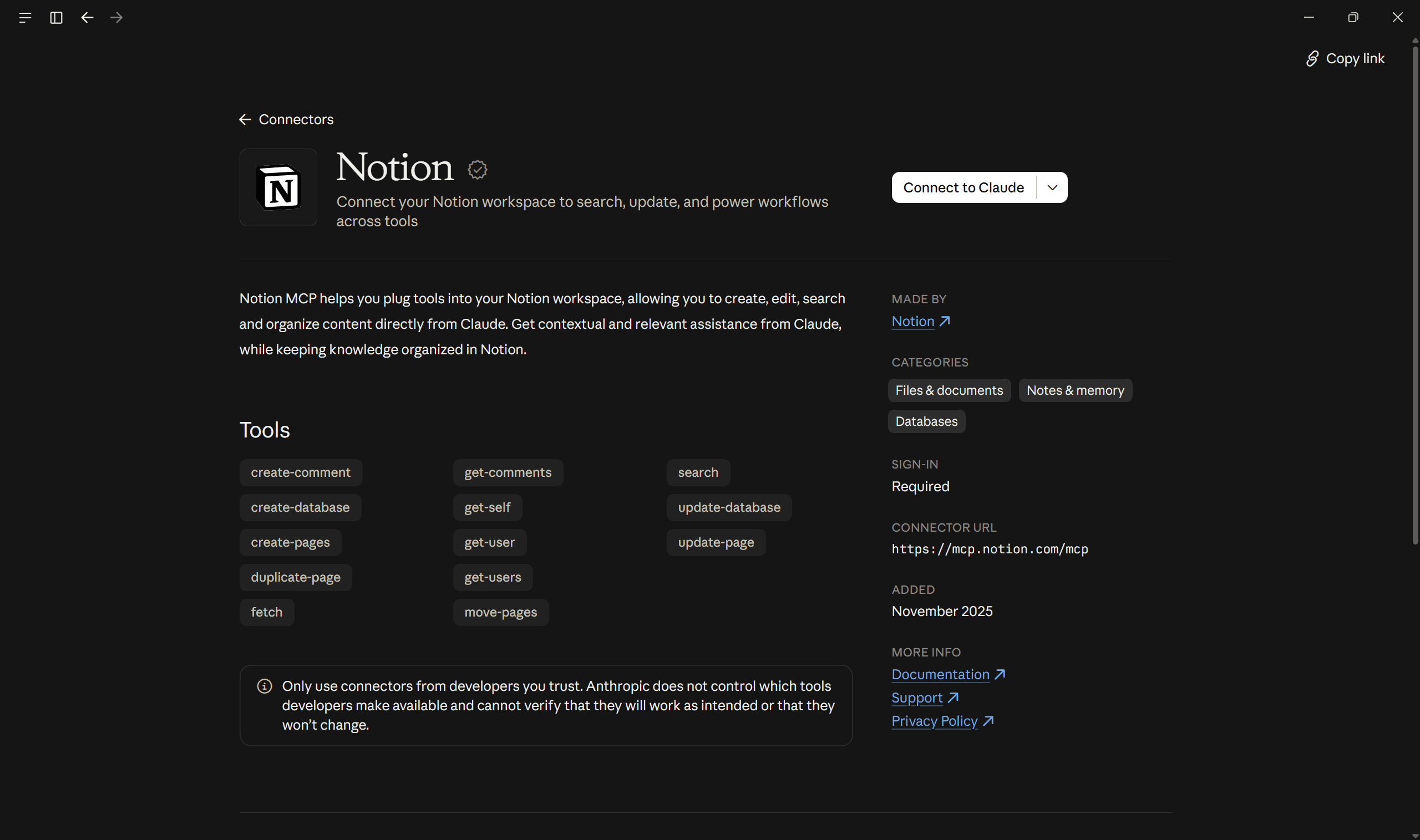
Notion lets Claude search, create, and update workspace content. It supports working with pages, databases, comments, and other information you already manage in Notion.
For a marketing team, this could mean finding an old campaign brief, preparing a new content plan, or updating a task database after a review. Claude can then use that workspace context when helping with related marketing work.
How to install:
Open
Customize → Connectors.Search for Notion and select Connect.
Sign in and authorise access to the appropriate Notion workspace.
When to use:
Maintaining content calendars and briefs
Searching existing campaign documentation
Creating or updating project pages
Organising marketing knowledge and research
Official source: Notion Connector
The ten connectors above cover much of the work involved in research, design, campaign management, and analytics.
However, several other connectors are useful for more specific marketing workflows, especially email production and social publishing.
Five more Claude marketing connectors worth considering
12. Constant Contact Connector
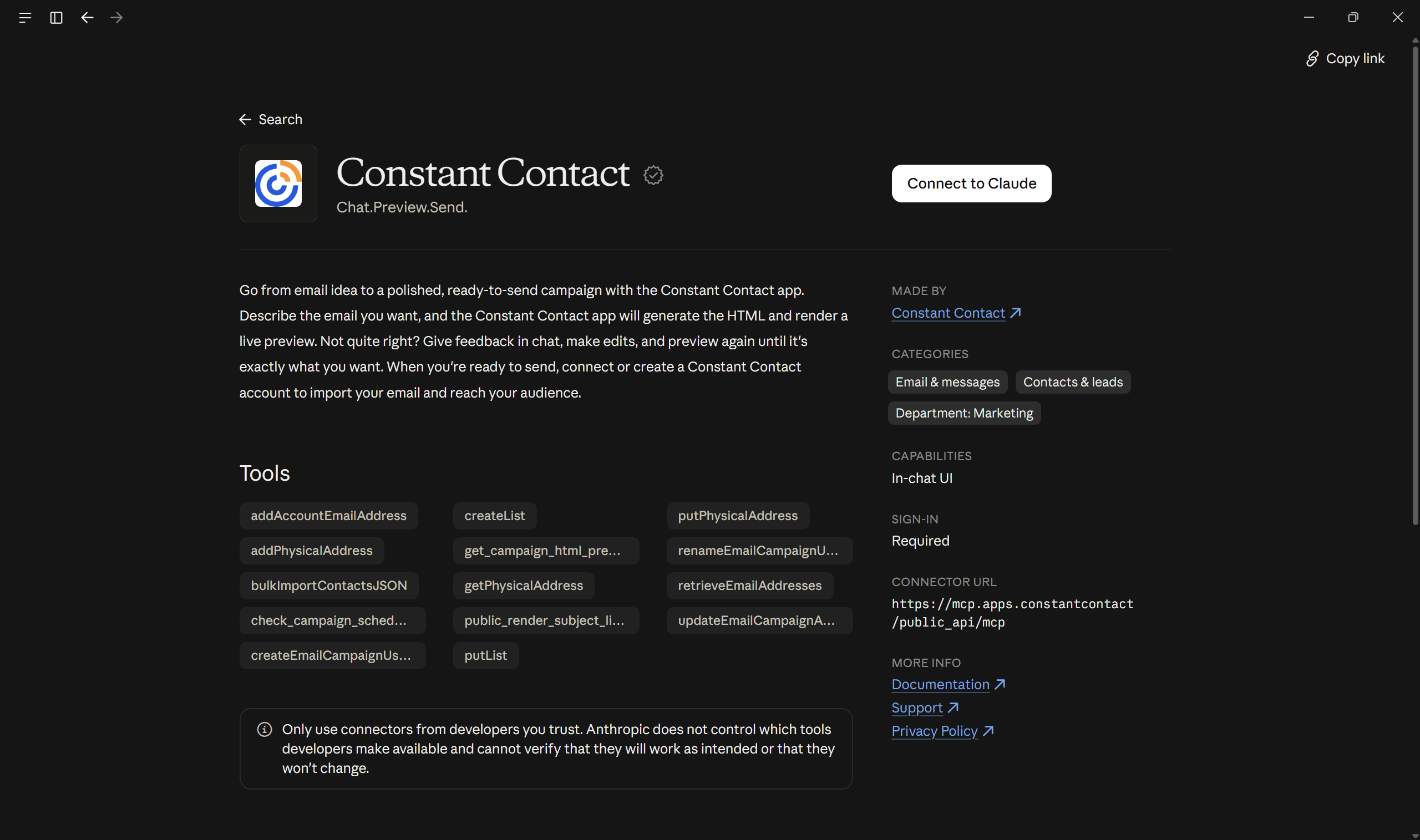
Constant Contact Connector lets users describe their business, audience, and campaign goal, then create email or social drafts with previews and suggested copy.
You can refine the content in Claude and transfer it to Constant Contact for final review, sending, or publishing. This is especially useful for smaller teams that want to prepare complete campaigns from a short brief.
How to install:
Open
Customize → Connectors.Search for Constant Contact and select Connect.
Sign in and authorise your Constant Contact account.
When to use:
Drafting email campaigns from a short brief
Preparing social posts with channel-specific copy
Reviewing email previews and subject lines
Moving approved drafts into Constant Contact
Official source: Constant Contact Connector
13. ActiveCampaign Connector
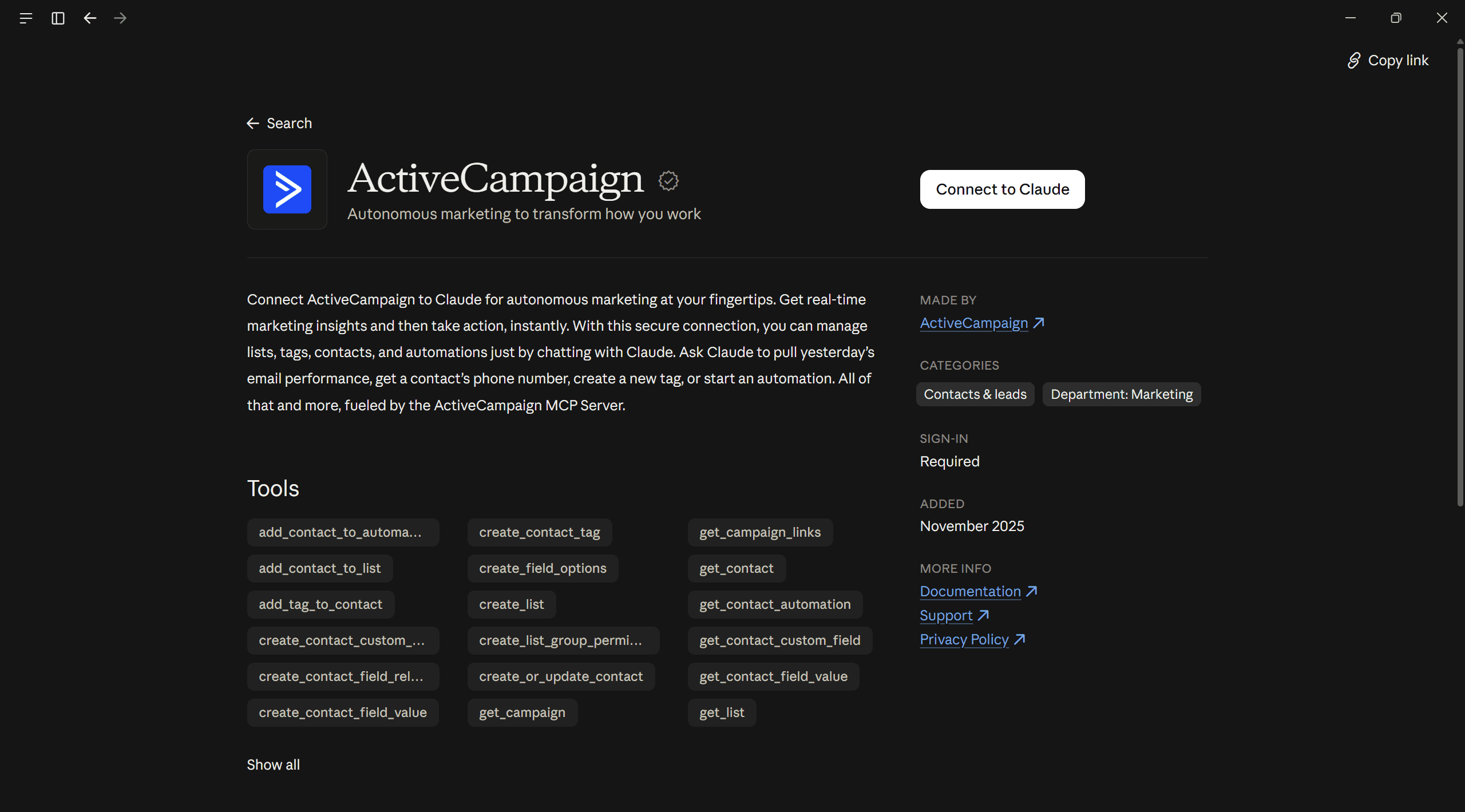
ActiveCampaign connects Claude with your contact lists, tags, campaigns, email activity, and automations. It supports retrieving marketing information and making changes through available tools.
For example, you could ask Claude to review a contact's information, add a tag, or investigate email performance before deciding how to update a nurture campaign.
How to install:
Open
Customize → Connectors.Search for ActiveCampaign and select Connect.
Complete the ActiveCampaign authorisation process.
Use the official MCP setup instructions if your environment requires manual configuration.
When to use:
Contact and list management
Tag and custom-field updates
Email activity and campaign reviews
Starting supported marketing automations
Official source: ActiveCampaign Connector
14. Planoly Connector
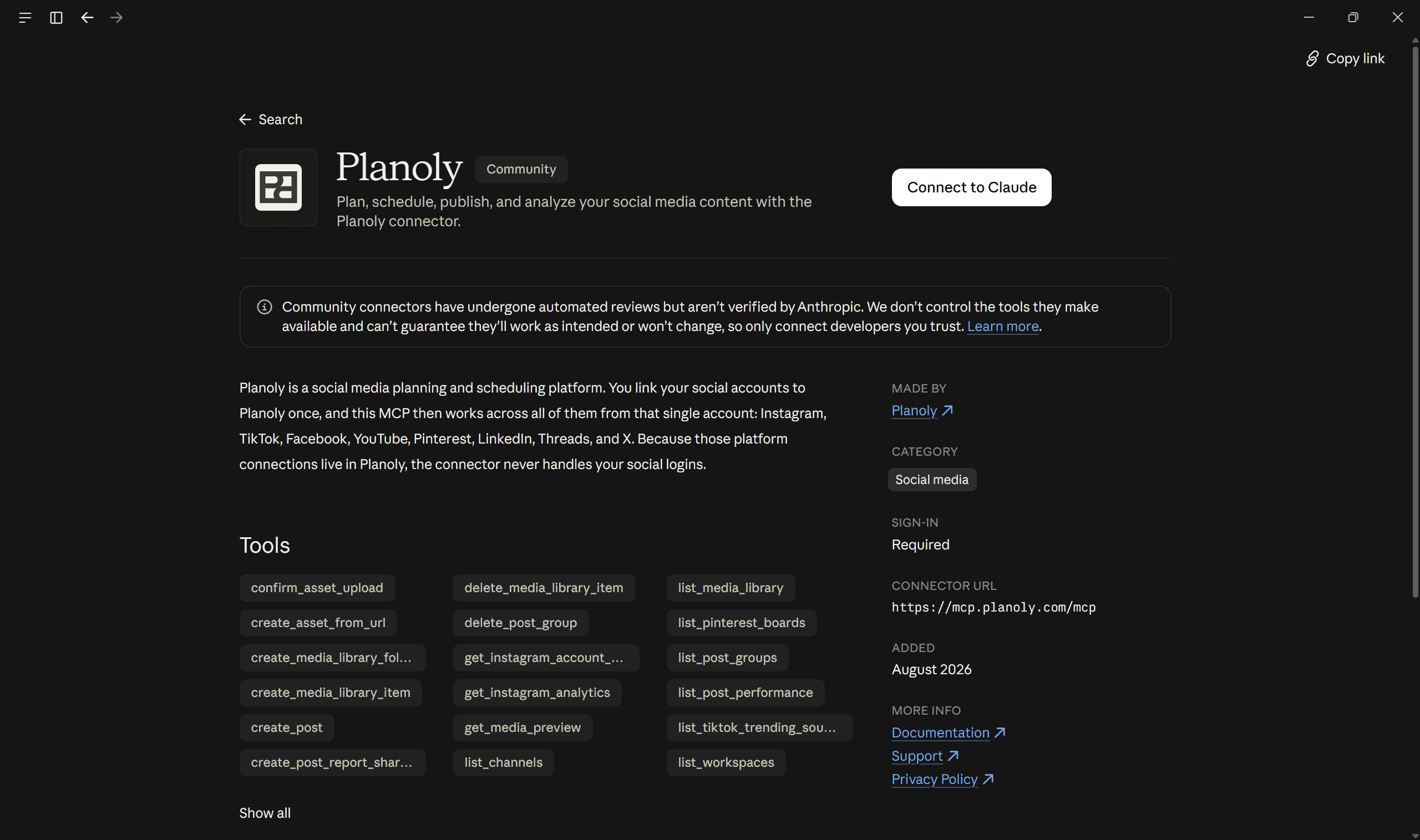
Planoly connects Claude with your social publishing workspace. It can access connected channels, work with drafts and scheduled posts, and retrieve supported Instagram analytics.
You could ask Claude to review last month's Instagram performance, prepare a week of captions, and add approved content to your publishing calendar.
Planoly also documents confirmation controls for sensitive publishing actions.
How to install:
Open
Customize → Connectors.Search for Planoly and select Connect.
Sign in to your Planoly workspace.
You can also connect through Planoly's official Claude directory link.
When to use:
Creating and editing social media drafts
Planning a weekly content calendar
Scheduling posts across supported channels
Reviewing Instagram performance data
Official source: Planoly MCP Setup Guide
So far, every connector has been easy to set up, but the next 2 require developer experience and an understanding of the ecosystem, so they rank last.
15. Google Analytics (GA4) MCP Connector
Google maintains an experimental open-source MCP server for Google Analytics. It uses the Analytics Admin and Data APIs to retrieve property information, run reports, and query real-time metrics.
This becomes useful after a campaign goes live. You can ask Claude which channels brought users to your website, compare engagement, and investigate conversions using the reports your GA4 property supports.
How to install:
Install Python and
pipx.Enable the Google Analytics Admin API and Data API in Google Cloud.
Configure Google credentials with the required Analytics read-only scope.
Add the MCP server to Claude Code using the command provided in Google's repository, replacing the credential path and project ID.
When to use:
Traffic and acquisition channel analysis
Conversion and event reporting
Funnel and engagement analysis
Real-time website performance checks
Official source: Google Analytics MCP Repository
These 16 connectors cover everything from content creation and SEO to campaign management and reporting. You can use individual connectors for specific tasks or Composio when your work involves several apps and accounts.
But before connecting your marketing tools, check what Claude can access and what actions it can perform.
Best security practices when installing Claude connectors
By now, you have several ways to let Claude work directly with marketing applications. But some connectors can update customer records, publish content, or change ads, so permissions deserve attention.
Here are five practices I would follow before connecting a marketing account.
Use trusted connectors: Check the developer, official documentation, and connector URL before authorising access.
Limit permissions: Connect only the accounts, workspaces, and data that Claude needs for the task.
Keep approvals enabled: Review email sends, social publishing, CRM updates, and advertising changes before execution.
Protect customer information: Check data-sharing terms and avoid giving unnecessary access to contact lists or sensitive campaign records.
Review access regularly: Test connectors with small tasks, inspect their permissions, and disconnect integrations you no longer use.
Claude's connectors follow the permissions granted by the connected service, and Anthropic also recommends reviewing third-party tools carefully.
Conclusion
Claude connectors can make marketing work easier by giving Claude access to the tools and data you already use.
For content and SEO, I would start with Canva and either Semrush or Ahrefs. For campaign management, HubSpot and Klaviyo are useful choices, while Funnel and Windsor.ai are worth considering when reporting spans several platforms.
I would not install all 15 at once. Start with two or three connectors that support work you already repeat, test them on real tasks, and add others as you need them.
The best Claude marketing setup helps you complete useful work with reliable data, clear permissions, and control over important actions.

 Get started



