




Claude Connectors let Claude work with data in your other apps. They work well for common tools such as Gmail, Google Drive, Slack, and GitHub. But they have limits, and you hit them fast when your work gets more complex.
A lot of apps you may need aren’t available
Most connectors like Gmail and MS 365 do not expose write actions like sending emails, deleting drafts, etc.
You also cannot connect two accounts for the same app at once. For example, the Google Workspace connector authenticates one Google account, and if you connect a second Gmail account, it replaces the first.
The limits are not necessarily bad. It’s there for a reason. Claude doesn’t want its users to execute irreversible actions. However, for getting real work done, you need these actions. You should be able to send emails, delete calendar events, update Slack or Teams threads.
This guide covers different ways to overcome the limitations of classic Claude connectors.
What are Claude Connectors?
Claude Connectors give Claude access to tools and data in other apps. The connectors use the Model Context Protocol (MCP) to let Claude connect to your applications.
You can use two main types of connectors in Claude:
Directory connectors. You find these in Claude's Connectors Directory, and you connect them with a few clicks. Anthropic reviews each one before it goes live. Anthropic checks who owns the API, how users authenticate, what data the connector handles, and whether write actions are marked correctly.
Custom connectors. You add a remote MCP server URL yourself. Custom connectors are available on Free, Pro, Max, Team, and Enterprise plans, but Free users can only add one.
There is also a third path for local work. Desktop extensions give Claude access to your local machine, such as local files and scripts, but they do not replace remote connectors on web and mobile.
You can control what each connector does. You can set each tool to Always allow, Needs approval, or Blocked. On Team and Enterprise plans, owners can set these rules for the whole organisation, and members cannot change them.
Why look for Claude Connector alternatives?
a. The app you need is not available in Claude's directory
This is the straightforward reason. You’re looking for a connector, but it’s not there.
The directory grows every month, but it cannot cover every app. A vendor must build an MCP server and pass Anthropic's review before its app appears. If your vendor has not done this, you have no one-click option.
Workday is one example. As of July 2026, Claude's directory had no Workday connector, and Workday had no public MCP endpoint. You can build a custom connector for an app like this, but that takes developer time.
b. You need to connect multiple accounts
Many people have a work account and a personal account for the same app. Claude's connectors hold one account at a time. If you connect a second Gmail account, it replaces the first. Anthropic has not shipped a setting to change this yet.
This problem goes beyond Gmail. Users have asked for the same fix for Google Calendar, Google Drive, and Slack workspaces. Today, you must disconnect one account and connect the other each time you switch.
Read: How to connect multiple Gmail accounts to Claude
c. You need write actions, not only search and read access
Some connectors only read data by default. The Microsoft 365 connector searches Outlook, Teams, SharePoint, and OneDrive. Since July 2026, an admin can turn on write tools for email, calendar, and files, but they are off by default, and Teams stays read-only.
Other connectors have smaller gaps. The Google Drive connector reads Google Sheets, but it does not edit them cell by cell. If your work needs Claude to create, update, or delete records, check each connector's actions first.
Related: How to let Claude access and edit Excel files
d. You need deeper action coverage
A connector may support basic write actions but still expose only a small part of an app's API. That becomes a problem when you need app-specific operations, such as managing labels and permissions, updating custom fields, or using less common endpoints.
Alternatives with larger action catalogues or raw API access let Claude handle these deeper tasks without requiring you to build a custom MCP server.
e. You need custom authentication or permissions
Custom connectors support a fixed set of auth methods. Claude supports authless and OAuth-based remote servers, and it supports Dynamic Client Registration. That covers most SaaS apps, but internal tools often use API keys, service accounts, or custom headers.
Team setups can add more friction. One reported issue shows that org-managed custom connectors expect OAuth 2.1 and try Dynamic Client Registration. The admin UI gives no way to mark a server as unauthenticated. If your tool uses a different auth model, you need a layer that handles it for you.
f. You want self-hosting or more control over data
Claude always reaches custom connectors from Anthropic's servers. This is true even when you use the web app or Claude Desktop on your own computer. If your server sits behind a corporate firewall or on a private network, the connection fails unless you allowlist Anthropic's IP ranges.
Local servers have their own limit. Local MCP servers you set up in the Claude Desktop config file use your local network, but they don't work in Cowork or claude.ai. So if your data must stay inside your network, plan the setup carefully.
g. You want to trigger multi-step workflows
Connectors act when Claude calls them. They do not listen for events. For example, you cannot set up a rule such as "when a new Linear issue is filed, post a summary to Slack".
Large setups also use more context. Anthropic recommends switching tool access from Auto to On demand after you pass ten active connectors, so tool schemas don't fill your context. A workflow tool can run fixed steps outside the chat, and Claude only needs to start it.
h. You want better admin controls for a team
Claude gives team owners useful controls. Only Owners can add custom connectors on Team and Enterprise plans. After that, each member connects to the connector on their own, so Claude only sees data that the member can access.
Some teams need more than this. They may want to scan each tool call for sensitive data, or give each agent a different set of tools. They may also want one log of every action across all apps. For these needs, you usually add a separate tool layer.
How we evaluated the alternatives
We compared each option across ten practical areas. The important question was not just how many integrations it offered, but how useful those integrations were for real work in Claude.
App and integration coverage: How broad is the app catalogue, and does it include tools that are missing from Claude's directory?
Action depth: Can Claude only search and read, or can it also create, update, and delete data? How much of each app's API is available?
Multi-account support: Can you connect multiple accounts for the same app and choose the right one naturally in a prompt?
Authentication and permission controls: Does the platform handle OAuth, API keys, token refresh, scopes, and tool-level permissions?
MCP support: Can you connect the platform directly to Claude through a remote MCP endpoint?
Setup difficulty: How quickly can you get a working connection, and how much technical knowledge does the setup require?
Customisation options: Can you add custom tools, improve tool descriptions, call raw APIs, or build multi-step workflows?
Pricing: Is the free plan useful, and how do costs grow with tool calls, tasks, executions, connections, or users?
Team and enterprise features: Does it offer shared workspaces, roles, SSO, audit logs, and central administration?
Security and data control: Where are credentials and data processed? Can you control access, self-host the platform, or keep it on private infrastructure?
Best alternatives to official Claude connectors
The first six tools are managed platforms or hosted integration products. The last four are open-source options that you can run on your own infrastructure
One point applies to every self-hosted option. Claude connects to custom connectors from Anthropic's cloud, so your server must be reachable over the public internet.
1. Composio
1500+ apps, managed auth, multiple accounts, and deeper tool coverage

Best for: AI agents that need many apps, managed auth, deeper tool coverage, and multiple accounts
Composio is the closest you can get to the best option. It has a huge catalogue of apps (1500+), deeper tool coverage, managed auth, lets you connect multiple accounts of the same app, and more.
What it does well
1500+ apps: Instant access to 1500+ SaaS applications. Work across apps without any hassles.
Multi-account support: It keeps each account separate and lets you give it a simple name, such as work, personal, or billing. When you use that name in a prompt, Claude picks the right account.
One connector gives Claude access to many apps. You authorise a new app, and Claude can use it through the same connection.
It handles OAuth, API keys, token refresh, and scopes for you.
You can share access to connections with your team member for better collaboration.
How to add it to Claude
Click here: Composio <> Claude
This will take you to the Claude Custom Connector modal
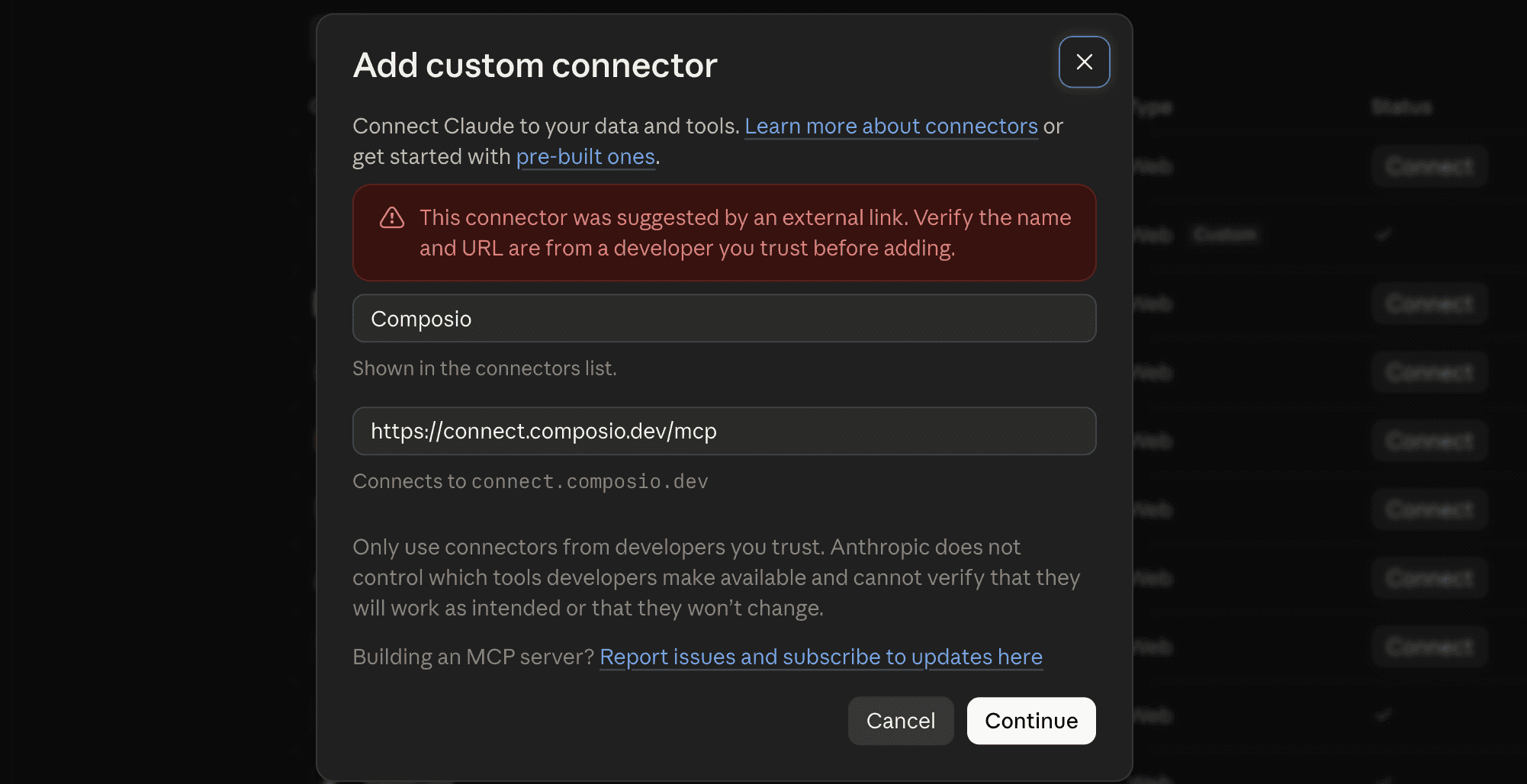
Click Continue
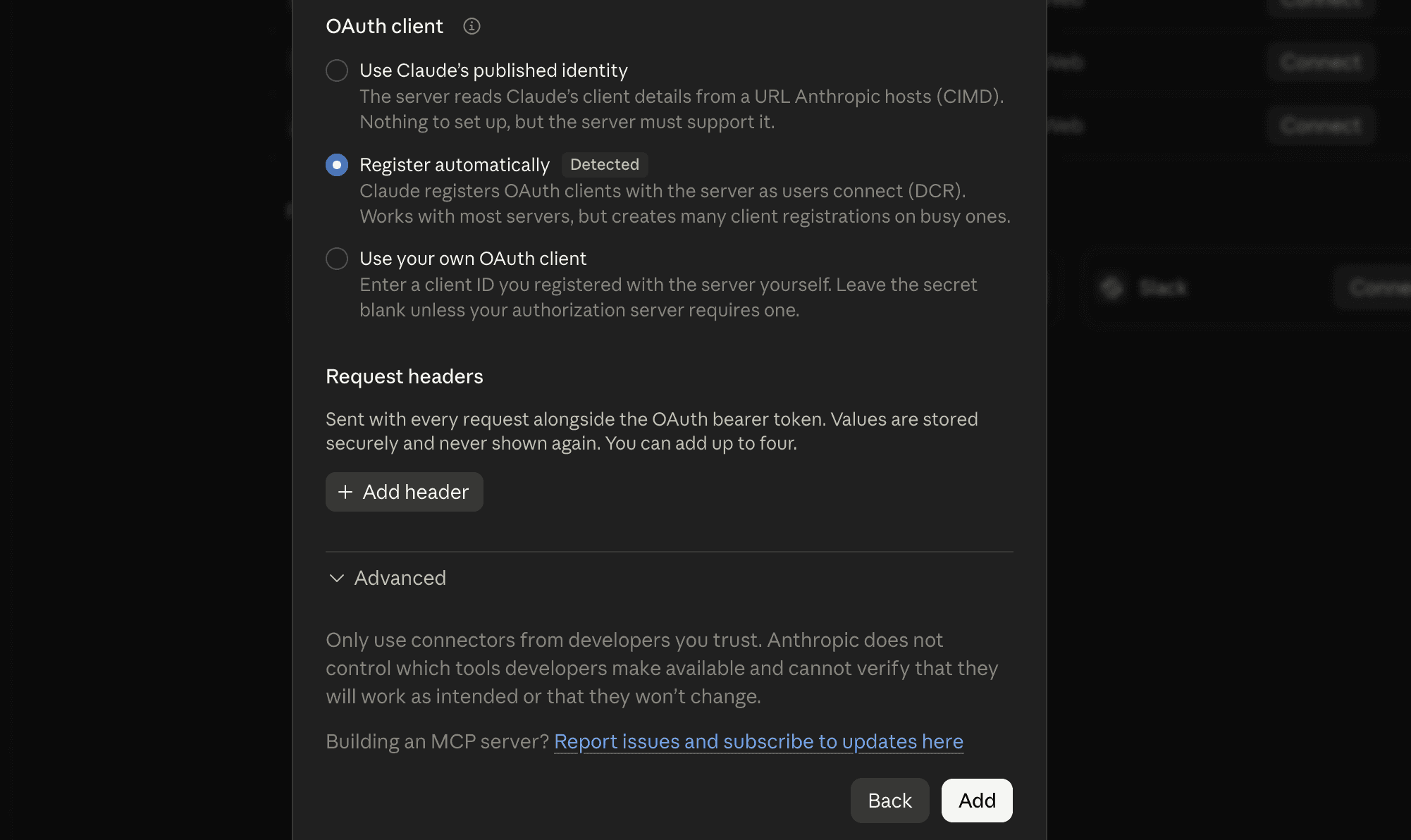
And in the next modal, click Add
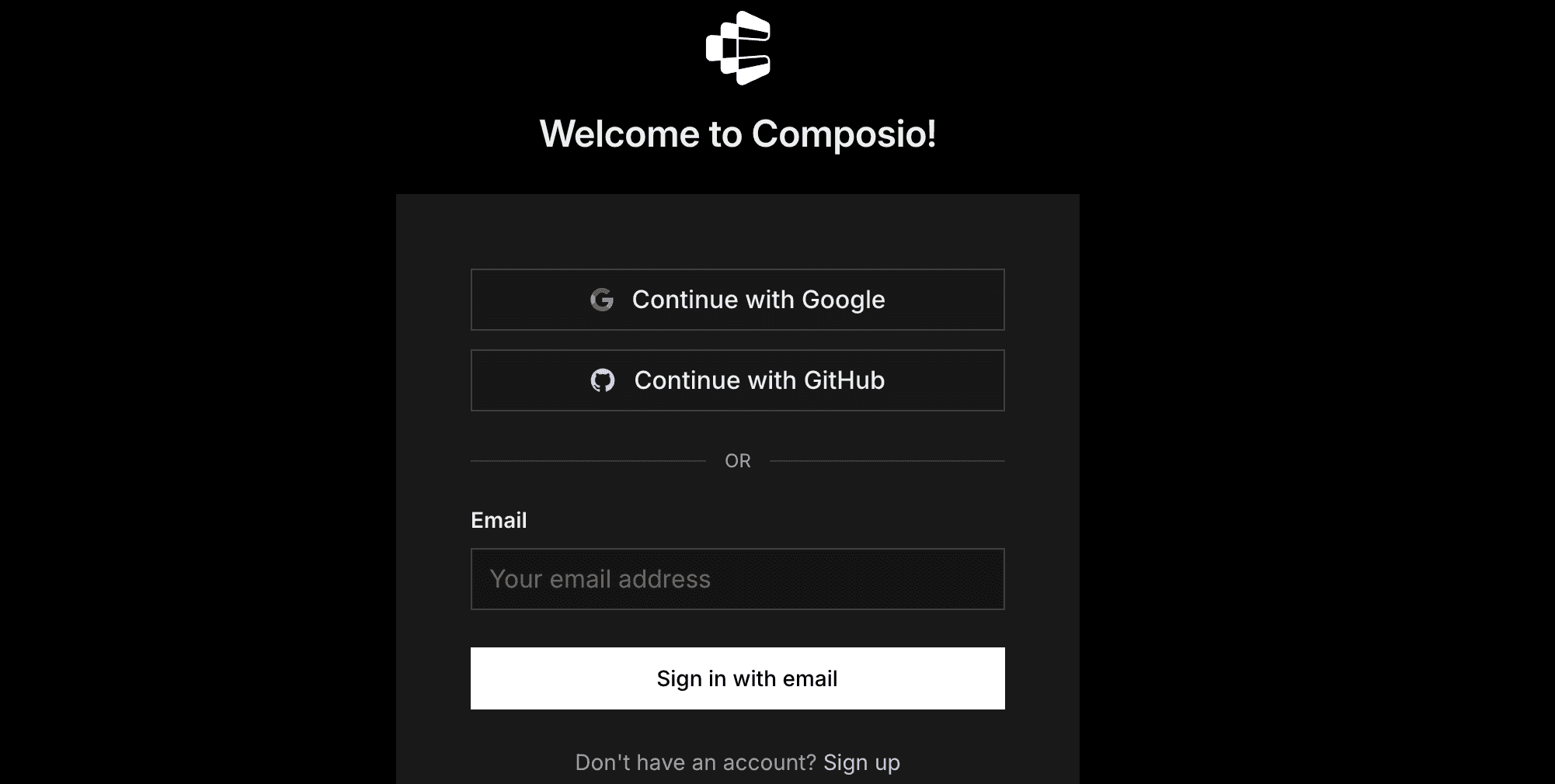
It will take you to the authentication page. So, sign in to Composio and approve the connection.
Then:
Return to Claude and make sure Composio is enabled.
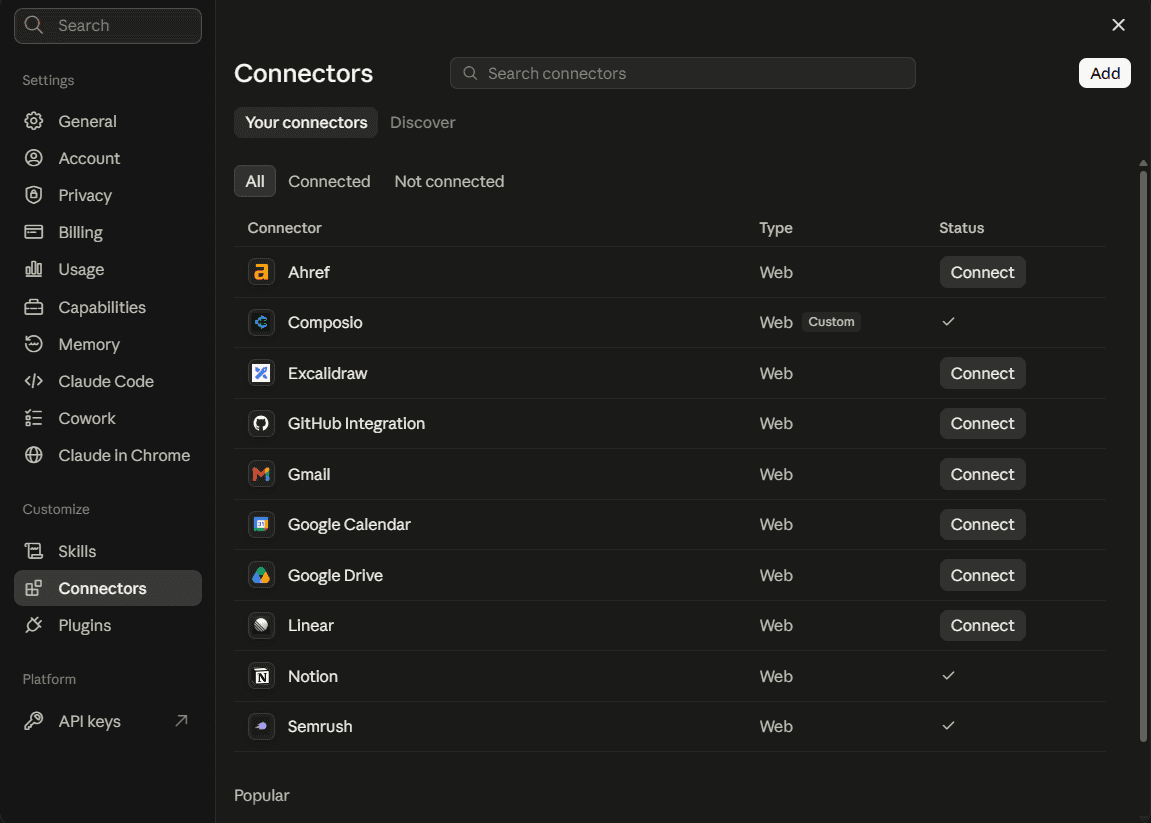
You only need to do this once.
Quick check
Start a new Claude chat and ask:
What Composio tools do you have available?
If Claude lists Composio tools, you are ready for the next step.
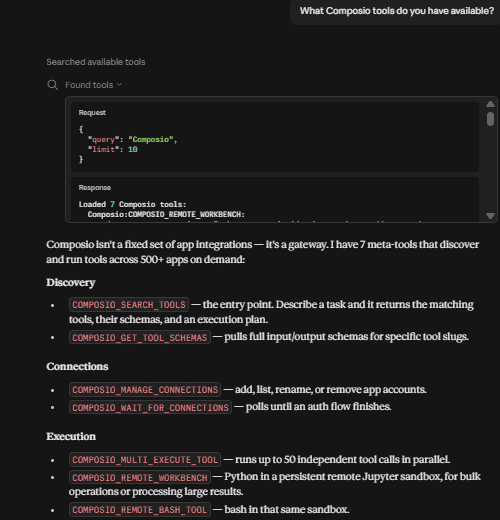
After that, the connection stays available across sessions. Composio uses one MCP connection for 1,500+ supported apps, so you do not need to add a separate connector for each app.
You can just prompt Claude to add other apps and it will work.
Pricing: The Free plan is enough for 90% of people; it offers generous limits, and you don't need a credit card. It includes 100K tool calls a month, unlimited connections, and 3 team members. Paid plans start at $29/month.
2. Pipedream
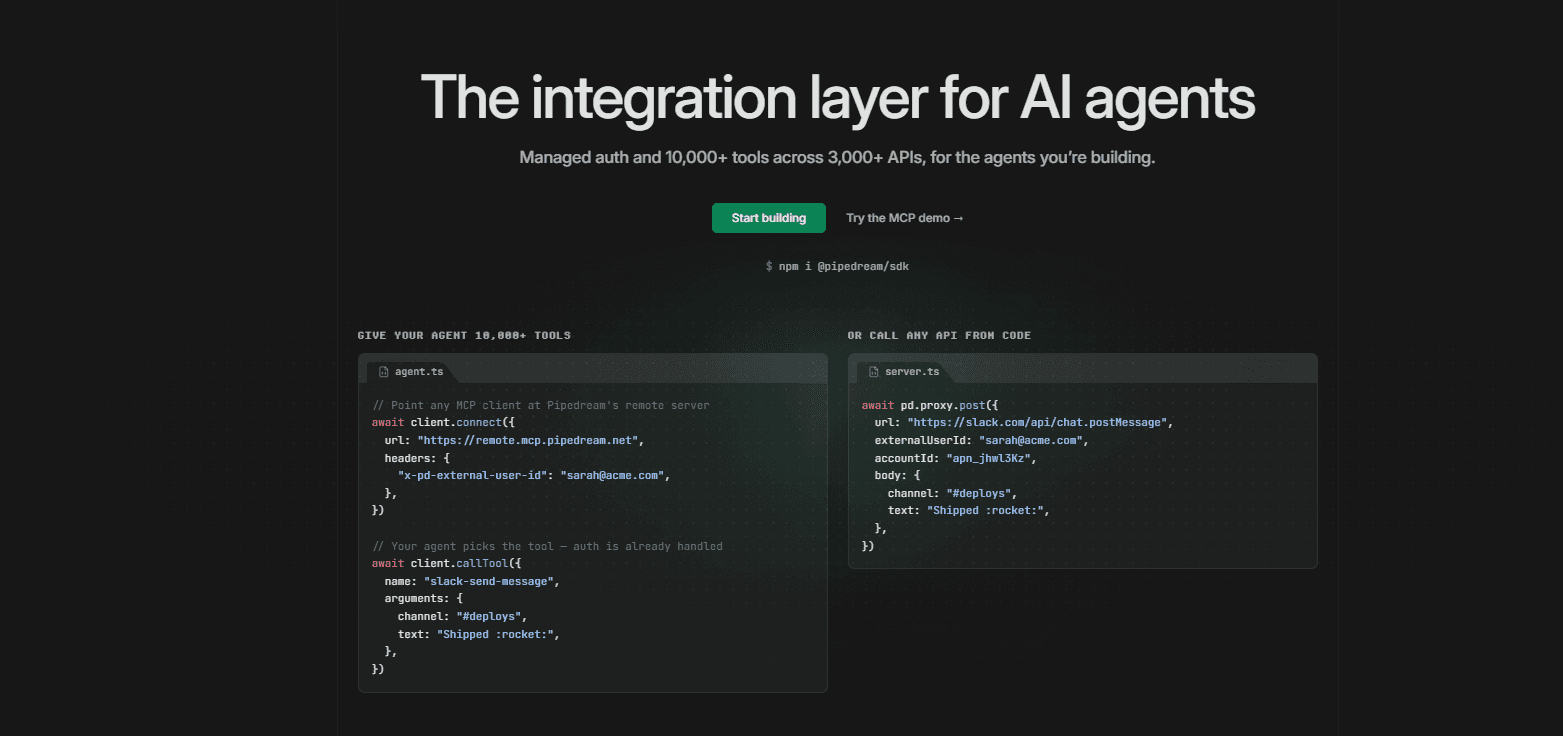
Best for: Developers who need APIs, actions, triggers, and managed auth
Pipedream is a developer-first automation platform. Its MCP server gives access to 3,000+ APIs and 10,000+ tools, and it manages OAuth tokens for you.
What it does well
You can write code steps in Node.js, Python, Go, and Bash, next to 2,500+ prebuilt API connectors.
Event sources give you real-time triggers from APIs and webhooks.
How to add it to Claude
Add Pipedream's MCP server to Claude with this URL:
https://mcp.pipedream.net/v2Authorize Claude to access your Pipedream account.
Connect the apps you want Claude to use when Pipedream asks you to authenticate them.
Pipedream now uses one static MCP URL across supported clients. You do not need to create and copy a separate MCP server URL for each app. The same server can expose tools across Pipedream's integration catalog.
Limits
You need developer skills, and credit-based pricing can get expensive at scale.
Workday signed an agreement to acquire Pipedream in November 2025. The product runs as usual, but Workday's plans will shape the roadmap.
You cannot self-host it.
Pricing: Pipedream has a free plan. Paid plans start at $29 a month and go up to $99 a month.
3. Zapier MCP
Best for: Broad SaaS coverage with a simple setup
Zapier MCP connects Claude to 9,000+ apps and 30,000+ actions. You pick the app actions you want, and Zapier gives you a hosted endpoint for Claude.
What it does well
It has the largest app catalog on this list.
You choose each action, so Claude only sees the tools you allow.
You do not need to write code.
How to add it to Claude
Zapier is an official connector in Claude's directory, so the easiest option is to find Zapier in Claude's Connectors directory and click Add to Claude.
If you want to choose the exact tools Claude can use:
Go to
mcp.zapier.com.Click New MCP Server and choose Claude as the client.
Add the app actions you want Claude to access.
Connect the required app accounts.
Click Connect and follow Zapier's Claude setup instructions.
Limits
Zapier MCP has no triggers. If you want something to happen when an event occurs, you must build a Zap.
Each MCP tool call uses two tasks. Zaps, AI steps, code, and MCP all use the same task allowance.
Pricing: The Free plan has 100 tasks a month, so you get up to 50 tool calls. The Professional plan starts at $19.99 a month billed annually for 750 tasks.
4. n8n
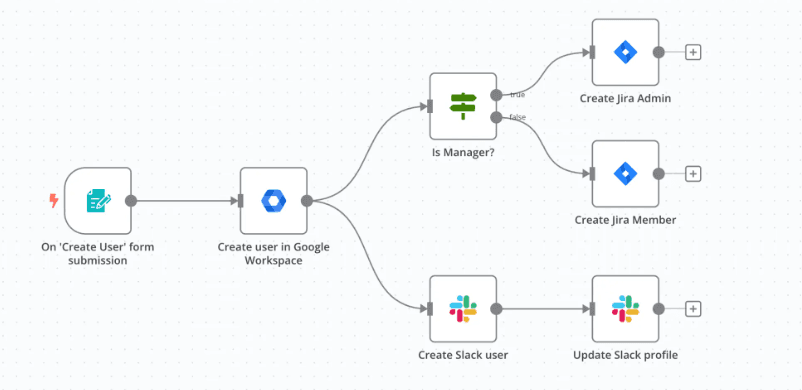
Best for: Self-hosted workflow automation
n8n gives you a visual workflow builder, app integrations, triggers, API calls, code steps, and MCP support. With instance-level MCP access, Claude can search the workflows you mark as available, read their details, and run them.
What it does well
Claude starts a full workflow with one call, and n8n runs every step.
You can self-host it, so you control where your workflows and credentials live.
You can connect Claude with OAuth2 or an access token.
How to add it to Claude
n8n is now an official connector in Claude's directory.
Open Claude and go to Customize > Connectors.
Search for n8n.
Click Add to Claude.
Sign in and connect your n8n instance.
Give Claude access to the workflows and resources you want it to use.
Claude can then search workflows, inspect them, run them, and work with other supported n8n resources. The current connector exposes tools for workflows, executions, data tables, projects, credentials, and other n8n resources.
Limits
Every MCP client you connect can see every workflow you enable for MCP. You cannot limit a workflow to one client.
n8n is source-available. Its Sustainable Use License lets you use and change it for your own business, but you cannot resell it or charge others for access.
The free edition does not support workflow sharing, so a team of builders cannot work on the same workflows.
Pricing: The self-hosted Community Edition is free with unlimited executions. Cloud plans start at €20 a month on annual billing for 2,500 executions.
5. Make
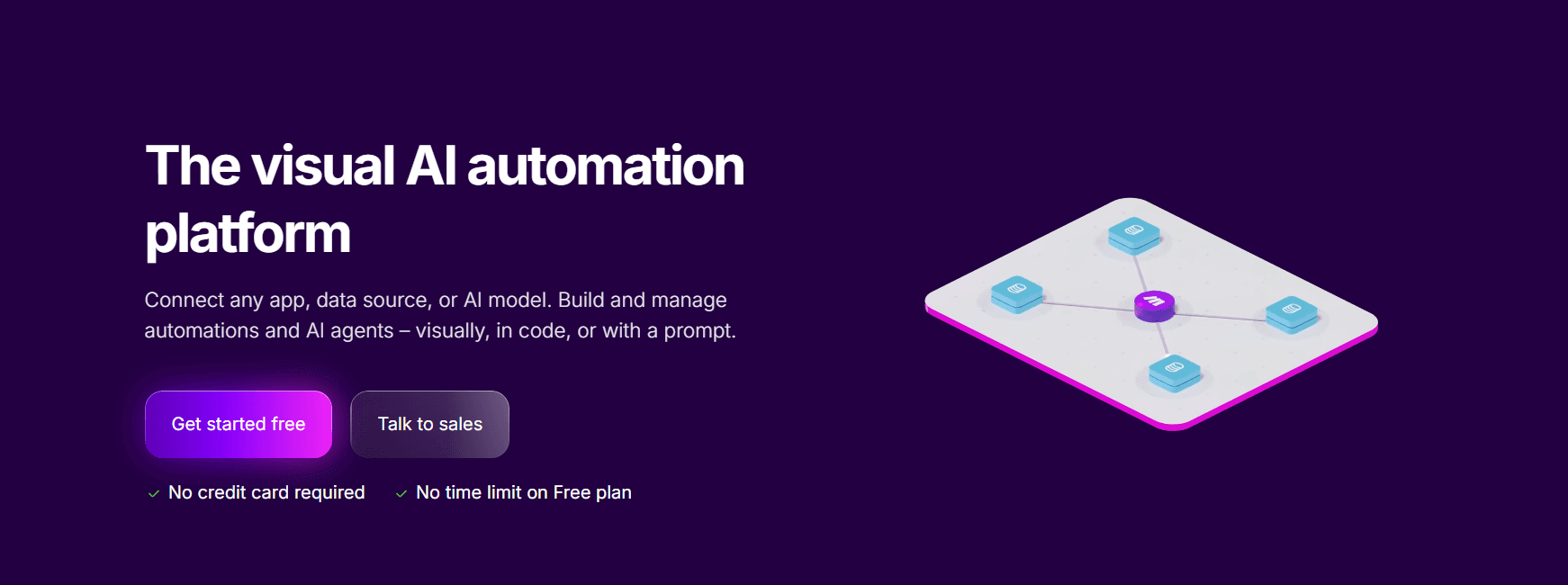
Best for: Visual multi-step workflows
Make lets you build scenarios with several steps, filters, routers, and apps. Its MCP server lets Claude run your scenarios. It also lets Claude view and change scenarios, connections, webhooks, and data stores.
What it does well
Your operations team manages the workflow in a visual editor, and Claude only needs to start it.
Scopes let you choose between run-only access and full management access.
How to add it to Claude
Make is also an official connector in Claude's directory, so you do not need to copy an MCP URL manually.
In Claude, go to Settings > Connectors > Browse connectors.
Search for Make and click the plus button.
Sign in to Make.
Select the Make organization you want Claude to use.
Choose the scopes Claude can access.
Click Allow.
The Run your scenarios scope lets Claude find and run active scenarios that use on-demand scheduling.
Paid plans can also enable management scopes, which let Claude view or change resources such as scenarios, teams, connections, webhooks, and data stores.
Before Claude can run a scenario as an MCP tool, set the scenario to active, use on-demand scheduling, and define the scenario inputs and outputs.
Limits
Claude can only run scenarios that you build first. Make advises you to write detailed scenario descriptions, so the AI knows what each scenario does.
You cannot self-host it.
Pricing: Scenario run tools are on all plans. Management tools are on paid plans only.
6. Paragon ActionKit
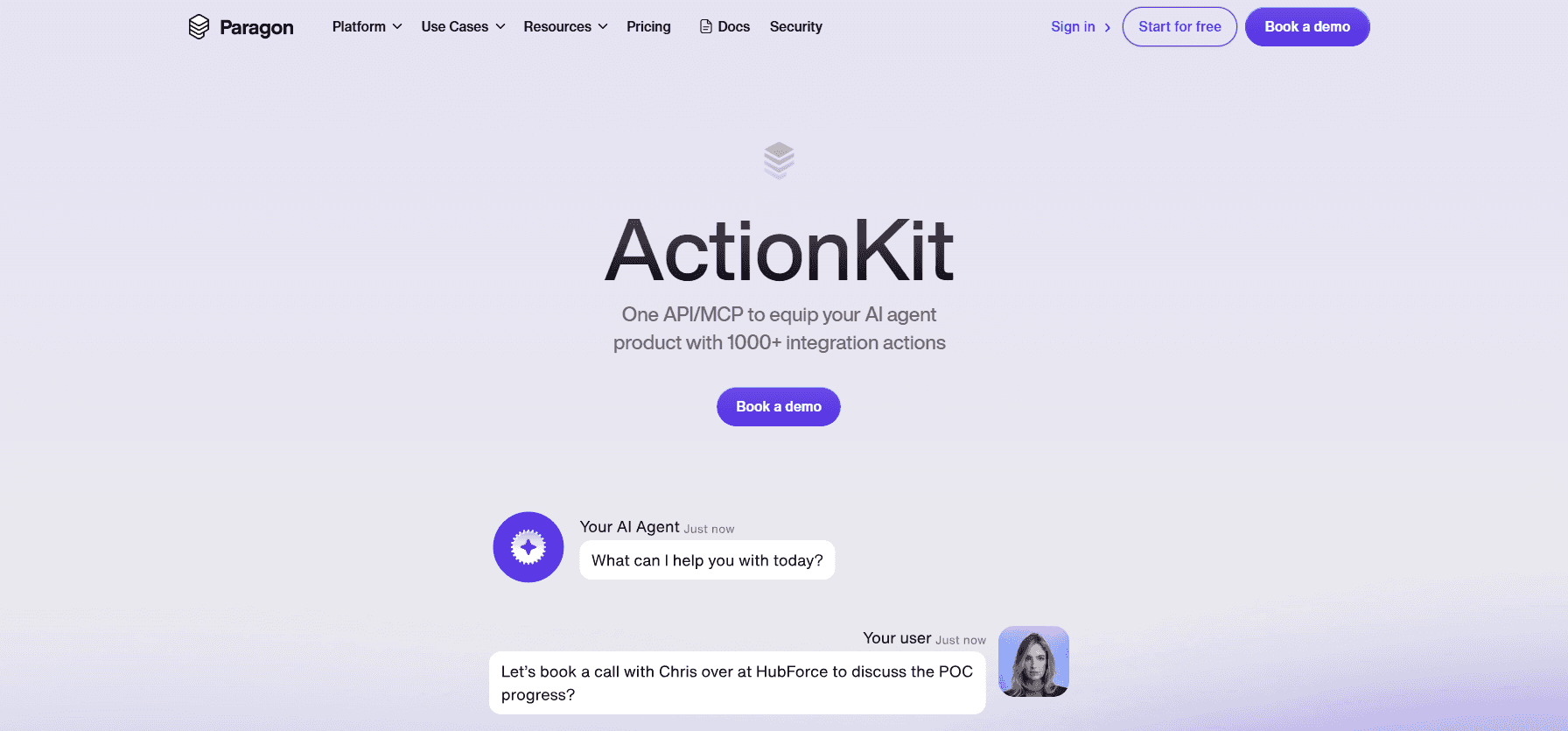
Best for: Customer-facing AI products that need per-user integrations
Paragon ActionKit is for SaaS products where each customer connects their own apps. Its MCP server gives an agent prebuilt actions for 130+ integrations, and Paragon lists about 1,000 actions.
What it does well
Its Connect Portal asks each user to authorize their apps with OAuth 2.0 or an API key.
You can add custom actions from OpenAPI specs.
You can send proxy API requests to any integration in the catalog, so you can reach endpoints that have no prebuilt action.
ActionKit Triggers let your agent react to events in a user's apps. Paragon launched this feature in public beta in May 2026.
How to add it to Claude
Paragon's MCP server works differently from the other tools on this list. In production, it expects a Paragon User Token as a Bearer header on every request. Your own server signs this token with a private key from the Paragon dashboard. Claude web cannot send this token, so you cannot add Paragon to Claude web as a normal custom connector.
You can test it in Claude Desktop:
Set up the integrations you want in your Paragon account.
Install Node.js 22.14.0 and npm.
Clone the Paragon MCP server and run
npm install.Set your Paragon project ID and JWT signing key in the
.envfile.Start the server, and add it to
claude_desktop_config.jsonwithmcp-remote.
Limits
ActionKit is a hosted service. The MCP server is a separate open-source adapter that you run yourself.
Paragon does not publish its prices. You must talk to sales, and the only free option is a 14-day trial.
It fits product teams more than individual Claude users.
Pricing: Paragon has Pro and Enterprise plans based on connected users. Contact sales for a quote.
7. Activepieces
Best for: A Zapier-style app catalog that you can self-host
Activepieces is an open-source automation platform. Its MCP server gives Claude access to 760+ apps through one connection, on Activepieces Cloud or on your own install. The core has an MIT license, and the MCP server is part of every plan.
What it does well
One server exposes every app you connect, so Claude keeps a single connection.
You can add full Activepieces flows to the server, such as a refund process. So Claude can run a multi-step job with one tool call.
Developers write new pieces in TypeScript, and each new piece becomes an MCP tool automatically.
The Community Edition includes webhook and scheduled triggers, branching logic, and code steps.
How to add it to Claude
Use Activepieces Cloud, or self-host it. A single container works for one instance, but a production setup uses Docker Compose with PostgreSQL and Redis.
Connect the apps you want Claude to use.
Go to Settings > MCP Server, turn on the server, and copy its URL.
Add the URL to Claude as a custom connector.
Activepieces uses OAuth, so Claude asks you to sign in the first time you connect.
Limits
It has fewer integrations than Zapier.
SSO, audit logs, and custom RBAC are only on the paid Ultimate plan.
Pricing: The self-hosted Community Edition is free. As of July 2026, the cloud Standard plan is free for up to 10 active flows, then costs $5 per active flow each month with unlimited runs.
8. Windmill

Best for: Developers who build custom tools from scripts
Windmill lets you write scripts in TypeScript, Python, Go, Bash, and SQL, and turn them into workflows. Its MCP server lets Claude run your scripts and flows as tools. Claude can also work with jobs, resources, variables, schedules, and workers.
What it does well
You write each tool yourself, so it fits internal APIs, databases, and custom business logic.
Scripts and flows can start from schedules, webhooks, HTTP routes, Kafka, WebSockets, and emails.
Windmill's own AI agents can use tools from external MCP servers, so the connection works in both directions.
How to add it to Claude
The easiest way is Claude's Connectors Directory. Find Windmill, click Connect, and log in. Then select your workspace and choose which tools Claude can use.
You can also add Windmill as a custom connector:
Use
https://app.windmill.dev/api/mcp/gatewayfor Windmill Cloud. For a self-hosted instance, use your own domain with the same path, such ashttps://windmill.example.com/api/mcp/gateway.Add the URL to Claude as a custom connector.
Windmill opens a sign-in page. Select your workspace and set the scope, then click Approve.
You can limit the scope to certain folders, so Claude only sees the scripts and flows in those folders.
Windmill also offers a token method. Open your account settings, create a token, and select Generate MCP URL. Keep this URL secret. Anyone with it can use that token's permissions.
If you self-host an older version, update it first. Windmill recently fixed a bug that stopped the sign-in flow after SSO for users with no open workspace.
Limits
Windmill is already in Claude's Connectors Directory. So you can use it to build your own tools, and it doesn't replace the directory.
If you use a token-based MCP URL, keep it secret. Anyone with the URL can start actions in your workspace.
The free edition has no SSO, audit logs, or worker groups.
You need coding skills.
Pricing: The self-hosted Community Edition uses AGPLv3 and is free with unlimited executions. Windmill Cloud has a free tier with 1,000 executions a day, and the Team plan costs $10 per user each month.
9. Kestra
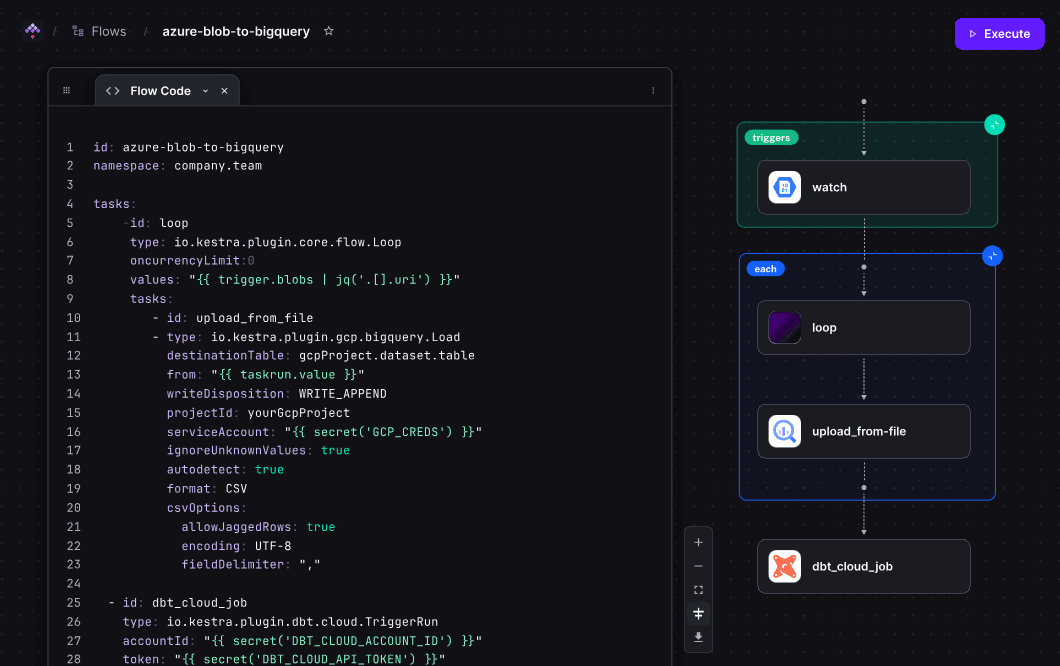
Best for: Reliable workflows that Claude can call as tools
Kestra is a workflow orchestration platform with an Apache 2.0 license. Kestra 2.0 added the MCP Tool Trigger. Add the trigger to a flow, and the flow becomes a named tool Claude can find and call. The MCP server and the MCP Tool Trigger are both open source.
For example, one flow can read data from PostgreSQL, call an internal API, write a file to S3, send a Slack message, and return the result. Claude sees one tool, and Kestra runs every step.
What it does well
Kestra turns each flow input into a tool parameter, so Claude knows what values to send.
Kestra tags each run with
system.from:mcp, so you can see which runs came from an AI agent.Each run gets the same permissions as a person who clicks Run. Steps that you cannot undo can wait for a human.
Every tenant gets a default MCP server at startup, so you need no extra setup.
How to add it to Claude
Deploy Kestra at an HTTPS address that Claude can reach.
Add an
McpToolTriggerto each flow you want Claude to call. Give each tool a clear name and description.Go to Tenant > MCP Servers. Kestra creates a default server for every tenant, so you can use it right away.
Open the server and click the Connect tab. It shows the server URL and ready-to-paste settings for each client.
Your edition decides which Claude apps you can use:
Claude web. Set the MCP server's auth type to OAuth. This needs an OIDC provider, the same setup that Kestra uses for SSO. SSO and OIDC are Enterprise features, so you need Kestra Enterprise or Kestra Cloud. Claude web then finds the provider and starts the sign-in flow on its own.
Open Source Edition. It supports Basic auth only. Use Claude Desktop with the snippet from the Connect tab. The snippet uses
npx mcp-remoteto connect.
Kestra also lets you make a server public with no auth. Avoid this, because any MCP client can then call every flow on that server.
Do not confuse your own server with https://api.kestra.io/v1/mcp. That public server gives AI tools Kestra docs and plugin details, but it cannot run flows in your instance.
Limits
It targets data, infrastructure, and backend work. It has no large catalogue of simple SaaS actions.
Some controls are Enterprise-only, such as multiple MCP servers, mTLS, and Cases for human approval.
If you upgrade from an older version, some flows need a guided migration.
Pricing: The Open Source Edition is free. The Enterprise Edition is paid. Contact Kestra for a quote.
10. Apache Camel
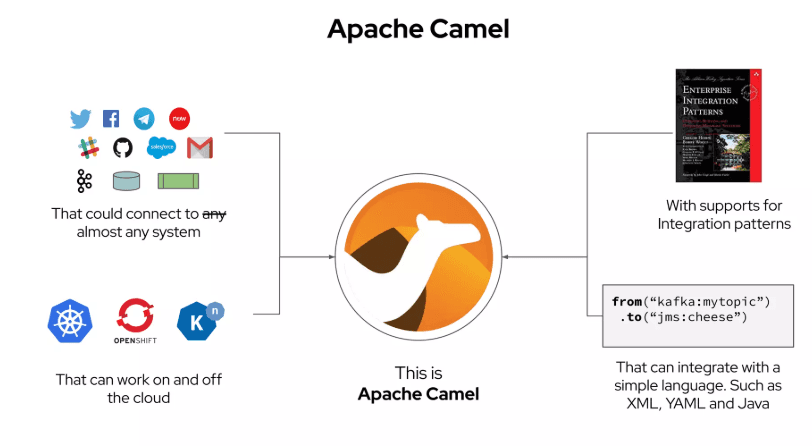
Best for: Java teams that need deep enterprise integration control
Apache Camel is an integration framework with an Apache 2.0 license and 300+ components. Version 4.22 added a built-in MCP server. It exposes Camel routes that you register as AI tools, and Claude can find and call them over streamable HTTP.
What it does well
It reaches systems such as databases, Kafka, message queues, AWS services, and files.
You choose which routes Claude sees with tags. Camel never exposes untagged routes.
Each tool call has a timeout, and the default is 20 seconds.
It runs on Camel Main, JBang, Spring Boot, and Quarkus.
How to add it to Claude
Define each tool as a
ai-toolroute, and give it a tag.On Camel Main or Camel JBang, turn on the HTTP server and MCP, and list the tags you want to expose:
camel.server.enabled=true
camel.server.mcp-enabled=true
camel.server.mcp-tags=crm,notify
Camel serves the tools over Streamable HTTP at
/mcpby default.Deploy the app at a public HTTPS address, such as
https://your-domain.com/mcp.Set up auth for the endpoint, then add the URL to Claude.
Camel only exposes routes with matching tags. It never exposes untagged routes.
Check the property names for your Camel version. The component docs write the tag property ascamel.server.mcp-tags, but Camel's launch blog writes it as camel.server.mcp.tags. Quarkus and Spring Boot also use their own property names.
Limits
The MCP server has "Preview" status, so it can change between releases.
The host runtime handles auth, such as the Spring AI MCP server or the Quarkus MCP server. So you must set up auth yourself.
It requires Java skills and offers no managed OAuth for SaaS apps.
Pricing: It is free. You pay for your own servers and developer time.
Claude Connector alternatives at a glance
Alternative | Type | Best for | Self-host | License | Starting price |
|---|---|---|---|---|---|
Composio | Agent integration platform | Many apps, auth, multiple accounts | No | Commercial (SDK is MIT) | Free, paid from $29/mo |
Pipedream | Integration platform | APIs and developer workflows | No | Commercial | Free, paid from $29/mo |
Zapier MCP | Automation platform | Broad SaaS coverage | No | Commercial | Free (100 tasks), paid from $19.99/mo |
n8n | Workflow automation | Self-hosted automation | Yes | Source-available | Free self-hosted, cloud from €20/mo |
Make | Workflow automation | Visual multi-step workflows | No | Commercial | Run tools on all plans |
Paragon ActionKit | Embedded integrations | Customer-facing agents | Hosted, plus on-prem options | Commercial (MCP adapter is MIT) | Contact sales, 14-day trial |
Activepieces | Integration automation | Open-source app connectors | Yes | MIT core | Free self-hosted, cloud free up to 10 flows |
Windmill | Developer workflow platform | Scripts, APIs, internal tools | Yes | AGPLv3 core | Free self-hosted, cloud Team $10/user/mo |
Kestra | Workflow orchestrator | Reliable workflows as tools | Yes | Apache 2.0 | Free Open Source Edition |
Apache Camel | Integration framework | Custom enterprise integrations | Yes | Apache 2.0 | Free |
Conclusion
Start with Claude's own connectors when your app is in the directory and one account is enough. They are easy to set up, and Anthropic reviews them. When you hit a limit, pick the tool that fixes that limit.
If you need many apps or multiple accounts in one connector, try Composio. If you want the largest app list with no code, use Zapier MCP. Developers who want code steps and prebuilt connectors can use Pipedream. If your team already builds workflows, connect n8n or Make. And if you build agents into your own product, look at Paragon ActionKit.
If you want open source, pick by the kind of work. Activepieces is the closest open-source option to a connector catalog. Windmill fits custom scripts and internal tools. Kestra fits reliable data and backend workflows. And Apache Camel fits Java teams with deep enterprise systems.
Prices and features in this space change often. So check each vendor's pricing page and docs before you decide.

 Get started



