




I spent last week with ChatGPT Work and felt genuinely good as it turned my messy goal into a finished document, spreadsheet, report, and more. The problem was what came with it.
Once I started running multi-step workflows like research, file handling, browser use, and scheduled tasks, usage numbers climbed; I had to shift to the Pro tier. In fact, for anyone doing it every day (a power user), the Pro tier no longer feels optional.
At the same time, I was sending a steady stream of files, context, and actions into OpenAI’s environment, even when I was using paid options. That combination started to feel expensive in more ways than one.
So I went looking for tools that can deliver the same kind of finished work without forcing the same monthly number or the same single-vendor path. I tested the ones that looked most promising.
Some keep more of the work on the local machine. Some let me choose (or host) the model. Others simply cost less for heavy use. None was a perfect clone, but several are close enough that the trade-offs become worth examining.
This blog covers alternatives, information about them, their pros and cons, pricing, and how to install them.
Let’s begin
What to look for in a ChatGPT Work alternative
This is subjective and depends on one's needs; for me, these were the questions that decided which tools stayed on my machine, and they map pretty closely to the columns in the comparison table below:
Local-first or not: Does my data and file context stay on my machine, or does it get sent to and processed on a provider's servers?
Pricing model: What's the real monthly number once tokens, credits, or hosting get added, not the advertised plan price; most tools don't just charge that.
Model flexibility: Am I locked into one model family, or can I switch providers, mix models, or run something fully local?
Best for: Does it fit how I already work, my existing apps, files, and workflows, or does it expect me to work around it?
Approval checkpoints: Does the agent pause/stop to check in before sending a message, editing a file, or taking any irreversible action?
Output quality: Is the finished deliverable something I can ship with light edits, or will I need to rebuild half of it myself, especially for business-related reports?
Setup and maintenance: Is this a five-minute install, or am I responsible for keeping it running?
Memory and recurring work: Does agent carry my past work forward and handle scheduled or background tasks on its own, or does every task start from zero?
None of these has a universally correct answer; the right alternative is whichever one scores best on the columns you actually care about.
That's exactly what the table below is built around, and it's what the Decision Factor Test at the end asks you to check for yourself.
Top Alternatives to ChatGPT Work (August 2026)
Short table for quick glance; read the article to know the intricacies.
# | Alternative | Type | Pricing Model | Local-first? | Model Flexibility | Best For | Main Trade-off |
|---|---|---|---|---|---|---|---|
1 | Claude Cowork | Managed agentic coworker | Claude Max / higher plans (~$100–200) | No | Low (Anthropic only) | Polished non-technical use | Cost + data leaves your machine |
2 | Kimi Work | Local desktop agent + Swarm | Free app + Kimi plans (~$19+) | Yes | Medium (Kimi models + local options) | Parallel multi-agent work on local files & browser | Hardware dependent + still maturing |
3 | OpenWorker | Open-source desktop coworker | Free app + BYO API keys / Ollama | Yes | High (many providers + local) | Privacy + model freedom | You manage keys & costs yourself |
4 | Microsoft 365 Copilot Cowork | Enterprise agentic mode | Copilot licence ($18–30/user/mo) + credits | No | Low | Companies already on Microsoft 365 | Expensive + Microsoft lock-in |
5 | Perplexity Computer | Multi-model research agent | Pro ($20) / Max ($200) + credits | Mostly No | High (multi-model) | Deep research + long background work | Credit costs can climb fast |
6 | Hermes Agent | Self-hosted autonomous agent | Free + optional credits / BYO model | Yes (or VPS) | High | Technical users wanting control | Highest setup & maintenance |
7 | Rowboat | Knowledge-graph coworker | Free open-source or paid plans | Yes | Medium–High | Long-term memory of your work | Depends heavily on knowledge graph |
8 | OpenWork | Open-source desktop + teams | Free (Solo) / low team pricing | Yes | High (50+ models) | Shareable skills & team workflows | Still requires model key management |
1. Claude Cowork
Anthropic’s agentic desktop coworker for non-technical knowledge work.
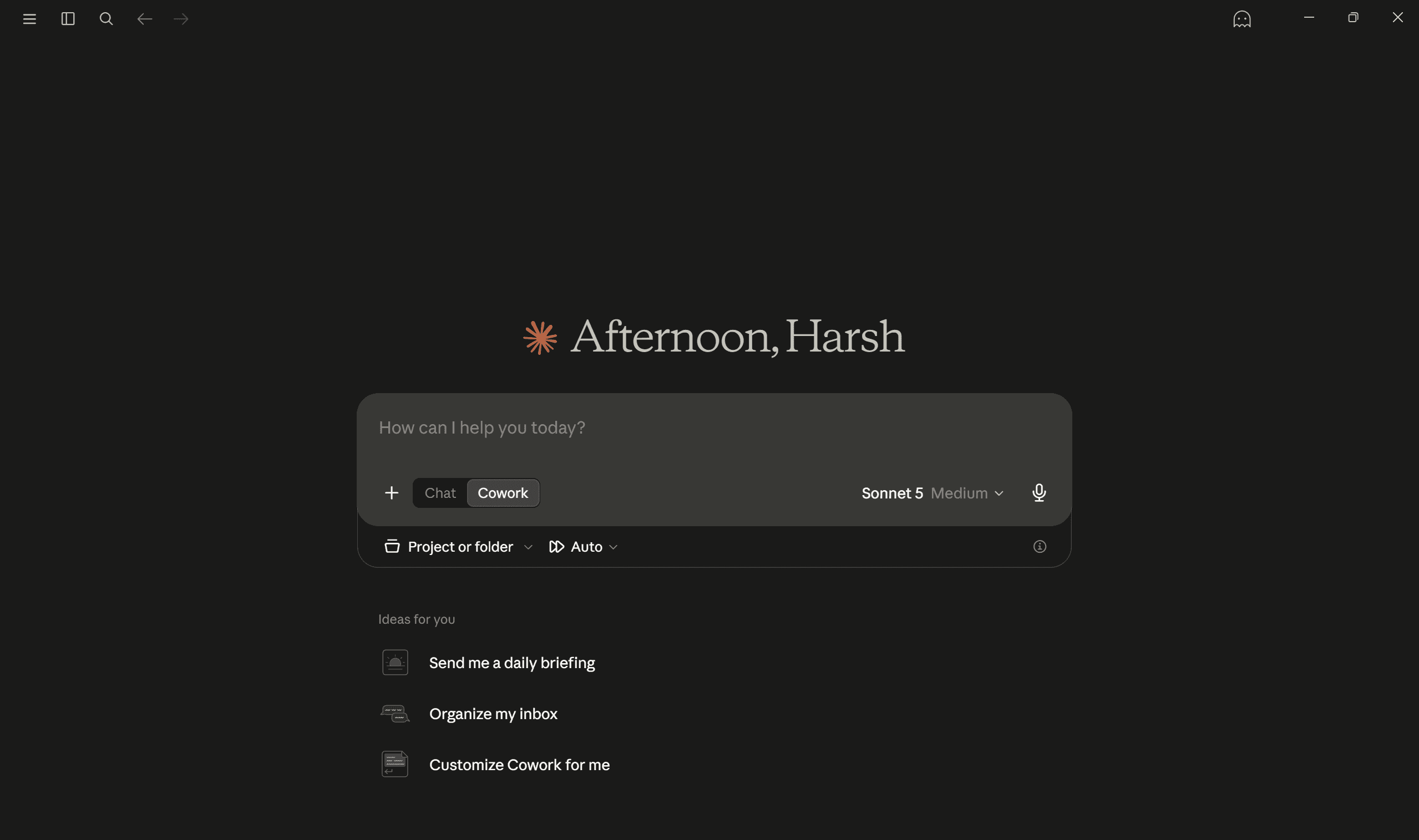
Claude Cowork is the closest direct competitor in polish and “just do the work” feel. It reads/edits local files, pulls from connected apps, plans multi-step tasks, and returns finished reports, spreadsheets, or organised folders.
It became popular for the same executive/knowledge-worker use cases that ChatGPT Work targets. The experience is refined, but it sits inside Anthropic’s ecosystem, and the higher usage tiers carry a meaningful monthly cost, especially for heavy tool/browser use.
Pricing
Tied to Claude’s Max / higher plans (commonly cited in the $100–$200 range for intensive users, similar structure to OpenAI Pro).
Usage of agentic features consumes limits faster, the point where ChatGPT Work wins.
Pros
Polished, effective for finished deliverables.
Strong file and app handling for non-technical users.
Clear approval-style checkpoints in many flows.
Cons
Cloud processing and data sent to Anthropic.
Model lock-in and higher-tier pricing for heavy use.
Less flexibility than pure local/open options.
Related: Best Claude Cowork alternatives
How to install
Open Claude on the web at claude.ai, in the Claude Desktop app, or in the Claude mobile app.
In the message box, select "Cowork."
Describe the task you want Claude to complete.
Review Claude's approach, then let it run.
Ensure you set your permission to “Manual”, so that you stay in control.
Learn more at Claude Cowork docs.
2. Kimi Work
Local desktop AI agent with Agent Swarm for parallel multi-step work.
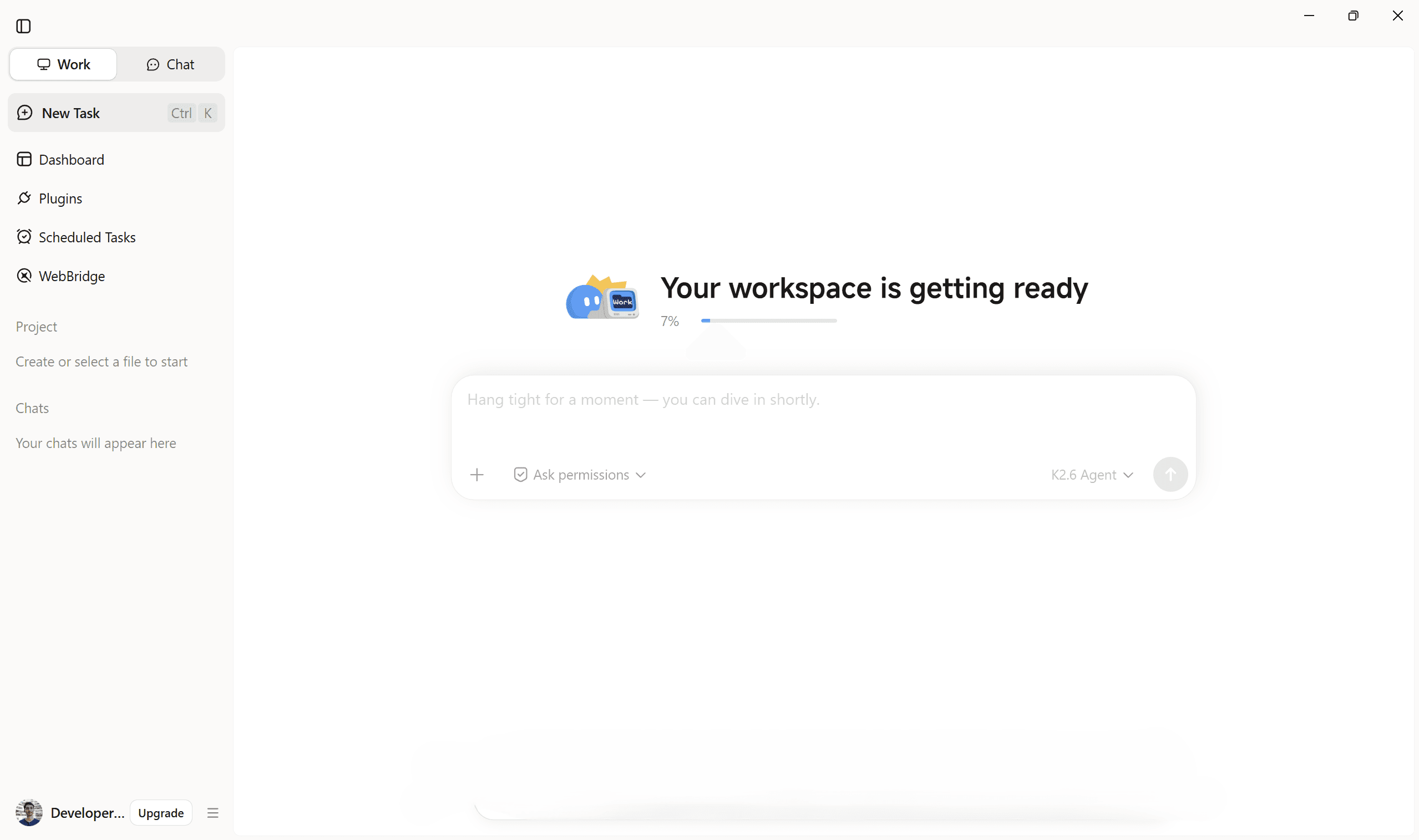
Kimi Work is Moonshot AI’s local desktop agent. You can give it a goal, and it works directly on your machine.
Functionalities include: reading local files, driving your real browser through the WebBridge extension, running Python in the background, and handling scheduled tasks.
However, I found its standout feature is Agent Swarm, which can spin up to 300 sub-agents in parallel to break complex jobs into smaller parts and complete them faster.
The best part is it asks for approval before modifying files or taking consequential actions by default, though you can tweak as needed. Available for macOS (Apple Silicon) and Windows.
Pricing
The desktop app itself is free to download.
Heavy or continuous use is tied to Kimi’s subscription plans (a free tier is available with limits; paid plans start at around $19/month for higher capacity).
You can also point it at local models in some setups, which reduces ongoing costs.
Pros
Files and browser sessions stay on your machine. (Truly local)
Agent Swarm (up to 300 parallel agents) is strong for large research or multi-part tasks.
Built-in scheduling, browser automation, and local file access.
Approval checkpoints before file changes or web actions.
Cons
Performance depends on your local hardware when running many agents.
Still relatively new, so the ecosystem and polish are behind Claude Cowork or ChatGPT Work.
Windows support exists, but macOS (Apple Silicon) is the more mature path.
Heavy usage can push you into paid Kimi plans.
How to install
Download the desktop app from the official Kimi Work page (macOS Apple Silicon is the primary target; Windows is available too).
Install and grant folder access when prompted.
Connect your Kimi account or configure access to local models.
Enable the WebBridge browser extension for full web automation.
Start by giving it a clear outcome and approving actions as needed.
Simple prompt template you can follow:
I want [clear finished outcome]. Constraints: [any hard limits/style/files/tools]. Ask before [risky actions].

<p>/goal → for continuous iteration using agent swarms.</p>
Learn more at:
Official Kimi Work page · Moonshot AI announcement coverage · Kimi main site
3. OpenWorker
Local-first, open-source AI coworker for private, model-flexible work.
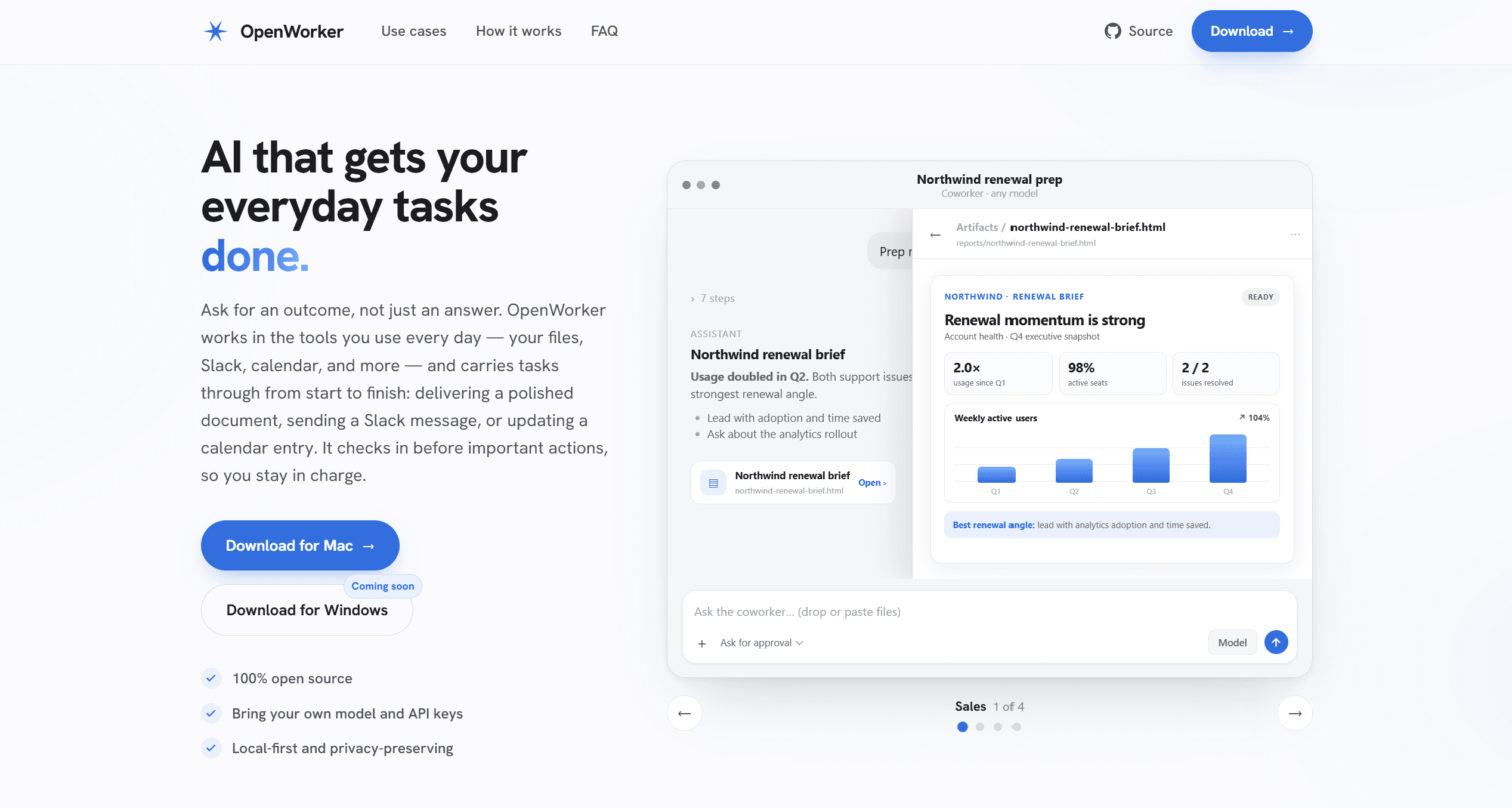
OpenWorker is an open-source desktop agent from Andrew Ng that focuses on delivering finished outcomes rather than chat replies.
It works across local files, the terminal, and connected tools (Slack, email, calendar, etc.), plans the steps, executes them, and pauses for approval before taking consequential actions.
Credentials stay on-device; data only leaves through the model providers and integrations you explicitly choose. You can point it at OpenAI, Anthropic, Google, or open-weight models, or run it fully locally via Ollama.
Pricing
App itself: free and open source, no subscription.
Model usage: bring your own keys and pay the provider directly (or zero recurring model cost with local Ollama).
Total cost is usage-dependent.
See the official OpenWorker website for current availability.
Pros
Free, open source, local-first.
Strong model flexibility and on-device credential storage.
Explicit approval checkpoints.
Produces finished deliverables.
Cons
You manage and pay for model access yourself.
Setup is more hands-on than a fully managed cloud product.
Windows support is still rolling out / limited at the time of testing; macOS is the primary option.
How to install
You can download a pre-built macOS binary from https://download.openworker.com/mac (signed/notarized, auto-updates).
Or clone https://github.com/andrewyng/openworker and follow the bootstrap script for source builds (Python/Node/Rust prerequisites).
Not available for Windows yet
Learn more: Launch post · Official website
4. Microsoft 365 Copilot Cowork
Enterprise AI coworker built for end-to-end work across Microsoft 365.

Microsoft 365 Copilot Cowork is the agentic mode inside Microsoft 365 Copilot.
You describe the outcome, and it works across Outlook, Teams, Word, Excel, PowerPoint, calendar and files to complete multi-step tasks: drafting and sending emails, scheduling meetings, creating documents, posting updates, and managing work.
It remains grounded in your organisation’s Microsoft 365 data and requests approval before taking consequential actions. It’s the strongest option if your company already runs on Microsoft 365, because the context and integrations are native rather than bolted on.
Pricing
Requires a Microsoft 365 Copilot licence (typically $18–$30 per user/month as an add-on, depending on the Business or Enterprise plan).
Some agentic usage is metered through Copilot Credits, so heavy multi-step work can incur additional costs beyond the base licence.
You also need an eligible Microsoft 365 base plan.
Pros
Deep native integration with Outlook, Teams, Word, Excel, PowerPoint and Microsoft 365 data.
Strong organisational context through Microsoft Graph.
Built-in approval checkpoints and admin controls.
Best fit for companies already standardised on Microsoft 365.
Cons
Requires a paid Microsoft 365 Copilot licence.
Usage-based credits make the total cost less predictable for heavy users.
Limited model flexibility compared with open-source options.
Mostly useful only if you’re already inside the Microsoft ecosystem.
How to install
Get an eligible Microsoft 365 Copilot licence (admin usually handles this).
Once the licence is assigned, open the Microsoft 365 Copilot app (desktop or web).
Switch to Cowork mode using the toggle in the interface.
Admins may need to enable it in the Microsoft 365 admin centre if it is not already visible.
Learn more:
Official Microsoft announcement · Microsoft Learn documentation · Adoption resources
5. Perplexity Computer
Multi-model computer agent strong on research and long-running workflows.
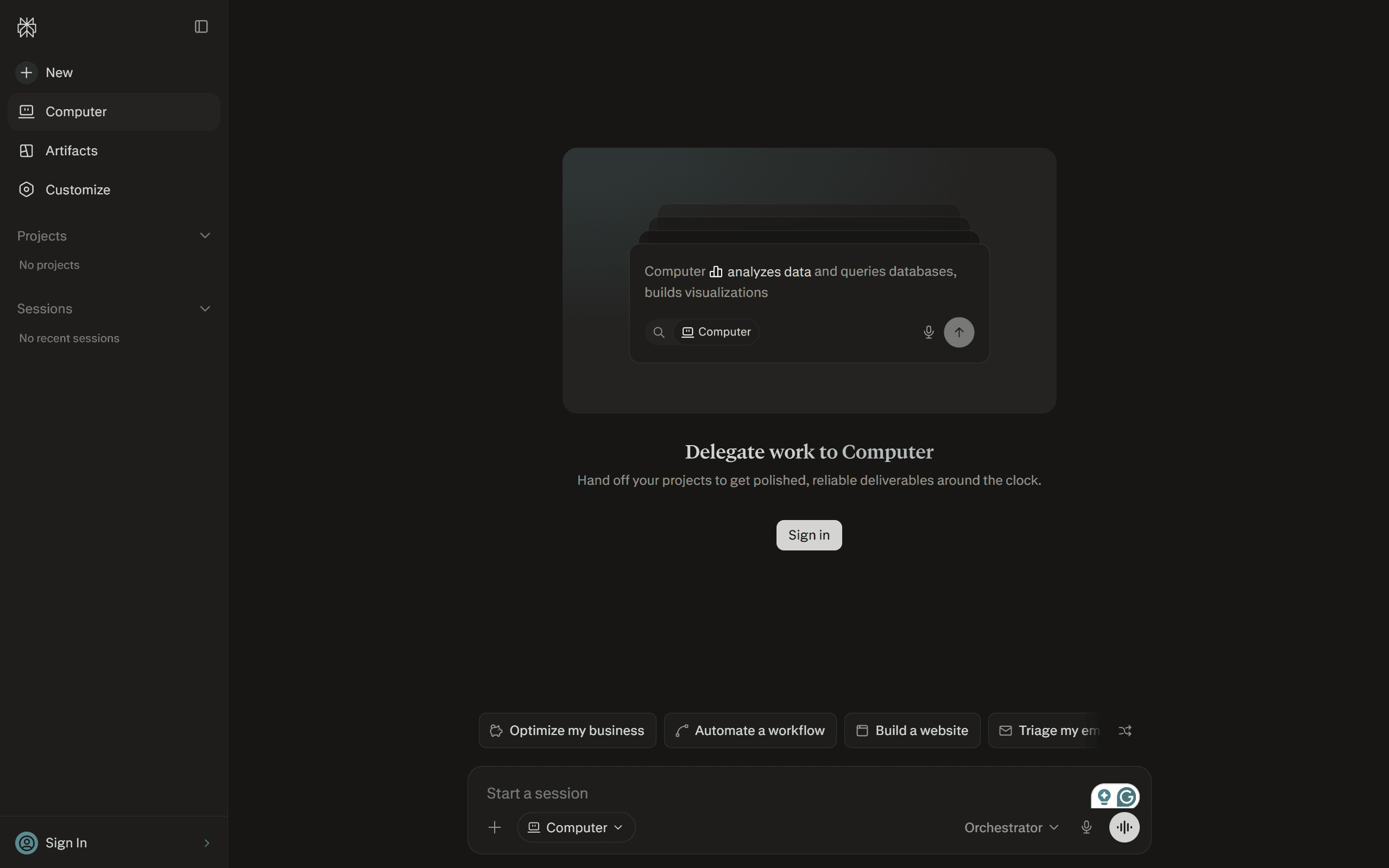
Perplexity Computer is built for deep research, browser automation, and background execution. It decomposes goals, spins up sub-agents, can run for extended periods, and returns polished, cited outputs.
It orchestrates multiple frontier models rather than locking you to one family. Best when research quality and long-horizon tasks matter more than pure local control.
Pricing
Pro ($20/month) gives access + credits.
Max ($200/month) for higher capacity and more Computer credits.
Credit consumption can climb quickly on intensive browser/research runs. Enterprise options exist.
Pros
Excellent research + citations.
Multi-model orchestration and background agents.
Strong deliverable quality on research-heavy work.
Cons
Credit-based costs can be hard to predict.
Primarily cloud-managed (less local control).
Desktop permissions and companion browser setup add friction.
How to install
Download the Perplexity desktop app,
Enable Computer Use,
Grant necessary permissions, and
Connect tools.
Pair with the companion browser for full automation.
The process requires more effort than ChatGPT work and Claude Cowork, but it’s a one-time effort.
In my analysis, Perplexity is quite good at research-related tasks, as it pulls very deep connections for analysis and presents findings from a layman’s perspective.
Learn more: Official website
6. Hermes Agent
Self-hosted, self-improving autonomous agent for technical users.
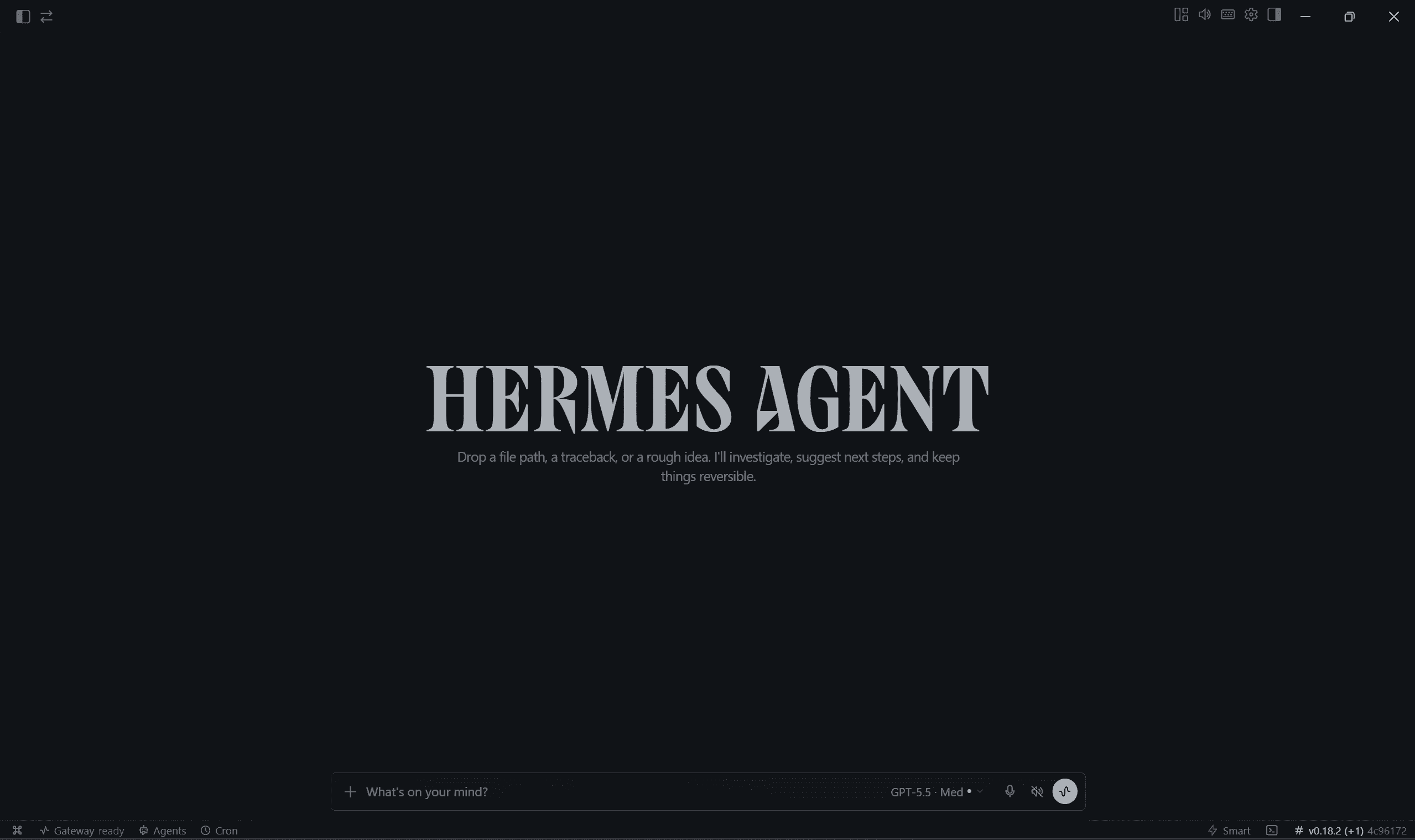
Hermes Agent (Nous Research) is an open-source, model-agnostic agent built around persistent memory plus a learning loop that creates and improves skills over time.
It runs locally, on a VPS, or other infrastructure and can be reached via Telegram, Discord, Slack, CLI, etc. Strong when you want scheduled/always-on work and maximum control.
Recently, found that founders are using Hermes agent as their cofounder to run their business. Source
Pricing
Software: free / MIT.
Optional Nous Portal tiers for credits, or bring your own provider (OpenRouter, Anthropic, OpenAI, local, etc.).
Hosting (VPS) is separate if you want always-on.
Pros
Free, open source, highly customisable.
Persistent memory and skill improvement across sessions.
Flexible deployment and chat interfaces.
Cons
Steeper setup and ongoing maintenance.
Security/approvals depend on how you configure it.
Less “out-of-the-box polished” for non-technical users.
How to install
Linux / macOS / WSL2 / Termux: Run curl -fsSL https://hermes-agent.nousresearch.com/install.sh | bash
Windows (native PowerShell): Run iex (irm https://hermes-agent.nousresearch.com/install.ps1)
After install, run hermes setup (or hermes model) to configure your LLM provider, then hermes to start.
However, if you are starting out / non-technical, I will suggest starting with Hermes Desktop.
Learn more: Official website
7. Rowboat
Local-first AI coworker centred on a persistent, editable knowledge graph.
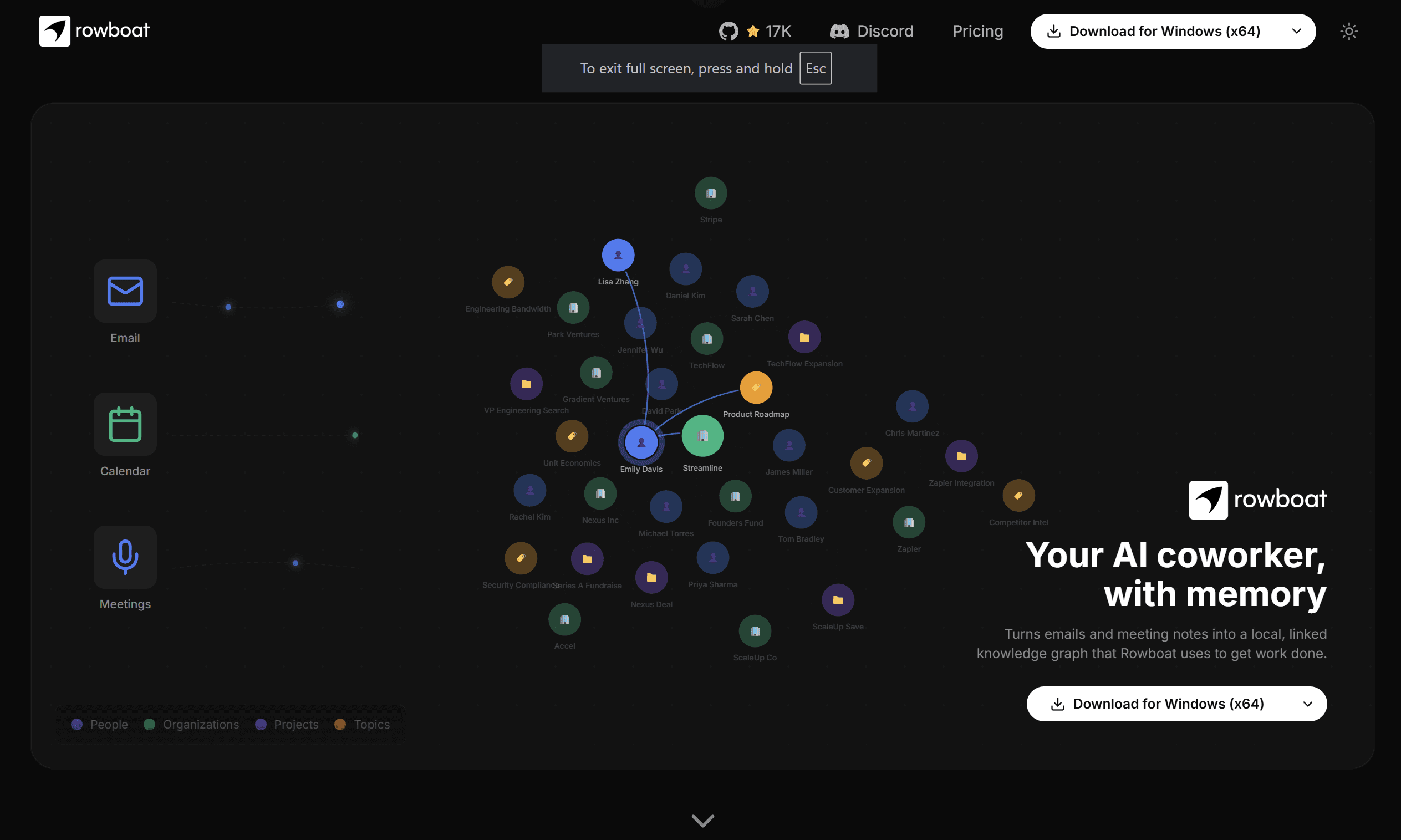
Rowboat turns emails, meeting notes, projects, and other sources into an Obsidian-compatible Markdown knowledge graph, then uses that context to complete work. Supports hosted and local models (Ollama/LM Studio). Good when long-term memory of your actual work history is the missing piece.
Pricing
Open-source option available.
Hosted plans start lower (Starter around $14; Pro higher), with model/usage costs billed separately. Local models reduce provider spend.
Pros
Persistent, editable, portable memory.
Local-first options and model choice.
Background agents and integrations.
Cons
Quality depends heavily on the knowledge graph you build.
Initial connector and model setup required.
Multiple cost layers possible (plan + models + extras).
How to install
You can download the latest Mac/Windows/Linux release from https://www.rowboatlabs.com/downloads or https://github.com/rowboatlabs/rowboat/releases/latest.
For Google services (Gmail/Calendar/Drive), follow the setup guide in the repo’s google-setup.md.
Optionally add API keys for Deepgram (voice input), ElevenLabs (voice output), Exa (web search), or Composio (1000 + tools) in
~/.rowboat/config/files.
Learn more: Launch post by Akshay · GitHub
8. OpenWork
Open-source desktop coworker focused on shareable skills, workflows, and local automation.
OpenWork is a separate open-source desktop app (not the same as OpenWorker) aimed at individuals and teams who want local file access, broad model support (50+ LLMs via BYO keys), and easy packaging/sharing of skills, MCP servers, plugins, and configs. Team tiers add distribution and governance without forcing pure cloud deployment.
Pricing
Solo: free and open source.
Team Starter: low per-seat cost (first seats often free).
Enterprise: custom.
Model usage is always separate.
Pros
Free core + local file control.
Excellent model flexibility and shareable workflows.
Team-friendly without mandatory cloud lock-in.
Cons
Configuration of keys and providers is on you.
More technical than fully managed products.
Some collaboration features are available only on paid plans.
How to install
Paste this prompt into Claude Code, Cursor, Codex, or any command-capable agent:
Install OpenWork on my computer, set up my first workspace, and open it ready to use. Follow the steps in https://openworklabs.com/start.md?v=hero.
```
Or download directly from https://openworklabs.com/download.
You can also use this one with Claude or Codex using MCP.
For MCP integrations:
### codex
codex mcp add openwork --url <a href="https://api.openworklabs.com/mcp/agent">https://api.openworklabs.com/mcp/agent</a>
codex mcp login openwork<p></p>
<h3>claude</h3>
<p>claude mcp add --transport http openwork <a href="https://api.openworklabs.com/mcp/agent">https://api.openworklabs.com/mcp/agent</a></p>
Open Claude Code and run
/mcp.Select
openwork, then follow the browser sign-in and choose your organisation.
For other clients, check out the docs.
Learn more: Y Combinator post · Official website · Creator explainer
Connect Any Coworker to the apps your business uses in 2 minutes
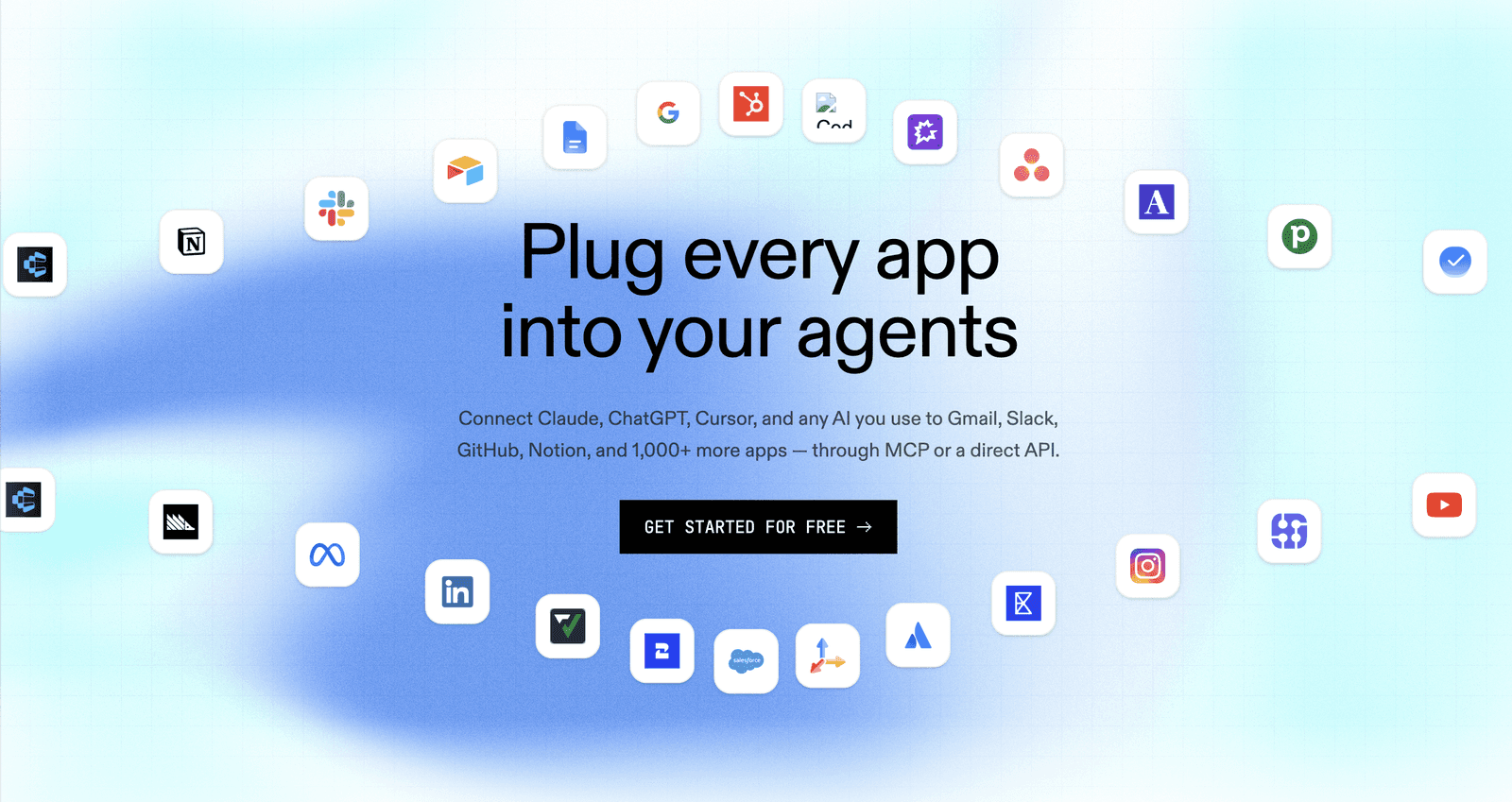
Most of these agents need to interact with the real world, and you already know the hassle of connecting multiple tools, adding API keys, managing context, and writing tool-calling prompts. What if all this can be automated?
That’s where Composio comes in: it offers a unified interface that lets businesses connect to 1000+ tools via verified & secure OAuth, handles tool calls intelligently, manages tool context, provides observability through the Composio dashboard, and ships with its own CLI & Skill.
You can install it with any knowledge worker and get started.
These were my top alternative recommendations to ChatGPT Work; however, let’s look at how you can pick one that matches your needs.
How to choose your ChatGPT Work alternative
Match the tool to the constraint that actually matters to you:
Want the lowest cost and strongest local control, and you are fine managing keys → start with OpenWorker.
Want the most polished non-technical experience and are already comfortable with Anthropic pricing → Claude Cowork.
Research depth, citations, and long background runs are the priority → Perplexity Computer.
You are technical and want persistent memory plus self-hosting → Hermes Agent.
You care most about a living, editable record of your past work → Rowboat.
You want open-source desktop control plus easy sharing of skills and workflows → OpenWork.
Decision Factor Test
If you are still not sure, take this approach, which I call the decision factor test.
Run the same real multi-step task through your top two choices.
Look at the:
final output quality,
the true monthly cost once tokens or credits are included,
how much data your machine left, and
how much configuring time the tool required.
This single test will help you decide more than any feature comparison tables available online.
Closing
The agentic layer is no longer experimental. You can stay in a polished, closed system when convenience and integrations matter most, or move to tools that give you more control over cost, data, and model choice. Both paths are viable now.
The expensive monthly bill and the single-provider data path are no longer the only realistic options. Test a couple of the alternatives on work you actually care about, keep the ones that reduce friction without creating new headaches, and ignore the rest.
The tooling is still moving quickly; the right mix this month may look different in ninety days. Pick one, run a real task, and decide from the results rather than the tables.

 Get started



