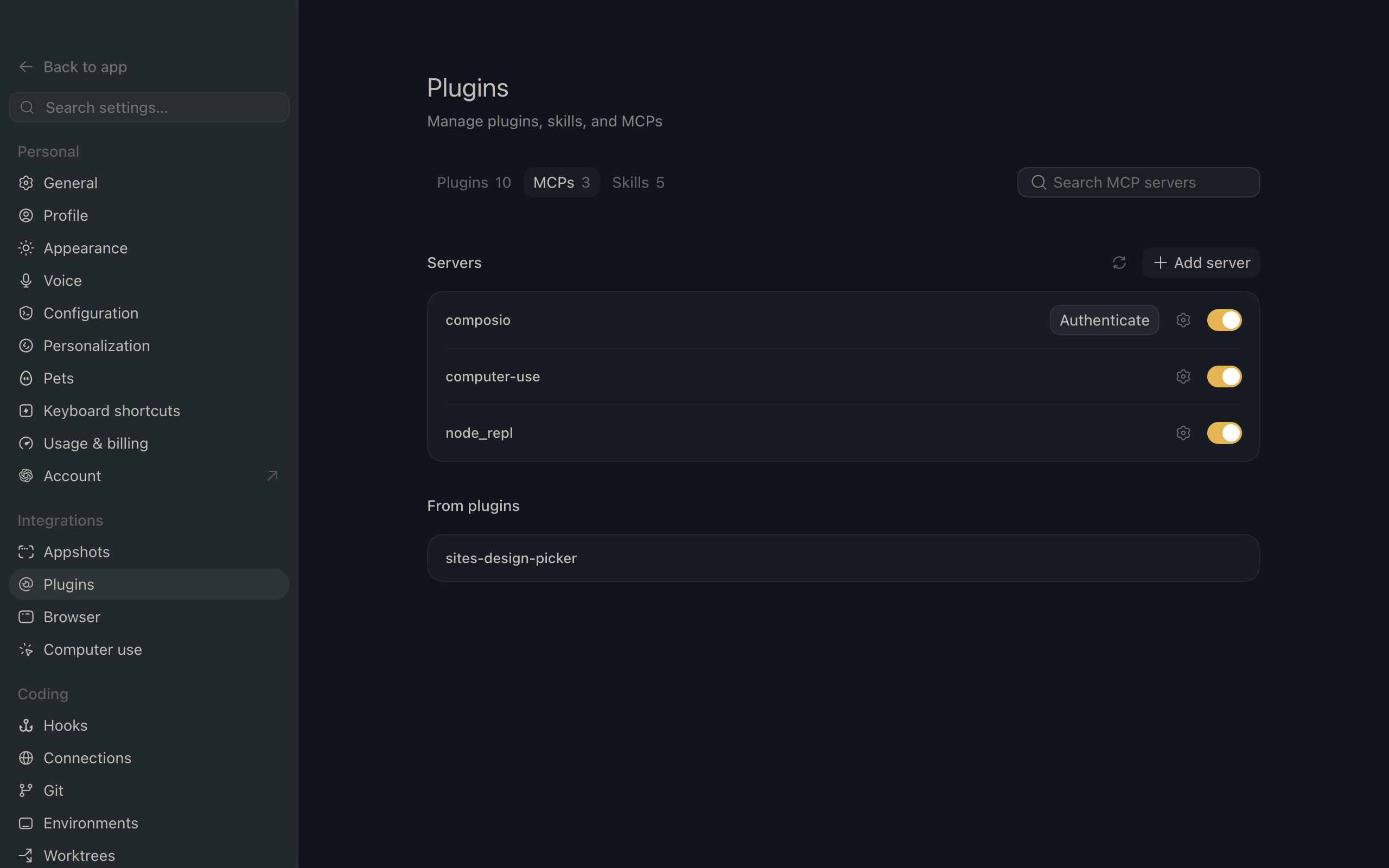
How to integrate Typeform MCP with ChatGPT

Trusted by teams atAWSGleanZoomAirtable

30 min · no commitment · see it on your stack

Typeform logo
ChatGPT logo
divider

How to integrate Typeform MCP with ChatGPT

ChatGPT is one of the most popular AI tools today, with capabilities ranging from deep research and image generation to writing, coding, and everyday productivity.

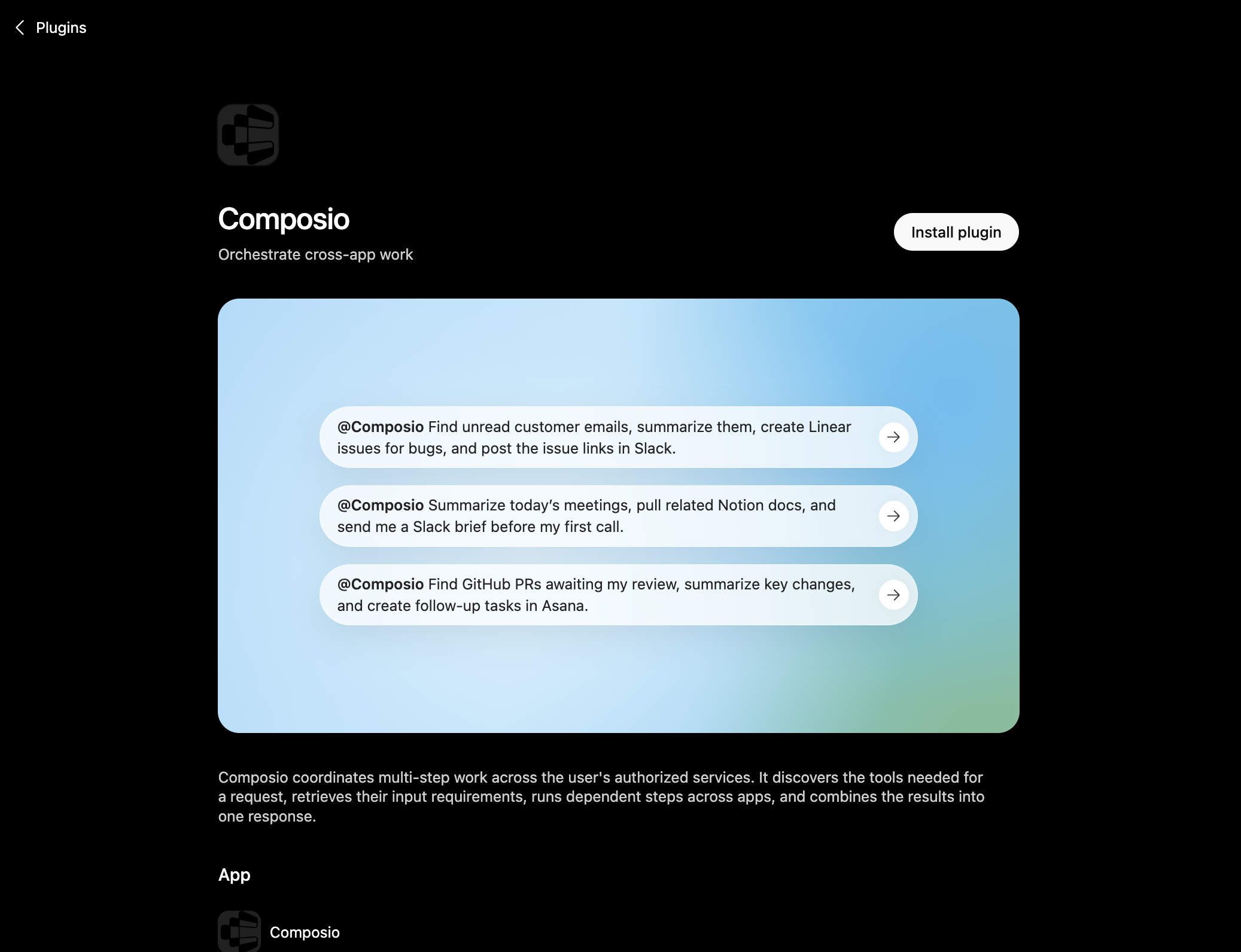
In this guide, I will explain the easiest and most secure way to connect your Typeform account to ChatGPT via Composio Connect, so it can summarize unread updates from this morning, create draft replies to urgent messages, fetch contact details for recent senders, and more without ever putting your account credentials at risk.

Also integrate Typeform with

Why use Composio over default connectors?

  • Apps with read and write access. Default connectors mostly can read your data. Composio's Typeform integration lets ChatGPT take actions like creating drafts, sending updates, labeling records, and more.
  • 1,000+ SaaS toolkits out of the box. Composio gives you instant access to a vast catalog of pre-built connectors, from Gmail and Slack to Notion, Linear, and Salesforce.
  • One MCP server for every app. Connect any of your applications on demand through a single endpoint, rather than juggling a separate server for each app.
  • Smart, context-aware tool loading. Unlike traditional MCP servers that dump every available tool into the LLM context window, Composio searches for and loads only the tools relevant to the task at hand.
  • Cross-app automation. Chain actions across multiple apps in a single run - fetch a thread, summarize it in Notion, and post highlights to Slack without leaving the conversation.

Prerequisites

  • A ChatGPT account with Plus subscription or higher (Business, Enterprise, Edu, or Pro). We will use ChatGPT Web.
  • Access to the Typeform workspace you want to connect.
  • Composio MCP.

Note: Composio connects through OAuth. You will be asked to sign in and approve specific permissions. Review the permission screen carefully if you are using a work account.

Step-by-step: Connect Typeform to ChatGPT

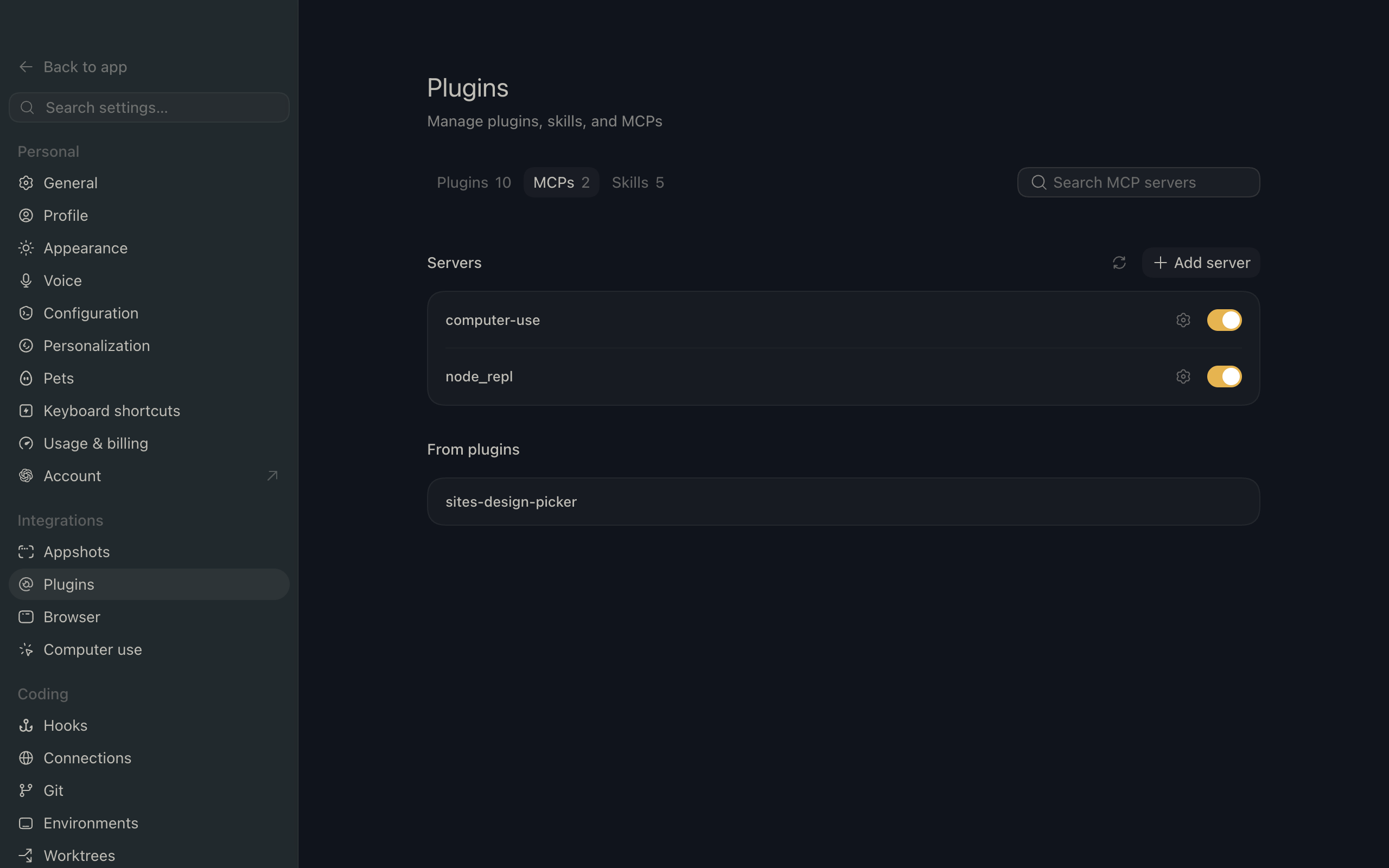
1. Enable Developer Mode

In ChatGPT, go to Settings > Apps > Advanced settings and turn on Developer Mode.

ChatGPT settings showing Developer Mode toggle

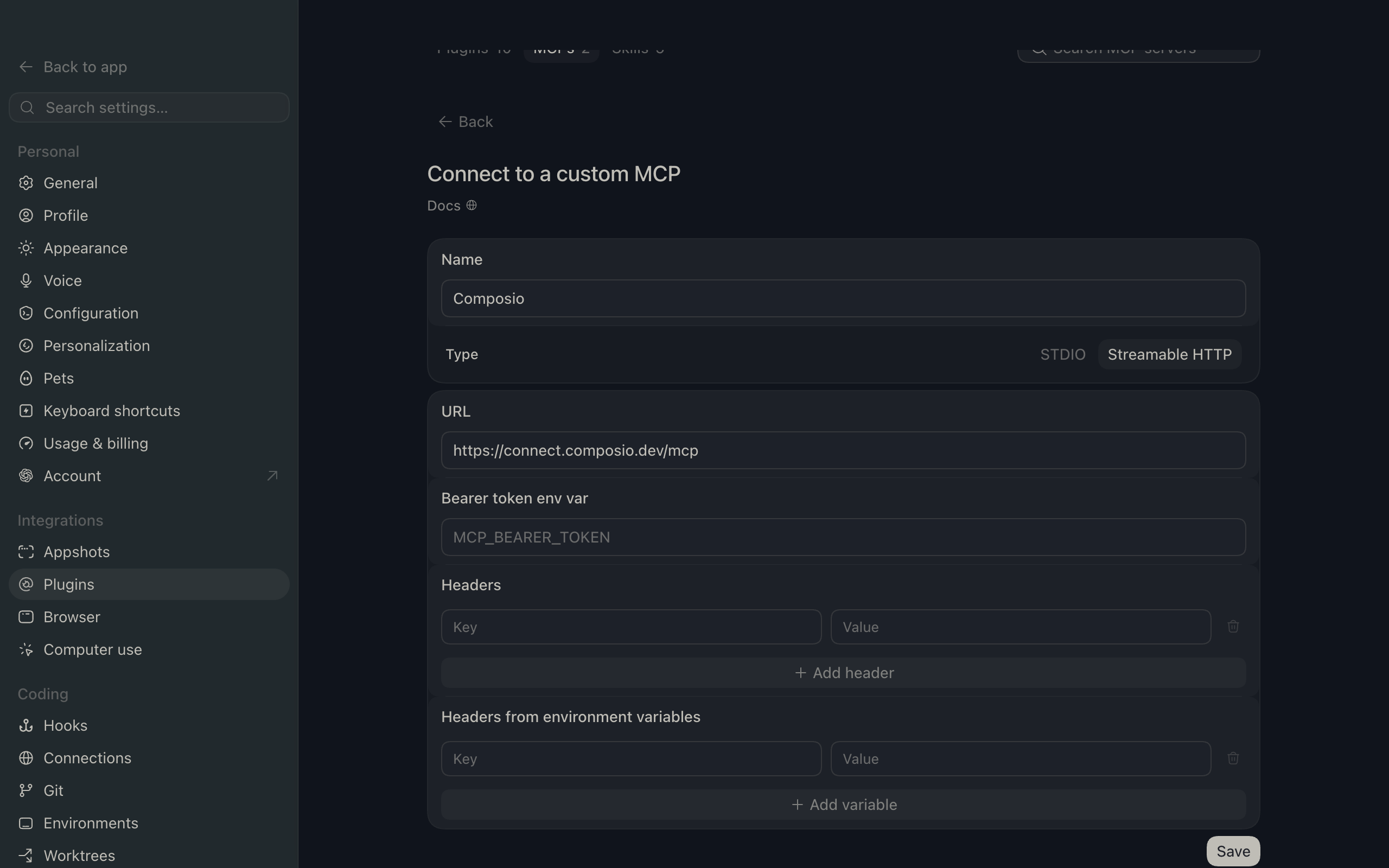
2. Add the MCP server

Click Create app, then paste the Composio MCP server URL:

bash
https://connect.composio.dev/mcp
ChatGPT create app flow with Composio MCP URL

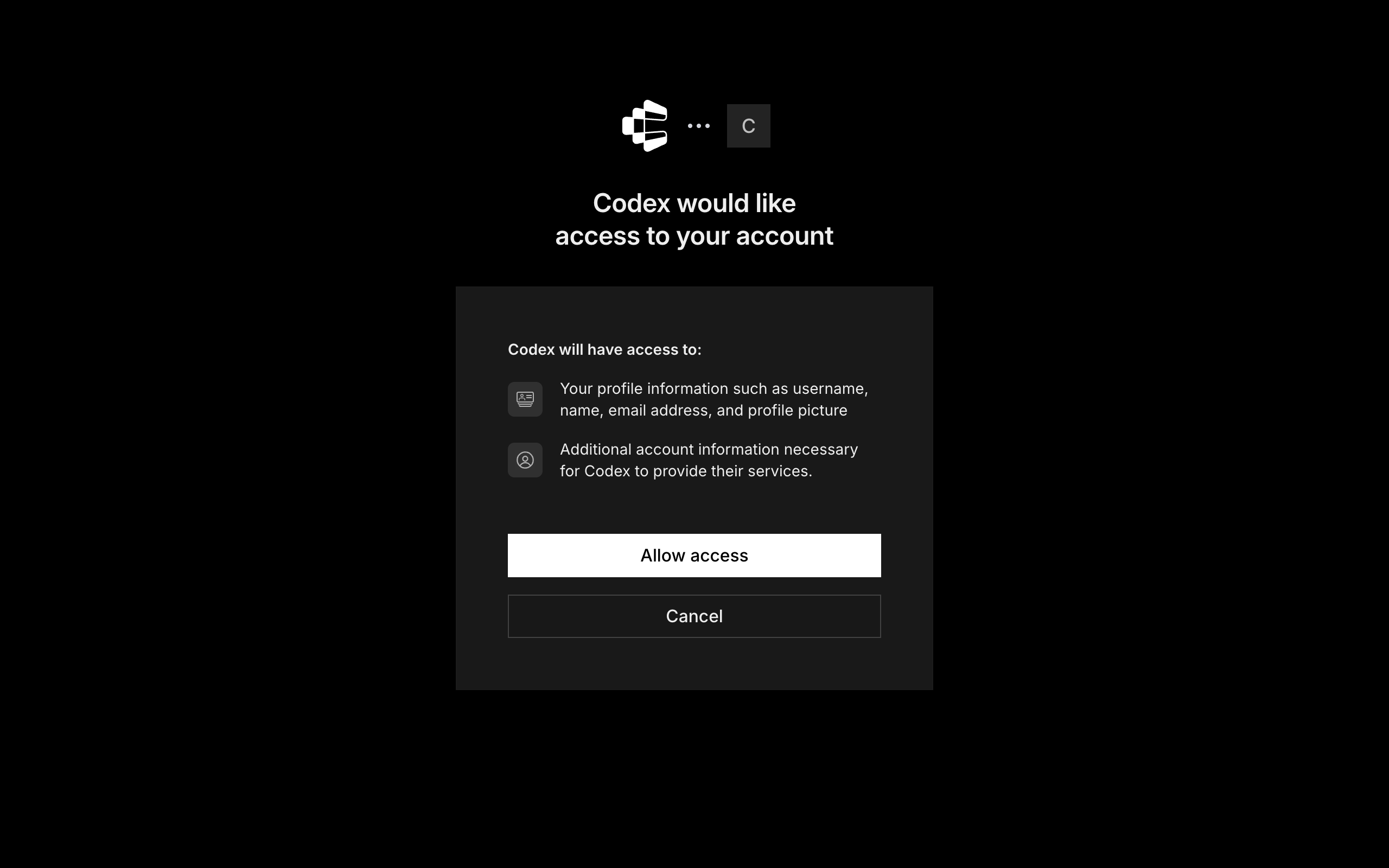
3. Authorize in your browser

A browser window will open automatically. Sign in to authorize ChatGPT to access your Composio account.

Composio authorization screen for ChatGPT MCP setup

4. Start using Composio

Composio tools are now available in ChatGPT chats and Deep Research. In every new chat, click the + icon at the bottom, click More, and select Composio to enable tools for that conversation.

What you can do after connecting Typeform

  • List all recent responses for a form
  • Create a new form for event signup
  • Export submissions from your survey to CSV

Security + privacy notes (important)

  • Use least-privilege access: Only grant permissions you actually need.
  • Review OAuth permissions before approving: Make sure requested scopes match what you expect Composio and ChatGPT to do.
  • Keep write actions human-reviewed: For actions like sending messages, creating labels, or editing drafts, keep manual confirmation enabled.
  • Be careful with sensitive data: Avoid using this setup with highly sensitive information unless allowed by your personal, company, or client policies.

Supported Tools & Triggers

Tools
Create Account WorkspaceTool to create a new workspace in a specific Typeform account.
Create FormTool to create a new Typeform form with customizable fields, logic, and settings.
Create ImageTool to upload a new image to your Typeform account via base64 encoding or URL.
Create or Update WebhookTool to create a new webhook or update an existing one for a specified Typeform.
Create ThemeTool to create a new custom theme in Typeform with colors, fonts, background, and layout settings.
Create WorkspaceTool to create a new workspace in Typeform.
Delete FormTool to permanently delete a Typeform and all of its responses.
Delete ImageTool to delete an image from your Typeform account.
Delete ResponsesTool to delete specific responses from a Typeform by response IDs.
Delete ThemeTool to delete a theme from your Typeform account.
Delete WebhookTool to delete a webhook configuration from a Typeform form.
Delete WorkspaceTool to delete a workspace from your Typeform account.
Get About MeGet information about the owner account in Typeform.
Get All Response FilesTool to retrieve a compressed archive containing all files that respondents uploaded for a specified form.
Get Background By SizeTool to retrieve a background image by size from Typeform.
Get Choice Image By SizeTool to retrieve a choice image by size from Typeform.
Get FormTool to retrieve a specific form's complete configuration including fields, logic, settings, and theme.
Get Form MessagesTool to retrieve custom messages for a Typeform including button labels, error messages, and UI text.
Get Form ResponsesTool to retrieve form responses from Typeform with filtering by date, pagination, search, and response type.
Get Image By SizeTool to retrieve an image in a specific size from Typeform.
Get ThemeTool to retrieve a specific theme's configuration including colors, fonts, and layout settings.
Get WebhookTool to retrieve a single webhook by specifying both the form ID and webhook tag.
Get WorkspaceTool to retrieve detailed information about a specific workspace including its name, forms, and team members.
List FormsTool to retrieve a list of all forms in your Typeform account with filtering, pagination, and sorting options.
List ImagesTool to retrieve all images in your Typeform account in reverse-chronological order.
List Typeform ThemesTool to retrieve a paginated list of themes in your Typeform account.
List Form WebhooksTool to retrieve all webhooks associated with a specified typeform.
List WorkspacesTool to retrieve all workspaces in a Typeform account with their IDs, names, form counts, and members.
Patch FormTool to partially update a Typeform using JSON Patch operations.
Update Theme (Partial)Tool to partially update a Typeform theme by ID.
Update FormTool to update an existing Typeform by completely replacing its configuration.
Update Form MessagesTool to update custom messages for form UI elements like buttons, errors, and placeholders in Typeform.
Update ThemeTool to update a theme's complete definition in Typeform.
Update WorkspaceTool to update a workspace's name or manage team member access (add/remove members) in Typeform.
Upload VideoInitiate a video upload to Typeform by obtaining a signed upload URL.

How to build Typeform MCP Agent with another framework

FAQ

What are the differences in Tool Router MCP and Typeform MCP?

With a standalone Typeform MCP server, the agents and LLMs can only access a fixed set of Typeform tools tied to that server. However, with the Composio Tool Router, agents can dynamically load tools from Typeform and many other apps based on the task at hand, all through a single MCP endpoint.

Can I use Tool Router MCP with ChatGPT?

Yes, you can. ChatGPT fully supports MCP integration. You get structured tool calling, message history handling, and model orchestration while Tool Router takes care of discovering and serving the right Typeform tools.

Can I manage the permissions and scopes for Typeform while using Tool Router?

Yes, absolutely. You can configure which Typeform scopes and actions are allowed when connecting your account to Composio. You can also bring your own OAuth credentials or API configuration so you keep full control over what the agent can do.

How safe is my data with Composio Tool Router?

All sensitive data such as tokens, keys, and configuration is fully encrypted at rest and in transit. Composio is SOC 2 Type 2 compliant and follows strict security practices so your Typeform data and credentials are handled as safely as possible.

Used by agents from

Context
Letta
glean
HubSpot
Agent.ai
Altera
DataStax
Entelligence
Rolai
Context
Letta
glean
HubSpot
Agent.ai
Altera
DataStax
Entelligence
Rolai
Context
Letta
glean
HubSpot
Agent.ai
Altera
DataStax
Entelligence
Rolai

Never worry about agent reliability

We handle tool reliability, observability, and security so you never have to second-guess an agent action.