How to connect Mem0 to Muse

Connect Muse to Mem0 MCP. Store meeting notes from today's call, export all project memories as csv, and more using natural language, with authentication handled for you.

Mem0 logoMem0
Api Key

Mem0 is an AI-powered note-taking and knowledge management platform. It helps you organize, search, and generate content from your personal knowledge base.

47 Tools

Introduction

Muse is Meta's AI assistant. It can connect to outside tools through custom connectors, which use the Model Context Protocol (MCP).

This guide explains how to connect Mem0 to Muse using Composio Connect, which handles OAuth, token refresh, and reliability so you do not have to. You add Composio as a custom connector once, then ask Muse to work with Mem0 in plain language.

Also integrate Mem0 with

Why use Composio?

  • Cross-app workflows across 1,500+ apps from a single plugin layer.
  • On-demand tool loading so Muse only loads the tools needed for the current task.
  • Programmatic tool calling through a remote workbench for complex, multi-step workflows.
  • Multi-account support so users can connect and switch between multiple accounts for the same app.
  • Shared account access so teams or agents can work through common business accounts and service connections.
  • Managed authentication with OAuth handling, credential storage, and token refresh managed by Composio.
  • Safer credential handling so app credentials stay outside the model context and tool responses.
  • User-level account isolation so actions run against the correct connected account instead of mixing user access.

Connecting Mem0 to Muse

You add Composio to Muse once as a custom connector, then connect Mem0 from the chat.

1. Ask Muse to connect to Composio

Start a new Muse chat and send this message. Muse builds the connector and shows a button to add your API key.

bash
Create a Custom Connector for the Composio remote MCP server and connect to it:
- Name: Composio
- Transport: remote streamable HTTP
- URL: https://connect.composio.dev/mcp
- Auth: API key sent in the x-consumer-api-key header
Open the secure credentials store so I can enter the API key there, not in this chat. Then list its tools to confirm the connection works.

2. Copy your API key

Open the Muse page in your Composio dashboard and copy your API key. It starts with ck_.

Don't paste it into the chat. It goes in Muse's secure credentials store in the next step.

3. Add your API key in the secure credentials store

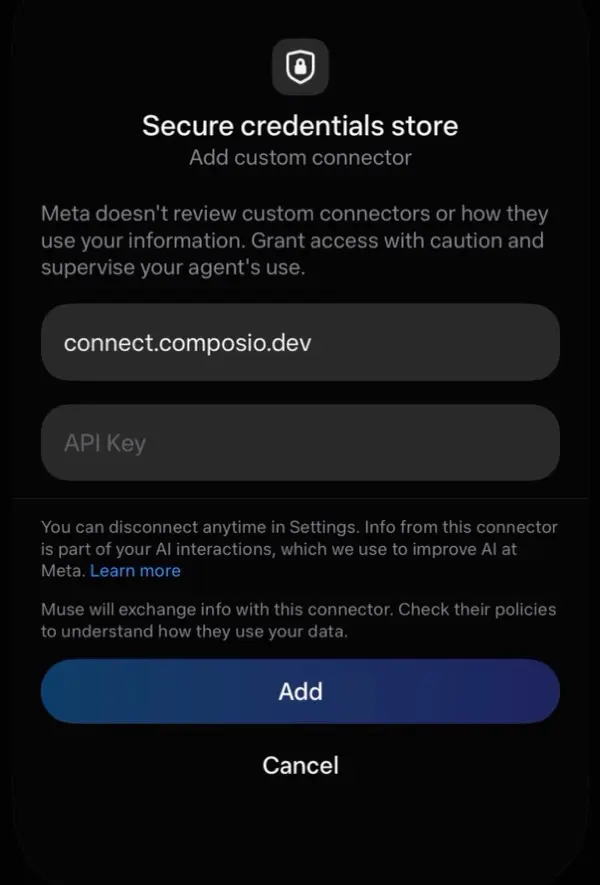
Tap the button Muse shows to open Add custom connector, paste your API key, then tap Add. Muse lists the Composio tools once it connects.

Muse secure credentials store with the connect.composio.dev URL, an API Key field, and the Add button

4. Connect your Mem0 account

Back in the chat, ask Muse to connect to Mem0 or give it any Mem0 task.

For example, ask it to:

  • "Store meeting notes from today's call"
  • "Export all project memories as CSV"
  • "Add new user to our team space"

It will prompt you to authenticate and authorize access.

That's it. Composio's tools are now available in Muse, and your Mem0 account is ready to use.

What is the Mem0 MCP server, and what's possible with it?

The Mem0 MCP server is an implementation of the Model Context Protocol that connects your AI agent and assistants like Claude, Cursor, etc directly to your Mem0 account. It provides structured and secure access to your notes, projects, and organizational knowledge, so your agent can perform actions like searching memories, managing users, adding content, and orchestrating agent runs on your behalf.

  • AI-powered memory search and recall: Let your agent search and retrieve existing memory entries using advanced filters and pagination to surface just the right note or piece of information.
  • Automated content and note creation: Have your agent store new memory records from conversations, meetings, or tasks—ensuring nothing slips through the cracks.
  • Collaboration and organization management: Direct your agent to add members to projects or organizations, assign roles, and keep team structures up to date.
  • Agent and application orchestration: Enable your agent to create new AI agents, initiate agent runs, and manage applications for custom workflows and automation.
  • Structured knowledge export and reporting: Ask your agent to initiate export jobs with specific schemas and filters, so you can back up or analyze your stored knowledge on demand.

Way Forward

Now that Mem0 is connected, extend your setup by connecting the other apps you already use every day, so Muse can run true cross-app workflows end to end.

  • Connect Calendar to turn threads into scheduled meetings automatically.
  • Connect Slack or Teams to post summaries, approvals, and alerts where your team works.
  • Connect Notion, Linear, Jira, or Asana to convert requests into tickets, tasks, and docs.
  • Connect Drive, Dropbox, or OneDrive to fetch, file, and share attachments without manual steps.

Start with one workflow you do repeatedly, then keep adding apps as you find new handoffs. With everything behind a single connection, Muse can coordinate multiple tools safely and reliably in one conversation.

Troubleshooting

1. Why doesn't Muse show a button to add my API key?

Muse shows the button only when you ask it to open the secure credentials store.

  • Start a new chat.
  • Send the message from step 1 exactly as written.
  • If Muse asks for the key in the chat, do not paste it. Ask Muse to open the secure credentials store.

2. Why does the Composio connection fail after I add my API key?

The key or the connector settings are not correct.

  • Copy the full key from the Composio dashboard. It starts with ck_.
  • Make sure the URL is https://connect.composio.dev/mcp and the header is x-consumer-api-key.
  • Remove the Composio connector in Muse settings, then do steps 1 to 3 again.

3. Why doesn't Muse use the Composio tools for Mem0?

Muse may not pick the Composio connector for the request.

  • Ask Muse to list its Composio tools.
  • Name Composio and Mem0 in your request, for example: Use Composio to connect to Mem0.
  • If it still does not work, start a new chat and try again.

4. Why does Muse ask me to connect Mem0 again?

Your Mem0 connection expired or was removed.

  • Open the link Muse gives you and sign in to Mem0 again.
  • Check that the Mem0 connection shows as ACTIVE in the Composio dashboard.

5. What do I do if I pasted my API key into the chat?

Treat the key as exposed.

  • Create a new API key in the Composio dashboard and delete the old one.
  • Add the new key in Muse's secure credentials store, not in the chat.
TOOLS

Supported Tools

Every Mem0 action and event your agent gets out of the box.

Add member to project

Adds an existing user to a project (identified by `project_id` within organization `org_id`), assigning a valid system role.

Add new memory records

Stores new memory records from a list of messages, optionally inferring structured content; requires association via `agent_id`, `user_id`, `app_id`, or `run_id`.

Add organization member

Adds a new member, who must be a registered user, to an organization, assigning them a specific role.

Create a new agent

Creates a new agent with a unique `agent_id` and an optional `name`; additional metadata may be assigned by the system.

Create a new agent run

Creates a new agent run in the mem0.

Create a new application

Creates a new application, allowing metadata to be passed in the request body (not an explicit field in this action's request model); ensure `app_id` is unique to avoid potential errors or unintended updates.

Create a new organization entry

Creates a new organization entry using the provided name and returns its details.

Create a new user

Creates a new user with the specified unique `user_id` and supports associating `metadata` (not part of the request schema fields).

Create memory entry

Lists/searches existing memory entries with filtering and pagination; critically, this action retrieves memories and does *not* create new ones, despite its name.

Create project

Creates a new project with a given name within an organization that must already exist.

Create webhook

Creates a new webhook for a specific project to receive real-time notifications.

Delete an organization

Permanently deletes an existing organization identified by its unique ID.

Delete memory by id

Permanently deletes a specific memory by its unique ID; ensure the `memory_id` exists as this operation is irreversible.

Delete entity by type and id

Call to permanently and irreversibly hard-delete an existing entity (user, agent, app, or run) and all its associated data, using its type and ID.

Delete memories

Deletes all memories matching specified filter criteria.

Delete memory batch with uuids

Deletes a batch of up to 1000 existing memories, identified by their UUIDs, in a single API call.

Delete project

Permanently deletes a specific project and all its associated data from an organization; this action cannot be undone and requires the project to exist within the specified organization.

Delete project member

Removes an existing member, specified by email address, from a project, immediately revoking their project-specific access; the user is not removed from the organization.

Delete webhook

Deletes a webhook and stops receiving notifications for the specified webhook ID.

Export data based on filters

Creates a new memory export job with optional entity filters (user_id, agent_id, app_id, run_id).

List organizations

Retrieves a summary list of organizations for administrative oversight; returns summary data (names, IDs), not exhaustive details, despite 'detailed' in the name.

Fetch details of a specific organization

Fetches comprehensive details for an organization using its `org_id`; the `org_id` must be valid and for an existing organization.

Get list of entity filters

Retrieves predefined filter definitions for entities (e.

Get entity by id

Fetches detailed information for an existing entity (user, agent, app, or run) identified by its type and unique ID.

Get event status by event ID

Retrieves a single async event by ID to check its current status and results.

Get memories by entity

Tool to retrieve all memories associated with a specific entity (user, agent, app, or run).

Get memory export

Retrieves the status and results of a memory export job by its ID.

Get organization members

Fetches a list of members for a specified, existing organization.

Get project details

Fetches comprehensive details for a specified project within an organization.

Get project members

Retrieves all members for a specified project within an organization.

Get projects

Retrieves all projects for a given organization `org_id` to which the caller has access.

Get project webhooks

Retrieves all webhooks configured for a specific project.

Get user memory stats

Retrieves a summary of the authenticated user's memory activity, including total memories created, search events, and add events.

List entities

Retrieves a list of entities, optionally filtered by organization or project (prefer `org_id`/`project_id` over deprecated `org_name`/`project_name`), noting results may be summaries and subject to limits.

Perform semantic search on memories

Searches memories semantically using a natural language query and metadata filters.

Remove a member from the organization

Removes a member, specified by their username, from an existing organization of which they are currently a member.

Retrieve all events for the currently logged in user

Retrieves a paginated list of events for the authenticated user, filterable and paginable via URL query parameters.

Retrieve list of memory events

Retrieves a chronological list of all memory events (e.

Retrieve memory by id

Retrieves a complete memory entry by its unique identifier; `memory_id` must be valid and for an existing memory.

Retrieve memory history by id

Retrieves the complete version history for an existing memory, using its unique `memory_id`, to inspect its evolution or audit changes.

Retrieve memory list

Retrieves a list of memories, supporting pagination and diverse filtering (e.

Search memories with filters

Semantically searches memories using structured filters with an optional natural language query.

Update memory batch with uuid

Updates text for up to 1000 memories in a single batch, using their UUIDs.

Update memory text content

Updates the text content of an existing memory, identified by its `memory_id`.

Update organization member role

Updates the role of an existing member to a new valid role within an existing organization.

Update project

Updates a project by `project_id` within an `org_id`, modifying only provided fields (name, description, custom_instructions, custom_categories); list fields are fully replaced (cleared by `[]`), other omitted/null fields remain unchanged.

Update project member role

Updates the role of a specific member within a designated project, ensuring the new role is valid and recognized by the system.

FAQ

Frequently asked questions

Yes. Muse supports custom connectors that use the Model Context Protocol (MCP). Composio connects as one custom connector over remote streamable HTTP at https://connect.composio.dev/mcp, and gives Muse access to Mem0 and 1,500+ other apps.

Copy it from the Composio dashboard. It starts with ck_. Enter it only in Muse's secure credentials store, never in the chat.

Yes. Composio supports multiple connected accounts for the same app. Give each Mem0 connection a name, such as work or personal, and tell Muse which one to use.

Tokens, keys, and configuration are encrypted at rest and in transit. Your Composio API key stays in Muse's secure credentials store, not in the chat or the model context. Composio is SOC 2 Type 2 compliant.

Start with Mem0.It takes 30 seconds.

Managed auth, hosted MCP servers, and every Mem0 tool your agent needs.Free to start.

Start building