How to integrate Google Calendar MCP with Kimi Code

Trusted by
AWS
Glean
Zoom
Airtable

30 min · no commitment · see it on your stack

Google Calendar logo
Kimi Code logo
divider

How to integrate Google Calendar MCP with Kimi Code

Kimi Code is Moonshot AI's open-source coding agent, powered by Kimi K2.6. It runs in your terminal, reads and edits code, executes shell commands, and plans multi-step tasks, with native MCP support for extending it to outside tools.

In this guide, I will explain the easiest and most secure way to connect your Google Calendar account to Kimi Code via Composio Connect, so it can create a meeting with the marketing team, list all events scheduled for next week, delete tomorrow’s canceled event from your calendar, and more without ever putting your account credentials at risk.

Also integrate Google Calendar with

Why use Composio?

Composio provides:

  • Access to 1,000+ managed apps from a single MCP endpoint. This makes it convenient for agents to run cross-app workflows.
  • Managed OAuth. You do not have to worry about authentication and authorization flows for every app.
  • Programmatic tool calling. Allows LLMs to write code in a remote workbench to handle complex tool chaining. This reduces back-and-forth for frequent tool calls.
  • Large tool response handling outside the LLM context. This minimizes context bloat from large tool responses.
  • Dynamic just-in-time access to thousands of tools across hundreds of apps. Composio loads the tools your agent needs, so LLMs are not overwhelmed by tools they do not need.

Connect Google Calendar to Kimi Code

Kimi Code is a TypeScript agent distributed through npm. It acts as an MCP client and reads server definitions from an mcp.json file, and it can also add and authenticate servers conversationally through /mcp-config. Composio is a remote HTTP server that authenticates with OAuth, so no API key is stored anywhere.

1. Install Kimi Code

The quickest way is the official install script, which requires no pre-installed Node.js and places the kimi executable on your PATH.

bash
# macOS or Linux
curl -fsSL https://code.kimi.com/kimi-code/install.sh | bash

# Windows PowerShell
irm https://code.kimi.com/kimi-code/install.ps1 | iex

# Confirm the installation
kimi --version

2. Log in

Start Kimi Code in your project directory, then sign in from the interactive UI:

bash
kimi

Run /login and choose Kimi Code OAuth using the device-code flow, or use a Moonshot API key.

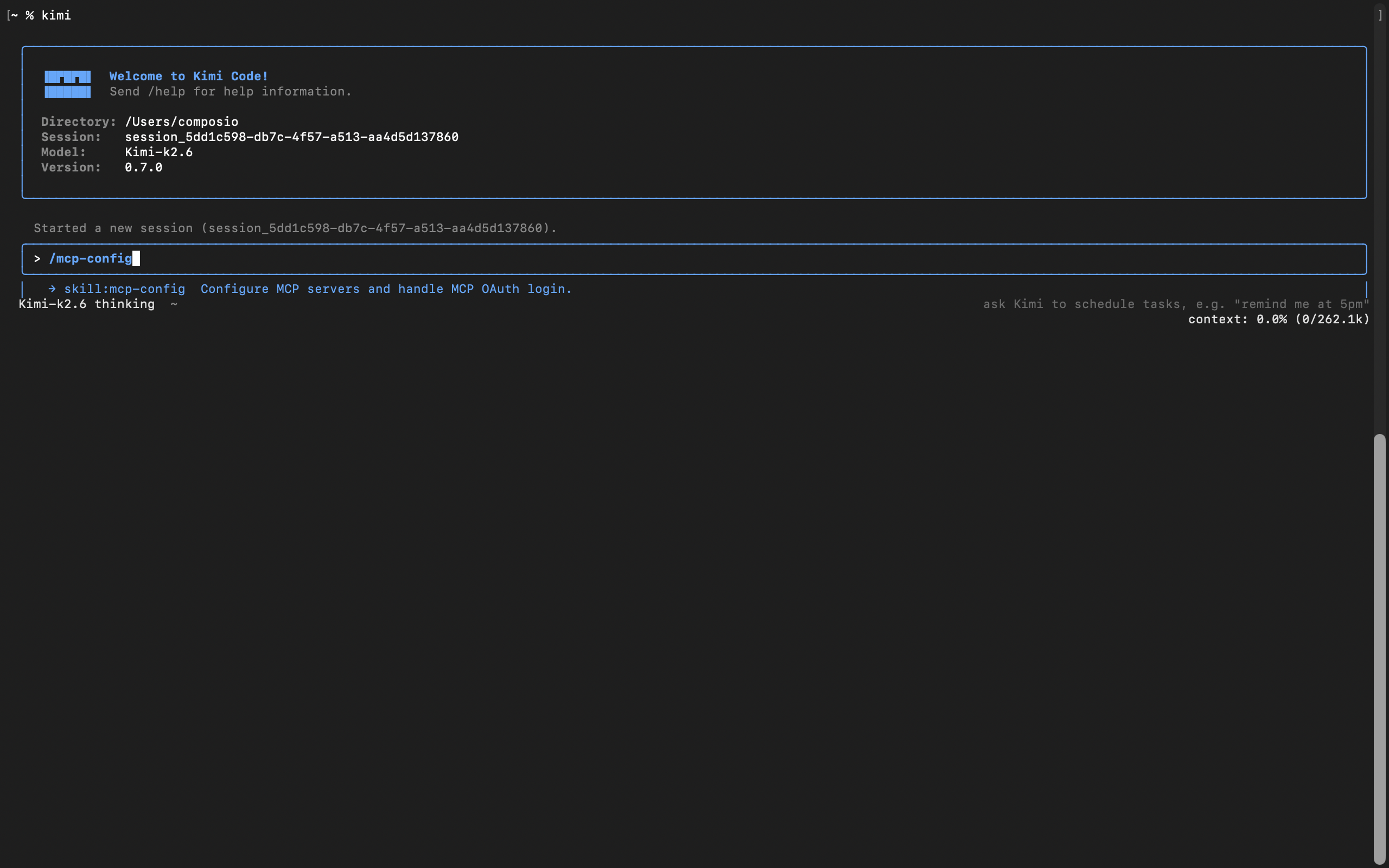
3. Add Composio with /mcp-config

In current versions of Kimi Code, MCP servers are managed inside the app, not with a shell subcommand. From the interactive UI, run:

bash
/mcp-config
Kimi Code MCP config flow for adding the Composio MCP server

Tell it the server name and URL in plain language. For example:

Server name is Composio, and here is the server URL: https://connect.composio.dev/mcp

Kimi Code asks whether to add it globally, at ~/.kimi-code/mcp.json, or project-local for the current checkout, then writes the entry for you:

bash
{
  "mcpServers": {
    "Composio": {
      "url": "https://connect.composio.dev/mcp"
    }
  }
}

There is no transport field to set. Kimi Code infers HTTP from the url.

4. Restart the session

The new server is picked up on a fresh session, not the current one. Start a new session:

bash
/new

On the new session, Kimi Code detects that the server needs authorization and prompts you to run:

bash
/mcp-config login Composio

5. Authorize with OAuth

Run the command Kimi suggests:

bash
/mcp-config login composio

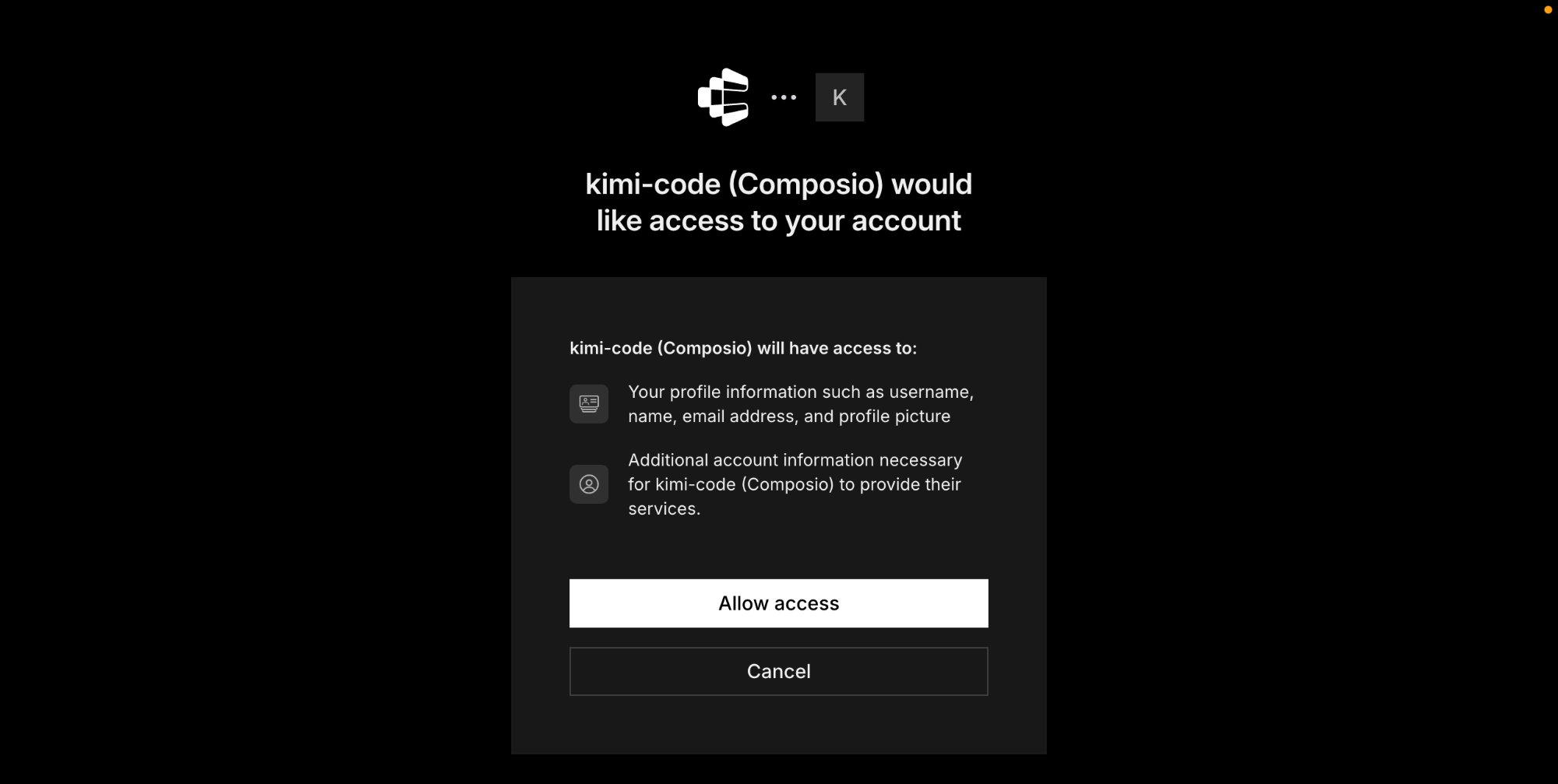
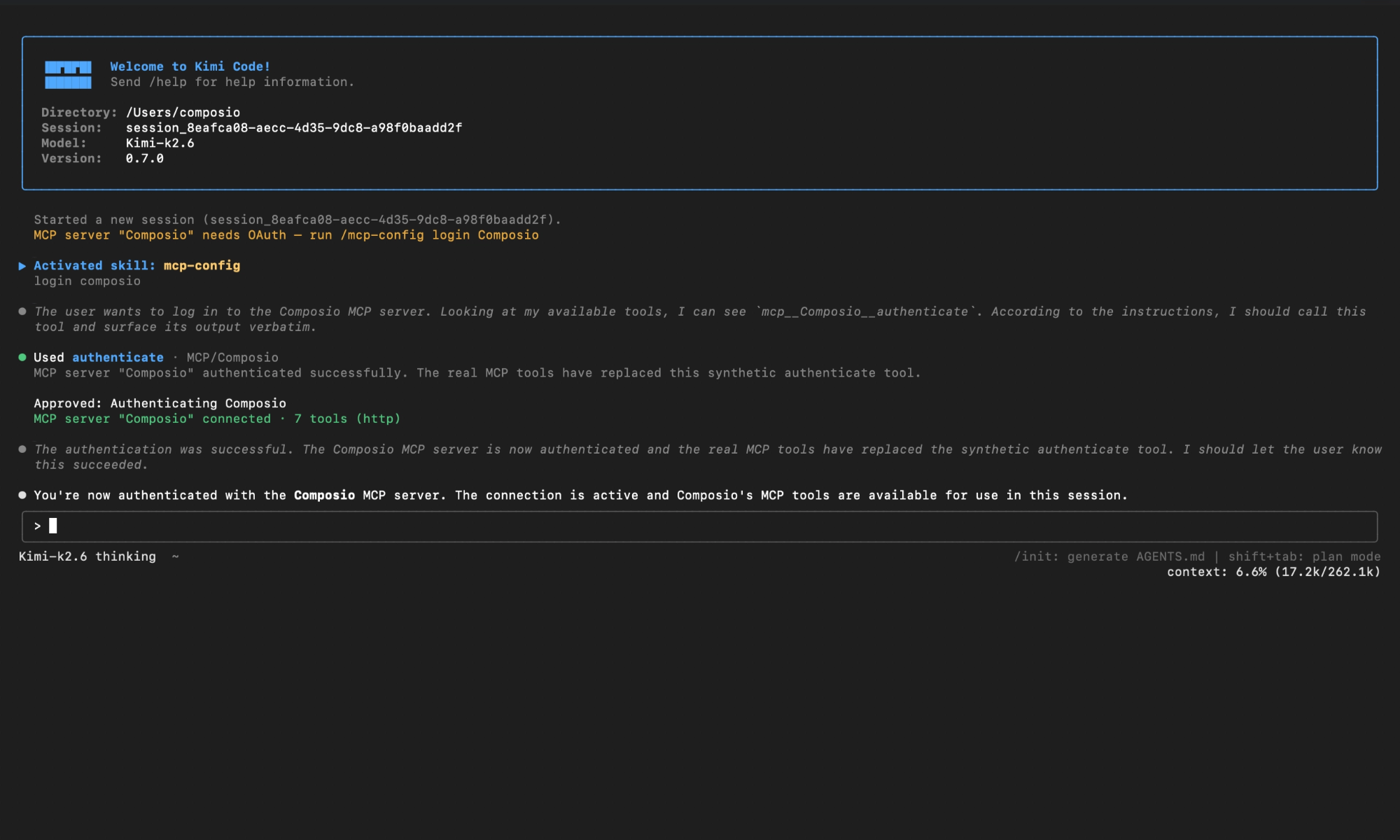
Kimi Code opens Composio's authorization page or surfaces a URL. Approve access, then return to the session. You should see confirmation that the Composio MCP server is connected.

Composio authorization page for Kimi Code MCP setup

Check the connection status any time with /mcp. Composio should appear as connected with its tools listed.

Kimi Code showing Composio connected after OAuth authorization

Connect your Google Calendar account

Back in a Kimi Code session, ask the agent to connect to Google Calendar or give it any Google Calendar-related task.

For example, ask it to:

  • "Create a meeting with the marketing team"
  • "List all events scheduled for next week"
  • "Delete tomorrow’s canceled event from your calendar"

It will prompt you to authenticate and authorize access to Google Calendar.

That is it. Composio tools are now available in Kimi Code, and your Google Calendar account is ready to use.

Supported Tools & Triggers

Tools
Triggers
Delete ACL RuleDeletes an access control rule from a Google Calendar.
Get ACL RuleRetrieves a specific access control rule for a calendar.
Create ACL RuleCreates an access control rule for a calendar.
List ACL RulesRetrieves the list of access control rules (ACLs) for a specified calendar, providing the necessary 'rule_id' values required for updating specific ACL rules.
Patch ACL RuleUpdates an existing access control rule for a calendar using patch semantics (partial update).
Update ACL RuleUpdates an access control rule for the specified calendar.
Watch ACL ChangesTool to watch for changes to ACL resources.
Batch EventsExecute up to 1000 event mutations (create/patch/delete) in one Google Calendar HTTP batch request with per-item status/results.
Remove Calendar from ListTool to remove a calendar from the user's calendar list.
Get Single Calendar by IDRetrieves metadata for a SINGLE specific calendar from the user's calendar list by its calendar ID.
Insert Calendar into ListInserts an existing calendar into the user's calendar list, making it visible in the UI.
Patch Calendar List EntryUpdates an existing calendar on the user's calendar list using patch semantics.
Update Calendar List EntryUpdates a calendar list entry's display/subscription settings (color, visibility, reminders, selection) for the authenticated user — does not modify the underlying calendar resource (title, timezone, etc.
Watch Calendar ListWatch for changes to CalendarList resources using push notifications.
Delete CalendarDeletes a secondary calendar that you own or have delete permissions on.
Update CalendarFull PUT-style update that overwrites all calendar metadata fields; unspecified optional fields are cleared.
Stop ChannelTool to stop watching resources through a notification channel.
Clear CalendarClears a primary calendar by deleting all events from it.
Get Color DefinitionsReturns the color definitions for calendars and events.
Create EventCreate a Google Calendar event using start_datetime plus duration fields.
Delete eventDeletes a specified event by `event_id` from a Google Calendar (`calendar_id`); idempotent — a 404 for an already-deleted event is a no-op.
Create a calendarCreates a new, empty Google Calendar with the specified title (summary).
Get EventRetrieves a SINGLE event by its unique event_id (REQUIRED).
Import EventTool to import an event as a private copy to a calendar.
Get Event InstancesReturns instances of the specified recurring event.
List EventsReturns events on the specified calendar.
List Events from All CalendarsReturn a unified event list across all calendars in the user's calendar list for a given time range.
Move EventMoves an event to another calendar, i.
Watch EventsWatch for changes to Events resources.
Find eventFinds events in a specified Google Calendar using text query, time ranges (event start/end, last modification), and event types.
Find free slotsFinds both free and busy time slots in Google Calendars for specified calendars within a defined time range.
Get Google CalendarRetrieves a specific Google Calendar, identified by `calendar_id`, to which the authenticated user has access.
Get current date and timeGets the current date and time, allowing for a specific timezone offset.
List BuildingsLists all buildings for a Google Workspace customer account with full details including addresses, coordinates, and floor names.
List Calendar ResourcesRetrieves calendar resources (such as conference rooms) from a Google Workspace domain using the Admin SDK Directory API.
List Google CalendarsRetrieves calendars from the user's Google Calendar list, with options for pagination and filtering.
Patch CalendarPartially updates (PATCHes) an existing Google Calendar, modifying only the fields provided.
Patch EventUpdate specified fields of an existing event in a Google Calendar using patch semantics (array fields like `attendees` are fully replaced if provided); ensure the `calendar_id` and `event_id` are valid and the user has write access to the calendar.
Quick Add EventParses natural language text to quickly create a basic Google Calendar event with its title, date, and time, suitable for simple scheduling; does not support direct attendee addition or recurring events, and `calendar_id` must be valid if not 'primary'.
Remove attendee from eventRemoves an attendee from a specified event in a Google Calendar; the calendar and event must exist.
Get Calendar SettingTool to return a single user setting for the authenticated user.
List SettingsReturns all user settings for the authenticated user.
Watch SettingsWatch for changes to Settings resources.
Update Google eventUpdates an existing event in Google Calendar.

Conclusion

You have successfully connected Google Calendar to Kimi Code using Composio Connect. Your agent can now manage Google Calendar from the terminal with natural language, without exposing credentials in prompts or local scripts.

Since the same Composio endpoint exposes 1,000+ apps, you can add Slack, Calendar, Linear, and more to the same server and chain them into cross-app workflows.

How to build Google Calendar MCP Agent with another framework

FAQ

What are the differences in Tool Router MCP and Google Calendar MCP?

With a standalone Google Calendar MCP server, the agents and LLMs can only access a fixed set of Google Calendar tools tied to that server. However, with the Composio Tool Router, agents can dynamically load tools from Google Calendar and many other apps based on the task at hand, all through a single MCP endpoint.

Can I use Tool Router MCP with Kimi Code?

Yes, you can. Kimi Code fully supports MCP integration. You get structured tool calling, message history handling, and model orchestration while Tool Router takes care of discovering and serving the right Google Calendar tools.

Can I manage the permissions and scopes for Google Calendar while using Tool Router?

Yes, absolutely. You can configure which Google Calendar scopes and actions are allowed when connecting your account to Composio. You can also bring your own OAuth credentials or API configuration so you keep full control over what the agent can do.

How safe is my data with Composio Tool Router?

All sensitive data such as tokens, keys, and configuration is fully encrypted at rest and in transit. Composio is SOC 2 Type 2 compliant and follows strict security practices so your Google Calendar data and credentials are handled as safely as possible.

Used by agents from

Context
Letta
glean
HubSpot
Agent.ai
Altera
DataStax
Entelligence
Rolai
Context
Letta
glean
HubSpot
Agent.ai
Altera
DataStax
Entelligence
Rolai
Context
Letta
glean
HubSpot
Agent.ai
Altera
DataStax
Entelligence
Rolai

Never worry about agent reliability

We handle tool reliability, observability, and security so you never have to second-guess an agent action.