Google Calendar CLI for AI Agents

Framework Integration Gradient
Google Calendar Logo
CLI Logo
divider

Introduction

CLIs are eating MCPs. The industry is converging on the very same idea. MCPs for all their merit can be token hungry, slow, and unreliable for complex tool chaining. However, coding agents have become incredibly good at working with CLIs, and in fact they are far more comfortable working with CLI tools than MCP.

With Composio's Universal CLI, your coding agents can talk to over 850+ SaaS applications. With Google Calendar, agents can create a meeting with the marketing team, list all events scheduled for next week, delete tomorrow’s canceled event from your calendar, and more — all without worrying about authentication.

This guide walks you through Composio Universal CLI and explains how you can connect it with coding agents like Claude Code, Codex, OpenCode, etc, for end-to-end Google Calendar automation.

Also integrate Google Calendar with

What is Universal CLI and why use it?

The idea behind building the universal CLI is to give agents a single command interface to interact with all your external applications. Here's what you'll get with it:

  • Agent-friendly: Coding agents like Claude Code, Codex, and OpenCode can use CLI tools natively — no MCP setup required.
  • Authentication handled: Connect once via OAuth or API Key, and all CLI commands work with your credentials automatically.
  • Tool discovery: Search, inspect, and execute 20,000+ tools across 850+ apps from one interface.
  • Trigger support: Use triggers to listen for events across your apps, powered by real-time webhooks or polling under the hood.
  • Type generation: Generate typed schemas for autocomplete and type safety in your projects.

Prerequisites

Install the Composio CLI, authenticate, and initialize your project:

bash
# Install the Composio CLI
curl -fsSL https://composio.dev/install | bash

# Authenticate with Composio
composio login

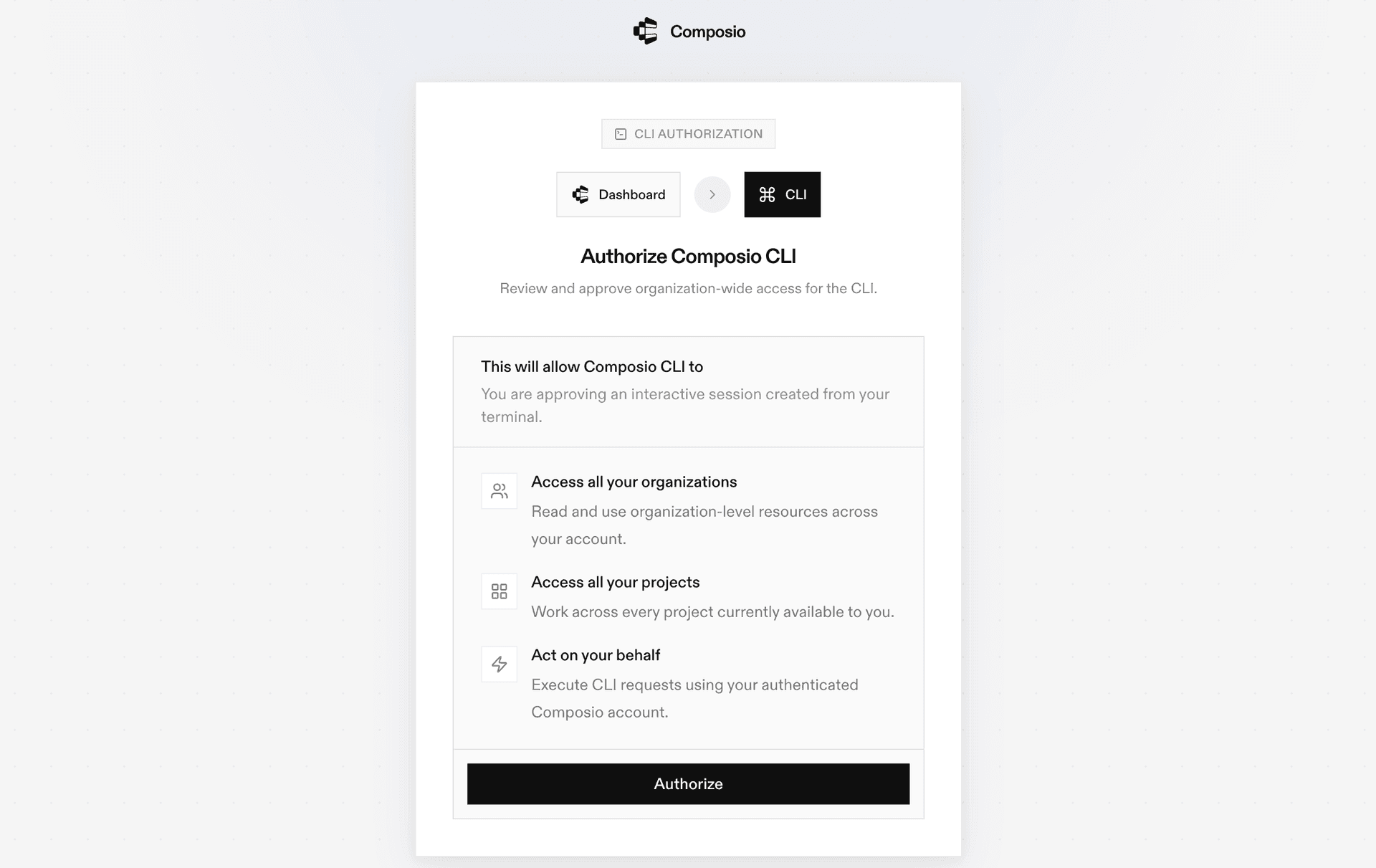
During login you'll be redirected to sign in page, finish the complete flow and you're all set.

Composio CLI authentication flow

Connecting Google Calendar to Coding Agents via Universal CLI

Once it is installed, it's essentially done. Claude Code, Codex, OpenCode, OpenClaw, or any other agent will be able to access the CLI. A few steps to give agents access to your apps.

  1. Launch your Coding Agent — Claude Code, Codex, OpenCode, anything you prefer.
  2. Prompt it to "Authenticate with Google Calendar"
  3. Complete the authentication and authorization flow and your Google Calendar integration is all set.
  4. Start asking anything you want.

Supported Tools & Triggers

Tools
Triggers
Insert Calendar into ListInserts an existing calendar into the user's calendar list.
Update Calendar List EntryUpdates an existing entry on the user\'s calendar list.
Delete CalendarDeletes a secondary calendar.
Update CalendarUpdates metadata for a calendar.
Clear CalendarClears a primary calendar.
Create EventCreates an event on a google calendar, needing rfc3339 utc start/end times (end after start) and write access to the calendar.
Delete eventDeletes a specified event by `event id` from a google calendar (`calendar id`); this action is idempotent and raises a 404 error if the event is not found.
Create a calendarCreates a new, empty google calendar with the specified title (summary).
Get Event InstancesReturns instances of the specified recurring event.
List EventsReturns events on the specified calendar.
Move EventMoves an event to another calendar, i.
Watch EventsWatch for changes to events resources.
Find eventFinds events in a specified google calendar using text query, time ranges (event start/end, last modification), and event types; ensure `timemin` is not chronologically after `timemax` if both are provided.
Find free slotsFinds free/busy time slots in google calendars for specified calendars within a defined time range (defaults to the current day utc if `time min`/`time max` are omitted), enhancing busy intervals with event details; `time min` must precede `time max` if both are provided.
Query Free/Busy InformationReturns free/busy information for a set of calendars.
Get Google CalendarRetrieves a specific google calendar, identified by `calendar id`, to which the authenticated user has access.
Get current date and timeGets the current date and time, allowing for a specific timezone offset.
List ACL RulesRetrieves the list of access control rules (acls) for a specified calendar, providing the necessary 'rule id' values required for updating specific acl rules.
List Google CalendarsRetrieves calendars from the user's google calendar list, with options for pagination and filtering.
Patch CalendarPartially updates (patches) an existing google calendar, modifying only the fields provided; `summary` is mandatory and cannot be an empty string, and an empty string for `description` or `location` clears them.
Patch EventUpdates specified fields of an existing event in a google calendar using patch semantics (array fields like `attendees` are fully replaced if provided); ensure the `calendar id` and `event id` are valid and the user has write access to the calendar.
Quick Add EventParses natural language text to quickly create a basic google calendar event with its title, date, and time, suitable for simple scheduling; does not support direct attendee addition or recurring events, and `calendar id` must be valid if not 'primary'.
Remove attendee from eventRemoves an attendee from a specified event in a google calendar; the calendar and event must exist.
List SettingsReturns all user settings for the authenticated user.
Watch SettingsWatch for changes to settings resources.
Sync EventsSynchronizes google calendar events, performing a full sync if no `sync token` is provided or if a 410 gone error (due to an expired token) necessitates it, otherwise performs an incremental sync for events changed since the `sync token` was issued.
Update ACL RuleUpdates an access control rule for the specified calendar.
Update Google eventUpdates an existing event by `event id` in a google calendar; this is a full put replacement, so provide all desired fields as unspecified ones may be cleared or reset.

Universal CLI Commands for Google Calendar

You can also manually execute CLI commands to interact with your Google Calendar.

Connect your Google Calendar account

Link your Google Calendar account and verify the connection:

bash
# Connect your Google Calendar account (opens OAuth flow)
composio connected-accounts link googlecalendar

# Verify the connection
composio connected-accounts list --toolkits googlecalendar

Discover Google Calendar tools

Search and inspect available Google Calendar tools:

bash
# List all available Google Calendar tools
composio tools list --toolkit googlecalendar

# Search for Google Calendar tools by action
composio tools search "google calendar"

# Inspect a tool's input schema
composio tools info GOOGLECALENDAR_CALENDAR_LIST_INSERT

Common Google Calendar Actions

Insert Calendar into ListInserts an existing calendar into the user's calendar list

bash
composio tools execute GOOGLECALENDAR_CALENDAR_LIST_INSERT \
  --id "examplecalendar@group.calendar.google.com"

Update Calendar List EntryUpdates an existing entry on the user\'s calendar list

bash
composio tools execute GOOGLECALENDAR_CALENDAR_LIST_UPDATE \
  --calendar_id "primary"

Delete CalendarDeletes a secondary calendar

bash
composio tools execute GOOGLECALENDAR_CALENDARS_DELETE \
  --calendar_id "primary"

Update CalendarUpdates metadata for a calendar

bash
composio tools execute GOOGLECALENDAR_CALENDARS_UPDATE \
  --summary "<string>" \
  --calendarId "<string>"

Set up Google Calendar Triggers

Listen for events in real time using triggers:

Attendee Response ChangedPolling trigger that fires when any attendee's RSVP changes to accepted, declined, or tentative

bash
# Find your connected account ID
composio connected-accounts list --toolkits googlecalendar

# Create a trigger
composio triggers create GOOGLECALENDAR_ATTENDEE_RESPONSE_CHANGED_TRIGGER \
  --connected-account-id <your-connected-account-id> \
  --trigger-config '{
  "interval": 2,
  "calendarId": "primary",
  "showDeleted": true
}'

# Listen for trigger events in real time
composio triggers listen --toolkits googlecalendar --table

Event Canceled or DeletedTriggers when a Google Calendar event is cancelled or deleted

bash
# Find your connected account ID
composio connected-accounts list --toolkits googlecalendar

# Create a trigger
composio triggers create GOOGLECALENDAR_EVENT_CANCELED_DELETED_TRIGGER \
  --connected-account-id <your-connected-account-id> \
  --trigger-config '{
  "interval": 2,
  "calendarId": "primary"
}'

# Listen for trigger events in real time
composio triggers listen --toolkits googlecalendar --table

Event Starting SoonTriggers when a calendar event is within a configured number of minutes from starting

bash
# Find your connected account ID
composio connected-accounts list --toolkits googlecalendar

# Create a trigger
composio triggers create GOOGLECALENDAR_EVENT_STARTING_SOON_TRIGGER \
  --connected-account-id <your-connected-account-id> \
  --trigger-config '{
  "calendarId": "primary",
  "include_all_day": "<boolean>",
  "countdown_window_minutes": 30
}'

# Listen for trigger events in real time
composio triggers listen --toolkits googlecalendar --table

Generate Type Definitions

Generate typed schemas for Google Calendar tools to get autocomplete and type safety in your project:

bash
# Auto-detect language
composio generate --toolkits googlecalendar

# TypeScript
composio ts generate --toolkits googlecalendar

# Python
composio py generate --toolkits googlecalendar

Tips & Tricks

  • Always inspect a tool's input schema before executing: composio tools info <TOOL_NAME>
  • Pipe output with jq for better readability: composio tools execute TOOL_NAME -d '{}' | jq
  • Set COMPOSIO_API_KEY as an environment variable for CI/CD pipelines
  • Use composio dev logs tools to inspect execution logs and debug issues

Next Steps

  • Try asking your coding agent to perform various Google Calendar operations
  • Explore cross-app workflows by connecting more toolkits
  • Set up triggers for real-time automation
  • Use composio generate for typed schemas in your projects

How to build Google Calendar MCP Agent with another framework

FAQ

What is the Composio Universal CLI?

The Composio Universal CLI is a single command-line interface that lets coding agents and developers interact with 850+ SaaS applications. It handles authentication, tool discovery, action execution, and trigger setup — all from the terminal, without needing to configure MCP servers.

Which coding agents work with the Composio CLI?

Any coding agent that can run shell commands works with the Composio CLI — including Claude Code, Codex, OpenCode, OpenClaw, and others. Once the CLI is installed, agents automatically discover and use the composio commands to interact with Google Calendar and other connected apps.

How is the CLI different from using an MCP server for Google Calendar?

MCP servers require configuration and can be token-heavy for complex workflows. The CLI gives agents a direct, lightweight interface — no server setup needed. Agents simply call composio commands like any other shell tool. It's faster to set up, more reliable for multi-step tool chaining, and works natively with how coding agents already operate.

How safe is my Google Calendar data when using the Composio CLI?

All sensitive data such as tokens, keys, and configuration is fully encrypted at rest and in transit. Composio is SOC 2 Type 2 compliant and follows strict security practices so your Google Calendar data and credentials are handled as safely as possible. You can also bring your own OAuth credentials for full control.

Used by agents from

Context
Letta
glean
HubSpot
Agent.ai
Altera
DataStax
Entelligence
Rolai
Context
Letta
glean
HubSpot
Agent.ai
Altera
DataStax
Entelligence
Rolai
Context
Letta
glean
HubSpot
Agent.ai
Altera
DataStax
Entelligence
Rolai

Never worry about agent reliability

We handle tool reliability, observability, and security so you never have to second-guess an agent action.