

How to connect Google Maps to Cursor

Trusted by teams atAWSGleanZoomAirtable

30 min · no commitment · see it on your stack

Google Maps logo
Cursor logo
divider

How to integrate Google Maps MCP with Cursor

Cursor is one of the leading AI-powered code editors. It is built to help developers write, understand, and refactor code faster with AI assistance built directly into the editor.

And in this guide, I will explain the easiest and most secure way to connect your Google Maps account to Cursor via Composio Connect, so it can find walking directions from your hotel to conference center, show top-rated coffee shops near your location, embed a map of downtown restaurants on your website, and more without ever putting your account credentials at risk.
Also integrate Google Maps with

Why Composio?

  • 1,000+ SaaS toolkits out of the box. Skip the work of building and maintaining integrations, Composio gives you instant access to a vast catalog of pre-built connectors.
  • One MCP server for every app. Connect any of your applications on demand through a single endpoint, rather than juggling a separate server for each app.
  • Smart, context-aware tool loading. Unlike traditional MCP servers that dump every available tool into the LLM context window, Composio searches for and loads only the tools relevant to the task at hand. A remote CLI workbench lets LLMs compose these tools into workflows for complex automation.

Connect Google Maps to Cursor

Two ways to install — pick whichever you prefer.

1. Install with one click

Click the button below to add Composio to Cursor.

Install in Cursor

2. Or add manually

Add to your Cursor mcp.json

Open .cursor/mcp.json in your project root (or ~/.cursor/mcp.json for global config) and add the following configuration:

bash
{
  "servers": {
    "composio": {
      "type": "http",
      "url": "https://connect.composio.dev/mcp"
    }
  }
}

3. Authorize

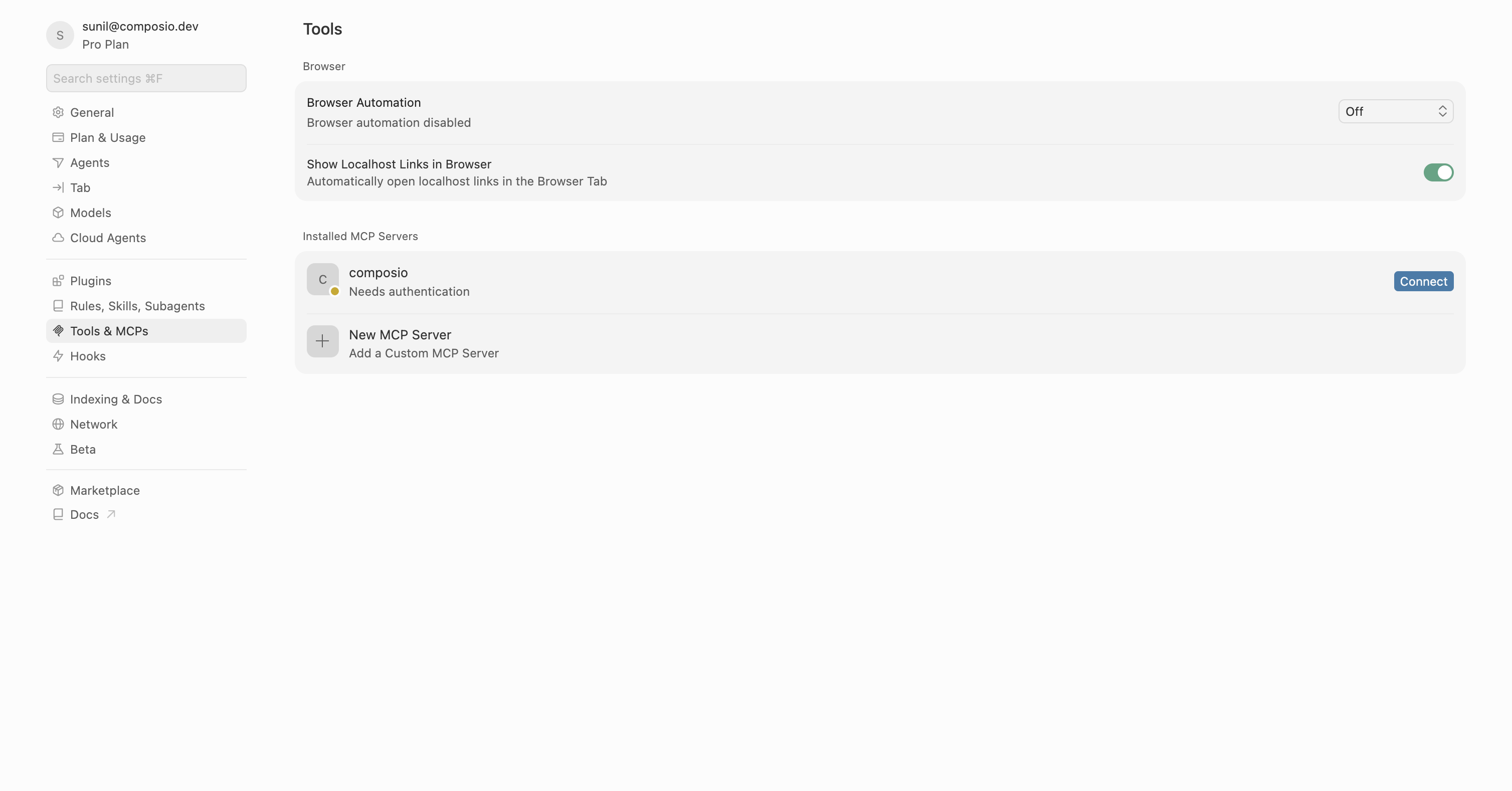
Restart Cursor, then click "Connect" next to Composio in MCP Tools settings.

Cursor MCP Tools settings with Connect button next to Composio

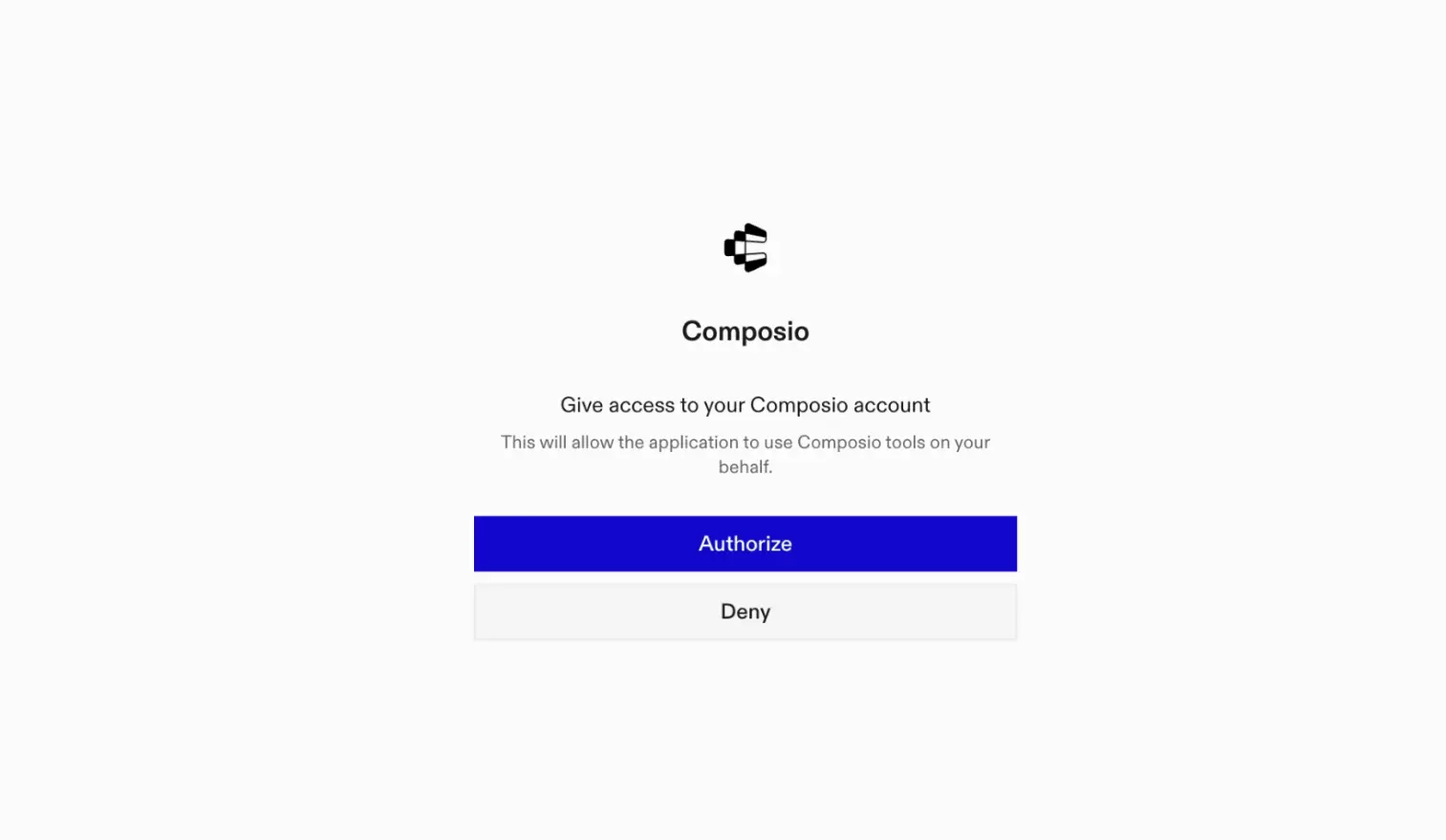
A browser window will open to authorize.

Composio authorization browser window

Connect your Google Maps account

Back in Cursor, ask the agent to connect to Google Maps or give it any Google Maps-related task.

For example, ask it to:

  • "Find walking directions from your hotel to conference center"
  • "Show top-rated coffee shops near your location"
  • "Embed a map of downtown restaurants on your website"

It will prompt you to authenticate and authorize access to Google Maps.

That is it. Composio tools are now available in Cursor, and your Google Maps account is ready to use.

Supported Tools & Triggers

Tools
Distance MatrixCalculates travel distance and time for a matrix of origins and destinations.
Get directionsFetches detailed directions between an origin and a destination, supporting intermediate waypoints and various travel modes.
Get RouteCalculates one or more routes between two specified locations using various travel modes and preferences; addresses must be resolvable by google maps.
Embed Google MapTool to generate an embeddable google map url and html iframe code.
Nearby searchSearches for places (e.
Text SearchSearches for places on google maps using a textual query (e.

Conclusion

You have successfully connected Google Maps to Cursor using Composio Connect. Your agent can now use Google Maps securely without exposing credentials in prompts or local scripts.

How to build Google Maps MCP Agent with another framework

FAQ

What are the differences in Tool Router MCP and Google Maps MCP?

With a standalone Google Maps MCP server, the agents and LLMs can only access a fixed set of Google Maps tools tied to that server. However, with the Composio Tool Router, agents can dynamically load tools from Google Maps and many other apps based on the task at hand, all through a single MCP endpoint.

Can I use Tool Router MCP with Cursor?

Yes, you can. Cursor fully supports MCP integration. You get structured tool calling, message history handling, and model orchestration while Tool Router takes care of discovering and serving the right Google Maps tools.

Can I manage the permissions and scopes for Google Maps while using Tool Router?

Yes, absolutely. You can configure which Google Maps scopes and actions are allowed when connecting your account to Composio. You can also bring your own OAuth credentials or API configuration so you keep full control over what the agent can do.

How safe is my data with Composio Tool Router?

All sensitive data such as tokens, keys, and configuration is fully encrypted at rest and in transit. Composio is SOC 2 Type 2 compliant and follows strict security practices so your Google Maps data and credentials are handled as safely as possible.

Used by agents from

Context
Letta
glean
HubSpot
Agent.ai
Altera
DataStax
Entelligence
Rolai
Context
Letta
glean
HubSpot
Agent.ai
Altera
DataStax
Entelligence
Rolai
Context
Letta
glean
HubSpot
Agent.ai
Altera
DataStax
Entelligence
Rolai

Never worry about agent reliability

We handle tool reliability, observability, and security so you never have to second-guess an agent action.








