How to connect Control d to Claude Cowork

Trusted by
AWS
Glean
Zoom
Airtable

30 min · no commitment · see it on your stack

Control d logo
Claude Cowork logo
divider

Introduction

Cowork is Anthropic's AI agent for knowledge work. Think of it as Claude Code for everything else. It works autonomously with your computer, local files, and applications to accomplish complex tasks.

This guide walks you through the easiest and most secure way to connect your Control d account to Cowork via Composio Connect, enabling it to list all devices connected to your account, remove a device by its ID, show known access IPs for your network, and more such actions on your behalf without compromising your account security.

Also integrate Control d with

Connecting Control d to Claude Cowork

1. Open Customize

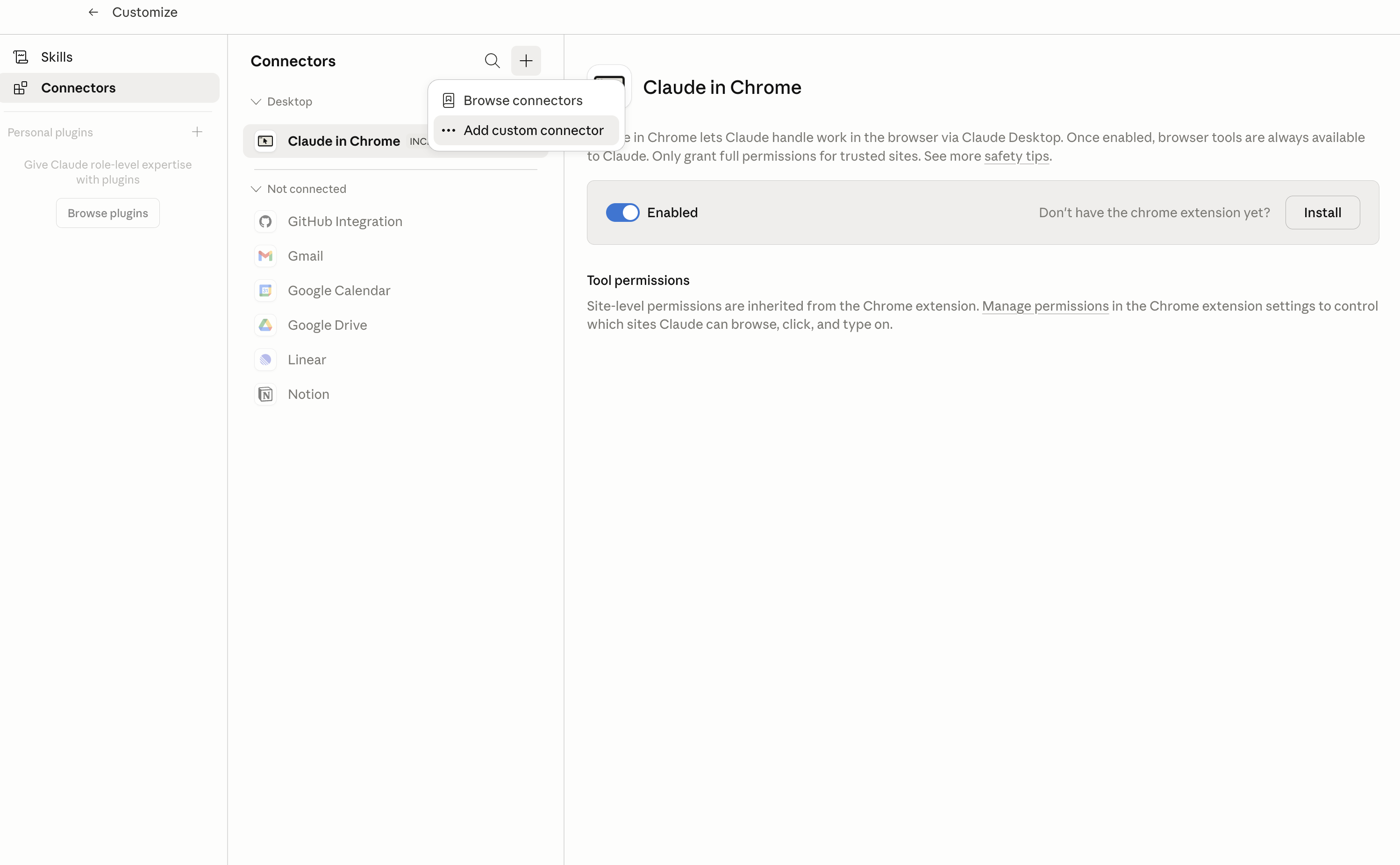
In Claude Desktop, click Customize in the left sidebar, then select Connectors and click the + icon at the top.

Claude Desktop connectors screen with Add custom connector selected

2. Add the Composio MCP server

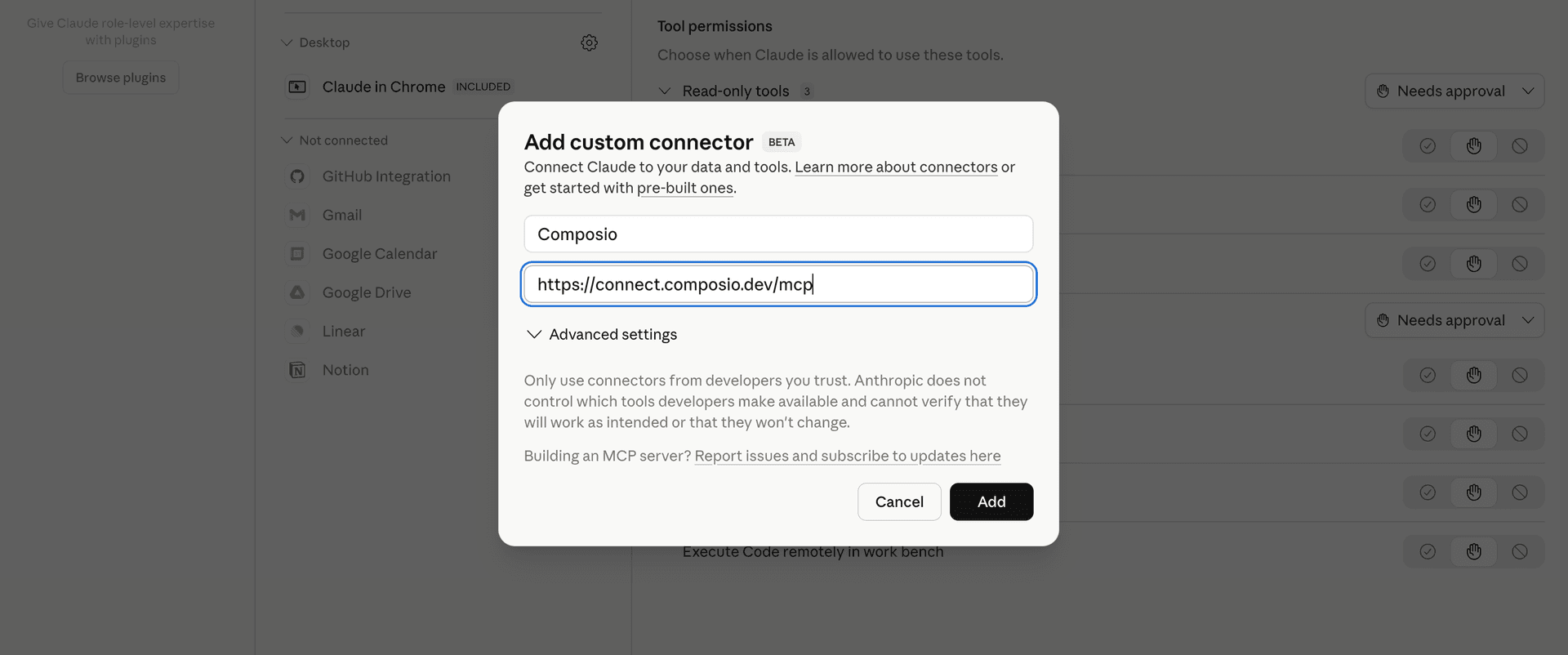
Click Add custom connector and paste in the Composio MCP server URL:

bash
https://connect.composio.dev/mcp
Add custom connector dialog with Composio MCP server URL

3. Authorize in your browser

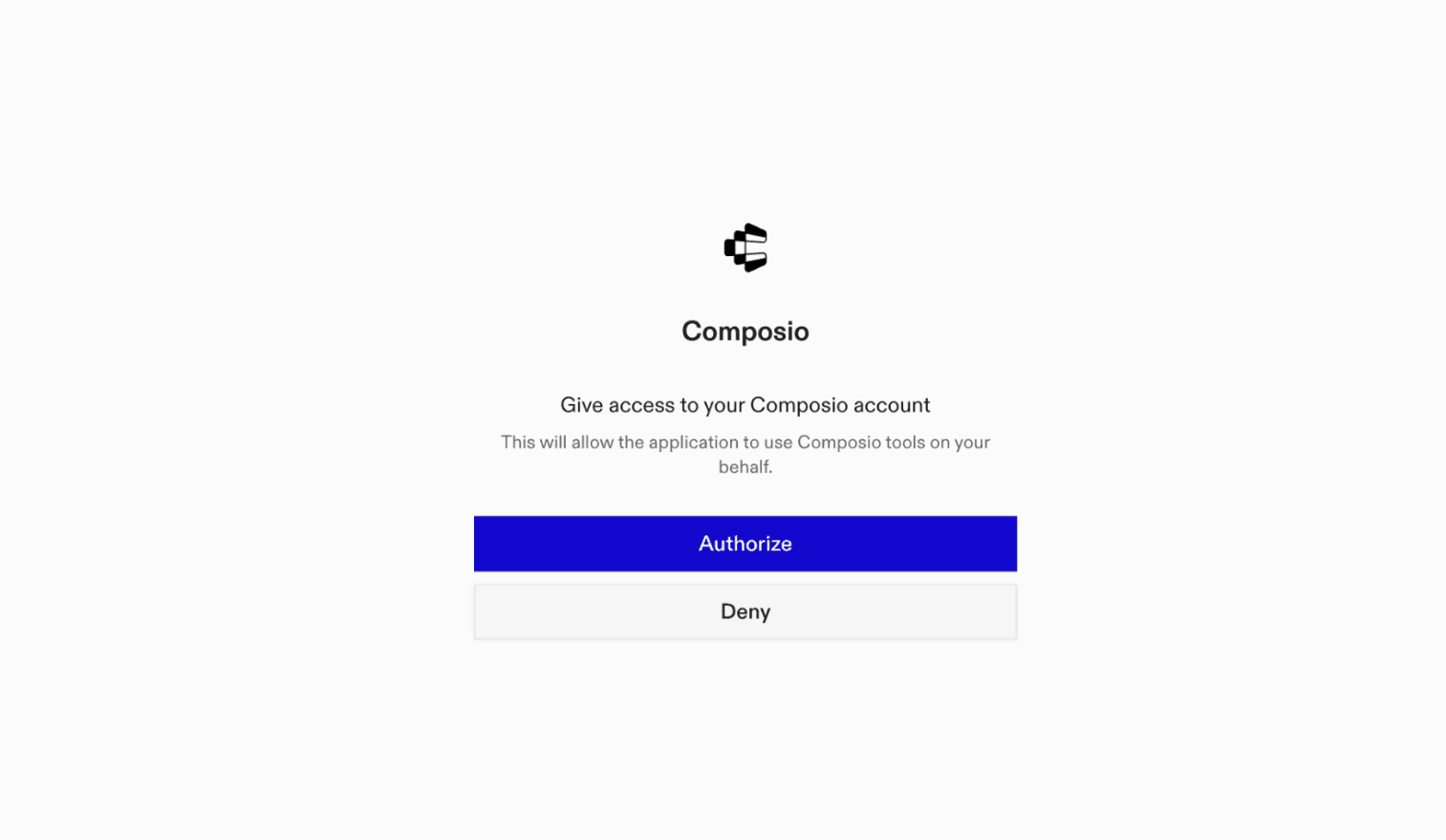
Click Connect. You'll be redirected to a browser window where you can authorize Composio to continue.

Composio authorization screen for Claude Cowork

4. Connect your Control d account

Back in Cowork, ask the agent to connect to Control d or give it any Control d-related task.

For example, ask Cowork to:

  • "List all devices connected to your account"
  • "Remove a device by its ID"
  • "Show known access IPs for your network"

It will prompt you to authenticate and authorize access.

That's it. Composio's tools are now available in Cowork, and your Control d account is ready to use.

What is Claude Cowork?

Claude Cowork is Anthropic's agent for general knowledge work. It can use your computer, files, and connected applications to complete longer-running tasks across your work tools.

With Composio Connect, Cowork can securely access apps like Control d through MCP without you sharing account credentials directly with the agent.

What is the Control d MCP server, and what's possible with it?

The Control d MCP server is an implementation of the Model Context Protocol that connects your AI agent and assistants like Claude, Cursor, etc directly to your Control d account. It provides structured and secure access to your DNS filtering and device management environment, so your agent can perform actions like managing devices, enforcing policies, retrieving analytics, and monitoring network access on your behalf.

  • Device inventory management: Easily list all devices on your account or remove specific devices by their identifier for streamlined device control.
  • Profile and rule administration: Direct your agent to delete profiles, custom rules, or schedules—helping you maintain and enforce up-to-date network policies.
  • Network access monitoring: Retrieve a list of known access IPs to keep tabs on which endpoints are connecting to your network infrastructure.
  • Analytics endpoints discovery: Quickly fetch available analytics storage regions and endpoints so you can integrate and analyze DNS traffic data efficiently.
  • Organization details access: Have the agent fetch and present your organization's account details for easy reference and auditing.

Supported Tools & Triggers

Tools
Delete Device by IDPermanently delete a Control-D device/endpoint by its ID.
Delete ProfilePermanently deletes a Control D profile by its unique identifier (PK).
Delete Profile Rule by Rule IDDelete a custom DNS rule from a Control D profile by its rule identifier (hostname/domain).
Delete Rule from FolderDelete a custom DNS rule from a specific folder in a Control D profile.
Delete Profile ScheduleTool to delete a specific schedule within a profile.
List Known Access IPsList up to the latest 50 IP addresses that were used to query against a specific Device (resolver).
Get Analytics EndpointsTool to list analytics storage regions and their endpoints.
Get Analytics LevelsTool to retrieve available analytics log levels for Control D devices.
Get Billing PaymentsTool to retrieve billing history of all payments made.
Get Billing ProductsRetrieve all products currently activated on the Control D account.
Get DevicesLists all Control D devices (endpoints) associated with the account.
Get Device TypesList all allowed device types in Control D.
Get IPTool to retrieve the current IP address and datacenter information for the API request.
Get Network StatsTool to retrieve network stats on available services in different POPs (Points of Presence).
Get Organization MembersTool to view organization membership.
Get Organization DetailsTool to view the authenticated organization's details.
Get Sub-OrganizationsTool to view sub-organizations and their details.
Get ProfilesTool to list all profiles associated with the authenticated account.
Get Profile OptionsRetrieves all available configuration options for DNS profiles in Control D.
Get Profile by IDTool to retrieve details of a specific profile by its ID.
Get Profile AnalyticsRetrieve analytics data for a Control D profile.
Get Profile Analytics LogsRetrieves DNS query activity logs for a specific Control D profile.
Get Analytics Log EntryTool to retrieve a specific analytics log entry by its ID.
Get Profile Analytics SummaryTool to fetch a summary of analytics data for a given profile.
Get Profile Analytics Top DomainsTool to fetch top domains accessed within a specific profile.
Get Profile Top ServicesTool to fetch top services accessed within a profile.
Get Profile FiltersList all native (Control D curated) filters for a profile and their current states.
List External Filters for ProfileTool to list third-party filters for a specific profile.
Get Profile FoldersList all rule folders (groups) within a Control D profile.
List Custom DNS Rules for ProfileRetrieve custom DNS rules for a Control D profile.
Get Specific Rule in FolderTool to retrieve a specific rule within a folder by its ID.
Get Profile SchedulesTool to list schedules associated with a specific profile.
Get Profile ScheduleTool to retrieve a specific schedule by its ID within a profile.
Get Profile ServicesTool to list services associated with a specific profile.
Get ProxiesTool to retrieve the list of usable proxy locations that traffic can be redirected through.
Get Service CategoriesList all available service categories in Control D.
List Services by CategoryRetrieves all services within a specific ControlD service category.
Get UsersRetrieve the authenticated user's account information from Control D.
Create DeviceCreate a new device (DNS endpoint) in Control D.
Create ProfileCreate a new blank profile or clone an existing one.
Create Custom DNS RuleCreate custom DNS rules for a profile to control domain resolution.
Create Custom Rules in Profile FolderTool to create custom rules within a specific folder for a profile.
Create Profile ScheduleCreate a new time-based schedule within a Control D profile.
Modify DeviceModify an existing Control D device's settings.
Modify OrganizationModify organization settings such as name, contact details, website, and device limits.
Modify ProfileModify an existing profile by its ID.
Bulk Update Profile FiltersTool to bulk update filters on a specific profile.
Update External Filters for ProfileTool to update external filters for a specific profile.
Modify Profile FilterModify the enabled state of a specific native filter on a profile.
Modify Custom Rule for ProfileModify an existing custom DNS rule for a profile in Control D.
Update Custom Rule by Rule IDTool to update an existing custom rule by its ID.
Move Profile Rule to FolderTool to move a specific custom rule into a different folder.
Update Profile ScheduleTool to update a specific schedule within a profile.
Modify Service for ProfileTool to modify a specific service rule for a profile.

How to build Control d MCP Agent with another framework

FAQ

What are the differences in Tool Router MCP and Control d MCP?

With a standalone Control d MCP server, the agents and LLMs can only access a fixed set of Control d tools tied to that server. However, with the Composio Tool Router, agents can dynamically load tools from Control d and many other apps based on the task at hand, all through a single MCP endpoint.

Can I use Tool Router MCP with Claude Cowork?

Yes, you can. Claude Cowork fully supports MCP integration. You get structured tool calling, message history handling, and model orchestration while Tool Router takes care of discovering and serving the right Control d tools.

Can I manage the permissions and scopes for Control d while using Tool Router?

Yes, absolutely. You can configure which Control d scopes and actions are allowed when connecting your account to Composio. You can also bring your own OAuth credentials or API configuration so you keep full control over what the agent can do.

How safe is my data with Composio Tool Router?

All sensitive data such as tokens, keys, and configuration is fully encrypted at rest and in transit. Composio is SOC 2 Type 2 compliant and follows strict security practices so your Control d data and credentials are handled as safely as possible.

Used by agents from

Context
Letta
glean
HubSpot
Agent.ai
Altera
DataStax
Entelligence
Rolai
Context
Letta
glean
HubSpot
Agent.ai
Altera
DataStax
Entelligence
Rolai
Context
Letta
glean
HubSpot
Agent.ai
Altera
DataStax
Entelligence
Rolai

Never worry about agent reliability

We handle tool reliability, observability, and security so you never have to second-guess an agent action.