How to integrate Canva MCP with Antigravity

Trusted by
AWS
Glean
Zoom
Airtable

30 min · no commitment · see it on your stack

Canva logo
Antigravity logo
divider

How to integrate Canva MCP with Antigravity

Antigravity IDE is Google's agentic IDE, built on a VS Code-style editor and powered by models like Gemini 3.5 Flash, Gemini 3.1 Pro, Opus 4.6, and more. It treats the AI agent as a first-class teammate, planning, coding, and validating work through an Agent Manager dashboard with deep browser connectivity.

In this guide, I will explain the easiest and most secure way to connect your Canva account to Antigravity IDE via Composio Connect, so it can create a new Instagram post design, list your brand templates for social use, start a folder for this project’s assets, and more without ever putting your account credentials at risk.
Also integrate Canva with

Why use Composio?

Composio provides:

  • Access to 1,000+ managed apps from a single MCP endpoint. This makes it convenient for agents to run cross-app workflows.
  • Programmatic tool calling. Allows LLMs to write code in a remote workbench to handle complex tool chaining. Reduces to-and-fro with LLMs for frequent tool calling.
  • Large tool response handling outside the LLM context. This minimizes context bloat from large tool responses.
  • Dynamic just-in-time access to thousands of tools across hundreds of apps. Composio loads the tools your agent needs, so LLMs are not overwhelmed by tools they do not need.

Connect Canva to Antigravity

Antigravity does not ship with one-click custom MCP install links yet, so configuration goes through the IDE's raw config file. The process takes under a minute.

1. Open the MCP Config

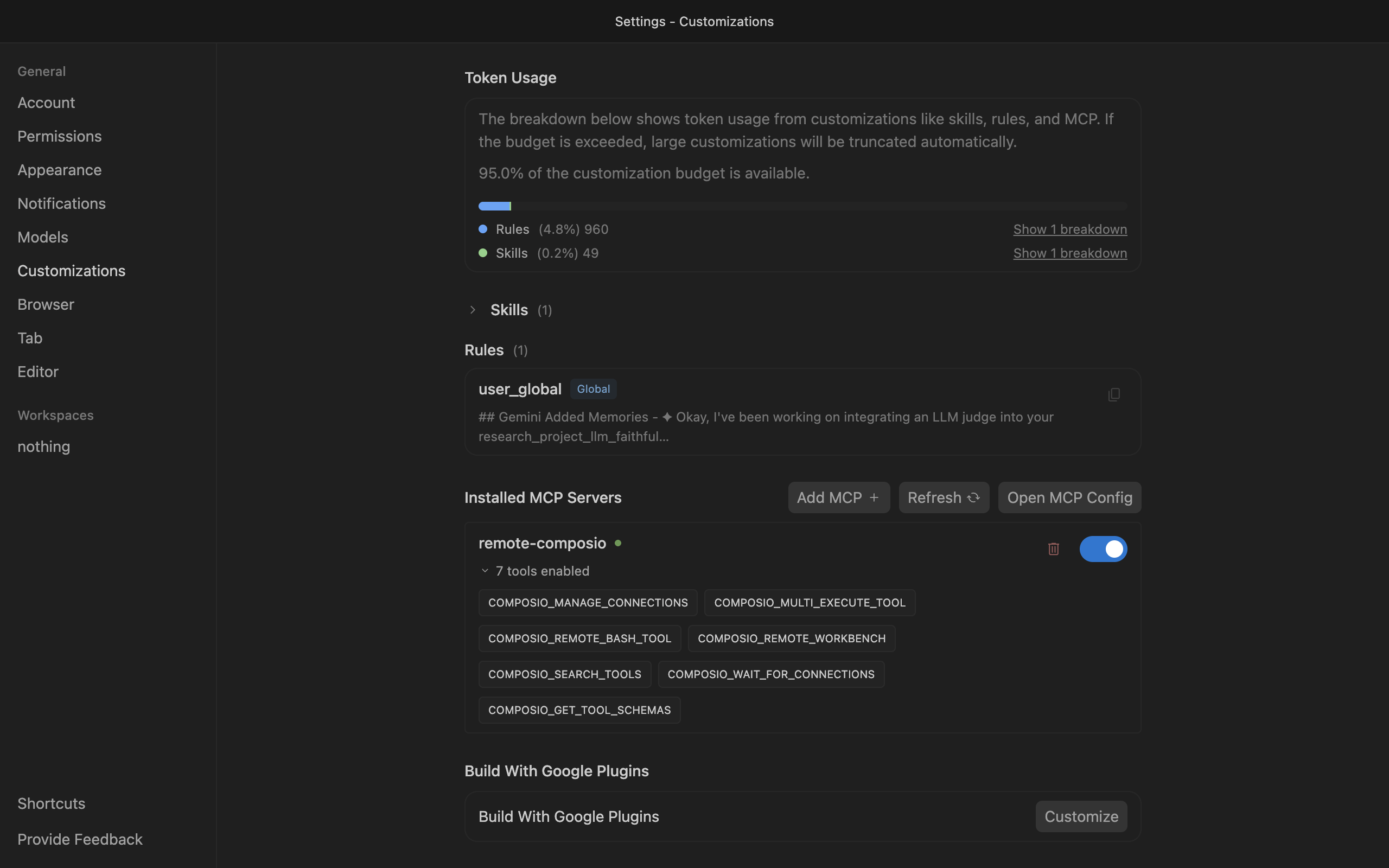
Go to Antigravity Settings, open the Customizations tab, then click Open MCP Config to open mcp_config.json in the editor.

Antigravity Customizations settings with Open MCP Config button

2. Get your API key

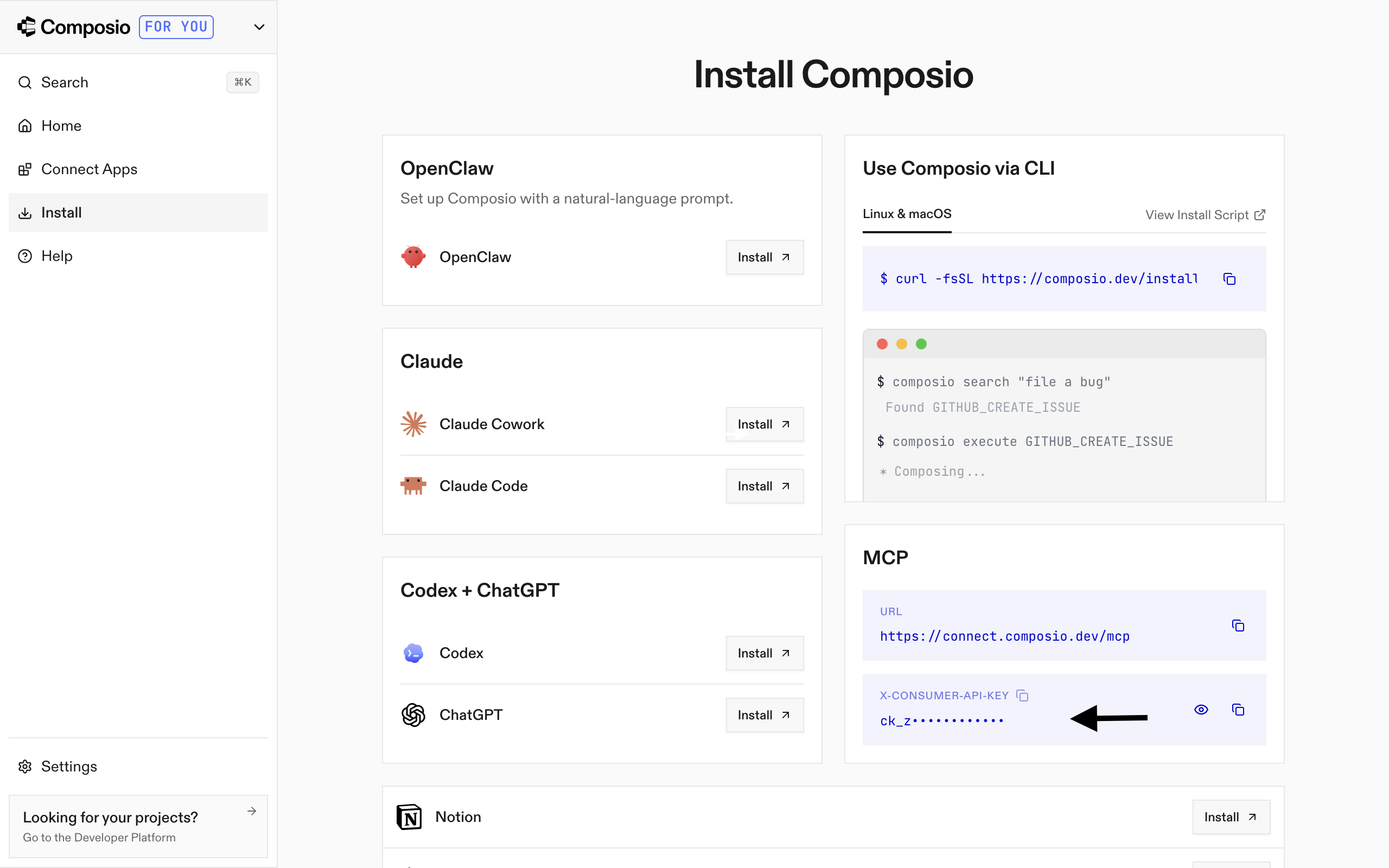
Go to the Composio Dashboard and copy your API key.

Composio Dashboard showing where to get the API key

3. Add Composio to mcp_config.json

Paste the following configuration into the file:

bash
{
  "mcpServers": {
    "remote-composio": {
      "serverUrl": "https://connect.composio.dev/mcp",
      "headers": {
        "x-consumer-api-key": "your-composio-api-key"
      }
    }
  }
}

Note: Antigravity uses serverUrl, not url, for remote HTTP-based MCP servers. This differs from the url key used in Cursor and VS Code configs.

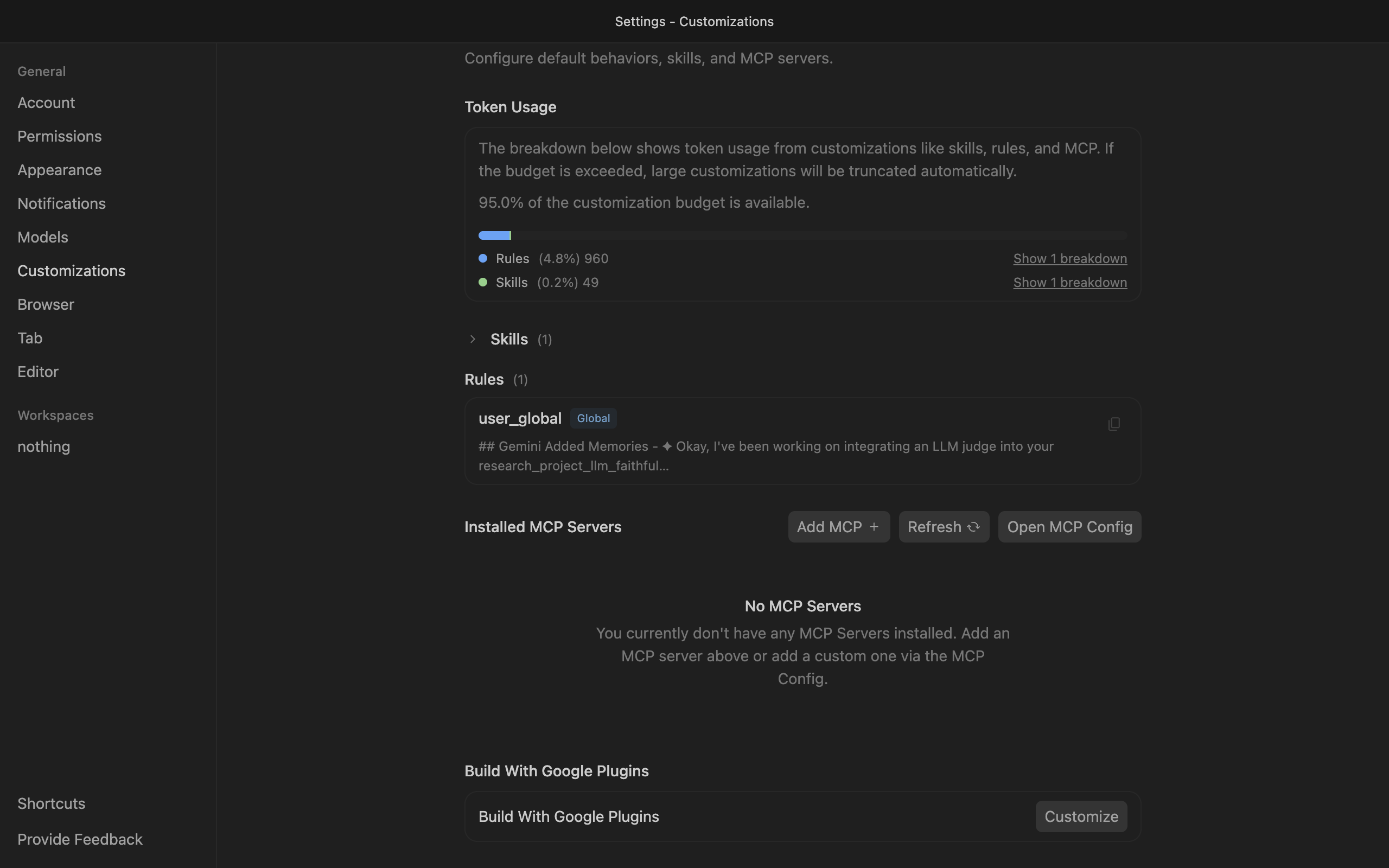
Save the file and click refresh in the Installed MCP Servers section.

Antigravity showing Composio tools after MCP setup

Connect your Canva account

Back in the Antigravity agent panel, ask the agent to connect to Canva or give it any Canva-related task.

For example, ask it to:

  • "Create a new Instagram post design"
  • "List your brand templates for social use"
  • "Start a folder for this project’s assets"

It will prompt you to authenticate and authorize access to Canva.

That is it. Composio tools are now available in Antigravity, and your Canva account is ready to use.

Supported Tools & Triggers

Tools
Access user specific brand templates listLists brand templates available to the user (Canva Enterprise only).
Create Asset Upload JobUploads an asset file to the user's Canva content library.
Create comment reply in designThis preview API allows replying to comments within a design on Canva, with a limit of 100 replies per comment.
Create design comment in preview apiCreates a new comment thread on a Canva design.
Create Design Import JobImports an external file as a new Canva design.
Create Design Resize JobCreates a resized copy of an existing design (Canva Pro/Enterprise only).
Create URL Asset Upload JobTool to create an asynchronous Canva asset import job from a public URL.
Delete asset by idYou can delete an asset by specifying its `assetId`.
Exchange oauth 2 0 access or refresh tokenThe OAuth 2.
Fetch asset upload job statusPolls for asset upload job completion status.
Fetch canva connect signing public keysThe API for verifying Canva webhooks, 'connect/keys,' is in preview, meaning unstable, not for public integrations, and provides a rotating JWK for signature verification to prevent replay attacks.
Fetch current user detailsReturns the User ID, Team ID, and display name of the user account associated with the provided access token.
Fetch design metadata and access informationGets the metadata for a design.
Get design comment thread repliesRetrieves a list of replies for a comment or suggestion thread on a design.
Get specific design comment replyRetrieves a specific reply to a comment or suggestion thread on a design.
Get design export job resultPolls for design export job completion status.
Get designs designid comments threadidRetrieves metadata for a comment or suggestion thread on a design.
Get design export formatsLists available file formats for exporting a design.
Get URL asset upload job statusTool to retrieve the status and result of a URL-based asset upload job.
Get URL import job statusPolls for URL import job completion status.
Get user capabilitiesLists the API capabilities for the user account associated with the provided access token.
Initiate canva design autofill jobUpcoming brand template ID updates require migration within 6 months.
List design pages with paginationPreview API for Canva: subject to unannounced changes and not for public integrations.
List folder items by type with sortingLists the items in a folder, including each item's `type`.
List User DesignsProvides a summary of Canva user designs, includes search filtering, and allows showing both self-created and shared designs with sorting options.
Move item to specified folderTransfers an item to a different folder by specifying both the destination folder's ID and the item's ID.
Create new Canva designCreates a new Canva design with preset type or custom dimensions.
Post designs designid commentsCreates a comment thread on a Canva design.
Create reply to comment threadTool to create a reply to a comment or suggestion thread on a Canva design.
Start design export jobStarts a new asynchronous job to export a Canva design file.
Create folderTool to create a folder in Canva.
Create URL Import JobTool to start an asynchronous job to import an external file from a URL as a new design in Canva.
Remove folder and move contents to trashDeletes a folder by moving the user's content to Trash and reassigning other users' content to their top-level projects.
Retrieve app public key setReturns the Json Web Key Set (public keys) of an app.
Retrieve asset metadata by idYou can retrieve the metadata of an asset by specifying its `assetId`.
Retrieve brand template dataset definitionCanva's brand template IDs will change later this year, including a 6-month integration migration.
Retrieve canva enterprise brand template metadataUpcoming update will change brand template IDs; integrations must migrate within 6 months.
Retrieve design autofill job statusAPI users with Canva Enterprise membership can retrieve design autofill job results, potentially requiring multiple requests until a `success` or `failed` status is received.
Retrieve design import job statusPolls for design import job completion status.
Retrieve Design Resize Job StatusRetrieves the status and results of a design resize job.
Retrieve folder details by idGets the name and other details of a folder using a folder's `folderID`.
RetrieveuserprofiledataCurrently, this returns the display name of the user account associated with the provided access token.
Revoke oauth tokensRevoke a refresh token to end its lineage and user consent, requiring re-authentication.
Update asset s name and tags by idYou can update the name and tags of an asset by specifying its `assetId`.
Update folder details by idUpdates a folder's details using its `folderID`.
Validate oauth token propertiesCheck an access token's validity and properties via introspection, requiring authentication.

Conclusion

You have successfully connected Canva to Antigravity using Composio Connect. Your agent can now use Canva securely without exposing credentials in prompts or local scripts.

How to build Canva MCP Agent with another framework

FAQ

What are the differences in Tool Router MCP and Canva MCP?

With a standalone Canva MCP server, the agents and LLMs can only access a fixed set of Canva tools tied to that server. However, with the Composio Tool Router, agents can dynamically load tools from Canva and many other apps based on the task at hand, all through a single MCP endpoint.

Can I use Tool Router MCP with Antigravity?

Yes, you can. Antigravity fully supports MCP integration. You get structured tool calling, message history handling, and model orchestration while Tool Router takes care of discovering and serving the right Canva tools.

Can I manage the permissions and scopes for Canva while using Tool Router?

Yes, absolutely. You can configure which Canva scopes and actions are allowed when connecting your account to Composio. You can also bring your own OAuth credentials or API configuration so you keep full control over what the agent can do.

How safe is my data with Composio Tool Router?

All sensitive data such as tokens, keys, and configuration is fully encrypted at rest and in transit. Composio is SOC 2 Type 2 compliant and follows strict security practices so your Canva data and credentials are handled as safely as possible.

Used by agents from

Context
Letta
glean
HubSpot
Agent.ai
Altera
DataStax
Entelligence
Rolai
Context
Letta
glean
HubSpot
Agent.ai
Altera
DataStax
Entelligence
Rolai
Context
Letta
glean
HubSpot
Agent.ai
Altera
DataStax
Entelligence
Rolai

Never worry about agent reliability

We handle tool reliability, observability, and security so you never have to second-guess an agent action.