




A few months back, I was working on a messy project. Folders everywhere, half-finished experiments, a messy codebase, and a PRD and spec file open. You know, the usual developer chaos.
I was out of time, so I enabled Claude Code’s --dangerously-skip-permissions, which I had discovered recently, and gave it a prompt: “restructure the entire project, clean it up properly.”
Twenty minutes later, I opened the folder. To my horror, everything was gone: notes, half-built features, and local prototypes. It was a clean slate.
I checked the session transcript and tool-call sequence and found that Claude had looked for a specific file that was missing from the project, assumed the project structure was incorrect, and removed the project instead of first verifying whether that file was needed.
All autonomously. No approval prompt. No second chance to take control.
Luckily, the important work had already been committed, so I restored the repository through Git and started a fresh session. Git did not recover ordinary untracked files, though, and that was the sad part.
However, I got curious about why this happened.
So that night, I started reading the Claude Code docs and searching the internet. I learned what the flag actually does, how to use it, when not to use it, and how to enable more autonomy without giving Claude unrestricted control.
This blog is my attempt to share what you need to know before enabling it, so you never have to learn it the way I did.
Let’s begin.
What is Claude’s -dangerously-skip-permissions?
Simply put: it is Claude Code’s nuclear option, and yes, I mean nuclear!
This flag, or the equivalentpermissions.defaultMode: "bypassPermissions", disables most of Claude Code’s interactive permission checks.
That means most file edits, Bash commands, network operations, and ordinary MCP tool calls can execute immediately when Claude decides they are needed. Claude does not stop to show the usual approval prompt before each action.
Anthropic put the word “dangerously” in the name on purpose. Its documentation recommends using bypass permissions only inside isolated environments such as containers, VMs, or dev containers where Claude cannot damage the host system.
However, bypass mode does not disable every control around Claude Code.
Explicit
askrules can still force a prompt.Deny rules and blocking
PreToolUsehooks can still stop a tool call.Organisation-controlled connectors and MCP tools marked as requiring user interaction can also continue to request approval.
Claude Code additionally keeps circuit breakers for commands that attempt to remove the filesystem root or home directory.
Here is a simple diagram to help you understand the process:
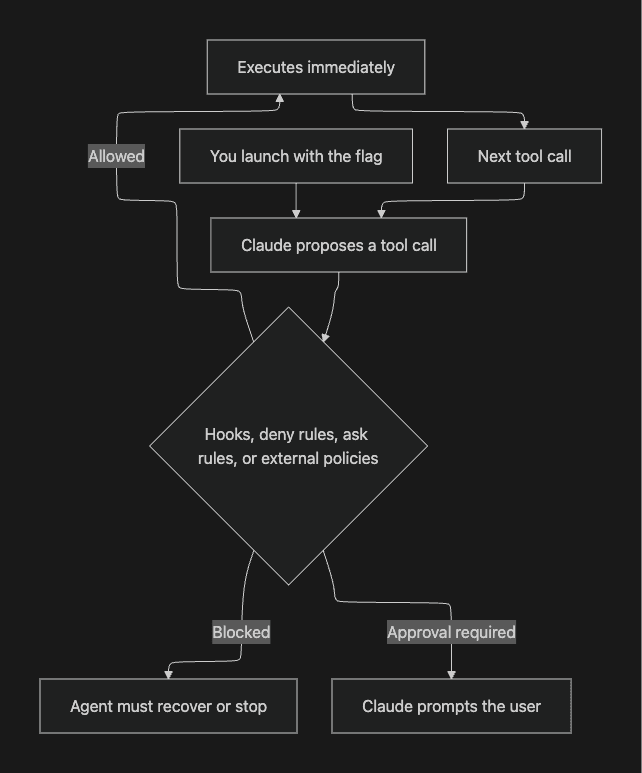
flowchart TD
    A[You launch with the flag] --> B[Claude proposes a tool call]
    B --> C{Hooks, deny rules, ask rules, or external policies}
    C -->|Blocked| D[Agent must recover or stop]
    C -->|Approval required| E[Claude prompts the user]
    C -->|Allowed| F[Executes immediately]
    F --> G[Next tool call]
    G --> B
The key point is that the normal approval prompt mostly disappears, but separately configured controls can still intervene.
I did not have any matching hooks, deny rules, managed policies, or external restrictions in place. No checkpoint existed between Claude’s decision and the action, leaving the project in a clean state.
Once I understood what the flag actually does, the next question became obvious: how do people use it without ending up in the same situation?
How to use it
You can start a one-off session like this:
claude --dangerously-skip-permissionsThe equivalent permission-mode command is:
claude --permission-mode bypassPermissionsOr, for a single non-interactive task:
claude --dangerously-skip-permissions -p "your instruction here"If you want it enabled by default, add this to ~/.claude/settings.json:
{
  "permissions": {
    "defaultMode": "bypassPermissions"
  }
}
You can also create a shell alias so that you never have to type the long flag again. That convenience is exactly what made the disaster so easy for me.
The first time you start an interactive session with bypass permissions enabled, Claude Code displays a warning and asks you to accept responsibility for actions executed without permission checks.
Once accepted, Claude Code saves that acceptance in your user settings, so the warning normally appears only once unless you remove or reset those settings.
Non-interactive sessions don't show the dialogue, and background sessions are refused until you accept it through an interactive session.
That means you shouldn't rely on the warning as a recurring safety reminder. Once you accept it, the responsibility stays with you.
Knowing the commands is one thing. Knowing when it is actually safe to run them is a separate matter.
When to use it, and when to stay far away
The single rule that defines when to use the flag is the blast radius.
If Claude makes the worst reasonable mistake, what can it reach, change, expose, or delete?
A few scenarios where --dangerously-skip-permissions can be considered:
Inside a fresh Docker container, disposable VM, or dev container with restricted host access.
In an isolated worktree where you've already committed or backed up all important changes.
In a temporary CI runner with minimal credentials, limited network access, and no path to production.
For one clearly bounded task where you can completely rebuild the environment if something goes wrong.
A temporary branch or Git commit helps with recovery, but it is not isolation. Claude may still access credentials, modify files outside the repository, make network requests, or interact with external systems if the environment allows it.
Similarly, a task does not become read-only merely because your prompt says “only analyse.” For genuinely read-only work, plan mode or dontAsk mode with a small allowlist is safer. In dontAsk mode, tools that have not been explicitly approved are denied rather than silently executed.
You should never enable bypass permissions without independent constraints when:
You are working directly on your main development machine.
The folder contains real work, secrets, or uncommitted changes.
The session will run unattended for hours.
The repository has access to production credentials or shared infrastructure.
The environment can reach systems that cannot be easily restored.
After the clean-slate night, I stopped treating the flag as a casual productivity and speed boost. I started treating it as a tool that requires deliberate boundaries.
This mindset shift is what led me to use it the way I do now.
How I use it now
I still enable the flag sometimes. For me, speed matters. But I never run it alone.
Every project now carries a short, high-priority block insideAGENTS.md, pulled into Claude through @AGENTS.md in CLAUDE.md:
- Never run rm -rf, git push --force, or delete outside the current worktree
- Create a git checkpoint before any major restructuring
- Prefer plan mode first; execute only after the scope is confirmed
- Stop and report if the action touches secrets, .env, or protected paths
Claude Code readsCLAUDE.md, not AGENTS.md directly, but importing it using @AGENTS.md is officially supported. The imported instructions are loaded into the session context each time Claude Code starts.
These lines are short and direct because concise instructions consume less context and are generally followed more consistently.
However, they are still context, not enforced configuration. Claude tries to follow them, but there is no guarantee of strict compliance. Anything that must never happen should also be blocked using deny rules, hooks, sandbox restrictions, filesystem permissions, or policies outside the model.
I also keep the working tree clean and committed before every autonomous session. If Claude goes sideways, I have a real recovery point.
That does not mean blindly running git reset --hard. That command only restores tracked content and can destroy remaining uncommitted work.
The important part is having a verified commit, a remote copy, a snapshot, or a disposable environment before the session begins.
Even with these personal rules in place, using external tools introduces another layer of risk.
The issue with the tooling layer and how Composio MCP Gateway can protect you
Even when Claude skips its own prompts, external tools often travel through an MCP server.
MCP Gateway sits between the MCP client and the tools it can reach:
Administrators can scope toolkits by team, whitelist or blacklist access, and block selected destructive actions inside otherwise permitted toolkits.
Members can request access to blocked tools, and administrators decide whether to approve or deny it.
Because this enforcement occurs within the Gateway rather than in Claude’s permission mode, enabling bypass permissions in Claude Code does not disable those Gateway-side restrictions.
For example:
I can allow Claude to search Gmail, inspect a GitHub issue, or retrieve information from another tool without also exposing every destructive action in that toolkit. Selected actions such as deleting a resource can remain blocked even when the rest of the toolkit is available.
Each team can also receive a scoped MCP endpoint, with SSO determining which tools that team can see. The audit trail records metadata such as the user, team, tool, action, outcome, and timestamp without storing tool-call payloads.
When I need real external tools, I trust this layer more than any prompt.
But remember, with this approach, protection applies only to calls routed through the Gateway.
It cannot stop a local shell command, a direct filesystem operation, a direct API request, or a credential path that bypasses the Gateway entirely.
The local workspace, permission state, network access, and session behaviour still need their own safeguards. Organisations deploying AI agents in production can compare penetration testing companies in the US to find specialists who can assess MCP integrations, excessive permissions, insecure tool calls, and paths to sensitive data.
That is why I follow a fixed set of practices every time I enable the flag.
Best Practices to Follow
A few practices made the biggest difference once I started using the flag:
Keep plan and bypass modes separate: Bypass removes normal edit prompts, so I always review the plan, exit the session, and start execution in a fresh one.
Check permissions before autonomous runs: I use
/permissionsto review the active allow and deny rules, especially because deny rules take priority.Clean up stale approvals: “Don’t ask again” Bash approvals persist in
.claude/settings.local.jsonacross sessions and worktrees, so I review and remove them occasionally.Make the sandbox fail closed: I set
sandbox.failIfUnavailable=trueandallowUnsandboxedCommands=falseso Claude stops instead of silently falling back to unsandboxed execution.Separate network and filesystem controls: I restrict both independently because blocking file access does not stop Claude from sending reachable data to an external service.
Verify hooks before relying on them: I check
/hooksto confirm they loaded correctly and test eachPreToolUsehook against a command it is supposed to block.Cap non-interactive runs: I use
-max-turnsand-max-budget-usdso a stuck workflow cannot keep running or spending indefinitely.Disable bypass in normal environments: I set
permissions.disableBypassPermissionsMode="disable"on machines and environments where bypass should never be available.
The common pattern here is simple: never make Claude responsible for both deciding the blast radius and controlling it.
Conclusion
On a final note, I still use the flag, but I no longer treat it casually.
That clean-slate night taught me that autonomy without boundaries is not freedom. It is simply a faster way to lose your work.
So before enabling bypass permissions or Auto mode, understand exactly how they behave, keep the blast radius small, and build the guardrails first. Treat those protections as safety measures, not guarantees.
Bypass mode can be incredibly useful in the right environment. Auto mode can provide a safer middle ground when you want fewer interruptions without removing every check. dontAsk Can work well for strict, allowlisted automation where unknown actions should fail closed.
In the wrong environment, any of them can turn a simple task into a nightmare.
Use them carefully, stay in control, and rely on external enforcement such as Composio MCP Gateway when real tools, credentials, or production systems are involved.
Just remember that no single layer protects everything. Your local filesystem, shell access, credentials, network, external tools, and recovery plan all need separate boundaries.
Taking extra caution may feel slower at first, but it is still much faster than rebuilding everything Claude decided to clean up.

 Get started



