




Yet another new product from Anthropic. This time, it aims to replace your Slack Coworkers. Yes, you don’t have to deal with their annoying requests anymore.
The Claude Tag is essentially a Slack Bot wrapper for Claude Code CLI. Whatever you could do with Claude Code or Cowork, now you can do it with Claude Tag. The core idea is to integrate Claude where your work actually happens.
However, the default connectors are limited, and to add new connectors, you'd need to create custom plugins.
This guide walks you through wiring Composio MCP into Claude Tag as a custom connector, so a single setup hands Claude access to 1000+ apps across your org.
Pricing and availability
Claude Tags are available only on the Claude Teams and Enterprise plans, so you cannot use them with your Pro or Max subscriptions.
And the uses are billed separately. You have to top up Claude Tags with credits to use them. The credits follow API pricing, which can be expensive as you scale up your user base. Something to keep in mind before inducting Claude Tag into your Slack workspace.
How does Claude Tags work?
Anyone in the channel can invoke it by tagging @Claude, and it runs in the background, completes the task, and posts the response back in the thread. Claude builds context by remembering relevant information from the channels it's in, and can plan out tasks to complete in the future.
Claude Tags is designed with enterprises in mind. The admin controls which channels can access it, and what tools, plugins, and skills Claude is allowed to use in each one — provisioning repositories, tools, and skills per channel.
For example, Claude in the #growth channel might only reach GSC, PostHog, and Google Ads, while #tech gets its own set of repositories and tools. Each channel essentially has its own Claude, with its own context and persona. And because access follows the channel, no individual can connect their own tools to Claude in a shared channel.
That shared-channel design has one catch worth flagging. Anyone can tag Claude, and it acts on whoever tagged it last with no notion of ownership — so it can overwrite your work if someone else asks it to redo or "clean up" something you set up.
For anything under version control, this isn't really an issue; you can always revert. But for irreversible actions — sending a message, updating records in an app, kicking off a workflow — conflicting requests can collide with no undo.
Beyond responding to tags, Claude can also work independently in two ways. Ambient mode (enabled by an admin) lets it operate in the background — filling in missing context and following up on threads that have gone quiet. Keep it to signal channels like incidents or CI, and off where people think out loud, since proactive quickly becomes noise. Routines go further, running on a schedule or on events (a recurring digest, or waiting on a repo deploy before acting).
For more on how Claude Tags work, check Anthropic's official documentation.
How to give Claude Tag all your company contexts?
Claude Tag is as useful as the context you provide. It can do a lot of things, from retrieving records from Salesforce and product analytics from Posthog or Mixpanel to resolving Linear tickets right from Slack.
But here’s the bummer. Anthropic has a limited set of connectors officially available in Claude Tag (Vercel, Datadog, Stripe, Sentry, Gitlab, Notion, Linear, etc), and on top of it, you have to individually add all the services, and the audit logs don’t preserve the API calls to the endpoints of these services. So, the entire execution is sort of a black box.
But if you’re using Claude Tag for destructive actions, you need to keep track of what it does.
This is where Composio comes into the picture.
Composio MCP provides a gateway to over 1,000 managed integrations, CRMs, ticketing services, analytics, and much more.
You can track all the API calls made by Claude in the Composio dashboard.
Composio handles OAuth, so you can just plug in the applications and get started in minutes.
So, let’s see how you can add Composio or any custom MCP, for that matter, to Claude Tag.
How to connect Composio or any custom plugin to Claude Tags?
To reiterate:
You need to be the Slack Admin
And you need to have a Claude Teams or Enterprise plan, and also admin access
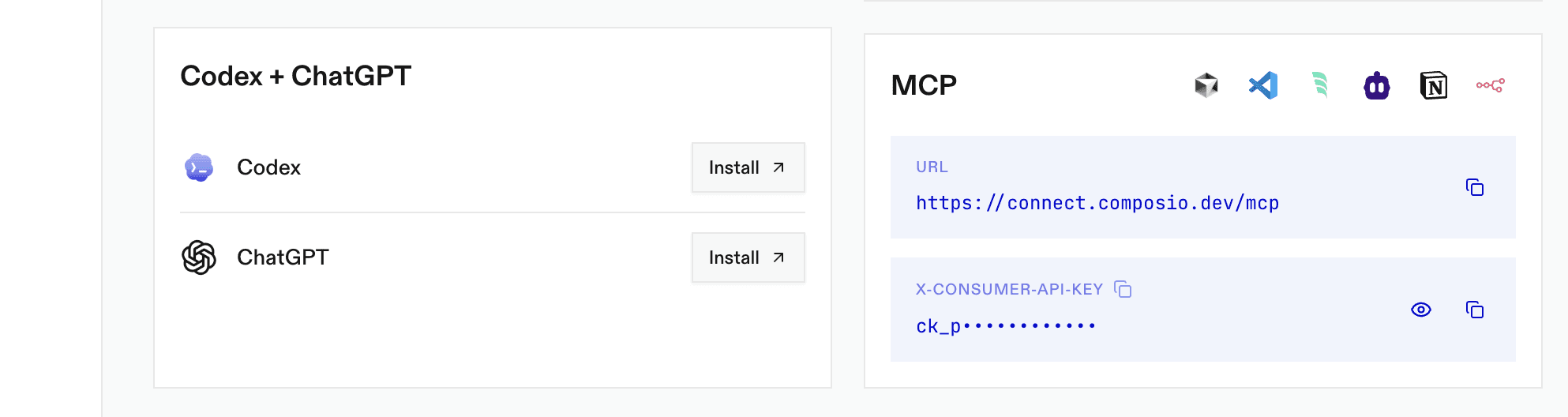
Composio API Key. You can create one for free in the dashboard.
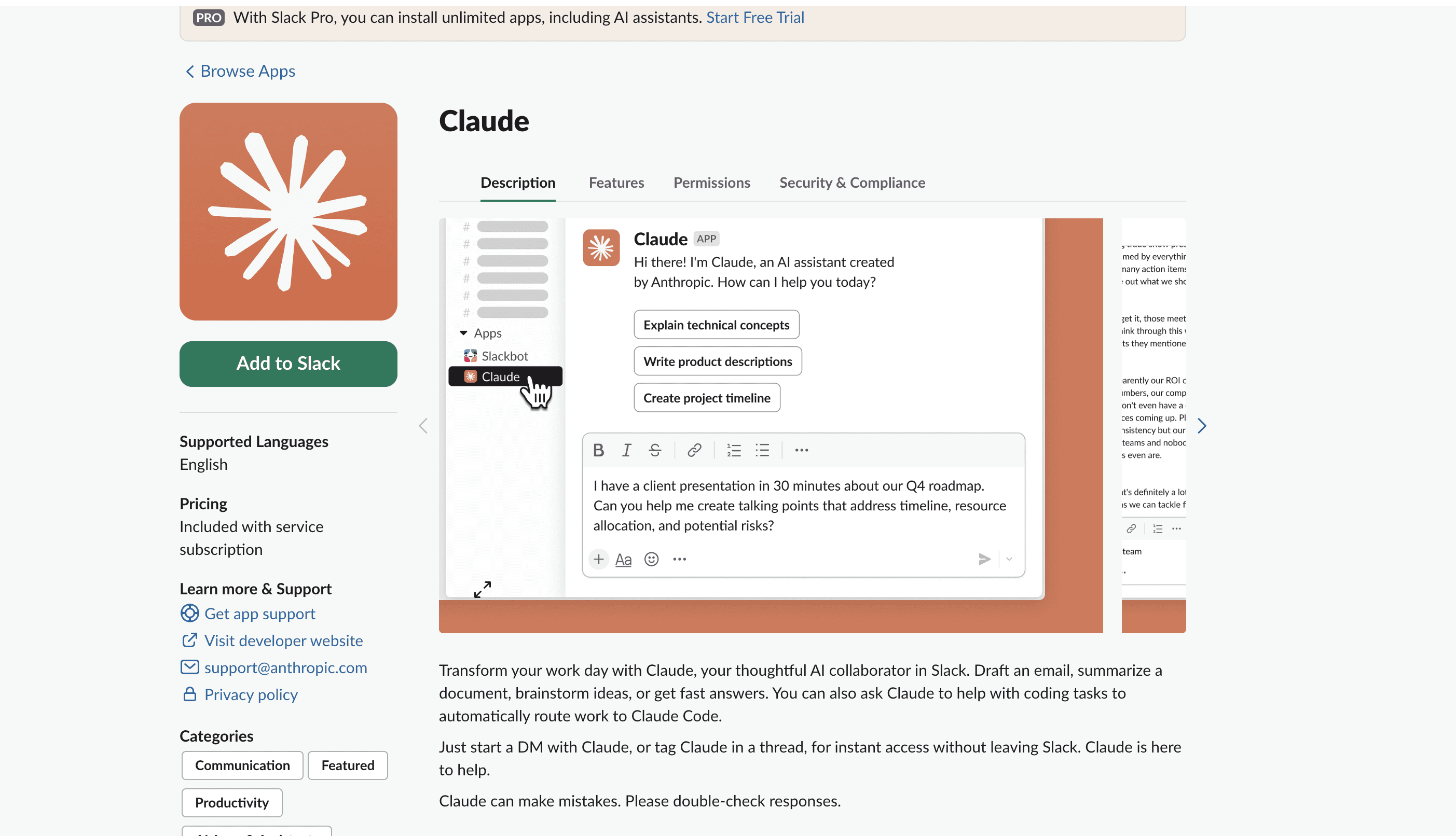
Step 1: Add Claude to your Slack Workspace
Go to the Slack marketplace and install the Claude app.
Step 2: Configure your Slack workspace inside Claude Tag Admin
Go to the Claude Tag admin panel to configure your Slack workspace with Claude
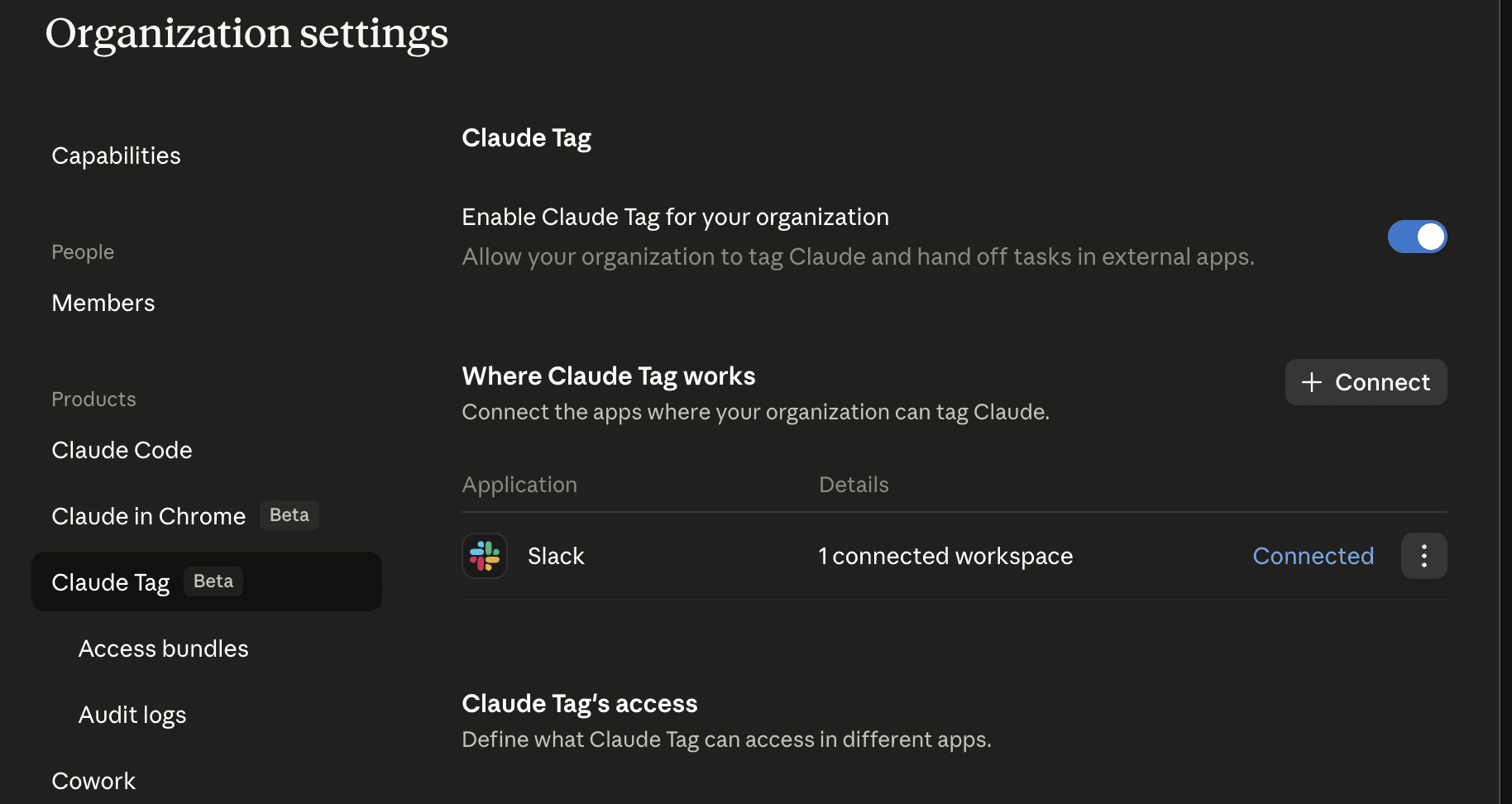
Click on Connect and type
@claude connectin any channel. And it’ll return a code paste that in the pop-up.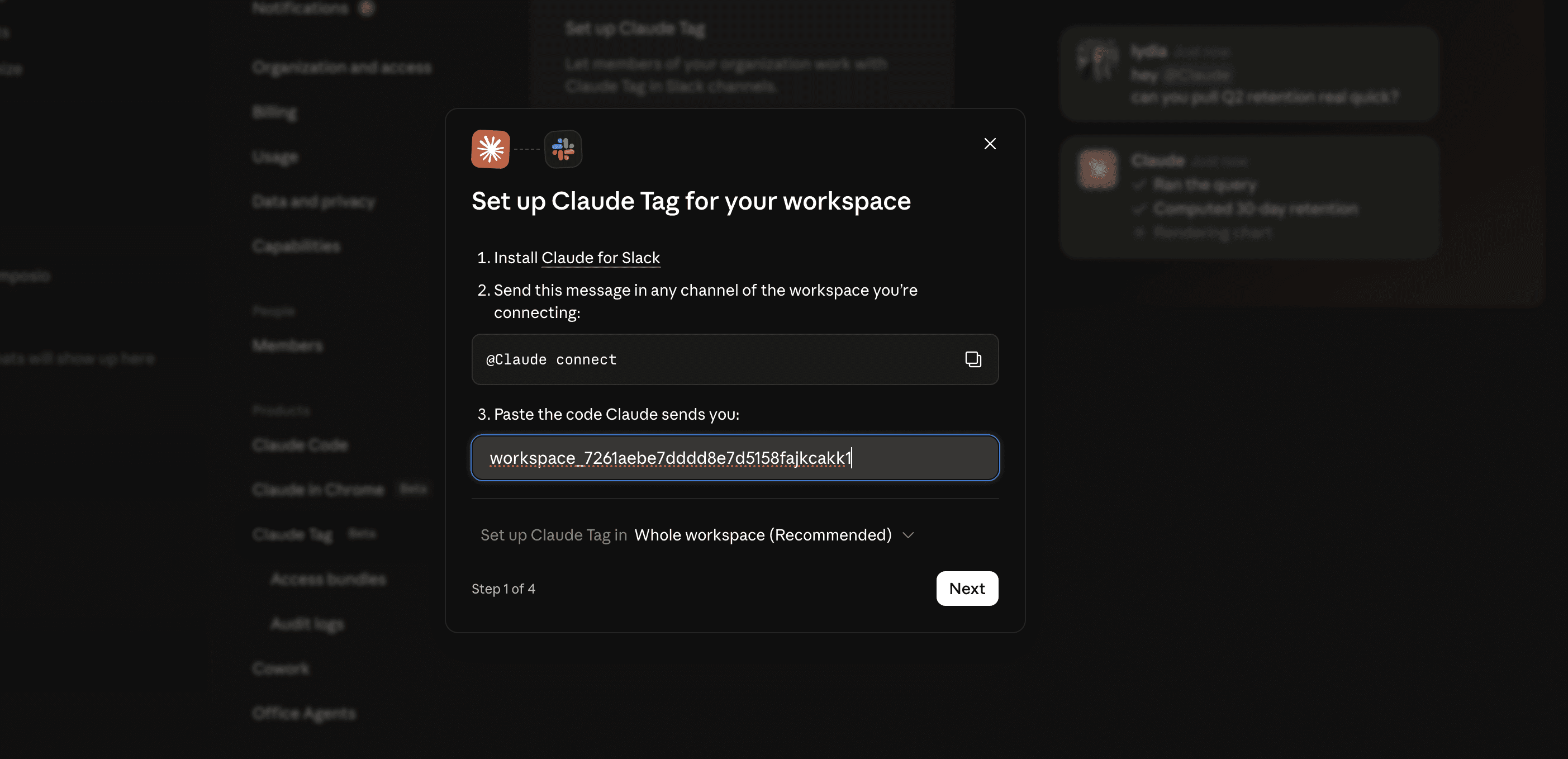
If you want to keep Claude Tag limited to a few channels, click on the drop-down shown in the picture above and add channel IDs.
Leave the rest of the steps as they are. We will be back here soon.
Step 3: Adding Composio MCP (or any custom connectors)
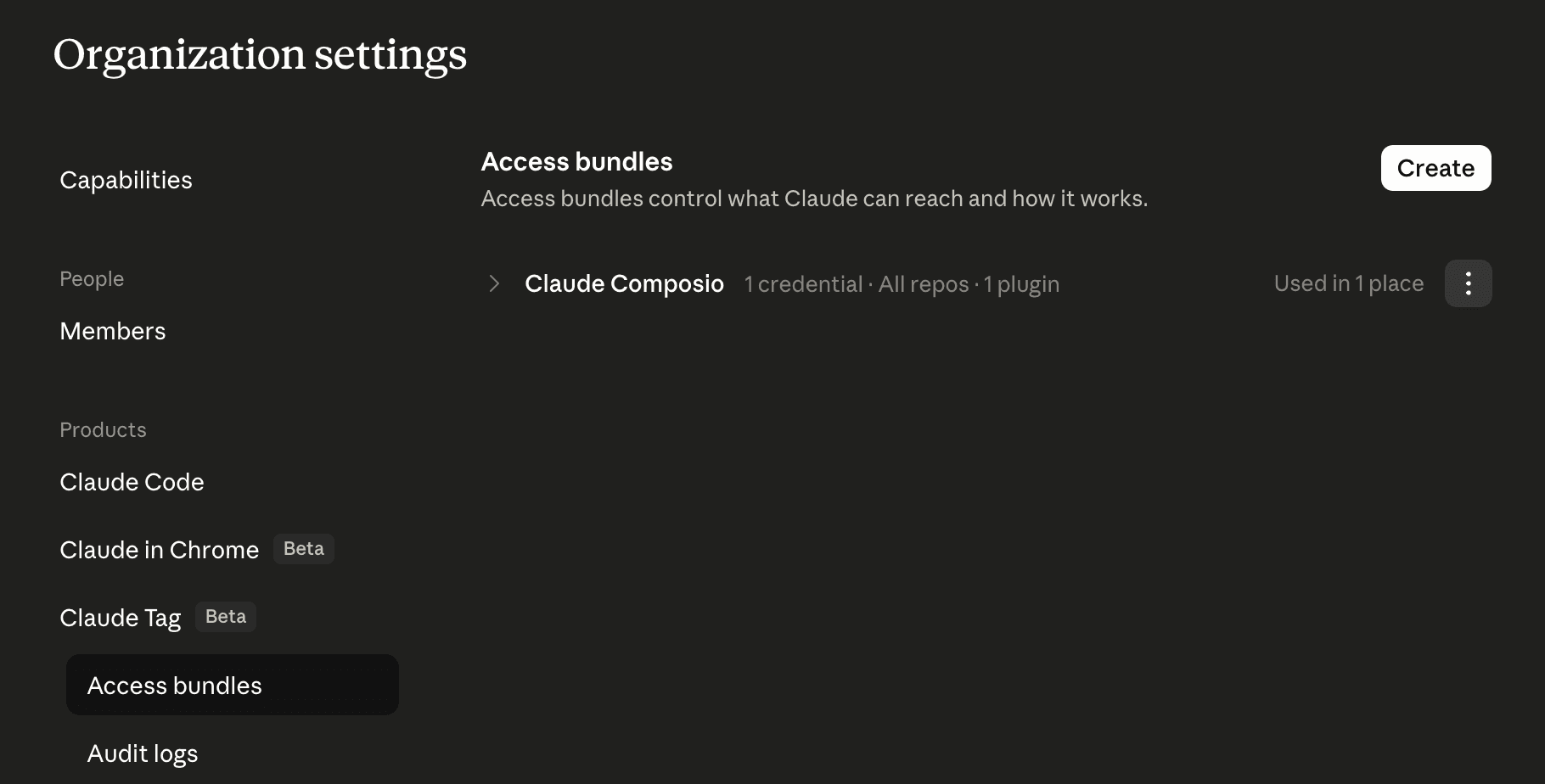
In the next step, go to Access bundles and click on Create
Claude has a default set of apps to choose from. You have connectors for apps such as Notion, Gmail, Gong, Hubspot, Linear, etc.
Each has its own authentication setup (OAuth or API key), which you have to configure individually.
Note: You should create separate user accounts for Claude, instead of authenticating from your personal user accounts and provision access according to the requirements.
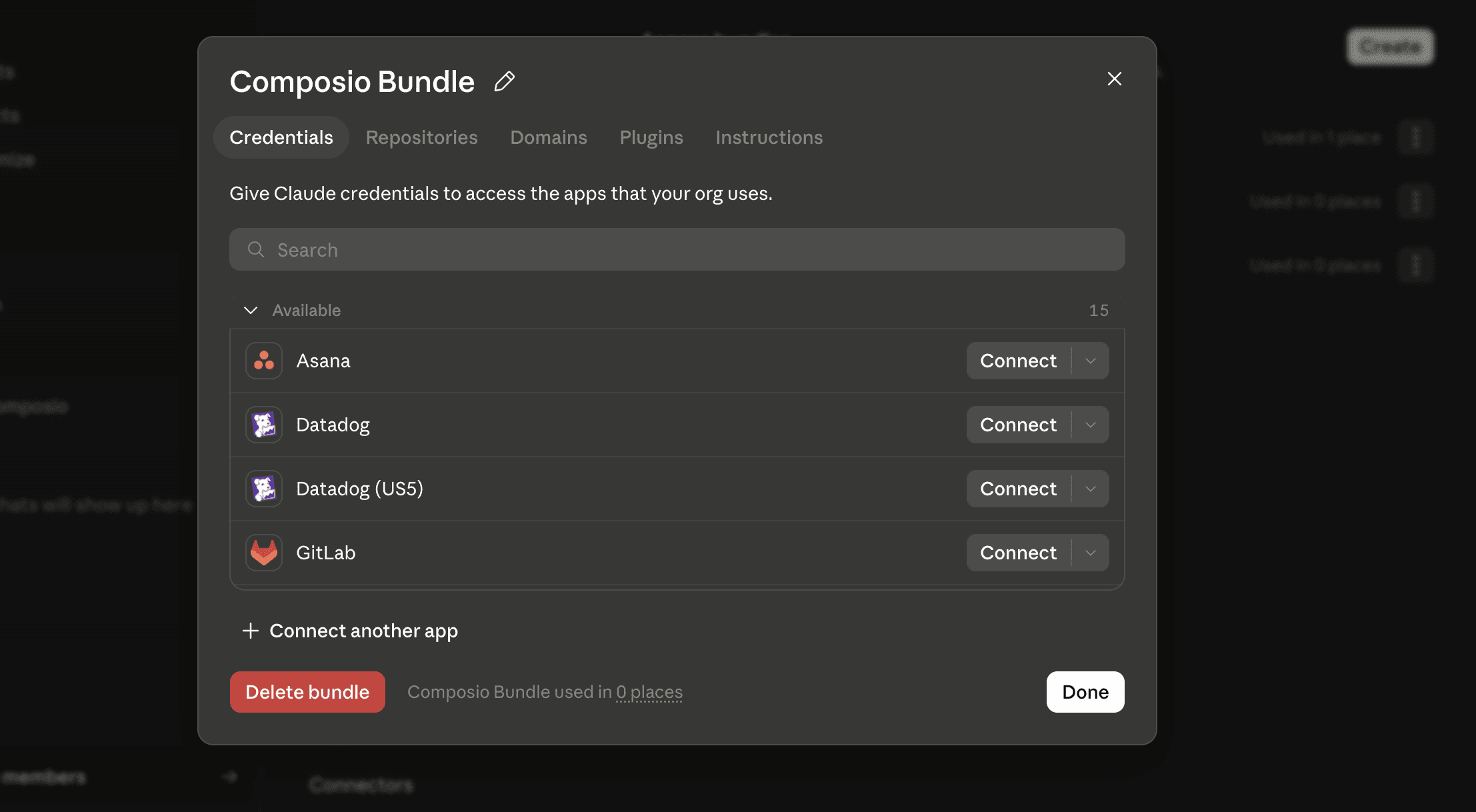
To add a custom connector, such as Composio MCP, click + Connect Another app.
Fill in the details, and make sure the authentication methods are correct.
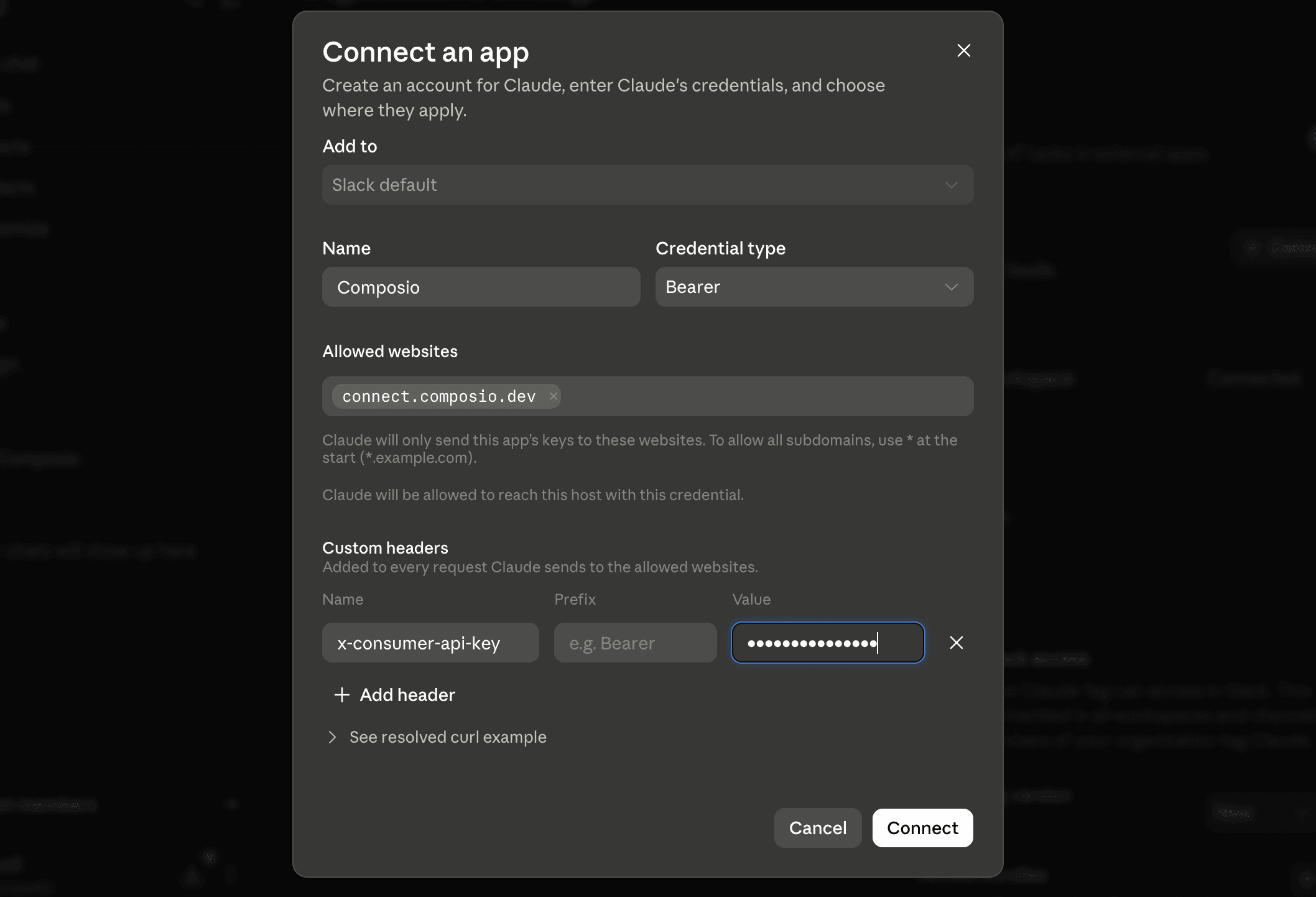
For Composio, replace the following in the Custom headers section
Allowed websites: connect.composio.dev
Name: x-consumer-api-key
Prefix: empty
value: ck_********* (Composio API Key you just created)
Step 4: Adding a custom Composio plugin to Claude
Now this step is about adding a custom plugin with MCP, and you need to add a plugin repository to your GitHub org. If you haven’t, then add your GitHub org to Claude before proceeding
Now clone this Composio plugin repo and make sure it’s in your GitHub org. If you already have a custom plugin, just add the MCP server below to the .mcp.jsonfile. This will point Claude to Composio MCP.
{
  "mcpServers": {
    "composio": {
      "type": "http",
      "url": "https://connect.composio.dev/mcp"
    }
  }
}
Register the repo as a plugin marketplace
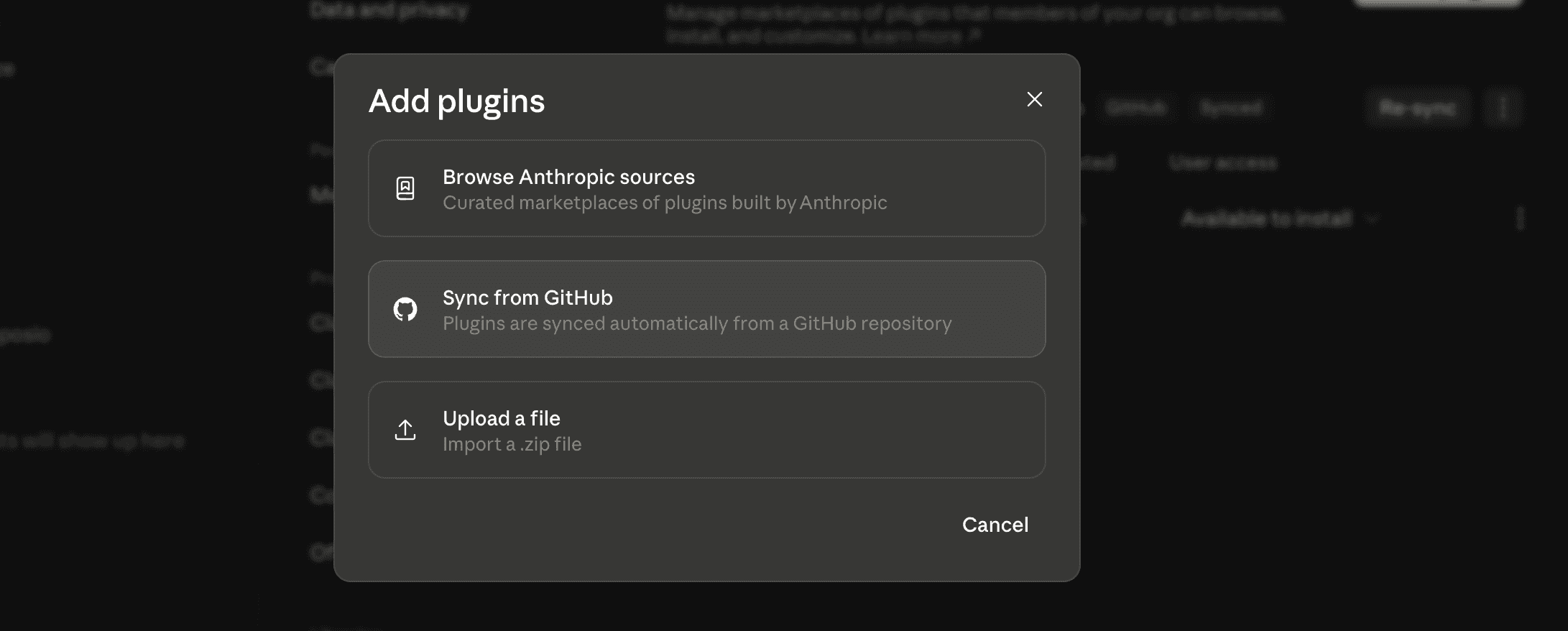
Click on Add plugins
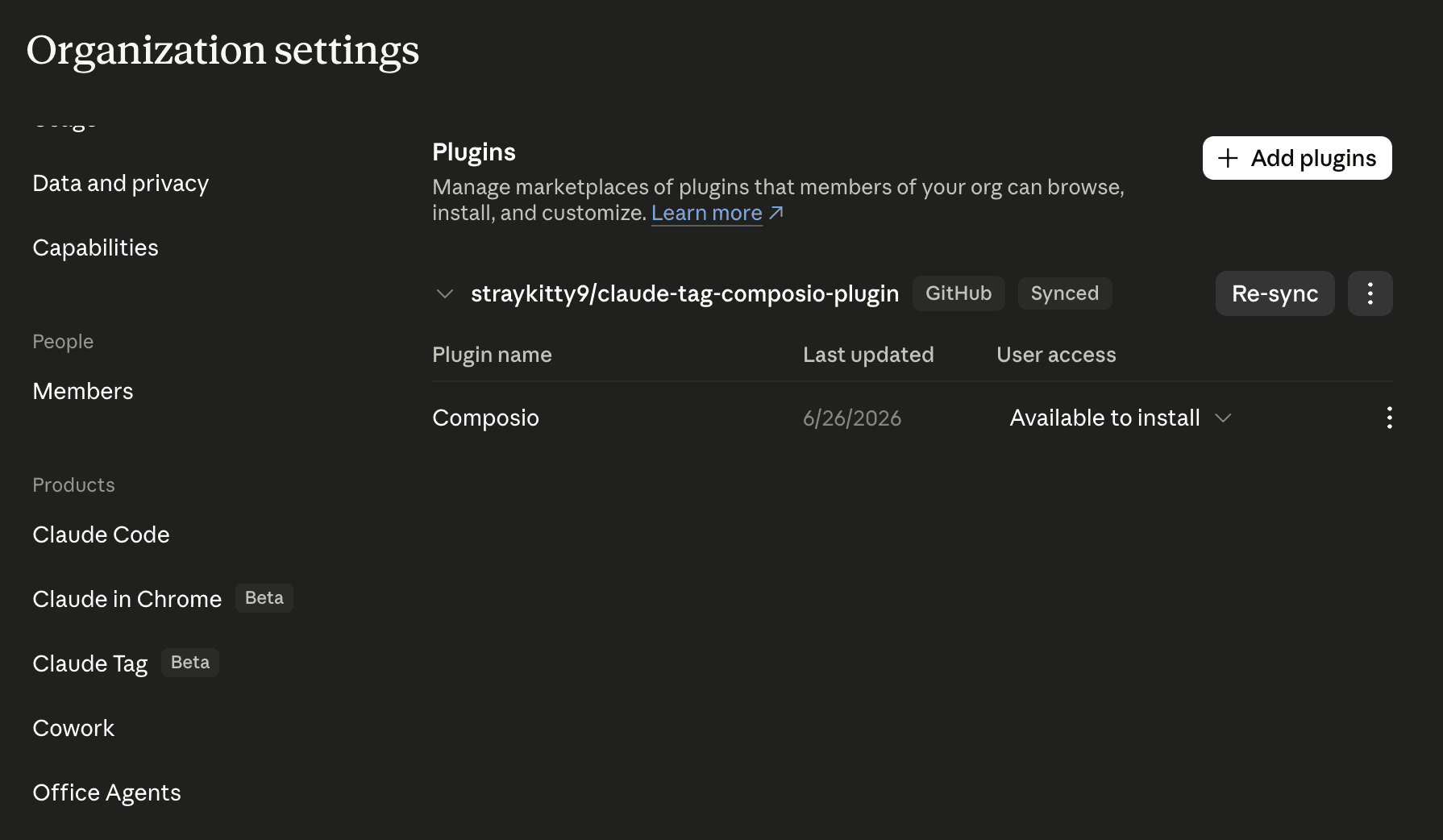
Click on Sync from GitHub. It will show all the plugin repositories that Claude can sync from.
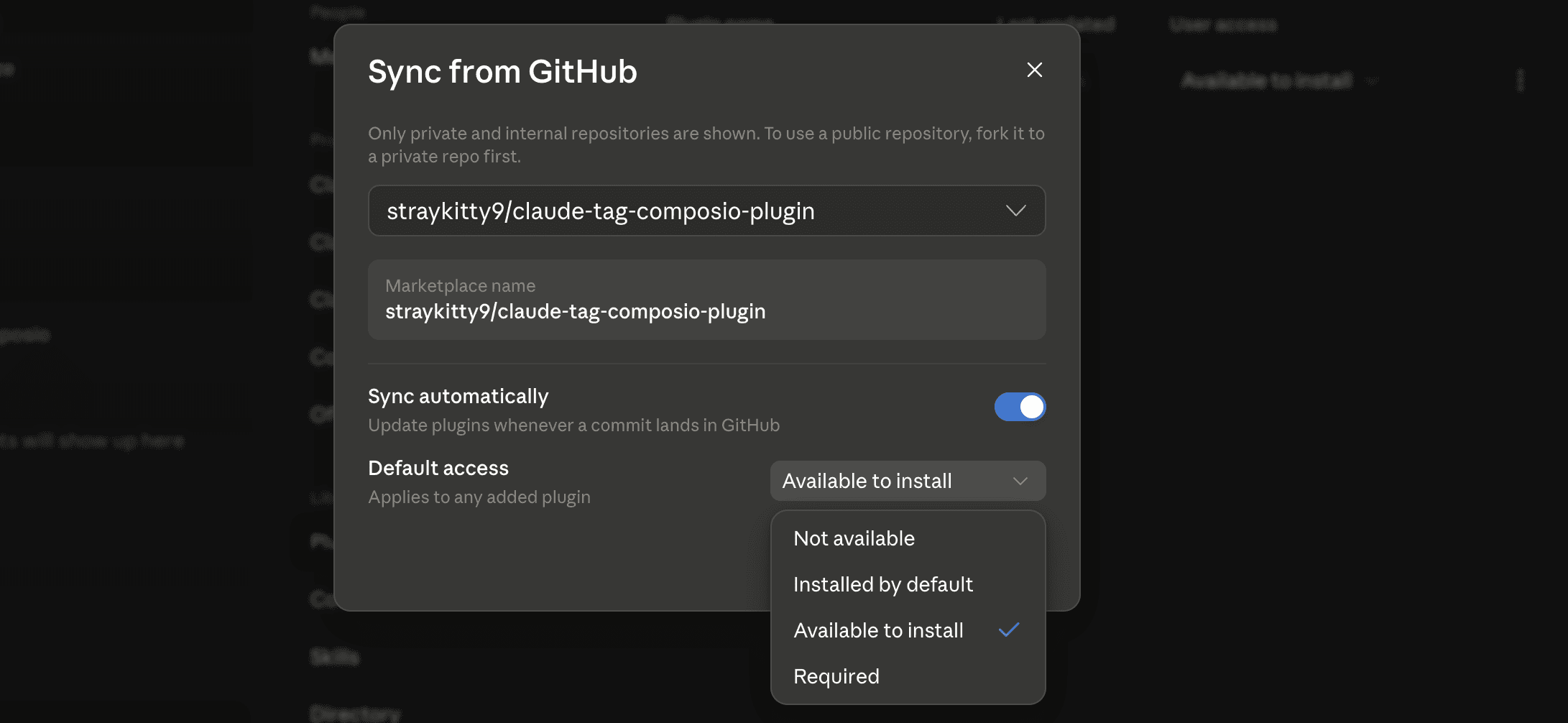
Select the repository and set the Default Access to
Available to Installsync automatically.
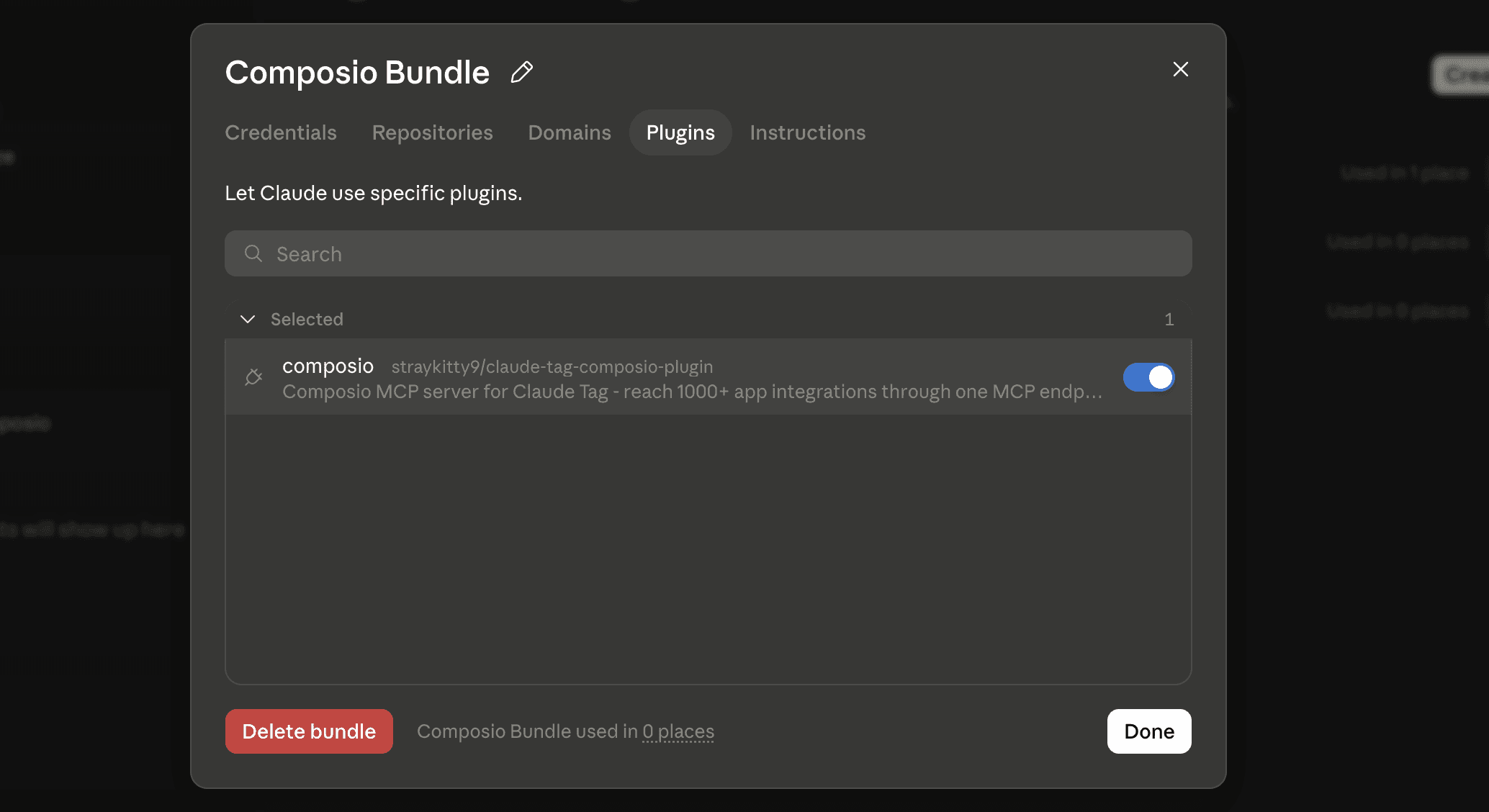
Attach the plugin to the Access Bundle
Now, in the Access Bundle section, toggle the plugin you just added.
Step 5: Verify it works
Go back to your Slack channel and send Claude a message.
@Claude Can you access Composio tools?And you should get an affirmative response.
Related: Best Claude Code Plugins | Best Cowork Plugins
Step 6: Configuring your apps in Composio MCP
As the agent is headless, you need to configure the application from the dashboard.
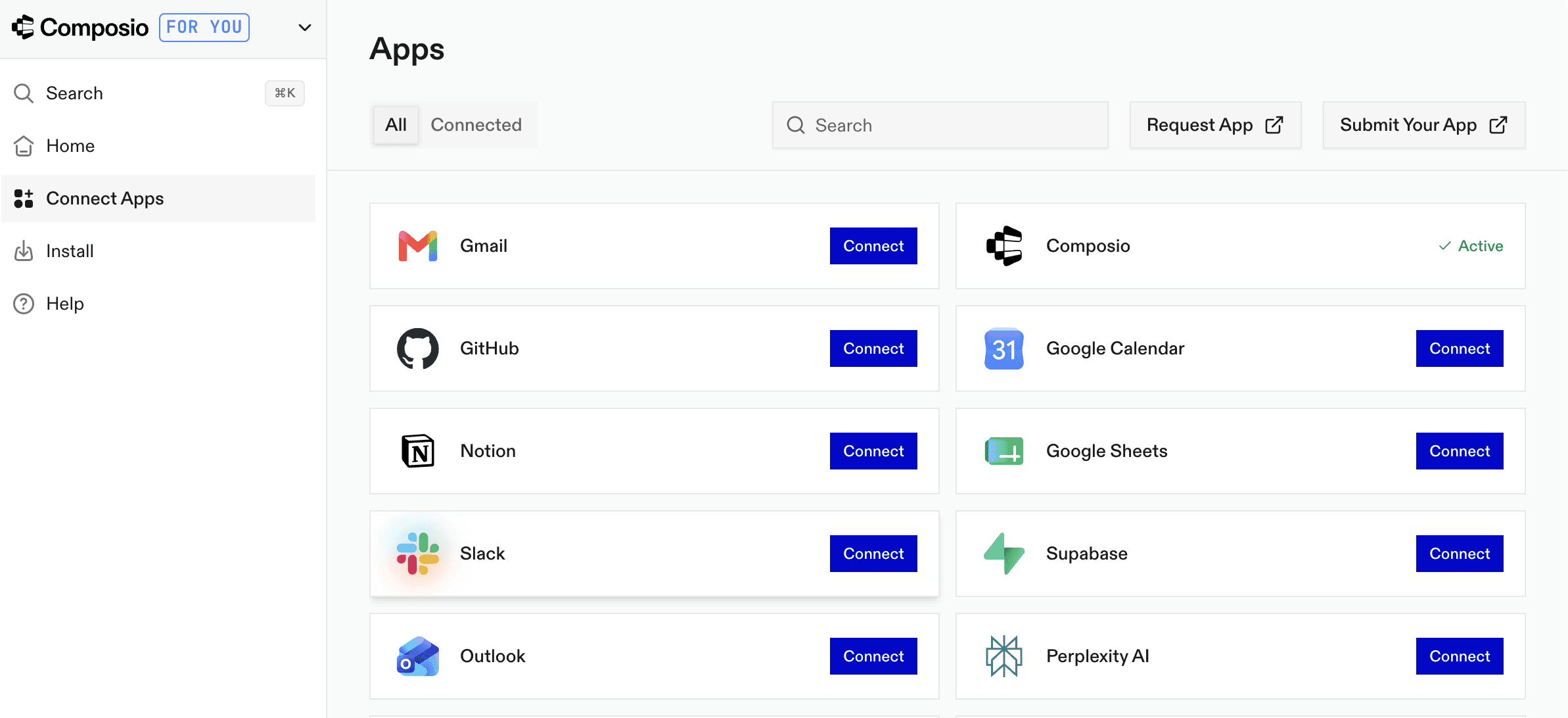
So, go to Composio Dashboard, toggle to For You on the top left corner.
Configure whichever apps you want Claude to access from a catalogue of 1000 tools.
It’s important to keep in mind that you are giving Claude access to all the apps via Composio. So, it’s ideal to use a separate account for Claude, which has access to the specific apps a channel needs.
For example, the Access Bundle for #growth should have a separate Composio ID from the #tech. Each will have their respective access to tools.
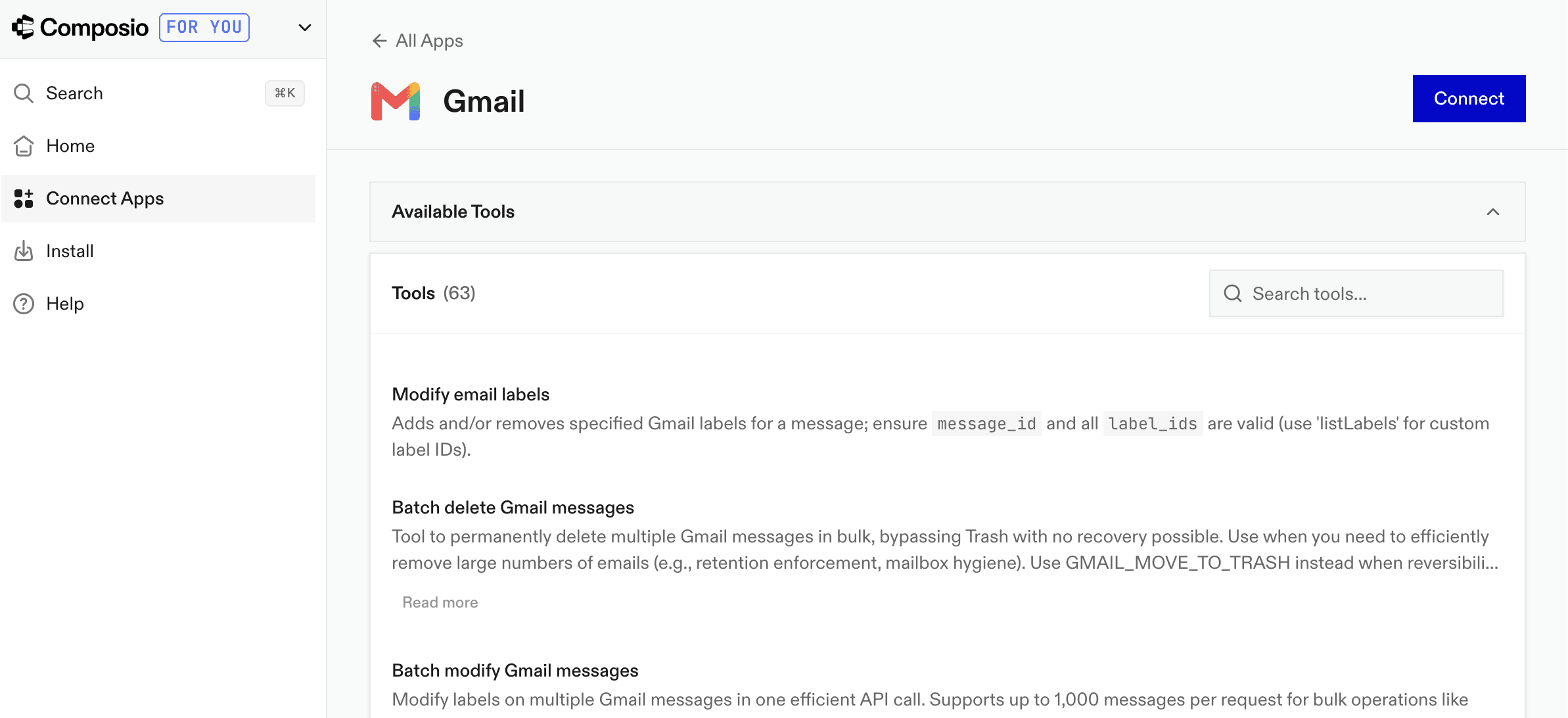
To connect Gmail, click Connect and authenticate the Gmail account Claude needs access to.
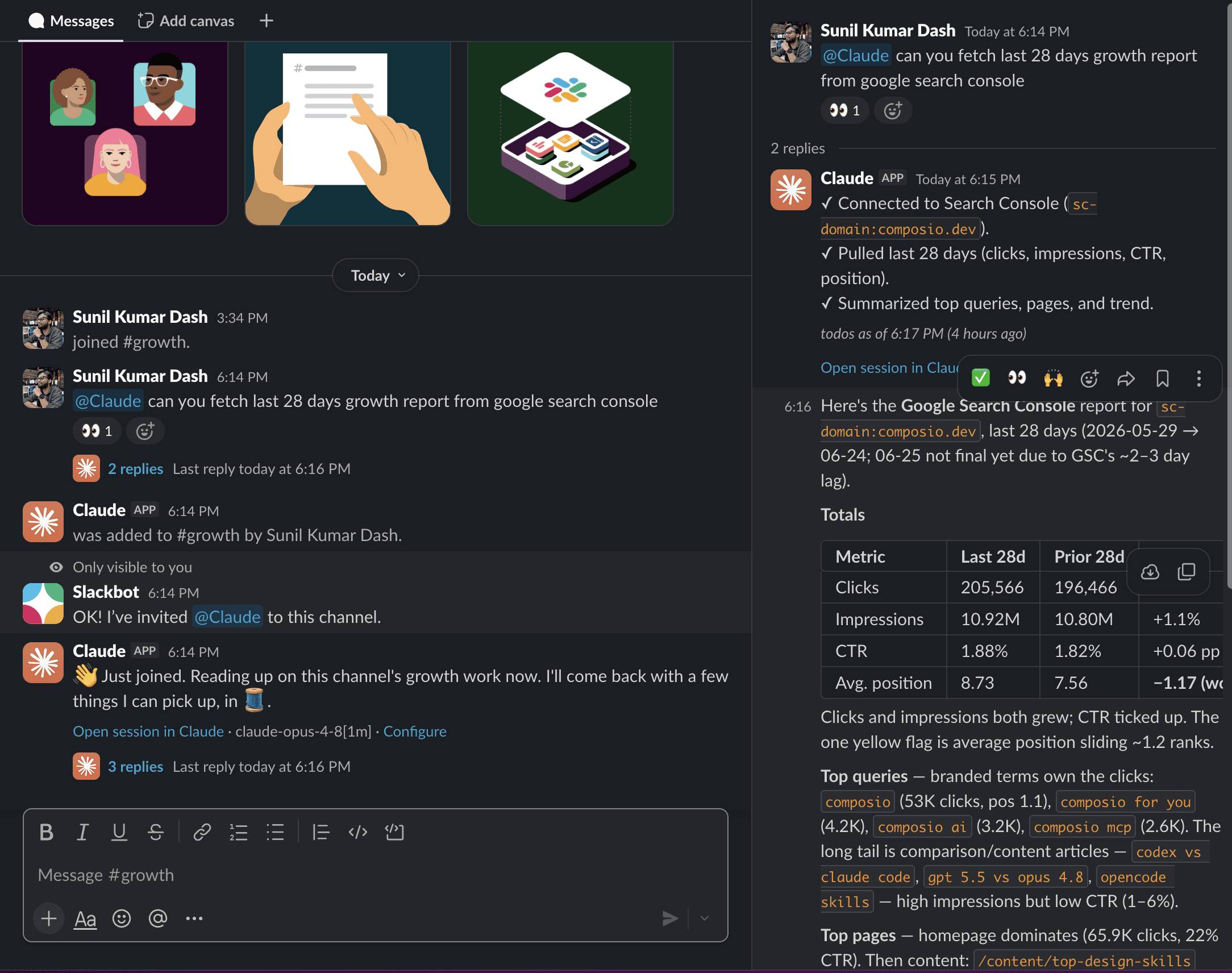
You can now test the integration with Claude tags.
This is an example of me giving Claude access to our search console
End Note
This will

 Get started




