How to integrate Zoho MCP with Kimi Code

Connect Kimi Code to Zoho MCP. Convert new leads to contacts in crm, add a note to an existing zoho deal, and more using natural language, with authentication handled for you.

Zoho logoZoho
Oauth2

Zoho is a suite of cloud business apps for CRM, email marketing, and collaboration. It helps teams automate workflows and scale operations effortlessly.

57 Tools

How to integrate Zoho MCP with Kimi Code

Kimi Code is Moonshot AI's open-source coding agent, powered by Kimi K2.6. It runs in your terminal, reads and edits code, executes shell commands, and plans multi-step tasks, with native MCP support for extending it to outside tools.

In this guide, I will explain the easiest and most secure way to connect your Zoho account to Kimi Code via Composio Connect, so it can convert new leads to contacts in CRM, add a note to an existing Zoho deal, list all contacts added this week, and more without ever putting your account credentials at risk.

Also integrate Zoho with

Why use Composio?

Composio provides:

  • Access to 1,500+ managed apps from a single MCP endpoint. This makes it convenient for agents to run cross-app workflows.
  • Managed OAuth. You do not have to worry about authentication and authorization flows for every app.
  • Programmatic tool calling. Allows LLMs to write code in a remote workbench to handle complex tool chaining. This reduces back-and-forth for frequent tool calls.
  • Large tool response handling outside the LLM context. This minimizes context bloat from large tool responses.
  • Dynamic just-in-time access to thousands of tools across hundreds of apps. Composio loads the tools your agent needs, so LLMs are not overwhelmed by tools they do not need.

Connect Zoho to Kimi Code

Kimi Code is a TypeScript agent distributed through npm. It acts as an MCP client and reads server definitions from an mcp.json file, and it can also add and authenticate servers conversationally through /mcp-config. Composio is a remote HTTP server that authenticates with OAuth, so no API key is stored anywhere.

1. Install Kimi Code

The quickest way is the official install script, which requires no pre-installed Node.js and places the kimi executable on your PATH.

bash
# macOS or Linux
curl -fsSL https://code.kimi.com/kimi-code/install.sh | bash

# Windows PowerShell
irm https://code.kimi.com/kimi-code/install.ps1 | iex

# Confirm the installation
kimi --version

2. Log in

Start Kimi Code in your project directory, then sign in from the interactive UI:

bash
kimi

Run /login and choose Kimi Code OAuth using the device-code flow, or use a Moonshot API key.

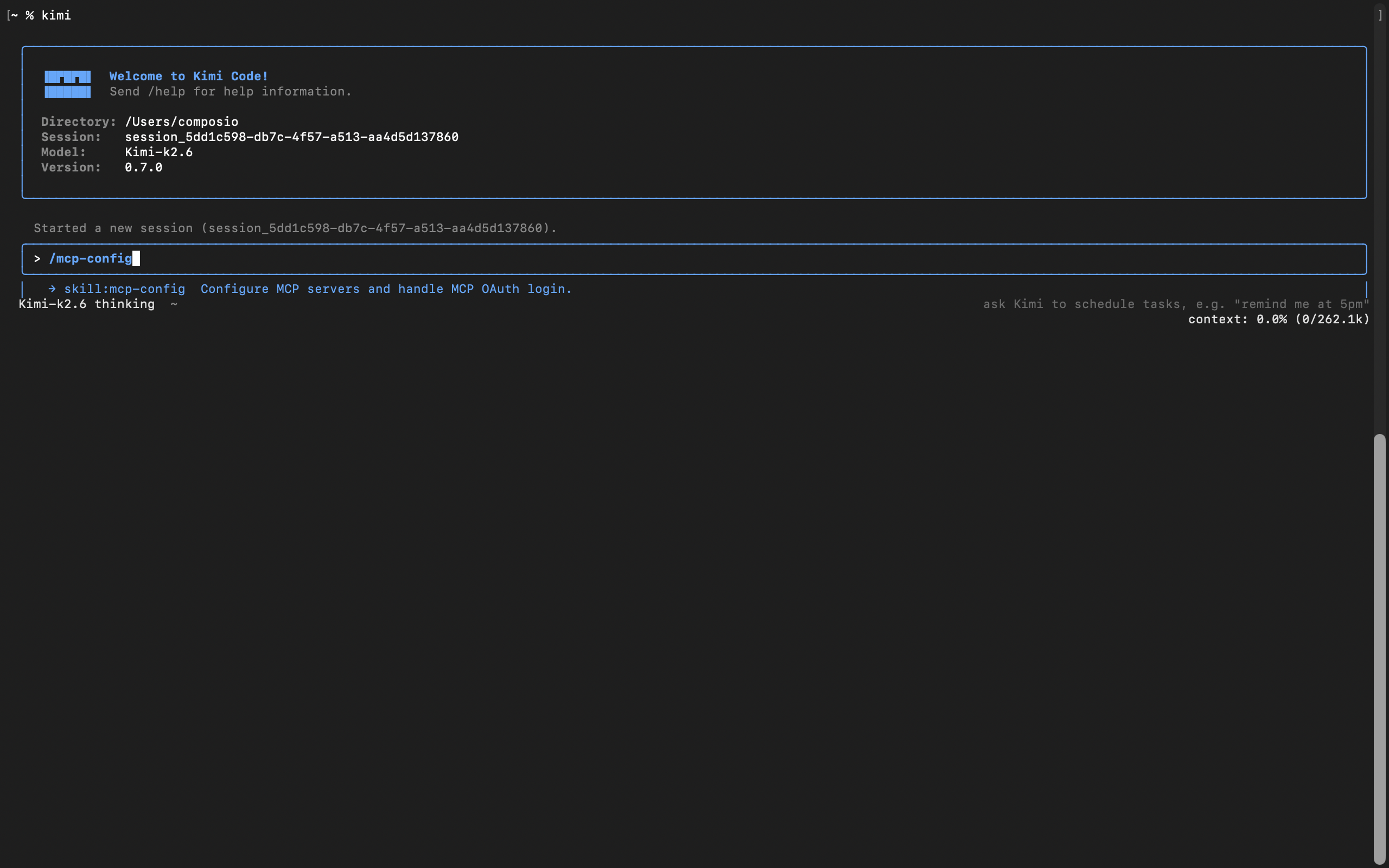
3. Add Composio with /mcp-config

In current versions of Kimi Code, MCP servers are managed inside the app, not with a shell subcommand. From the interactive UI, run:

bash
/mcp-config
Kimi Code MCP config flow for adding the Composio MCP server

Tell it the server name and URL in plain language. For example:

Server name is Composio, and here is the server URL: https://connect.composio.dev/mcp

Kimi Code asks whether to add it globally, at ~/.kimi-code/mcp.json, or project-local for the current checkout, then writes the entry for you:

bash
{
  "mcpServers": {
    "Composio": {
      "url": "https://connect.composio.dev/mcp"
    }
  }
}

There is no transport field to set. Kimi Code infers HTTP from the url.

4. Restart the session

The new server is picked up on a fresh session, not the current one. Start a new session:

bash
/new

On the new session, Kimi Code detects that the server needs authorization and prompts you to run:

bash
/mcp-config login Composio

5. Authorize with OAuth

Run the command Kimi suggests:

bash
/mcp-config login composio

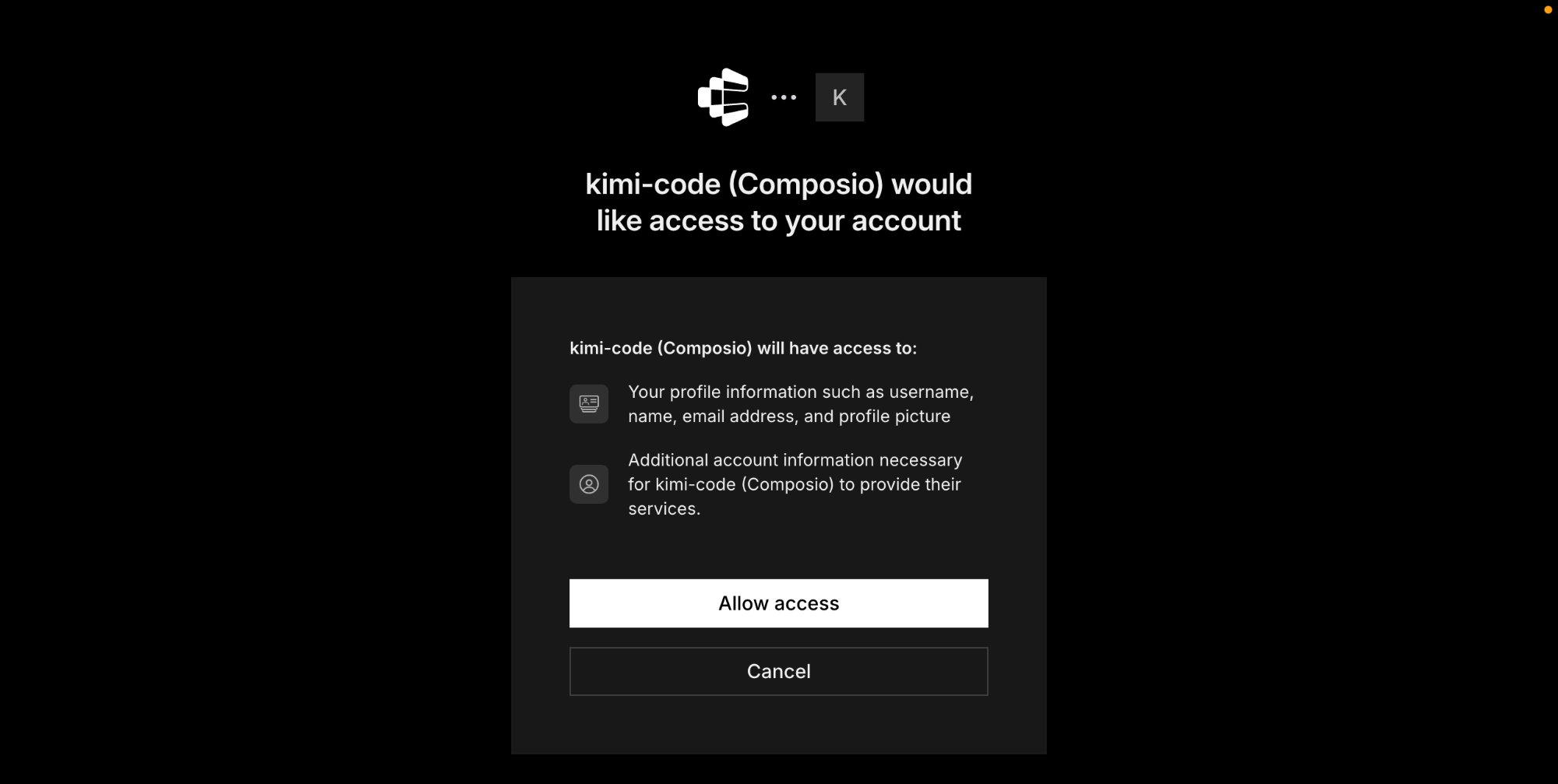
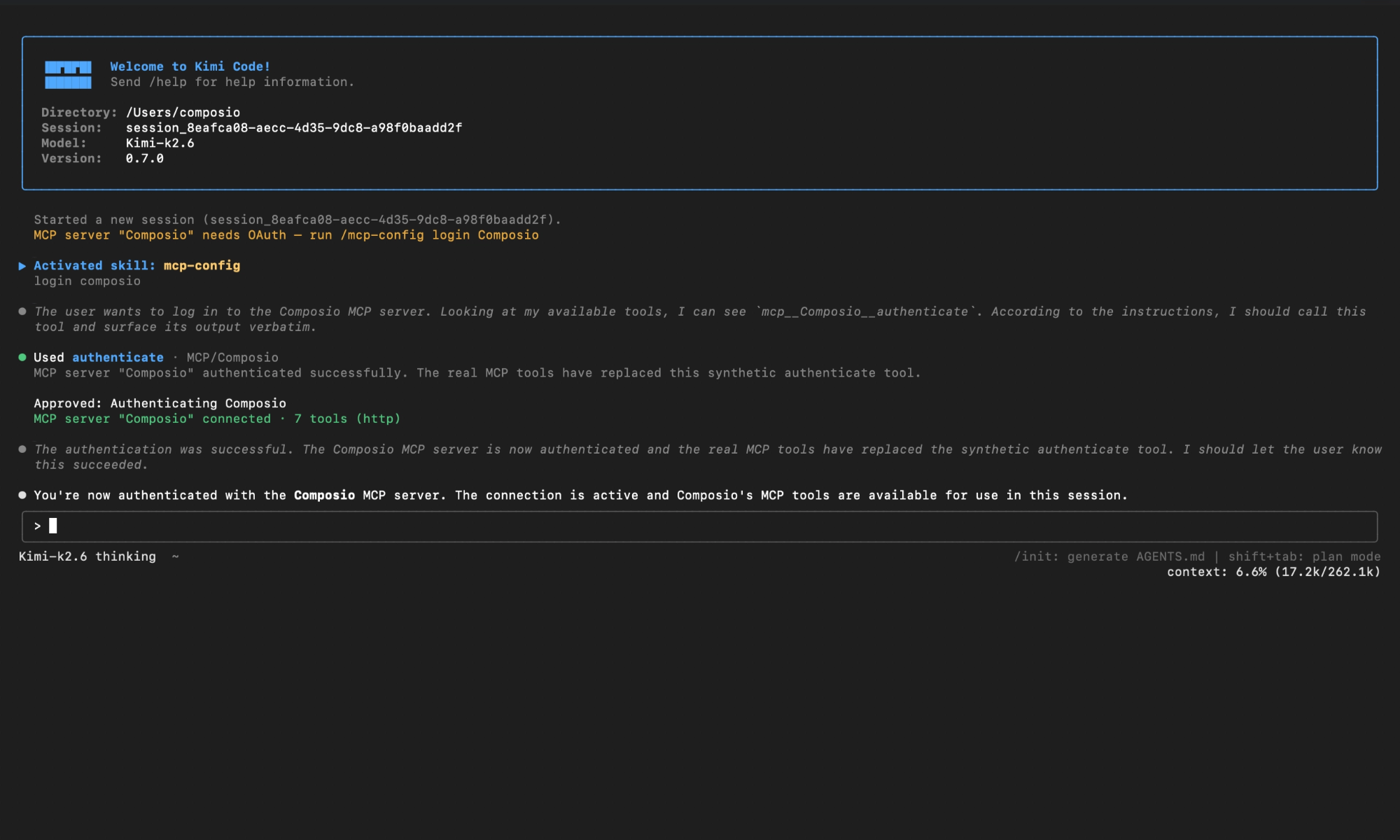
Kimi Code opens Composio's authorization page or surfaces a URL. Approve access, then return to the session. You should see confirmation that the Composio MCP server is connected.

Composio authorization page for Kimi Code MCP setup

Check the connection status any time with /mcp. Composio should appear as connected with its tools listed.

Kimi Code showing Composio connected after OAuth authorization

Connect your Zoho account

Back in a Kimi Code session, ask the agent to connect to Zoho or give it any Zoho-related task.

For example, ask it to:

  • "Convert new leads to contacts in CRM"
  • "Add a note to an existing Zoho deal"
  • "List all contacts added this week"

It will prompt you to authenticate and authorize access to Zoho.

That is it. Composio tools are now available in Kimi Code, and your Zoho account is ready to use.

Conclusion

You have successfully connected Zoho to Kimi Code using Composio Connect. Your agent can now manage Zoho from the terminal with natural language, without exposing credentials in prompts or local scripts.

Since the same Composio endpoint exposes 1,500+ apps, you can add Slack, Calendar, Linear, and more to the same server and chain them into cross-app workflows.

TOOLS

Supported Tools

Every Zoho action and event your agent gets out of the box.

Convert Zoho CRM Lead

Converts a lead into a contact, account, and optionally a deal in Zoho CRM.

Create Contact in Zoho CRM

Creates a new contact record in Zoho CRM.

Create Deal in Zoho CRM

Creates a new deal in Zoho CRM representing a sales opportunity with deal name, stage, amount, and closing date.

Create Email Draft in Zoho CRM

Creates email drafts for a specific record in Zoho CRM.

Create Zoho Event

Creates a new Event record in Zoho CRM.

Create Lead in Zoho CRM

Creates a new lead record in Zoho CRM with the specified details.

Create Note in Zoho CRM

Creates a new note attached to a specific record in Zoho CRM.

Create Zoho CRM Record

Creates new records in a specified module in Zoho CRM.

Create Zoho CRM Tag

Creates a new tag in Zoho CRM for a specific module.

Delete Zoho Account

Deletes an existing account record from Zoho CRM.

Delete Zoho CRM Contact

Deletes a contact from Zoho CRM.

Delete Zoho CRM Deal

Deletes a deal record from Zoho CRM.

Get Zoho CRM Account

Retrieves a specific Account record from Zoho CRM by its unique identifier.

Get Call

Retrieves a specific Call record by its unique identifier from Zoho CRM.

Get Zoho CRM Contact

Retrieves a single contact record by ID from Zoho CRM.

Get Email Drafts for Zoho CRM Record

Retrieves email drafts associated with a specific record in Zoho CRM.

Get Zoho Event

Retrieves a specific event record from Zoho CRM by its unique identifier.

Get From Addresses

Retrieves the list of from addresses configured for email operations in Zoho CRM.

Get Zoho CRM Module Fields Metadata

Retrieves field metadata for a Zoho CRM module including API names, data types, permissions, and configuration details.

Get Zoho CRM Note

Retrieves a single note by its unique identifier from Zoho CRM.

Get Zoho CRM Record Emails

Retrieves all emails associated with a specific record in Zoho CRM.

Get Zoho CRM Related Lists Metadata

Retrieves related list metadata for a Zoho CRM module to discover correct api_name values.

Get Zoho CRM Related Records

Fetch related-list records (e.

Get Zoho CRM Task

Retrieves a specific task record by its ID from Zoho CRM.

Get Zoho CRM User

Retrieves a specific user from Zoho CRM by their user ID.

Get Zoho CRM Records

Retrieves records from a specified module in Zoho CRM.

Get Zoho CRM Users

Tool to retrieve users from Zoho CRM.

List Zoho CRM Accounts

Retrieves a list of account records from Zoho CRM with pagination and filtering support.

List Zoho CRM Calls

Retrieves Call activity records from Zoho CRM with pagination support.

List Contacts

Retrieves contact records from Zoho CRM with support for pagination, filtering, and sorting.

List Deals

Retrieves a list of deals from Zoho CRM with support for filtering, sorting, and pagination.

List Zoho CRM Events

Lists events (meetings) from Zoho CRM with pagination and filtering support.

List Zoho CRM Leads

Retrieves lead records from Zoho CRM's Leads module with pagination support.

List Zoho CRM Modules

Lists all available Zoho CRM modules (standard + custom) to reliably select module API names/IDs for operations.

List Zoho CRM Notes

Retrieves a list of notes from Zoho CRM across all modules.

List Attachments for Zoho CRM Record

Tool to list attachment metadata (id, File_Name, Size, Created_Time, etc.

List Zoho CRM Tasks

Retrieves tasks from the Tasks module in Zoho CRM with support for filtering, pagination, and sorting.

Search Zoho CRM Accounts

Search for Account records within Zoho CRM using server-side queries.

Search Zoho CRM Calls

Search for Call records in Zoho CRM using server-side queries.

Search Zoho CRM Contacts

Search for contacts in Zoho CRM using server-side queries by criteria, email, phone, or keyword.

Search Deals in Zoho CRM

Search for Deal records in Zoho CRM using server-side queries.

Search Events

Search for Events in Zoho CRM using server-side queries.

Search Leads

Search for lead records in Zoho CRM using server-side queries.

Search Notes

Search for notes in Zoho CRM using server-side queries.

Search Zoho CRM Tasks

Search for tasks in Zoho CRM using flexible criteria including subject, status, priority, or due date.

Search Zoho CRM Records

Search for records within a Zoho CRM module using server-side queries.

Update Zoho CRM Account

Updates an existing Account record in Zoho CRM with the specified field values.

Update Zoho CRM Call

Updates existing call records in the Calls module in Zoho CRM.

Update Zoho CRM Deal

Updates an existing deal in Zoho CRM.

Update Zoho CRM Email Draft

Updates an existing email draft associated with a record in Zoho CRM.

Update Zoho CRM Event

Updates existing events in Zoho CRM.

Update Lead

Updates existing lead records in Zoho CRM.

Update Zoho CRM Note

Updates an existing note in Zoho CRM.

Update Related Records in Zoho CRM

Associates or updates relationships between records across different modules in Zoho CRM.

Update Zoho CRM Record

Updates existing records in a specified module in Zoho CRM.

Upload Attachment to Zoho CRM Record

Tool to upload a file as an Attachment to a specific Zoho CRM record.

Validate Zoho CRM Credentials

Validates Zoho CRM credentials by retrieving current user information.

FAQ

Frequently asked questions

With a standalone Zoho MCP server, the agents and LLMs can only access a fixed set of Zoho tools tied to that server. However, with the Composio Tool Router, agents can dynamically load tools from Zoho and many other apps based on the task at hand, all through a single MCP endpoint.

Yes, you can. Kimi Code fully supports MCP integration. You get structured tool calling, message history handling, and model orchestration while Tool Router takes care of discovering and serving the right Zoho tools.

Yes, absolutely. You can configure which Zoho scopes and actions are allowed when connecting your account to Composio. You can also bring your own OAuth credentials or API configuration so you keep full control over what the agent can do.

All sensitive data such as tokens, keys, and configuration is fully encrypted at rest and in transit. Composio is SOC 2 Type 2 compliant and follows strict security practices so your Zoho data and credentials are handled as safely as possible.

Start with Zoho.It takes 30 seconds.

Managed auth, hosted MCP servers, and every Zoho tool your agent needs.Free to start.

Start building