


How to integrate Onedesk MCP with Hermes

Onedesk logo
Hermes logo
divider

Introduction

Hermes is a 24/7 autonomous agent that lives on your computer or server — it remembers what it learns and evolves as your usage grows.

This guide explains the easiest and most robust way to connect your Onedesk account to Hermes. You can do this through either Composio Connect CLI or Composio Connect MCP. For personal use we recommend the CLI, but you won't go wrong with MCP either.
Also integrate Onedesk with

What is Composio Connect?

Composio Connect is a consumer offering that lets anyone plug 1,000+ applications directly into their agent harness — including Hermes. It can:

  • Search and load tools from relevant toolkits on-demand, reducing context usage.
  • Chain multiple tools to accomplish complex workflows via a remote workbench, without excessive back-and-forth with the LLM.
  • Manage app authentication end-to-end with zero manual overhead.

Integrating Onedesk with Hermes

Using Composio Connect CLI

1. Install the Composio CLI

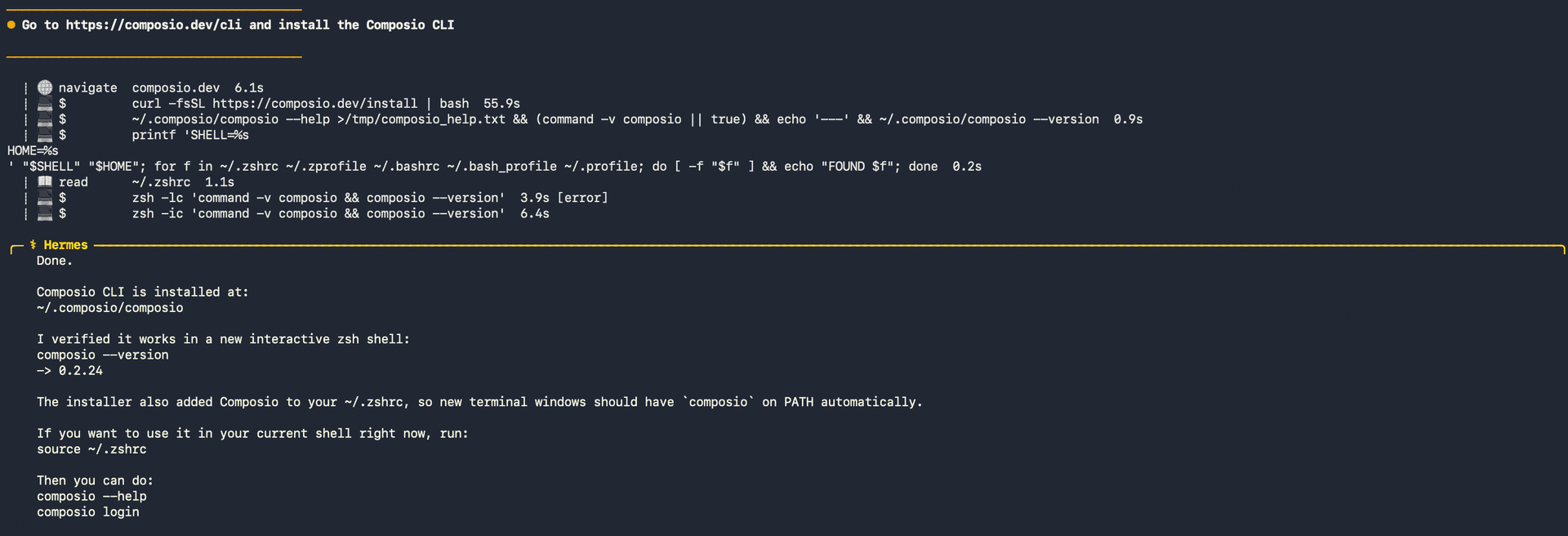
Run the install script directly, or paste https://composio.dev/hermes into your Hermes chat box to have it installed for you.

bash
curl -fsSL https://composio.dev/install | bash
Hermes authenticating with Composio

2. Authenticate

Once the CLI is installed, ask Hermes to authenticate with Composio.

3. Connect to Onedesk

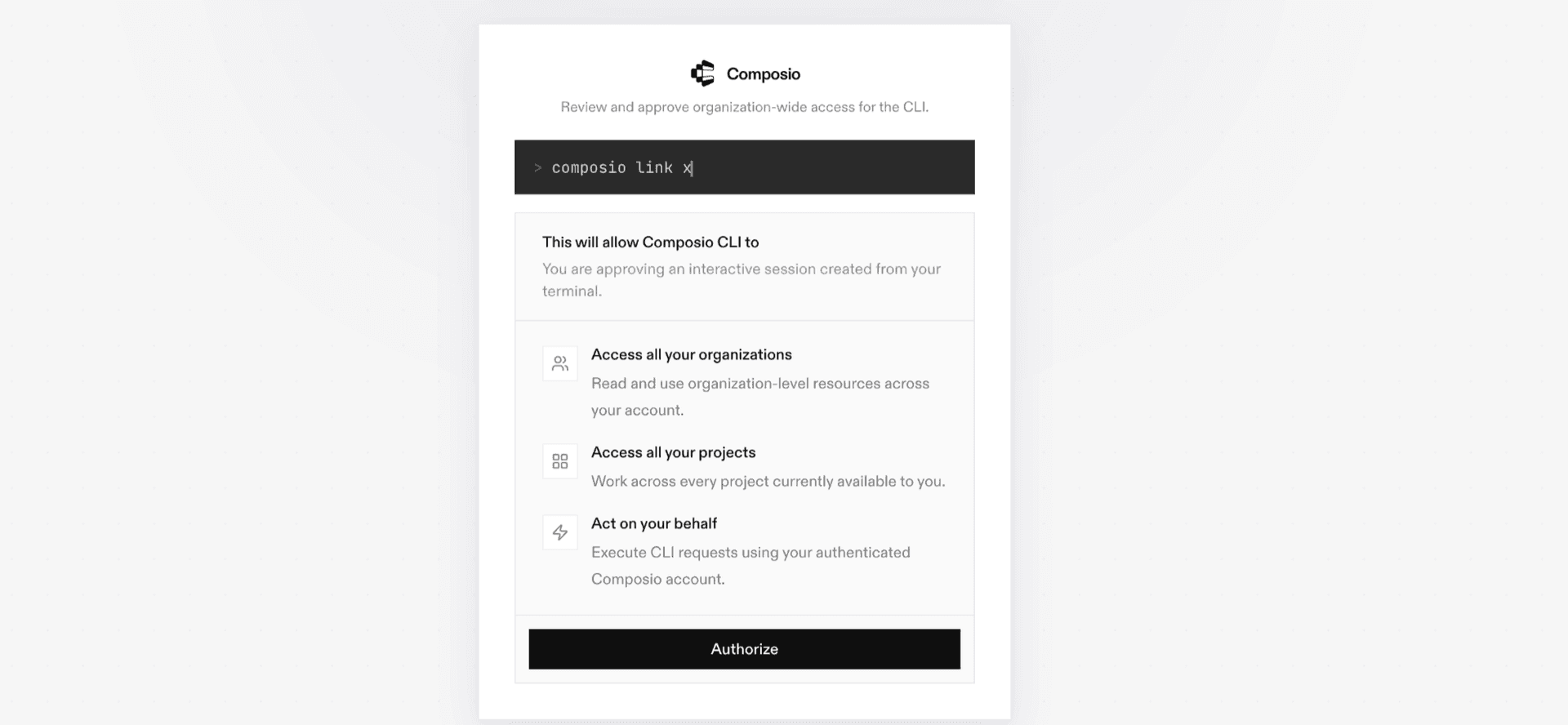
Ask your agent to connect to Onedesk, or simply request any Onedesk-related task. Hermes will prompt you to authenticate and authorize access.

4. Done. You're all set with a new Onedesk connection.


Using Composio Connect MCP

1. Get your MCP URL and API Key

Go to dashboard.composio.dev and copy your Connect MCP URL and API key.

Copy MCP URL and API key from Composio dashboard

2. Open the Hermes config file

bash
nano ~/.hermes/config.yaml

3. Add the Composio Connect MCP server

bash
mcp_servers:
  composio:
    url: "https://connect.composio.dev/mcp"
    headers:
      x-consumer-api-key: "YOUR_COMPOSIO_API_KEY"
    connect_timeout: 60
    timeout: 180

Save with Ctrl + O, Enter, then exit with Ctrl + X.

4. Restart your Hermes agent

Once restarted, ask your agent to connect to Onedesk or request any Onedesk-related task. It will prompt you to authenticate and authorize access.

5. Done!

What is the Onedesk MCP server, and what's possible with it?

The Onedesk MCP server is an implementation of the Model Context Protocol that connects your AI agent and assistants like Claude, Cursor, etc directly to your Onedesk account. It provides structured and secure access to your help desk and project management workspace, so your agent can perform actions like managing tickets, handling tasks, logging work, and cleaning up projects on your behalf.

  • Automated worklog entry creation: Let your agent log time spent on tickets, tasks, or projects, so you can track team effort without manual entry.
  • Ticket and task cleanup: Direct your agent to delete tickets or tasks that are no longer needed, keeping your workspace organized and up to date.
  • Project and requirement management: Have the agent remove outdated projects or requirements, ensuring your portfolio stays relevant and clutter-free.
  • Attachment and comment removal: Ask your agent to delete attachments or comments from tasks, tickets, or projects, maintaining a clean and focused workflow.
  • Customer and timesheet handling: Enable your agent to securely delete customers or timesheets, helping you maintain accurate records and compliance.

Supported Tools & Triggers

Tools
Create Worklog EntryTool to create a worklog entry.
Delete AttachmentTool to delete a specific attachment.
Delete CommentTool to delete a specific comment by its id.
Delete CustomerTool to delete a customer.
Delete MessageTool to delete a specific message.
Delete ProjectTool to delete a project by its id.
Delete RequirementTool to delete a requirement.
Delete TaskTool to delete a specific task.
Delete TicketTool to delete a ticket by its id.
Delete TimesheetTool to delete a timesheet by its id.
Delete UserTool to delete a user by its id.
Delete WorklogTool to delete a worklog by its id.
Get AttachmentsTool to retrieve a list of attachments.
Get Comment DetailsTool to retrieve detailed information for a comment by its id.
Get CommentsTool to retrieve all comments.
Get Feedback ItemsTool to retrieve all feedback items.
Get Feedback DetailsTool to retrieve details of a specific feedback item.
Get Issue DetailsTool to retrieve details of a specific issue.
Get IssuesTool to retrieve a list of issues.
Get MessagesTool to retrieve a list of messages.
Get Requirement DetailsTool to retrieve full details of a specific requirement.
Get RequirementsTool to retrieve a list of requirements.
Get Task DetailsTool to retrieve details of a specific task in onedesk.
Get TicketsTool to retrieve a list of tickets.
Get Timesheet DetailsTool to retrieve details of a specific timesheet entry.
Get TimesheetsTool to retrieve a list of timesheet entries.
Get Worklog DetailsTool to retrieve details of a specific worklog.
Get WorklogsTool to retrieve all worklogs.

Way Forward

With Onedesk connected, Hermes can now act on your behalf whenever it detects a relevant task or you ask it to.

From here, you can extend Hermes further:

  • Connect more apps: Calendar, Slack, Notion, Linear, and hundreds of others are available through the same Composio Connect setup. Each new integration compounds what Hermes can do for you.
  • Build workflows across tools: Once multiple apps are connected, Hermes can chain actions together — turn an email into a calendar invite, a Slack message into a Linear ticket, or a meeting note into a follow-up draft.
  • Let it learn your patterns: The more you use Hermes, the better it gets at anticipating how you'd handle recurring tasks. Give it feedback on drafts and decisions, and it will adapt.

If you run into trouble or want to share what you've built, join the community or check out the Docs for deeper configuration options.

How to build Onedesk MCP Agent with another framework

FAQ

What are the differences in Tool Router MCP and Onedesk MCP?

With a standalone Onedesk MCP server, the agents and LLMs can only access a fixed set of Onedesk tools tied to that server. However, with the Composio Tool Router, agents can dynamically load tools from Onedesk and many other apps based on the task at hand, all through a single MCP endpoint.

Can I use Tool Router MCP with Hermes?

Yes, you can. Hermes fully supports MCP integration. You get structured tool calling, message history handling, and model orchestration while Tool Router takes care of discovering and serving the right Onedesk tools.

Can I manage the permissions and scopes for Onedesk while using Tool Router?

Yes, absolutely. You can configure which Onedesk scopes and actions are allowed when connecting your account to Composio. You can also bring your own OAuth credentials or API configuration so you keep full control over what the agent can do.

How safe is my data with Composio Tool Router?

All sensitive data such as tokens, keys, and configuration is fully encrypted at rest and in transit. Composio is SOC 2 Type 2 compliant and follows strict security practices so your Onedesk data and credentials are handled as safely as possible.

Used by agents from

Context
Letta
glean
HubSpot
Agent.ai
Altera
DataStax
Entelligence
Rolai
Context
Letta
glean
HubSpot
Agent.ai
Altera
DataStax
Entelligence
Rolai
Context
Letta
glean
HubSpot
Agent.ai
Altera
DataStax
Entelligence
Rolai

Never worry about agent reliability

We handle tool reliability, observability, and security so you never have to second-guess an agent action.
