How to integrate Google Docs MCP with Claude Code

Framework Integration Gradient
Google Docs Logo
Claude Code Logo
divider

Introduction

Manage your Google Docs directly from Claude Code with zero worries about OAuth hassles, API-breaking issues, or reliability and security concerns.

You can do this in two different ways:

  1. Via Rube - Direct and easiest approach
  2. Via Composio SDK - Programmatic approach with more control

Why Rube?

Rube is a universal MCP server with access to 850+ SaaS apps. It ensures just-in-time tool loading so Claude can access the tools it needs, a remote workbench for programmatic tool calling and handling large tool responses out of the LLM context window, ensuring the LLM context window remains clean.

Connect Google Docs to Claude Code with Rube

1. Get the MCP URL

Copy and paste the below command in Claude Code to add Rube MCP.

Terminal

2. Authenticate Rube

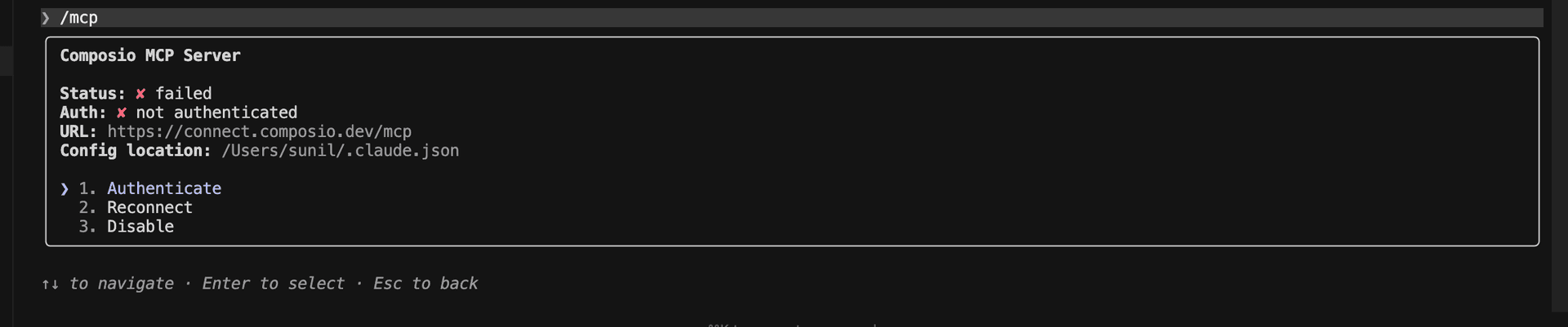
Run /mcp to view Rube

bash
/mcp
Run /mcp to view Rube in Claude Code
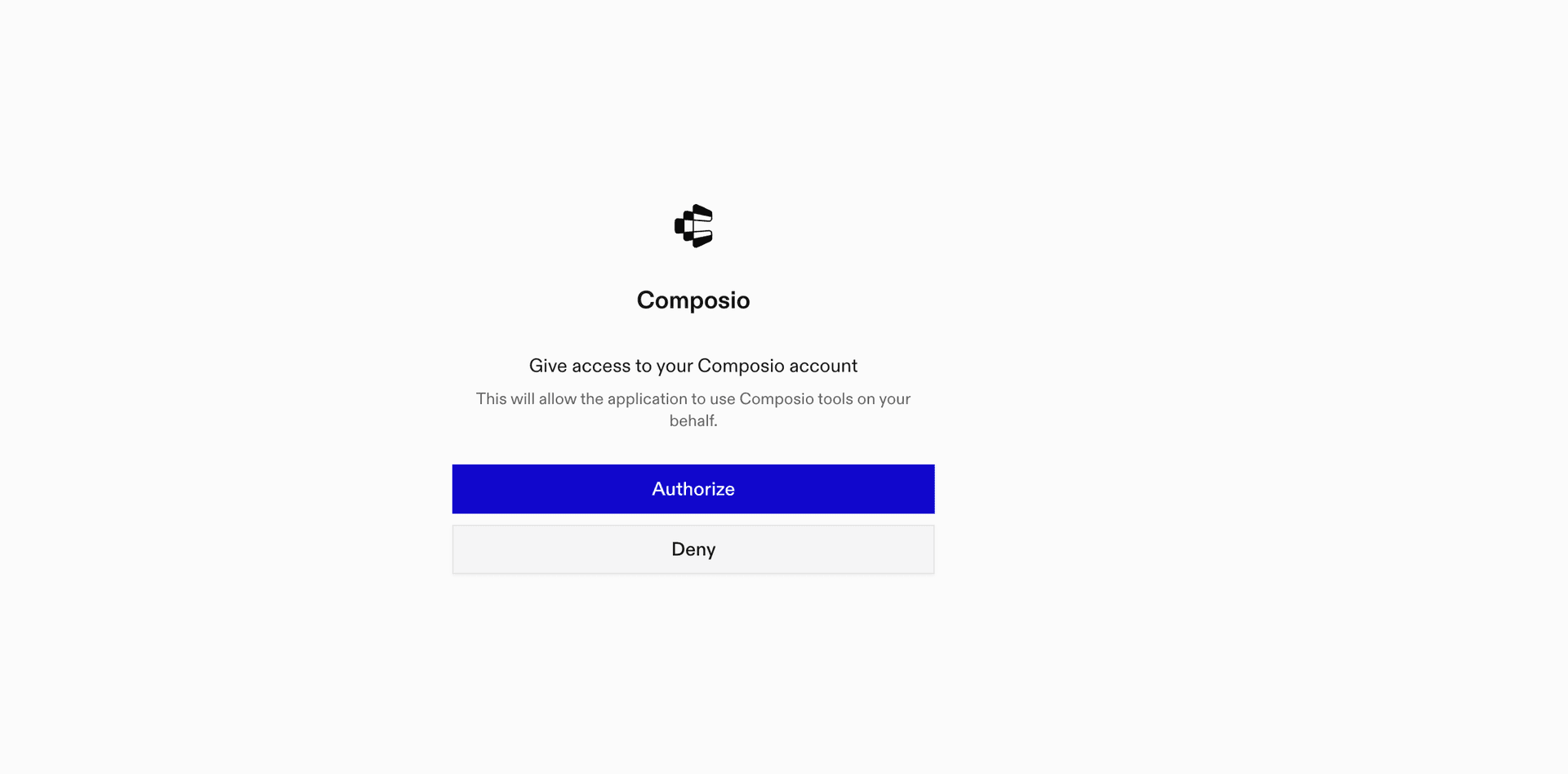
Click on Rube to authenticate
Authentication flow complete

3. Ensure it's connected

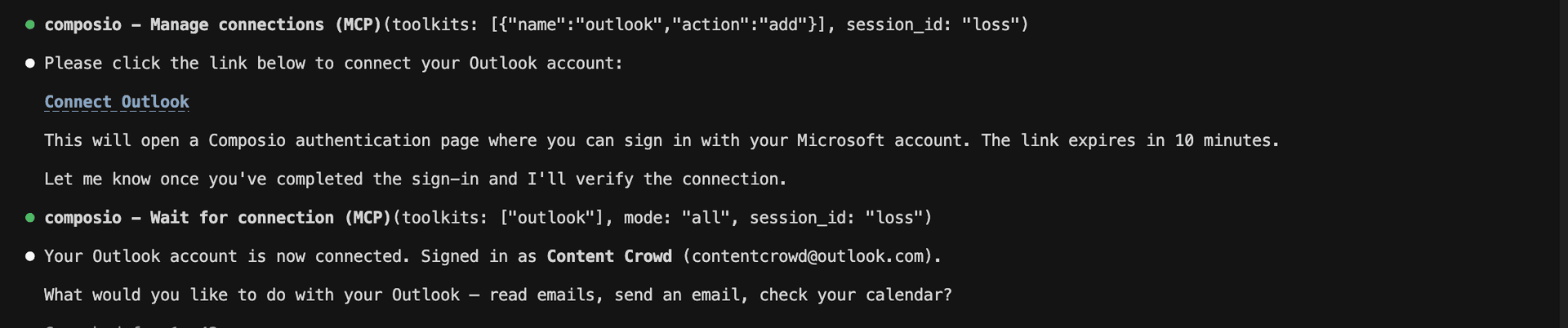
Run /mcp again to verify the connection. Now, do whatever you want with Claude Code and Google Docs.

Rube connected successfully

Supported Tools & Triggers

Tools
Triggers
Copy Google DocumentTool to create a copy of an existing google document.
Create a documentCreates a new google docs document using the provided title as filename and inserts the initial text at the beginning if non-empty, returning the document's id and metadata (excluding body content).
Create Document MarkdownCreates a new google docs document, optionally initializing it with a title and content provided as markdown text.
Create FooterTool to create a new footer in a google document.
Create FootnoteTool to create a new footnote in a google document.
Create HeaderTool to create a new header in a google document.
Create Named RangeTool to create a new named range in a google document.
Create Paragraph BulletsTool to add bullets to paragraphs within a specified range in a google document.
Delete Content Range in DocumentTool to delete a range of content from a google document.
Delete FooterTool to delete a footer from a google document.
Delete HeaderDeletes the header from the specified section or the default header if no section is specified.
Delete Named RangeTool to delete a named range from a google document.
Delete Paragraph BulletsTool to remove bullets from paragraphs within a specified range in a google document.
Delete TableTool to delete an entire table from a google document.
Delete Table ColumnTool to delete a column from a table in a google document.
Delete Table RowTool to delete a row from a table in a google document.
Get Charts from SpreadsheetTool to retrieve a list of all charts from a specified google sheets spreadsheet.
Get document by idRetrieves an existing google document by its id; will error if the document is not found.
Insert Inline ImageTool to insert an image from a given uri at a specified location in a google document as an inline image.
Insert Page BreakTool to insert a page break into a google document.
Insert Table in Google DocTool to insert a table into a google document.
Insert Table ColumnTool to insert a new column into a table in a google document.
Insert Text into DocumentTool to insert a string of text at a specified location within a google document.
List Charts from SpreadsheetTool to retrieve a list of charts with their ids and metadata from a google sheets spreadsheet.
Replace All Text in DocumentTool to replace all occurrences of a specified text string with another text string throughout a google document.
Replace Image in DocumentTool to replace a specific image in a document with a new image from a uri.
Search DocumentsSearch for google documents using various filters including name, content, date ranges, and more.
Unmerge Table CellsTool to unmerge previously merged cells in a table.
Update Document MarkdownReplaces the entire content of an existing google docs document with new markdown text; requires edit permissions for the document.
Update Document StyleTool to update the overall document style, such as page size, margins, and default text direction.
Update existing documentApplies programmatic edits, such as text insertion, deletion, or formatting, to a specified google doc using the `batchupdate` api method.
Update Table Row StyleTool to update the style of a table row in a google document.

What is the Google Docs MCP server, and what's possible with it?

The Google Docs MCP server is an implementation of the Model Context Protocol that connects your AI agent and assistants like Claude, Cursor, etc directly to your Google Docs account. It provides structured and secure access to your documents, so your agent can create, copy, edit, and organize Google Docs on your behalf.

  • Automated document creation and duplication: Let your agent generate new Google Docs from scratch or copy existing documents to quickly use templates or preserve originals.
  • Rich content editing and formatting: Direct your agent to add headers, footers, footnotes, bullet lists, and more—making it easy to update and format documents programmatically.
  • Targeted content manipulation: Have your agent delete specific content ranges, paragraphs, or sections within any document to keep your files up to date.
  • Named range management: Empower your agent to create and manage named ranges for easier referencing, collaboration, and advanced document workflows.
  • Markdown-based document generation: Allow the agent to create new Google Docs directly from markdown content, streamlining content migration from other tools or sources.

Connecting Google Docs via Tool Router

Tool Router is the underlying tech that powers Rube. It's a universal gateway that does everything Rube does but with much more programmatic control. You can programmatically generate an MCP URL with the app you need (here Google Docs) for even more tool search precision. It's secure and reliable.

How the Tool Router works

The Tool Router follows a three-phase workflow:

  1. Discovery: Searches for tools matching your task and returns relevant toolkits with their details.
  2. Authentication: Checks for active connections. If missing, creates an auth config and returns a connection URL via Auth Link.
  3. Execution: Executes the action using the authenticated connection.

Step-by-step Guide

Prerequisites

Before starting, make sure you have:
  • Claude Pro, Max, or API billing enabled Anthropic account
  • Composio API Key
  • A Google Docs account
  • Basic knowledge of Python or TypeScript

Install Claude Code

bash
# macOS, Linux, WSL
curl -fsSL https://claude.ai/install.sh | bash

# Windows PowerShell
irm https://claude.ai/install.ps1 | iex

# Windows CMD
curl -fsSL https://claude.ai/install.cmd -o install.cmd && install.cmd && del install.cmd

To install Claude Code, use one of the following methods based on your operating system:

Set up Claude Code

bash
cd your-project-folder
claude

Open a terminal, go to your project folder, and start Claude Code:

  • Claude Code will open in your terminal
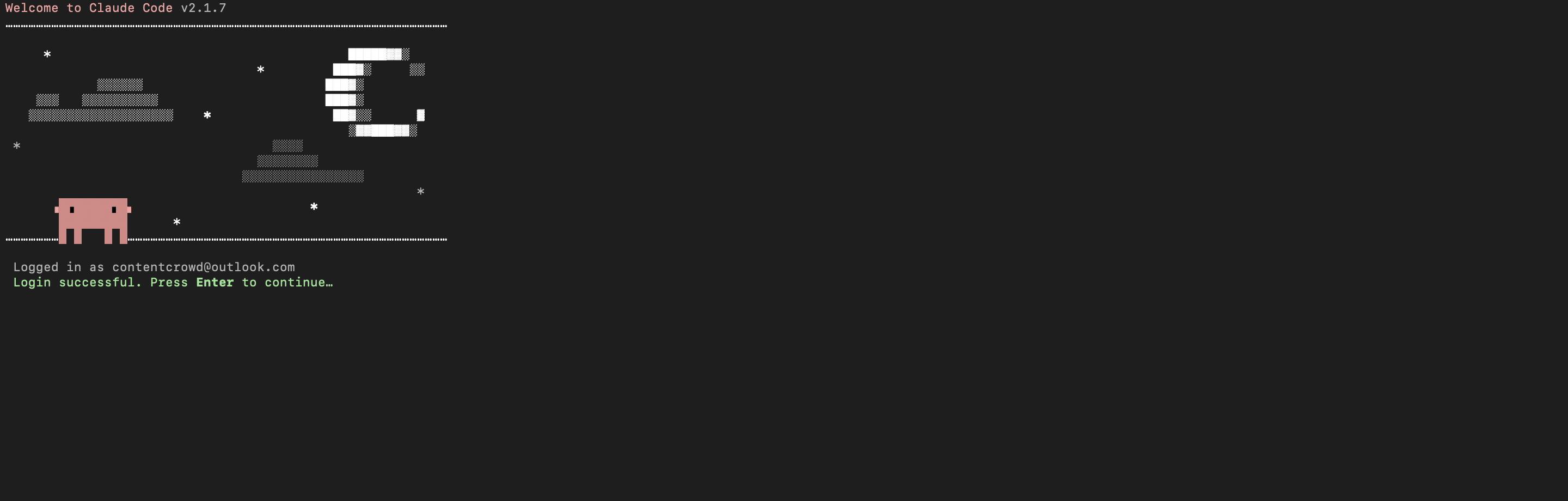
  • Follow the prompts to sign in with your Anthropic account
  • Complete the authentication flow
  • Once authenticated, you can start using Claude Code
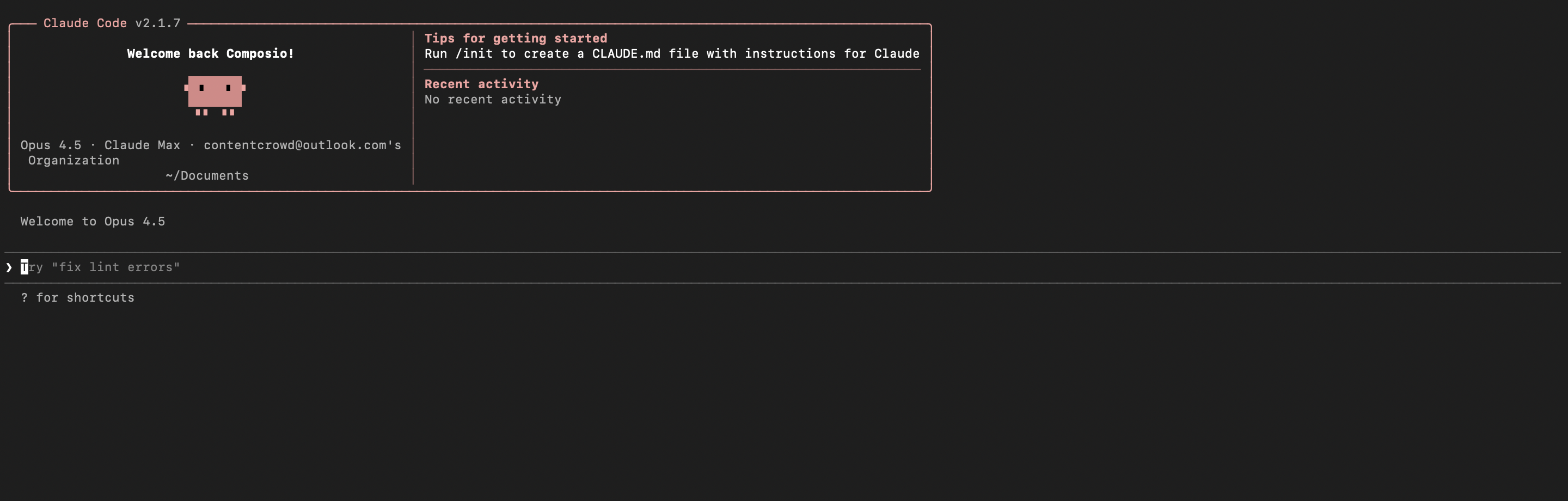
Claude Code initial setup showing sign-in prompt
Claude Code terminal after successful login

Set up environment variables

bash
COMPOSIO_API_KEY=your_composio_api_key_here
USER_ID=your_user_id_here

Create a .env file in your project root with the following variables:

  • COMPOSIO_API_KEY authenticates with Composio (get it from Composio dashboard)
  • USER_ID identifies the user for session management (use any unique identifier)

Install Composio library

pip install composio-core python-dotenv

Install the Composio Python library to create MCP sessions.

  • composio-core provides the core Composio functionality
  • python-dotenv loads environment variables from your .env file

Generate Composio MCP URL

import os
from composio import Composio
from dotenv import load_dotenv

load_dotenv()

COMPOSIO_API_KEY = os.getenv("COMPOSIO_API_KEY")
USER_ID = os.getenv("USER_ID")

composio_client = Composio(api_key=COMPOSIO_API_KEY)

composio_session = composio_client.create(
    user_id=USER_ID,
    toolkits=["googledocs"],
)

COMPOSIO_MCP_URL = composio_session.mcp.url

print(f"MCP URL: {COMPOSIO_MCP_URL}")
print(f"\nUse this command to add to Claude Code:")
print(f'claude mcp add --transport http googledocs-composio "{COMPOSIO_MCP_URL}" --headers "X-API-Key:{COMPOSIO_API_KEY}"')

Create a script to generate a Composio MCP URL for Google Docs. This URL will be used to connect Claude Code to Google Docs.

What's happening:

  • We import the Composio client and load environment variables
  • Create a Composio instance with your API key
  • Call create() to create a Tool Router session for Google Docs
  • The returned mcp.url is the MCP server URL that Claude Code will use
  • The script prints this URL so you can copy it

Run the script and copy the MCP URL

python generate_mcp_url.py

Run your Python script to generate the MCP URL.

  • The script connects to Composio and creates a Tool Router session
  • It prints the MCP URL and the exact command you need to run
  • Copy the entire claude mcp add command from the output

Add Google Docs MCP to Claude Code

bash
claude mcp add --transport http googledocs-composio "YOUR_MCP_URL_HERE" --headers "X-API-Key:YOUR_COMPOSIO_API_KEY"

# Then restart Claude Code
exit
claude

In your terminal, add the MCP server using the command from the previous step. The command format is:

  • claude mcp add registers a new MCP server with Claude Code
  • --transport http specifies that this is an HTTP-based MCP server
  • The server name (googledocs-composio) is how you'll reference it
  • The URL points to your Composio Tool Router session
  • --headers includes your Composio API key for authentication

After running the command, close the current Claude Code session and start a new one for the changes to take effect.

Verify the installation

bash
claude mcp list

Check that your Google Docs MCP server is properly configured.

  • This command lists all MCP servers registered with Claude Code
  • You should see your googledocs-composio entry in the list
  • This confirms that Claude Code can now access Google Docs tools

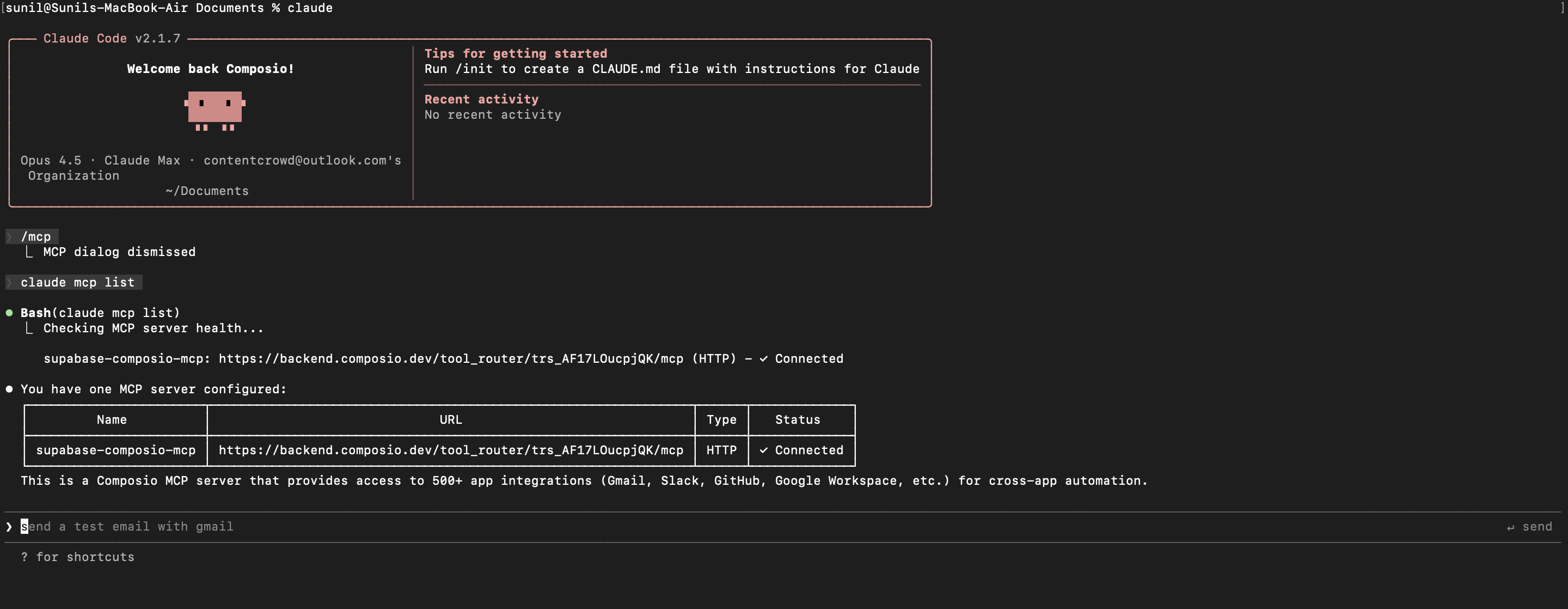
If everything is wired up, you should see your googledocs-composio entry listed:

Claude Code MCP list showing the toolkit MCP server

Authenticate Google Docs

The first time you try to use Google Docs tools, you'll be prompted to authenticate.

  • Claude Code will detect that you need to authenticate with Google Docs
  • It will show you an authentication link
  • Open the link in your browser (or copy/paste it)
  • Complete the Google Docs authorization flow
  • Return to the terminal and start using Google Docs through Claude Code

Once authenticated, you can ask Claude Code to perform Google Docs operations in natural language. For example:

  • "Create a new meeting notes document"
  • "Copy last week's project summary template"
  • "Add bullet points to the action items section"

Complete Code

Here's the complete code to get you started with Google Docs and Claude Code:

import os
from composio import Composio
from dotenv import load_dotenv

load_dotenv()

COMPOSIO_API_KEY = os.getenv("COMPOSIO_API_KEY")
USER_ID = os.getenv("USER_ID")

composio_client = Composio(api_key=COMPOSIO_API_KEY)

composio_session = composio_client.create(
    user_id=USER_ID,
    toolkits=["googledocs"],
)

COMPOSIO_MCP_URL = composio_session.mcp.url

print(f"MCP URL: {COMPOSIO_MCP_URL}")
print(f"\nUse this command to add to Claude Code:")
print(f'claude mcp add --transport http googledocs-composio "{COMPOSIO_MCP_URL}" --headers "X-API-Key:{COMPOSIO_API_KEY}"')

Conclusion

You've successfully integrated Google Docs with Claude Code using Composio's MCP server. Now you can interact with Google Docs directly from your terminal using natural language commands.

Key features of this setup:

  • Terminal-native experience without switching contexts
  • Natural language commands for Google Docs operations
  • Secure authentication through Composio's managed MCP
  • Tool Router for dynamic tool discovery and execution

Next steps:

  • Try asking Claude Code to perform various Google Docs operations
  • Add more toolkits to your Tool Router session for multi-app workflows
  • Integrate this setup into your development workflow for increased productivity

You can extend this by adding more toolkits, implementing custom workflows, or building automation scripts that leverage Claude Code's capabilities.

How to build Google Docs MCP Agent with another framework

FAQ

What are the differences in Tool Router MCP and Google Docs MCP?

With a standalone Google Docs MCP server, the agents and LLMs can only access a fixed set of Google Docs tools tied to that server. However, with the Composio Tool Router, agents can dynamically load tools from Google Docs and many other apps based on the task at hand, all through a single MCP endpoint.

Can I use Tool Router MCP with Claude Code?

Yes, you can. Claude Code fully supports MCP integration. You get structured tool calling, message history handling, and model orchestration while Tool Router takes care of discovering and serving the right Google Docs tools.

Can I manage the permissions and scopes for Google Docs while using Tool Router?

Yes, absolutely. You can configure which Google Docs scopes and actions are allowed when connecting your account to Composio. You can also bring your own OAuth credentials or API configuration so you keep full control over what the agent can do.

How safe is my data with Composio Tool Router?

All sensitive data such as tokens, keys, and configuration is fully encrypted at rest and in transit. Composio is SOC 2 Type 2 compliant and follows strict security practices so your Google Docs data and credentials are handled as safely as possible.

Used by agents from

Context
Letta
glean
HubSpot
Agent.ai
Altera
DataStax
Entelligence
Rolai
Context
Letta
glean
HubSpot
Agent.ai
Altera
DataStax
Entelligence
Rolai
Context
Letta
glean
HubSpot
Agent.ai
Altera
DataStax
Entelligence
Rolai

Never worry about agent reliability

We handle tool reliability, observability, and security so you never have to second-guess an agent action.