How to connect Figma to Muse

Connect Muse to Figma MCP. Add a comment to this figma file, convert design tokens to tailwind css, and more using natural language, with authentication handled for you.

Figma logoFigma
Oauth2Api Key

Figma is a collaborative interface design tool for teams and individuals. It streamlines design workflows with real-time collaboration and easy sharing.

52 Tools

Introduction

Muse is Meta's AI assistant. It can connect to outside tools through custom connectors, which use the Model Context Protocol (MCP).

This guide explains how to connect Figma to Muse using Composio Connect, which handles OAuth, token refresh, and reliability so you do not have to. You add Composio as a custom connector once, then ask Muse to work with Figma in plain language.

Also integrate Figma with

Why use Composio?

  • Cross-app workflows across 1,500+ apps from a single plugin layer.
  • On-demand tool loading so Muse only loads the tools needed for the current task.
  • Programmatic tool calling through a remote workbench for complex, multi-step workflows.
  • Multi-account support so users can connect and switch between multiple accounts for the same app.
  • Shared account access so teams or agents can work through common business accounts and service connections.
  • Managed authentication with OAuth handling, credential storage, and token refresh managed by Composio.
  • Safer credential handling so app credentials stay outside the model context and tool responses.
  • User-level account isolation so actions run against the correct connected account instead of mixing user access.

Connecting Figma to Muse

You add Composio to Muse once as a custom connector, then connect Figma from the chat.

1. Ask Muse to connect to Composio

Start a new Muse chat and send this message. Muse builds the connector and shows a button to add your API key.

bash
Create a Custom Connector for the Composio remote MCP server and connect to it:
- Name: Composio
- Transport: remote streamable HTTP
- URL: https://connect.composio.dev/mcp
- Auth: API key sent in the x-consumer-api-key header
Open the secure credentials store so I can enter the API key there, not in this chat. Then list its tools to confirm the connection works.

2. Copy your API key

Open the Muse page in your Composio dashboard and copy your API key. It starts with ck_.

Don't paste it into the chat. It goes in Muse's secure credentials store in the next step.

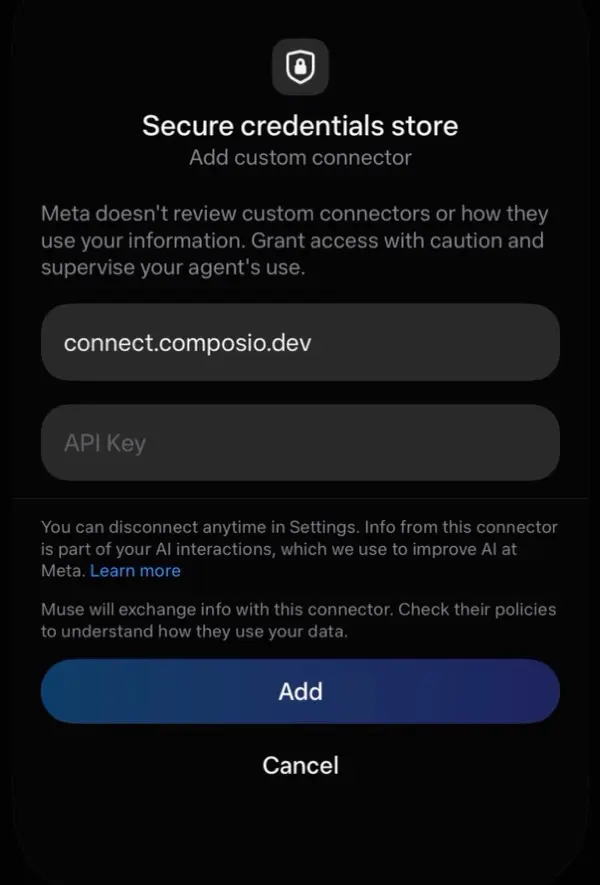
3. Add your API key in the secure credentials store

Tap the button Muse shows to open Add custom connector, paste your API key, then tap Add. Muse lists the Composio tools once it connects.

Muse secure credentials store with the connect.composio.dev URL, an API Key field, and the Add button

4. Connect your Figma account

Back in the chat, ask Muse to connect to Figma or give it any Figma task.

For example, ask it to:

  • "Add a comment to this Figma file"
  • "Convert design tokens to Tailwind CSS"
  • "Delete a reaction from a comment"

It will prompt you to authenticate and authorize access.

That's it. Composio's tools are now available in Muse, and your Figma account is ready to use.

What is the Figma MCP server, and what's possible with it?

The Figma MCP server is an implementation of the Model Context Protocol that connects your AI agent and assistants like Claude, Cursor, etc directly to your Figma account. It provides structured and secure access to your Figma projects, files, components, variables, and prototypes, so your agent can explore designs, inspect file details, extract design tokens, review interactions, and download images on your behalf.

  • Project and file discovery: Have your agent list visible team projects, find files within a project, and retrieve file names, creators, modification details, thumbnails, and access information.
  • Focused design inspection: Direct your agent to examine a complete design file or selected layers, detect background layers, and return only the design details needed for the task.
  • Design token extraction: Let the agent collect styles, variables, and values from your designs, then convert those tokens into a Tailwind CSS configuration.
  • Component and library review: Instruct your agent to retrieve published components, component sets, and detailed metadata for a specific component in a Figma library.
  • Prototype and asset handoff: Have your agent review prototype interactions and animations, then download images from selected design layers for implementation.

Way Forward

Now that Figma is connected, extend your setup by connecting the other apps you already use every day, so Muse can run true cross-app workflows end to end.

  • Connect Calendar to turn threads into scheduled meetings automatically.
  • Connect Slack or Teams to post summaries, approvals, and alerts where your team works.
  • Connect Notion, Linear, Jira, or Asana to convert requests into tickets, tasks, and docs.
  • Connect Drive, Dropbox, or OneDrive to fetch, file, and share attachments without manual steps.

Start with one workflow you do repeatedly, then keep adding apps as you find new handoffs. With everything behind a single connection, Muse can coordinate multiple tools safely and reliably in one conversation.

Troubleshooting

1. Why doesn't Muse show a button to add my API key?

Muse shows the button only when you ask it to open the secure credentials store.

  • Start a new chat.
  • Send the message from step 1 exactly as written.
  • If Muse asks for the key in the chat, do not paste it. Ask Muse to open the secure credentials store.

2. Why does the Composio connection fail after I add my API key?

The key or the connector settings are not correct.

  • Copy the full key from the Composio dashboard. It starts with ck_.
  • Make sure the URL is https://connect.composio.dev/mcp and the header is x-consumer-api-key.
  • Remove the Composio connector in Muse settings, then do steps 1 to 3 again.

3. Why doesn't Muse use the Composio tools for Figma?

Muse may not pick the Composio connector for the request.

  • Ask Muse to list its Composio tools.
  • Name Composio and Figma in your request, for example: Use Composio to connect to Figma.
  • If it still does not work, start a new chat and try again.

4. Why does Muse ask me to connect Figma again?

Your Figma connection expired or was removed.

  • Open the link Muse gives you and sign in to Figma again.
  • Check that the Figma connection shows as ACTIVE in the Composio dashboard.

5. What do I do if I pasted my API key into the chat?

Treat the key as exposed.

  • Create a new API key in the Composio dashboard and delete the old one.
  • Add the new key in Muse's secure credentials store, not in the chat.
TOOLS

Supported Tools

Every Figma action and event your agent gets out of the box.

Add a comment to a file

Posts a new comment to a Figma file or branch, optionally replying to an existing root comment (replies cannot be nested); `region_height` and `region_width` in `client_meta` must be positive if defining a comment region.

Add a reaction to a comment

Posts a specified emoji reaction to an existing comment in a Figma file or branch, requiring valid file_key and comment_id.

Create a webhook

Creates a Figma webhook to receive POST notifications when specific events occur.

Create dev resources

Creates and attaches multiple uniquely-URLed development resources to specified Figma nodes, up to 10 per node.

Create, modify, or delete variables

Manages variables, collections, modes, and their values in a Figma file via batch create/update/delete operations; use temporary IDs to link new related items in one request and ensure `variableModeValues` match the target variable's `resolvedType`.

Delete a comment

Deletes a specific comment from a Figma file or branch, provided the authenticated user is the original author of the comment.

Delete a reaction

Deletes a specific emoji reaction from a comment in a Figma file; the user must have originally created the reaction.

Delete a webhook

Permanently deletes an existing webhook, identified by its unique `webhook_id`; this operation is irreversible.

Delete dev resource

Deletes a development resource (used to link Figma design elements to external developer information like code or tasks) from a specified Figma file.

Design tokens to tailwind

Convert design tokens to Tailwind CSS configuration.

Detect Background Layers

Detect background layers for selected nodes in a Figma file.

Discover Figma Resources

Smart Figma resource discovery - extract IDs from any Figma URL.

Download Figma Images

Download images from Figma file nodes.

Extract design tokens

Extract design tokens from Figma files by combining styles, variables, and node-extracted values.

Extract Prototype Interactions

Extract prototype interactions and animations from Figma files.

Get activity logs

Retrieves activity log events from Figma, allowing filtering by event types, time range, and pagination.

Get a webhook

Retrieves detailed information about a specific webhook by its ID, provided the webhook exists and is accessible to the user.

Get comments in a file

Retrieves all comments from an existing Figma file, identified by a valid `file_key`, returning details like content, author, position, and reactions, with an option for Markdown formatted content.

Get component

Fetches metadata for a specific component using its unique identifier.

Get component set

Retrieves detailed metadata for a specific published Figma component set using its unique `key`.

Get current user

Retrieves detailed information for the currently authenticated Figma user.

Get dev resources

Retrieves development resources (e.

Get file components

Retrieves published components from a Figma file, which must be a main file (not a branch) acting as a library.

Get file component sets

Retrieves all published component sets from the specified Figma main file (file_key must not be for a branch).

Get file json

Get Figma Design file data with automatic simplification.

Get file metadata

Get Figma file metadata including name, creator, last modification details, thumbnail, and access information.

Get file nodes

Fetch JSON for specific node IDs from a Figma file to avoid full-file payload limits.

Get files in a project

Fetches a list of files in a Figma project, optionally including branch metadata.

Get file styles

Retrieves a list of published styles (like colors, text attributes, effects, and layout grids) from a specified main Figma file (not a branch).

Get image fills

Retrieves temporary (14-day expiry) download URLs for all image fills in a Figma file; requires `imageRef` from `Paint` objects to map URLs.

Get library analytics component action data

Retrieves component insertion and detachment analytics for a specified Figma library, groupable by 'component' or 'team' and filterable by a date range (YYYY-MM-DD).

Get library analytics component usage data

Retrieves component usage analytics for a specified Figma library file (identified by `file_key`), with data groupable by 'component' or 'file'.

Get library analytics style action data

Retrieves style usage analytics (insertions, detachments) for a Figma library, grouped by 'style' or 'team'; if providing a date range, ensure end_date is not before start_date.

Get library analytics style usage data

Retrieves style usage analytics for a published Figma library.

Get library analytics variable action data

Retrieves weekly, paginated analytics data on variable insertions and detachments for a specified Figma library (identified by `file_key`), groupable by 'variable' or 'team', and filterable by an optional date range.

Get library analytics variable usage data

Retrieves paginated analytics data on variable usage from a specified Figma library, grouped by 'file' or 'variable', for libraries with enabled analytics.

Get local variables

Retrieves all local/remote variables for a Figma file/branch; crucial for obtaining mode-specific values which `/v1/files/{file_key}/variables/published` omits.

Get payments

Retrieves a user's payment information for a Figma plugin, widget, or Community file; the authenticated identity must own the resource.

Get projects in a team

Retrieves projects within a specified Figma team that are visible to the authenticated user.

Get published variables

Retrieves variables published from a specified Figma file; this API is available only to full members of Enterprise organizations.

Get reactions for a comment

Retrieves reactions for a specific comment in a Figma file.

Get SCIM service provider config

Get Figma's SCIM service provider configuration.

Get style

Retrieves detailed metadata for a specific style in Figma using its unique style key.

Get team components

Retrieves components published in a specific Figma team's library; the team must have published components, otherwise an empty list is returned.

Get team component sets

Retrieves a paginated list of published component sets (collections of reusable UI elements) from a specified Figma team's library.

Get team styles

Retrieves a paginated list of published styles (fill colors, text styles, effects, grids) from a specified Figma team's library.

Get webhooks

Retrieves all webhooks registered for a specified Figma context (team, project, or file).

Get versions of a file

Retrieves the version history for a Figma file or branch, as specified by its `file_key`.

Get webhook requests

Retrieves a history of webhook requests for a specific Figma webhook subscription; data is available for requests sent within the last seven days.

Render images of file nodes

Render Figma nodes as images (PNG, JPG, SVG, PDF).

Update a webhook

Updates an existing Figma webhook, identified by `webhook_id`, allowing modification of its event type, endpoint, passcode, status, or description.

Update dev resources

Updates the name and/or URL of one or more existing Figma Dev Resources, each identified by its unique `id`.

FAQ

Frequently asked questions

Yes. Muse supports custom connectors that use the Model Context Protocol (MCP). Composio connects as one custom connector over remote streamable HTTP at https://connect.composio.dev/mcp, and gives Muse access to Figma and 1,500+ other apps.

Copy it from the Composio dashboard. It starts with ck_. Enter it only in Muse's secure credentials store, never in the chat.

Yes. Composio supports multiple connected accounts for the same app. Give each Figma connection a name, such as work or personal, and tell Muse which one to use.

Tokens, keys, and configuration are encrypted at rest and in transit. Your Composio API key stays in Muse's secure credentials store, not in the chat or the model context. Composio is SOC 2 Type 2 compliant.

Start with Figma.It takes 30 seconds.

Managed auth, hosted MCP servers, and every Figma tool your agent needs.Free to start.

Start building