How to integrate Dropbox sign MCP with Antigravity

Trusted by
AWS
Glean
Zoom
Airtable

30 min · no commitment · see it on your stack

Dropbox sign logo
Antigravity logo
divider

How to integrate Dropbox sign MCP with Antigravity

Antigravity IDE is Google's agentic IDE, built on a VS Code-style editor and powered by models like Gemini 3.5 Flash, Gemini 3.1 Pro, Opus 4.6, and more. It treats the AI agent as a first-class teammate, planning, coding, and validating work through an Agent Manager dashboard with deep browser connectivity.

In this guide, I will explain the easiest and most secure way to connect your Dropbox sign account to Antigravity IDE via Composio Connect, so it can send NDA for signature to new hire, get status of recent signature requests, download signed contract from last week, and more without ever putting your account credentials at risk.

Also integrate Dropbox sign with

Why use Composio?

Composio provides:

  • Access to 1,000+ managed apps from a single MCP endpoint. This makes it convenient for agents to run cross-app workflows.
  • Programmatic tool calling. Allows LLMs to write code in a remote workbench to handle complex tool chaining. Reduces to-and-fro with LLMs for frequent tool calling.
  • Large tool response handling outside the LLM context. This minimizes context bloat from large tool responses.
  • Dynamic just-in-time access to thousands of tools across hundreds of apps. Composio loads the tools your agent needs, so LLMs are not overwhelmed by tools they do not need.

Connect Dropbox sign to Antigravity

Antigravity does not ship with one-click custom MCP install links yet, so configuration goes through the IDE's raw config file. The process takes under a minute.

1. Open the MCP Config

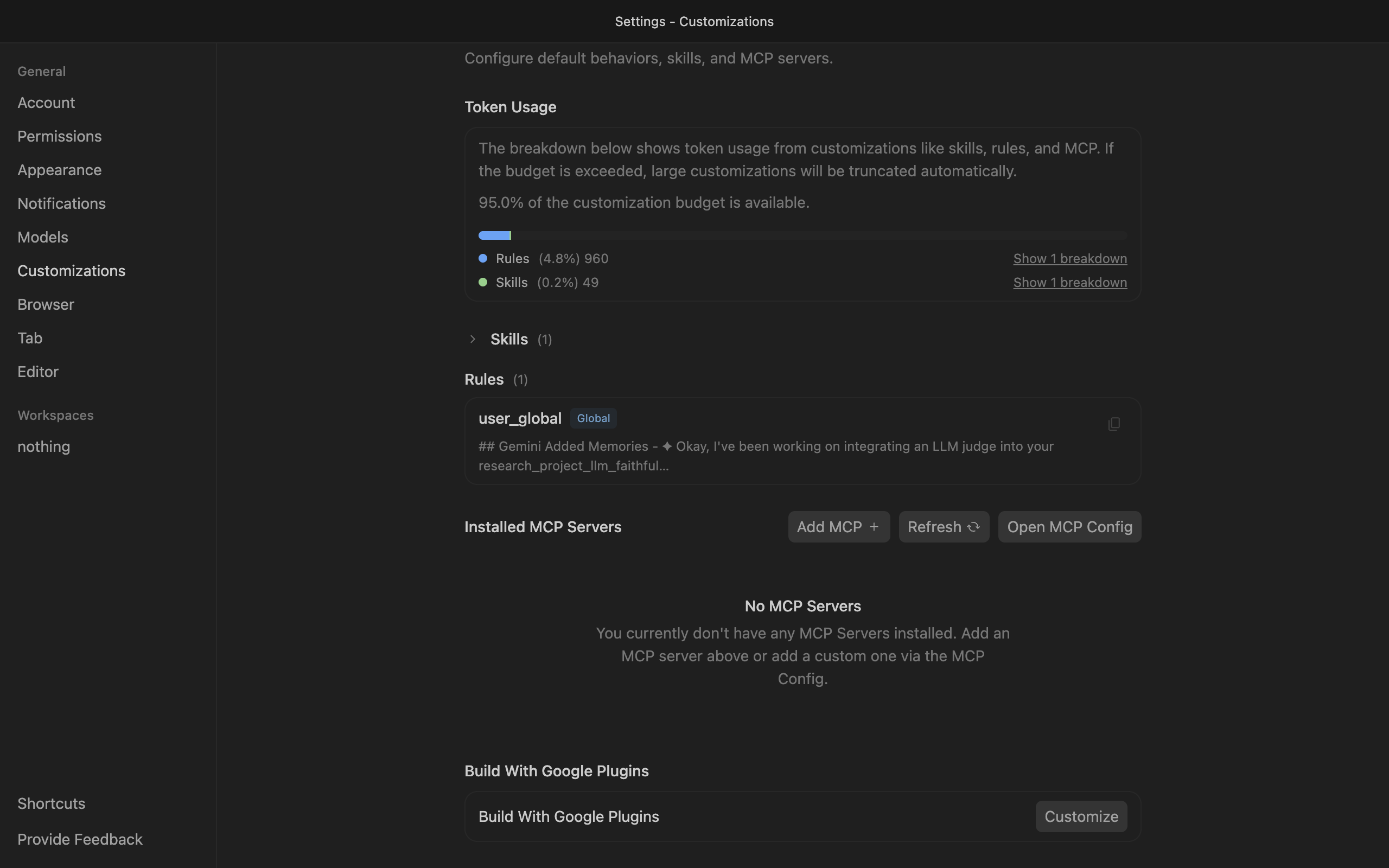
Go to Antigravity Settings, open the Customizations tab, then click Open MCP Config to open mcp_config.json in the editor.

Antigravity Customizations settings with Open MCP Config button

2. Get your API key

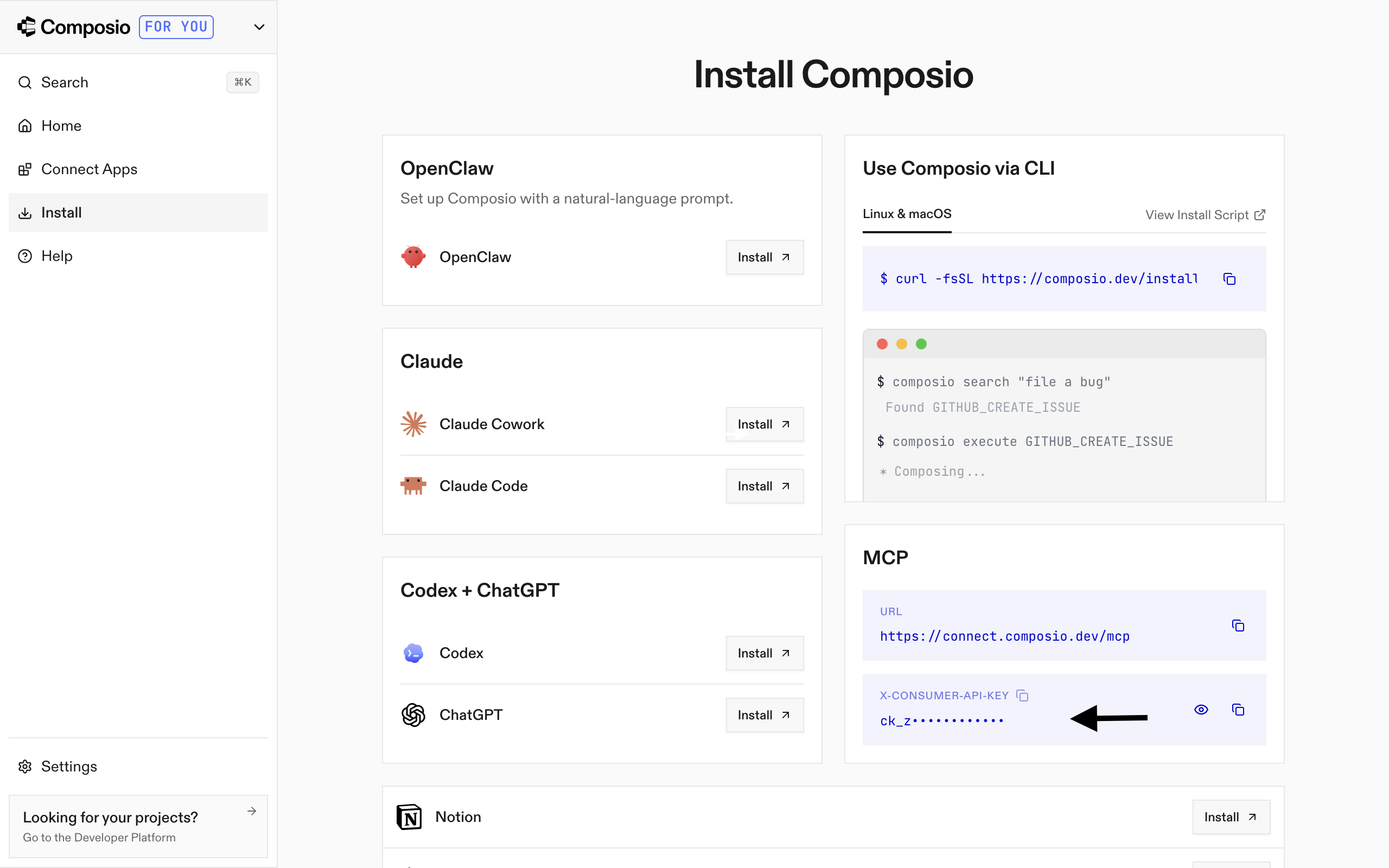
Go to the Composio Dashboard and copy your API key.

Composio Dashboard showing where to get the API key

3. Add Composio to mcp_config.json

Paste the following configuration into the file:

bash
{
  "mcpServers": {
    "remote-composio": {
      "serverUrl": "https://connect.composio.dev/mcp",
      "headers": {
        "x-consumer-api-key": "your-composio-api-key"
      }
    }
  }
}

Note: Antigravity uses serverUrl, not url, for remote HTTP-based MCP servers. This differs from the url key used in Cursor and VS Code configs.

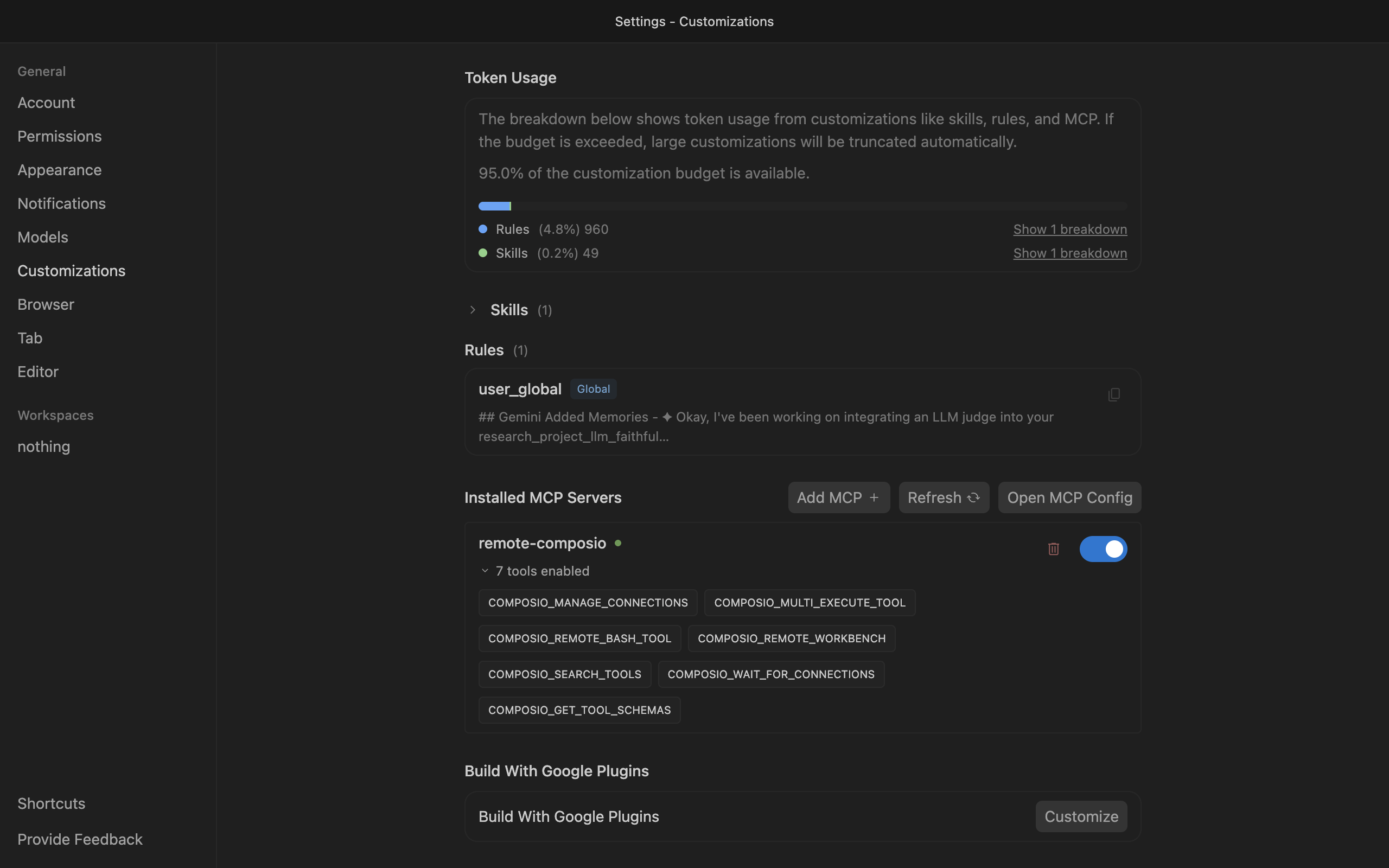
Save the file and click refresh in the Installed MCP Servers section.

Antigravity showing Composio tools after MCP setup

Connect your Dropbox sign account

Back in the Antigravity agent panel, ask the agent to connect to Dropbox sign or give it any Dropbox sign-related task.

For example, ask it to:

  • "Send NDA for signature to new hire"
  • "Get status of recent signature requests"
  • "Download signed contract from last week"

It will prompt you to authenticate and authorize access to Dropbox sign.

That is it. Composio tools are now available in Antigravity, and your Dropbox sign account is ready to use.

Supported Tools & Triggers

Tools
Invite User to TeamTool to invite a user to your Team.
Add User to TemplateTool to grant a specified account access to a template.
Bulk create embedded signature request with templateTool to create a BulkSendJob for embedded templated signature requests.
Bulk send with templateTool to create a BulkSendJob for templated signature requests.
Cancel Signature RequestCancels an incomplete signature request.
Create Dropbox Sign AccountTool to create a new Dropbox Sign account associated with a specified email address.
Create API AppTool to create a new Dropbox Sign API App.
Create Embedded Signature RequestTool to create an embedded signature request for signing in an iFrame.
Create Embedded Signature Request With TemplateTool to create an embedded signature request based on a template.
Create Embedded Template DraftTool to create an embedded template draft.
Create Embedded Unclaimed Draft with TemplateTool to create an embedded unclaimed draft using saved templates.
Create ReportRequest creation of CSV report(s) for a specified date range.
Create TemplateTool to create a reusable template for document signing workflows.
Create Unclaimed DraftTool to create an unclaimed draft that can be claimed via a unique URL.
Delete API AppTool to delete an API App from your Dropbox Sign account by its client_id.
Delete FaxTool to delete a fax from the system by its fax_id.
Delete TemplatePermanently deletes a template from your Dropbox Sign account by its template_id.
Download Signature Request FilesDownload files for a signature request as PDF (merged) or ZIP (individual documents).
Edit and Resend Embedded Signature RequestTool to edit and resend an embedded signature request.
Edit and Resend Signature RequestEdits and resends an existing non-templated signature request with updated documents, signers, or settings.
Edit and Resend Unclaimed DraftTool to edit and resend a previously created unclaimed draft.
Edit and Resend Embedded Signature Request With TemplateTool to edit and resend an embedded signature request using templates.
Get Dropbox Sign AccountRetrieves detailed information about a Dropbox Sign account including quotas, payment status, and settings.
Get API AppTool to retrieve information about an API App by its client ID.
Get Bulk Send JobTool to retrieve the status of a bulk send job.
Get Current Team MembershipTool to get the current team membership status and details.
Get Embedded Sign URLRetrieves an embedded signing URL for a specific signer's signature.
Get Embedded Template Edit URLTool to generate an edit URL for embedded template editing.
Get Available Fax Line Area CodesTool to retrieve available fax line area codes for a given country, state/province, and city.
Get Signature RequestRetrieves the current status and complete details of a signature request by ID.
Get Signature Request Files as Data URITool to download signature request files as a base64-encoded data URI.
Get Signature Request Files as File URLRetrieves a copy of the current documents and returns a JSON object with a URL to the file (PDFs only).
Get Team InfoRetrieves information about a Dropbox Sign team, including team name, member count, and sub-team count.
Get TemplateTool to return the specified template.
Download Template FilesTool to download documents associated with a template.
Get Template Files as Data URITool to retrieve template documents as base64-encoded data URI.
Get Template Files as File URLTool to retrieve a copy of template documents and return a JSON object with a URL to the file (PDFs only).
List API AppsTool to list API Apps.
List Bulk Send JobsTool to list bulk send jobs.
List FaxesTool to list faxes and their properties.
List Fax LinesTool to list fax lines and their properties.
List Signature RequestsTool to list signature requests.
List Sub-TeamsLists all sub-teams belonging to a parent team with pagination support.
List Team MembersLists all members and their roles for a specific team.
List All TeamsLists all Dropbox Sign teams accessible to the authenticated user, including the current team and its sub-teams.
List TemplatesTool to list templates.
Generate OAuth Authorization URLTool to generate an OAuth authorization URL.
Release Signature Request HoldRelease a held signature request to send it to signers.
Remove User from TemplateTool to remove an account's access to a template.
Send Signature RequestTool to create and send a new signature request with documents.
Send Request ReminderSends an email reminder to a signer about a pending signature request.
Update Dropbox Sign AccountTool to update Dropbox Sign account properties and settings.
Update API AppTool to update an existing API App in Dropbox Sign.
Update Signature RequestUpdates the email address and/or name for a specific signer on a signature request.
Update Template FilesTool to update files for an existing template.
Verify Dropbox Sign AccountTool to verify whether a Dropbox Sign account exists for the given email.

Conclusion

You have successfully connected Dropbox sign to Antigravity using Composio Connect. Your agent can now use Dropbox sign securely without exposing credentials in prompts or local scripts.

How to build Dropbox sign MCP Agent with another framework

FAQ

What are the differences in Tool Router MCP and Dropbox sign MCP?

With a standalone Dropbox sign MCP server, the agents and LLMs can only access a fixed set of Dropbox sign tools tied to that server. However, with the Composio Tool Router, agents can dynamically load tools from Dropbox sign and many other apps based on the task at hand, all through a single MCP endpoint.

Can I use Tool Router MCP with Antigravity?

Yes, you can. Antigravity fully supports MCP integration. You get structured tool calling, message history handling, and model orchestration while Tool Router takes care of discovering and serving the right Dropbox sign tools.

Can I manage the permissions and scopes for Dropbox sign while using Tool Router?

Yes, absolutely. You can configure which Dropbox sign scopes and actions are allowed when connecting your account to Composio. You can also bring your own OAuth credentials or API configuration so you keep full control over what the agent can do.

How safe is my data with Composio Tool Router?

All sensitive data such as tokens, keys, and configuration is fully encrypted at rest and in transit. Composio is SOC 2 Type 2 compliant and follows strict security practices so your Dropbox sign data and credentials are handled as safely as possible.

Used by agents from

Context
Letta
glean
HubSpot
Agent.ai
Altera
DataStax
Entelligence
Rolai
Context
Letta
glean
HubSpot
Agent.ai
Altera
DataStax
Entelligence
Rolai
Context
Letta
glean
HubSpot
Agent.ai
Altera
DataStax
Entelligence
Rolai

Never worry about agent reliability

We handle tool reliability, observability, and security so you never have to second-guess an agent action.