How to integrate Digital ocean MCP with Grok Build

Connect Grok Build to Digital ocean MCP. Spin up a droplet for staging environment, provision a new postgresql database cluster, and more from your terminal, with authentication handled for you.

Digital ocean logoDigital ocean
Api KeyOauth2

DigitalOcean is a cloud platform for deploying, managing, and scaling infrastructure. Its simplicity and developer-friendly tools let you launch projects quickly and manage resources effortlessly.

48 Tools

How to integrate Digital ocean MCP with Grok Build

Grok Build is xAI's terminal coding agent. It runs on Grok 4.5, plans its work before it acts, and can run multiple sub-agents in parallel. It also reads Claude Code's MCP configuration, so any server you already have in a .mcp.json is picked up with no changes.

In this guide, I will show you how to connect your Digital ocean account to Grok Build through Composio, so it can spin up a droplet for staging environment, provision a new PostgreSQL database cluster, create a DNS A record for your domain, and more without leaving the terminal. Composio holds the OAuth tokens for you, and Grok Build only calls the tools you approve.

Also integrate Digital ocean with

Why use Composio over a standalone MCP server?

  • Read and write access. Composio's Digital ocean integration lets Grok Build take real actions like creating drafts, sending updates, and labeling records, not just reading data.
  • 1,000+ SaaS toolkits out of the box. One endpoint gives you a full catalog of pre-built connectors, from Gmail and Slack to Notion, Linear, and Salesforce.
  • One MCP server for every app. Wire up a single Composio server instead of maintaining a separate MCP entry for each app.
  • Smart, context-aware tool loading. Grok Build caps how many tools it holds in a single request. Composio loads only the tools a task needs, so you do not spend that budget on tools you are not using.
  • Cross-app automation. Chain actions across apps in one run. Pull a thread, summarize it in Notion, and post the highlights to Slack from a single prompt.

Prerequisites

  • Grok Build installed and signed in. Install with curl -fsSL https://x.ai/cli/install.sh | bash on macOS or Linux, or irm https://x.ai/cli/install.ps1 | iex on Windows PowerShell. On first launch Grok opens a browser to authenticate; for headless or CI use, set an XAI_API_KEY environment variable instead (create the key at console.x.ai).
  • Access to the Digital ocean account you want to connect.
  • The Composio MCP endpoint. Composio's server is remote and hosted, so there is nothing to run locally and no tunnel to set up.

Step-by-step: Connect Digital ocean to Grok Build

1. Install and verify Grok Build

Install the CLI, then restart your shell so the grok binary lands on your PATH:

bash
curl -fsSL https://x.ai/cli/install.sh | bash
which grok

On Windows, install with PowerShell instead: irm https://x.ai/cli/install.ps1 | iex. If which grok returns a path, you are set. Grok Build runs on Grok 4.5 by default; you can switch models inside the session with /model <name>.

2. Add the Composio server

Add Composio as a remote HTTP MCP server with the grok mcp add command:

bash
grok mcp add --transport http composio https://connect.composio.dev/mcp

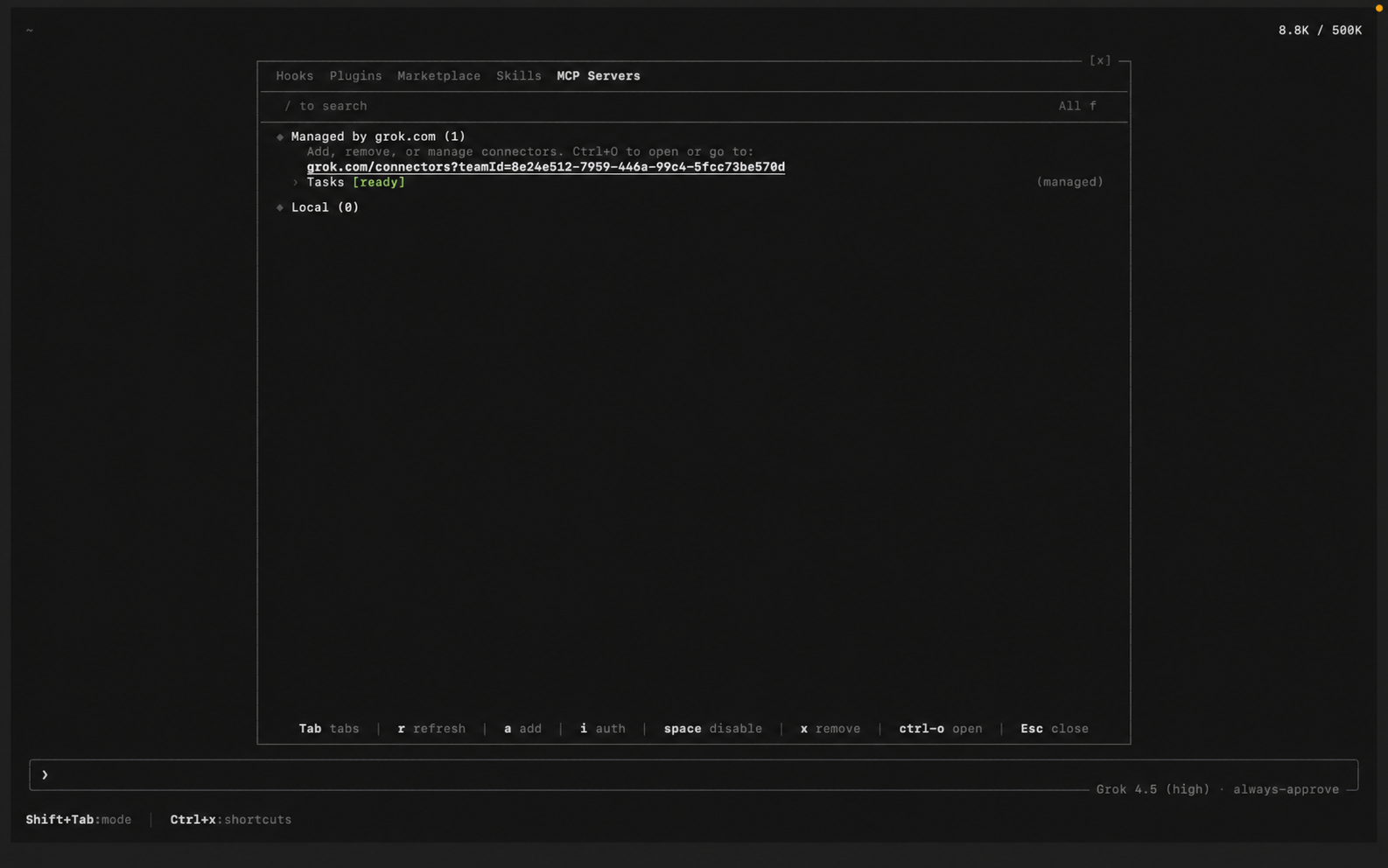
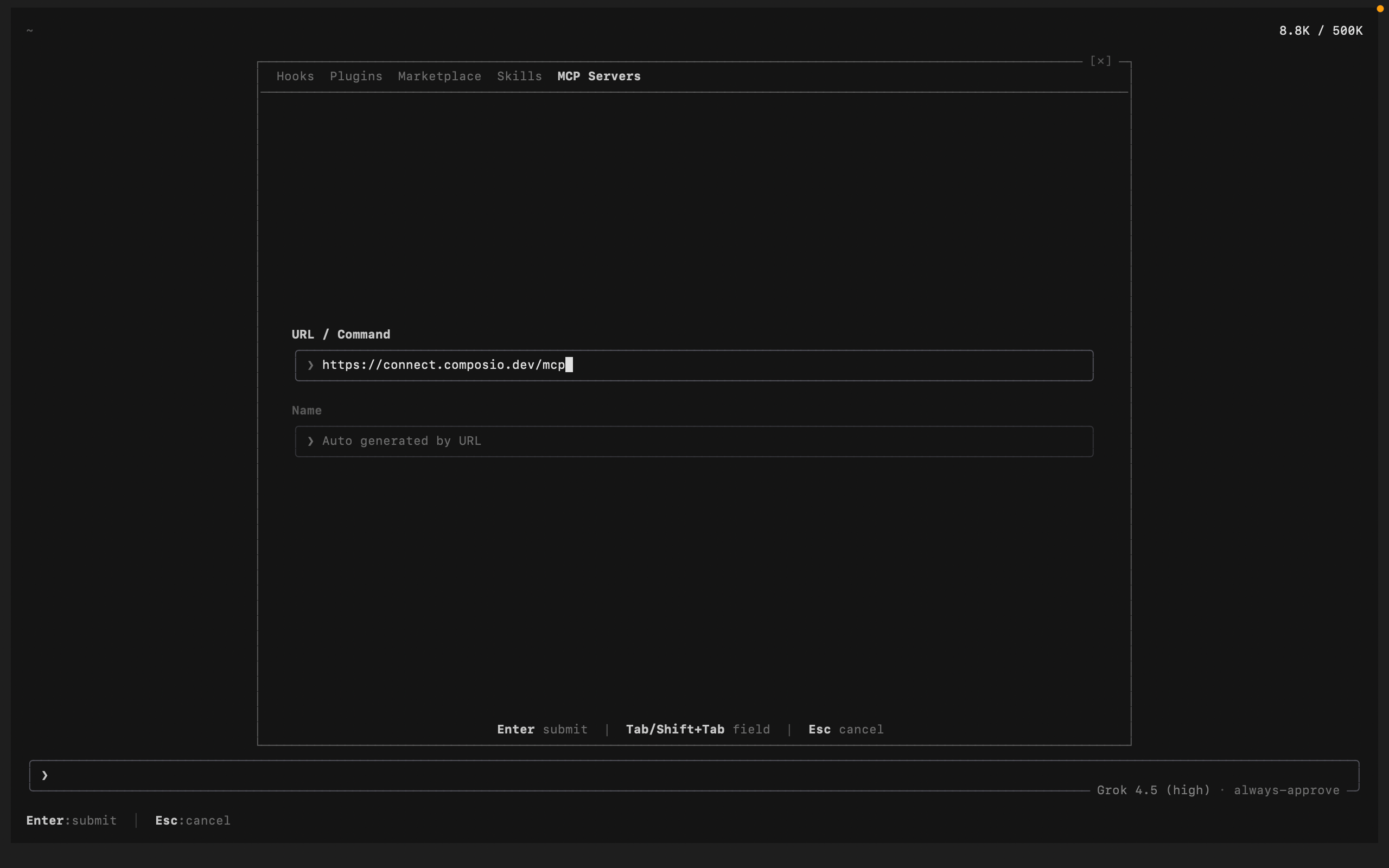
You can also add and manage servers from inside a session. Run /mcps to open the extensions modal on the MCP tab, then add a new server and paste the Composio URL. Added this way, Grok auto-detects the name from the URL and lists the server as connect:

bash
https://connect.composio.dev/mcp
Grok Build /mcps extensions modal listing MCP servers Grok Build adding the Composio MCP server with its URL

Grok also reads Claude Code-style config, so an entry in ~/.grok/config.toml or a project .mcp.json works the same way.

3. Authenticate

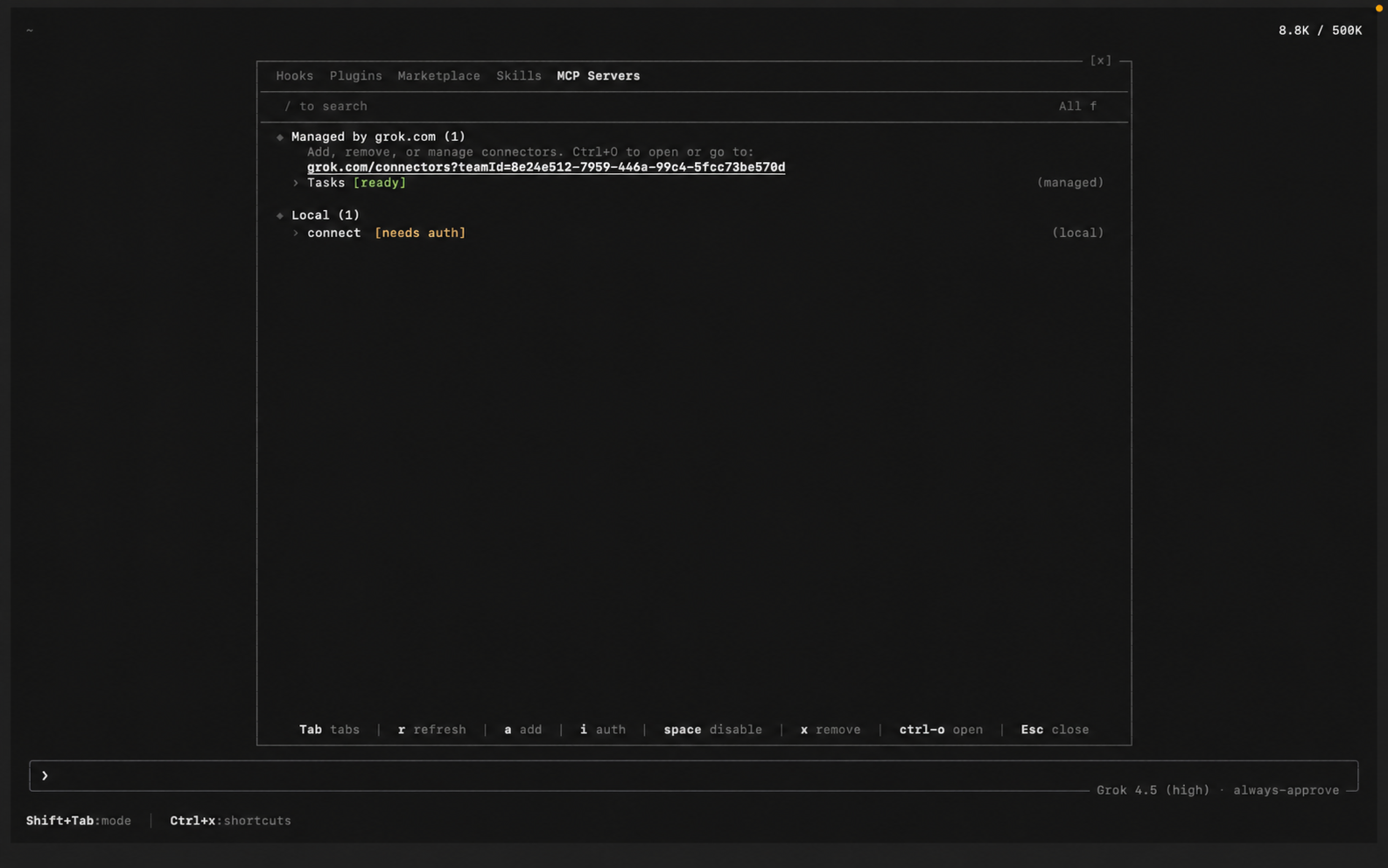
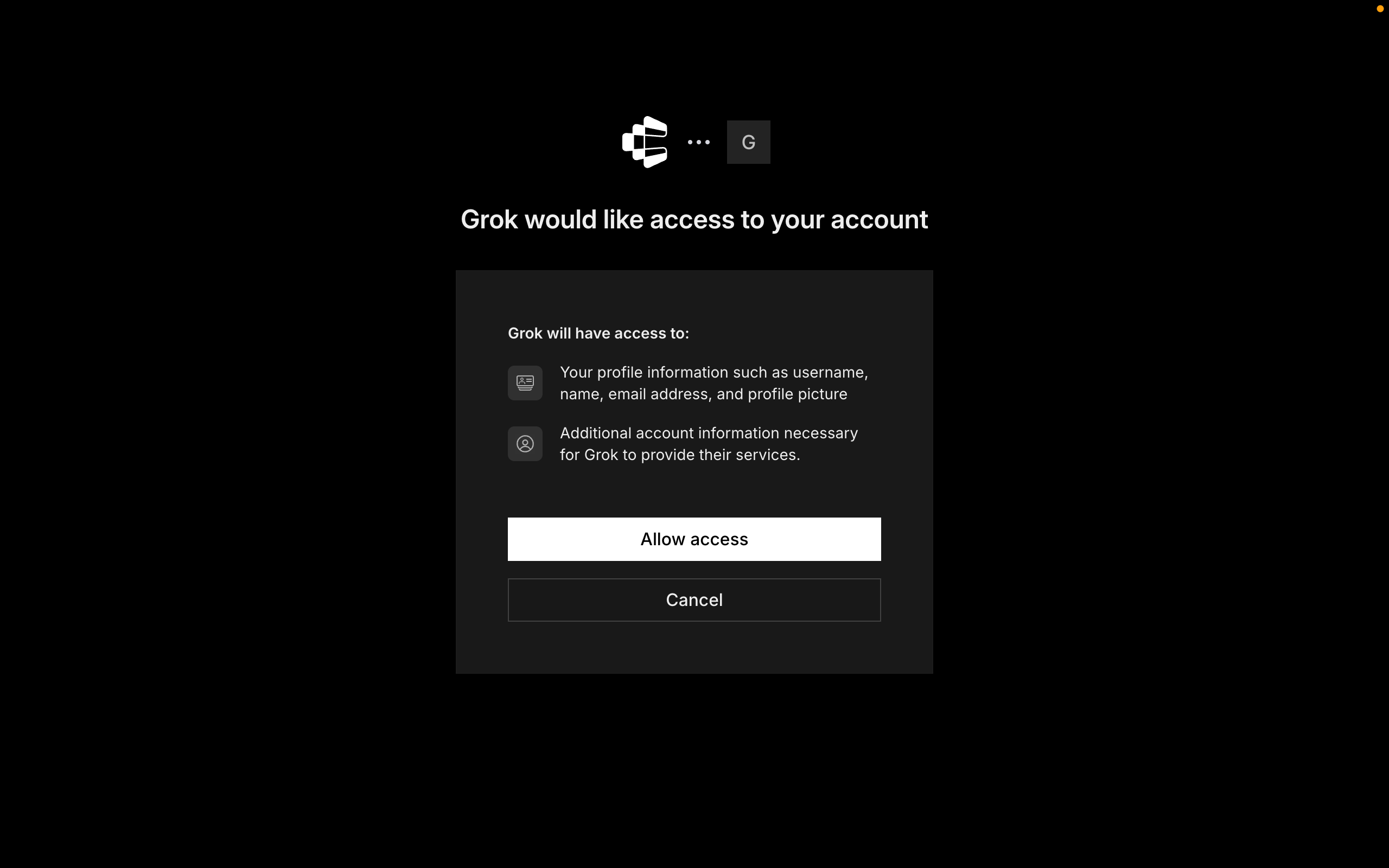
Composio uses OAuth. In the /mcps modal, select the Composio server and press i to authenticate (Grok also triggers this browser flow automatically the first time it uses a Composio tool). Click Allow to authorize access. Grok stores the tokens under ~/.grok/mcp_credentials.json, and /mcps shows Composio as connected.

Grok Build prompting to authenticate the Composio MCP server Composio authorization screen with the Allow button for Grok Build

4. Start building

Ask Grok to work with your Digital ocean account through Composio. On the first Digital ocean action, Composio prompts you to connect the account through OAuth. Approve the scopes once, and Composio handles token refresh from there.

What you can do after connecting Digital ocean

  • Spin up a droplet for staging environment
  • Provision a new PostgreSQL database cluster
  • Create a DNS A record for your domain
  • Add your SSH key to all droplets

Security + privacy notes (important)

  • Use least-privilege access. Grant only the Digital ocean scopes you actually need.
  • Review OAuth scopes before approving. Check that the requested scopes match what you expect Composio and Grok Build to do.
  • Keep write actions human-reviewed. Grok Build proposes a plan before it acts. Leave that approval step on for actions like sending messages or editing records.
  • Keep secrets out of version control. Your XAI_API_KEY and any tokens should never be committed. Use environment variables or a secrets manager.
TOOLS

Supported Tools

Every Digital ocean action and event your agent gets out of the box.

Create Custom Image

Creates a custom image in DigitalOcean by importing a Linux VM disk image from a publicly accessible URL.

Create Database Cluster

Creates a new managed database cluster on DigitalOcean.

Create New Block Storage Volume

Tool to create a new block storage volume.

Create New Domain

Creates a new domain in DigitalOcean's DNS management system.

Create Domain Record

Tool to create a new DNS record for a domain.

Create New Droplet

Tool to create a new Droplet.

Create New Firewall

Creates a new cloud firewall with custom inbound and outbound rules.

Create New Kubernetes Cluster

Creates a new DigitalOcean Kubernetes (DOKS) cluster with managed control plane.

Create New Load Balancer

Tool to create a new load balancer.

Create New SSH Key

Registers a new SSH public key with your DigitalOcean account.

Create New Tag

Creates a new tag in DigitalOcean for organizing and grouping resources.

Create New VPC

Creates a new Virtual Private Cloud (VPC) in a specified DigitalOcean region.

Delete Block Storage Volume

Permanently deletes a block storage volume by its unique ID.

Delete Database Cluster

Tool to delete a database cluster by UUID.

Delete Domain

Deletes a domain from DigitalOcean DNS.

Delete Domain Record

Tool to delete a DNS record by its record ID for a domain.

Delete Existing Droplet

Tool to delete a Droplet by ID.

Delete Firewall

Tool to delete a firewall by ID.

Delete Image

Deletes a user-created custom image or snapshot from your DigitalOcean account by its numeric ID.

Delete Load Balancer

Tool to delete a load balancer instance by ID.

Delete SSH Key

Tool to delete a public SSH key.

Delete Tag

Deletes a tag from your DigitalOcean account.

Delete VPC

Delete a VPC (Virtual Private Cloud) by its unique identifier.

List All Databases

Tool to list all managed database clusters on your account.

List All Domains

Lists all DNS domains configured in your DigitalOcean account.

List All Droplets

Lists all Droplets (virtual machines) in your DigitalOcean account with pagination support.

List All Firewalls

List all cloud firewalls configured in your DigitalOcean account.

List All Images

Tool to list all images available on your account.

List All Kubernetes Clusters

Tool to list all Kubernetes clusters on your account.

List All Load Balancers

List all load balancers in your DigitalOcean account with pagination support.

List All Snapshots

Tool to list all snapshots available on your DigitalOcean account.

List All SSH Keys

Lists all SSH keys associated with your DigitalOcean account.

List All Tags

Tool to list all tags in your account.

List All Volumes

Tool to list all block storage volumes available on your account.

List All VPCs

Tool to list all VPCs on your account.

List Apps

Tool to list all App Platform apps in your DigitalOcean account.

List Database Options

Lists all available configuration options for DigitalOcean managed database clusters, including supported engines (PostgreSQL, MySQL, MongoDB, Valkey, Kafka, OpenSearch), versions, regions, and cluster sizes/layouts.

List Domain Records

Tool to list all DNS records for a domain.

Retrieve Domain

Retrieves complete details about a specific domain including its TTL and DNS zone file configuration.

Retrieve Domain Record

Tool to retrieve a specific DNS record for a domain by its record ID.

Retrieve Existing Droplet

Retrieve detailed information about a specific DigitalOcean Droplet by its unique numeric ID.

Retrieve Existing Image

Tool to retrieve information about an image by ID or slug.

Retrieve Tag

Tool to retrieve an individual tag by name.

Retrieve VPC

Tool to retrieve details about a specific VPC by its ID.

Tag Resource

Tool to tag resources by name.

Untag Resource

Tool to untag resources by tag name.

Update Domain Record

Tool to update an existing DNS record for a domain.

Update VPC

Tool to update information about a VPC.

FAQ

Frequently asked questions

A standalone Digital ocean MCP server gives Grok Build a fixed set of Digital ocean tools tied to that one server. The Composio Tool Router lets Grok Build load tools from Digital ocean and many other apps on demand, based on the task, all through a single endpoint.

Yes. Grok Build ships with native MCP support. Add a server with the grok mcp add command, from the in-session /mcps modal, or by editing ~/.grok/config.toml. It also reads Claude Code-style .mcp.json files, so Grok Build discovers the tools automatically.

Yes. Grok Build has zero-migration compatibility with Claude Code's configuration, so the same Composio server entry works in both without edits.

Tokens, keys, and configuration are encrypted at rest and in transit. Composio is SOC 2 Type 2 compliant, so your Digital ocean data and credentials are handled to that standard.

Start with Digital ocean.It takes 30 seconds.

Managed auth, hosted MCP servers, and every Digital ocean tool your agent needs.Free to start.

Start building