How to integrate Digital ocean MCP with Antigravity

Trusted by
AWS
Glean
Zoom
Airtable

30 min · no commitment · see it on your stack

Digital ocean logo
Antigravity logo
divider

How to integrate Digital ocean MCP with Antigravity

Antigravity IDE is Google's agentic IDE, built on a VS Code-style editor and powered by models like Gemini 3.5 Flash, Gemini 3.1 Pro, Opus 4.6, and more. It treats the AI agent as a first-class teammate, planning, coding, and validating work through an Agent Manager dashboard with deep browser connectivity.

In this guide, I will explain the easiest and most secure way to connect your Digital ocean account to Antigravity IDE via Composio Connect, so it can spin up a droplet for staging environment, provision a new PostgreSQL database cluster, create a DNS A record for your domain, and more without ever putting your account credentials at risk.

Also integrate Digital ocean with

Why use Composio?

Composio provides:

  • Access to 1,000+ managed apps from a single MCP endpoint. This makes it convenient for agents to run cross-app workflows.
  • Programmatic tool calling. Allows LLMs to write code in a remote workbench to handle complex tool chaining. Reduces to-and-fro with LLMs for frequent tool calling.
  • Large tool response handling outside the LLM context. This minimizes context bloat from large tool responses.
  • Dynamic just-in-time access to thousands of tools across hundreds of apps. Composio loads the tools your agent needs, so LLMs are not overwhelmed by tools they do not need.

Connect Digital ocean to Antigravity

Antigravity does not ship with one-click custom MCP install links yet, so configuration goes through the IDE's raw config file. The process takes under a minute.

1. Open the MCP Config

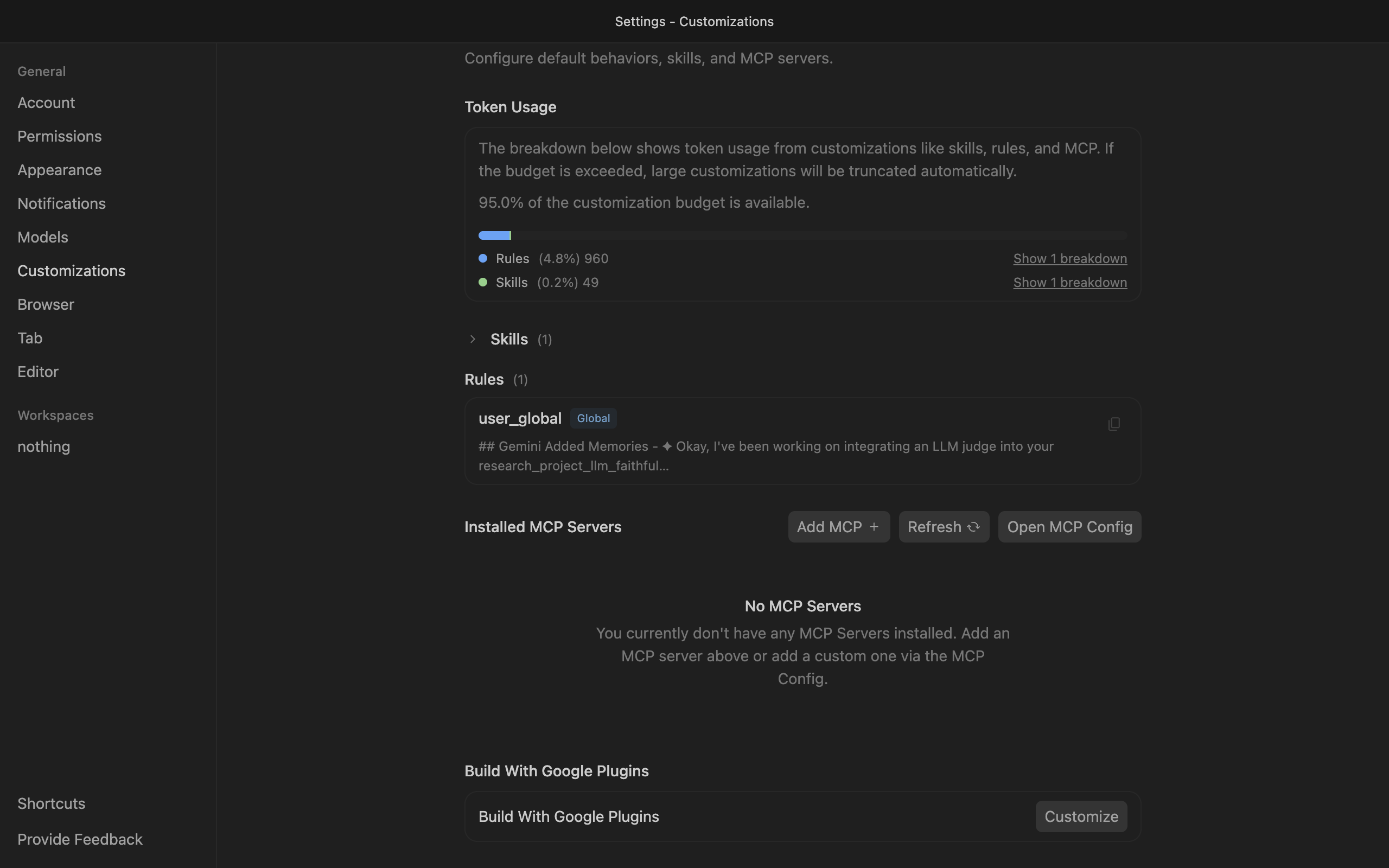
Go to Antigravity Settings, open the Customizations tab, then click Open MCP Config to open mcp_config.json in the editor.

Antigravity Customizations settings with Open MCP Config button

2. Get your API key

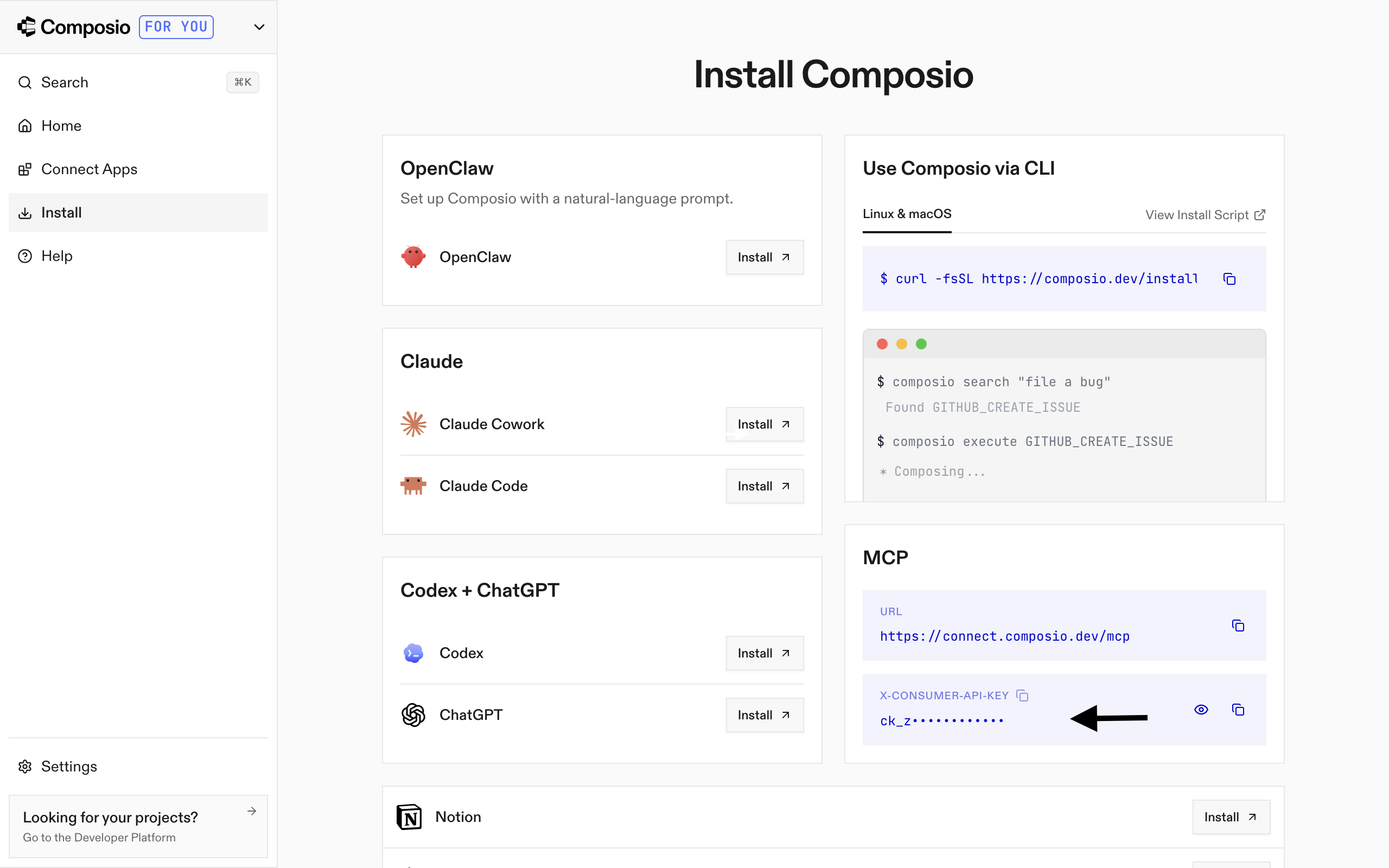
Go to the Composio Dashboard and copy your API key.

Composio Dashboard showing where to get the API key

3. Add Composio to mcp_config.json

Paste the following configuration into the file:

bash
{
  "mcpServers": {
    "remote-composio": {
      "serverUrl": "https://connect.composio.dev/mcp",
      "headers": {
        "x-consumer-api-key": "your-composio-api-key"
      }
    }
  }
}

Note: Antigravity uses serverUrl, not url, for remote HTTP-based MCP servers. This differs from the url key used in Cursor and VS Code configs.

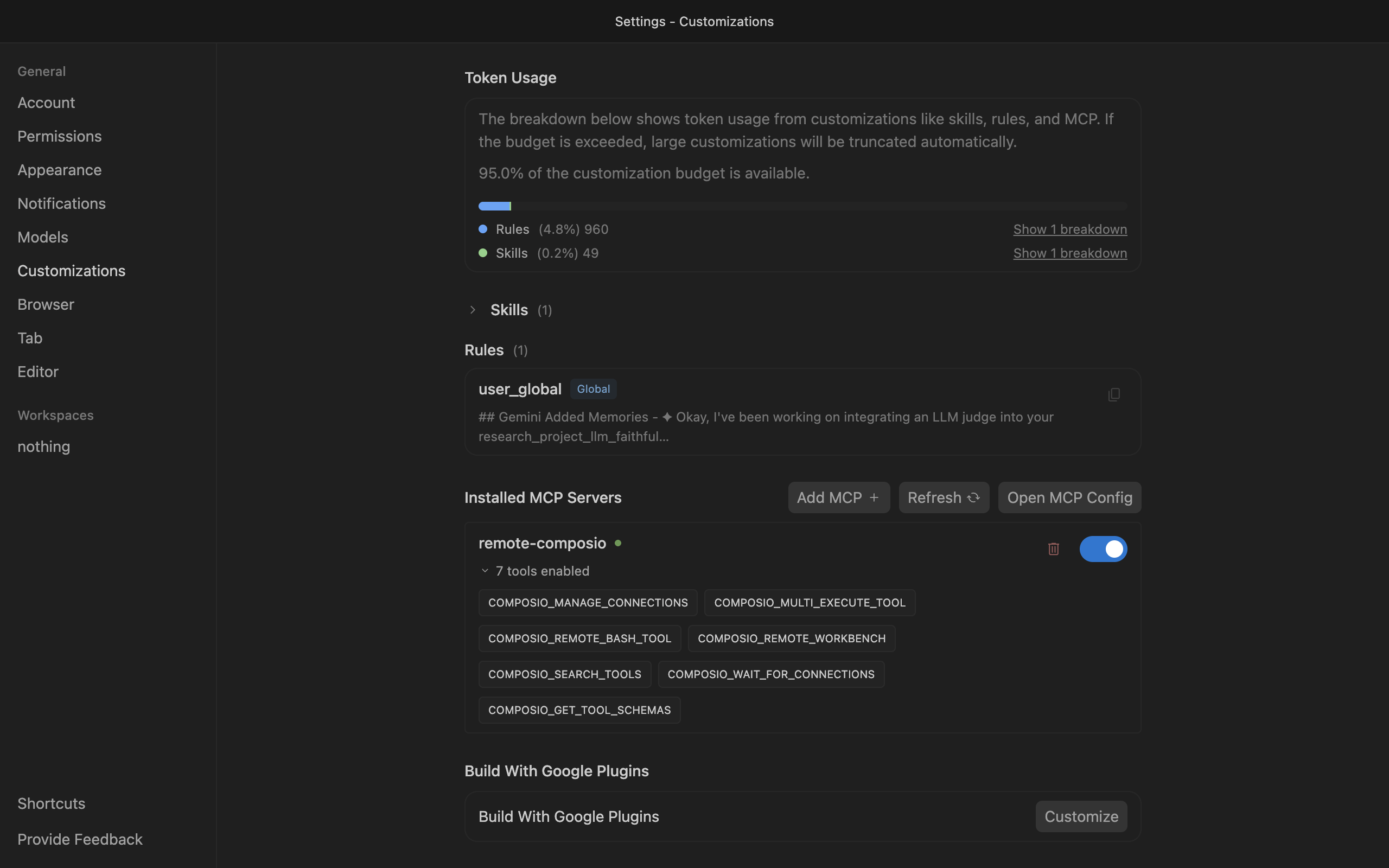
Save the file and click refresh in the Installed MCP Servers section.

Antigravity showing Composio tools after MCP setup

Connect your Digital ocean account

Back in the Antigravity agent panel, ask the agent to connect to Digital ocean or give it any Digital ocean-related task.

For example, ask it to:

  • "Spin up a droplet for staging environment"
  • "Provision a new PostgreSQL database cluster"
  • "Create a DNS A record for your domain"

It will prompt you to authenticate and authorize access to Digital ocean.

That is it. Composio tools are now available in Antigravity, and your Digital ocean account is ready to use.

Supported Tools & Triggers

Tools
Create Custom ImageCreates a custom image in DigitalOcean by importing a Linux VM disk image from a publicly accessible URL.
Create Database ClusterCreates a new managed database cluster on DigitalOcean.
Create New Block Storage VolumeTool to create a new block storage volume.
Create New DomainCreates a new domain in DigitalOcean's DNS management system.
Create Domain RecordTool to create a new DNS record for a domain.
Create New DropletTool to create a new Droplet.
Create New FirewallCreates a new cloud firewall with custom inbound and outbound rules.
Create New Kubernetes ClusterCreates a new DigitalOcean Kubernetes (DOKS) cluster with managed control plane.
Create New Load BalancerTool to create a new load balancer.
Create New SSH KeyRegisters a new SSH public key with your DigitalOcean account.
Create New TagCreates a new tag in DigitalOcean for organizing and grouping resources.
Create New VPCCreates a new Virtual Private Cloud (VPC) in a specified DigitalOcean region.
Delete Block Storage VolumePermanently deletes a block storage volume by its unique ID.
Delete Database ClusterTool to delete a database cluster by UUID.
Delete DomainDeletes a domain from DigitalOcean DNS.
Delete Domain RecordTool to delete a DNS record by its record ID for a domain.
Delete Existing DropletTool to delete a Droplet by ID.
Delete FirewallTool to delete a firewall by ID.
Delete ImageDeletes a user-created custom image or snapshot from your DigitalOcean account by its numeric ID.
Delete Load BalancerTool to delete a load balancer instance by ID.
Delete SSH KeyTool to delete a public SSH key.
Delete TagDeletes a tag from your DigitalOcean account.
Delete VPCDelete a VPC (Virtual Private Cloud) by its unique identifier.
List All DatabasesTool to list all managed database clusters on your account.
List All DomainsLists all DNS domains configured in your DigitalOcean account.
List All DropletsLists all Droplets (virtual machines) in your DigitalOcean account with pagination support.
List All FirewallsList all cloud firewalls configured in your DigitalOcean account.
List All ImagesTool to list all images available on your account.
List All Kubernetes ClustersTool to list all Kubernetes clusters on your account.
List All Load BalancersList all load balancers in your DigitalOcean account with pagination support.
List All SnapshotsTool to list all snapshots available on your DigitalOcean account.
List All SSH KeysLists all SSH keys associated with your DigitalOcean account.
List All TagsTool to list all tags in your account.
List All VolumesTool to list all block storage volumes available on your account.
List All VPCsTool to list all VPCs on your account.
List AppsTool to list all App Platform apps in your DigitalOcean account.
List Database OptionsLists all available configuration options for DigitalOcean managed database clusters, including supported engines (PostgreSQL, MySQL, MongoDB, Valkey, Kafka, OpenSearch), versions, regions, and cluster sizes/layouts.
List Domain RecordsTool to list all DNS records for a domain.
Retrieve DomainRetrieves complete details about a specific domain including its TTL and DNS zone file configuration.
Retrieve Domain RecordTool to retrieve a specific DNS record for a domain by its record ID.
Retrieve Existing DropletRetrieve detailed information about a specific DigitalOcean Droplet by its unique numeric ID.
Retrieve Existing ImageTool to retrieve information about an image by ID or slug.
Retrieve TagTool to retrieve an individual tag by name.
Retrieve VPCTool to retrieve details about a specific VPC by its ID.
Tag ResourceTool to tag resources by name.
Untag ResourceTool to untag resources by tag name.
Update Domain RecordTool to update an existing DNS record for a domain.
Update VPCTool to update information about a VPC.

Conclusion

You have successfully connected Digital ocean to Antigravity using Composio Connect. Your agent can now use Digital ocean securely without exposing credentials in prompts or local scripts.

How to build Digital ocean MCP Agent with another framework

FAQ

What are the differences in Tool Router MCP and Digital ocean MCP?

With a standalone Digital ocean MCP server, the agents and LLMs can only access a fixed set of Digital ocean tools tied to that server. However, with the Composio Tool Router, agents can dynamically load tools from Digital ocean and many other apps based on the task at hand, all through a single MCP endpoint.

Can I use Tool Router MCP with Antigravity?

Yes, you can. Antigravity fully supports MCP integration. You get structured tool calling, message history handling, and model orchestration while Tool Router takes care of discovering and serving the right Digital ocean tools.

Can I manage the permissions and scopes for Digital ocean while using Tool Router?

Yes, absolutely. You can configure which Digital ocean scopes and actions are allowed when connecting your account to Composio. You can also bring your own OAuth credentials or API configuration so you keep full control over what the agent can do.

How safe is my data with Composio Tool Router?

All sensitive data such as tokens, keys, and configuration is fully encrypted at rest and in transit. Composio is SOC 2 Type 2 compliant and follows strict security practices so your Digital ocean data and credentials are handled as safely as possible.

Used by agents from

Context
Letta
glean
HubSpot
Agent.ai
Altera
DataStax
Entelligence
Rolai
Context
Letta
glean
HubSpot
Agent.ai
Altera
DataStax
Entelligence
Rolai
Context
Letta
glean
HubSpot
Agent.ai
Altera
DataStax
Entelligence
Rolai

Never worry about agent reliability

We handle tool reliability, observability, and security so you never have to second-guess an agent action.