




Everything ChatGPT Work does outside the chat window is done through plugins. That's the mechanism that connects it to Gmail, Slack, your calendar, or whatever else you've hooked up. Without an app plugin, Work can write you a clean follow-up email and then leave it in the chat for you to paste into Gmail yourself.
An MCP server is a plugin you can add that OpenAI didn't ship. It gives ChatGPT a set of tools, along with a description of what each one does, and lets it call them mid-task. Composio runs one as a hosted endpoint, so there's no local server to babysit and no separate OAuth setup for every app. You give ChatGPT a single URL and connect your apps behind it.
The annoying part is that OpenAI buried the setup in two different spots. On Work Desktop, it's under Settings → Plugins → MCP. On the web, you first need to enable Developer Mode, then add the server from the plugin browser. Most walkthroughs cover one interface and quietly leave everyone on the other guessing.
So this one does both. I'll add the Composio MCP server on Desktop and on Web, authenticate it, and run a Gmail test to check it works. The two setups only differ in how you add the server.
What you are connecting
There are three pieces in this setup:
ChatGPT Work, where you describe the job.
The Composio MCP server, which exposes the tools ChatGPT can use.
Your connected apps, such as Gmail, Slack, Notion, Linear, HubSpot, or Salesforce.
Composio provides ChatGPT with a single endpoint and routes each request to the relevant toolkit. You can connect another app later without adding another MCP server to ChatGPT Work.
Before you start
You need:
Access to ChatGPT Work Desktop, or a Plus, Pro, or Max subscription for the web setup.
Access to the apps you want ChatGPT Work to use. (Linear, Google Ads, Meta ads etc)
Permission from your workspace admin if plugins or custom MCP servers are managed centrally.
The desktop and web interfaces put the MCP controls in different places. The server URL and authentication flow do not change, but the route to add the server does. I have covered both below.
Related: How to add MCP to Codex CLI
Connect MCP servers on ChatGPT Work Desktop
We are using Composio MCP, but this works with any custom HTTP MCP server.
Desktop step 1: Open the MCP settings
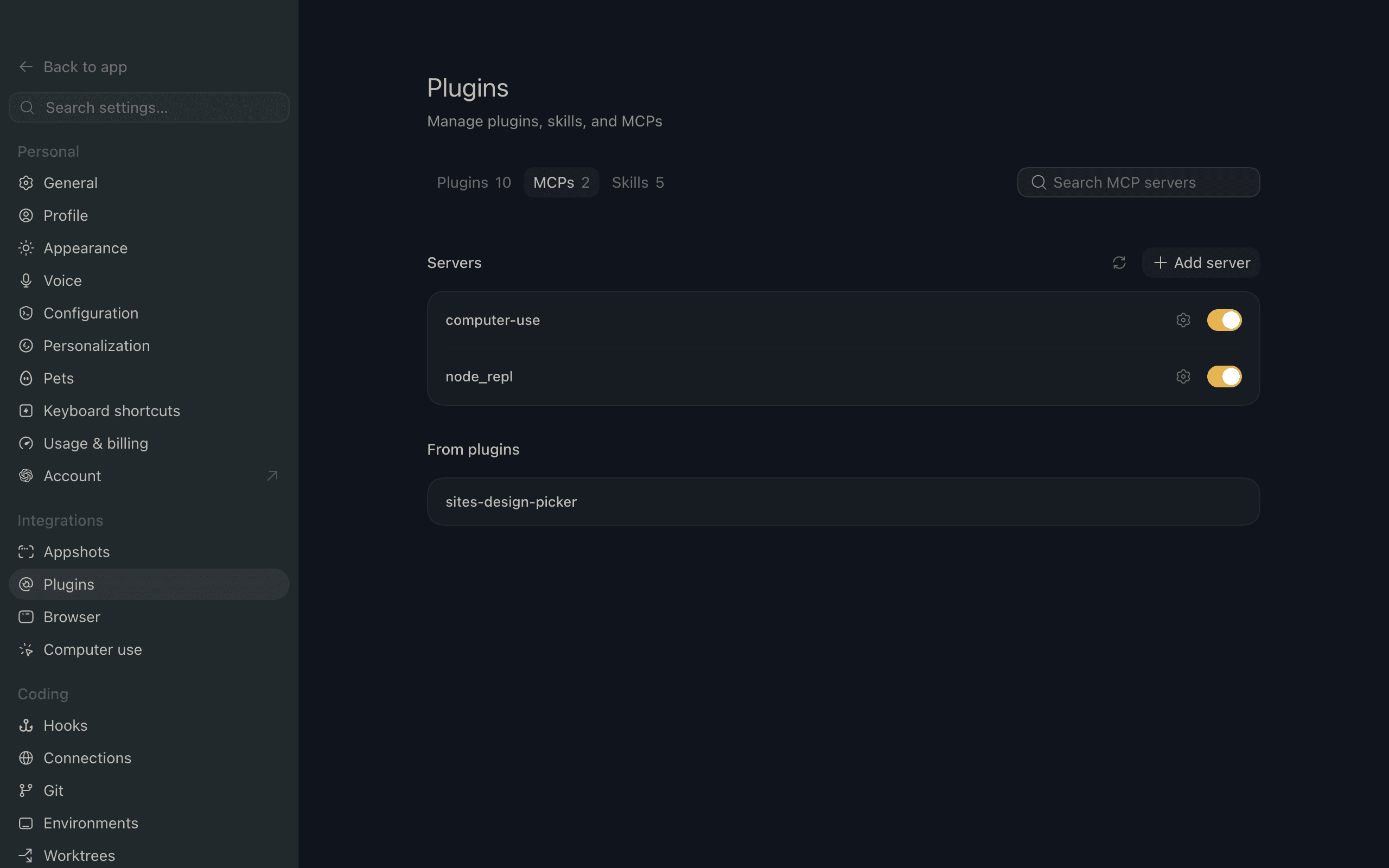
Open ChatGPT Work and go to Settings. Select Plugins, then open the MCP tab.
This page is the list of external MCP servers ChatGPT Work knows about. Adding a server here does not give it access to any of your accounts yet.
If you are using a company workspace and the Plugins page is locked, it is usually an admin setting rather than a Composio issue. Custom MCP servers can expose write actions, so many teams restrict who can add or publish them.
Desktop step 2: Add the Composio MCP server
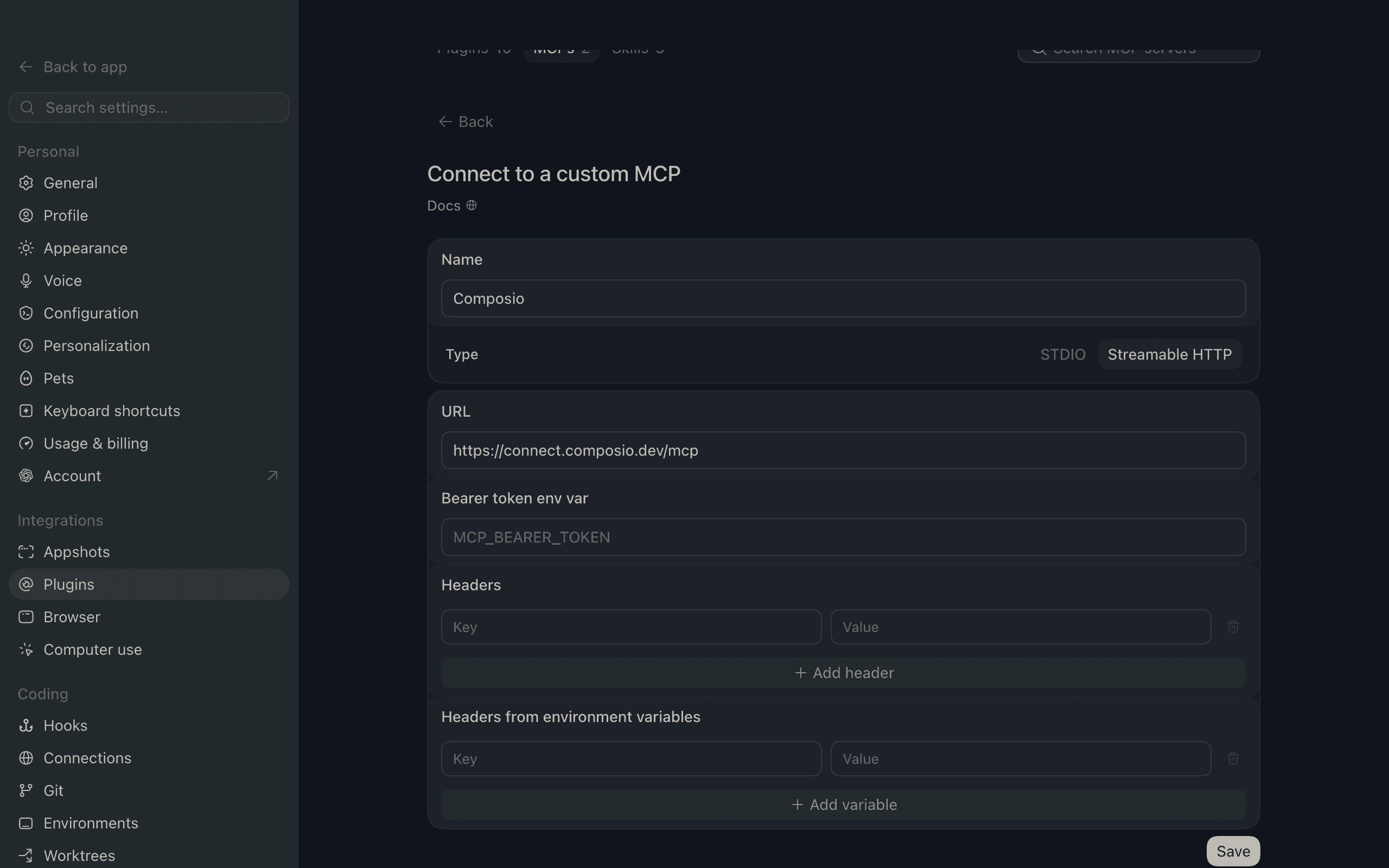
Click Add server and enter the following values:
Field | Value |
|---|---|
Name |
|
Type |
|
URL |
|
The name is only a label inside ChatGPT Work, so you can change it if you want.
The transport and URL are the important parts. Streamable HTTP lets ChatGPT communicate with the hosted MCP server over the web.
Click Save. Composio should now appear in the MCP plugin list.
At this point, ChatGPT can reach the server, but the server still does not know which Composio user or connected accounts belong to you. That is handled in the next step.
Desktop step 3: Authenticate with Composio
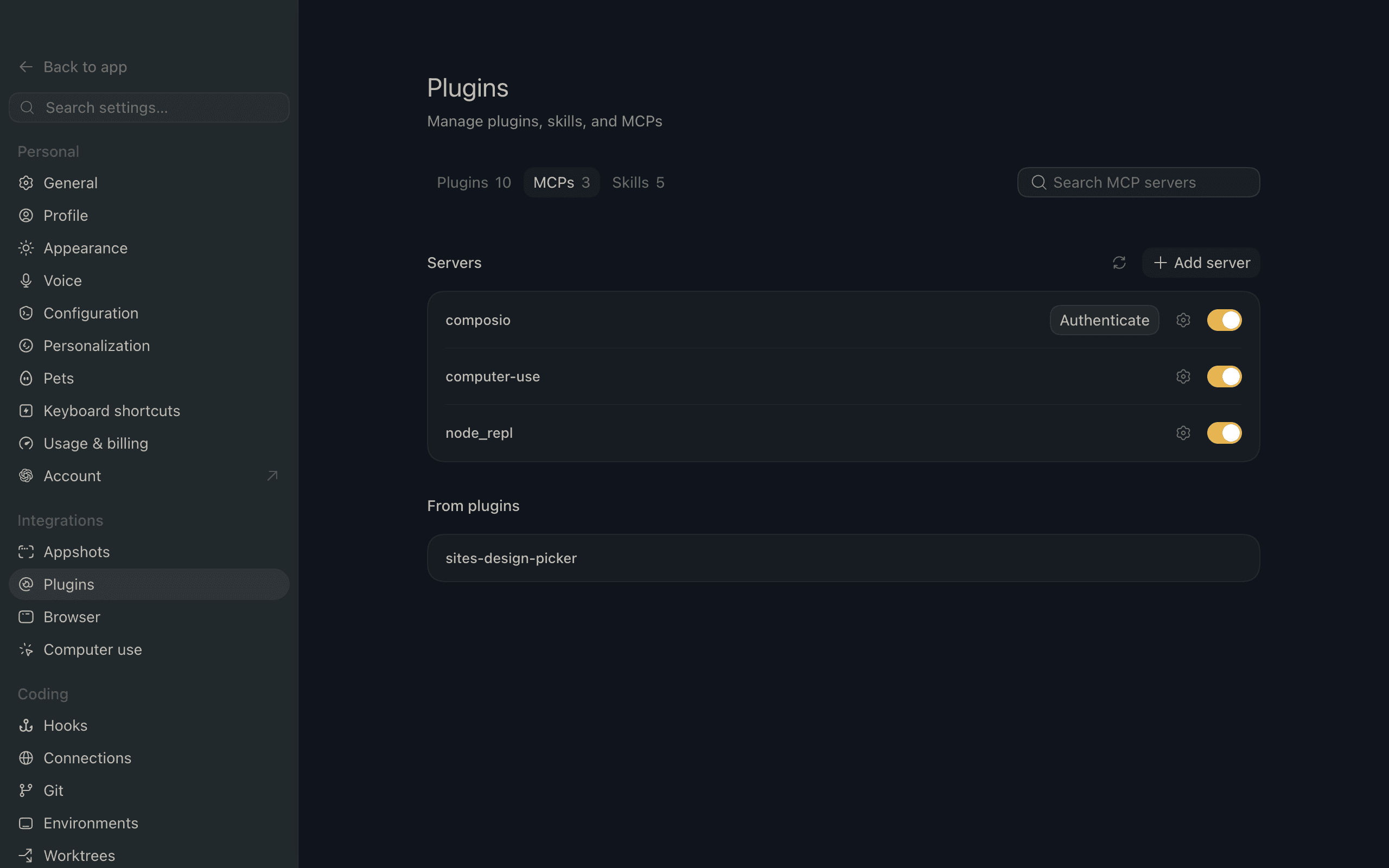
Click Authenticate next to the Composio server. Sign in to Composio and select Allow access when the authorization screen appears.
This authorization connects ChatGPT Work to your Composio account. It does not require you to give ChatGPT your Gmail, Slack, or Salesforce password. Those app connections use their own OAuth flows, and the resulting credentials stay behind the Composio connection.
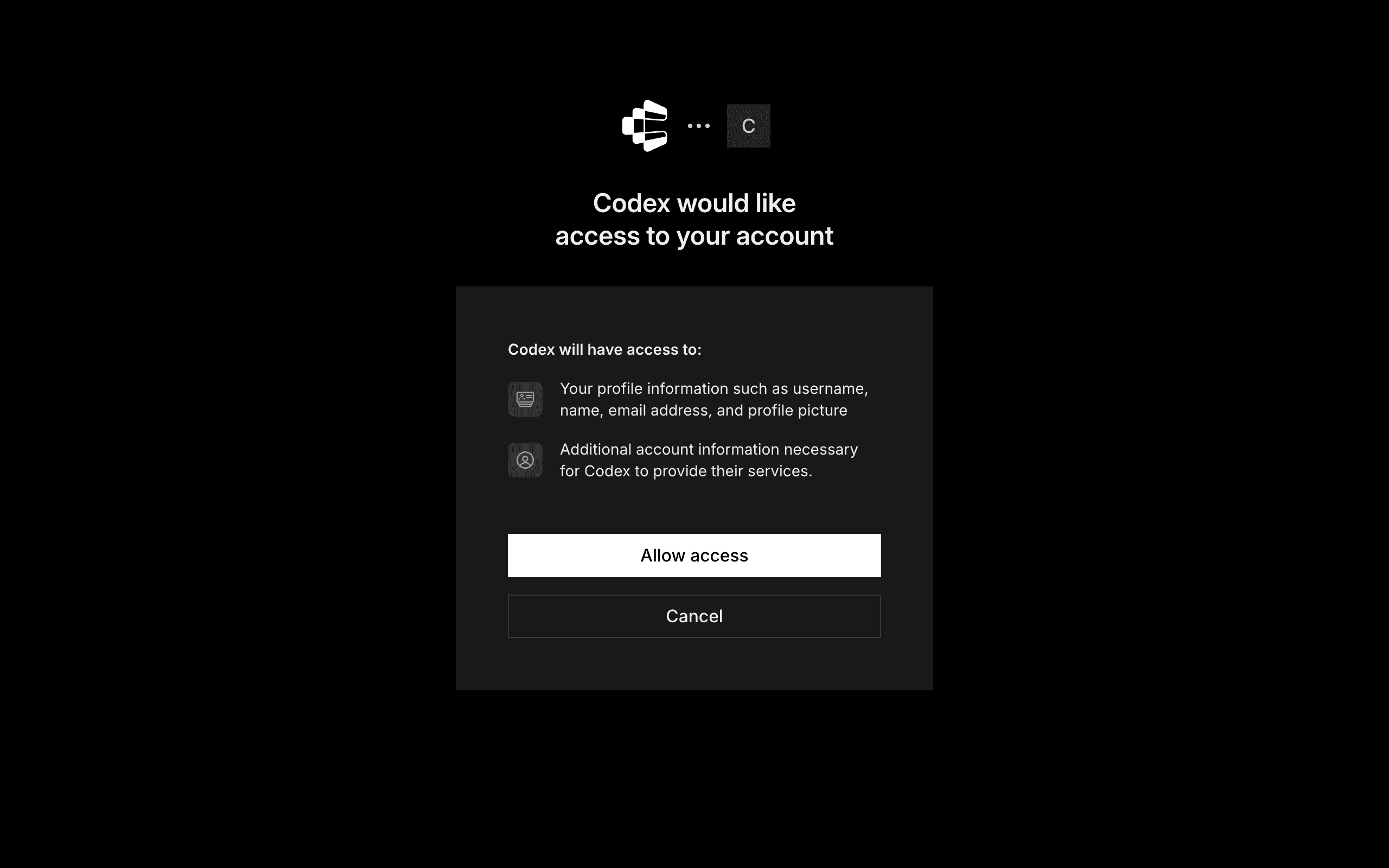
Read the permission screen before approving it, especially on a work account. The scope should match what you plan to do. If you only want ChatGPT to search an inbox, it should not need permission to send email. If you want it to create drafts or update CRM records, write scopes are expected.
After the OAuth window closes, return to ChatGPT Work. The Composio server should show as authenticated or connected. If it still shows an Authenticate button, refresh the MCP page once before repeating the login flow. Repeatedly authorizing the same connection can create confusion when several browser sessions are open.
Desktop step 4: Use Composio tools in ChatGPT Work
Open a new ChatGPT Work conversation and ask for a task involving one of your connected apps.
Start with a read-only request. It is the quickest way to check the connection without changing anything:
Find my unread Gmail messages from this morning and group them into urgent, needs a reply, and informational. Do not send or modify anything.
ChatGPT Work should identify that it needs Gmail, load the relevant Composio tools, and ask you to connect Gmail if the account has not already been connected. Once Gmail is authorized, it can fetch the messages and return the result in the conversation.
Then try a reversible write action:
Draft replies to the urgent messages. Keep every draft under 120 words and do not send them.
The distinction between draft and send is worth making explicit. Models are good at selecting tools when the requested outcome is clear. Vague prompts such as “handle my inbox” leave too much room for interpretation, particularly when write tools are available.
For an action with an external consequence, ChatGPT may show a confirmation card before it runs. Check the app, action, and arguments instead of treating the card as a generic continue button. “Send email” and “create draft” are one word apart in a prompt and very different in practice.
Connect MCP on ChatGPT Web
The web setup has one extra requirement: Developer Mode must be enabled before ChatGPT shows the option to add your own MCP server. You need a Plus, Pro, or Max subscription for this route.
Web step 1: Enable Developer Mode
Open ChatGPT in your browser and click your profile at the bottom-left of the page. Select Settings, then open Security and Login.
Scroll down until you find Enable Developer Mode and toggle it on. This enables adding an MCP-backed plugin that is not already listed in the plugin browser.
If the option is missing, first check that you are signed into the correct paid account. On a managed account, the workspace owner may also control whether members can add third-party plugins.
Web step 2: Open the plugin browser
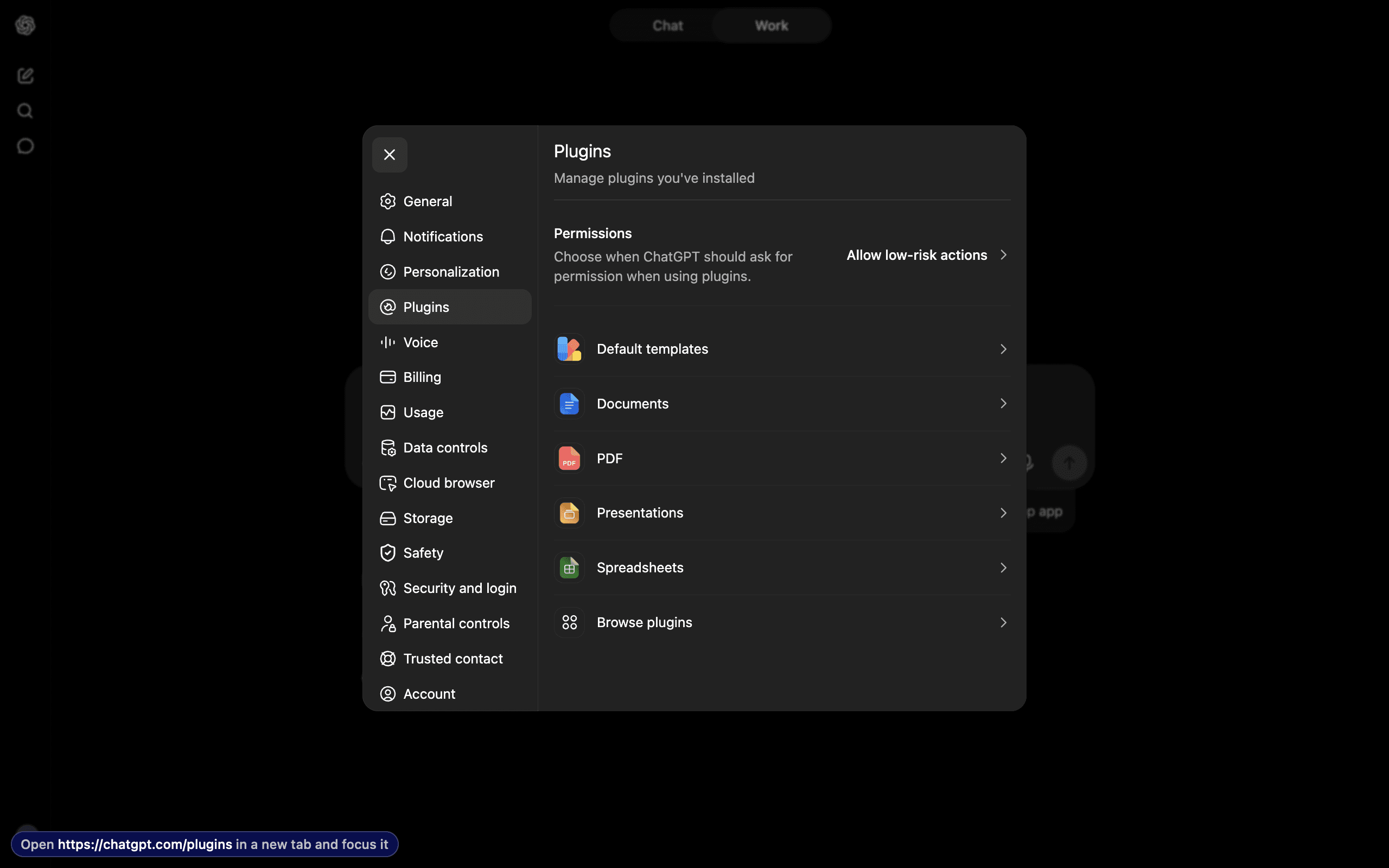
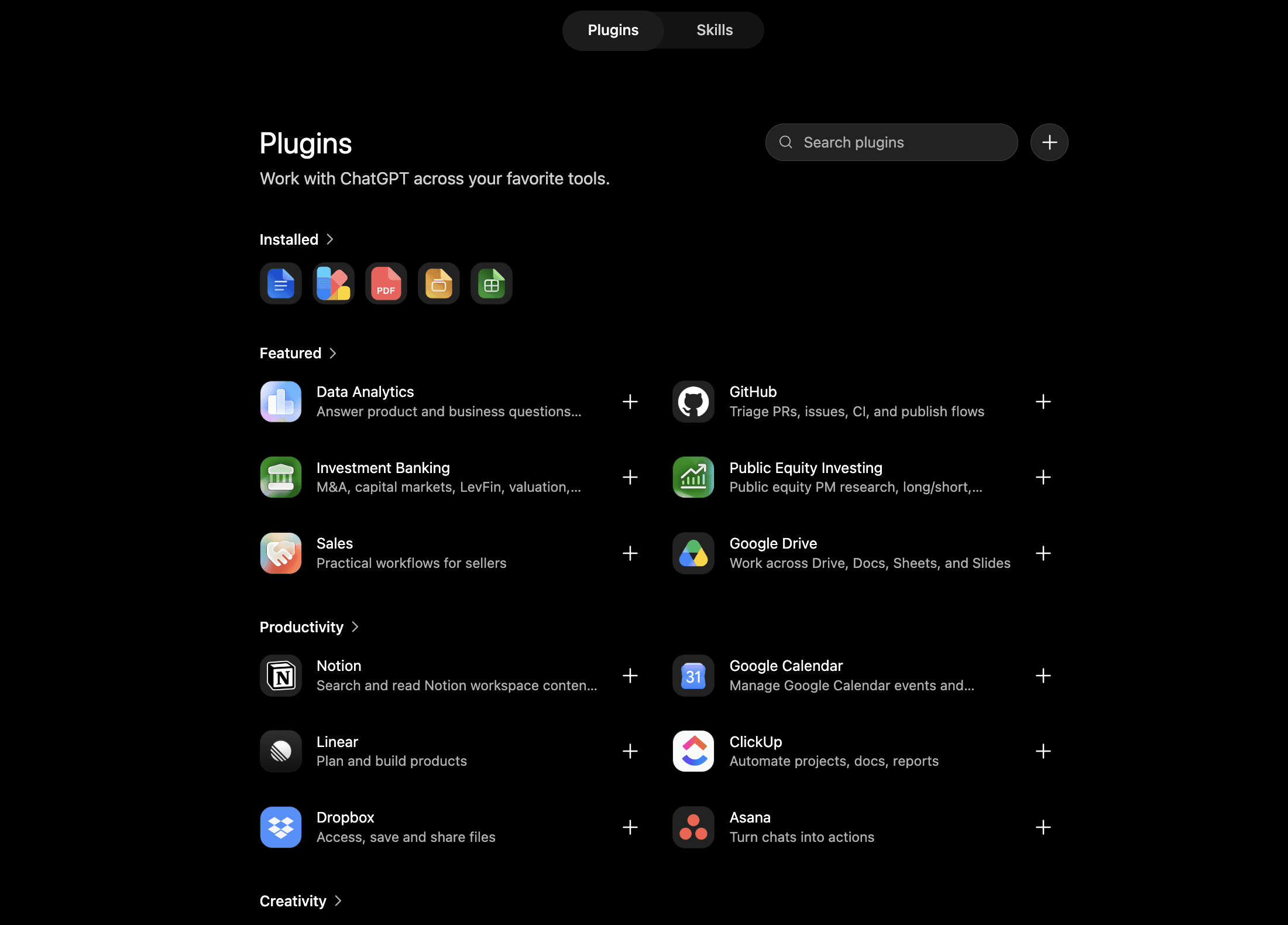
Go to the Plugins section and click Browse Plugins. ChatGPT opens a new window containing the available plugins.
At the top of that window is a search field labelled Search plugins. Click the plus icon next to the search bar. The icon opens the form for adding a custom plugin or MCP server; searching for Composio in the directory is not the same thing.
Web step 3: Enter the MCP server details
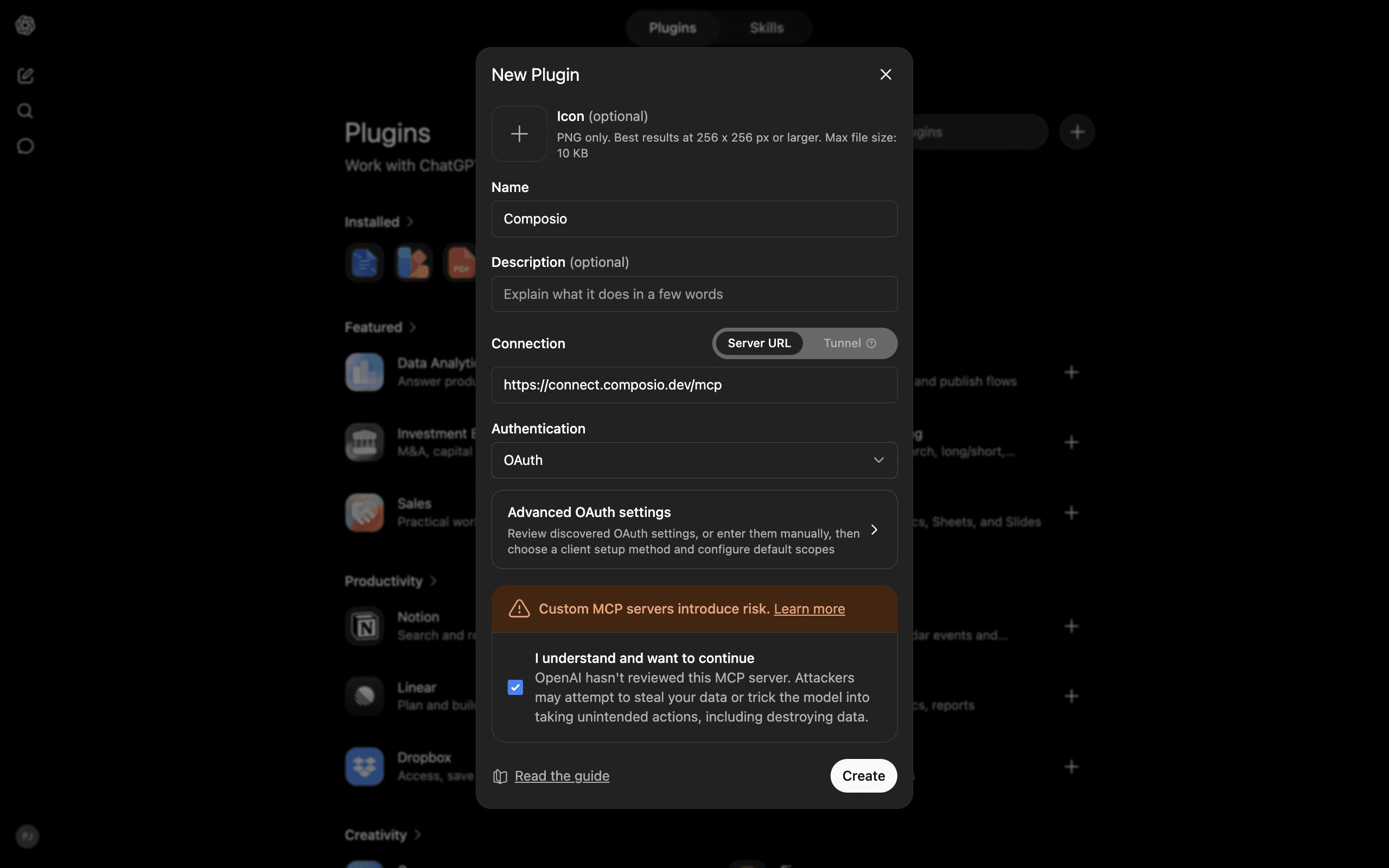
Complete the form with the details for the server you want to connect. For Composio, use:
Field | Value |
|---|---|
Name |
|
Description |
|
Connection URL |
|
Authentication method |
|
The description does not affect the connection, but it should say what the plugin is for. This becomes useful once you have several custom MCP servers in the same account.
Review the server details, select the confirmation checkbox, and click Continue. ChatGPT will start the connection flow with the MCP server. Sign in to Composio and approve the requested access when the authorization window opens.
Do not paste an app password or OAuth token into the description or URL fields. The authentication step exists so credentials can be exchanged through the proper OAuth flow.
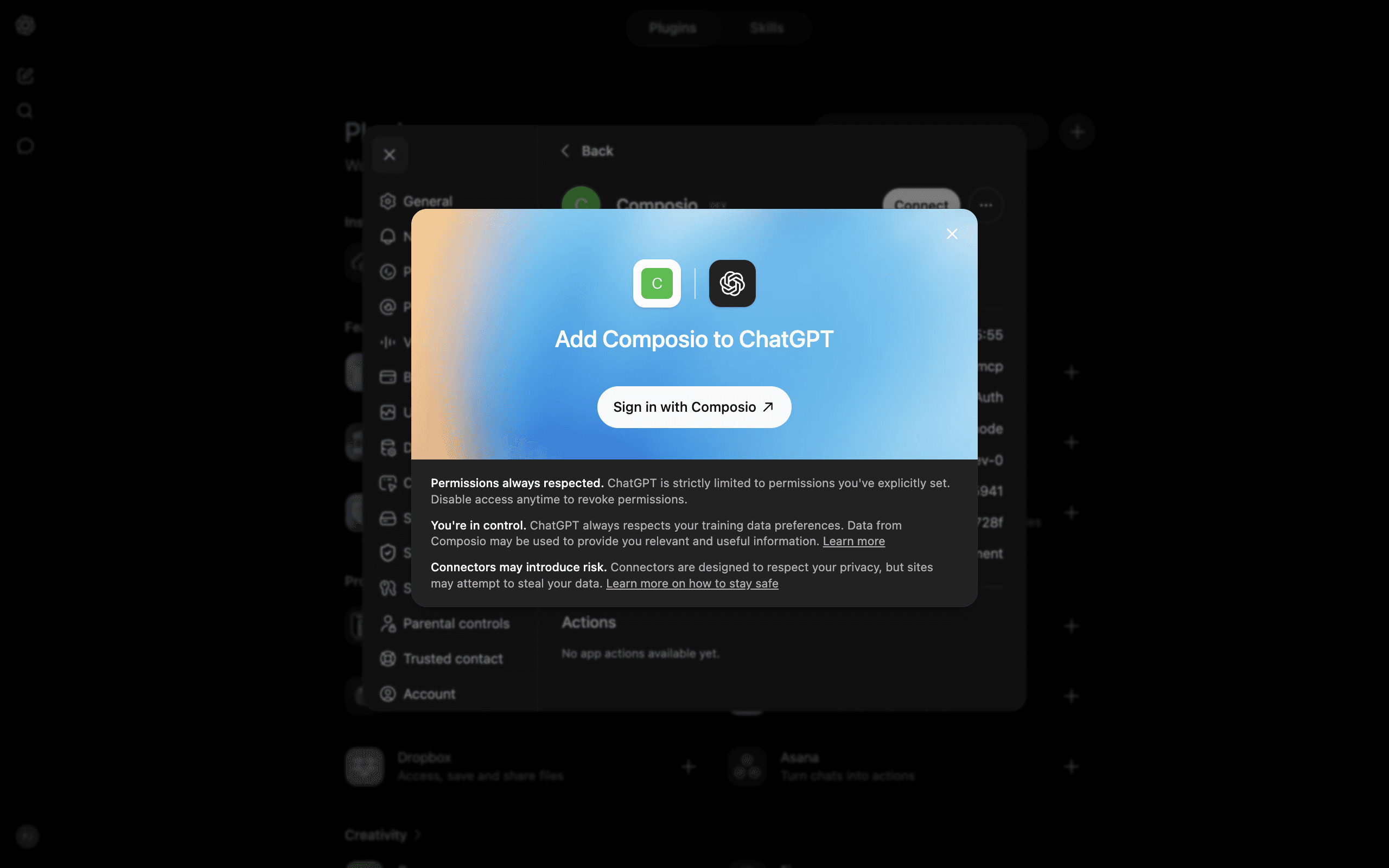
Web step 4: Select the plugin and use it in chat
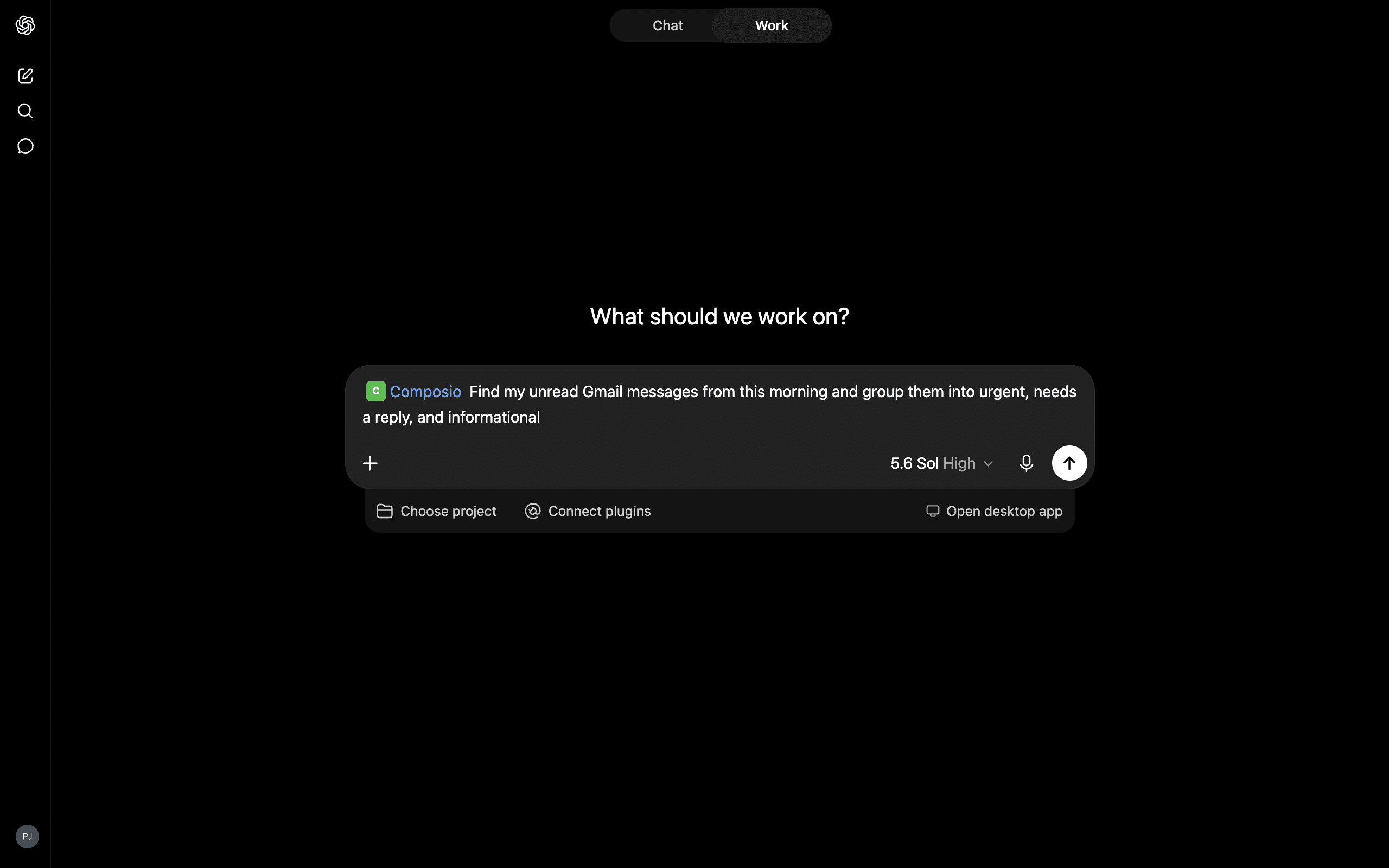
Once the connection is complete, ChatGPT returns you to the Plugins page. The newly added MCP server now appears alongside your other plugins under the name you entered.
Click the plugin to select it, then open a conversation and ask ChatGPT to use one of the connected tools. I would start with the same read-only Gmail test from the desktop setup:
Find my unread Gmail messages from this morning and group them into urgent, needs a reply, and informational. Do not send or modify anything.
If that works, the MCP connection, plugin selection, Composio authorization, and Gmail authorization are all in place. You can then move on to drafts, labels, updates, and cross-app workflows.
What happens when you send a prompt
Suppose you ask ChatGPT Work to find unresolved customer emails, create Linear issues for the bugs, and post a summary in Slack.
ChatGPT first identifies which capabilities the job requires. Composio then makes the relevant Gmail, Linear, and Slack tools available rather than loading the entire catalogue into the conversation. Each tool call runs against the account you authorised, and the outputs are returned to ChatGPT so it can decide what to do next.
The useful part is that the workflow is not hard-coded. You can change the conditions in plain English: include only enterprise customers, skip threads that already have a reply, assign frontend bugs to a single team, and ask for approval before posting to Slack. The tools stay the same; the plan changes with the task.
Prompts worth trying
The best prompts name the source, the selection rule, the output, and the boundary on what ChatGPT is allowed to change.
Inbox triage
Search Gmail for messages received in the last 24 hours from customers. Summarize the request, flag anything that mentions cancellation or a production outage, and draft replies. Do not send them.
Meeting follow-up
Find today's customer meeting notes in Notion. Create a Linear issue for each engineering action item, include a link to the original page, and show me the issue titles before creating them.
CRM cleanup
Find HubSpot deals with no activity in the last 14 days. Group them by owner and draft a Slack message for each owner. Do not post the messages.
Cross-app status report
Pull open high-priority Linear issues and the related customer threads from Gmail. Write a short status update in Notion, then give me the link. Ask before publishing anything to Slack.
These prompts are specific enough for reliable tool selection but still leave ChatGPT Work room to plan the sequence. If a workflow is important, run it once on a small sample before letting it touch the full dataset.
Permissions and security
An MCP connection is different from attaching a document to a chat. If the server exposes write tools, it can change data in the connected apps. Treat the connection like you would treat a new integration installed in your workspace.
Connect MCP servers you trust. A server can receive parts of your prompt and data required for its tool calls.
Grant the smallest useful set of app scopes.
Keep confirmation enabled for sending messages, deleting records, moving money, changing access, and other consequential actions.
Test destructive tools in a non-production account where possible.
Review connected accounts and revoke ones that are no longer used.
Follow your company's policy for customer data, credentials, and regulated information.
Composio handles the authentication plumbing, but it cannot decide which access is appropriate for your organization. That decision still belongs to the account owner and workspace admin.
Troubleshooting
The MCP controls are missing
On desktop, update the ChatGPT app and confirm that ChatGPT Work is enabled for your account. On the web, confirm that you have a Plus, Pro, or Max subscription and that Enable Developer Mode is active under Settings → Security and Login. On managed workspaces, ask an admin whether custom plugins or MCP servers are allowed.
The server will not save
On desktop, check that the type is Streamable HTTP. On the web, check the connection URL and authentication method. In both cases, the URL should be exactly:
https://connect.composio.dev/mcpDo not use a local MCP configuration or an npx command for this setup. ChatGPT Work is connecting to a hosted remote server.
Authentication keeps reopening
Finish the Composio login in the same browser session launched by ChatGPT Work, then return to the app and refresh the MCP page. If you belong to several Composio organizations, confirm that you authorized the one containing the app connections you expect to use.
ChatGPT can see Composio but does not use a tool
Name the app and requested action directly. “Check what happened with the Acme account” is ambiguous. “Search Gmail for the latest thread with Acme and summarize the unresolved questions” gives the model a source and an operation.
Also check that the underlying app is connected in Composio. Authenticating the MCP server connects ChatGPT Work to Composio; it does not silently authorize every third-party app in the catalog.
A write action is blocked
The connected app may not have the required OAuth scope, ChatGPT may be waiting for confirmation, or a workspace admin may have disabled that action. Test a read action first, then inspect the permission shown for the blocked tool.
Is the setup worth it?
For one read-only app, a built-in connector may be enough. I would not add an MCP server only to summarize a handful of documents. The case gets stronger when you need write actions or a workflow that crosses several apps.
That is where the Composio setup earns its place. ChatGPT Work gets one MCP connection, your users keep OAuth-based access to their own accounts, and a task can move from Gmail to Linear to Slack without three separate server installations. The setup is short. The real work is deciding what the agent should be allowed to do once the tools are there.
Everything in this guide reflects the product interfaces available in July 2026. ChatGPT Work and MCP support are shipping quickly, so menu names and plan availability may move even if the underlying connection stays the same.

 Get started



