




I spend most of my day in Slack. Team updates, meeting notes, quick decisions, and follow-ups. It all lives there. Threads move fast, and channels fill up even faster. When I want to use that context with an AI, I end up copying pieces into a prompt, refining them, and explaining what the thread was about.
I have done that more times than I can count. It always feels clunky.
Slack MCP changes that. It connects directly to your workspace and lets Claude work with real conversations using the actual content from your channels and threads.
Once connected, you can use the Slack data you already have and respond with the context that matters.
In this post, I will show you how to set up Slack MCP and use it to make Claude Cowork more helpful with your day-to-day conversations.
What is Slack MCP and what you can do with it?
Slack MCP is a secure integration that connects your Slack workspace to tools like Claude and Cursor. It gives large language models direct access to your real Slack data through a fixed set of supported actions.
Once connected, Slack MCP allows these tools to:
Read messages from channels or threads**: **Pull recent messages from public or private Slack channels for quick reference or summaries.
Post messages: Send new messages to any Slack channel or thread based on prompts or actions.
Reply in threads: Add follow-up responses to existing conversations in a thread format.
Search messages: Find messages by keyword, timestamp, or sender, directly through the model.
List users or channels: Retrieve a list of members or available channels in your Slack workspace.
Fetch** user info: Get details about any team member to personalize messages or automate updates.
and more ….
This setup turns Slack into a live data source. Instead of copying and explaining messages to your tools, you can let them interact directly with your workspace using actual, up-to-date information.
Setting Up Slack MCP with Claude Cowork: Detailed Guide
Claude Cowork is Anthropic’s agentic AI system built for knowledge work. It runs on desktops, connects to local files and apps, and handles multi-step tasks from start to finish. It removes the need to connect to Slack through config files or terminal commands, offering a simpler, no-code way to achieve the same outcome.
What you need before starting
Claude Desktop or web : Download it from claude.ai/download. Cowork is available inside the desktop app along with Chat and Code.
A Claude Pro or Max plan: Cowork is included in the Pro plan for quick tasks, and in the Max plan for more complex workloads.
A Composio account: Sign up for free at dashboard.composio.dev
Step 1: Connect Slack in Composio
Visit dashboard.composio.dev and log in
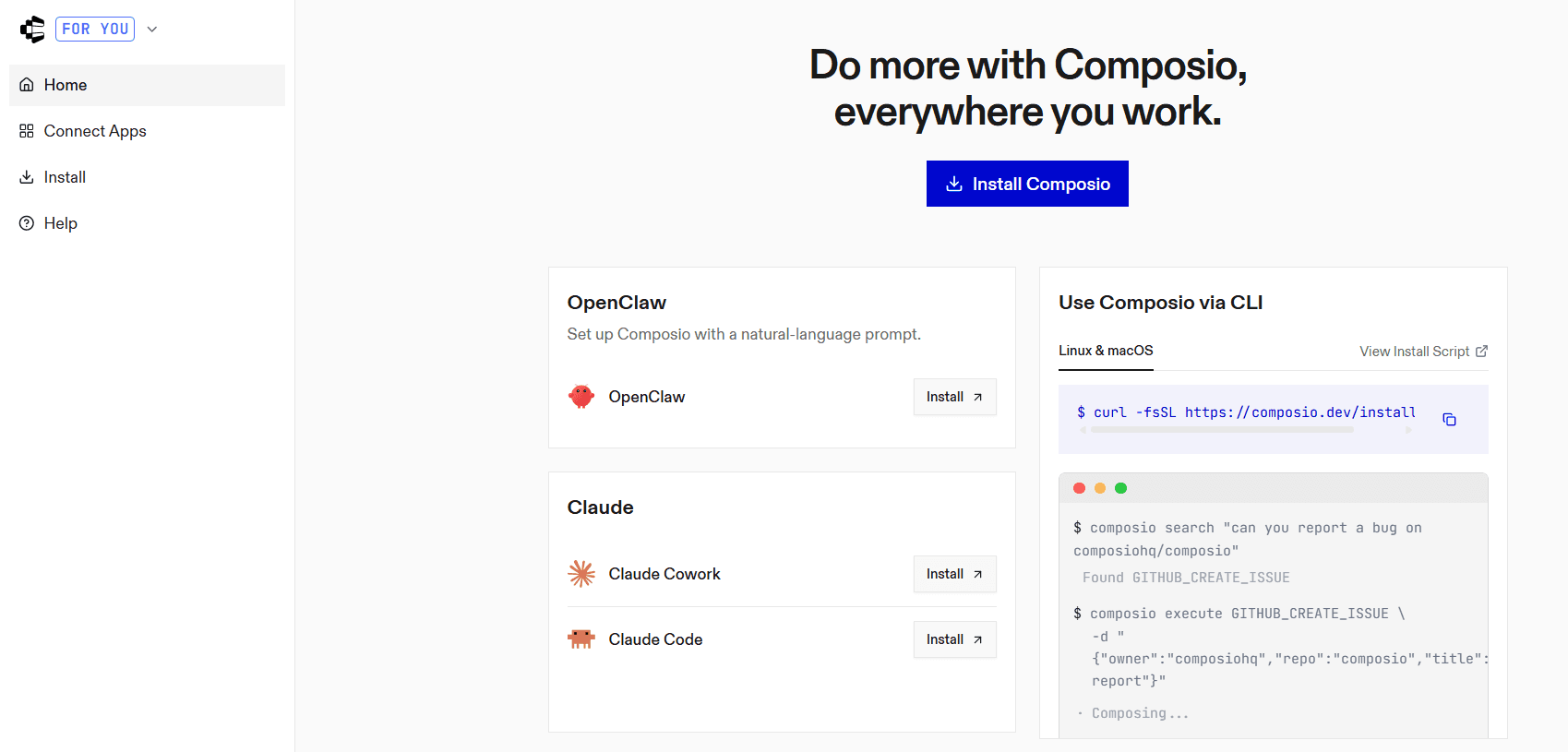
On the left sidebar, click Connect Apps
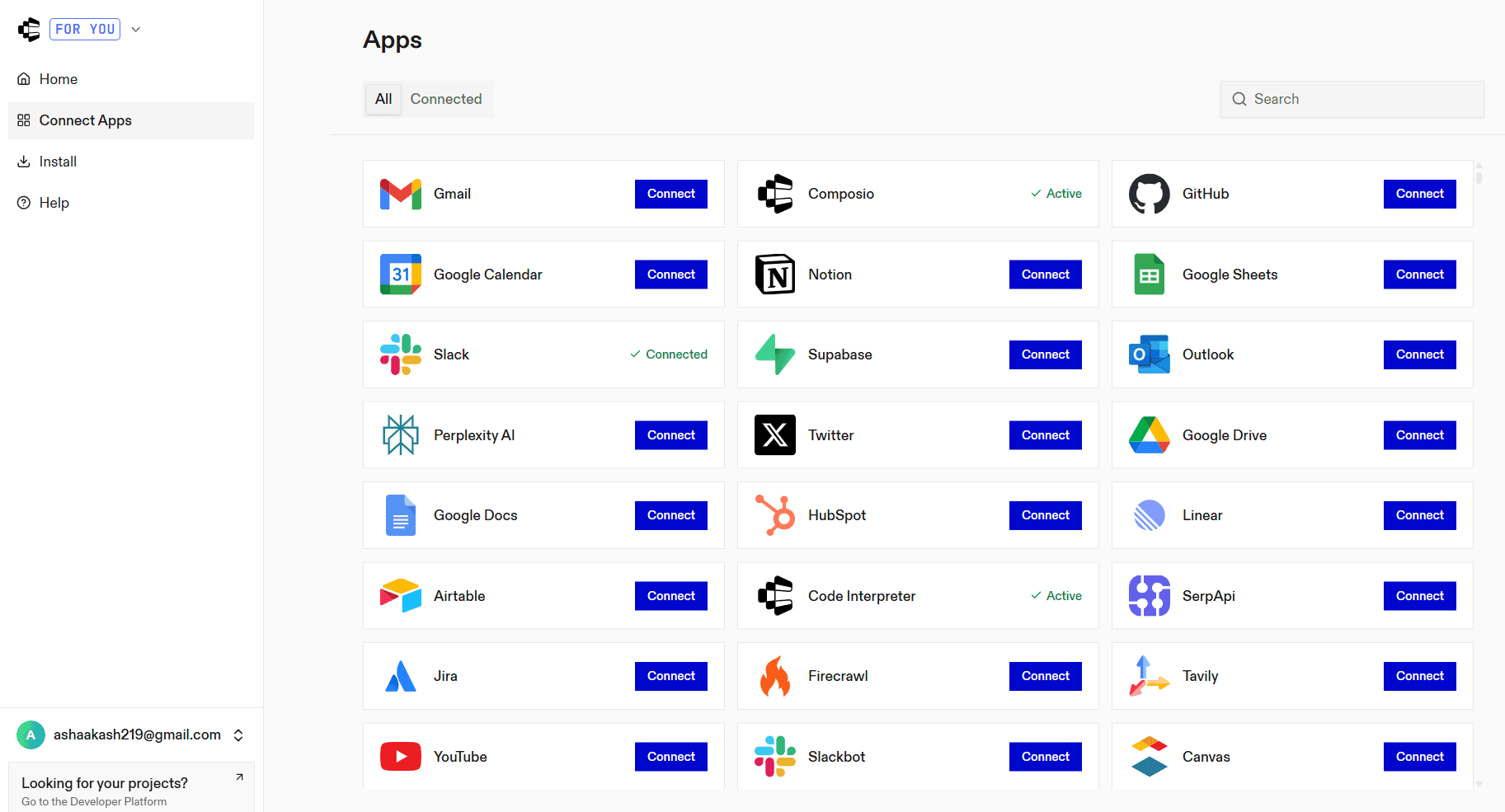
Search for Slack and select it
Follow the authentication flow to authorize access to your Slack workspace
Once complete, Slack will appear as a connected app in your Composio dashboard.
Step 2: Open Connectors in Claude Desktop
Launch Claude Desktop
Go to Settings, then click Connectors
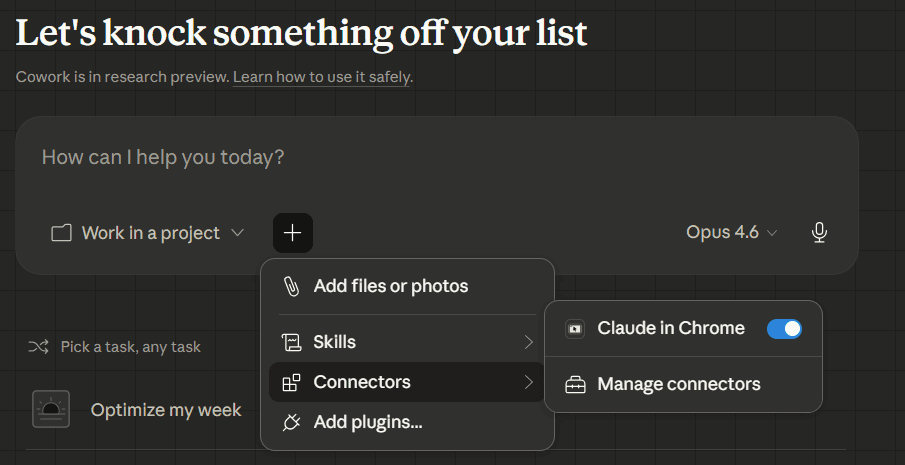
Step 3: Add the Composio MCP server
Click "Add custom connector"
Paste:
https://connect.composio.dev/mcp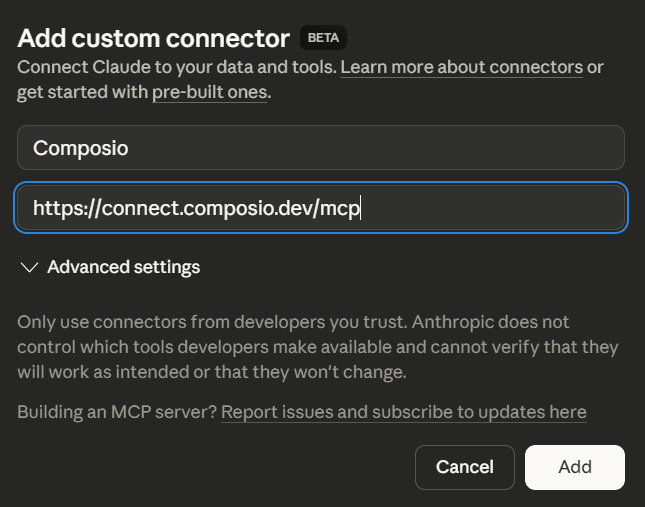
This single URL connects Claude Desktop to all apps linked in Composio.
Step 4: Log in to your browser
A browser window will open automatically. Sign in to your Composio account and grant access. Once confirmed, the connection becomes active.
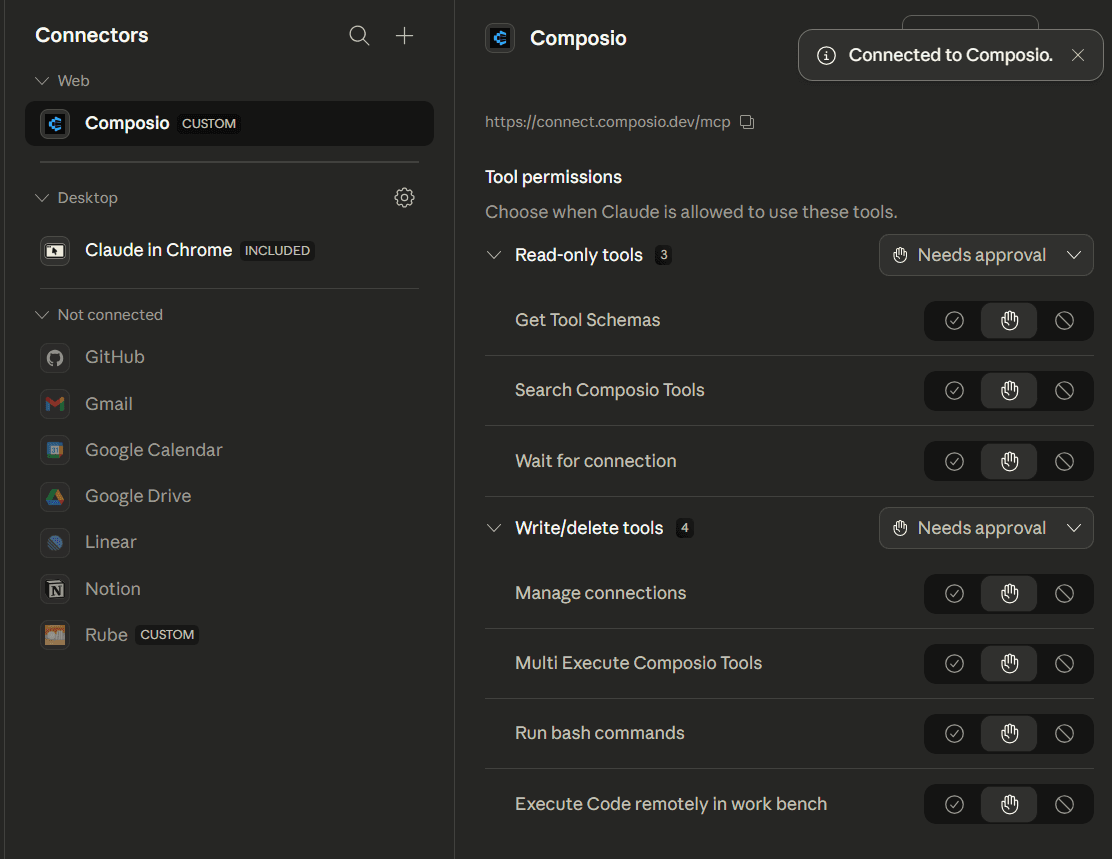
Step 5: Start using Slack in Claude Cowork
Composio tools, including Slack, are now available inside Claude Desktop. You can ask Claude to read conversations, summarise threads, post replies, and manage follow-ups using live workspace data.
Use Case: Summarise Long Messages and Follow Up in Slack Threads
In busy Slack channels, long-form messages and updates often contain important information, decisions, announcements, event details, or kudos. With Slack MCP connected, you can use Claude Cowork to automatically summarise those messages and post follow-ups directly in the same threads.
Prompt Example
1. Read the most recent long messages or threads in #general and #social.
2. Summarize key points: announcements, actions, and acknowledgments.
3. Reply to each thread with a summary and any next steps.
🔧 What Happens Behind the Scenes (via Slack MCP)
Why Use This?
Reduce cognitive load: Get quick insights without reading every message
Stay aligned: Team members can catch up even if they missed the original post
Move faster: Follow-ups are generated and posted automatically
Watch it in action
This video shows the full flow from reading real Slack messages to summarising them and posting a follow-up directly in the thread using Slack MCP.
Why Composio Over the Default Claude Slack Connector?
For basic use — sending a message, fetching channels, reading threads — both work fine. If you're one developer peeking at #general and replying in a thread, the default Slack connector is genuinely good enough.
But "basic" is where the default stops and Composio starts.
Coverage: 11 tools vs. 106 tools (plus 9 triggers)
The default connector ships eleven read-or-send tools. Useful, but narrow — there's no way to schedule a message, archive a channel, manage reminders, react with an emoji, pin an announcement, invite a teammate, or upload a file. Anything beyond posting is off the table.
Composio's Slack toolkit covers the surface area you actually run a workspace on:
Workflow & scheduling: schedule and delete messages, create and manage reminders
Channel administration: create, archive, rename, set topics, invite and remove users
Reactions, pins, stars: add or remove reactions, pin messages, manage stars
User & group management: create user groups, look up by email, invite to workspace
Files & content: upload, list, delete, share public URLs
Calls & presence: start and end calls, manage participants, control DND
Emoji management: add, alias, rename, list custom emojis
Triggers: event-driven, not just request-driven
The default connector is reactive — Claude only acts when prompted. Composio's nine Slack triggers flip the model: a 🚨 reaction can fire an agent that creates a PagerDuty incident and replies in-thread. A new message in #support matching keywords can trigger a CRM lookup before anyone sees it. This is the difference between an assistant you ask things of and one that watches Slack on your behalf.
One endpoint, every app
Real work doesn't stop at Slack — it routes a support thread to Linear, summarises it in Notion, and pings the on-call via Gmail. With separate connectors, that's four installs, four OAuth flows, four permission sets. With Composio's Tool Router, Slack sits behind the same endpoint as 1000+ other apps. One connection, and the agent dynamically loads whichever tools the task needs.
Governance the default doesn't offer
Once Slack-Claude workflows stop being one person's experiment and start being something your team relies on, you need: fine-grained RBAC, scoped least-privilege access (read-only for summarisers, write for posters), a full audit trail of every agent action, BYO OAuth credentials, and SOC 2 Type 2 / ISO 27001 compliance. The default connector has no equivalent.
When the default is the right call
Solo user, single workspace, read-summarise-reply on a couple of channels? Install the default and move on. One click, first-party, done.
Reach for Composio when:
Your workflow crosses Slack and at least one other app
You need writes beyond posting — scheduling, archiving, reminders, reactions, channel admin
You want Slack events to trigger agent runs
You're deploying for a team and need scopes, RBAC, and an audit trail
Summary
Slack MCP lets Claude Cowork access and interact with your Slack workspace in real time. Instead of copying and pasting threads into prompts, you can let Claude read messages, summarise conversations, post replies, and keep you updated directly in your Slack.
By following a few simple steps using Composio, you can securely connect Slack to Claude and actually take advantage of 100+ slack tools and triggers. Once set up, Claude becomes a genuinely helpful assistant, working right alongside you in your Slack channels.
FAQs
1. How is Slack MCP different from using Slack bots or integrations?
Slack MCP provides direct context access through MCP, allowing Claude to understand full conversations and act on them, not just respond to predefined commands like typical bots.
2. Does Claude read all Slack messages automatically?
Claude only accesses data that is permitted through the Composio connection and authentication scope. Access remains controlled and tied to your permissions.
3. What permissions does Claude actually get in my Slack workspace?
Claude inherits the scopes you grant during the Slack OAuth flow, capped by your own Slack permissions. If you can't post in a private channel, neither can Claude acting on your behalf. You can revoke access anytime from Slack's app management page or the Composio dashboard.
4. Can my teammates see what Claude is doing in Slack?
Any message Claude posts appears as coming from you (or the connected user), so it's visible like any other message. The agent's reads and tool calls aren't broadcast to the channel, but Composio logs every action on the backend for auditing.
5. What happens if I'm already using the default Claude Slack connector?
They can coexist, but you'll see overlapping tools, which can confuse the model when it picks which one to call. Most people disable the default connector once Composio is set up, unless they specifically want to keep the first-party one as a fallback.

 Get started



