




I use Outlook every day for updates, questions, follow-ups, and decisions. My calendar also contains important context about meetings and deadlines. Together, my inbox and calendar hold much of the information I need to do my work.
So how do you add Outlook to Claude? So, there are two ways to do it.
Use the default Microsoft 365 connector, which includes Outlook.
Use a meta-connector like Composio.
The default approach has a few issues.
It's only for companies with MS 365 enterprise accounts. So, if you're an individual user with personal Outlook.com mail, you can't use it.
It also doesn't let you connect more than one account at a time.
It has very limited actions can only search and read. You can't send emails or create drafts, triage, delete, or do anything you actually need.
Composio's Outlook MCP is exactly what you need to fix this. This guide explains how to connect Composio Outlook to Claude.
If you need more, these are some supporting resources.
What is Outlook MCP
Outlook MCP is a secure integration that connects your Outlook account to agents like Claude and tools like Cursor. It lets these AI systems access your Outlook data through a fixed set of supported actions.
With Outlook MCP, Claude or any AI agent can read calendar events, list emails, send replies, create drafts, and more based on the actual content in your inbox and calendar. This eliminates the need to copy content or manually explain context in every prompt.
Once connected, Outlook becomes a core part of your AI workflow. It gives your assistant direct access to the information and tools you already use every day.
What you can do with Outlook MCP
Read and manage your inbox: List messages, reply to emails, send new messages, and download attachments from specific threads.
Create and update emails: Draft emails before sending and update message content when needed.
View your calendar: List upcoming or past events and get full details of any specific calendar entry.
Create events and schedule meetings: Add new events to your Outlook calendar with defined start and end times.
Manage contacts: Look up existing contacts or create new ones in your Outlook account.
Access your Outlook profile: Retrieve basic profile details to support personalised responses and workflows.
Connect Outlook to Claude using Composio MCP
Claude Cowork is Anthropic’s desktop-based AI system designed for handling multi-step knowledge work. It connects to local files and external tools, letting it complete tasks end to end. You can link Outlook without manual configuration through a guided setup in Composio.
Prerequisites
Claude Desktop: Install it from claude.ai/download.
Claude Free, Pro or Max plan
Free Composio account to manage Outlook connection
Step 1: Add Composio to Claude (One-time process)
Click here: Composio <> Claude
This will take you to the Claude Custom Connector modal
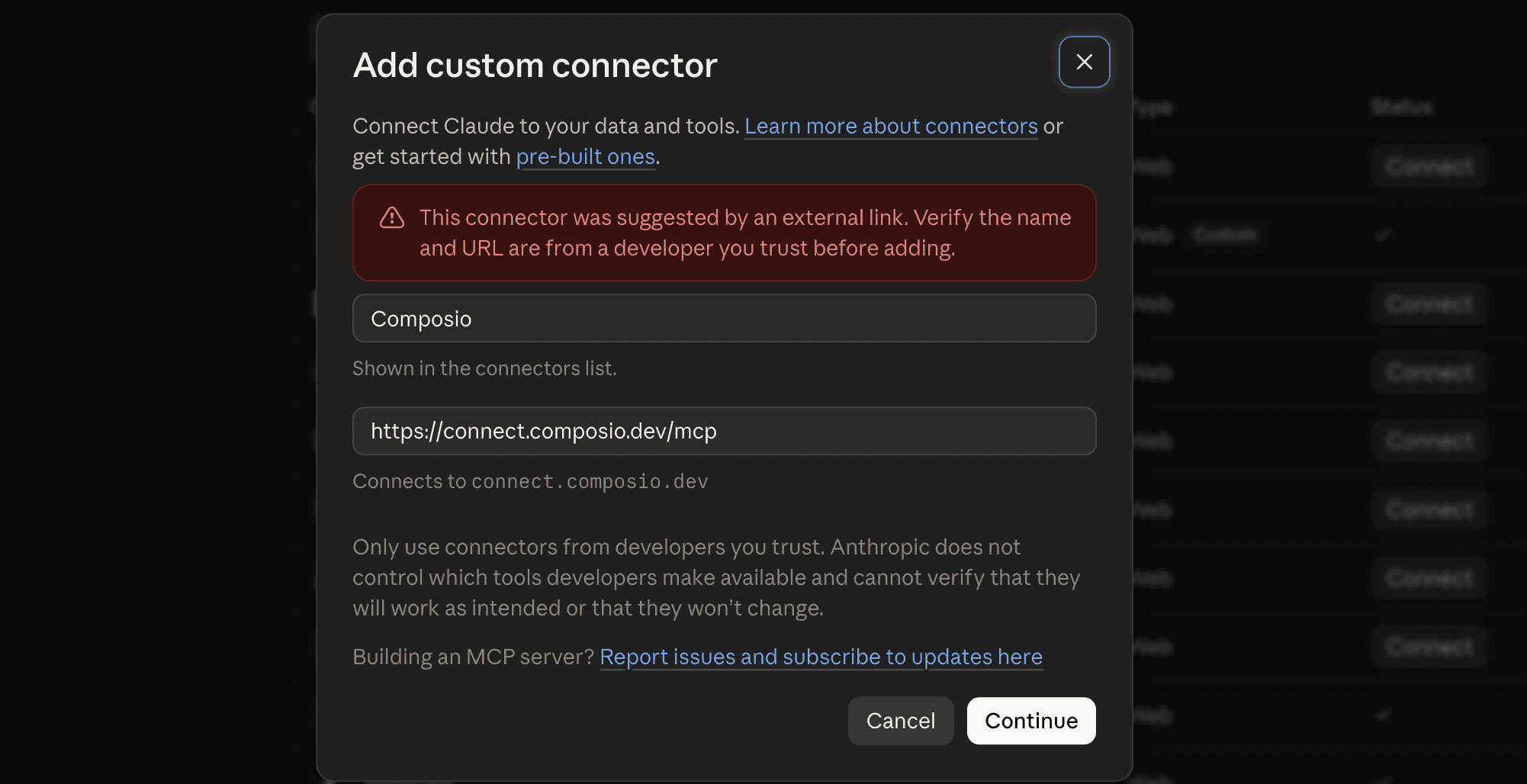
Click Continue
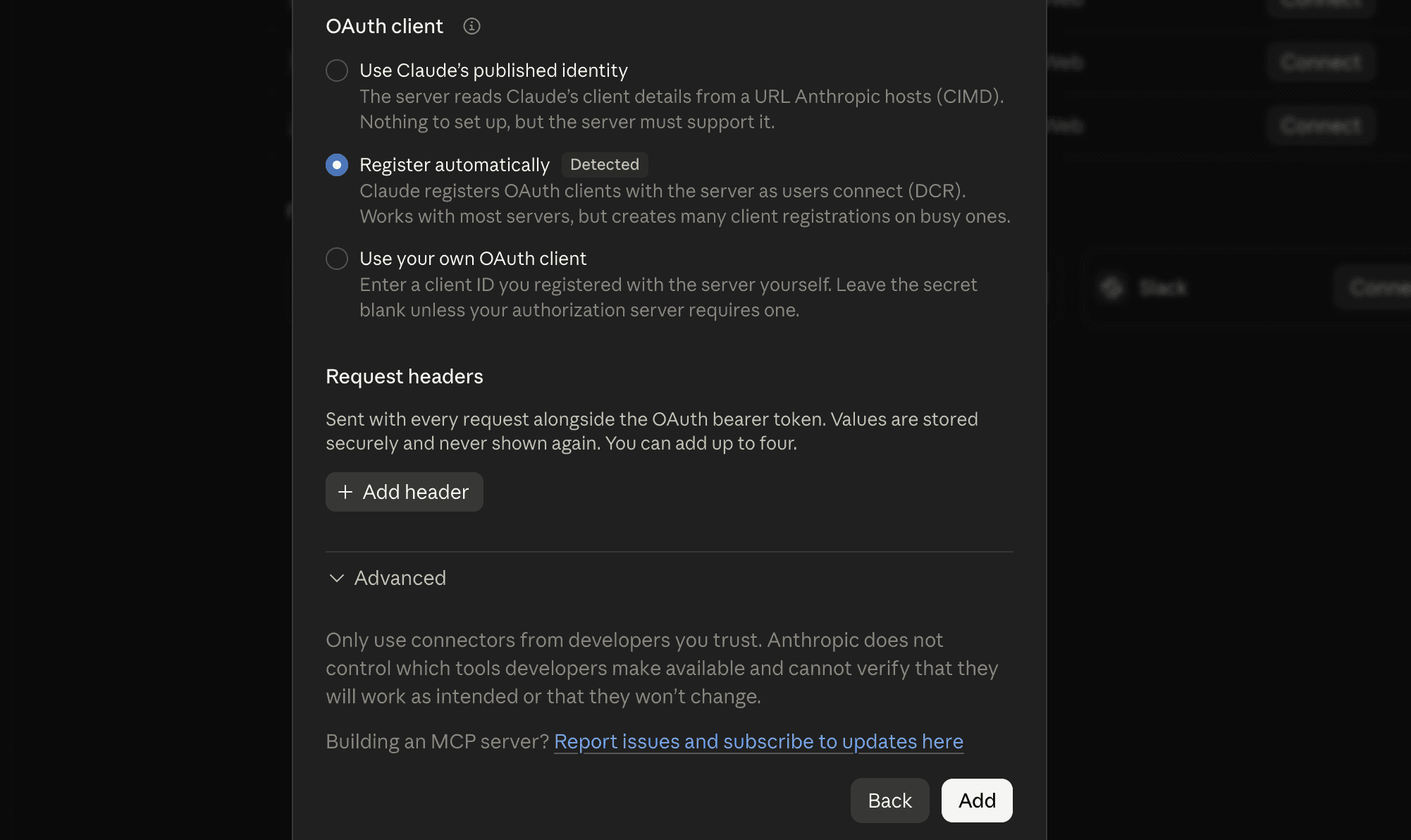
And in the next modal, click Add
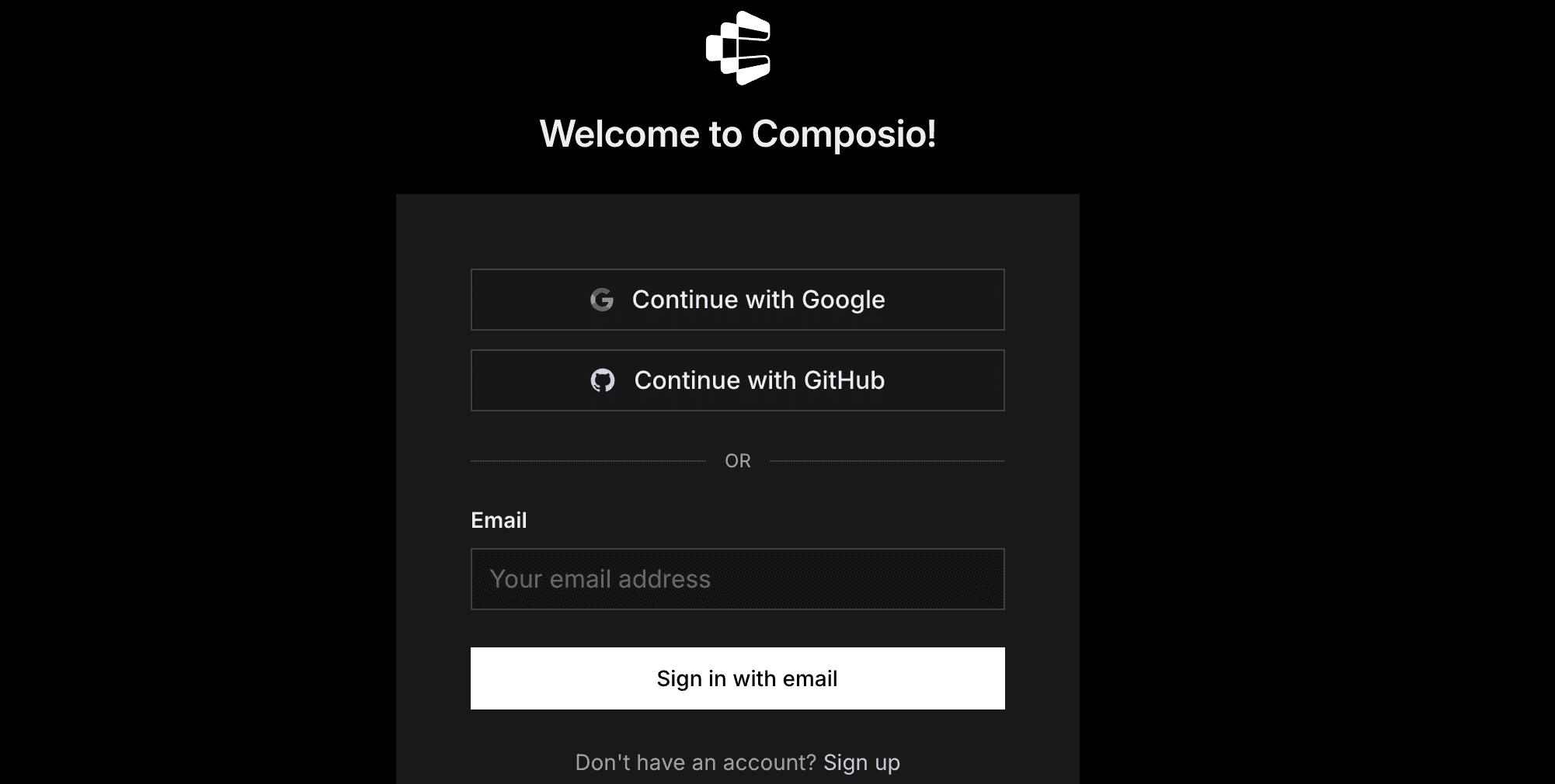
It will take you to the authentication page. So, sign in to Composio and approve the connection.
Then:
Return to Claude and make sure Composio is enabled.
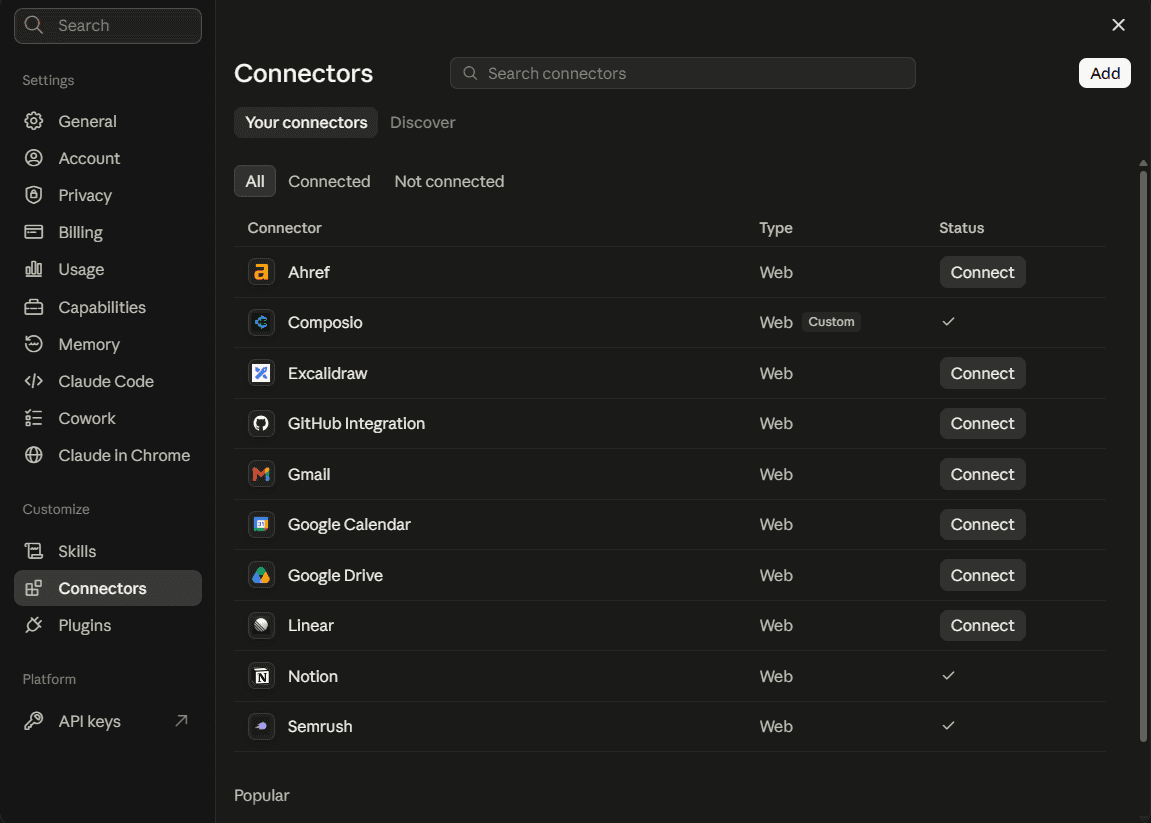
You only need to do this once.
Quick check
Start a new Claude chat and ask:
What Composio tools do you have available?
If Claude lists Composio tools, you are ready for the next step.
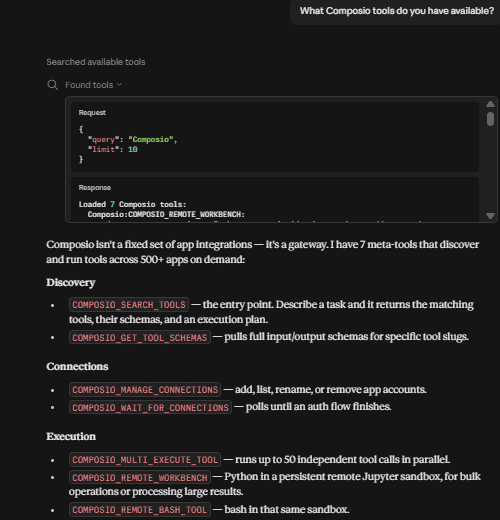
If nothing shows up, jump to Troubleshooting.
Step 2: Connect your first Outlook account
In a new Claude chat, type:
Connect my work Outlook account to Composio. Call it work.
Claude will give you a Microsoft sign-in link.
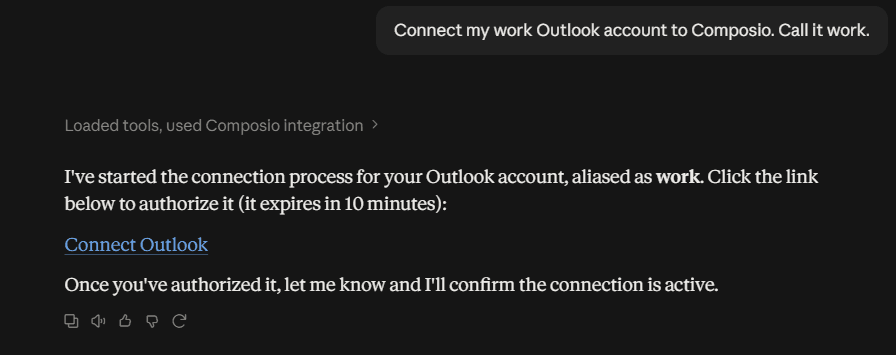
Click the link.
Sign in to your work Microsoft account.
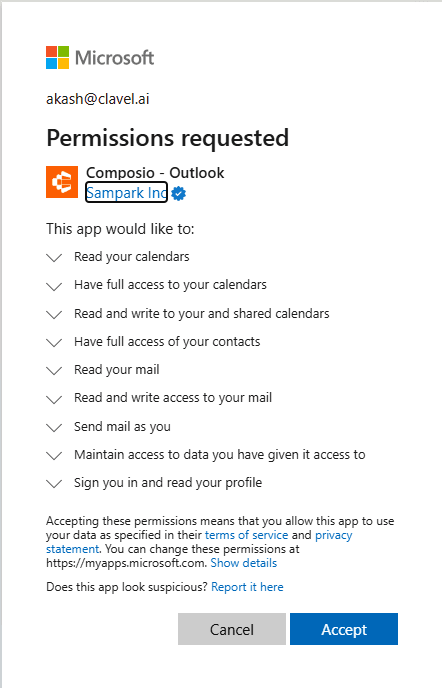
Review Microsoft's permission request.
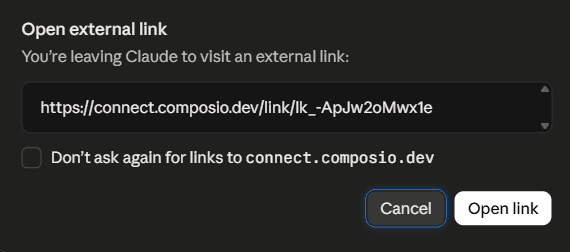
Approve access.
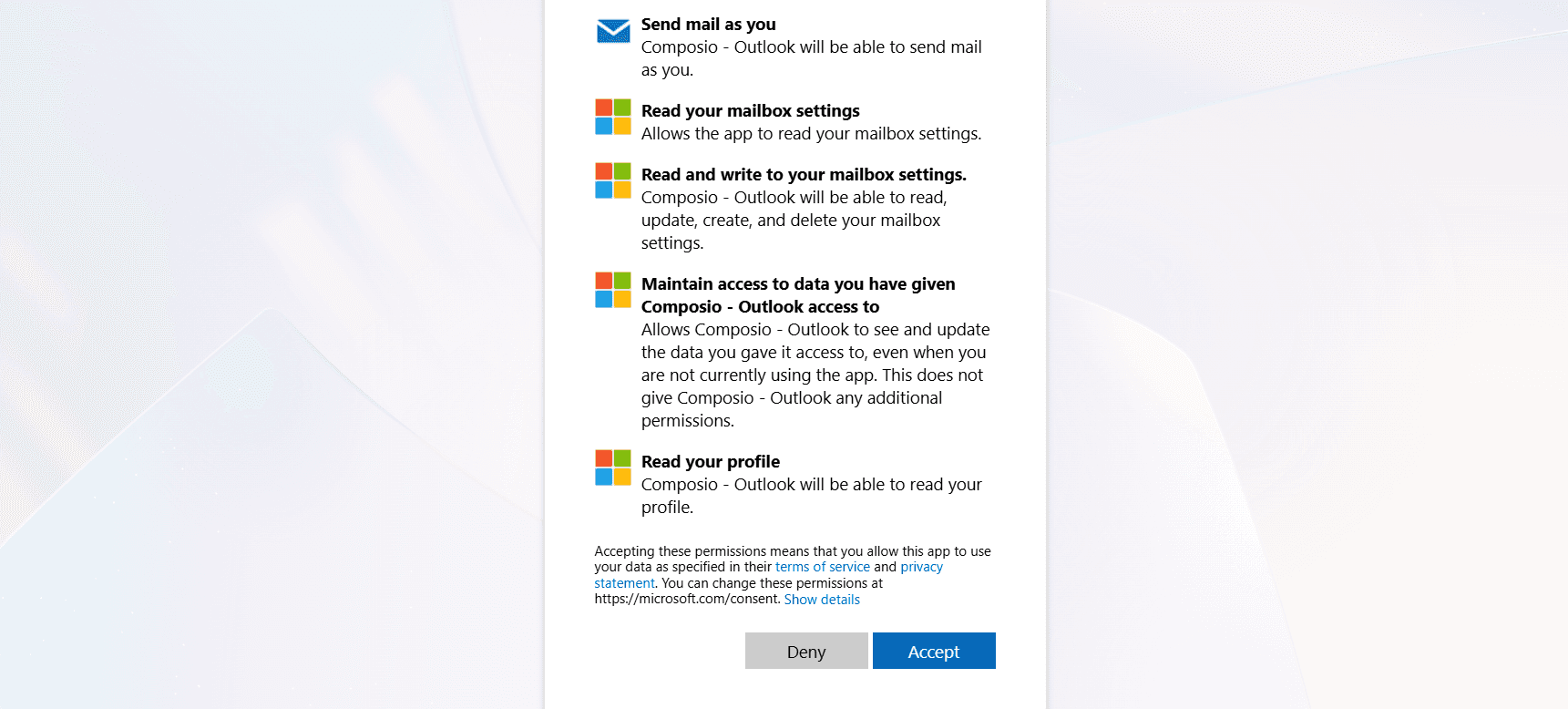
Return to Claude.

Claude should confirm that the account is connected.
Outlook will then be listed among your connected applications.
Use Case: Generate and Send Availability Based on Outlook Calendar
Suppose you have a few meetings tomorrow and want to let someone know when you will be available. Instead of checking your calendar manually and drafting an email, you can ask Claude to handle it using the Outlook MCP connection.
Prompt
1. Check my Outlook calendar for tomorrow.
2. List my busy time slots and identify when I am free.
3. Send an email to example@gmail.com with my availability.
What happens behind the scenes
List events: MCP fetches all events from your Outlook calendar for the day
Parse busy times: Free time is inferred from gaps between scheduled events
Send email: A message is composed and sent via the Send email action
Watch it in action
This video shows the full flow from checking your Outlook calendar to sending an email with your availability.
Summary
Outlook holds the context behind your work. Composio’s Outlook MCP brings that context into Claude in a way that fits naturally into your workflow.
Once the connection is set up, Claude Code can access real-time information from your inbox and calendar. You can stay focused and move through tasks with less effort.
Frequently Asked Questions
1. Can I control what Outlook MCP can access?
Yes. When setting up the MCP through Composio, you choose which actions to enable. You can allow only what your workflow needs, like listing calendar events or sending emails.
2. Does Claude store any of my Outlook data?
No. Claude accesses your data live through Composio’s secure MCP connection. Nothing is stored permanently or locally unless you explicitly save it yourself.
3. Can I use the same Outlook MCP server with other tools?
Yes. You can use the same MCP endpoint across tools like Cursor or custom scripts, as long as they support MCP and the required actions.
4. Can I connect multiple Outlook accounts?
Yes, Composio allows you to add up to 10 Outlook accounts. You can give them aliases so Claude will know what to fetch from where.
5. Can I add my personal Microsoft account?
Yes, with Composio you can add your personal Outlook accounts to Claude.

 Get started



