




Connecting GitHub to Claude is pretty straightforward.
Connect your account, give Claude access to your repositories, and start asking it to do all sorts of things.
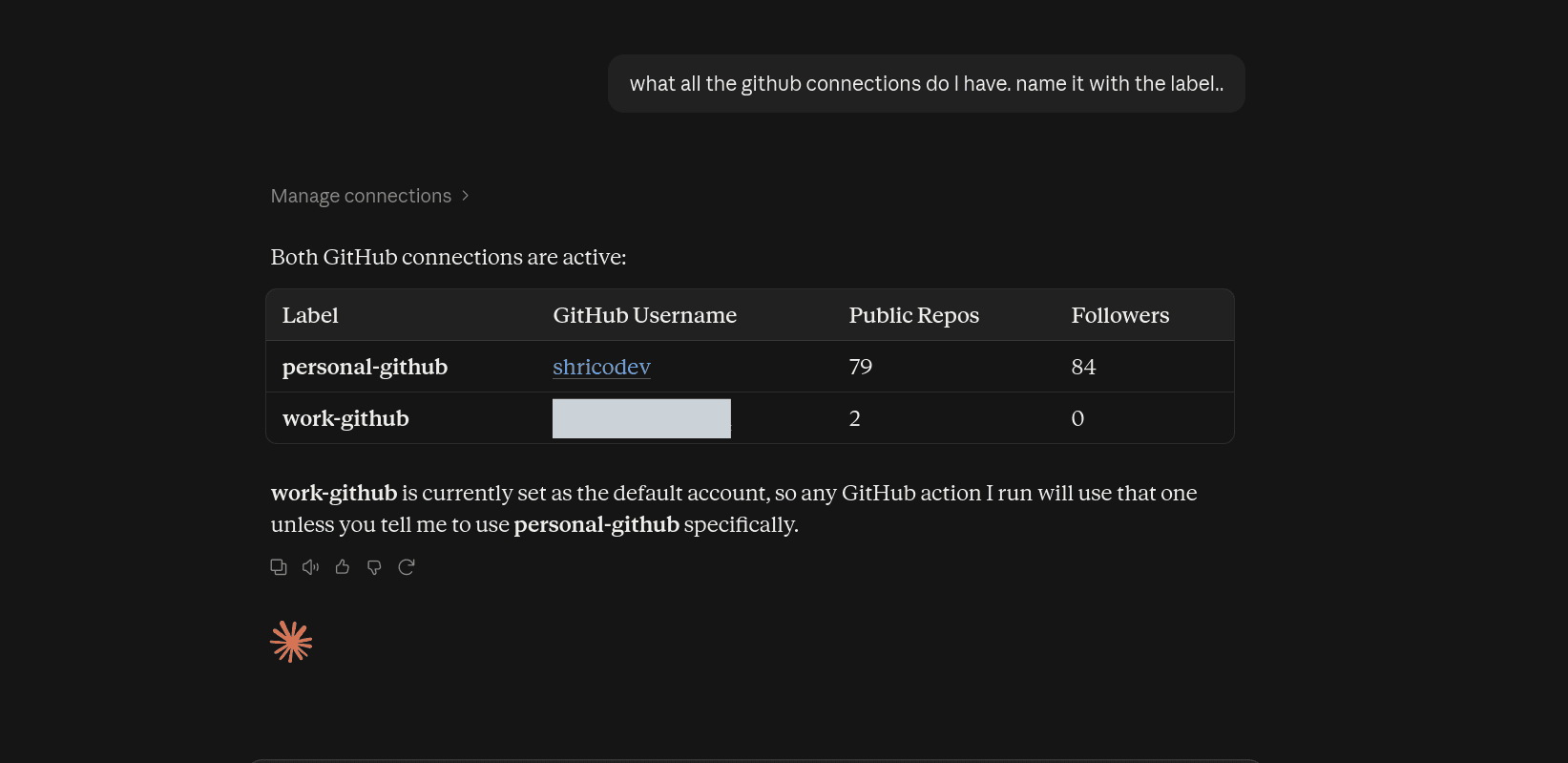
The problem starts when you have another GitHub account.
Maybe you have your personal GitHub for side projects, a work account for company repositories, and another account you use with a client.
Claude's native GitHub connection does not give you a clean way to keep all those separate GitHub logins connected at the same time.
Two accounts are already annoying. 🤧
Fortunately, there is a much cleaner way to do this with Composio.
Add Composio to Claude once, connect each GitHub account separately, give each connection a simple name, and Claude can use the correct GitHub account based on that name.
In this guide, I'll show you how to set that up from scratch. ✌️
Related: Connect Multiple Gmail Accounts to Claude
A small clarification before we start
Three things sound similar here, but they aren't exactly the same.
You can have multiple repositories inside one GitHub account. You can also have access to multiple GitHub organizations from the same account.
Both of those can already work through a single GitHub account, assuming that account has access to the repositories and the organization allows the OAuth app.
This guide solves a different problem.
We want Claude to work with multiple completely separate GitHub logins.
Something like:
personal: your personal GitHub account

<p>work: your company GitHub account</p>
<p>client: a GitHub account you use for a client</p>
Each one has its own authentication and permissions.
And we want Claude to keep them all available without making us reconnect every time.
💁 Just want to clear this up before you begin...
How Composio solves this
Composio sits between Claude and GitHub.
Instead of connecting GitHub directly to Claude, we add Composio as one custom connector.
Behind that connector, we can authenticate multiple GitHub accounts separately.
The setup looks roughly like this:
Claude
   ↓
Composio
   ↓
GitHub
   ├── personal-github
   ├── work-github
   └── client-github
Each GitHub login stays as its own connected account.
When you connect one, you also give it an alias, such as personal or work.
The alias thing is because Claude can use it later to tell Composio which GitHub connection should execute the action.
So if I ask:
Check the open pull requests in my work-github account.
Claude can execute the GitHub action using the credentials attached to work-github.
Then I can say:
Find issues assigned to me in client-github.
And the same Claude chat can use the completely separate client connection.
That's the useful part.
Now let's set it up.
Before you start
You will need:
A Claude account with access to custom connectors (only one custom connector for a free account).
A Composio account (free with over 100K tool calls a month 🔥).
Access to each GitHub account you want to connect.
Permission to authorise the Composio OAuth application for the repositories or organisations you need.
You do not need to create your own GitHub OAuth application, generate an API key, or manually copy access tokens into Claude for this setup.
That's kinda nice! 😋
We'll use Composio's shared connector.
Step 1: Add Composio to Claude
First, connect Composio to Claude.
The simplest way is to head over to this URL: Composio Custom Connector. It will populate the fields automatically
Or, if you prefer to do it manually
Open Claude and navigate to Customise -> Connectors
Then click the + button and select Add custom connector.
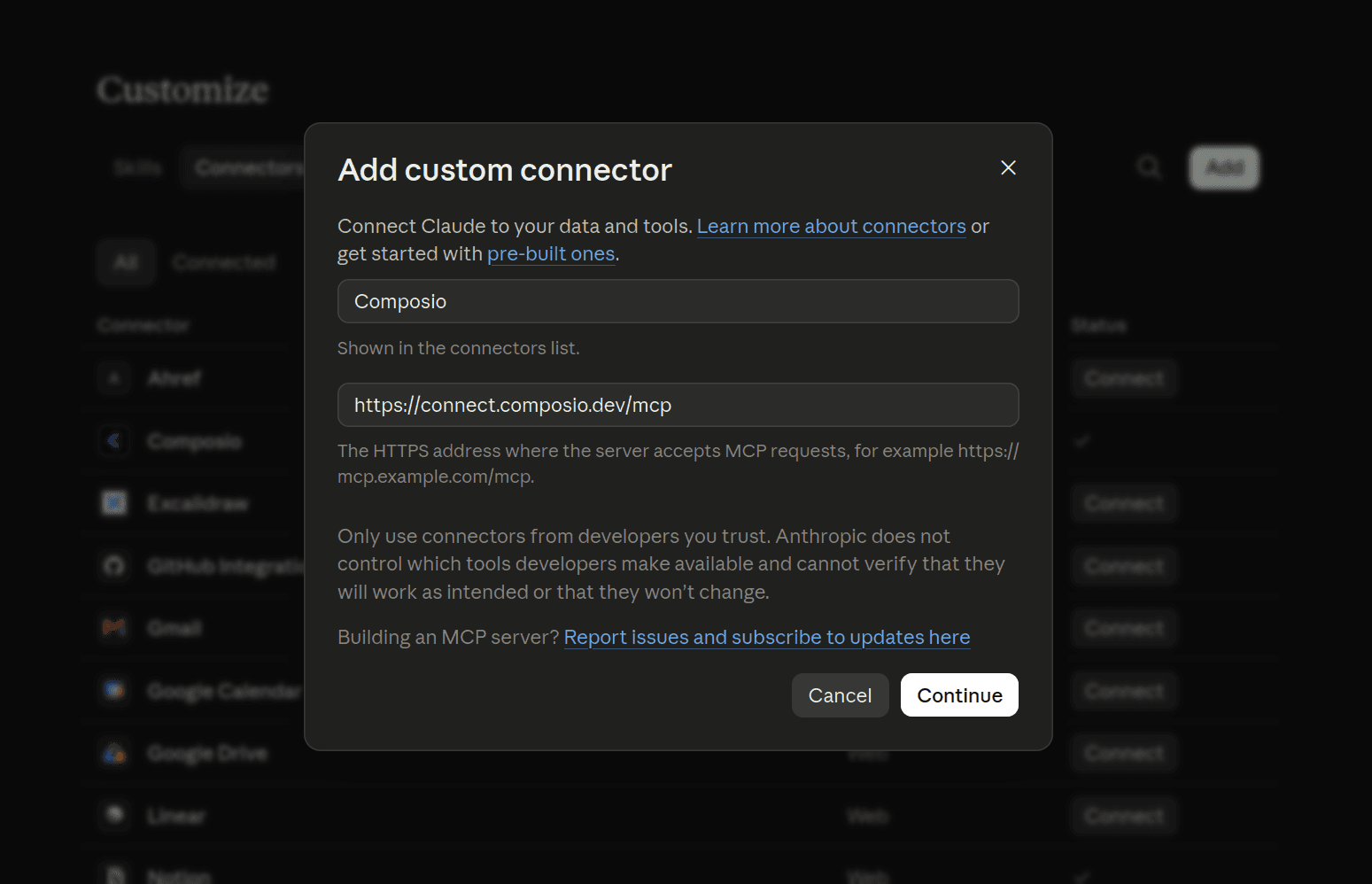
Enter:
Name: Composio
URL: <a href="https://connect.composio.dev/mcp">https://connect.composio.dev/mcp</a>
Leave the advanced settings empty. You do not need to add a client ID, client secret, or custom headers here.
Composio handles it automatically.
Click Add.
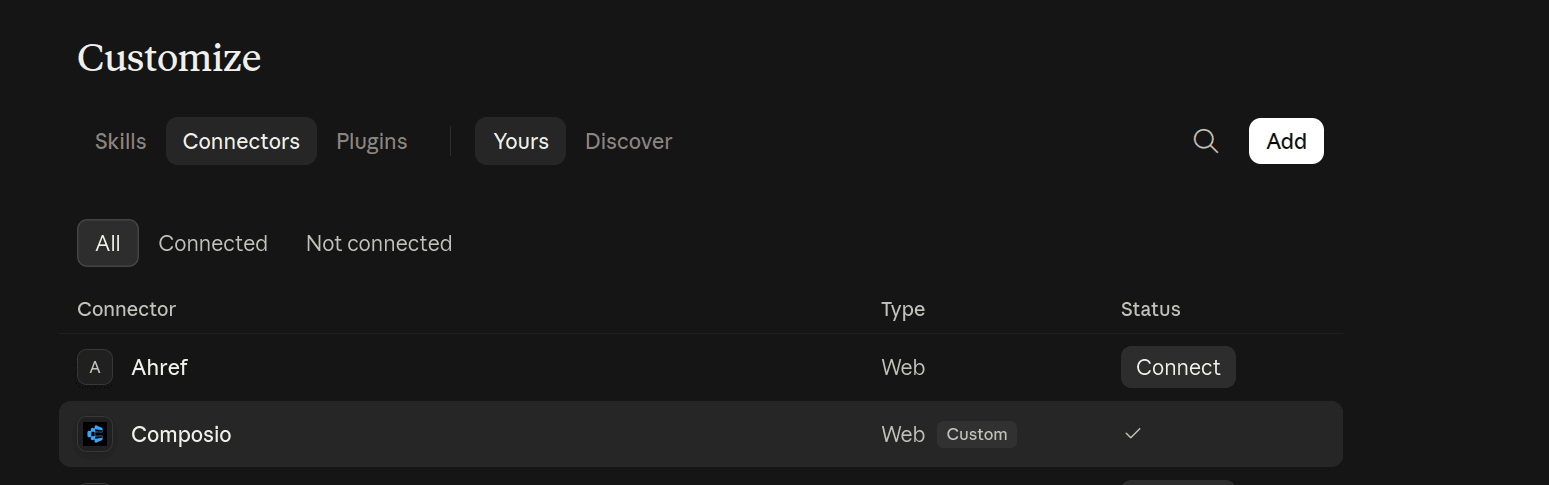
You should now see Composio in your connectors list.
Click Connect.
Claude will open the Composio authorisation flow in your browser. Sign in to your Composio account and approve the connection.
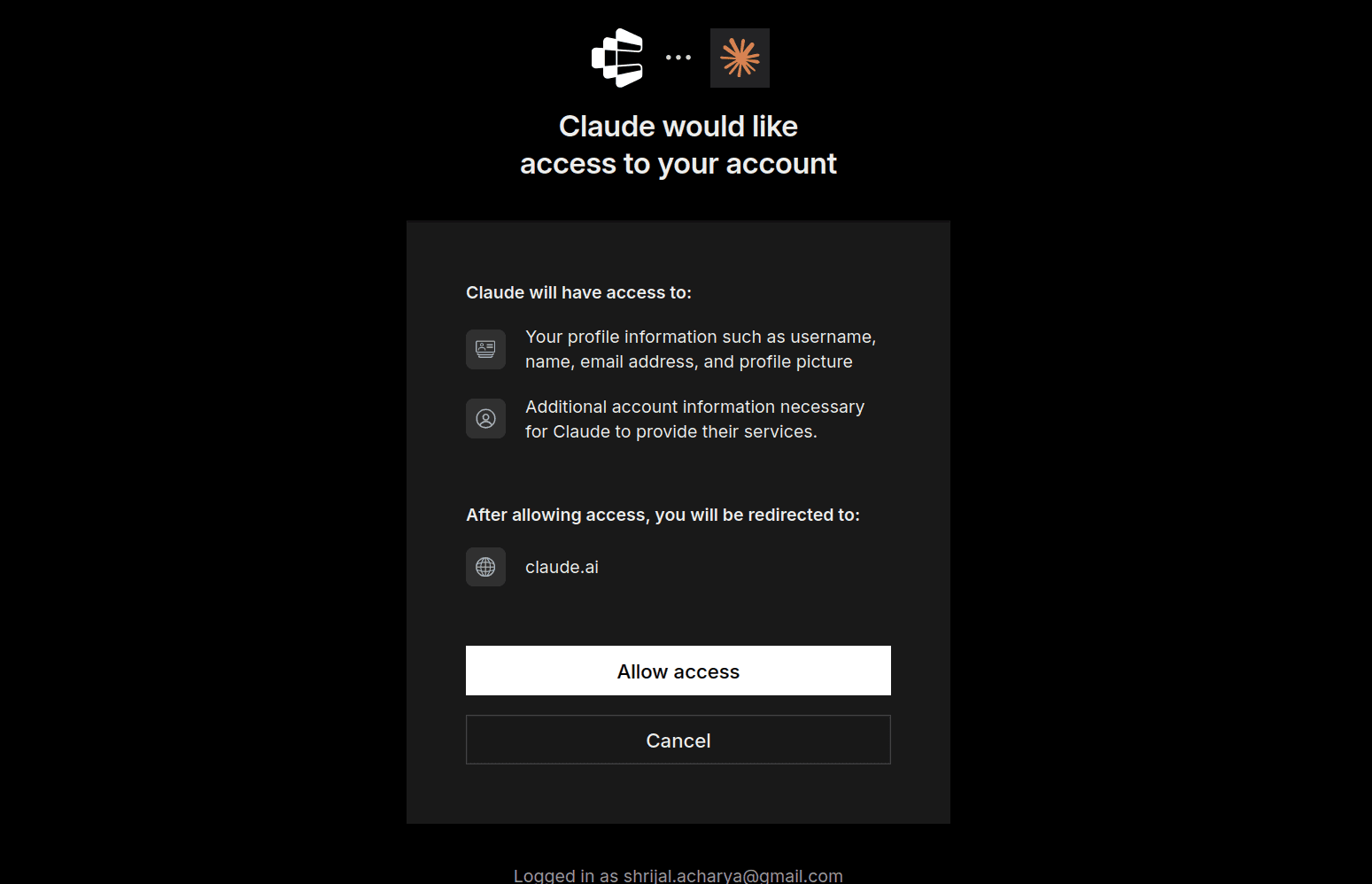
Once you're done, come back to Claude and make sure the Composio connector is enabled.
That's basically all the connector setup we need.
Check if everything is working
Before connecting GitHub, I like to quickly check whether Claude can actually see Composio.
Open a new chat and ask:
What Composio tools do you have available?
Claude should return the Composio tools it can use.
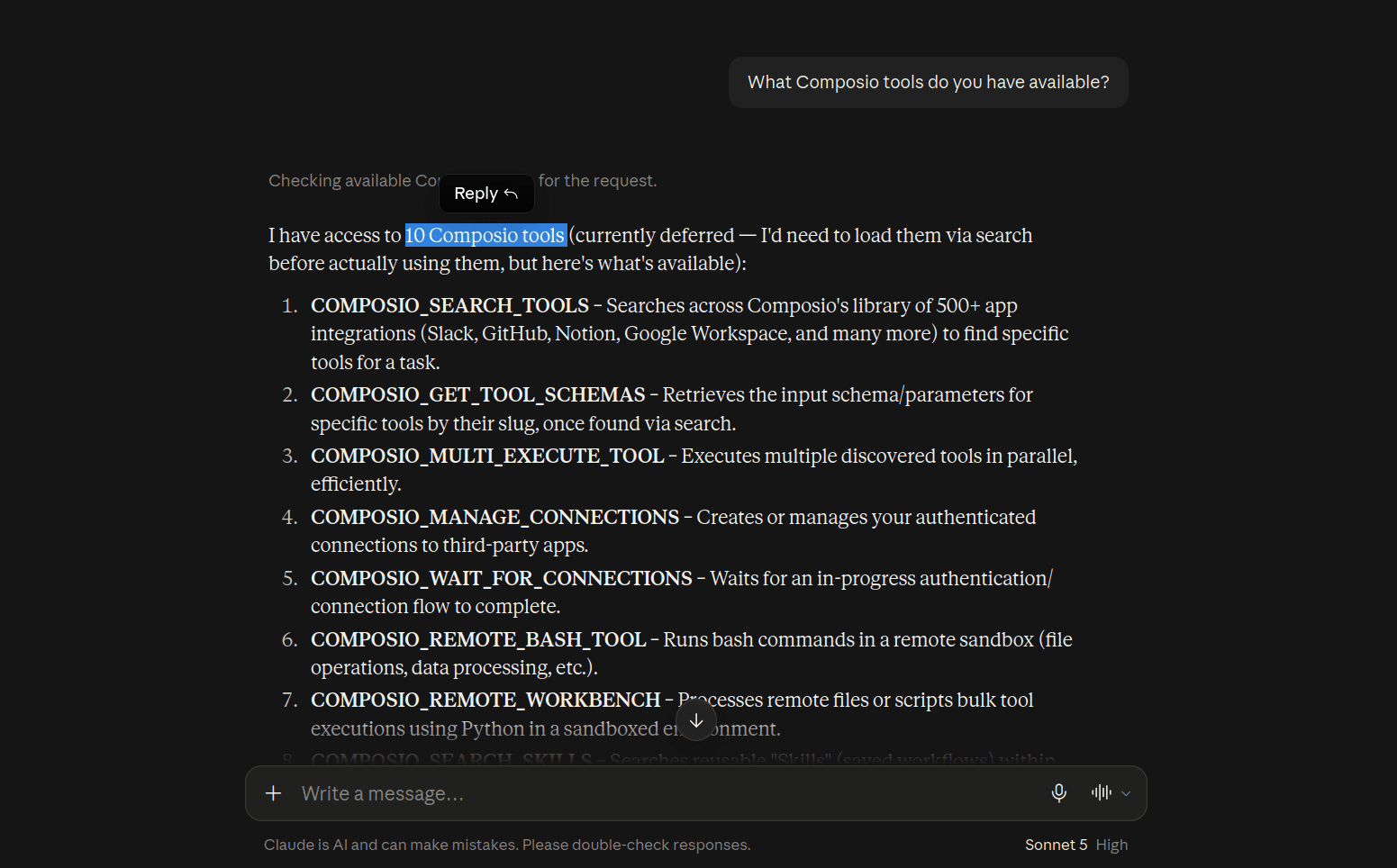
If you see them, you're good to go.
Step 2: Connect your first GitHub account
Now we'll connect the first account.
Let's start with a personal GitHub account.
Ask Claude:
Connect my personal GitHub account to Composio. Label it personal-github.
Claude will use Composio to create a new GitHub connection and return an authorization link.
Open it.
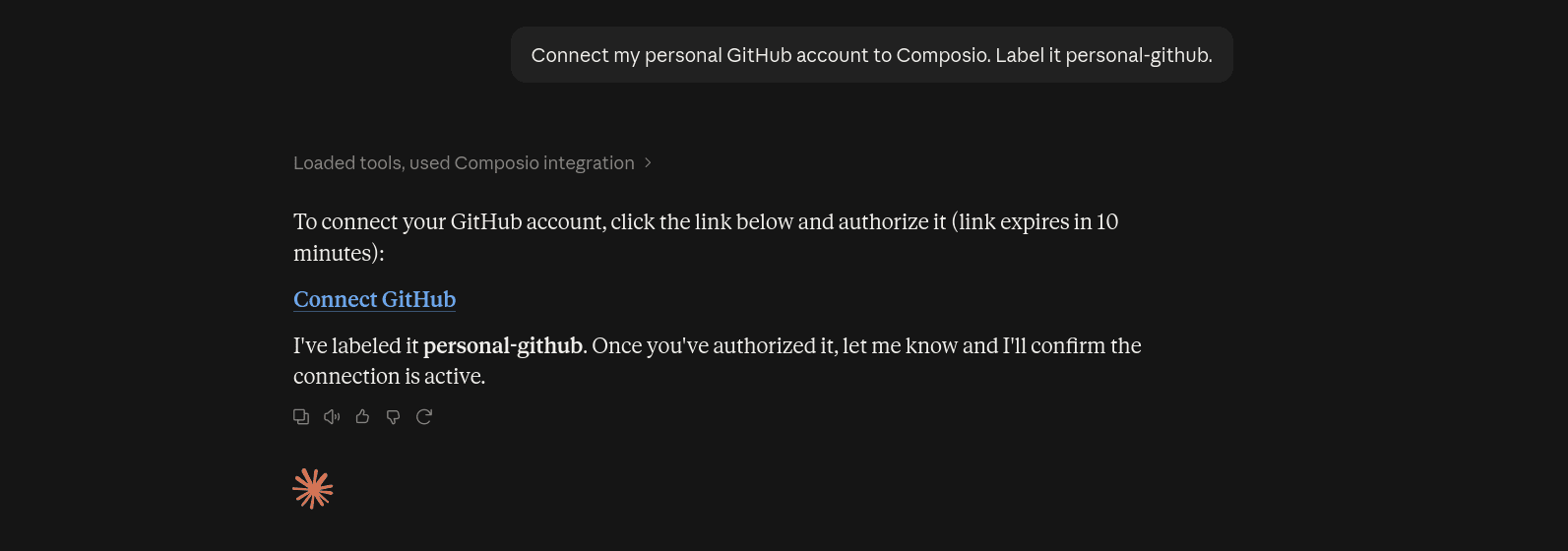
GitHub will ask you to authorize the connection.
This part is important.
⚠️ NOTE: Check which GitHub account is currently signed in before you approve it.
ℹ️ GitHub authorizes the account active in that browser session, so it is very easy to connect the wrong account if you regularly switch between several accounts.
If needed, open the authorization URL in an incognito window and log in to the exact account you want (only if you have to).
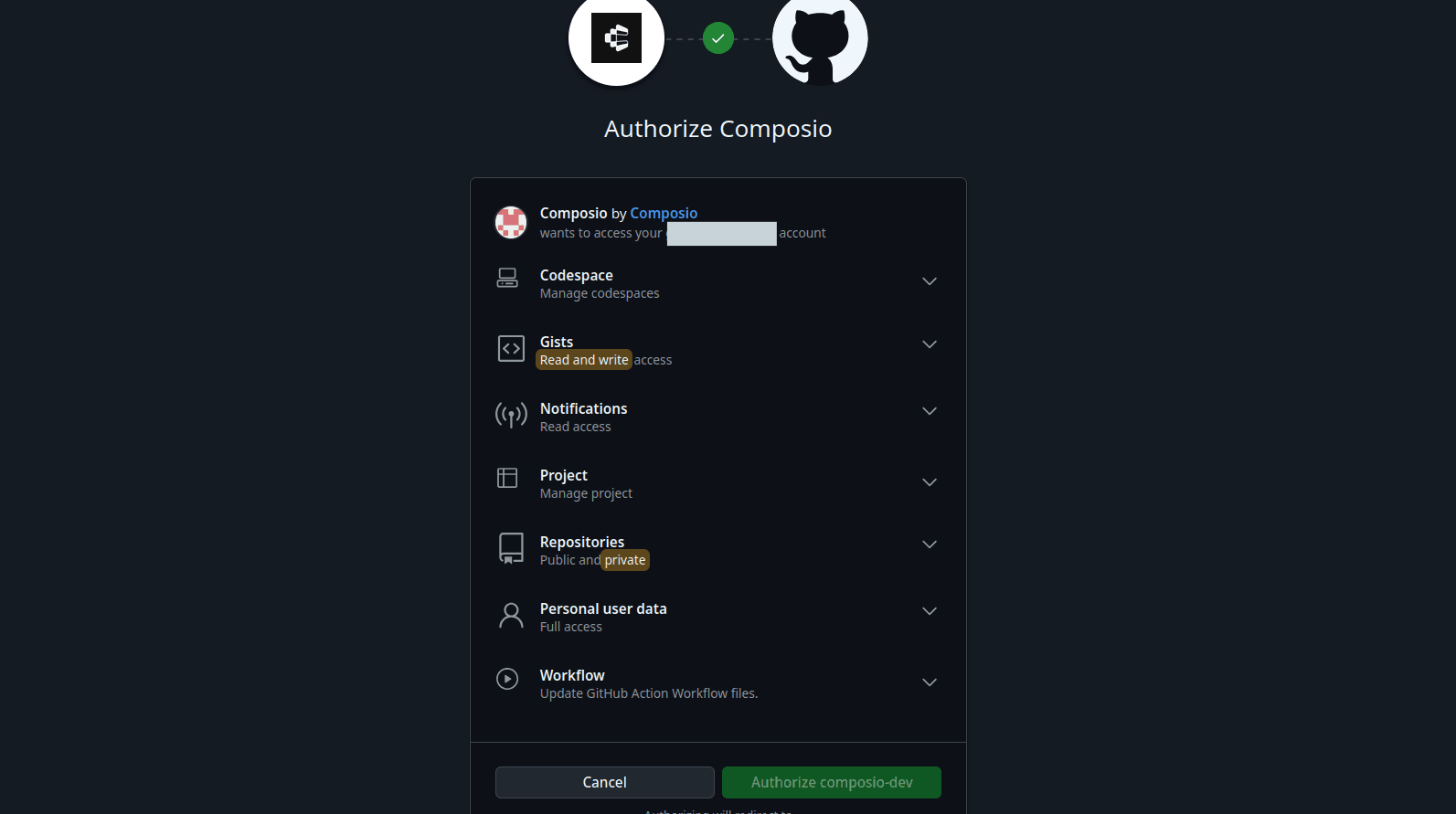
Approve the request and return to Claude.
Claude should wait for the connection to finish and then confirm once it becomes active.
You now have your first GitHub account connected. Woohoo! 🎊
What does personal-github actually do?
personal-github is the alias for this connection.
Think of it as the name Claude and Composio use to identify that specific GitHub account.
Instead of working with some random connection ID every time, you can simply tell Claude to use personal-github.
That becomes much more useful once we add another account. Now is when the fun begins.
ℹ️ Up to this point, Claude could handle a single GitHub connection on its own. This is where Composio starts to matter, because now you can keep multiple GitHub accounts connected and choose which one Claude should use
Step 3: Connect another GitHub account
Let's say your second GitHub login is your work account.
In the same Claude chat, ask:
Connect another GitHub account to Composio. Label it work-github.
Claude should generate another authorisation link.
This creates a new connection. It does not replace personal-github.
Open the link and this time sign in using your work GitHub account.
Again, I would use an incognito window or another browser profile here.
Otherwise, GitHub may authorise the account that is already signed in, and now you have two aliases pointing to the same GitHub login. Fun.

Approve the connection and return to Claude.
You should now have:
personal-github
work-github
If you want another one? Same process.
Connect another GitHub account to Composio. Label it client-github.
Authenticate the third GitHub account and approve it.
That's it.
You can repeat the same flow for the GitHub identities you need, within the account limit configured for your Composio setup.
Step 4: Verify the accounts before using them
I would not start creating GitHub issues or touching repositories yet.
First, verify that every alias points to the account you think it does.
Ask Claude:
List all my connected GitHub accounts in Composio. Show their aliases and connection status.
You should see something similar to:
personal-github   ACTIVE
work-github       ACTIVE<p></p>
<p>could be more...</p>
Obviously, your usernames will be different for different labels.
This check is useful because the connection being ACTIVE only tells you the authentication worked.
It does not tell you whether you mistakenly authenticated the same GitHub account twice.
Once the aliases and usernames look correct, we can actually use them.
Step 5: Use the correct GitHub account from Claude
This is where the setup gets useful.
Whenever you ask Claude to do something with GitHub, mention the alias.
For example:
Check open pull requests in work-github for the company-product repository.
Claude can route the GitHub action through work-github.
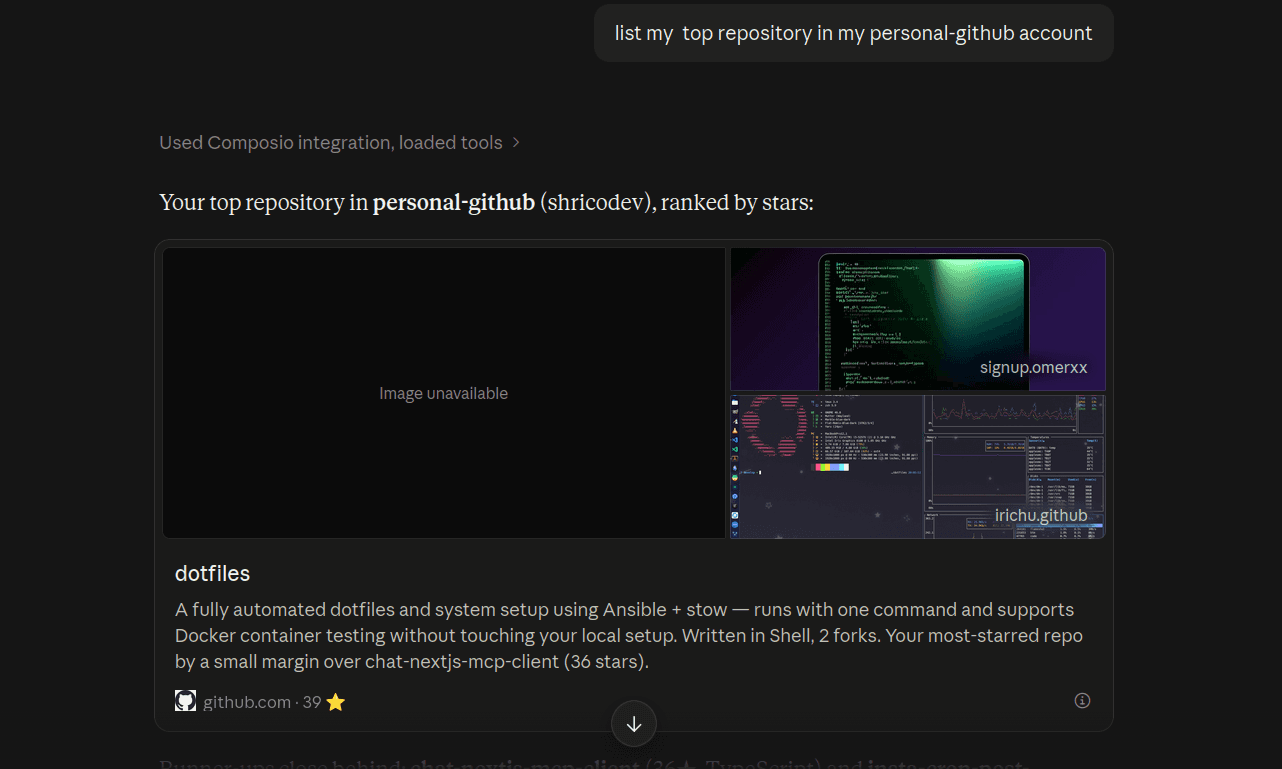
Then:
Find all open issues assigned to me in client-github.
Here, Composio executes the GitHub search using the client account.
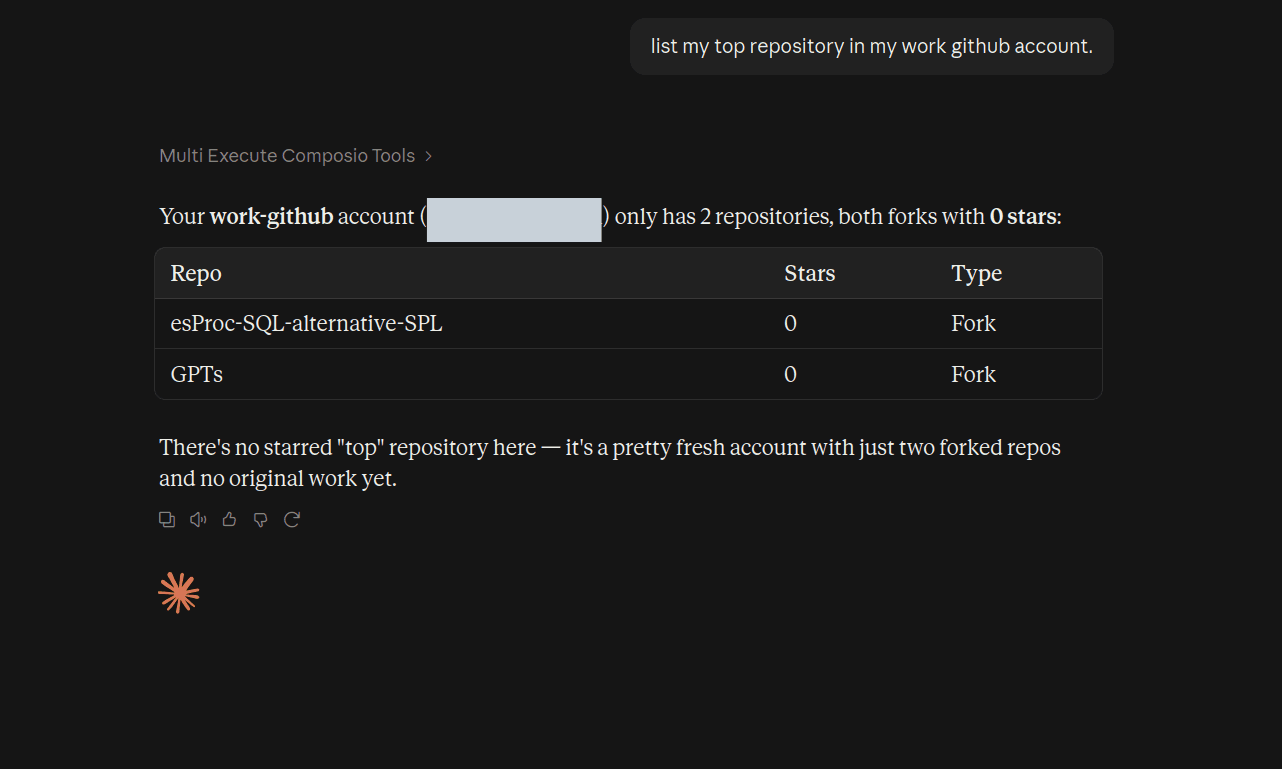
Same Claude chat. Two completely separate GitHub accounts.
No disconnecting and reconnecting again and again. 😌
How this works under the hood
The alias is doing most of the work here.
When multiple GitHub accounts are connected, Composio can execute a GitHub tool against a specific account.
So the flow for a prompt like:
Check open PRs in my work GitHub.looks roughly like this:
Claude
   ↓
Select work-github
   ↓
Composio
   ↓
Credentials for work-github
   ↓
GitHub API
The credentials attached to personal-github or client-github are not used for that request.
That separation is why naming the accounts properly matters.
Managing the accounts later
You do not need to reconnect everything from scratch whenever something changes. Go to dashboard.composio.dev and sign in with the account you authorised, and you will have everything there.
Your GitHub connections can also be managed through Composio.
For example, you may want to:
Rename an alias.
Remove an old client account.
Reconnect an expired connection.
Check which connections are currently active.
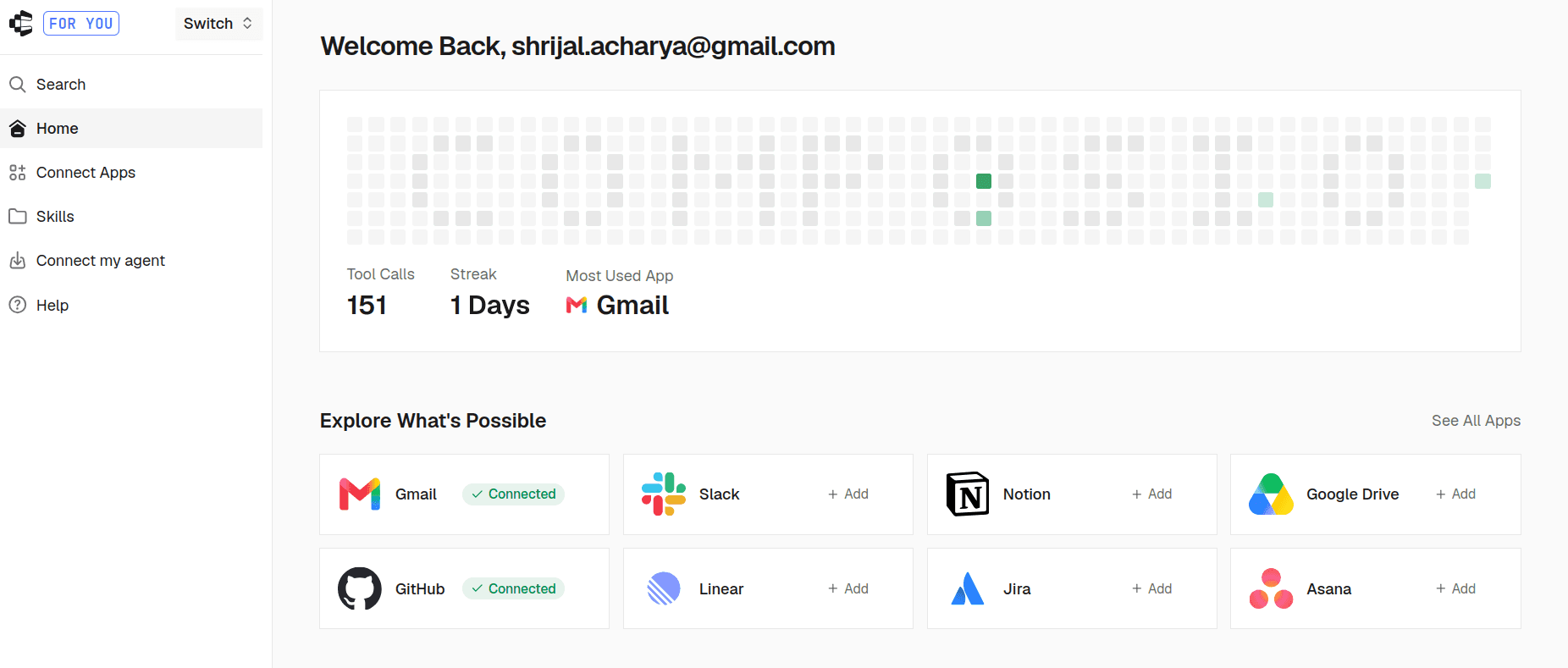
For example, if client-github was for a project that has ended, remove the connection instead of leaving access around indefinitely.
Pretty basic stuff, but easy to forget.
Conclusion
That's basically it.
Instead of making Claude forget one GitHub account every time you need another one, Composio keeps each connection separate behind the same connector.
You connect:
personal-github
work-github
client-github
...
Then tell Claude which one to use.
GitHub actions can modify real repositories, issues, and pull requests, so vague naming and prompts are a bad idea.
Give every account a clear alias, verify the GitHub username behind it once, and tell Claude to ask when a write action does not specify an account.
After that, switching between GitHub identities basically disappears from the workflow.
That's exactly how I want it. ✌️
FAQ
Can Claude connect to multiple GitHub accounts natively?
Claude's current GitHub connector is built around one GitHub account connection.
If you use separate personal and work GitHub logins, switching between them normally means changing the authenticated GitHub connection.
Composio keeps each login as a separate connected account behind one Claude connector.
What if I only have multiple GitHub organizations?
That is different.
If one GitHub account already has access to several organizations, you may not need multiple connections at all.
You only need this setup when you want Claude to work through separate GitHub identities.
Organization OAuth restrictions still apply.
Do the GitHub accounts get merged?
No.
Each GitHub login remains a separate connected account with its own authentication.
The alias simply gives Claude and Composio a readable way to select it.
Can I connect the same Composio connector several times instead?
You do not need to.
The point of the setup is that one Composio connector can manage multiple GitHub connections behind it.
Claude also prevents adding another custom connector using the exact same remote MCP URL.
Does this also work in Claude Desktop and Cowork?
Yes.
The same Composio custom connector is available across the Claude surfaces that support custom connectors.
You set up Composio once and then connect the GitHub accounts behind it.
What about Claude Code?
You can also connect Composio as an HTTP MCP server in Claude Code.
The multi-account idea stays the same: GitHub accounts are connected separately and addressed using their aliases.
For this guide, I used the normal Claude connector flow because it is easier and requires no CLI setup.

 Get started