




Gong OAuth controls how external applications access data in a Gong account. An application can use it to read calls, transcripts, users, CRM records, and other company data.
Gong handles OAuth at the organization level. One authorization can give an application access to data from many users and teams. Because this access can include sensitive company data, Gong only lets a Technical Admin approve it.
This requirement can surprise users. You can sign in to Gong and use it every day, but you can still see an Insufficient permissions message during OAuth. You can also see this message if you are a Business Admin. Gong requires the Technical Admin role for API and integration access.
After a Technical Admin approves the connection, Gong provides access and refresh tokens. The application uses these tokens to call the Gong API. The approved OAuth scopes control which data and actions the application can access.
Composio connected accounts can manage this connection after the admin approves it. Composio stores and refreshes tokens and associates them with a user ID in your application. You can keep the connection private or make it available to selected users and agents through shared connections.
In this article, we will explain how Gong OAuth works, why it requires a Technical Admin, and how to safely share the approved connection with Composio.
This guide is primarily for developers building internal applications or AI agents that need to grant several teammates controlled access to a single organisation’s Gong connection. Multi-tenant SaaS applications can use the same pattern, but they must create and isolate a separate connected account for each customer.
How the Gong OAuth Flow Works
Gong uses the OAuth 2.0 authorization code flow:
Your application requests access. It redirects a Gong Technical Admin to Gong with the required OAuth scopes.
The Technical Admin approves the connection. Gong displays the requested permissions and returns a temporary authorization code after approval.
The application exchanges the code for credentials. Gong returns an access token, refresh token, and customer-specific API base URL.
The application calls the Gong API. The access token authorizes API requests, while the refresh token keeps the connection active after the access token expires.
Application → Gong approval → Authorization code → Access and refresh tokens → Gong API
💡 When Composio manages the connected account, it handles the token exchange, secure credential storage, and token refresh. Your application and AI model do not need to handle Gong tokens directly.
Why Gong OAuth Requires a Technical Admin
Gong does not support user-level OAuth. Instead, authentication happens once at a global level for the customer’s Gong instance. This means an OAuth connection is not limited to the account of the person who approves it, unlike a typical per-user integration.
The application requests a set of OAuth scopes during authorization. These scopes allow it to retrieve calls, transcripts, participants, team member information, activity statistics, CRM data, and other Gong resources. The scopes restrict which APIs the application can use, but approving them still creates a connection to company-level data.
Gong reserves this authorization for Technical Admins because they are responsible for system integrations, permission profiles, and compliance with the organization’s security requirements. The OAuth flow therefore asks the person approving the connection to sign in with Technical Admin credentials.
Technical Admin vs. Business Admin
Gong treats technical and business administration as separate responsibilities:
Role | Primary responsibilities | Can authorize Gong OAuth? |
|---|---|---|
Regular user | Uses Gong features allowed by their seat and permissions | No |
Business Admin | Configures business features such as trackers, deal boards, and revenue analytics | No, unless also a Technical Admin |
Technical Admin | Manages system integrations, permissions, seats, and security configuration | Yes |
Being able to use Gong—or even administer its business features—does not grant permission to approve an API integration. If the person starting the OAuth flow is not a Technical Admin, an existing Technical Admin must complete the authorization.
🔐 Composio does not bypass Gong’s admin requirement. A Gong Technical Admin must approve the initial OAuth connection before Composio can manage or share it.
How to Share the Gong Connection With Composio
Gong requires a Technical Admin to authorize OAuth, but that does not mean every person using your application must repeat the admin-only flow. You can authorize one Gong connected account through Composio and make it available to explicitly approved application users and agent sessions.
Composio connections are private by default. Only the userID that owns a private connection can use it. A shared connection adds a per-connection access-control list, or ACL, that determines which other user IDs can access it.
🧪 Shared connections and their ACL fields are currently experimental. Pin an SDK version and review the latest documentation before relying on the current API shape in production.
1. Create a Gong auth config in the Composio Dashboard
A Composio auth config is the reusable blueprint for the Gong OAuth flow. It defines the authentication method, credentials, and scopes, but it does not authorize a Gong account by itself. The Technical Admin provides that approval later through the Connect Link.
Open the Composio Dashboard and go to Toolkits.
Search for Gong, and click Add to Project in the upper-right corner.
Give the auth config a recognizable name, such as Gong – Internal Agents, and click Create
Choose how the OAuth app will be managed:
Use Composio Managed Auth if its default scopes meet your needs.
Use your own developer credentials when you need your own Gong app, specific scopes, branding, or a dedicated production configuration.
If you use your own credentials, follow the complete Gong OAuth setup guide to register an OAuth integration in Gong. Copy the redirect URI displayed in your Composio Dashboard and register that exact value in Gong; do not construct the callback URL manually.
In Gong, select only the scopes your application needs. Enter the resulting client ID and client secret into the Composio auth-config form, and ensure the scopes in both systems match.
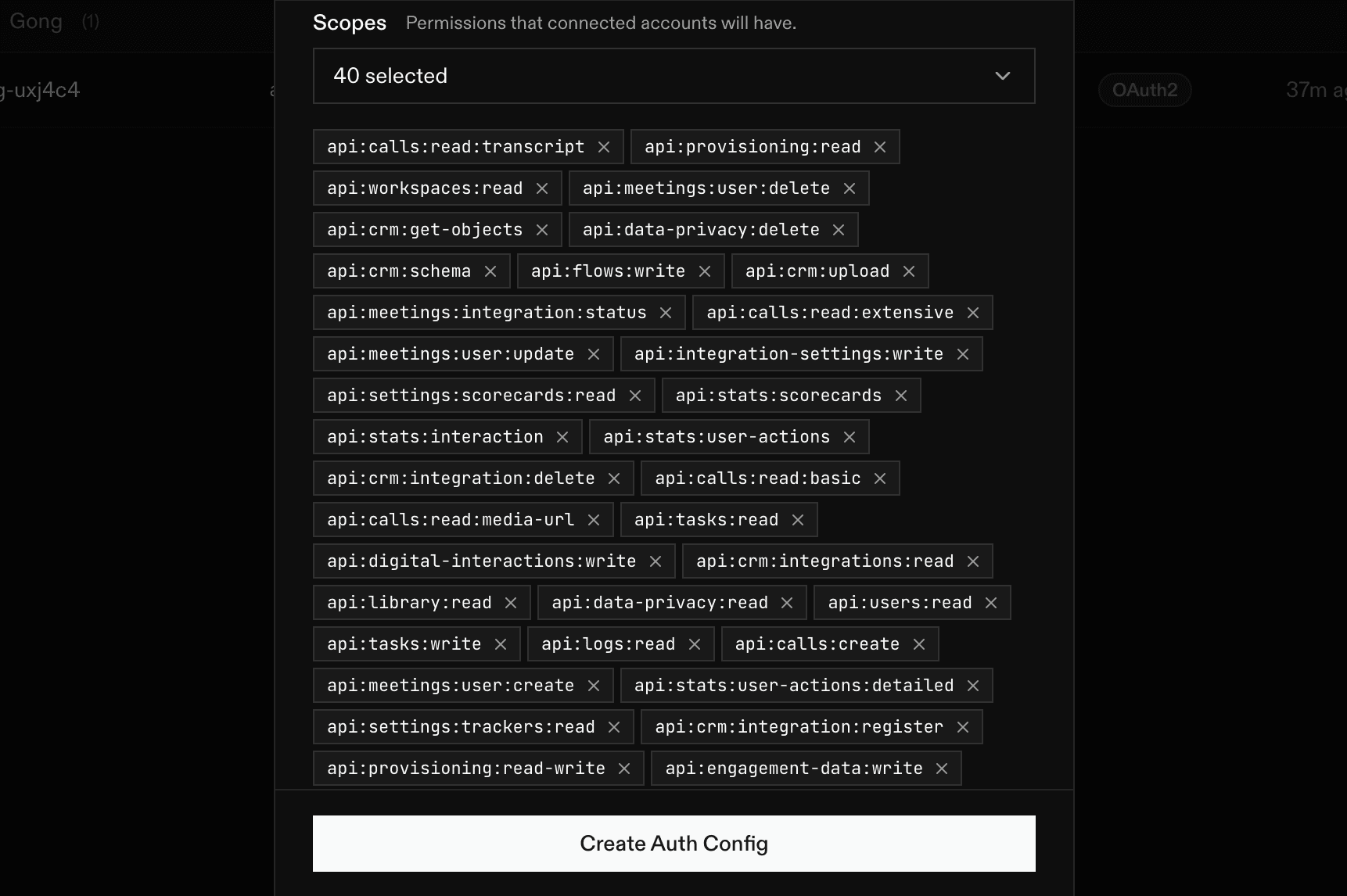
Copy the generated auth config ID, such as
ac_1234abcd. You will pass this ID when creating the shared connection in the next step.
🔐 Creating the auth config does not grant access to Gong data. Access begins only after a Gong Technical Admin opens the Connect Link and approves the requested scopes.
For this shared-connection workflow, stop after copying the auth config ID. Do not create a connected account from the Dashboard—the SDK request below must create it as SHARED.
2. Create a shared Gong connection request
Create the connection as SHARED and define the application user IDs that should be allowed to use it. Shared connections are deny-by-default, so users who are not explicitly allowed cannot access the credentials.
import { Composio } from "@composio/core";

const composio = new Composio({
  apiKey: process.env.COMPOSIO_API_KEY,
});

const gongAuthConfigId = "ac_your_gong_auth_config";

const connectionRequest = await composio.connectedAccounts.link(
  "gong_admin",
  gongAuthConfigId,
  {
    experimental: {
      accountType: "SHARED",
      aclConfigForShared: {
        allowedUserIds: ["user_alice", "user_bob"],
      },
    },
  },
);

console.log(connectionRequest.redirectUrl);
Here, gong_admin is the stable user ID that owns the connected account in your application. Replace ac_your_gong_auth_config with the auth config ID copied from the Composio Dashboard.
3. Have a Gong Technical Admin authorise the connection
Send connectionRequest.redirectUrl to a Gong Technical Admin. This is the Connect Link for the shared connection request created in the previous step.
The Gong Technical Admin opens the Connect Link and starts the account connection.
If prompted for an API base URL, enter the Gong API endpoint. For most Gong accounts, this is
https://api.gong.io. Do not enter the Gong web-app URL shown in the browser. If your organization uses a custom API endpoint, confirm it with the Gong Technical Admin.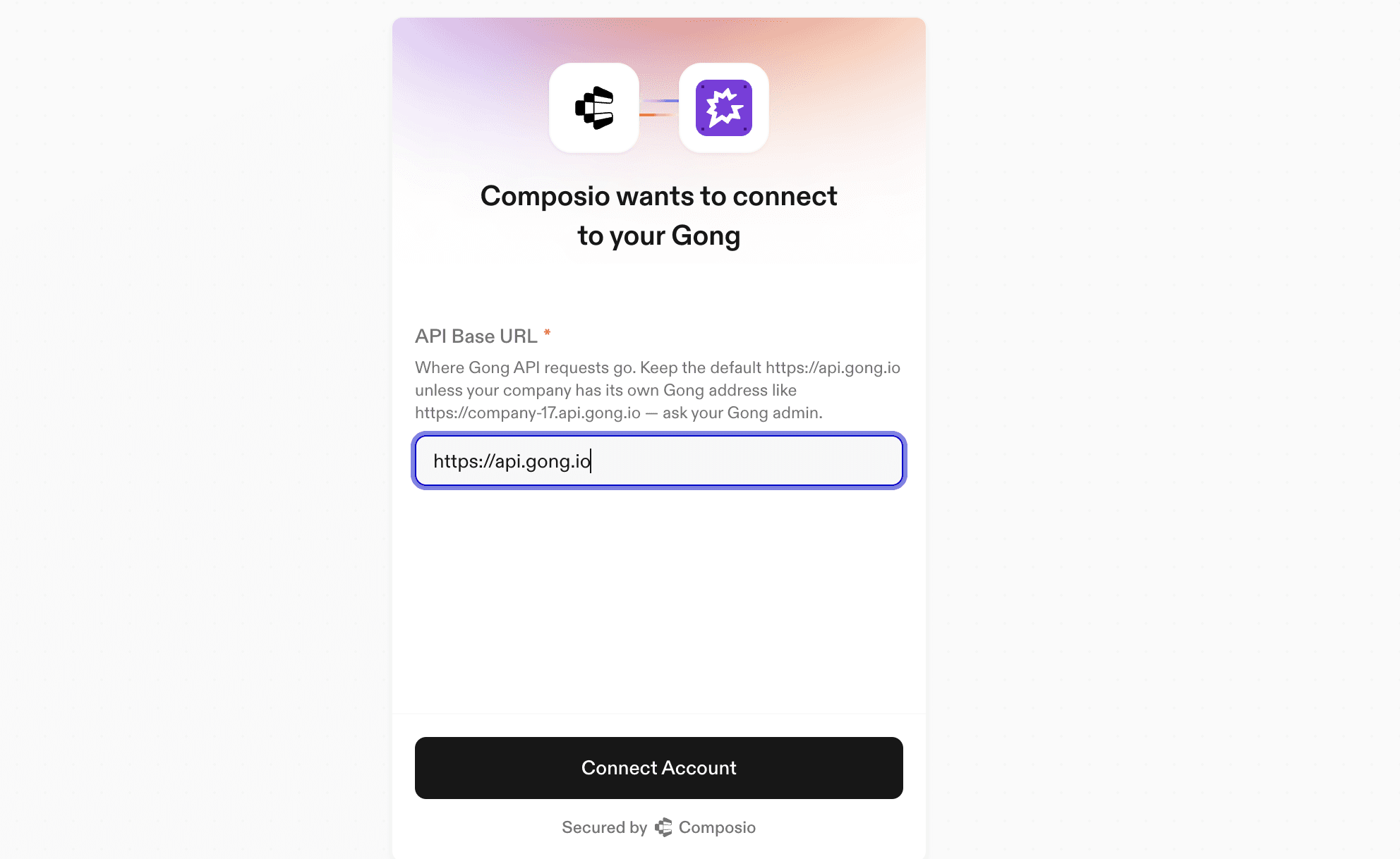
The admin reviews the requested scopes and approves the Gong consent screen.
Composio stores the OAuth credentials and marks the connected account as active.
Wait for the connection to complete and capture its connected-account ID:
// Have user_admin complete the OAuth flow at the redirect URL,
// then wait for the connection to become ACTIVE.
const connectedAccount =
  await connectionRequest.waitForConnection();

console.log(connectedAccount.id);
Save the returned connected-account ID. You will use it to make this specific Gong connection available in approved sessions.
4. Pin the shared connection into an authorised session
A shared connection is never selected implicitly. Your application must explicitly pin its ID into the session of an allowed user.
const session = await composio.create("user_alice", {
  connectedAccounts: {
    gong: [connectedAccount.id],
  },
});

const tools = await session.tools();
The session can now use Gong tools through the Technical Admin-approved connection. The Gong access and refresh tokens do not need to pass through your application or the AI model.
5. Update or revoke access when needed
You can update the ACL as your team changes. For example, add only the users who require Gong access:
await composio.connectedAccounts.updateAcl(
  connectedAccount.id,
  {
    allowedUserIds: ["user_alice", "user_charlie"],
  },
);
Removing a user ID from the allow list prevents that user’s future sessions from accessing the shared connection. You can also disable, revoke, or delete the connected account if the integration should no longer have access to Gong.
Shared connection access rules
The connection creator can always use the connection.
Other users are denied unless the ACL allows them.
A deny-list entry overrides an allow-list entry.
The shared connection must be explicitly pinned into each authorised session.
A session can pin at most one shared connection for the Gong toolkit.
Prefer an explicit allow list over granting access to every user in the project.
This creates a clean separation of responsibilities: the Gong Technical Admin approves organisation-level access once, Composio manages the credentials, and your application determines which users and agent sessions may use the connection.
Why You May See an “Insufficient Permissions” Error
If Gong rejects the authorisation because of insufficient permissions, first check the role of the person completing the OAuth flow.
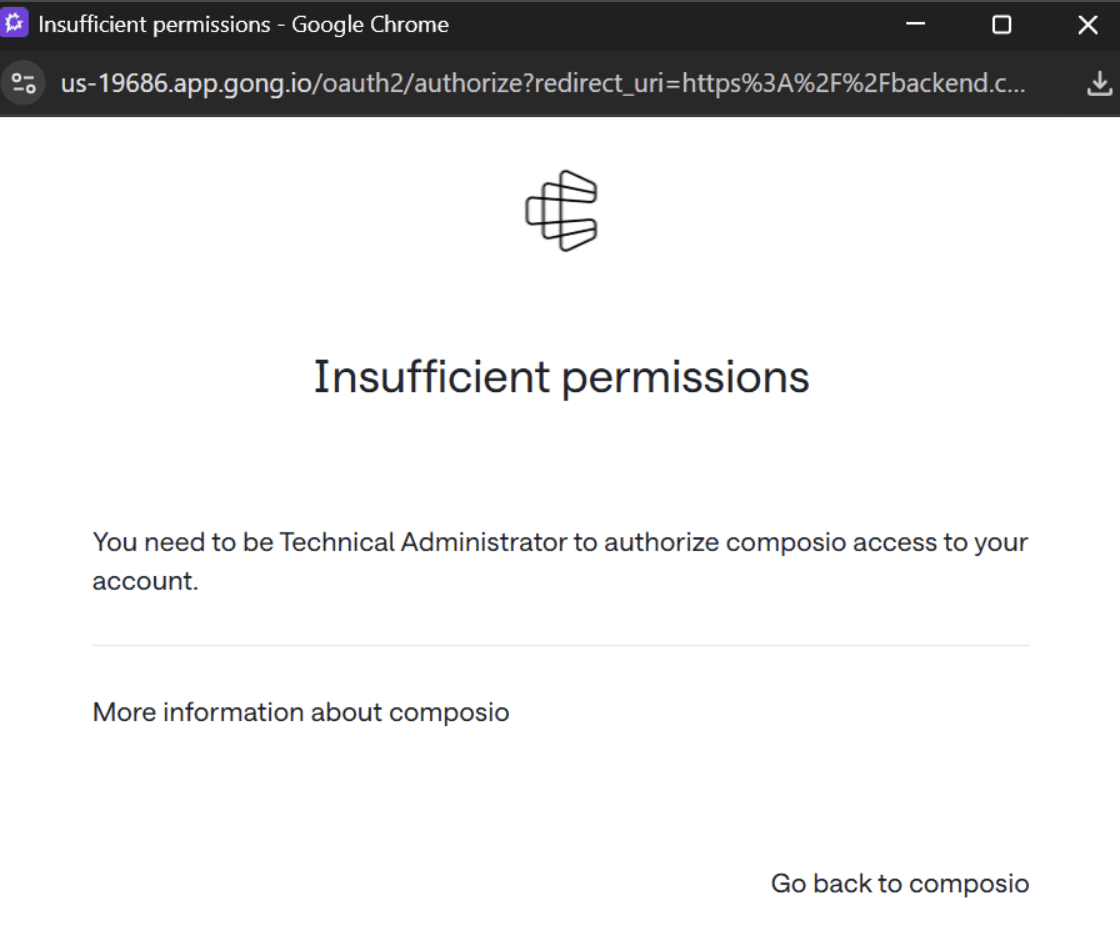
The person must be a Technical Admin for the relevant Gong instance. A regular user cannot approve the connection, and the Business Admin role by itself is not sufficient.
How to resolve it
Confirm which Gong account is signed in.
Make sure the browser session belongs to the intended customer, and not another Gong account.
Check for the Technical Admin role.
In Gong, open My settings and find the Technical administrators section. Gong lists the people who can help with integration access.
Send the authorization link to a Technical Admin.
The existing admin can open the same OAuth link, review the requested scopes, and approve the connection. Not every application user needs to become a Technical Admin.
Restart the flow if the wrong person opened it.
Sign out of Gong or use a separate browser session, then open a new authorization link with the Technical Admin account.
Verify the integration configuration if the admin still cannot connect.
Confirm that the redirect URI exactly matches the URI registered with Gong and that the authorization request contains only scopes configured for the OAuth app.
⚠️ Do not grant the Technical Admin role broadly just to complete OAuth. Ask an existing Technical Admin to approve the organization-level connection, then control who can use it through your application and Composio.

 Get started




