




Claude can help you write LinkedIn posts, but that usually stops before you take action in the account.
And if you manage several LinkedIn accounts you are authorized to operate, switching between them every time you want to publish, inspect a profile, check a company page, or comment on a post gets tedious.
Composio lets you keep each LinkedIn connection separate and give it a simple name, such as founder, work, or client. Claude can then use the right account when you mention that name.
You do not need to write code, create a LinkedIn developer app, or configure MCP yourself. You mostly connect Composio once, sign in to LinkedIn, and tell Claude which account to use.
What you’ll end up with
One Composio connector in Claude
Two or more LinkedIn accounts connected behind it
A simple name for each account
The ability to use the correct LinkedIn identity from the same Claude chat
For example:
Using my founder LinkedIn account, prepare a post about our product launch. Show me the final copy before you publish anything.
Or:
Using client-google, comment on this LinkedIn post. Show me the comment first and wait for approval.
Composio's current LinkedIn toolkit supports actions such as creating posts, URL shares, comments and video posts, plus reading profiles, company information, post content, reactions, share statistics and organization-page statistics.
Before you start
You need:
A Claude account
A free Composio account
Access to each LinkedIn account you want to connect
Permission to operate those LinkedIn accounts
About 5 to 10 minutes
Claude supports custom remote MCP connectors across Free, Pro, Max, Team, and Enterprise. Claude Free currently allows one custom connector.
If you use Claude Team or Enterprise, an Owner or Primary Owner may need to enable the connector for your organization before you can use it.
Step 1: Add Composio to Claude (One-time process)
Click here: Composio x Claude
This will take you to the Claude Custom Connector modal
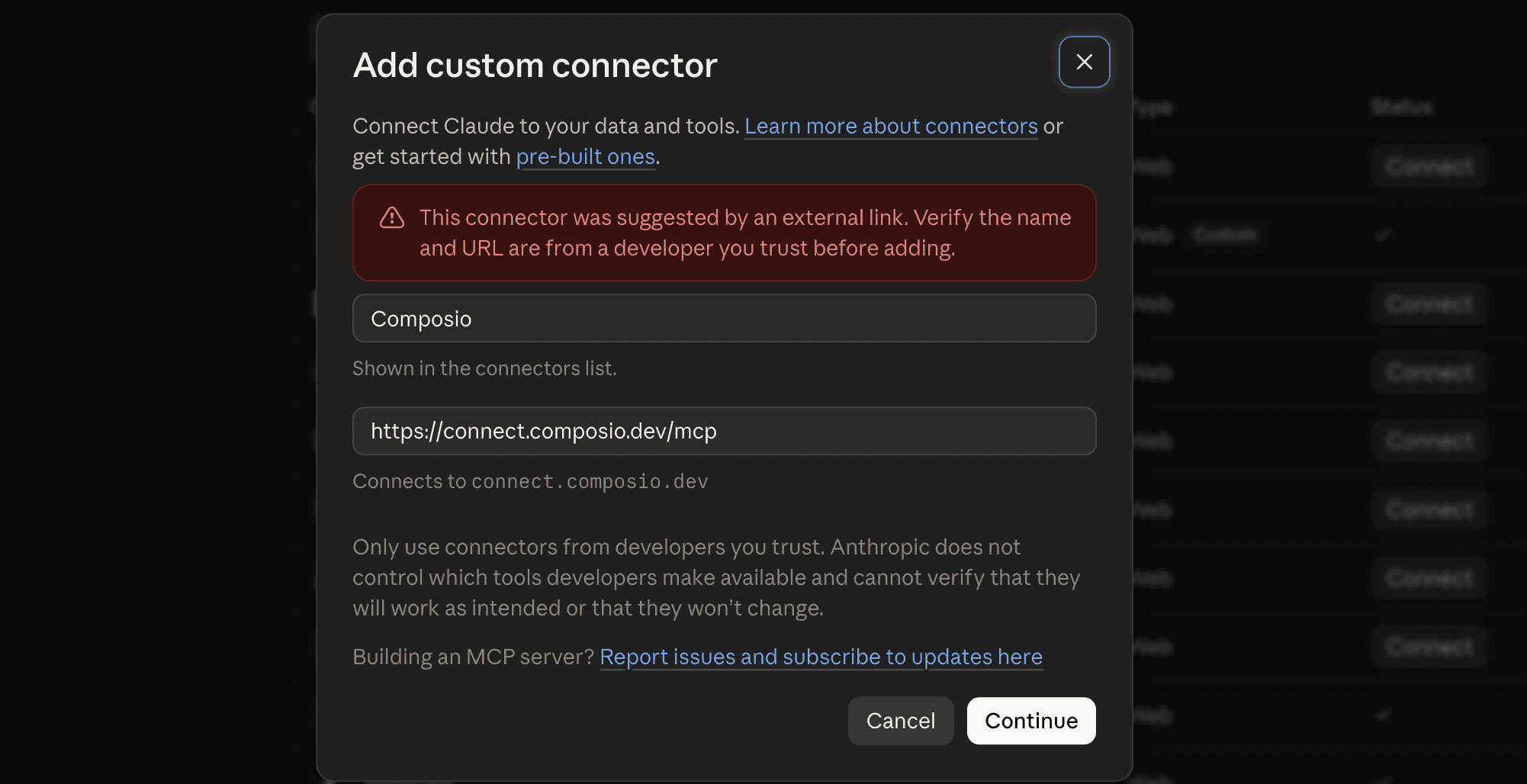
Click Continue
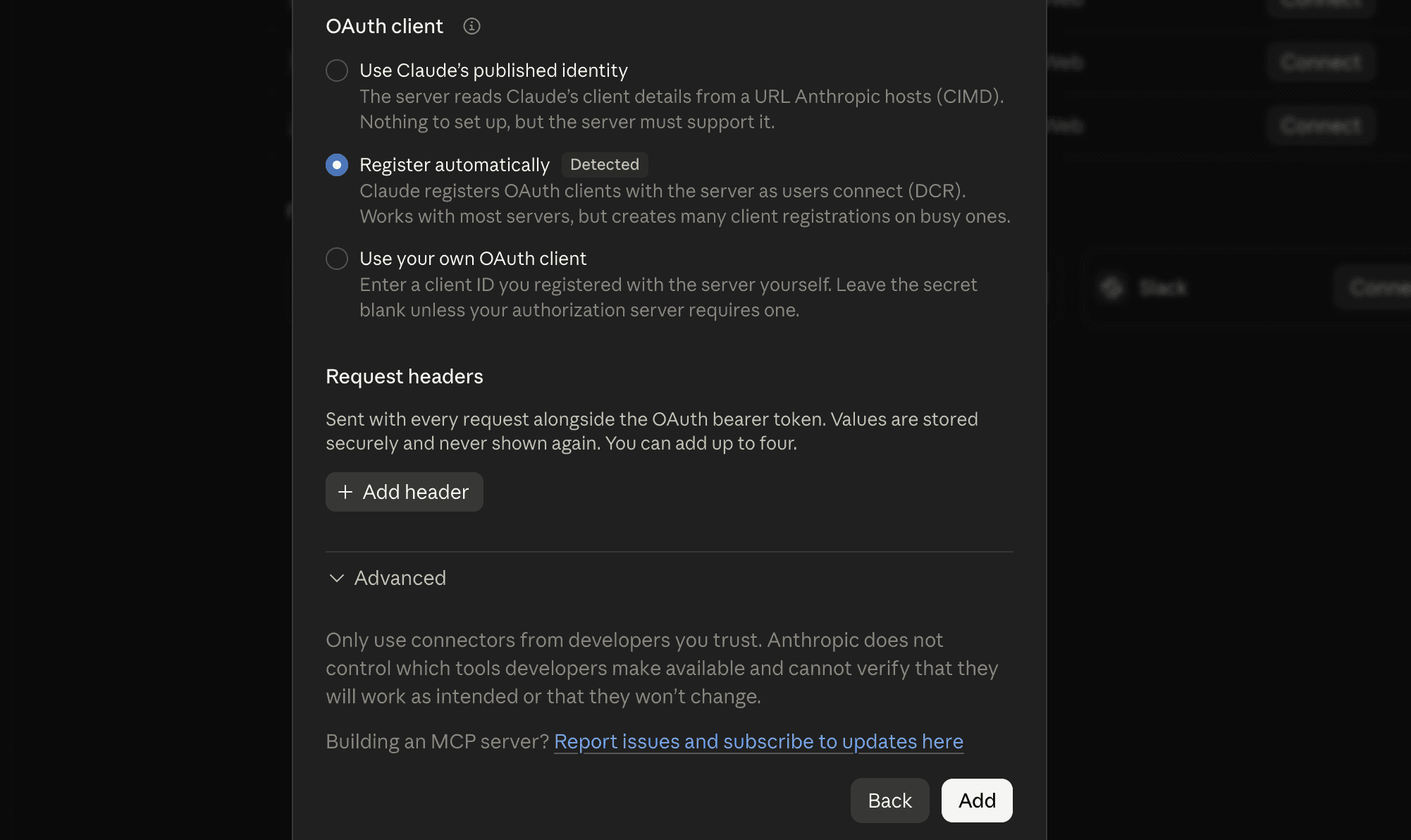
And in the next modal, click Add
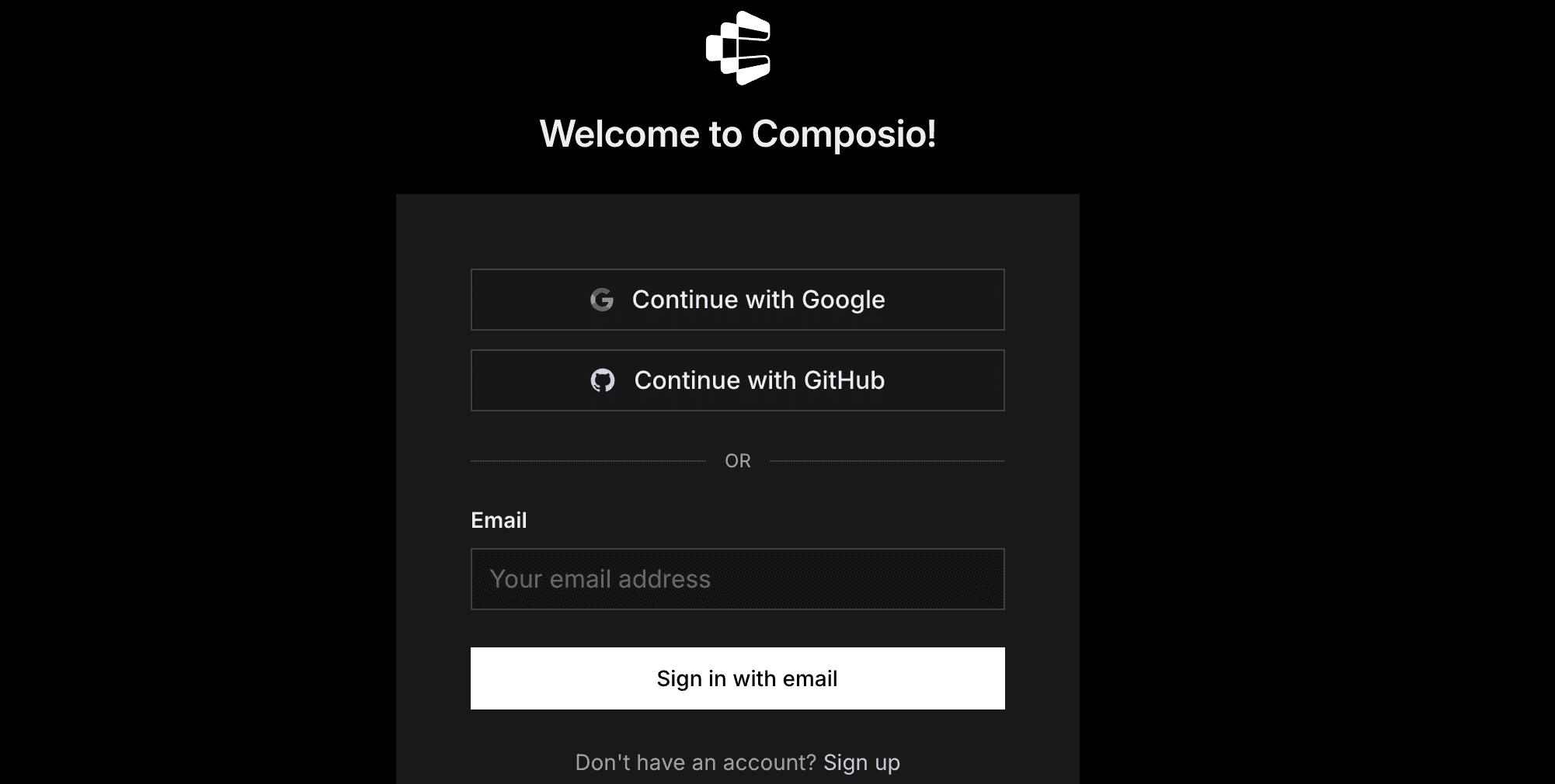
It will take you to the authentication page. So, sign in to Composio and approve the connection.
Then:
Return to Claude and make sure Composio is enabled.
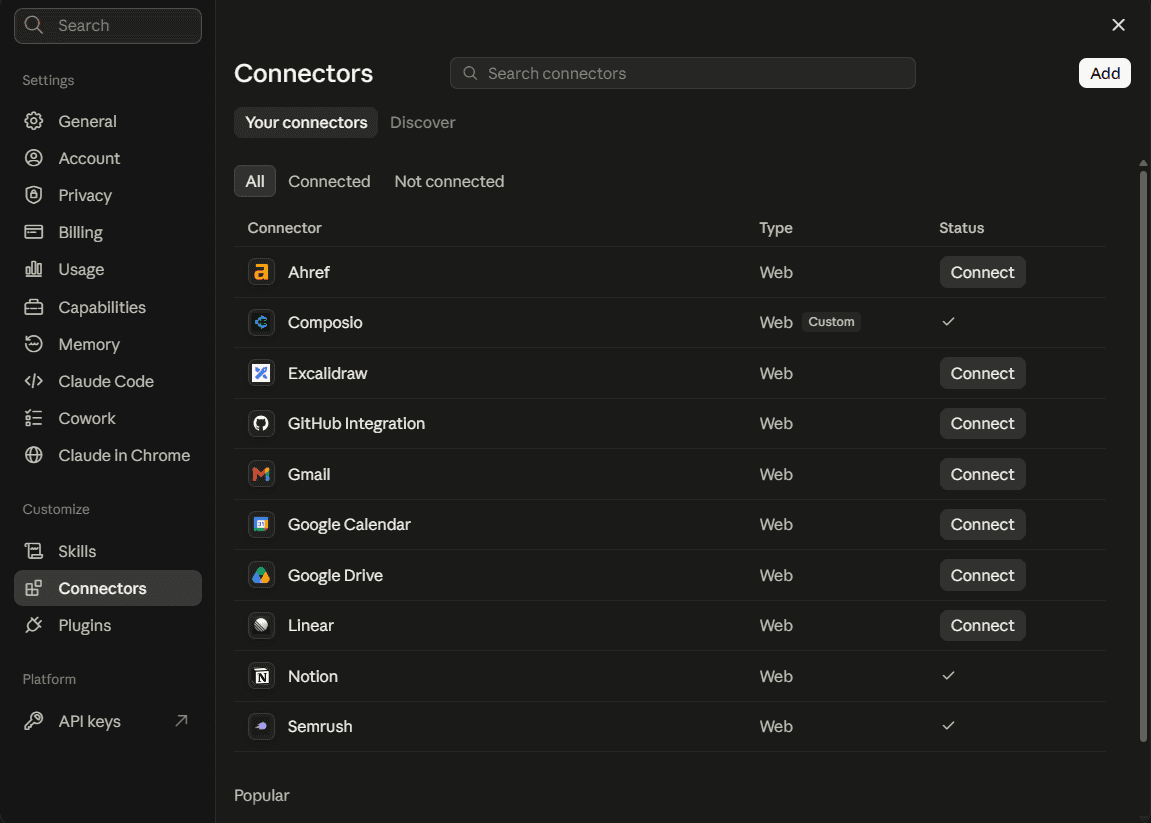
You only need to do this once.
Quick check
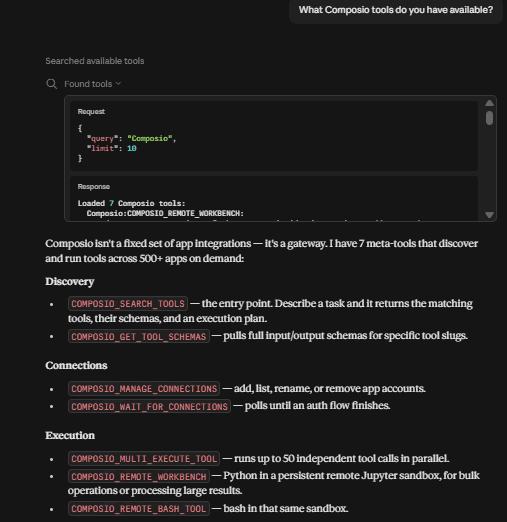
Start a new chat and ask:
What Composio tools do you have available?
If Claude can see Composio, you are ready to connect LinkedIn.
Step 2: Connect your first LinkedIn account
In Claude, type:
Connect my LinkedIn account to Composio. Call it founder.
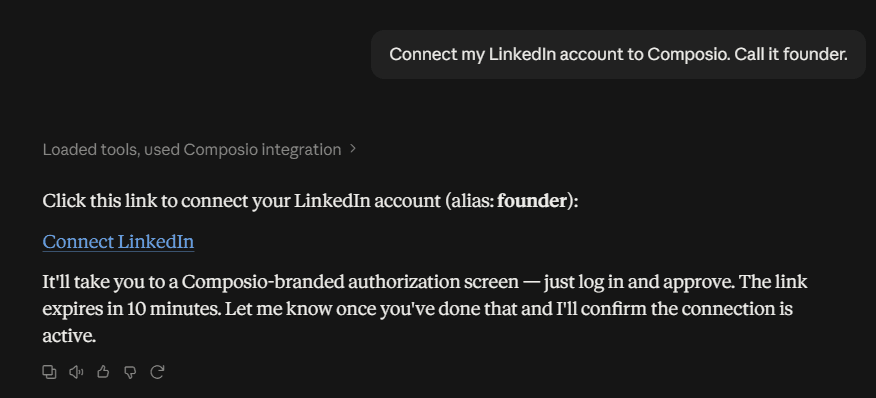
Claude should create a LinkedIn authorization link for you.
Open the link.
Sign in to the LinkedIn account you want to use.
Review the permissions LinkedIn shows.
Approve the connection.
Return to Claude.
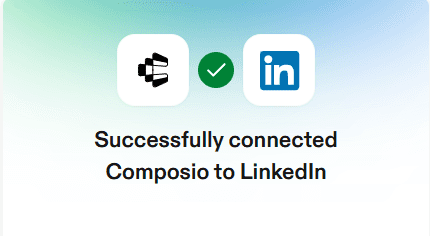
Claude should now confirm that your LinkedIn account is connected.
The name founder is what you can use later when you want Claude to pick this specific account.
Keep account names short and obvious. For example:
founderworkrecruitingclient-composio
Composio supports multiple connected accounts for the same toolkit and lets each connection have a human-readable alias.
Step 3: Connect another LinkedIn account
Now type:
Connect another LinkedIn account. Call it client-composio.
Claude will create a fresh authentication link.
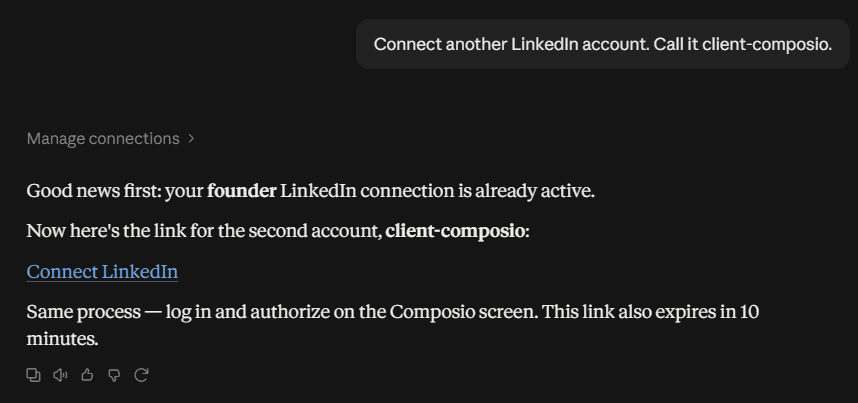
Open it and sign in with the second LinkedIn account.
Important: Check which LinkedIn account is active before approving access. If LinkedIn automatically signs you back into the first account, sign out first or open the authorization link in a private browser window.
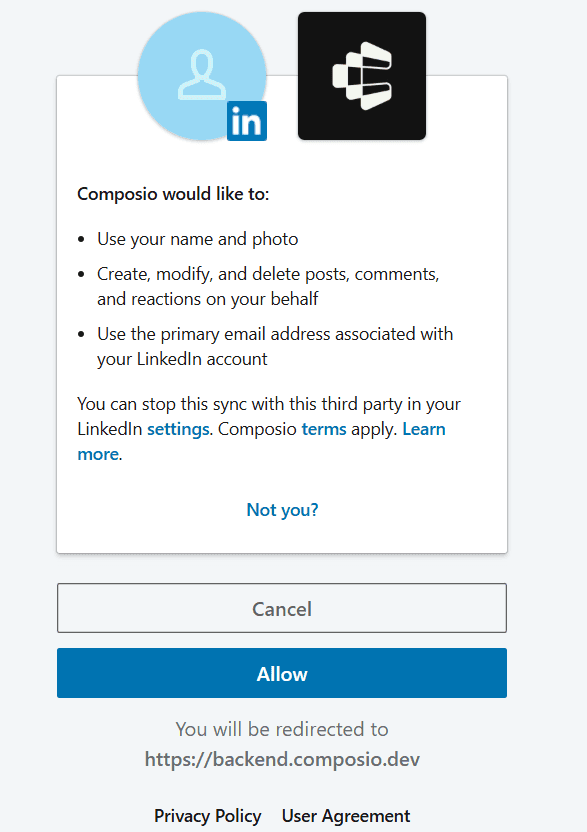
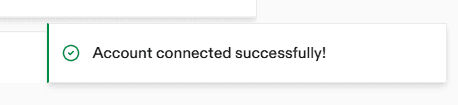
Once you approve the connection, return to Claude.
You should now have two separate LinkedIn connections behind the same Composio connector.
Repeat the process for any other accounts you are authorized to operate.
Step 4: Check that the right accounts are connected
Ask Claude:
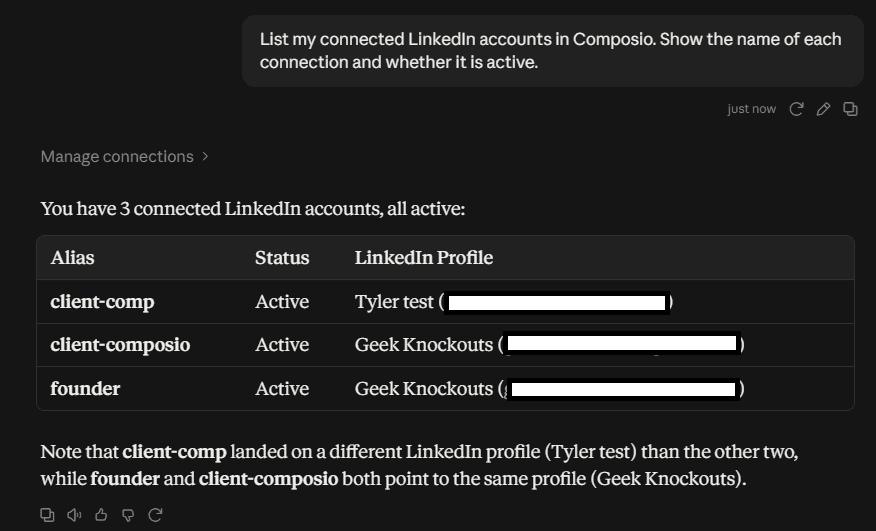
List my connected LinkedIn accounts in Composio. Show the name of each connection and whether it is active.
You should see each account you added.
Then ask:
Identify which LinkedIn profile is connected to each account name.
Do this before you let Claude publish anything.
If founder and client-composio both point to the same LinkedIn profile, reconnect the incorrect one before continuing.
Step 5: Use the right LinkedIn account
Once the accounts have names, mention the name whenever the action matters.
Prepare a post for one account
Using founder, write a LinkedIn post about our new launch. Show me the post first and do not publish until I approve it.
Publish from a specific account
Using founder, publish the LinkedIn post I just approved.
Comment from another account
Using client-composio, write a useful reply to this LinkedIn post. Show me the exact comment before posting it.
Inspect a LinkedIn profile
Using work, get the LinkedIn profile information for this person and summarize the details that are available.
Check a company page
Using work, get the available information and statistics for our company page.
The current LinkedIn toolkit includes tools for creating posts and comments, retrieving profiles and company information, and reading organization-page and share statistics.
For anything public, tell Claude to show you the final text before it publishes or comments.
Make account selection more reliable
Add something like this to your Claude preferences or project instructions:
My LinkedIn connections in Composio are: founder = my main LinkedIn profile, work = my work account, and client-composio = the LinkedIn account I manage for composio. Always use the named connection when I specify one. If I ask you to publish, delete, or comment and I have not specified an account, ask me which LinkedIn account to use first.
This becomes more useful as you add more accounts.
Composio can explicitly route tool execution through an account alias instead of relying on the most recently used connection.
A note about LinkedIn company pages
A LinkedIn connection that works for personal-profile actions may still fail on some company-page actions.
LinkedIn organisation permissions use separate scopes. If you need organisation statistics, company-page publishing, or other organisation-level actions, the LinkedIn connection needs the appropriate organisation permissions.
So if Claude can publish to your personal profile but gets a 403 on your company page, the problem may be the LinkedIn permissions rather than Claude or Composio.
Reconnect after the correct organisation scopes are configured.
Optional: Manage LinkedIn accounts from Composio
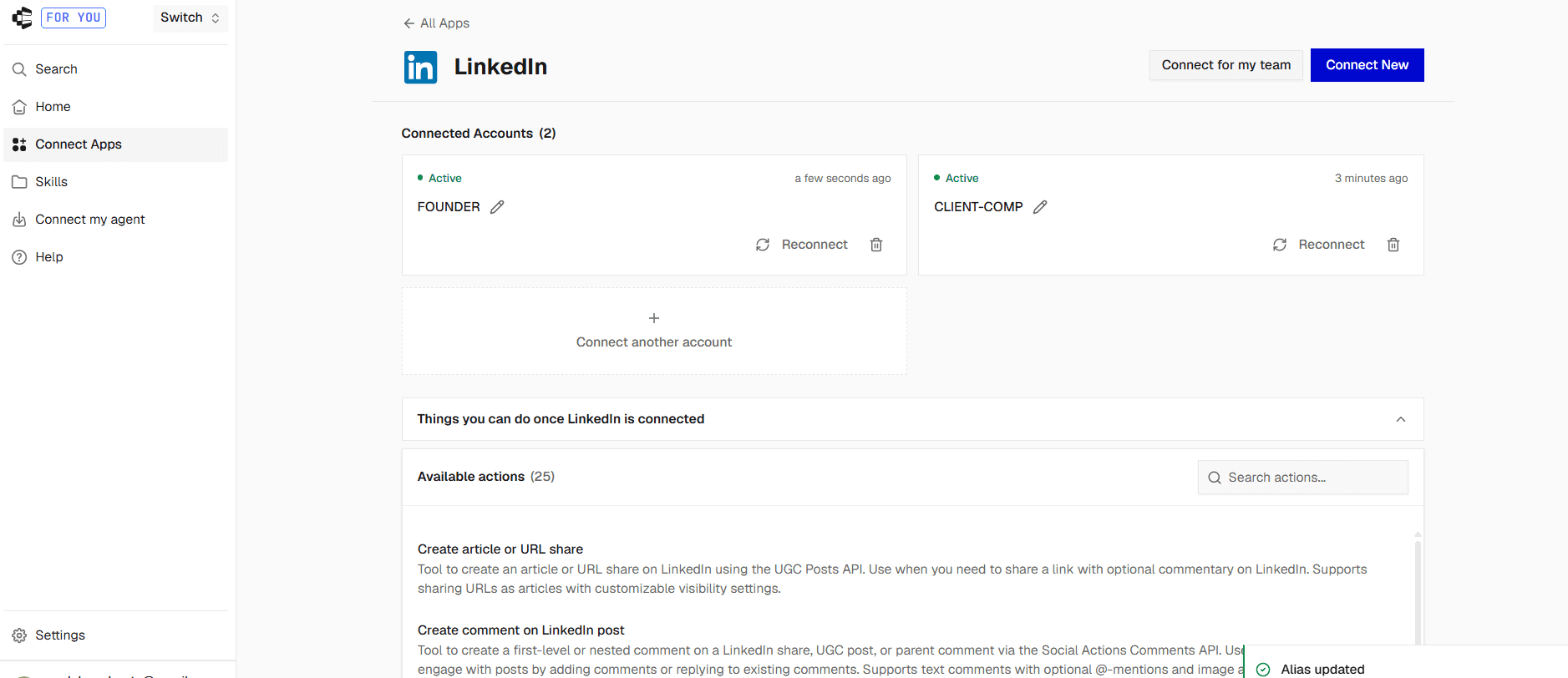
The chat method above is the easiest way to add accounts. Use the dashboard to rename, reconnect, or remove one.
Go to dashboard.composio.dev.
Sign in with the same Composio account you used to connect to Claude.
Open For You from the product switcher.
Find LinkedIn.
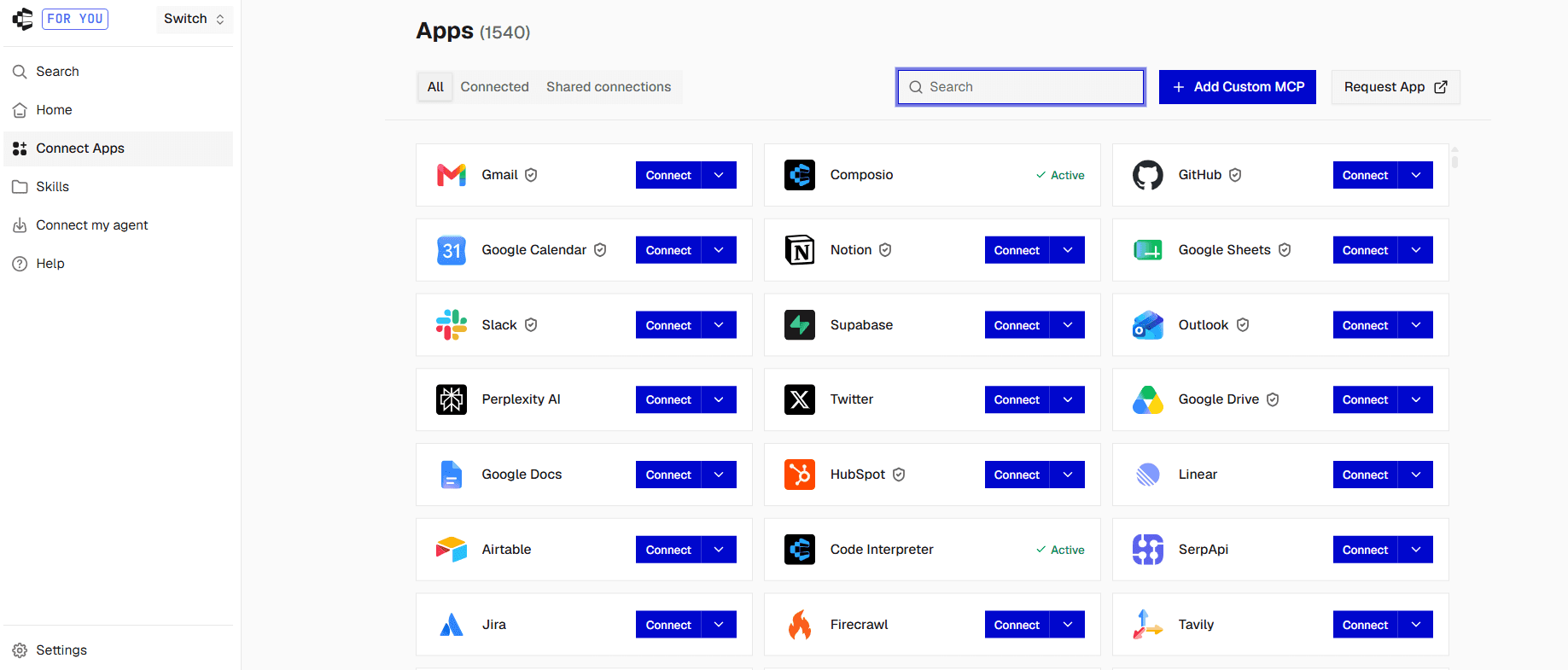
Click Connect and complete the Google OAuth flow.

Click Connect on LinkedIn again for the next account. Composio adds it as a separate connection rather than replacing the first; this behaviour is what the whole guide hinges on.
Give each connection a clear label. Composio's own marketing shows this pattern with different badges, and that's exactly the mental model: same app, several identities, each addressable by name.
From this screen you can also:
Rename a connection when the default name stops being a useful name.
Disconnect/delete a connection you no longer want Claude touching. Deletion is immediate.
Re-authorise a connection that's expired. Tokens refresh automatically, but a revoked or expired refresh token moves a connection to EXPIRED and needs a manual reconnect.
Troubleshooting
Composio does not appear in Claude
Go to Customize → Connectors and make sure Composio is enabled.
If it still does not appear, open the Composio connector menu and clear its cache. If that does not help, remove the connector and add it again.
The LinkedIn sign-in link expired
Ask Claude:
Create a new LinkedIn connection link for this account.
Then use the new link instead of reopening an old one.
Both account names use the same LinkedIn profile
You probably approved the same LinkedIn identity twice.
Remove the incorrect connection and connect it again while signed in to the correct LinkedIn account.
A private browser window can make this easier.
LinkedIn returns a 403 for company-page actions
The connected account may not have the required organization scopes or permissions.
Personal LinkedIn actions and organization actions can require different permissions.
LinkedIn returns 429 errors
LinkedIn applies API rate limits. Slow down repeated actions and retry later instead of repeatedly asking Claude to execute the same request. Composio's LinkedIn documentation also calls out LinkedIn rate-limit errors as a common issue.
Claude used the wrong LinkedIn account
Repeat the request and explicitly include the account name.
For example:
Use founder for this action. Do not use any other LinkedIn connection.
Adding the account map from the section above also helps.
Is this safe?
Composio becomes an additional service that can perform the LinkedIn actions you authorize, so you should still review the permissions before connecting an account.
The important part is that LinkedIn authentication uses OAuth. You authorize access through the provider instead of giving Claude or Composio your LinkedIn password. Composio stores each authorization as a connected account and handles the credentials on your behalf.
For public actions such as publishing, commenting, or deleting a post, I would also keep an approval step in the prompt.
Ask Claude to prepare the action first, then execute it only after you approve the final result.
FAQ
Can Claude use more than one LinkedIn account?
Yes. Composio supports multiple connected accounts for the same toolkit and lets you identify them with aliases such as founder or client-composio.
Do I need to create a LinkedIn developer app?
Not for this setup. Composio provides managed OAuth for its LinkedIn toolkit.
Can Claude publish LinkedIn posts?
Yes. Composio currently exposes tools for LinkedIn text posts, URL or article shares, video posts, comments, and related LinkedIn actions.
Can it manage LinkedIn company pages?
Some organization-level actions are available, but they depend on the permissions and scopes granted to the LinkedIn connection.
Does this work in Claude Web and Desktop?
Yes. Claude custom connectors are supported across Claude, Cowork, and Claude Desktop.
Can I connect Instagram and other apps through the same Composio connector?
Yes. You do not need to add another MCP connector for every app. The same Composio connection can provide Claude access to additional supported toolkits once you authorize them.
Connect your LinkedIn accounts to Claude
One Composio connector, separate LinkedIn accounts, and a clear name for each one.
Once they are connected, you can tell Claude exactly which LinkedIn identity to use before it reads or takes an action.

 Get started



