




Claude can write captions, review comments, and help with content. But that still means switching between Instagram accounts whenever you want it to work with the right account.
That becomes annoying if you manage a company account, a creator profile, and a few client accounts.
Composio lets you connect each Instagram account separately and give it a simple name, such as brand, creator, or personal. Claude can then use the right account when you mention that name.
✅ You do not need to create a Meta app, configure OAuth yourself, or write code. You connect Composio once, sign in through Meta, and choose the Instagram account Claude should use.
One important requirement before you start.
Composio currently supports Instagram Business and Creator accounts. Personal Instagram accounts are not supported.
What you’ll end up with
One Composio connector in Claude
Two or more Instagram accounts connected behind it
A clear name for each account
The ability to read, analyse, reply, and publish from the correct Instagram account
For example:
Using brand, get the comments on my latest Instagram post and tell me which ones need a reply.
Or:
Using creator, show me the insights for my recent Instagram posts and tell me what performed best.
Or:
Using client-comp, draft replies to the latest comments. Do not publish anything until I approve it.
The current Instagram toolkit includes actions for media, comments, insights, conversations, messages, stories, publishing, and comment replies.
Before you start
You need:
A Claude account
A free Composio account
An Instagram Business or Creator account
Access to the Meta account that controls it
About 5 to 10 minutes
If your Instagram account is still a Personal account, switch it to a Business or Creator account first.
Step 1: Add Composio to Claude (One-time process)
Click here: Composio x Claude
This will take you to the Claude Custom Connector modal
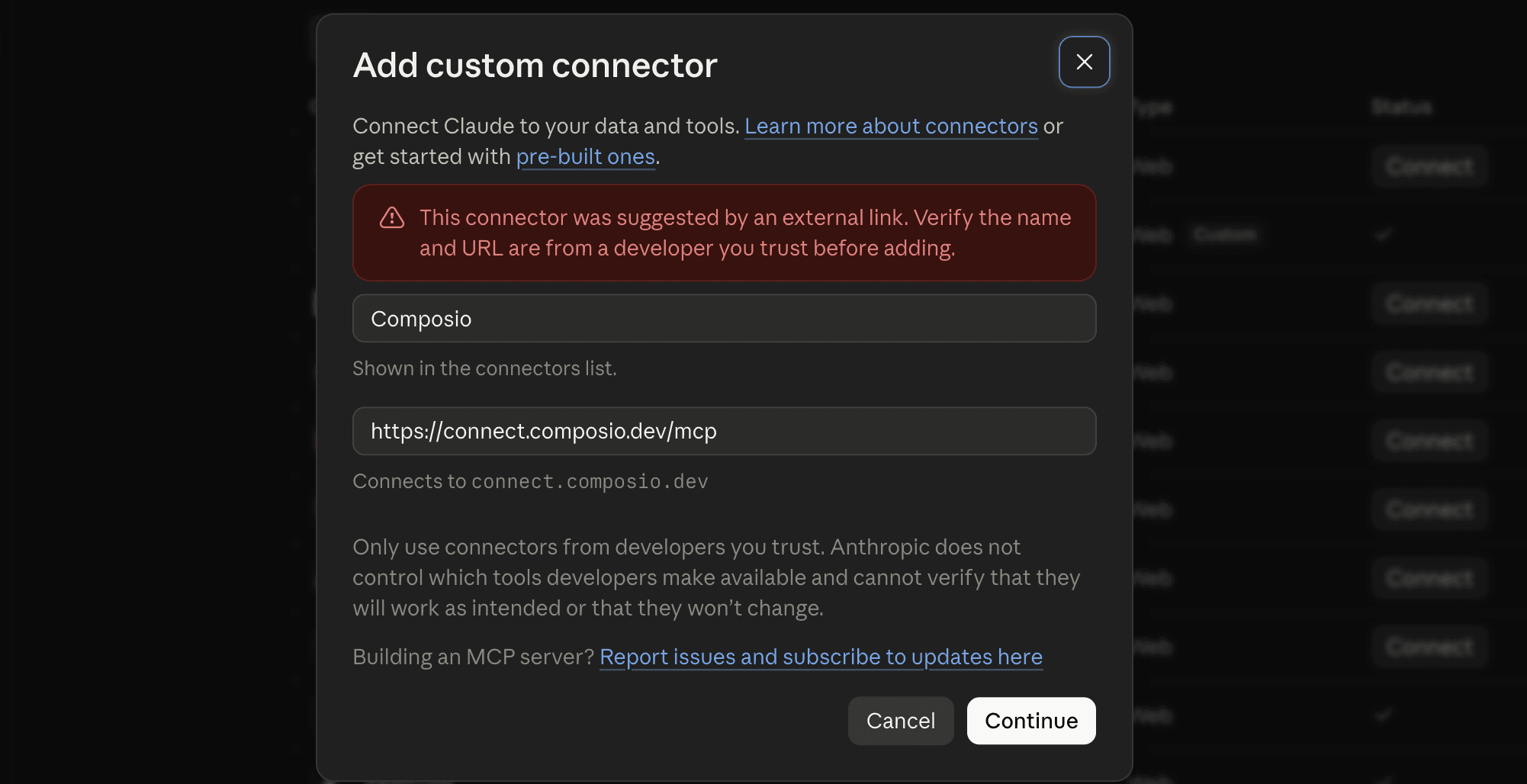
Click Continue
And in the next modal, click Add
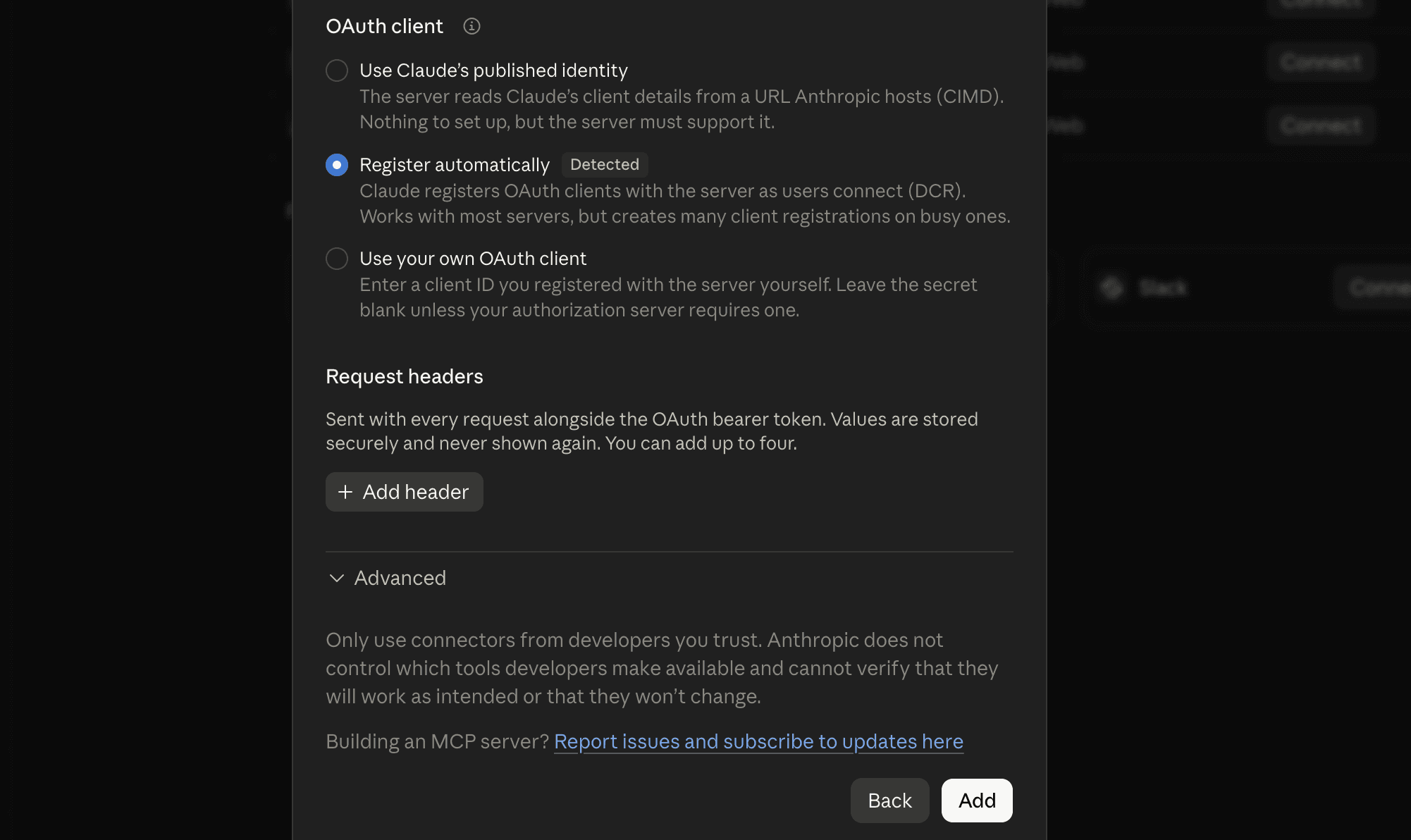
It will take you to the authentication page. So, sign in to Composio and approve the connection.
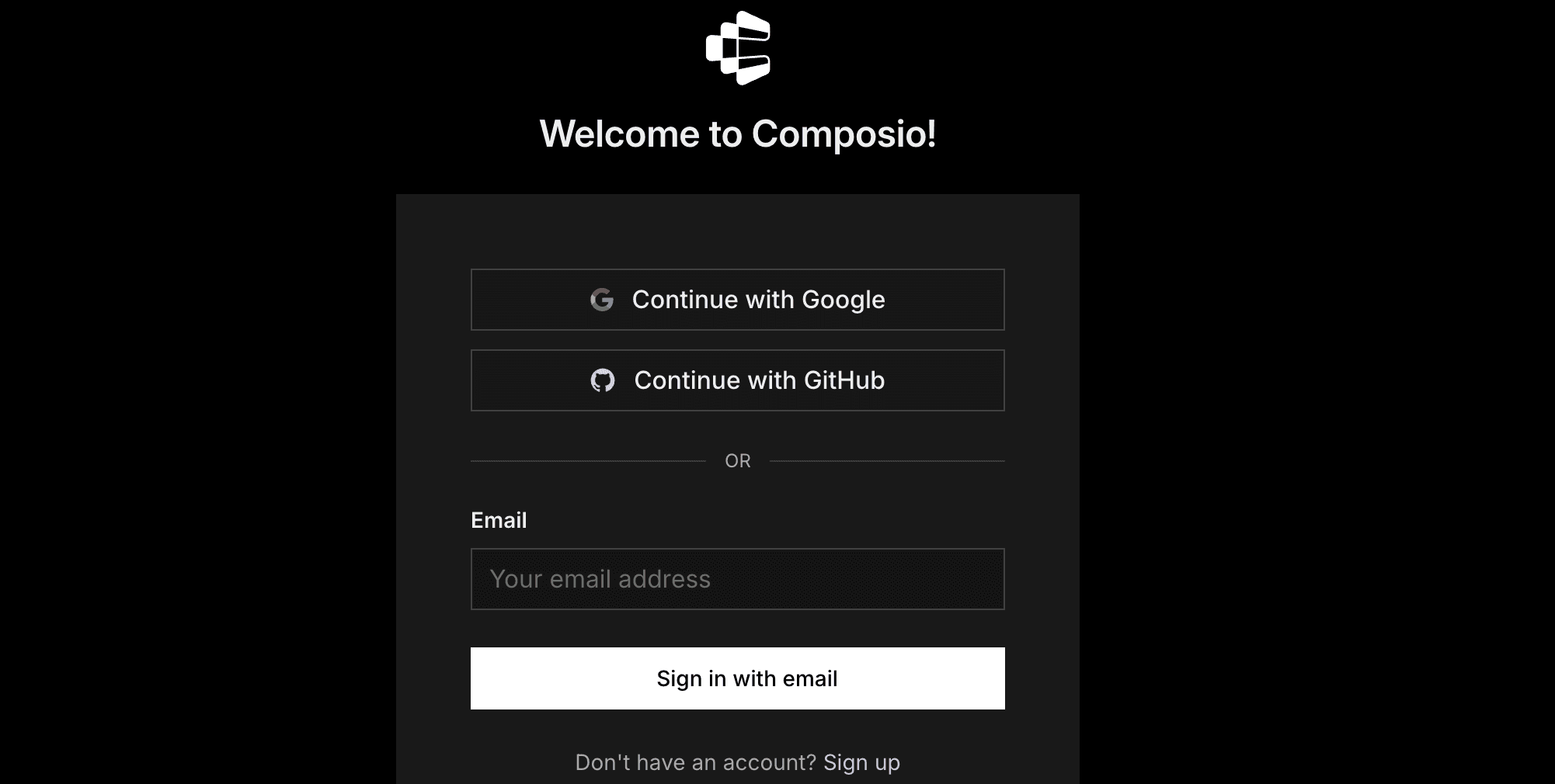
Then:
Return to Claude and make sure Composio is enabled.
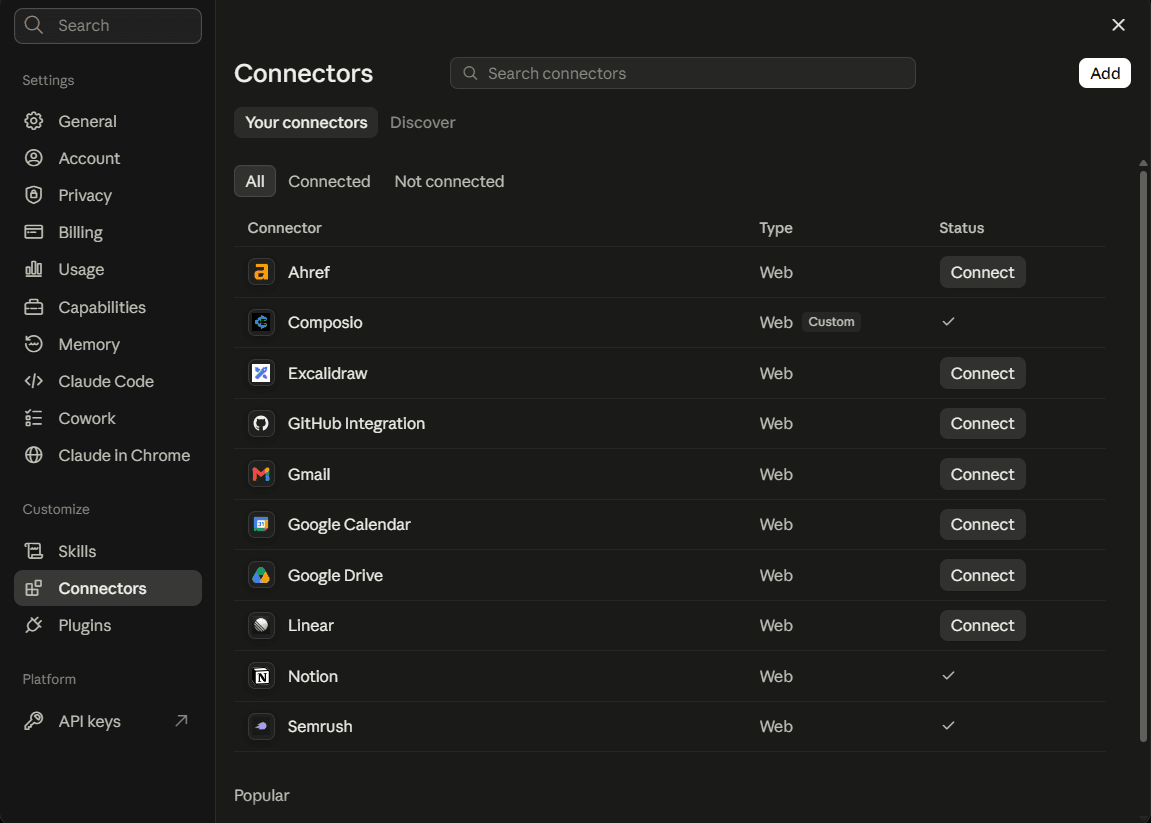
You only need to do this once.
Quick check
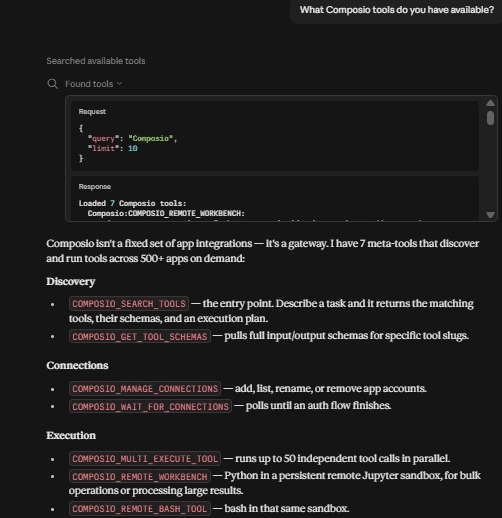
Start a new Claude chat and ask:
What Composio tools do you have available?
If Claude can see Composio, continue.
Step 2: Connect your first Instagram account
In Claude, type:
Connect my Instagram account to Composio. Call it brand.
Claude should give you a Meta authorization link.
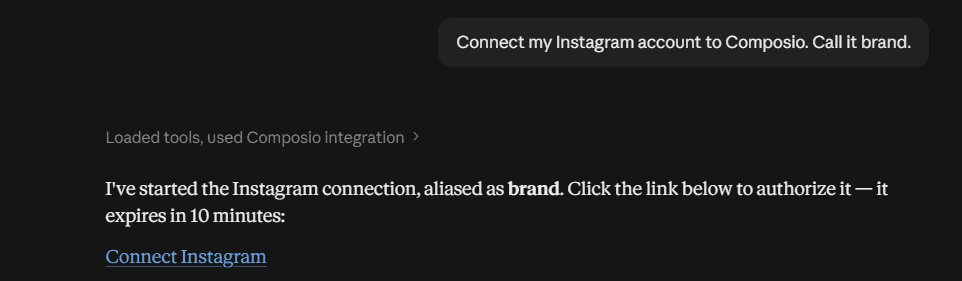
Open it. Instagram authentication goes through Meta's login flow. Meta will ask you to select the Instagram account and related assets you want to authorize.
Choose the Instagram Business or Creator account you want to use.
Then approve the requested permissions and return to Claude.
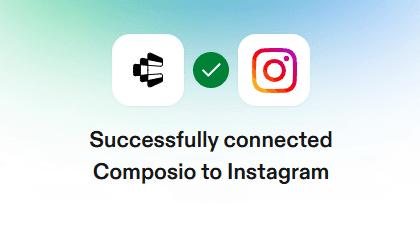
Claude should confirm that the Instagram connection is active.
The name brand is what you can use later when you want Claude to select this specific account.
Good names include:
brandcreatorstorepersonal
Composio supports multiple connections for the same toolkit, and each connection can have its own human-readable alias.
Step 3: Connect another Instagram account
Now type:
Connect another Instagram account. Call it creator.
Claude will create another authentication link.
Open it and log in to Meta again.
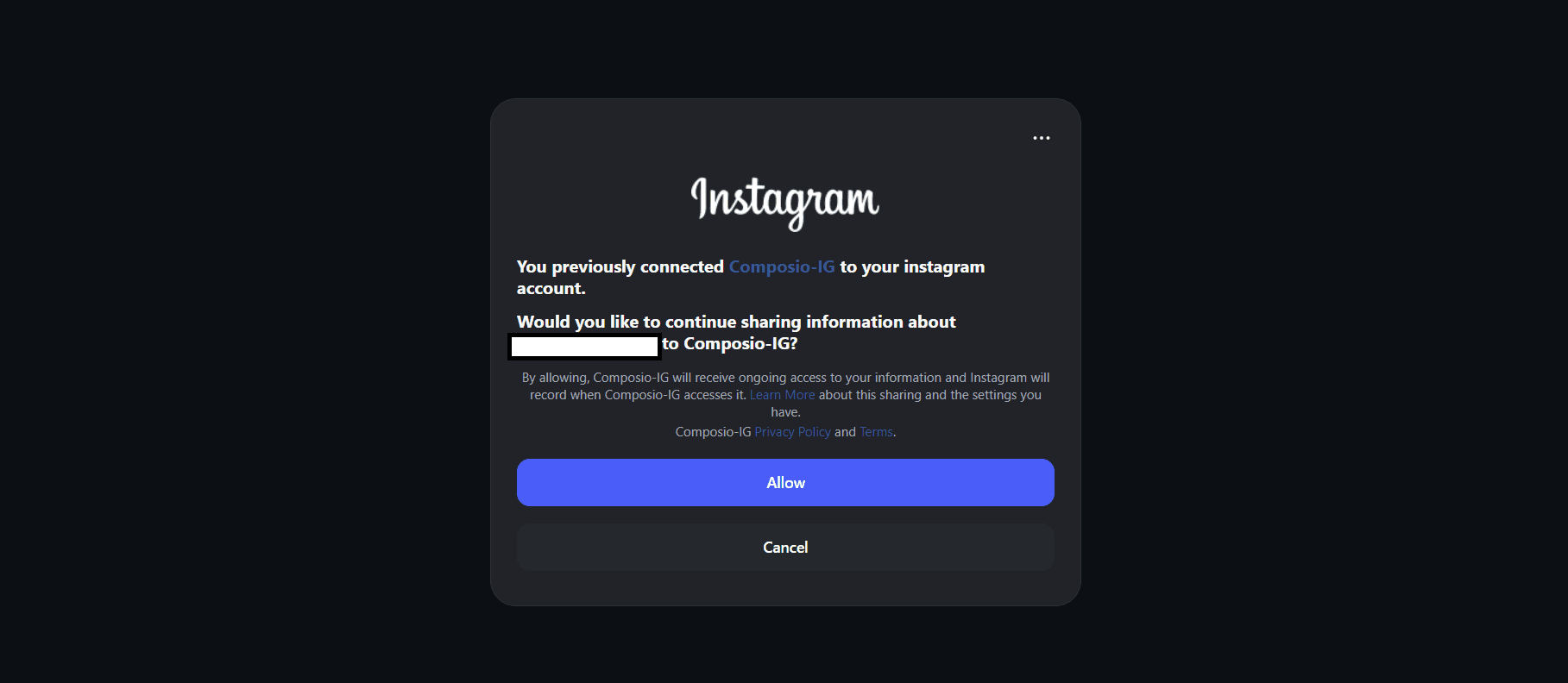
This step matters more for Instagram than it does for many other apps.
Important: Check which Instagram account Meta asks you to authorize. The token Meta creates is tied to the Instagram account selected during that OAuth flow. Composio cannot later switch that token to another Instagram account.
Choose the second Instagram account and approve access.
If Meta keeps selecting the first account:
Sign out of the current Meta account.
Open the connection link in a private or incognito browser window.
Sign in again.
Check the Instagram account and Page shown in Meta's account picker.
Select the correct one before approving access.
Then return to Claude.
Repeat this process for any other Instagram Business or Creator accounts you manage.
Step 4: Check that everything is connected correctly
Ask Claude:
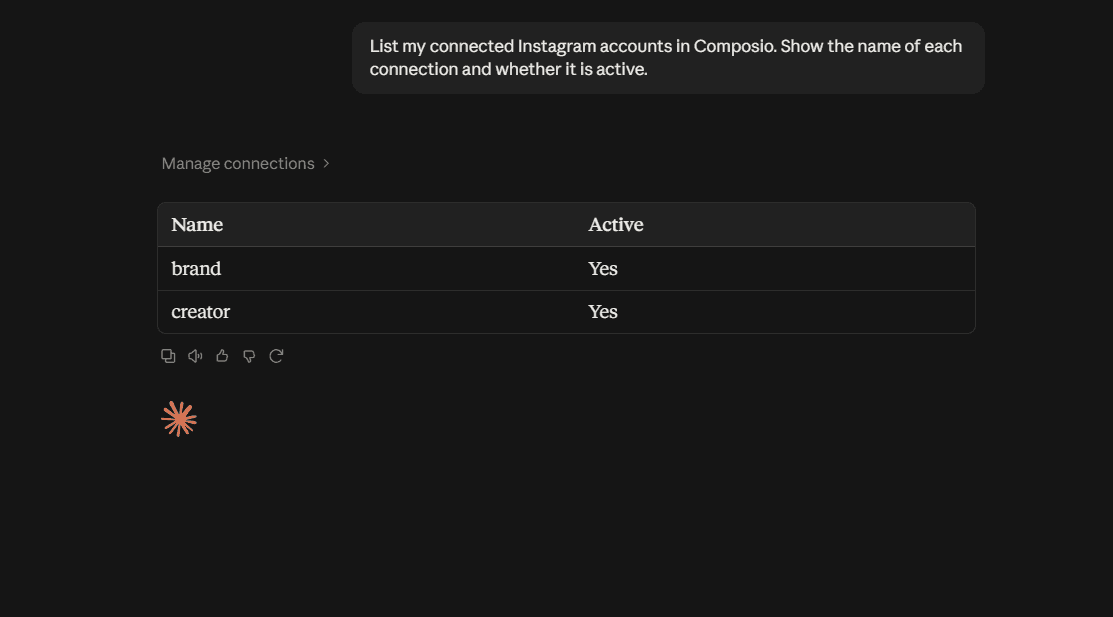
List my connected Instagram accounts in Composio. Show the name of each connection and whether it is active.
You should see each account you added.
Then ask:
Show me which Instagram account is connected to each name.
Check the results carefully.
If both brand and creator point to the same Instagram account, reconnect one of them and choose the correct Instagram identity during Meta authorization.
Renaming the connection will not change the Instagram account behind it. The underlying Meta token remains tied to the account selected during authentication.
Step 5: Use the right Instagram account
Once the accounts have names, mention the account name whenever it matters.
Review comments
Using brand, get the comments on my latest Instagram post. Group them into questions, positive feedback, complaints, and spam.
Check another account
Using creator, show me my latest Instagram posts.
Analyse performance
Using brand, get the available insights for my recent Instagram media and tell me which posts performed best.
Draft comment replies
Using client-comp, draft replies to the comments that need a response. Show me each reply before posting anything.
Publish content
Using brand, publish the Instagram media we just approved.
Check stories
Using creator, get my available Instagram stories and show me the recent ones.
Review messages
Using brand, get my recent Instagram conversations and identify messages that need a reply.
The current toolkit exposes 36 Instagram tools, including media, comments, user insights, media insights, conversations, messages, stories, publishing, and replies.
🛟 For anything public, tell Claude to show you the final text or content before it publishes, comments, or sends a message.
Make account selection more reliable
Add something like this to your Claude preferences or project instructions:
My Instagram connections in Composio are: brand = our company Instagram, creator = my creator account, and client-comp = Client related Instagram account. Always use the named account when I specify one. If I ask you to publish, reply, delete, or send a message without specifying an Instagram account, ask me which account to use first.
This becomes useful once you have several Instagram accounts connected.
Composio supports explicit account selection using either the connected account ID or its alias. You can also require explicit selection so Claude does not silently fall back to the most recently connected account.
Optional: Manage accounts from the Composio dashboard
The chat method above is the easiest way to add accounts. Use the dashboard when you want to rename, reconnect, or remove one.
Go to the Composio dashboard.
Sign in with the same Composio account you used to connect to Claude.
Open For You from the product switcher.
Find Instagram.
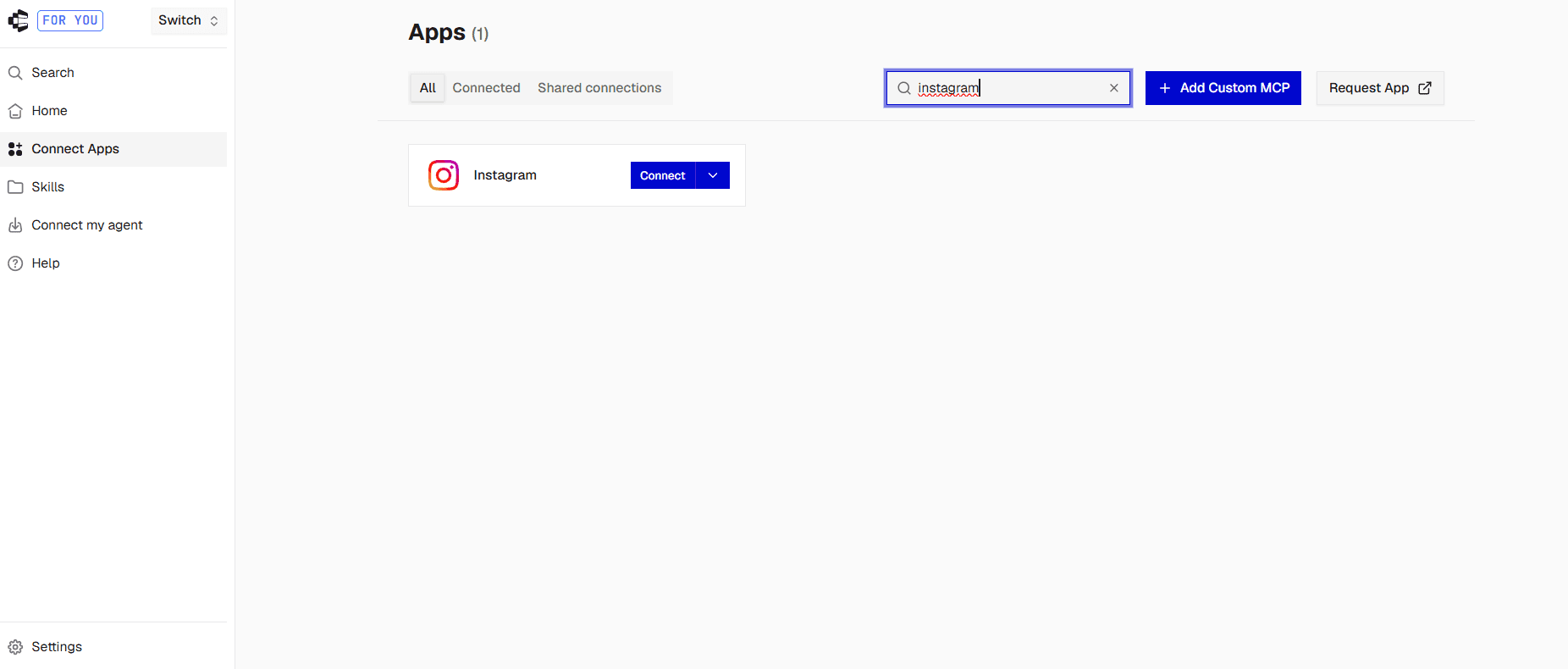
Click Connect and complete the Meta OAuth flow.
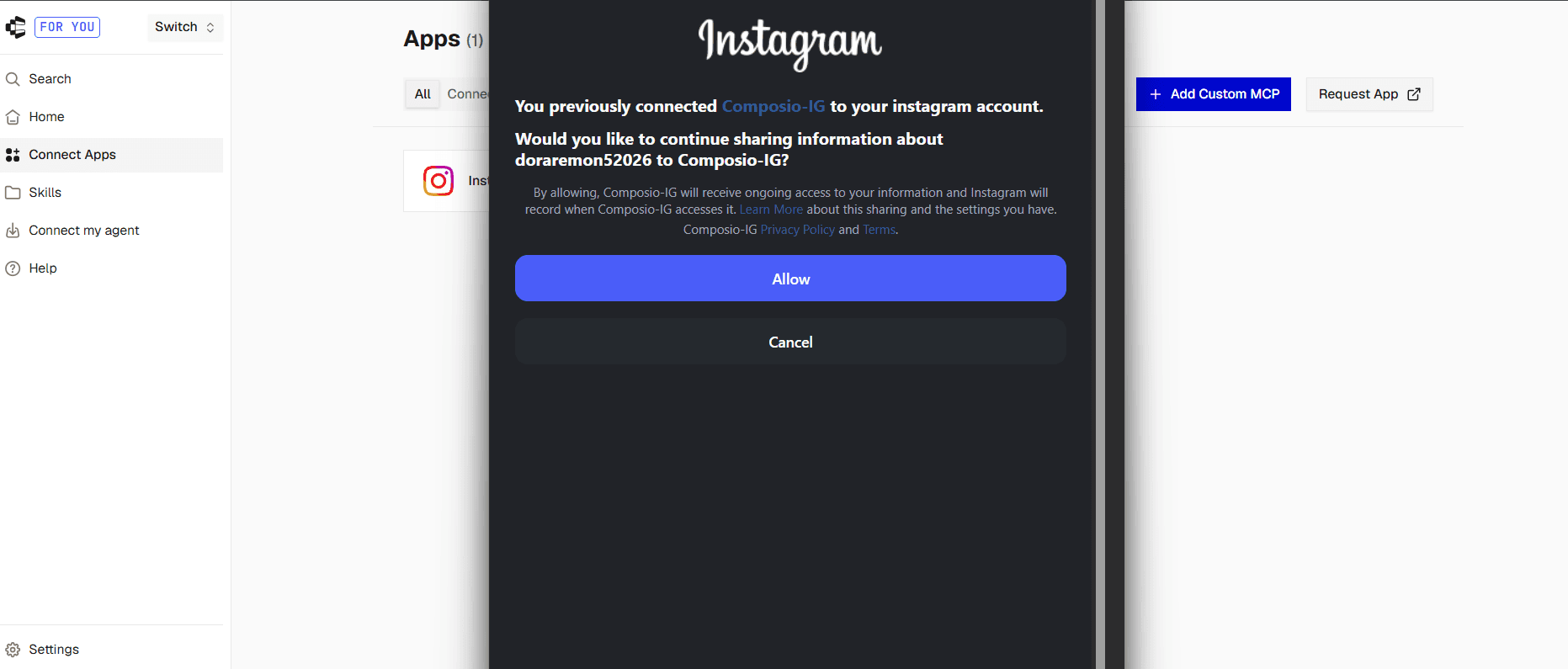
When Meta opens, select the Instagram Business or Creator account you want this connection to control.
Pay attention to the Instagram account and Facebook Page shown in the Meta picker. The account you select here is the one tied to this connection.
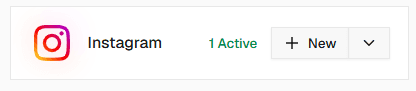
Click Connect on Instagram again for the next account.

Composio adds it as a separate connection rather than replacing the first. That behaviour is what makes this multi-account setup possible. Composio supports multiple active connections for the same toolkit.
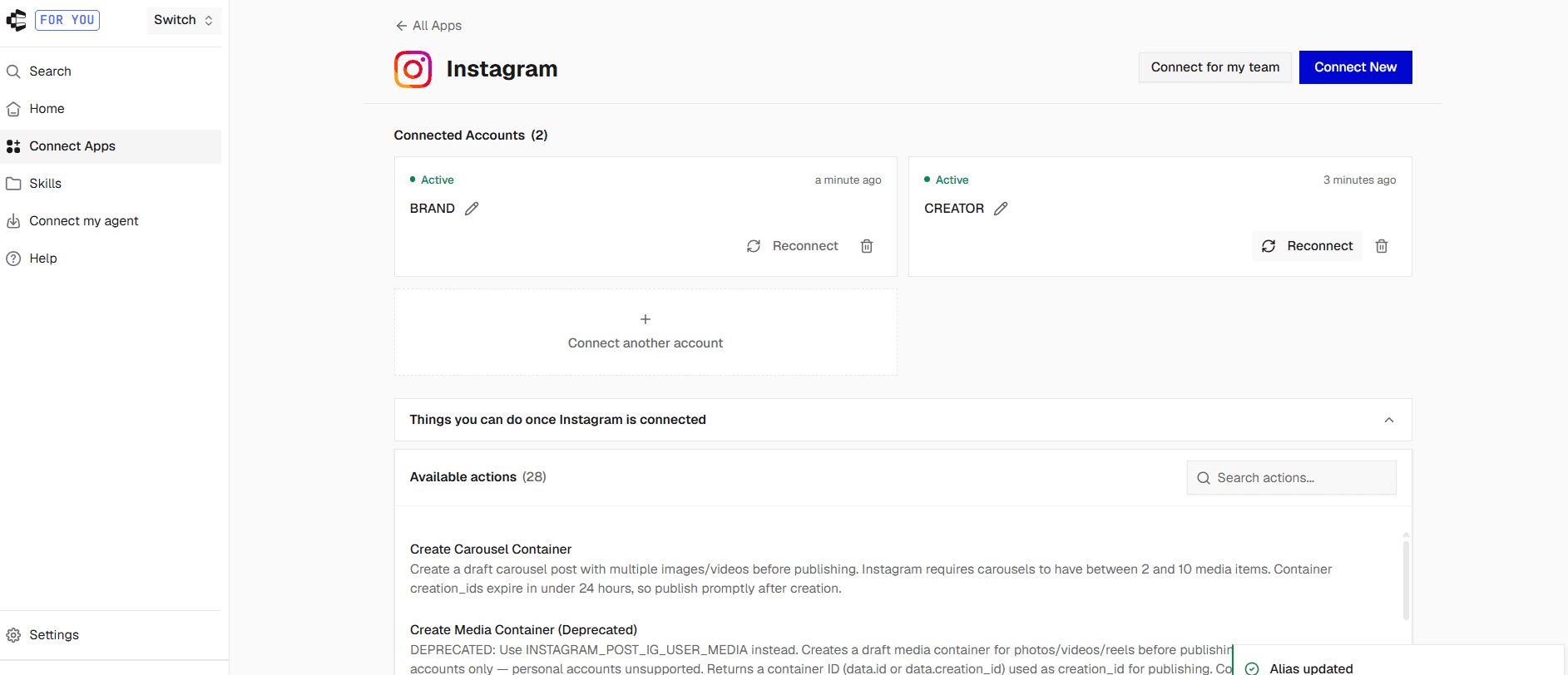
Give each connection a clear label.
For example:
BRANDCREATORSTOREclient-comp
The mental model is simple: same Instagram toolkit, several separate Instagram identities, and each one can be addressed by name.
The same private-window caveat from Step 3 applies here.
If Meta keeps showing the wrong Instagram account, sign out first or open the connection flow in a clean browser profile. Then select the intended Instagram account and Page in Meta's picker.
From this screen, you can also:
Rename a connection when
instagram-2stops being useful.
Composio aliases can be changed after the account has been connected. The alias must remain unique for that Instagram toolkit and user.
Disconnect or delete an Instagram connection you no longer want Claude using.
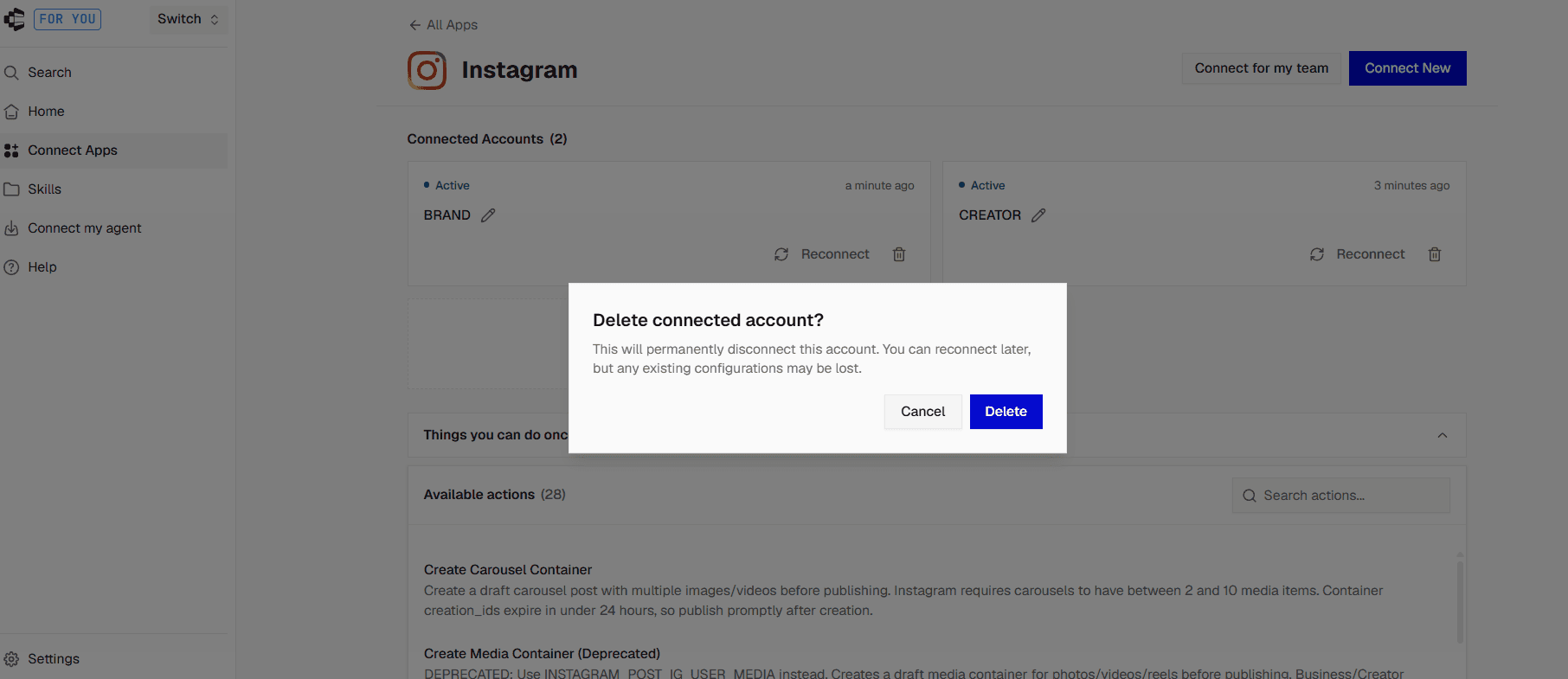
Deleting a connected account removes that connection from Composio. Deletion is permanent.
Re-authorise an Instagram account when its credentials are no longer valid.
Composio normally refreshes OAuth access tokens automatically. If the refresh token is revoked or can no longer be refreshed, the connection moves to EXPIRED , and the account needs to go through authentication again.
Important: Reconnecting is also the correct fix if you selected the wrong Instagram account during Meta login. Composio cannot repoint an existing Instagram token to another account.
Why Instagram account selection works differently
Instagram authentication goes through Meta, so two layers are involved.
First, you sign in to Meta.
Then Meta asks which Instagram account and related assets the connection can use.
The resulting Instagram OAuth token is tied to the Instagram account selected during that process. Composio cannot change the underlying Instagram identity after Meta issues the token.
So this:
Rename
brandtocreator
only changes the label.
It does not switch the underlying Instagram account.
To switch identities, create or reconnect the connection and select the correct Instagram account in Meta's picker.
Troubleshooting
Instagram says my account is unsupported
Check the account type.
Composio's Instagram toolkit currently supports Instagram Business and Creator accounts. Personal accounts are not supported.
If your account is Personal, convert it to a Business or Creator account and try the connection again.
Both connections use the same Instagram account
You probably selected the same Instagram account during both Meta authorization flows.
Remove or reconnect the incorrect connection.
Then open a fresh authorization flow and select the intended Instagram account in Meta's picker.
Composio cannot change the underlying Instagram identity of an already issued Meta token.
Meta keeps selecting the wrong account
Sign out of the existing Facebook or Meta session.
You can also use a private browser window or a clean browser profile.
Then reconnect and carefully select the correct Instagram account and Facebook Page.
If the wrong Meta authorization is already stored, you may also need to remove the existing Composio authorization from Meta's Business Integrations settings before reconnecting.
The connection says EXPIRED
Reconnect that Instagram account.
Composio normally refreshes OAuth credentials automatically. If it cannot refresh them, the connected account changes to EXPIRED and requires authentication again.
The connection link expired
Generate a new one.
A connection that stays in INITIATED without completing OAuth automatically expires after about 10 minutes.
Ask Claude:
Create a new Instagram connection link for brand.
Then complete the new Meta login flow.
Meta OAuth fails
If you are using Composio-managed authentication, use the default Instagram scopes.
Instagram uses Meta's Business Login flow, and unsupported or unverified scopes can cause OAuth errors.
If you configured your own Meta OAuth application, also check that its redirect URI matches the Composio auth configuration.
Claude cannot send an Instagram DM
Meta limits when business accounts can send replies.
For normal Instagram messaging, Meta generally requires the reply to happen inside its messaging window after a qualifying user interaction. Composio's current Instagram guide notes a 24-hour window for supported reply flows.
A like, follow, or ordinary comment does not necessarily open that messaging window.
Claude cannot reply to a comment
First, check that Claude is using the correct Instagram connection.
Then check that the media ID and comment belong to the selected Instagram account.
Composio notes that comment actions can fail when an incorrect Instagram media ID is passed, even when authentication works.
Claude used the wrong Instagram account
Repeat the request and explicitly name the connection.
For example:
Use brand for this Instagram action. Do not use creator or client-comp.
Adding the account mapping from the earlier section also makes selection more reliable.
What this costs, honestly
For most personal or small-team setups, the free Composio plan is enough to start.
The current Free plan includes 100,000 tool calls per month, 50,000 trigger events, and no credit card requirement.
Composio-managed apps use part of that same allowance. Up to 20,000 of the 100,000 free monthly tool calls can currently run through Composio-managed apps.
For a normal setup with a few Instagram accounts, that gives you plenty of room to test the workflow before paying for higher usage.
Is this safe?
Composio becomes another service that can perform the Instagram actions you authorize, so review Meta's permission screen before connecting an account.
You authenticate through Meta's OAuth flow instead of giving Claude your Instagram password.
Each authorization becomes its own connected account in Composio, with the credentials associated with that specific connection.
For public actions such as publishing, replying to comments, or sending messages, I would keep an approval step in the prompt.
Ask Claude to prepare the action first.
Then tell it to execute only after you have checked the final result.
FAQ
Can Claude use multiple Instagram accounts?
Yes.
Composio supports multiple connected accounts for the same toolkit and aliases that let Claude select a specific connection.
Can I connect a personal Instagram account?
No, not with the current Composio Instagram toolkit.
It supports Instagram Business and Creator accounts.
Why does Instagram ask me to sign in through Meta?
Instagram's supported business APIs use Meta's authentication system.
During that flow, you select which Instagram account and related assets the connection can access.
Can I rename an Instagram connection?
Yes.
Composio supports human-readable aliases for connected accounts, and you can update those aliases later.
Renaming only changes the Composio label. It does not change the Instagram account tied to the Meta OAuth token.
Can Claude read Instagram comments?
Yes.
The current toolkit includes tools for retrieving Instagram media comments and comment replies.
Can Claude reply to Instagram comments?
Yes.
The toolkit includes actions for posting Instagram comment replies and media comments.
Can Claude read Instagram insights?
Yes.
The current toolkit includes both media insights and user insights.
Can Claude publish to Instagram?
Yes.
The current Instagram toolkit includes actions to create and publish Instagram media.
Can Claude read Instagram DMs?
The toolkit includes tools for Instagram conversations and messages.
Some messaging actions are still subject to Meta's messaging rules and reply windows.
Do I need to create a Meta developer app?
Not for this setup.
Composio provides managed OAuth for the Instagram toolkit.
You only need your own Meta application if you later want to manage your own OAuth credentials or scopes.
How many Instagram accounts can I connect?
Composio's multi-account mode defaults to a maximum of five accounts per toolkit and can be configured from two to ten.
For most personal, creator, and small-team setups, that is enough.
Do I need another Claude connector for each Instagram account?
No.
Add Composio to Claude once.
Then connect the individual Instagram accounts behind the same Composio connector.
Can I connect Gmail, Outlook, LinkedIn, and Instagram through the same connector?
Yes.
Composio acts as the connector layer, so you can authorise additional supported toolkits without adding another Claude MCP connector for every app.

 Get started