How to integrate V0 MCP with OpenCode

Trusted by
AWS
Glean
Zoom
Airtable

30 min · no commitment · see it on your stack

V0 logo
OpenCode logo
divider

How to integrate V0 MCP with OpenCode

This guide explains how to connect V0 MCP to OpenCode using Composio Connect, which simplifies OAuth, API changes, and reliability concerns.

There are two ways to set this up:

Also integrate V0 with

Why use Composio?

Composio provides a single MCP server or CLI tool that exposes a set of meta-tools, allowing you to:

  • Connect to 1,000+ apps with on-demand tool loading, so you do not fill your LLM context window with unnecessary tool definitions.
  • Use programmatic tool calling through a remote Bash tool, letting LLMs write their own code to handle complex tool chaining. This reduces back-and-forth for frequent tool calls.
  • Handle large tool responses outside the LLM context to keep conversations lean.

Connect V0 with OpenCode

Option 1: Using Composio CLI

1. Install Composio CLI

Install the Composio CLI, authenticate, and initialize your project:

bash
# Install the Composio CLI
curl -fsSL https://composio.dev/install | bash

# Authenticate with Composio
composio login

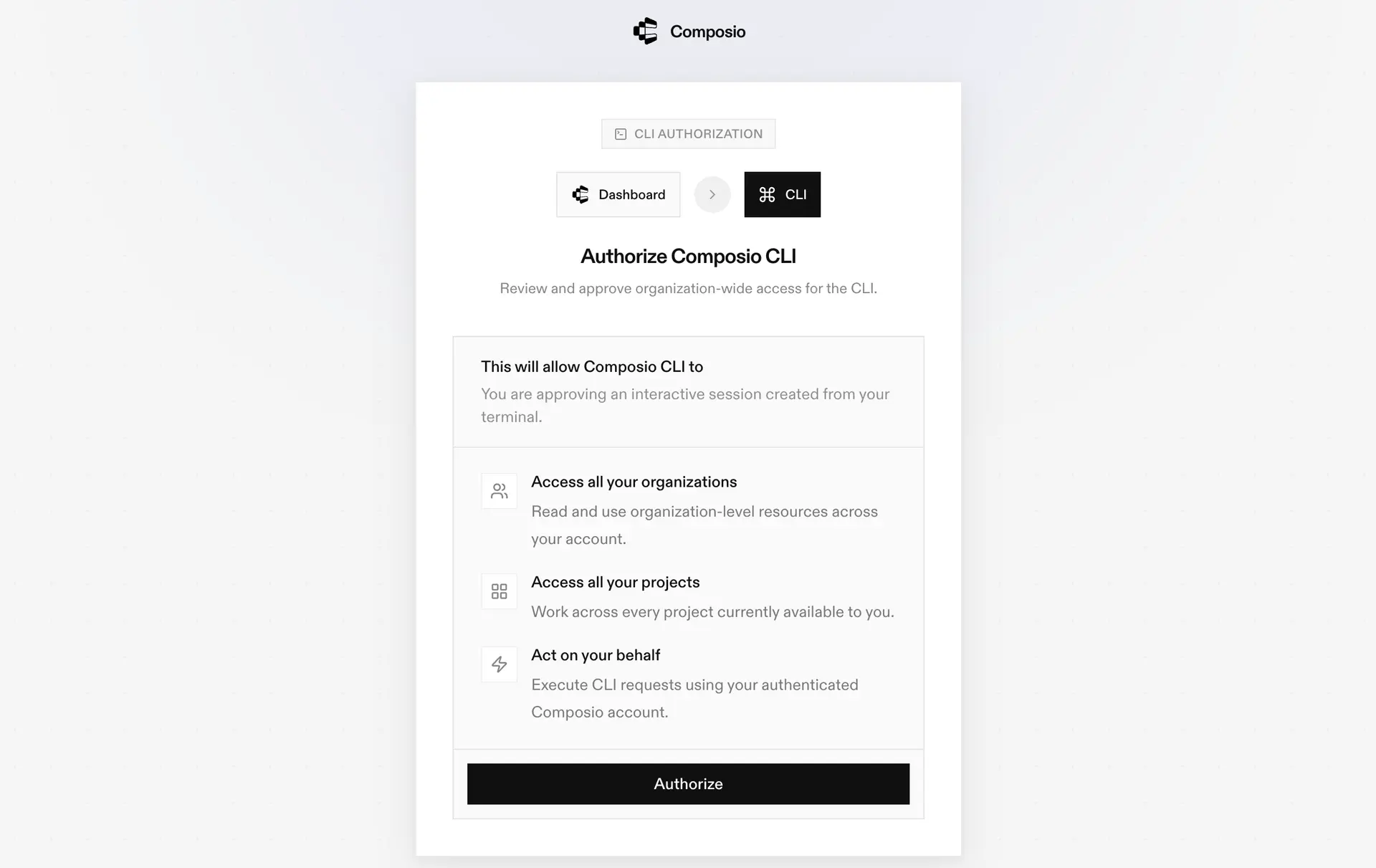
During login, you will be redirected to the sign-in page. Finish the flow and you are all set.

Composio CLI authorization screen

2. Authorize V0

Once the CLI is installed, it is essentially done. Give OpenCode access to your apps with these steps:

  1. Launch OpenCode.
  2. Prompt it to "Authenticate with V0 Composio".
  3. Complete the authentication and authorization flow, and your V0 integration is all set.
  4. Start asking anything you want.

Option 2: Using Composio MCP

You can also connect V0 to OpenCode by adding Composio as an MCP server through the OpenCode CLI.

1. Add the Composio MCP server

bash
opencode mcp add

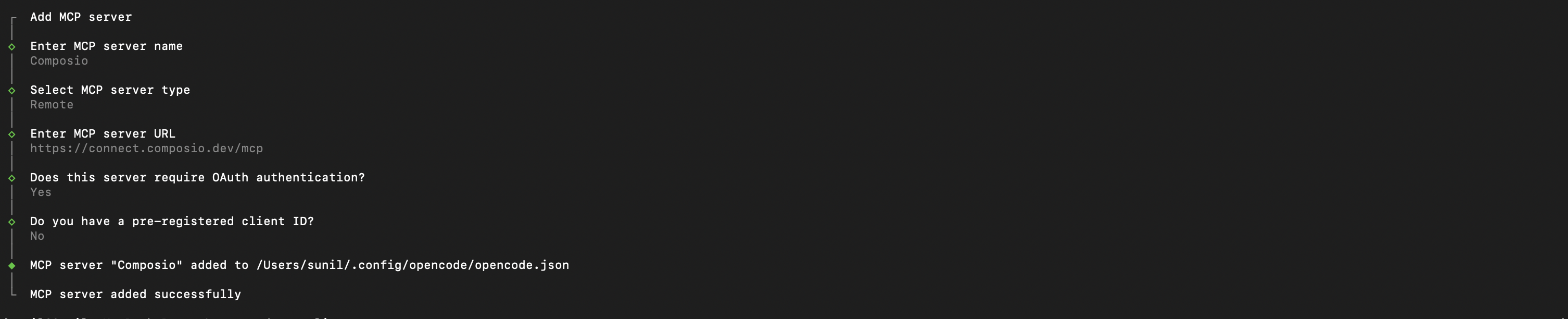
This launches an interactive prompt.

2. Fill in the fields

FieldValue
Namecomposio
Typeremote
URLhttps://connect.composio.dev/mcp
Require OAuthYes
Have client IDNo
OpenCode MCP server interactive prompt for Composio

Alternatively, you can skip the interactive prompt and paste the configuration directly into your OpenCode config file.

Open your global OpenCode config:

bash
open ~/.config/opencode/opencode.json

Add this under the mcp key and save the file.

bash
{
  "mcp": {
    "composio": {
      "type": "remote",
      "url": "https://connect.composio.dev/mcp",
      "enabled": true
    }
  }
}

3. Authenticate

Authenticate the Composio MCP server you just added:

bash
opencode mcp auth composio

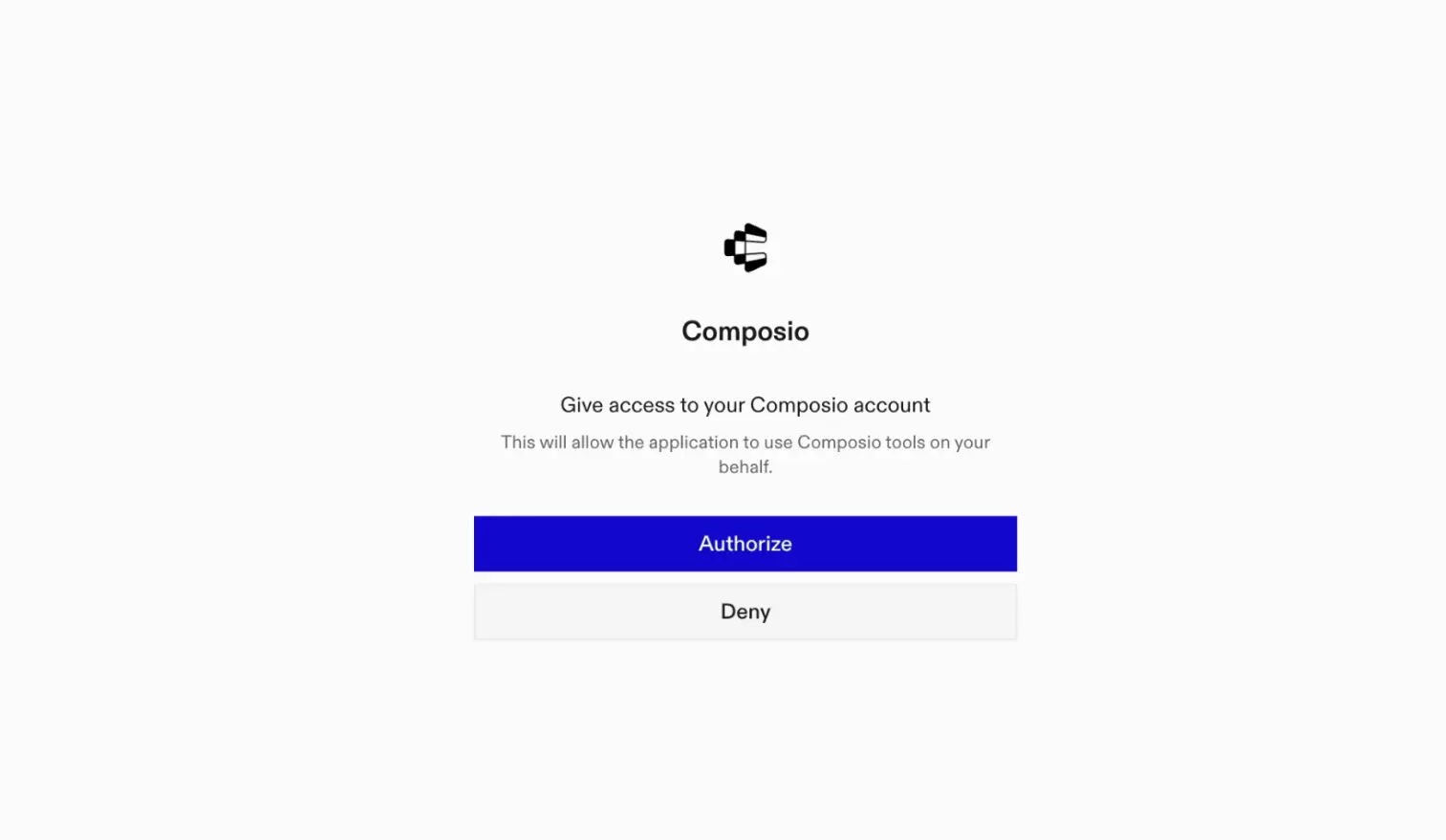
This opens a browser session. Authorize Composio and you are done.

Composio browser authorization for OpenCode MCP

4. Verify installation

bash
opencode mcp list

5. Connect V0 with OpenCode

Now, in the chat, ask the agent to connect to V0 or give it any V0-related task.

For example, ask it to:

  • "Generate React code for a login page"
  • "List all your active V0 projects"
  • "Summarize our last five chat sessions"

It will prompt you to authenticate and authorize access to V0.

That is it. Composio tools are now available in OpenCode, and your V0 account is ready to use.

Supported Tools & Triggers

Tools
Assign Chat To ProjectTool to assign a chat to a project.
V0 Chat CompletionsTool to generate a chat model response given a list of messages.
Create WebhookTool to create a new webhook subscription for receiving event notifications.
Create V0 ProjectTool to create a new v0 project container for chats and code generation.
Create Project Environment VariablesTool to create new environment variables for a v0 project.
Create Vercel ProjectTool to link a Vercel project to an existing v0 project.
Delete ChatTool to permanently delete a specific chat by ID.
Delete DeploymentTool to delete a deployment by ID from Vercel.
Delete HookTool to delete a webhook by its ID.
Delete Project Environment VariablesTool to delete multiple environment variables from a project by their IDs.
Delete V0 ProjectTool to permanently delete a v0 project by its ID.
Deploy ProjectTool to deploy a specific v0 chat version to Vercel.
Download Chat VersionTool to download all files for a specific chat version as a zip or tarball archive.
Export Project CodeTool to export a deployable snapshot of a v0 chat version by retrieving all files (including default/deployment files).
Favorite ChatTool to mark a chat as favorite or remove the favorite status.
Find ChatsTool to retrieve a list of chats.
Find ProjectsTool to retrieve a list of projects associated with the authenticated user.
Find Vercel ProjectsTool to retrieve a list of Vercel projects linked to the user's v0 workspace.
Fork ChatTool to create a fork (copy) of an existing chat.
Get ChatTool to retrieve the full details of a specific chat using its chatId.
Get Chat ProjectTool to retrieve the v0 project associated with a given chat.
Get Deployment ErrorsTool to retrieve errors for a specific deployment.
Get Deployment LogsTool to retrieve logs for a specific deployment.
Get HookTool to retrieve detailed information about a specific webhook by its ID.
Get Chat MessageTool to retrieve detailed information about a specific message within a chat.
Get Project by IDTool to retrieve the details of a specific v0 project by its ID, including associated chats and metadata.
Get Project Environment VariableTool to retrieve a specific environment variable for a given project by its ID, including its value.
Get Rate LimitsTool to retrieve the current rate limits for the authenticated user.
Get Usage ReportTool to retrieve detailed usage events including costs, models used, and metadata.
Get UserTool to retrieve the currently authenticated user's information.
Get User BillingTool to fetch billing usage and quota information for the authenticated user.
Get User PlanTool to retrieve the authenticated user's subscription plan details including billing cycle and balance.
Get User ScopesTool to retrieve all accessible scopes for the authenticated user, such as personal workspaces or shared teams.
Initialize ChatTool to initialize a new chat from source content such as files, repositories, registries, zip archives, or templates.
List Chat VersionsTool to retrieve all versions (iterations) for a specific chat, ordered by creation date (newest first).
List DeploymentsTool to retrieve a list of deployments for a given project, chat, and version.
List HooksTool to retrieve all webhooks tied to chat events or deployments.
List MessagesTool to retrieve all messages within a specific chat.
List Project Environment VariablesTool to retrieve all environment variables for a project with optional decryption.
Update ChatTool to update metadata of an existing v0 chat.
Update Chat Version FilesTool to update source files of a specific chat version.
Update V0 WebhookTool to update the configuration of an existing webhook, including its name, event subscriptions, or target URL.
Update V0 ProjectTool to update the metadata of an existing v0 project using its projectId.
Update Project Environment VariablesTool to update environment variables for a v0 project.

Way Forward

Now that V0 is connected, extend your setup by connecting the other apps you already use every day, so your agent can run true cross-app workflows end to end.

  • Connect Calendar to turn threads into scheduled meetings automatically.
  • Connect Slack or Teams to post summaries, approvals, and alerts where your team works.
  • Connect Notion, Linear, Jira, or Asana to convert requests into tickets, tasks, and docs.
  • Connect Drive, Dropbox, or OneDrive to fetch, file, and share attachments without manual steps.

Start with one workflow you do repeatedly, then keep adding apps as you find new handoffs. With everything behind a single MCP endpoint, your agent can coordinate multiple tools safely and reliably in one conversation.

How to build V0 MCP Agent with another framework

FAQ

What are the differences in Tool Router MCP and V0 MCP?

With a standalone V0 MCP server, the agents and LLMs can only access a fixed set of V0 tools tied to that server. However, with the Composio Tool Router, agents can dynamically load tools from V0 and many other apps based on the task at hand, all through a single MCP endpoint.

Can I use Tool Router MCP with OpenCode?

Yes, you can. OpenCode fully supports MCP integration. You get structured tool calling, message history handling, and model orchestration while Tool Router takes care of discovering and serving the right V0 tools.

Can I manage the permissions and scopes for V0 while using Tool Router?

Yes, absolutely. You can configure which V0 scopes and actions are allowed when connecting your account to Composio. You can also bring your own OAuth credentials or API configuration so you keep full control over what the agent can do.

How safe is my data with Composio Tool Router?

All sensitive data such as tokens, keys, and configuration is fully encrypted at rest and in transit. Composio is SOC 2 Type 2 compliant and follows strict security practices so your V0 data and credentials are handled as safely as possible.

Used by agents from

Context
Letta
glean
HubSpot
Agent.ai
Altera
DataStax
Entelligence
Rolai
Context
Letta
glean
HubSpot
Agent.ai
Altera
DataStax
Entelligence
Rolai
Context
Letta
glean
HubSpot
Agent.ai
Altera
DataStax
Entelligence
Rolai

Never worry about agent reliability

We handle tool reliability, observability, and security so you never have to second-guess an agent action.