Connecting Trivago to Grok Bot
Once Grok Bot is set up, you connect Trivago entirely from its interface, and the whole flow takes under a minute.
Set up Grok Bot
Get access. Grok Bot is included with Cursor Ultra, Cursor Premium Teams, and SuperGrok Heavy. Get the desktop app for macOS or Windows from x.ai/bot and sign in. An iPhone companion app is also available, and your bots sync across devices.
Create a bot. Pick a suggested role or define your own, then give it a short name, one primary job, and a short description of how it should work. Focused bots work best, because a clear role gives the bot more useful context over time.
Connect Trivago
1. Add the Composio plugin
Click the button. The Composio listing on x.ai opens and launches Grok Bot for you. If the app does not open on its own, click Add to Grok Bot.
 Add to Grok Bot
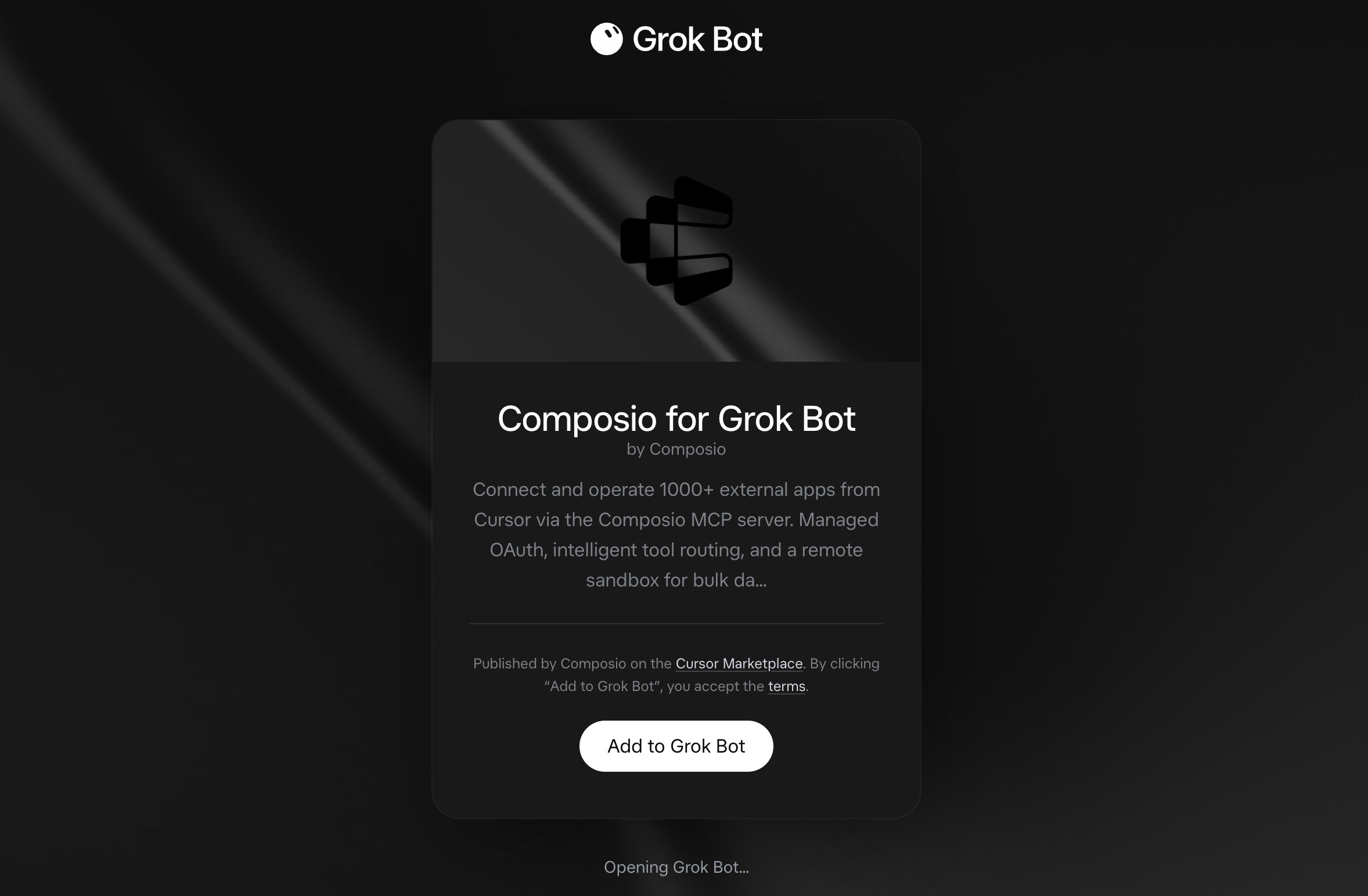
Grok Bot opens the Composio plugin, showing its connector and skills. Click Add.
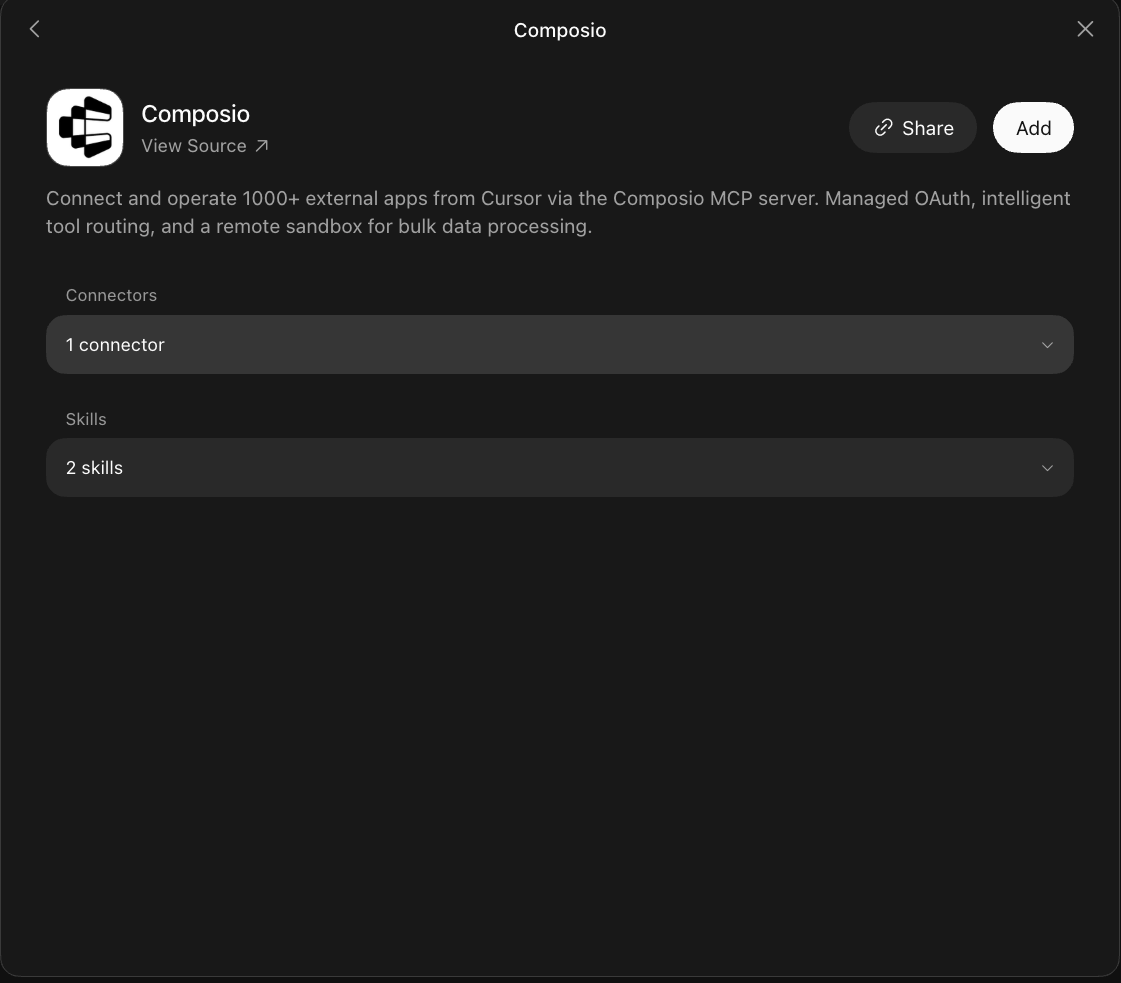
2. Authenticate
Go to the Installed section and click the Composio entry. You'll see its connector and skills listed.
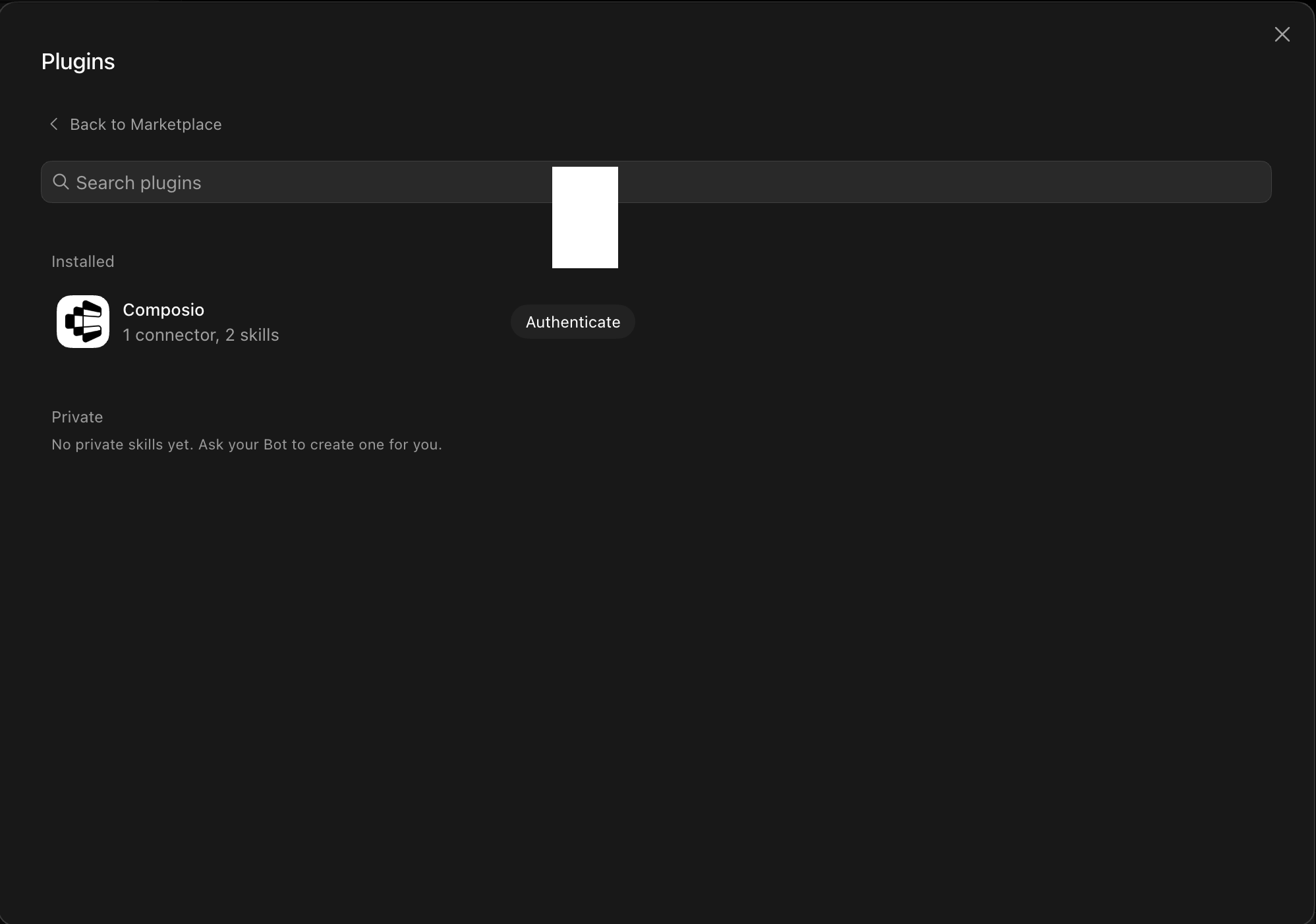
Click Authenticate. You'll be taken to the Composio consent screen. Review the access it requests and click Authorize. Composio handles the OAuth handshake for you, so you never touch API keys or tokens.
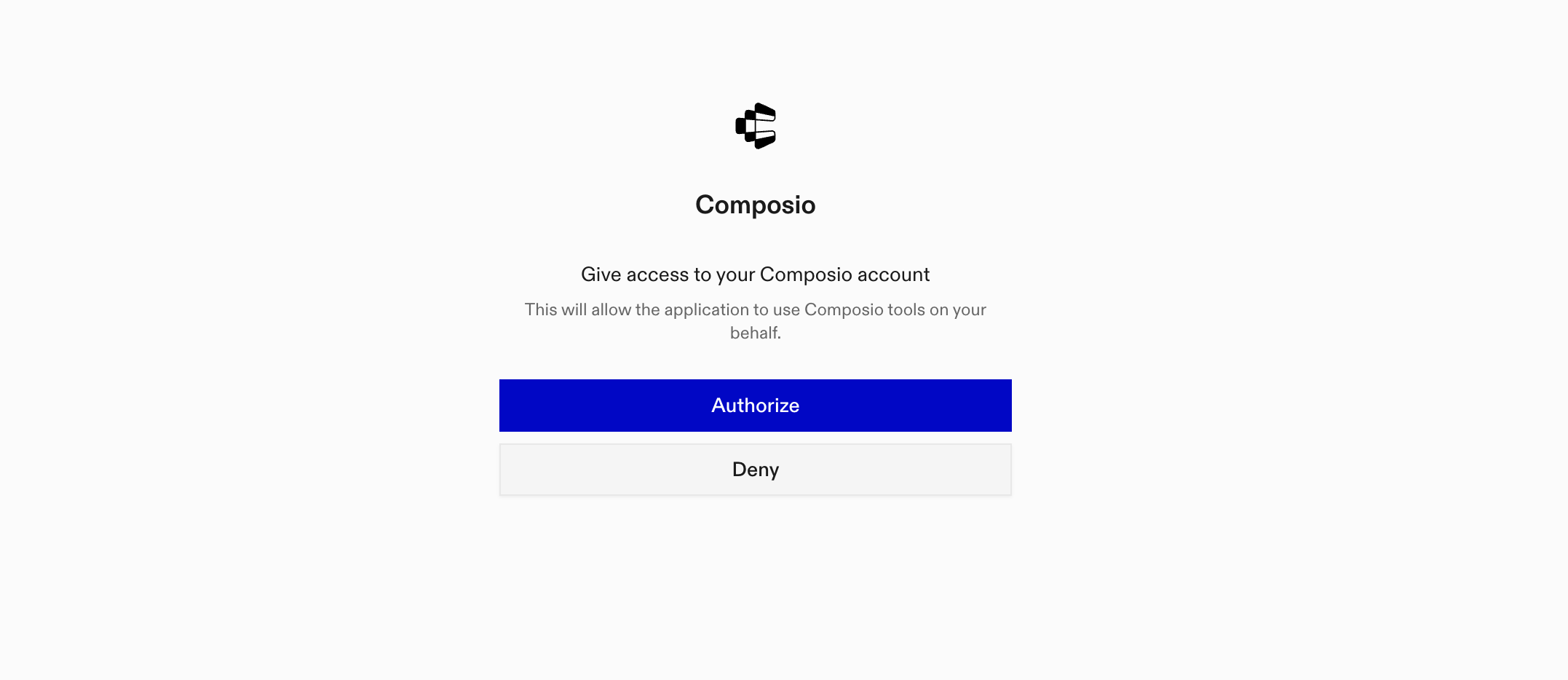
3. Connect your Trivago account
Back in the chat, ask your bot to connect to Trivago or give it any Trivago task.
For example, ask it to:
- "Find budget hotels in Paris tonight"
- "Compare beach resorts in Cancun"
- "Search family stays near Disneyland"
It will prompt you to authenticate and authorize access.
That's it. Composio's tools are now available in your Grok bot, and your Trivago account is ready to use.