How to connect Radar to Claude Cowork

Trusted by teams atAWSGleanZoomAirtable

30 min · no commitment · see it on your stack

Radar logo
Claude Cowork logo
divider

Introduction

Cowork is Anthropic's AI agent for knowledge work. Think of it as Claude Code for everything else. It works autonomously with your computer, local files, and applications to accomplish complex tasks.

This guide walks you through the easiest and most secure way to connect your Radar account to Cowork via Composio Connect, enabling it to autocomplete address based on partial input, get users currently inside geofence, convert address to latitude and longitude, and more such actions on your behalf without compromising your account security.

Also integrate Radar with

Connecting Radar to Claude Cowork

1. Open Customize

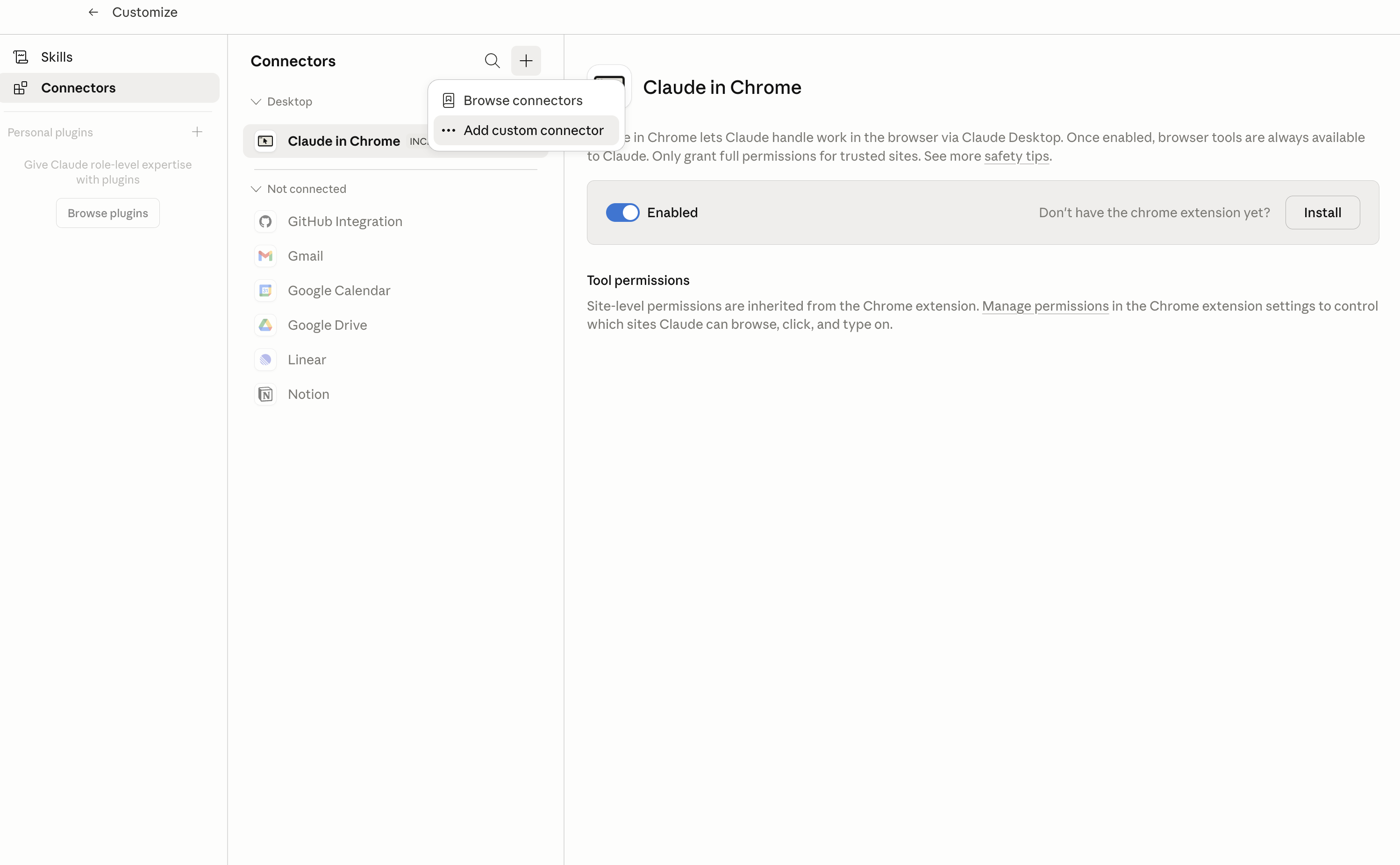
In Claude Desktop, click Customize in the left sidebar, then select Connectors and click the + icon at the top.

Claude Desktop connectors screen with Add custom connector selected

2. Add the Composio MCP server

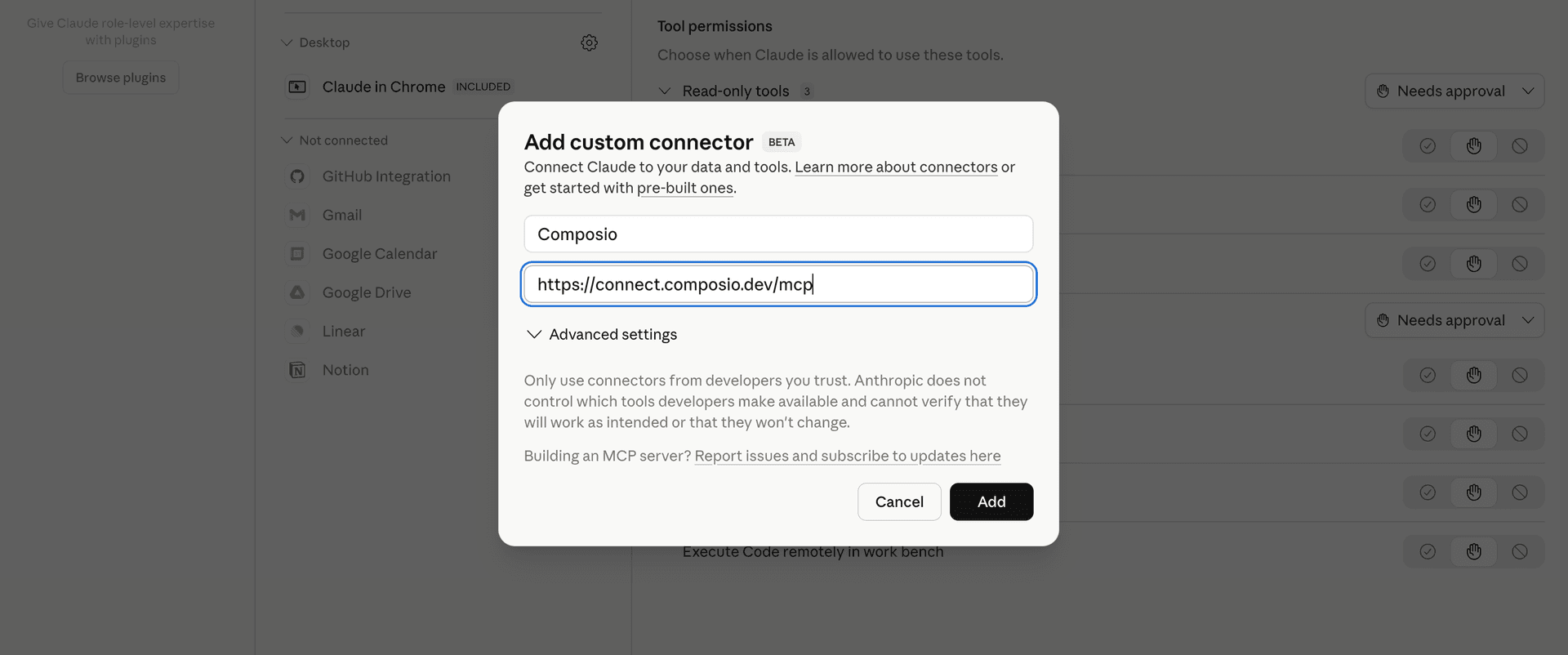
Click Add custom connector and paste in the Composio MCP server URL:

bash
https://connect.composio.dev/mcp
Add custom connector dialog with Composio MCP server URL

3. Authorize in your browser

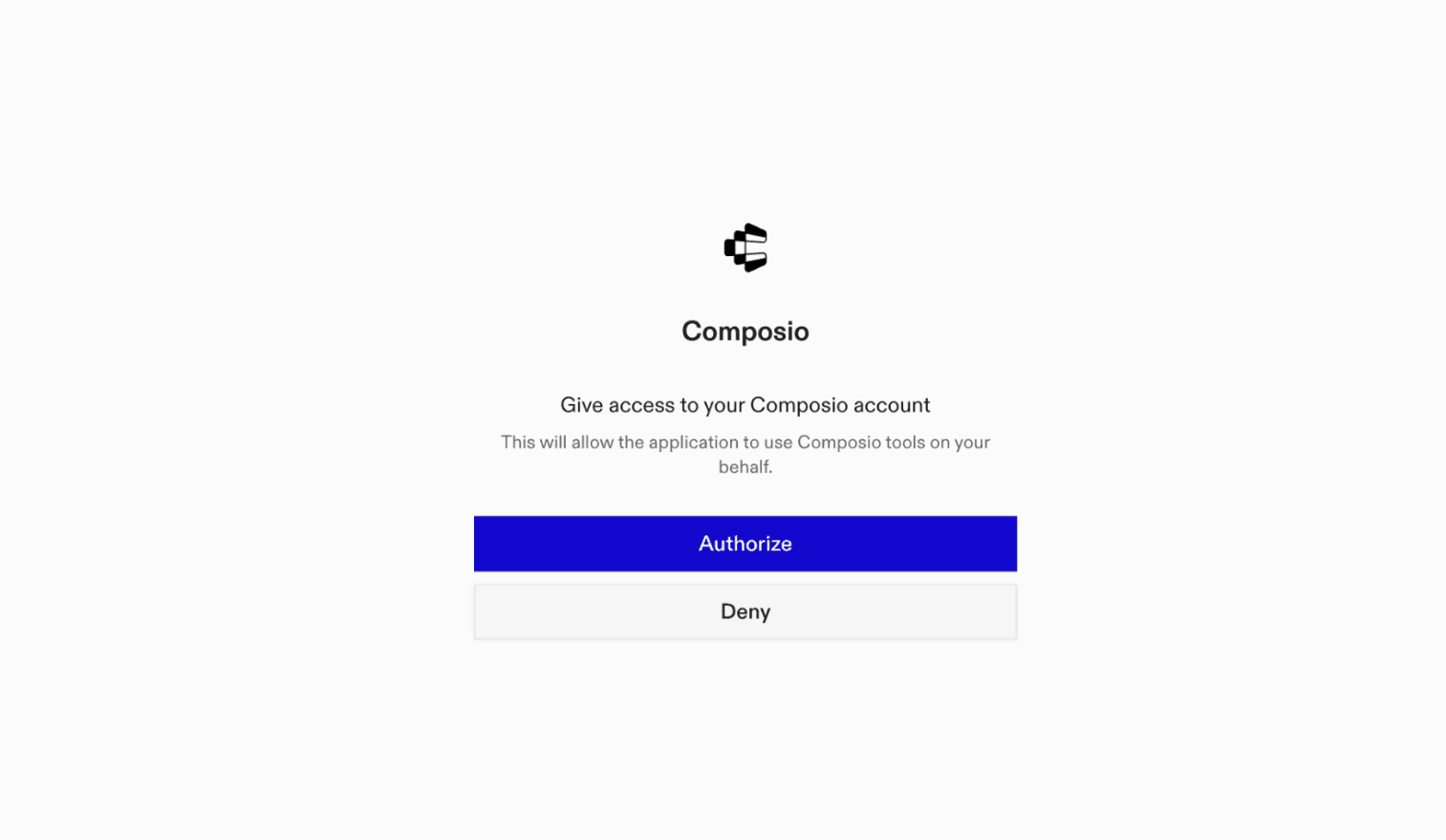
Click Connect. You'll be redirected to a browser window where you can authorize Composio to continue.

Composio authorization screen for Claude Cowork

4. Connect your Radar account

Back in Cowork, ask the agent to connect to Radar or give it any Radar-related task.

For example, ask Cowork to:

  • "Autocomplete address based on partial input"
  • "Get users currently inside geofence"
  • "Convert address to latitude and longitude"

It will prompt you to authenticate and authorize access.

That's it. Composio's tools are now available in Cowork, and your Radar account is ready to use.

What is Claude Cowork?

Claude Cowork is Anthropic's agent for general knowledge work. It can use your computer, files, and connected applications to complete longer-running tasks across your work tools.

With Composio Connect, Cowork can securely access apps like Radar through MCP without you sharing account credentials directly with the agent.

What is the Radar MCP server, and what's possible with it?

The Radar MCP server is an implementation of the Model Context Protocol that connects your AI agent and assistants like Claude, Cursor, etc directly to your Radar account. It provides structured and secure access to advanced location services, so your agent can perform actions like geocoding addresses, managing geofences, tracking trips, searching places, and retrieving location context on your behalf.

  • Address and place autocomplete: Instantly get relevant address or place suggestions based on partial user input, improving data quality and user experience.
  • Precise geocoding and location context: Convert full addresses to latitude/longitude and fetch rich context—including region, geofence, and place details—for any set of coordinates.
  • Geofence management: Retrieve, create, or delete geofences to define dynamic boundaries and monitor activity within specific areas automatically.
  • Trip creation and tracking: Start, fetch, or delete trips to enable real-time location tracking and trip management for devices or users.
  • Live user monitoring in geofences: Effortlessly list all users currently inside a defined geofence, supporting presence-based automation and analytics.

Supported Tools & Triggers

Tools
Autocomplete Address or PlaceTool to autocomplete partial addresses and place names based on relevance and proximity.
Create TripTool to create a new trip.
Delete GeofenceTool to delete a geofence by id.
Delete TripTool to delete a trip by its radar id or external id.
Forward GeocodeTool to convert an address into geographic coordinates.
Get Context for LocationTool to retrieve context for a given location.
Get GeofenceTool to retrieve a geofence by radar id or tag/externalid.
Get Places SettingsTool to retrieve current places settings for your radar project.
Get TripTool to retrieve a trip by id or externalid.
Get Users in GeofenceTool to retrieve users currently within a specific geofence.
IP GeocodeTool to geocode an ip address to city, state, and country.
List BeaconsTool to list all beacons sorted by creation date.
List EventsTool to list events.
List GeofencesTool to list all geofences sorted by updated time.
List TripsTool to list all trips, sorted by updated time.
List UsersTool to list radar users sorted by update time.
Reverse GeocodeTool to convert geographic coordinates to structured addresses.
Route DistanceTool to compute distance and travel time between origins and destinations.
Search GeofencesTool to search for geofences near a given location.
Search Places Near LocationTool to search for places near given coordinates.
Search Users Near LocationTool to search for users near a location.
Track Location UpdateTool to track a user's location update.
Update TripTool to update a trip.
Upsert GeofenceTool to create or update a geofence by tag and externalid.

How to build Radar MCP Agent with another framework

FAQ

What are the differences in Tool Router MCP and Radar MCP?

With a standalone Radar MCP server, the agents and LLMs can only access a fixed set of Radar tools tied to that server. However, with the Composio Tool Router, agents can dynamically load tools from Radar and many other apps based on the task at hand, all through a single MCP endpoint.

Can I use Tool Router MCP with Claude Cowork?

Yes, you can. Claude Cowork fully supports MCP integration. You get structured tool calling, message history handling, and model orchestration while Tool Router takes care of discovering and serving the right Radar tools.

Can I manage the permissions and scopes for Radar while using Tool Router?

Yes, absolutely. You can configure which Radar scopes and actions are allowed when connecting your account to Composio. You can also bring your own OAuth credentials or API configuration so you keep full control over what the agent can do.

How safe is my data with Composio Tool Router?

All sensitive data such as tokens, keys, and configuration is fully encrypted at rest and in transit. Composio is SOC 2 Type 2 compliant and follows strict security practices so your Radar data and credentials are handled as safely as possible.

Used by agents from

Context
Letta
glean
HubSpot
Agent.ai
Altera
DataStax
Entelligence
Rolai
Context
Letta
glean
HubSpot
Agent.ai
Altera
DataStax
Entelligence
Rolai
Context
Letta
glean
HubSpot
Agent.ai
Altera
DataStax
Entelligence
Rolai

Never worry about agent reliability

We handle tool reliability, observability, and security so you never have to second-guess an agent action.