

How to connect Google Slides MCP with Cursor

How to integrate Google Slides MCP with Cursor Cursor is one of the leading AI-powered code editors. It is built to help developers write, understand, and refactor code faster with AI assistance built directly into the editor. And in this guide, I will explain the easiest and most secure way to connect your Google Slides account to Cursor via Composio Connect, so it can turn this meeting summary into slides, add a new slide with project milestones, update presentation with these markdown notes, and more without ever putting your account credentials at risk.
Google Slides logoGoogle Slides
Oauth2

Google Slides is a cloud-based presentation editor with real-time collaboration and a template gallery. It helps teams create, edit, and share polished presentations from anywhere.

7 Tools1 Triggers

How to integrate Google Slides MCP with Cursor

Cursor is one of the leading AI-powered code editors. It is built to help developers write, understand, and refactor code faster with AI assistance built directly into the editor.

And in this guide, I will explain the easiest and most secure way to connect your Google Slides account to Cursor via Composio Connect, so it can turn this meeting summary into slides, add a new slide with project milestones, update presentation with these markdown notes, and more without ever putting your account credentials at risk.

Also integrate Google Slides with

Why Composio?

  • 1,000+ SaaS toolkits out of the box. Skip the work of building and maintaining integrations, Composio gives you instant access to a vast catalog of pre-built connectors.
  • One MCP server for every app. Connect any of your applications on demand through a single endpoint, rather than juggling a separate server for each app.
  • Smart, context-aware tool loading. Unlike traditional MCP servers that dump every available tool into the LLM context window, Composio searches for and loads only the tools relevant to the task at hand. A remote CLI workbench lets LLMs compose these tools into workflows for complex automation.

Connect Google Slides to Cursor

Two ways to install — pick whichever you prefer.

1. Install with one click

Click the button below to add Composio to Cursor.

Install in Cursor

2. Or add manually

Add to your Cursor mcp.json

Open .cursor/mcp.json in your project root (or ~/.cursor/mcp.json for global config) and add the following configuration:

bash
{
  "servers": {
    "composio": {
      "type": "http",
      "url": "https://connect.composio.dev/mcp"
    }
  }
}

3. Authorize

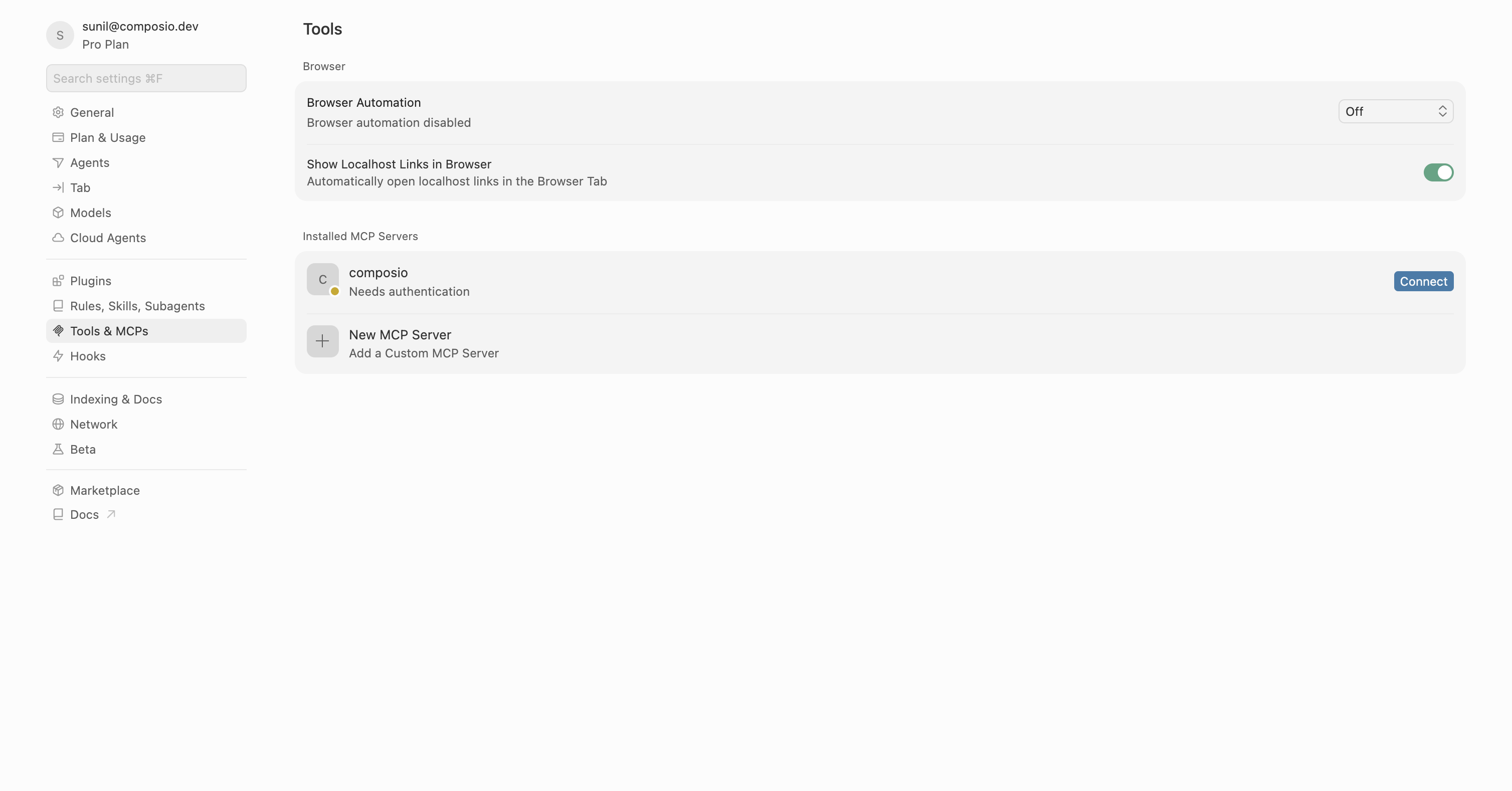
Restart Cursor, then click "Connect" next to Composio in MCP Tools settings.

Cursor MCP Tools settings with Connect button next to Composio

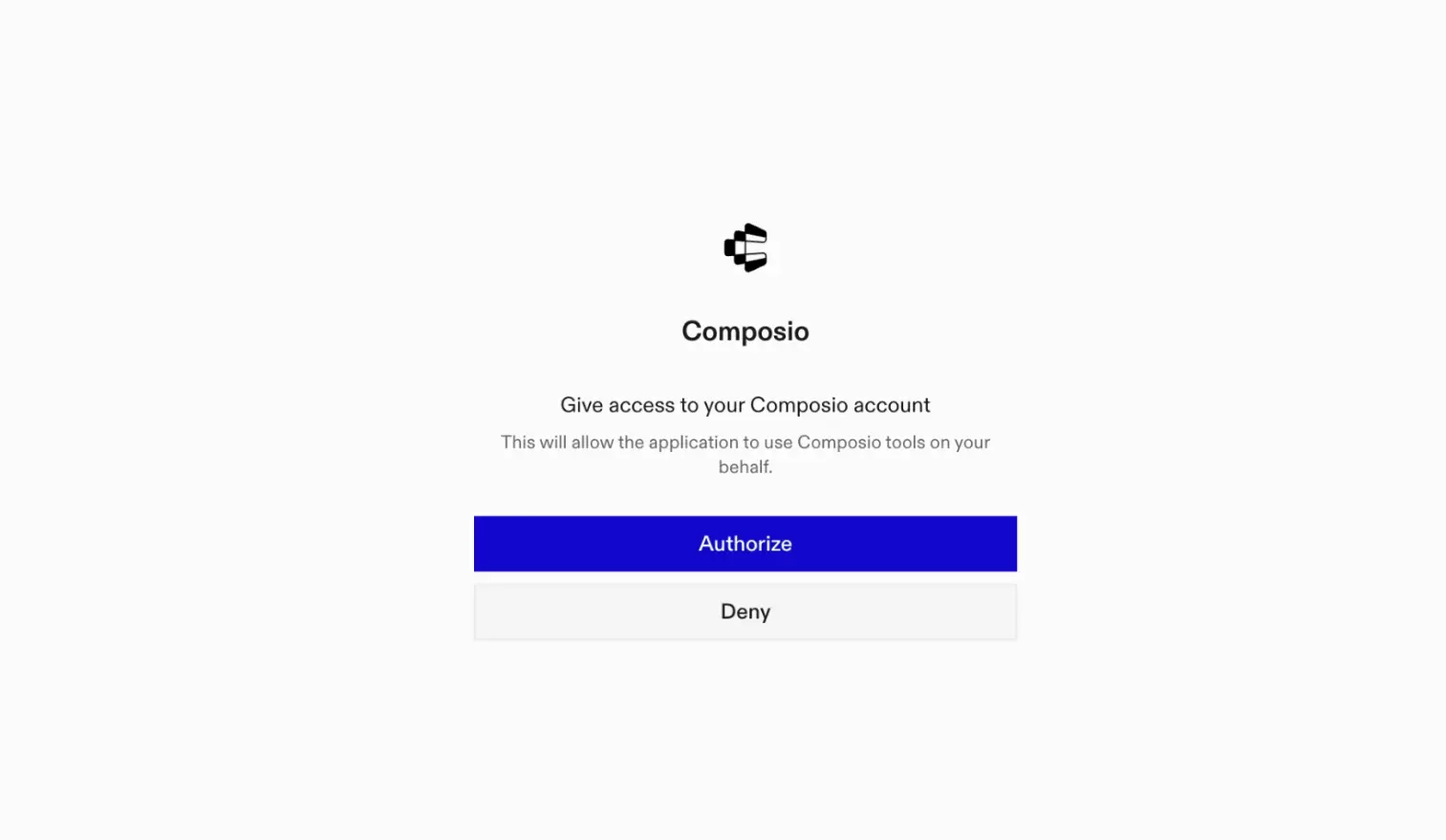
A browser window will open to authorize.

Composio authorization browser window

Connect your Google Slides account

Back in Cursor, ask the agent to connect to Google Slides or give it any Google Slides-related task.

For example, ask it to:

  • "Turn this meeting summary into slides"
  • "Add a new slide with project milestones"
  • "Update presentation with these markdown notes"

It will prompt you to authenticate and authorize access to Google Slides.

That is it. Composio tools are now available in Cursor, and your Google Slides account is ready to use.

Conclusion

You have successfully connected Google Slides to Cursor using Composio Connect. Your agent can now use Google Slides securely without exposing credentials in prompts or local scripts.

TOOLS & TRIGGERS

Supported Tools and Triggers

Every Google Slides action and event your agent gets out of the box.

Create Google Slides Presentation

Tool to create a blank Google Slides presentation.

Create Slides from Markdown

Creates a new Google Slides presentation from Markdown text.

Get Page Thumbnail v2

Tool to generate a thumbnail of the latest version of a specified page.

Update Presentation (Batch/Markdown)

Update Google Slides presentations using markdown content or raw API text.

Copy Google Slides from Template

Tool to create a new Google Slides presentation by duplicating an existing template deck via Drive file copy.

Get Presentation

Tool to retrieve the latest version of a presentation.

Get Presentation Page

Tool to get the latest version of a specific page in a presentation.

FAQ

Frequently asked questions

With a standalone Google Slides MCP server, the agents and LLMs can only access a fixed set of Google Slides tools tied to that server. However, with the Composio Tool Router, agents can dynamically load tools from Google Slides and many other apps based on the task at hand, all through a single MCP endpoint.

Yes, you can. Cursor fully supports MCP integration. You get structured tool calling, message history handling, and model orchestration while Tool Router takes care of discovering and serving the right Google Slides tools.

Yes, absolutely. You can configure which Google Slides scopes and actions are allowed when connecting your account to Composio. You can also bring your own OAuth credentials or API configuration so you keep full control over what the agent can do.

All sensitive data such as tokens, keys, and configuration is fully encrypted at rest and in transit. Composio is SOC 2 Type 2 compliant and follows strict security practices so your Google Slides data and credentials are handled as safely as possible.

Start with Google Slides.It takes 30 seconds.

Managed auth, hosted MCP servers, and every Google Slides tool your agent needs.Free to start.

Start building







